

Introduction to GameInput Redist Service on Windows 11
In the vibrant world of PC gaming, seamless and responsive input is not merely a convenience; it is the bedrock of an immersive and competitive experience. From the subtle clicks of a mouse to the complex button combinations on a modern gamepad, every interaction must be translated precisely and instantly into in-game actions. Windows 11, as the premier gaming platform, continuously evolves to meet these demanding requirements. Learn more at XInput and DirectInput APIs and the Xbox Game Development Kit input overview.
At the heart of this intricate input ecosystem lies a crucial yet often overlooked component: the GameInput Redist Service on Windows 11. This service acts as a sophisticated intermediary, ensuring that a vast array of gaming peripherals communicates flawlessly with your operating system and, by extension, your favorite titles.
This comprehensive guide aims to demystify the GameInput Redist Service for both avid gamers and curious tech enthusiasts. We will explore its purpose, operational mechanics, and why understanding it is vital for optimizing your gaming setup. Prepare to delve into the technical underpinnings that make your gaming inputs feel so natural and responsive.
Table of contents
Key Takeaways
Understanding the GameInput Redist Service can significantly enhance your Windows 11 gaming experience. Here are the core concepts you should grasp:
- The GameInput Redist Service is a fundamental Windows 11 component that unifies and optimizes input from various gaming devices.
- It represents the evolution of input APIs, building upon predecessors like DirectX and XInput to offer broader compatibility and advanced features.
- The service ensures low-latency communication between your controllers and games, crucial for competitive play and immersion.
- It facilitates support for a wide range of peripherals, from standard gamepads to specialized racing wheels and flight sticks.
- Users can monitor and manage the service’s status and resource usage through familiar Windows tools like Services.msc and Task Manager.
- Troubleshooting common issues, such as detection failures or input lag, often involves checking this service and related drivers.
- Keeping the service and associated device drivers updated is key to maintaining optimal gaming performance and security.
What is the GameInput Redist Service?
The GameInput Redist Service on Windows 11 is a core system component designed to standardize and enhance the way gaming input devices interact with the operating system and applications. Essentially, it acts as a universal translator, allowing diverse hardware to speak a common language that games can understand.
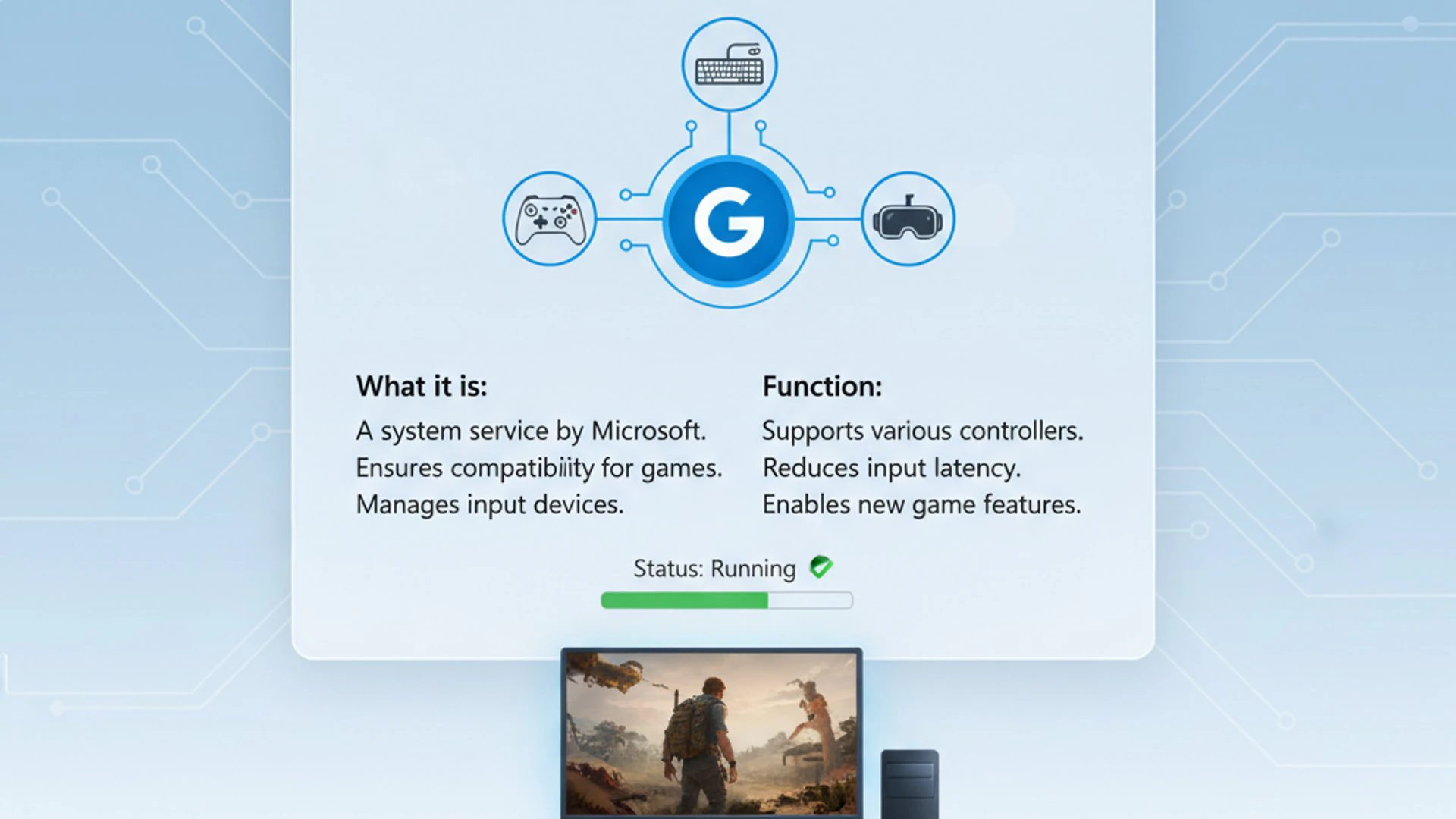
This service is part of a broader redistributable package, meaning it provides essential libraries and runtime components that developers can rely on. It ensures that games, regardless of their specific input requirements, have a consistent and high-performance pathway to receive commands from your controllers, keyboards, and other peripherals.
The Role of Input Devices in Modern Gaming
Modern gaming transcends simple keyboard and mouse interactions. Today’s titles often demand precise control, haptic feedback, and a multitude of input options that cater to different genres and player preferences. From intricate fighting game combos to nuanced vehicle controls in simulators, the fidelity of input directly impacts the gaming experience.
High-quality input devices, such as advanced gamepads with adaptive triggers, specialized racing wheels, or flight sticks, require robust software infrastructure to function optimally. The GameInput Redist Service provides this infrastructure, ensuring that these complex devices are not only recognized but also fully utilized by games.
Without a unified input service, developers would face the monumental task of writing custom code for every conceivable input device, leading to fragmentation and compatibility issues. The GameInput service abstracts this complexity, offering a streamlined solution.
Evolution of Game Input APIs on Windows
The journey of input handling on Windows has been a long and evolving one, adapting to the increasing sophistication of gaming hardware and software. Initially, developers relied on basic Windows APIs and later, the more gaming-centric DirectInput, part of the DirectX suite.
DirectInput provided a robust framework for handling a wide range of devices, but it could be complex to implement, especially for force feedback and advanced features. Its successor, XInput, emerged primarily to simplify gamepad support, particularly for Xbox controllers, which became ubiquitous on PC.
XInput offered a much simpler API for developers, focusing on a standardized controller layout and features. However, it was somewhat limited in its support for non-Xbox-style devices and lacked some of the extensibility needed for future innovations.
The GameInput Redist Service represents the next significant leap. It aims to combine the broad device support and extensibility of DirectInput with the simplicity and performance focus of XInput. This new API is designed to be future-proof, supporting new input paradigms and ensuring consistent performance across an ever-growing ecosystem of gaming peripherals.
By building upon these historical foundations, GameInput provides a more unified and efficient approach to input management. It addresses the limitations of previous APIs, offering developers a single, powerful interface to interact with all types of gaming input devices on Windows 11, from the simplest joystick to the most advanced virtual reality controllers.
How GameInput Redist Service Functions
Understanding the operational mechanics of the GameInput Redist Service on Windows 11 is key to appreciating its role in your gaming setup. This service doesn’t just sit idly; it actively manages the communication pipeline between your hardware and your games.
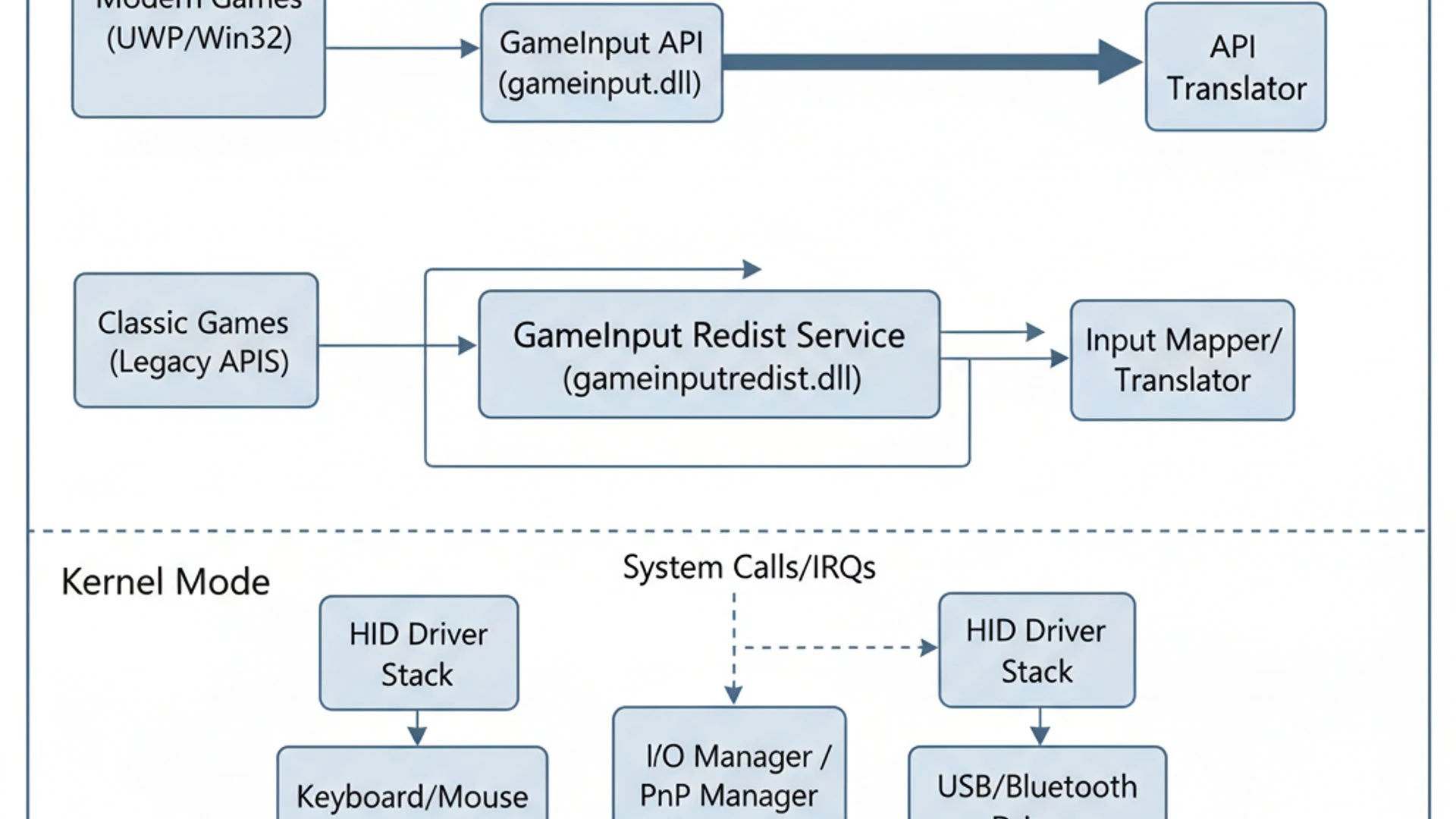
It operates as a background process, constantly monitoring for connected input devices and translating their signals into a format that applications can readily consume. This seamless translation is critical for maintaining responsiveness and compatibility across a diverse range of gaming peripherals.
Core Components and Dependencies
The GameInput Redist Service isn’t a monolithic entity; it comprises several core components that work in concert. These include a central service executable, various dynamic-link libraries (DLLs), and configuration files that define how different devices are recognized and processed.
It often depends on other fundamental Windows services and drivers to function correctly. For instance, it relies on generic USB device drivers to initially detect hardware and may interact with plug-and-play services to manage device enumeration. Ensuring these underlying components are stable and up-to-date is crucial for the GameInput service’s reliability.
“The GameInput Redist Service acts as a vital bridge, ensuring that the complex language of your gaming hardware is perfectly understood by your Windows 11 games, delivering precision and responsiveness.”
Its dependencies extend to the graphics subsystem as well, particularly when dealing with integrated input solutions found in VR headsets or specialized controllers that might have visual components. A healthy system environment is paramount for its optimal operation.
Interaction with DirectX and XInput
While GameInput is designed to be a modern, standalone input API, it doesn’t entirely discard its predecessors. It maintains a degree of interoperability with both DirectX and XInput, especially for backward compatibility with older games that might still rely on these APIs.
For games developed with XInput, GameInput can often emulate the XInput interface, allowing existing titles to function without modification. This ensures that your classic games continue to work seamlessly with modern controllers and the new input service.
Similarly, for more specialized devices or older titles that might still use DirectInput, GameInput can often leverage underlying DirectInput drivers or provide a compatibility layer. This layered approach ensures broad support while pushing forward with a more efficient and capable input framework for new titles.
Handling Diverse Input Types
One of the primary strengths of the GameInput Redist Service is its ability to efficiently process an incredibly diverse range of input types. This extends far beyond the standard keyboard and mouse, encompassing virtually every gaming peripheral imaginable.
It handles conventional gamepads, including those from Xbox, PlayStation (often with additional drivers), and third-party manufacturers. Furthermore, it supports specialized devices like racing wheels with force feedback, flight sticks with multiple axes, and even more niche peripherals such as dance pads or guitar controllers.
The service is engineered to manage the unique characteristics of each device, including button mapping, axis calibration, haptic feedback, and low-latency data streams. This ensures that whether you’re performing a delicate maneuver in a flight simulator or a rapid combo in a fighting game, your inputs are accurately and promptly registered.
Why GameInput Redist Service is Essential for Gamers
For any serious gamer on Windows 11, the GameInput Redist Service is far more than just another background process; it’s a critical component that directly impacts the quality and responsiveness of their gaming experience. Its fundamental role in managing input devices ensures that every command translates precisely into in-game action.
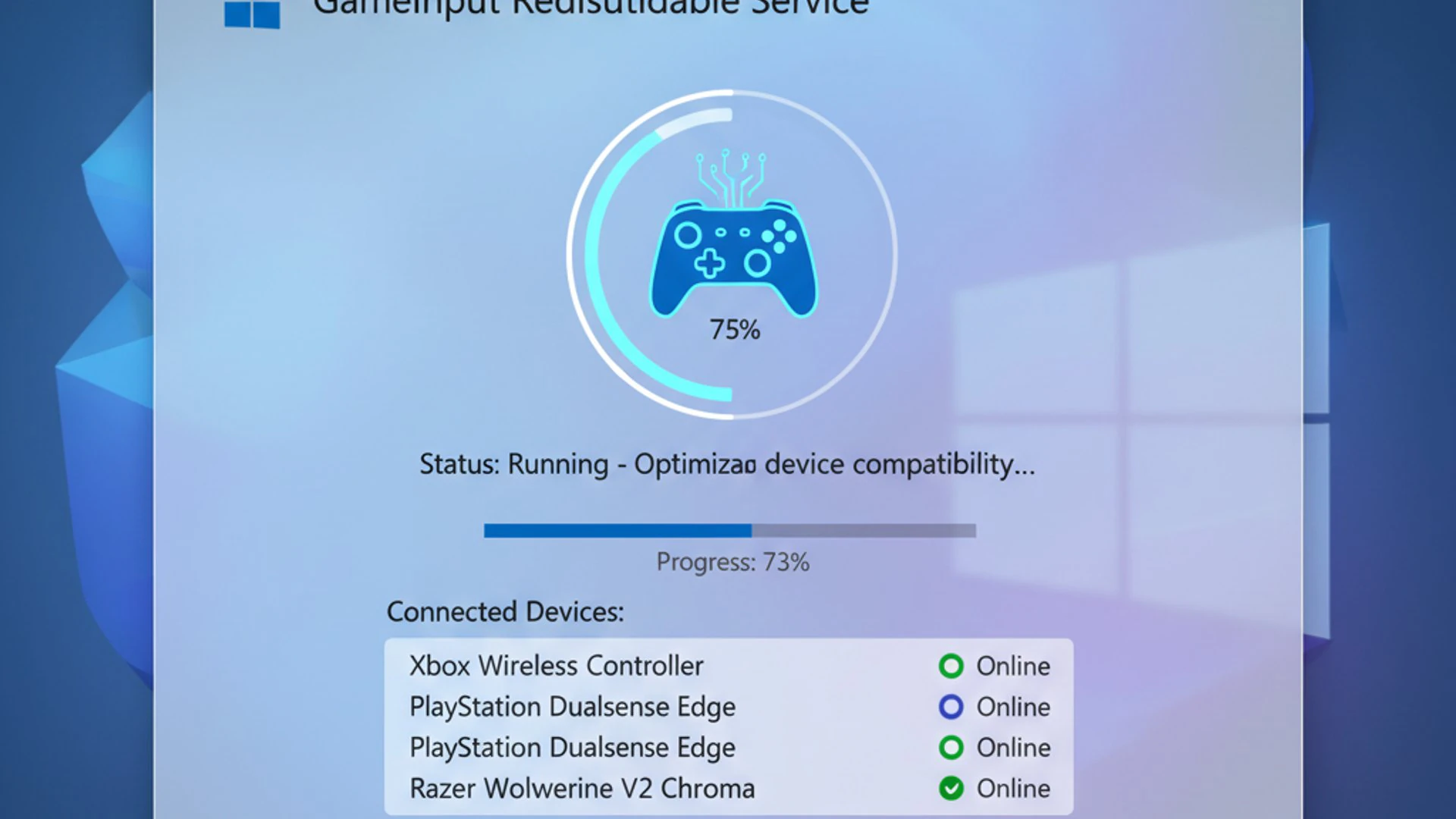
Without this service, or if it’s malfunctioning, gamers could face a myriad of frustrating issues, from unrecognized controllers to debilitating input lag. It’s the silent workhorse that makes modern gaming feel fluid and intuitive.
Enhancing Controller Compatibility and Performance
One of the most significant contributions of the GameInput Redist Service is its role in universalizing controller compatibility. In an ecosystem saturated with various brands and types of gamepads, joysticks, and other peripherals, ensuring that each one works out-of-the-box is a monumental task.
The service provides a standardized interface that allows game developers to write input code once, knowing it will function across a broad spectrum of hardware. This reduces development overhead and, more importantly, ensures that gamers don’t have to worry about whether their favorite controller will be supported by a new title.
Beyond mere compatibility, the service is engineered for optimal performance. It minimizes input lag, the dreaded delay between pressing a button and seeing the action on screen. By streamlining the data path from device to game, it ensures that inputs are processed with the lowest possible latency, which is crucial for competitive gaming where milliseconds can make a difference.
Supporting Next-Generation Gaming Experiences
As gaming technology advances, so too do the demands on input systems. Next-generation gaming experiences, including virtual reality (VR), augmented reality (AR), and highly immersive simulations, rely on incredibly precise and multi-faceted input.
The GameInput Redist Service is designed with these future demands in mind. It supports advanced features like high-precision analog sticks, sophisticated haptic feedback patterns, and complex multi-axis inputs from specialized controllers. This forward-looking design ensures that Windows 11 remains a leading platform for cutting-edge gaming.
It also facilitates the integration of new input paradigms, such as motion controls or even eye-tracking, as they become more prevalent. By providing a flexible and extensible framework, GameInput helps developers innovate without being constrained by outdated input APIs, paving the way for truly immersive and interactive gaming worlds.
Identifying the GameInput Redist Service Status
Knowing the status of your GameInput Redist Service on Windows 11 is a fundamental step in troubleshooting any input-related issues or simply ensuring your system is optimized for gaming. Windows provides several built-in tools to inspect and manage background services.
Regularly checking the service’s status can help you quickly identify if it’s running as expected or if it has encountered an error, which might explain why your controller isn’t responding or why you’re experiencing unusual input behavior.
Checking Service Status via Services.msc
The most direct way to check the status of any Windows service, including GameInput, is through the Services management console. This utility provides a comprehensive list of all services, their current state, and their startup type.
- Press
Win + Rto open the Run dialog. - Type
services.mscand press Enter. This will open the Services window. - In the Services window, scroll down alphabetically until you find “GameInput Service”.
- Observe the “Status” column. It should typically show “Running”.
- Check the “Startup type” column. It is usually set to “Manual” or “Automatic” (Trigger Start).
If the status is not “Running,” or if you suspect an issue, you can right-click on the service and select “Start” to attempt to initiate it. If it fails to start, this indicates a deeper problem that may require further investigation or troubleshooting.
Using Task Manager to Monitor GameInput Processes
For a more dynamic view of the GameInput Redist Service’s activity and resource consumption, the Task Manager is an invaluable tool. It allows you to see if the associated processes are active and how much CPU, memory, and disk I/O they are utilizing.
- Press
Ctrl + Shift + Escto open Task Manager. - Navigate to the “Details” tab.
- Look for processes named
GameInputSvc.exeor similar. - Observe the resource usage columns (CPU, Memory, Disk, Network).
Under normal operation, the GameInput service process should consume minimal resources when idle. During active gaming, its resource usage might slightly increase, but should not be excessively high. If you notice unusually high CPU or memory usage from this process, it could indicate a malfunction or a conflict. This might be a sign to investigate further or consider a restart of the service.
Managing GameInput Redist Service Settings
While the GameInput Redist Service on Windows 11 is largely designed to operate autonomously, there are situations where you might need to adjust its settings. Understanding how to manage its startup type and recovery options can be crucial for troubleshooting or optimizing your system.
It’s generally recommended to leave core system services like GameInput in their default configuration. However, knowing how to intervene safely can be a valuable skill for advanced users.
Modifying Startup Type and Recovery Options
The Services management console (services.msc) is your primary interface for configuring the GameInput Redist Service. Here, you can define how and when the service starts, as well as its behavior in case of failure.
- Open the Services window (
Win + R, then typeservices.msc). - Locate and double-click on “GameInput Service” to open its Properties window.
- In the “General” tab, you’ll find the “Startup type” dropdown. Common options include:
- Automatic: The service starts automatically when Windows boots.
- Manual: The service must be started manually or by another service/program. This is often the default for GameInput, as it starts when a game requests it.
- Disabled: The service cannot be started.
- Switch to the “Recovery” tab. Here, you can configure actions the system takes if the service fails. For instance, you can set it to “Restart the Service” on first, second, or subsequent failures.
- Click “Apply” and then “OK” to save any changes.
Modifying these settings should be done with caution. Incorrect configurations can lead to input issues or system instability. Always note down the original settings before making changes.
When to Consider Disabling or Enabling
Generally, you should avoid disabling the GameInput Redist Service unless you are actively troubleshooting a specific, confirmed conflict or performance issue directly linked to it. Disabling it will likely cause your game controllers to stop working correctly or entirely in modern games.
You might consider temporarily disabling it if:
- You are experiencing severe, unresolvable input lag, and you suspect the service is at fault (after ruling out drivers and hardware).
- A specific legacy game or application conflicts with the service, and you need to run that application.
- You are an advanced user performing specific diagnostic tests.
Conversely, if you find your controllers aren’t being detected or are behaving erratically, and the service is not running, enabling and starting it (setting startup type to Manual or Automatic and then clicking “Start”) is often the first troubleshooting step.
Reinstalling the GameInput Redistributable
If the GameInput Redist Service becomes corrupted or persistently malfunctions, a clean reinstallation of its components can often resolve the issue. This typically involves removing the existing package and allowing Windows to reinstall it.
The GameInput Redistributable is usually managed by the operating system and is not listed as a separate program in “Apps & features.” To force a reinstall, you might need to use PowerShell or specific Windows repair tools.
- Open PowerShell as Administrator: Search for “PowerShell,” right-click, and select “Run as administrator.”
- Remove the package: Type
Get-AppxPackage *GameInput* | Remove-AppxPackageand press Enter. This command attempts to remove the GameInput package. - Restart your PC: This is crucial to clear any lingering files.
- Reinstall the package: Open PowerShell as Administrator again. Type
Add-AppxPackage -Register "C:\Program Files\WindowsApps\Microsoft.Gaming.GameInput_*\AppxManifest.xml" -DisableDevelopmentMode. Note: The*in the path, needs to be replaced with the specific version number found in yourWindowsAppsfolder (e.g.,Microsoft.Gaming.GameInput_1.0.2311.2000_neutral__8wekyb3d8bbwe). You might need to enable viewing hidden files and folders to navigate toWindowsApps. - Alternatively, simply running a System File Checker (SFC) scan (
sfc /scannowin Command Prompt as Admin) or a Deployment Image Servicing and Management (DISM) tool command (DISM /Online /Cleanup-Image /RestoreHealth) can often repair corrupted system files, including those related to GameInput, without manual package manipulation.
This process ensures that you have a fresh, uncorrupted installation of the GameInput Redist Service, often resolving persistent issues that simple restarts couldn’t fix.
Common Issues and Troubleshooting GameInput Redist Service
Even with its robust design, the GameInput Redist Service on Windows 11 can occasionally encounter issues that disrupt your gaming experience. Recognizing common symptoms and knowing how to troubleshoot them effectively can save you a lot of frustration.
Most problems related to input devices can be traced back to drivers, hardware connections, or the GameInput service itself. A systematic approach to diagnosis is always best.
Input Lag and Responsiveness Problems
Input lag is one of the most frustrating issues for gamers, as it directly impacts performance and enjoyment. If you notice a delay between your controller input and the on-screen action, the GameInput service might be a factor.
Troubleshooting Steps:
- Check Service Status: Ensure the “GameInput Service” is running in
services.msc. If not, start it. - Update Drivers: Outdated or corrupted controller drivers are a common cause. Visit the manufacturer’s website for your specific controller and download the latest drivers. Also, ensure your graphics drivers are up to date.
- Disable Background Apps: Other applications consuming significant CPU or memory can indirectly cause input lag. Close unnecessary programs via Task Manager.
- Power Settings: Ensure your Windows 11 power plan is set to “High performance” or “Ultimate performance” when gaming.
- USB Port: Try a different USB port, especially a USB 3.0 or 3.1 port, if using a wired controller. Avoid using unpowered USB hubs.
- Bluetooth Interference: For wireless controllers, check for Bluetooth interference. Move other wireless devices away or try a wired connection to rule out wireless issues.
Sometimes, a simple restart of the GameInput service itself (right-click in services.msc and select “Restart”) can clear temporary glitches causing lag.
Controller Detection Failures
When your game controller isn’t detected at all, or only partially functions, the GameInput service might not be correctly recognizing or communicating with the device.
Troubleshooting Steps:
- Physical Connection: Double-check all cables and ensure the controller is fully charged if wireless. Try reconnecting it.
- Restart PC: A simple reboot can often resolve temporary detection issues.
- Check Device Manager:
- Press
Win + Xand select “Device Manager.” - Look under “Human Interface Devices” or “Xbox 360 Peripherals” (or similar for other brands).
- If you see a yellow exclamation mark, it indicates a driver issue. Right-click and select “Update driver” or “Uninstall device,” and then restart your PC to allow Windows to reinstall it.
- Press
- GameInput Service Status: Verify that the “GameInput Service” is running in
services.msc. If it’s stopped, start it. - Test on Another PC/Game: If possible, test the controller on another computer or with a different game to determine if the issue is specific to your system or the controller itself.
- Reinstall GameInput: As described in the previous section, reinstalling the GameInput redistributable can fix deep-seated detection problems.
Conflicts with Other Input Software
Occasionally, the GameInput Redist Service might conflict with other third-party input management software, virtual controller drivers, or even older game launchers that have their own input handling mechanisms.
Troubleshooting Steps:
- Identify Conflicting Software: Think about any recent software installations, especially those related to controller remapping (e.g., DS4Windows, reWASD) or game launchers that might include their own input wrappers.
- Temporarily Disable/Uninstall: Try temporarily disabling or uninstalling suspected conflicting software one by one to see if the issue resolves.
- Check Event Viewer:
- Press
Win + Xand select “Event Viewer.” - Navigate to “Windows Logs” > “System” or “Application.”
- Look for error messages related to “GameInput” or your controller drivers that coincide with the issue. This might provide clues about the conflict.
- Press
- Clean Boot: Perform a clean boot of Windows to start with only essential services and startup programs. If the issue disappears, you can then systematically enable services and startup items to pinpoint the culprit.
Resolving conflicts often requires careful isolation of the problematic software. Always ensure you have backups or restore points before making significant system changes.
Optimizing GameInput for Peak Gaming Performance
Achieving peak gaming performance on Windows 11 involves a holistic approach, and the GameInput Redist Service plays a subtle yet critical role in this ecosystem. While the service itself is largely self-optimizing, there are several related strategies you can employ to ensure it contributes positively to your overall gaming experience.
Focusing on driver integrity and broader system health will ensure that GameInput operates without hindrance, delivering the low-latency, reliable input that competitive and immersive gaming demands.
Ensuring Driver Updates for Input Devices
The performance of the GameInput Redist Service is inextricably linked to the quality and currency of your device drivers. Outdated or generic drivers can introduce latency, cause detection failures, or prevent advanced controller features from functioning.
Actionable Advice:
- Manufacturer Websites: Always prioritize downloading drivers directly from your controller’s manufacturer (e.g., Xbox, PlayStation, Logitech, Razer). These drivers are optimized for specific hardware and often include proprietary features.
- Windows Update: While Windows Update provides many drivers automatically, it might not always offer the absolute latest or most feature-rich versions. However, ensure your Windows 11 is fully updated, as critical system updates can also include GameInput service improvements.
- Device Manager Checks: Periodically open Device Manager (
Win + X> Device Manager) and check for any devices with yellow exclamation marks. These indicate driver issues that need immediate attention. - Graphics Drivers: Although not directly for input, keeping your GPU drivers updated is vital for overall system stability and performance, which indirectly benefits input processing by reducing system overhead.
A good practice is to check for driver updates for your primary gaming peripherals every few months or whenever you encounter a new game that exhibits input issues. “Maintaining up-to-date drivers is the cornerstone of a stable and responsive gaming setup.”
System Optimization Tips for Gaming
Beyond drivers, a well-optimized Windows 11 system provides a better environment for the GameInput Redist Service to perform its duties. Reducing system overhead ensures that CPU cycles and memory are available for gaming and critical services.
Practical Tips:
- Power Plan: Set your power plan to “High performance” or “Ultimate Performance” (if available) when gaming. This prevents the CPU from throttling and ensures consistent power delivery to components. You can find this in Control Panel > Hardware and Sound > Power Options.
- Background Processes: Close unnecessary applications and background processes before launching a game. Use Task Manager to identify and end resource-intensive tasks. Consider disabling startup programs you don’t need immediately.
- Game Mode: Ensure Windows 11’s Game Mode is enabled (Settings > Gaming > Game Mode). This feature prioritizes gaming performance by optimizing system resources.
- Disk Defragmentation/TRIM: For HDDs, regularly defragment your drive. For SSDs, ensure TRIM is enabled (it usually is by default) to maintain performance.
- Network Optimization: For online gaming, ensure a stable internet connection. Consider using a wired Ethernet connection over Wi-Fi to minimize latency.
- Disable Visual Effects: In System Properties > Advanced > Performance Settings, choose “Adjust for best performance” to disable non-essential visual effects that consume GPU resources.
By implementing these system-wide optimizations, you create an environment where the GameInput Redist Service can operate at its best, contributing to a smoother, more responsive, and ultimately more enjoyable gaming experience on Windows 11.
Security Implications and Best Practices
In today’s interconnected world, security is paramount, even for seemingly innocuous system services like the GameInput Redist Service on Windows 11. While it’s designed to enhance your gaming, understanding its security implications and following best practices ensures your system remains protected.
A compromised system service could potentially be exploited, so vigilance and adherence to security fundamentals are always recommended.
Verifying Service Authenticity
The GameInput Redist Service is a legitimate Microsoft component. However, malicious software can sometimes masquerade as legitimate services or inject itself into their processes. Verifying its authenticity is a good security practice.
How to Verify:
- Check Service Path: In
services.msc, double-click “GameInput Service” and look at the “Path to executable” in the “General” tab. It should point to a location withinC:\Windows\System32orC:\Program Files\WindowsApps, typicallyC:\Windows\System32\GameInputSvc.exeor similar. - File Properties: Navigate to the executable file (e.g.,
GameInputSvc.exe). Right-click on it, select “Properties,” then go to the “Digital Signatures” tab. It should show a valid signature from “Microsoft Windows.” - Task Manager Details: In the Task Manager’s “Details” tab, right-click on
GameInputSvc.exeand select “Open file location” and “Properties” to confirm the digital signature.
If the path is unusual, the digital signature is missing or invalid, or if the file seems out of place, it could be a sign of malware. In such cases, run a full system scan with reputable antivirus software.
“Always verify the digital signatures of core system executables to ensure they originate from trusted sources like Microsoft, safeguarding against potential malware impersonations.”
Keeping Windows and Drivers Updated
The most effective defense against security vulnerabilities, including those that might affect the GameInput Redist Service, is to keep your operating system and all drivers meticulously updated. Microsoft frequently releases security patches and service improvements through Windows Update.
Best Practices:
- Enable Automatic Updates: Ensure Windows Update is set to automatically download and install updates. While occasional update issues can occur, the security benefits far outweigh the risks.
- Regular Driver Updates: As mentioned in optimization, regularly update your device drivers, especially for critical components like graphics cards and chipsets. These updates often include security fixes alongside performance improvements.
- Antivirus and Firewall: Maintain an active and up-to-date antivirus solution and keep your Windows Firewall enabled. These provide essential layers of defense against malicious software that could target system services.
- Be Wary of Unofficial Sources: Only download drivers and software from official manufacturer websites or trusted sources. Avoid pirated software or suspicious websites that might bundle malware with downloads.
By adhering to these security best practices, you not only protect the integrity of the GameInput Redist Service but also fortify your entire Windows 11 system against potential threats, ensuring a secure and enjoyable gaming environment.
Frequently Asked Questions about GameInput Redist Service
Many users have common questions about the GameInput Redist Service on Windows 11, particularly concerning its resource usage, necessity, and whether it can be safely modified or removed. Here, we address some of these practical concerns concisely.
Understanding these aspects will help demystify the service further and empower you to manage your system more effectively.
Is GameInput Redist Service a background process?
Yes, the GameInput Redist Service operates as a background process. It runs silently in the background, typically starting on demand when a game or application requests input from a gaming device. It monitors for connected controllers and handles their communication with the system and games, usually consuming minimal resources when idle.
Can I uninstall GameInput Redist Service?
While it’s technically possible to attempt to remove the GameInput Redist Service using PowerShell commands (as detailed in the “Reinstalling” section), it is not recommended for most users. It is a core component of Windows 11’s modern input architecture. Uninstalling it will likely cause game controllers to stop functioning correctly or entirely in many games, leading to a degraded gaming experience. It’s better to troubleshoot issues rather than remove the service.
Does GameInput Redist Service consume many resources?
Under normal operation, the GameInput Redist Service consumes very few system resources. When idle, its CPU and memory usage are typically negligible. During active gaming, its resource consumption might slightly increase as it processes inputs, but it should remain low and should not be a significant factor in overall system performance or cause noticeable lag. If you observe high resource usage, it might indicate a problem with the service or a conflict.
Conclusion: The Unsung Hero of Windows 11 Gaming
The GameInput Redist Service on Windows 11, though often operating silently in the background, is undeniably an unsung hero of the modern PC gaming experience. It forms the crucial backbone that connects your diverse array of gaming peripherals to the immersive worlds you explore, ensuring every button press and joystick movement is translated with precision and minimal delay.
From its historical roots in DirectInput and XInput to its current role as a unified, forward-looking input API, GameInput continuously adapts to the evolving landscape of gaming hardware. It guarantees broad compatibility, optimizes performance, and supports the advanced features that define next-generation gaming.
By understanding its function, knowing how to monitor its status, and applying basic troubleshooting and optimization techniques, you empower yourself to maintain a fluid and responsive gaming environment. While it generally requires little direct intervention, this knowledge becomes invaluable when diagnosing input issues or striving for the absolute best performance.
Ultimately, the GameInput Redist Service exemplifies Microsoft’s commitment to delivering a superior gaming platform. It’s a testament to the intricate engineering that makes your Windows 11 gaming experience not just functional but truly exceptional.
For more interesting articles, stay tuned to Winsides.com!









Community
Comments (0)