

Introduction to Encrypting File System (EFS) on Windows 11
In our increasingly digital world, safeguarding personal and professional data has become paramount. Every file, from sensitive documents to cherished personal photos, holds value and often requires robust protection against unauthorized access. Windows 11, Microsoft’s latest operating system, comes equipped with a powerful, built-in feature designed to address this critical need: the Encrypting File System (EFS). Learn more about the BitLocker overview and cipher command-line utility.
EFS offers a layer of security that goes beyond simple password protection, allowing users to encrypt individual files and folders on their local drives. This means that even if someone gains unauthorized physical access to your computer or hard drive, they won’t be able to read your encrypted data without the correct decryption key. It’s an essential tool for anyone concerned about data privacy and security on their Windows 11 device.
This comprehensive guide will demystify EFS, explaining what it is, how it works, and most importantly, how you can effectively implement and manage it to protect your sensitive information. We’ll walk through the process of securing your data step-by-step, ensuring you have the knowledge to leverage this powerful Windows 11 feature to its fullest potential.
Table of contents
Key Takeaways
Before diving into the intricate details, here are the most crucial points about the Encrypting File System on Windows 11 that you should keep in mind:
- EFS is a built-in encryption feature for files and folders on NTFS-formatted drives in Windows 11 Pro, Enterprise, and Education editions.
- It provides file-level encryption, meaning individual files or folders are encrypted, not entire disks (unlike BitLocker).
- Encryption and decryption are largely transparent to the authorized user once set up, making it user-friendly for daily operations.
- User certificates and private keys are fundamental to EFS; losing them without a backup can lead to permanent data loss.
- Regularly backing up your EFS certificate is a critical best practice to prevent data inaccessibility.
- EFS protects data at rest, making it invaluable for laptops and devices that could be lost or stolen.
- While effective for individual files, EFS is not a substitute for full-disk encryption like BitLocker for overall device security.
Understanding EFS: What It Is and How It Works
The Encrypting File System (EFS) is a core component of the Windows operating system that provides file-level encryption. It allows users to encrypt specific files and folders on an NTFS file system volume. When a file is encrypted with EFS, it remains encrypted even if moved to another location on the same volume or copied to another NTFS volume.
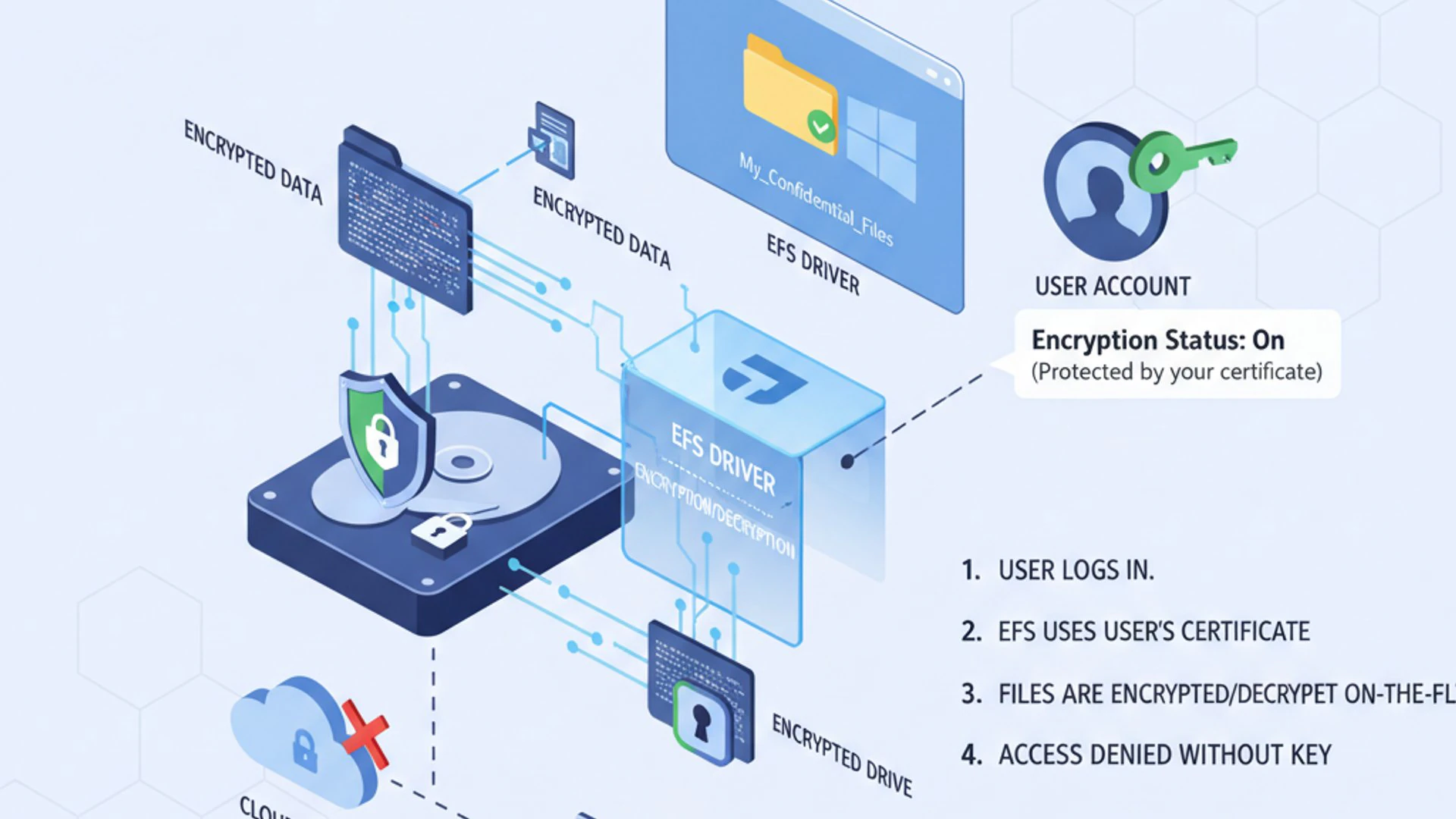
EFS operates transparently to the user who encrypted the files. Once you’ve encrypted a file, you can open, modify, and save it just like any other file. The encryption and decryption processes happen automatically in the background, without requiring you to manually enter passwords each time you access the data. This seamless integration makes EFS a convenient yet powerful security tool.
However, this transparency only applies to the user who performed the encryption. If another user attempts to access the encrypted file, they will be denied access unless they have the appropriate decryption key or are designated as a Data Recovery Agent. This fundamental principle ensures that your sensitive data remains protected from unauthorized eyes.
EFS is not a full-disk encryption solution. It focuses on individual files and folders, offering granular control over what data is protected. This distinction is important when considering your overall security strategy, as EFS complements, rather than replaces, other security measures like strong passwords and full-disk encryption.
The Cryptographic Foundation of EFS
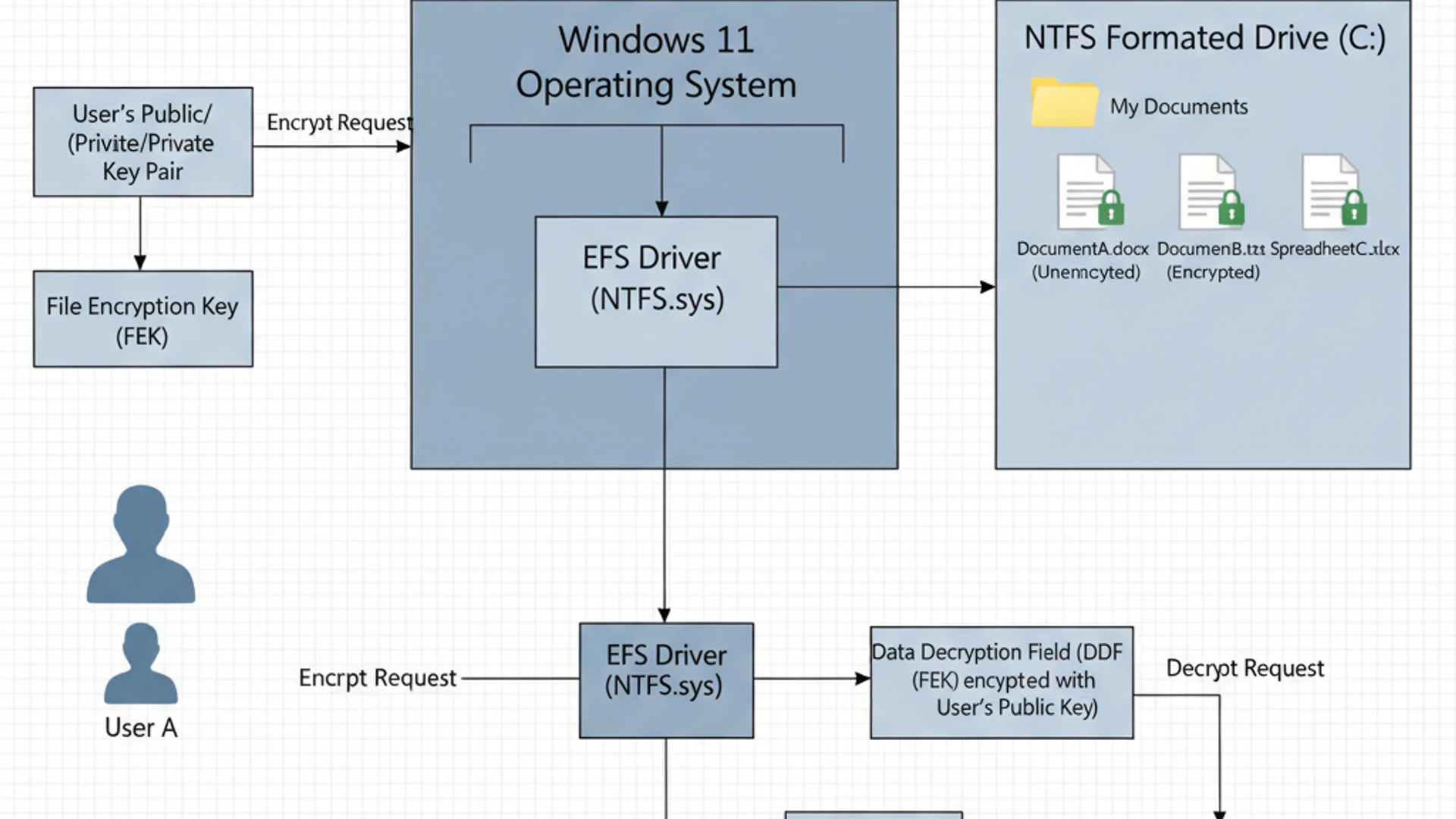
At its heart, EFS relies on robust cryptographic algorithms to secure your data. When you encrypt a file, EFS doesn’t directly encrypt the file with your public key. Instead, it uses a symmetric encryption algorithm, typically AES (Advanced Encryption Standard), to encrypt the file’s contents. This symmetric key is known as the File Encryption Key (FEK).
Symmetric encryption is significantly faster for large amounts of data. To protect the FEK itself, EFS then encrypts the FEK using the public key from your EFS certificate. This encrypted FEK is stored as part of the file’s metadata. When you access the file, your private key is used to decrypt the FEK, which then decrypts the file’s contents.
This dual-key approach combines the speed of symmetric encryption for data with the security of asymmetric (public-key) encryption for key management. It ensures that only the holder of the correct private key can decrypt the FEK and, consequently, the file data. This cryptographic chain is what makes EFS a strong defense against data breaches.
Key Management and User Certificates
The entire EFS system hinges on the concept of user certificates and their associated private keys. When you encrypt a file for the first time, Windows automatically generates an EFS certificate for your user account if one doesn’t already exist. This certificate contains a public key, and a corresponding private key is stored securely on your system.
Your private key is crucial; it’s the only way to decrypt the FEK and thus access your encrypted files. If this private key is lost, corrupted, or inaccessible, your encrypted data becomes permanently unreadable. This is why proper management and backup of your EFS certificate and private key are perhaps the most critical aspects of using EFS effectively.
EFS also supports multiple users encrypting the same file. In such cases, the file’s FEK is encrypted multiple times, once for each user’s public key. This allows all authorized users to access the file transparently. Understanding this certificate-based system is fundamental to both using EFS and troubleshooting any potential access issues.
Why Encrypt Files on Windows 11? Benefits of EFS
The decision to encrypt your files on Windows 11 isn’t just about technical capability; it’s about safeguarding your digital life and maintaining peace of mind. EFS offers several compelling benefits that make it an invaluable tool for both individuals and organizations.
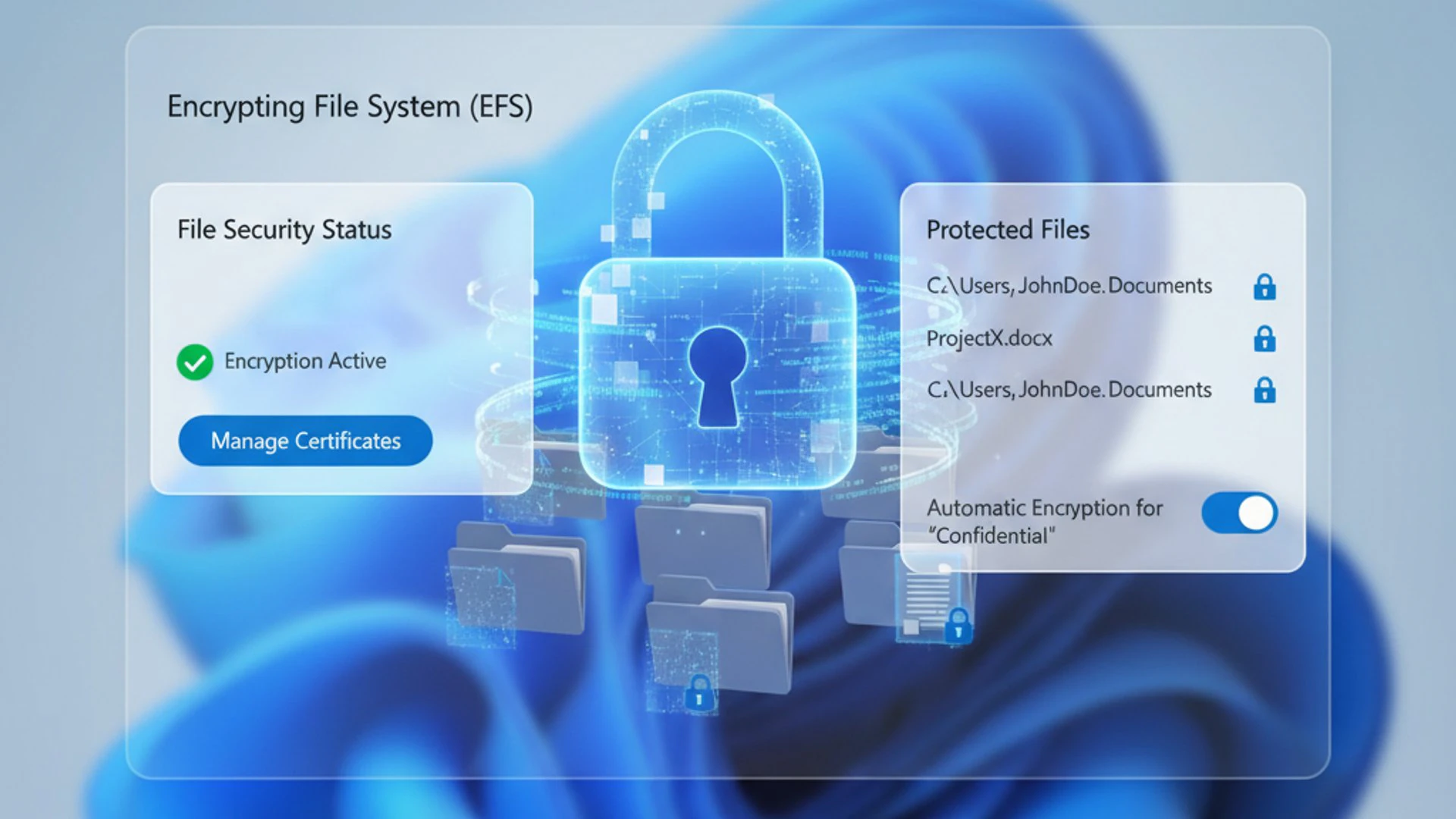
In an era where data breaches and device theft are common occurrences, relying solely on login passwords is often insufficient. EFS provides a robust additional layer of security, ensuring that even if your system’s primary defenses are compromised, your most sensitive data remains protected. This proactive approach to security is essential in today’s threat landscape.
Furthermore, the ease of use and transparency of EFS mean that you don’t have to be a security expert to implement strong file encryption. Once configured, it integrates seamlessly into your daily workflow, allowing you to focus on your tasks without constantly worrying about the security of your documents.
Enhanced Data Security and Privacy
The primary benefit of using EFS is the significant enhancement of data security and privacy. By encrypting your files, you render them unreadable to anyone who doesn’t possess the correct decryption key. This is particularly vital for documents containing personally identifiable information (PII), financial records, intellectual property, or confidential business data.
Consider a scenario where your computer is accessed by an unauthorized individual, either physically or remotely. Without EFS, they could potentially copy or view your sensitive files. With EFS, even if they bypass your login screen, the encrypted files will appear as gibberish, effectively protecting your information from prying eyes. This granular control over specific files offers a targeted approach to data protection.
Protection Against Unauthorized Access
One of the most compelling reasons to use EFS is its ability to protect your data even if your device is lost or stolen. Imagine losing your laptop or having it stolen. While a strong login password might deter casual snoopers, a determined individual could remove your hard drive and access its contents directly from another computer.
However, if your files are encrypted with EFS, removing the hard drive won’t help an attacker. The encryption keys are tied to your user profile and certificate on the original system. Without your private key, the data remains inaccessible, transforming what could be a catastrophic data breach into a mere inconvenience of replacing hardware. This robust protection extends to scenarios where your operating system might be compromised.
Prerequisites for Using EFS on Windows 11
Before you can begin encrypting files on Windows 11 with EFS, it’s important to ensure your system meets the necessary requirements. EFS is a powerful feature, but it’s not universally available across all Windows editions, nor does it function on all file systems. Understanding these prerequisites will save you time and potential frustration.
The most critical requirement relates to your Windows edition. Microsoft segments certain advanced security features, including EFS, to specific versions of its operating system. Additionally, the file system of the drive where you intend to encrypt files must be compatible with EFS, which typically means using NTFS.
Finally, your user account must have the appropriate permissions to perform encryption operations. While most standard user accounts can encrypt their own files, certain administrative actions, especially in managed environments, might require elevated privileges or specific group policies to be in place.
Windows Edition Compatibility
EFS is not available on all editions of Windows 11. Specifically, it is a feature reserved for the more advanced versions of the operating system. If you are running Windows 11 Home, you will find that the EFS options are simply not present in the user interface.
To use EFS, your Windows 11 installation must be one of the following editions:
- Windows 11 Pro
- Windows 11 Enterprise
- Windows 11 Education
If you have Windows 11 Home, you would need to upgrade to a compatible edition to utilize EFS. Furthermore, the drive or partition where you wish to encrypt files must be formatted with the NTFS (New Technology File System). EFS does not work on FAT32 or exFAT file systems.
User Permissions and Administrative Rights
Generally, any user with a standard account on a compatible Windows 11 edition can encrypt files and folders within their own user profile or in locations where they have write permissions. You don’t necessarily need administrative rights to encrypt your own files with EFS.
However, administrative rights become crucial for certain EFS-related tasks. For instance, setting up Data Recovery Agents (DRAs) in an organizational environment, managing EFS certificates for other users, or troubleshooting complex EFS issues often requires elevated permissions. Group Policy settings related to EFS also typically require administrative access to configure.
Always ensure you have appropriate permissions before attempting EFS operations, especially in shared or corporate environments, to avoid unexpected access issues or data loss.
Step-by-Step Guide to Encrypting Files and Folders with EFS
Now that we understand the ‘what’ and ‘why’ of EFS, let’s delve into the practical ‘how.’ Encrypting files and folders on Windows 11 with EFS is a straightforward process, achievable through both the graphical user interface (GUI) and the command line. We’ll cover both methods, giving you flexibility based on your preference and needs.
It’s important to remember that EFS encrypts files and folders, not entire drives. If you need full-disk encryption, BitLocker is the more appropriate solution. We’ll touch upon this distinction briefly to help you make informed security decisions.
Before you begin, ensure your Windows 11 edition is Pro, Enterprise, or Education, and that the target drive is formatted as NTFS. If these conditions are met, you’re ready to secure your data.
Encrypting a Single File or Folder
The most common way to use EFS is to encrypt specific files or folders that contain sensitive information. This method is quick, intuitive, and seamlessly integrates into the Windows File Explorer experience.
Using File Properties
This is the most user-friendly method for encrypting data with EFS on Windows 11:
- Navigate to the File or Folder: Open File Explorer and locate the file or folder you wish to encrypt.
- Access Properties: Right-click on the file or folder and select Properties from the context menu.
- Open Advanced Attributes: In the Properties window, under the General tab, click the Advanced… button.
- Enable Encryption: In the Advanced Attributes dialog box, check the box next to “Encrypt contents to secure data.”
- Apply Changes: Click OK on the Advanced Attributes window, then click Apply on the Properties window.
- Choose Encryption Scope (for folders): If you’re encrypting a folder, Windows will ask if you want to encrypt the folder only or the folder and all its subfolders and files. For comprehensive protection, choose “Apply changes to this folder, subfolders, and files.”
- Confirm: Click OK to finalize the encryption.
Once encrypted, the file or folder icon may display a small padlock overlay, indicating its encrypted status. You can now access these files as usual, while others without your EFS certificate cannot.
Command Prompt Method (Cipher.exe)
For users who prefer command-line tools or need to script encryption tasks, the cipher.exe utility is an excellent option. This tool provides more granular control and can be very efficient for batch operations.
- Open Command Prompt as Administrator: Search for “cmd” in the Start menu, right-click on “Command Prompt,” and select “Run as administrator.”
- Navigate to the Directory (Optional): Use the
cdcommand to navigate to the directory containing the file or folder you want to encrypt. For example:cd C:\Users\YourUser\Documents\SensitiveData - Encrypt a File: To encrypt a single file, use the command:
cipher /e "filename.ext". For example:cipher /e "MySecretDocument.docx" - Encrypt a Folder: To encrypt a folder and all its contents, use the command:
cipher /e /s:"foldername". For example:cipher /e /s:"Confidential Project" - Verify Encryption: You can verify the encryption status by running
cipher /qorcipher /d "filename.ext"(which would attempt to decrypt, but if it’s already encrypted, it will show status). Alternatively, check the file properties in File Explorer.
The cipher.exe command offers various switches for different operations, including decryption, showing encryption status, and more. It’s a powerful tool for advanced users and system administrators.
Encrypting an Entire Drive (Limitations and Alternatives)
While EFS is effective for individual files and folders, it is not designed for encrypting entire drives. Attempting to encrypt the root of a system drive (e.g., C:\) with EFS is generally not recommended and can lead to system instability or boot issues. EFS works on a file-by-file basis, and applying it broadly to an entire operating system drive is not its intended use case.
For full-disk encryption, Microsoft provides another robust solution: BitLocker Drive Encryption. BitLocker encrypts an entire volume, including the operating system, fixed data drives, and removable data drives. This offers a higher level of security for the entire device, protecting all data at rest, not just selected files.
BitLocker is available on Windows 11 Pro, Enterprise, and Education editions, similar to EFS. If your goal is to secure your entire hard drive, especially on a laptop or tablet, BitLocker is the superior choice. EFS is best utilized for specific sensitive documents or folders within a larger, unencrypted drive, or in conjunction with BitLocker for an added layer of protection on critical data.
Managing Your EFS Certificates and Recovery Agents
The security and accessibility of your EFS-encrypted data are entirely dependent on the integrity and availability of your EFS certificate and its associated private key. Losing this certificate without a backup is akin to throwing away the key to a locked safe – your data will become permanently inaccessible. Therefore, proper management of these certificates is not just a best practice; it’s a critical necessity.
This section will guide you through the essential steps of backing up your EFS certificate, restoring it if needed, and for organizational environments, setting up Data Recovery Agents. These measures are crucial for preventing data loss and ensuring business continuity.
Backing Up Your EFS Certificate
This is arguably the most important step when using EFS. A certificate backup allows you to recover your encrypted files if your user profile becomes corrupted, your operating system is reinstalled, or you need to access your files on a different computer. Always perform this backup immediately after encrypting your first file.
Exporting Your Certificate
Follow these steps to export your EFS certificate:
- Open Certificate Manager: Press
Win + R, typecertmgr.msc, and press Enter. - Navigate to Personal Certificates: In the Certificate Manager console, expand Personal, then click on Certificates.
- Locate Your EFS Certificate: Look for a certificate issued to your user account (your username) with “Encrypting File System” listed under “Intended Purposes.” It typically has a key icon.
- Start Export Wizard: Right-click on your EFS certificate, select All Tasks, then click Export….
- Export Private Key: In the Certificate Export Wizard, click Next. Choose “Yes, export the private key” and click Next. This step is critical; without the private key, the backup is useless for decryption.
- Select File Format: Select “Personal Information Exchange – PKCS #12 (.PFX)”. Keep the “Include all certificates in the certification path if possible” and “Export all extended properties” options checked. Click Next.
- Set a Password: You must set a strong password to protect your private key. This password will be required when importing the certificate later. Remember this password! Click Next.
- Choose File Location: Browse to a secure location to save your
.pfxfile. This should be a removable drive, network share, or cloud storage, separate from your main drive. Give it a meaningful name (e.g.,EFS_Backup_YourName_Date.pfx). Click Next. - Complete the Export: Click Finish. You should see a message indicating successful export.
Store this .pfx file in a safe, offline location. Consider multiple backups in different secure places. Losing this file and its password means permanent data loss if your original certificate becomes unavailable.
Restoring EFS Certificates
If you need to restore your EFS certificate, perhaps after a system reinstallation or to access your files on a new computer, you’ll use the Certificate Import Wizard:
- Locate Backup File: Find your
.pfxEFS certificate backup file. - Start Import Wizard: Double-click the
.pfxfile, or right-click it and select “Install PFX.” - Choose Store Location: In the Certificate Import Wizard, click Next. Ensure “Current User” is selected as the Store Location. Click Next.
- Enter Password: Browse to the
.pfxfile. Enter the password you created when exporting the certificate. Check “Mark this key as exportable” if you want to be able to back it up again in the future (recommended). You can also check “Include all extended properties.” Click Next. - Select Certificate Store: Choose “Automatically select the certificate store based on the type of certificate” (recommended) or specify “Personal.” Click Next.
- Complete the Import: Click Finish. You should receive a message confirming successful import.
After importing, you should be able to access your EFS-encrypted files again. If you encounter issues, ensure you imported it under the correct user account and that the password was entered correctly.
Setting Up a Data Recovery Agent (DRA)
For organizations, relying solely on individual user certificate backups can be risky. If an employee leaves or their certificate is lost, critical business data could become inaccessible. This is where a Data Recovery Agent (DRA) comes into play.
A DRA is a designated user or administrator who has the authority to decrypt EFS-encrypted files belonging to other users within the organization. This is typically configured via Group Policy in an Active Directory environment. When a DRA is set up, their public key is added to the EFS policy, and all new EFS-encrypted files will have their FEK encrypted with the DRA’s public key in addition to the user’s public key.
Steps involved (simplified for context, requires AD infrastructure):
- Create a DRA Certificate: An administrator generates a special EFS Recovery Agent certificate.
- Configure Group Policy: The DRA certificate is added to the “Encrypting File System” policy under
Computer Configuration > Windows Settings > Security Settings > Public Key Policiesin Group Policy Management Editor. - Apply Policy: The updated Group Policy is applied to client machines.
- Encrypt Files: When users encrypt files, their FEKs are encrypted with both their own public key and the DRA’s public key.
This ensures that the designated DRA can always recover encrypted files, providing a crucial safety net for corporate data. It’s a vital component of a robust EFS strategy in managed environments.
Decrypting Files and Folders Encrypted with EFS
There might come a time when you no longer need a file or folder to be encrypted. Perhaps the information is no longer sensitive, or you need to share it with someone who doesn’t have access to your EFS certificate. Decrypting files is just as straightforward as encrypting them, and can also be done via the GUI or command line.
It’s important to understand that decrypting a file removes the EFS protection entirely. Once decrypted, the file will be accessible to anyone who has access to your computer and the file’s location, just like any other unencrypted file. Always ensure that the data no longer requires protection before proceeding with decryption.
Decrypting via File Properties
This method is the most common and user-friendly way to decrypt files and folders:
- Locate the Encrypted Item: Open File Explorer and find the EFS-encrypted file or folder. You’ll usually see a padlock icon on its thumbnail.
- Access Properties: Right-click on the file or folder and select Properties.
- Open Advanced Attributes: In the Properties window, under the General tab, click the Advanced… button.
- Disable Encryption: Uncheck the box next to “Encrypt contents to secure data.”
- Apply Changes: Click OK on the Advanced Attributes dialog, then click Apply on the Properties window.
- Choose Decryption Scope (for folders): If you’re decrypting a folder, Windows will ask if you want to decrypt the folder only or the folder and all its subfolders and files. For complete decryption, choose “Apply changes to this folder, subfolders, and files.”
- Confirm: Click OK to finalize the decryption.
The padlock icon should disappear, indicating the file or folder is no longer encrypted. You can then move, copy, or share it without EFS restrictions.
Decrypting Using Cipher.exe
For command-line enthusiasts or for scripting decryption tasks, the cipher.exe utility can also be used to remove EFS encryption:
- Open Command Prompt as Administrator: Search for “cmd” in the Start menu, right-click on “Command Prompt,” and select “Run as administrator.”
- Navigate to the Directory (Optional): Use the
cdcommand to go to the directory containing the file or folder. For example:cd C:\Users\YourUser\Documents\SensitiveData - Decrypt a File: To decrypt a single file, use the command:
cipher /d "filename.ext". For example:cipher /d "MySecretDocument.docx" - Decrypt a Folder: To decrypt a folder and all its contents, use the command:
cipher /d /s:"foldername". For example:cipher /d /s:"Confidential Project" - Verify Decryption: You can run
cipher /qto see the encryption status of files in the current directory, or simply check the file properties in File Explorer.
Using cipher.exe provides a quick and efficient way to manage encryption status, especially for multiple files or in automated scripts. Always double-check the path and filename to ensure you’re decrypting the correct items.
Best Practices and Important Considerations for EFS
Implementing the Encrypting File System on Windows 11 is a significant step towards better data security. However, merely enabling the feature isn’t enough. To truly leverage EFS effectively and avoid potential pitfalls, it’s crucial to follow best practices and understand its nuances. These considerations will help you maintain robust security and ensure continuous access to your encrypted data.
From diligent certificate management to understanding how EFS interacts with different user accounts and choosing the right encryption tool for the job, a thoughtful approach is key. Ignoring these aspects can lead to data loss or a false sense of security.
Regular Certificate Backups
This cannot be stressed enough: regularly back up your EFS certificate and its private key. As detailed earlier, this .pfx file is your lifeline to your encrypted data. Without it, if your user profile is corrupted, your system crashes, or you reinstall Windows, your encrypted files will become permanently inaccessible.
Consider these points for backups:
- Immediate Backup: Export your certificate immediately after encrypting your first file.
- Secure Storage: Store the
.pfxfile in a secure, offline location (e.g., encrypted USB drive, secure cloud storage, network share). - Strong Password: Protect the
.pfxfile with a robust, unique password. - Multiple Copies: Keep several copies in different secure locations for redundancy.
- Periodic Updates: If you renew your EFS certificate (though EFS certificates typically don’t expire unless explicitly set), remember to back up the new one.
Understanding User Accounts and EFS
EFS is inherently tied to the user account that performs the encryption. This means:
- Single User Access: By default, only the user who encrypted a file can decrypt and access it. Other users on the same computer, even administrators, cannot open these files unless they are explicitly added as authorized users to the file or a Data Recovery Agent is configured.
- Profile Dependence: If your user profile becomes corrupted or is deleted, and you haven’t backed up your certificate, your encrypted files linked to that profile will be lost.
- Sharing Encrypted Files: Sharing an EFS-encrypted file with another user requires adding their EFS certificate to the file’s encryption properties. This is done by right-clicking the file, going to Properties > Advanced > Details, and adding their certificate. Both users must have EFS certificates.
- Moving Files: Encrypted files retain their encryption status when moved or copied within an NTFS volume. However, copying them to a non-NTFS volume (like a USB drive formatted as FAT32) will result in them being decrypted automatically.
EFS vs. BitLocker: Choosing the Right Encryption
It’s crucial to understand the differences between EFS and BitLocker to choose the appropriate tool for your security needs:
- EFS (Encrypting File System):
- Granularity: File and folder level encryption.
- Purpose: Protects specific sensitive data from unauthorized access, even if the system is compromised or the drive is removed.
- Transparency: Transparent to the encrypting user.
- Requirement: NTFS file system, Windows Pro/Enterprise/Education.
- Best for: Individual sensitive documents, specific project folders.
- BitLocker Drive Encryption:
- Granularity: Full-disk (volume) level encryption.
- Purpose: Protects all data on an entire drive, including the operating system, from offline attacks.
- Transparency: Transparent after initial unlock during boot.
- Requirement: Windows Pro/Enterprise/Education often requires a Trusted Platform Module (TPM).
- Best for: Entire laptops, external hard drives, or any device where all data needs protection.
For comprehensive device security, using both EFS and BitLocker concurrently is an excellent strategy. BitLocker secures the entire drive from boot-up, while EFS adds an extra layer of protection for critical files, ensuring they remain encrypted even if the BitLocker-protected drive is unlocked and accessed by an unauthorized user on the same system.
Troubleshooting Common EFS Issues
While the Encrypting File System on Windows 11 is designed to be robust, users can occasionally encounter issues. Understanding common problems and their solutions is key to maintaining access to your encrypted data and ensuring smooth operation. Most EFS problems revolve around certificate management or access permissions.
Being prepared for these scenarios can prevent significant headaches and potential data loss. We’ll cover two of the most frequently reported issues and provide actionable steps to resolve them.
Access Denied Errors
One of the most common issues users face with EFS is encountering “Access Denied” errors when trying to open an encrypted file. This usually happens for one of the following reasons:
- Wrong User Account: You are logged in with a different user account than the one that encrypted the file. EFS is user-specific.
- Missing or Corrupted Certificate: Your EFS certificate or its private key is missing from your user profile, or it has become corrupted. This can happen after a Windows reinstallation, profile corruption, or if you didn’t back up and restore your certificate.
- File Moved to Non-NTFS Drive: The encrypted file was copied to a non-NTFS formatted drive (e.g., FAT32 USB stick), which automatically decrypts it, and then moved back to an NTFS drive, but without the original encryption applied.
- Permissions Issues: Although less common for EFS, incorrect file system permissions could also interfere.
Solutions:
- Verify User Account: Ensure you are logged in with the exact user account that encrypted the files.
- Restore Certificate: If you suspect a missing certificate, try restoring your EFS certificate from a backup (the
.pfxfile) using the steps outlined in the “Restoring EFS Certificates” section. - Check File System: Confirm the drive is NTFS. If files were moved to a non-NTFS drive, they might have been decrypted.
- Check Permissions: Right-click the file/folder, go to Properties > Security, and ensure your user account has full control.
Lost EFS Certificates
Losing your EFS certificate without a backup is the most critical issue you can face, as it typically leads to permanent data loss for your encrypted files. This is why repeated emphasis on backups is crucial.
If you have lost your certificate and do not have a .pfx backup file:
- No Recovery Agent: If no Data Recovery Agent was configured (common for home users), and you don’t have a backup, the data encrypted with that certificate is likely unrecoverable. There is no “master key” or backdoor for EFS.
- With a Recovery Agent: If you are in an organizational environment where a Data Recovery Agent (DRA) was set up, the DRA might be able to decrypt your files. Contact your IT administrator immediately.
Prevention is the only cure for a lost EFS certificate. Always back up your certificate immediately after encrypting your first file and store it securely. Consider setting reminders to periodically check your backup’s integrity. This proactive measure is the single most important step in ensuring your data remains accessible.
Conclusion: Securing Your Data with EFS on Windows 11
The Encrypting File System (EFS) on Windows 11 stands as a powerful, yet often underutilized, built-in security feature. It provides an essential layer of protection for your sensitive files and folders, safeguarding them against unauthorized access, even in scenarios involving device theft or system compromise. By understanding its cryptographic principles and how it integrates with the Windows file system, you can confidently deploy this tool to enhance your data privacy.
From the simple graphical interface to the versatile command-line utility, encrypting and decrypting your data with EFS is a straightforward process. However, the true strength and reliability of EFS lie in diligent management of your EFS certificates. Regular backups of your private key are not just a recommendation; they are a critical imperative to prevent irreversible data loss. For organizational settings, Data Recovery Agents offer an indispensable safety net.
While EFS excels at file-level encryption, remember its distinction from full-disk encryption solutions like BitLocker. For comprehensive device security, a layered approach often proves most effective, combining both technologies. By following the best practices outlined in this guide, you can confidently leverage the Encrypting File System on Windows 11, ensuring your most valuable digital assets remain secure and accessible only to you. Take control of your data security today.









Community
Comments (0)