

Introduction to MobaXterm Download for Windows 11
MobaXterm download for Windows 11 is a popular search because many Windows users want one tool for SSH, SFTP, remote Linux servers, X11 apps, serial connections, RDP, VNC, tunnels, and command-line work. Instead of installing several separate utilities, MobaXterm brings many remote-access tools into one Windows application. That is convenient, but it also makes the download source important. A terminal and remote access tool is not something you should download from a random mirror.
The safest source is the official Mobatek website. Mobatek publishes the MobaXterm download page, where users can choose the edition and package type. official MobaXterm download page The official feature page explains the product scope, including an embedded X server, SSH client, network tools, Unix commands, graphical SFTP browser, and session management. official MobaXterm features page The official documentation page is also useful because MobaXterm has many features that new users can miss. official MobaXterm documentation
For Windows 11 users, the basic decision is usually simple: use the free Home Edition from the official download page if you are learning, connecting to your own servers, managing a small lab, or doing occasional SSH/SFTP work. Consider the Professional Edition if you need business licensing, customization, more enterprise features, or organizational deployment. Then choose Installer Edition if you want a normal installed app, or Portable Edition if you want to keep it self-contained.
This guide explains how to download MobaXterm safely on Windows 11, what the editions mean, how Installer and Portable differ, how to verify the source, how to create your first SSH session, how SFTP and X11 fit in, how it compares with Windows built-in OpenSSH, and what to avoid when download pages promise cracked Professional builds or modified packages.
Table of contents
Key Takeaways
- Download MobaXterm only from the official Mobatek site. Avoid mirror sites, cracked editions, repackaged installers, and driver-style download pages.
- MobaXterm works well on Windows 11 for SSH, SFTP, X11, RDP, VNC, serial, and terminal workflows. It is especially useful for users who manage Linux servers from Windows.
- Home Edition is usually enough for personal use. Professional Edition is better for business use, customization, and larger managed environments.
- Installer Edition feels like a normal Windows app. Portable Edition is better when you want a self-contained folder or do not want a traditional installation.
- Use SSH keys carefully. MobaXterm can simplify connections, but private keys still need safe storage and passphrases.
- Windows 11 already includes OpenSSH options. MobaXterm is not mandatory, but it adds an integrated graphical workflow around SSH, SFTP, X11, and sessions.
- Do not use cracked MobaXterm builds. Remote access tools handle credentials and server connections, so modified packages are high risk.
What Is MobaXterm?
MobaXterm is a remote computing toolbox for Windows. It combines a terminal, SSH client, embedded X server, SFTP browser, network tools, Unix commands, and session manager into a single interface. For users who connect from Windows 11 to Linux servers, routers, firewalls, Raspberry Pi devices, cloud VMs, containers, jump hosts, serial consoles, or remote desktops, that combination is useful.
The classic reason people install MobaXterm is SSH. You enter a host, username, port, key, and connection options, then open a terminal session. The session can be saved and reused. Instead of typing long commands every time, you can manage named sessions in a sidebar.
The second reason is the built-in SFTP browser. When you connect by SSH, MobaXterm can show files on the remote server in a graphical side panel. That makes upload, download, edit, and drag-and-drop workflows easier for users who do not want a separate SFTP app.
The third reason is X11 forwarding. MobaXterm includes an X server, so remote graphical Linux applications can display on Windows when configured correctly. This is helpful in engineering, networking, education, research, and server administration environments.
MobaXterm also includes local terminal tools. Its feature page describes embedded Unix commands and network utilities, which can be convenient when you need commands that are common on Linux but not always present in a standard Windows command prompt. official MobaXterm features page
The important security point is that MobaXterm is a remote access tool. It may store sessions, connect to servers, use private keys, remember passwords if configured, and interact with sensitive infrastructure. That is why safe download practices matter more here than with a casual media player or theme app.
Is MobaXterm Compatible with Windows 11?
Yes, MobaXterm is widely used on modern Windows systems, including Windows 11. The official download page is the right place to get the current Windows build. official MobaXterm download page Most Windows 11 users can run it like a normal desktop application.
Compatibility problems are usually not about Windows 11 itself. They are more often about security policy, antivirus rules, corporate application control, blocked downloads, proxy inspection, missing permissions, old portable folders, or trying to run a modified package.
On personal Windows 11 PCs, the Installer Edition normally works like other desktop apps. Download it from Mobatek, run the installer, follow the prompts, and launch MobaXterm from Start. The Portable Edition usually runs from an extracted folder, which is useful if you want to carry settings with the app or avoid a standard install.
On work or school PCs, the answer depends on policy. IT departments may allow MobaXterm, block it, require the Professional Edition, package it through a software portal, or restrict SSH clients entirely. If your device is managed, use the official organizational process.
Windows on ARM devices need extra caution. If you are using an ARM-based Windows 11 PC, check Mobatek notes and test compatibility before relying on it for production work. Most users searching this topic are on standard x64 Windows 11 laptops and desktops.
If you already use Windows Terminal and OpenSSH, MobaXterm can still be useful, but it is not required. Microsoft documents OpenSSH installation and first use on Windows for users who prefer a built-in command-line SSH workflow. Microsoft Learn OpenSSH on Windows guidance MobaXterm is more of an integrated remote-access suite around that general need.
Official MobaXterm Download Path
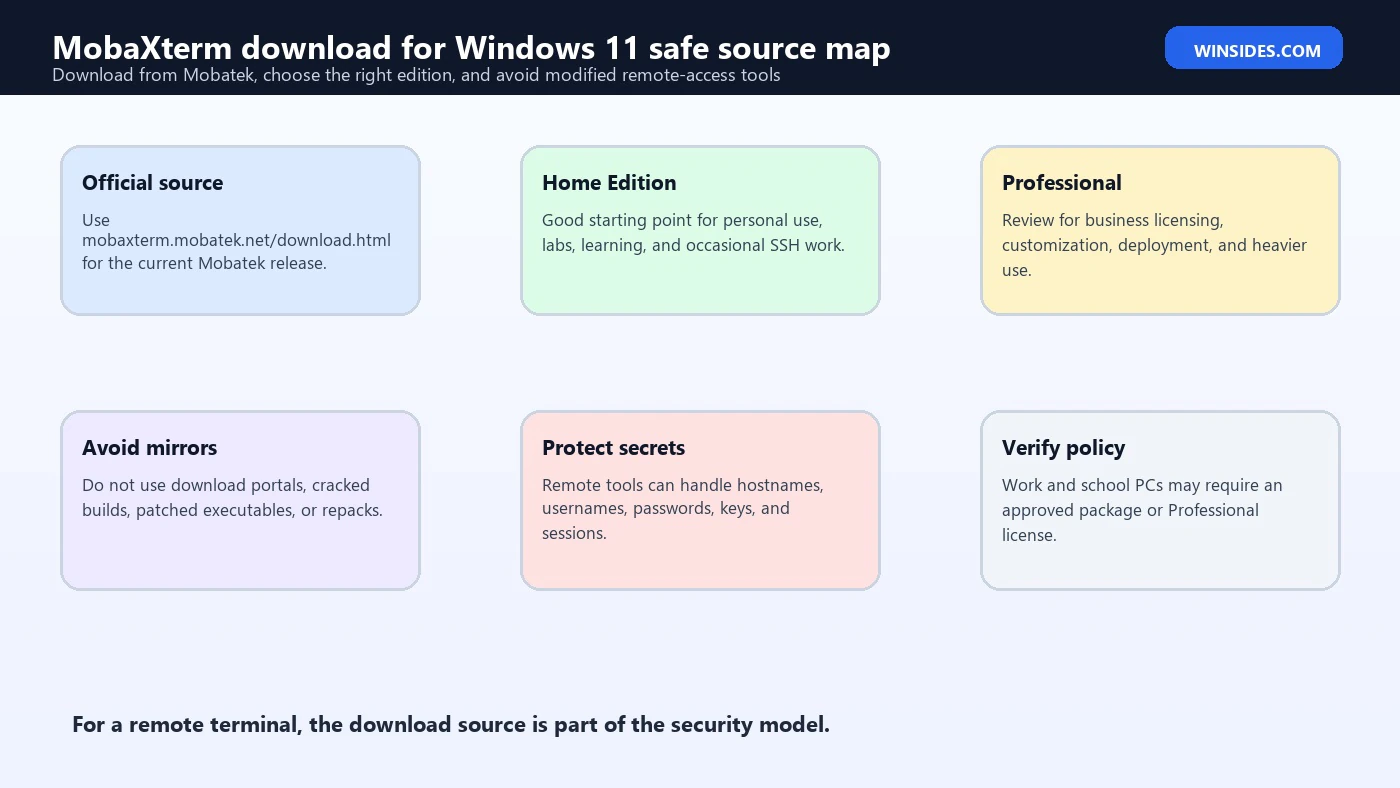
The safest download path is direct: open your browser and go to the official Mobatek MobaXterm download page. The URL is https://mobaxterm.mobatek.net/download.html. Do not rely on sponsored search results or third-party download portals.
On the official page, choose the edition. The Home Edition is the free option for many personal users. The Professional Edition is the paid option for business and advanced use cases. Then choose the package type: Installer Edition or Portable Edition.
If you are not sure which one to pick, choose Home Edition Installer Edition for a normal personal Windows 11 setup. Choose Portable Edition if you specifically want a portable folder, do not want a normal installation, or need to keep MobaXterm on a removable drive or synced workspace.
After downloading, check the file name and source. It should come from Mobatek/MobaXterm, not a mirror with a different domain. If the browser or Windows shows an unusual warning, do not ignore it blindly. Confirm that you downloaded from the official page.
Do not download MobaXterm from pages that offer cracked Professional builds, license bypasses, portable repacks, patched executables, or bundled update tools. Those packages are especially risky because a modified terminal client can steal server credentials, SSH keys, hostnames, commands, and session data.
If you are in a company, do not install the Home Edition just because it is easy to download. Check licensing and internal policy. Business use may require Professional licensing or an approved software deployment path.
Home Edition vs Professional Edition
MobaXterm Home Edition is the option many individual users start with. It is suitable for learning, personal server administration, small labs, occasional SSH sessions, and basic SFTP workflows. It gives users a strong sense of what MobaXterm can do without starting with a paid license.
Professional Edition is for heavier or business use. Organizations may need customization, more session capacity, network daemon controls, enterprise packaging, support expectations, or licensing clarity. If MobaXterm is part of your daily job, your company should evaluate the Professional Edition instead of relying on a personal-use assumption.
The exact edition differences can change, so use the official Mobatek download and product pages for current licensing and feature details. official MobaXterm download page official MobaXterm features page Avoid old blog posts that list limits from years ago. Software editions evolve.
For a student or home lab user, Home Edition is typically the right starting point. For a sysadmin, network engineer, DevOps engineer, SOC analyst, or consultant using it for paid work, Professional Edition is worth reviewing carefully.
If you use MobaXterm only to connect to one Raspberry Pi or a cloud VPS, Home Edition may be enough. If you manage dozens of servers, need shared configurations, or want a clean business license, Professional is more appropriate.
Do not solve licensing questions by downloading a cracked version. Besides being unethical and illegal, it is a direct security risk. A modified remote terminal is one of the worst places to gamble.
Installer Edition vs Portable Edition
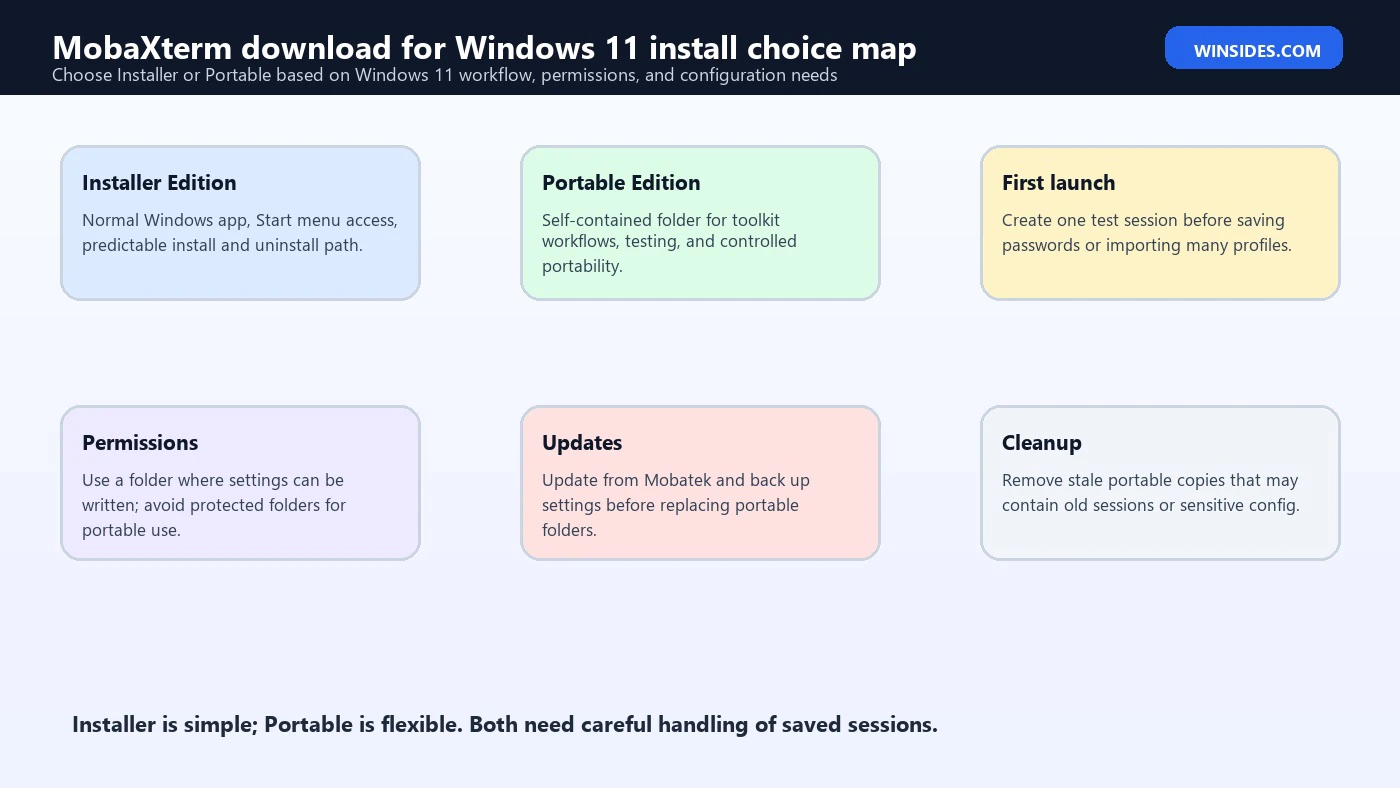
Installer Edition installs MobaXterm like a normal Windows program. It adds the app to Start, creates a normal install location, and feels familiar to most Windows 11 users. This is the best choice if MobaXterm is going to be part of your regular workstation setup.
Portable Edition runs from a folder without a traditional installation. This is useful if you want to keep MobaXterm self-contained, carry it between approved machines, store it in a tools directory, or avoid changing the system more than necessary.
Installer Edition is easier for users who want Start menu access, normal uninstall behavior, and a predictable app path. Portable Edition is easier for users who manage a toolkit folder or want to separate workspaces.
Portable does not automatically mean safer. A portable executable can still store sessions, credentials, keys, and configuration. Protect the folder, especially if it is on a USB drive or synced storage.
Installer does not automatically mean better. If you are testing MobaXterm for the first time, Portable Edition can be a clean way to evaluate it. If you like it and use it daily, Installer Edition may become more convenient.
In managed companies, portable tools may be blocked because they bypass normal software deployment. Follow IT policy. A portable app that is allowed on a personal PC may be disallowed on a corporate endpoint.
How to Install MobaXterm on Windows 11
After downloading from the official page, open the downloaded file from your Downloads folder. If you chose Installer Edition, run the installer and follow the prompts. Windows may show User Account Control if administrator permission is required. Confirm only if the file came from the official Mobatek source.
If you chose Portable Edition, extract the archive to a folder you control. Do not run it directly from inside a compressed archive. Create a folder such as C:\Tools\MobaXterm or a location in your user profile, then launch the executable from there.
Open MobaXterm and review the first-launch behavior. You may see a main terminal area, session controls, a sidebar, local terminal tools, and settings. Do not rush into saving passwords. Set up one test session first.
If Windows SmartScreen or antivirus warns about the download, stop and verify the source. Security warnings can be false positives, but they can also indicate a modified package. Re-download from the official page if in doubt.
If the installer fails on a work PC, do not bypass policy. Your organization may block remote tools. Ask IT for the approved version or software portal entry.
After installation, pin MobaXterm only if you expect to use it regularly. Otherwise, keep the setup simple and create sessions as needed.
Create Your First SSH Session
Open MobaXterm and choose Session. Select SSH. Enter the remote host name or IP address. Enter the username if you know it. The default SSH port is 22 unless your server uses a custom port.
If the server uses password login, MobaXterm will prompt for the password. If the server uses key login, configure the private key in the session settings. Use a passphrase-protected key whenever possible.
The first time you connect to a server, you may see a host key prompt. Do not treat this as a meaningless popup. The host key helps confirm server identity. If you are connecting to an important server, compare the fingerprint with a trusted source.
Once connected, test basic commands such as pwd, ls, hostname, or whoami depending on the remote system. If you are connected to production infrastructure, avoid destructive commands. A terminal gives direct control.
Save the session if you will use it again. Give it a meaningful name such as Web Server – Production, Lab Ubuntu VM, Router Console, or Raspberry Pi Home. Good naming prevents mistakes later.
If the connection fails, check the host address, username, port, firewall, VPN, SSH service status, and whether the server allows password or key login. Do not assume the MobaXterm download is wrong just because the first SSH connection fails.
Use the Built-In SFTP Browser Carefully
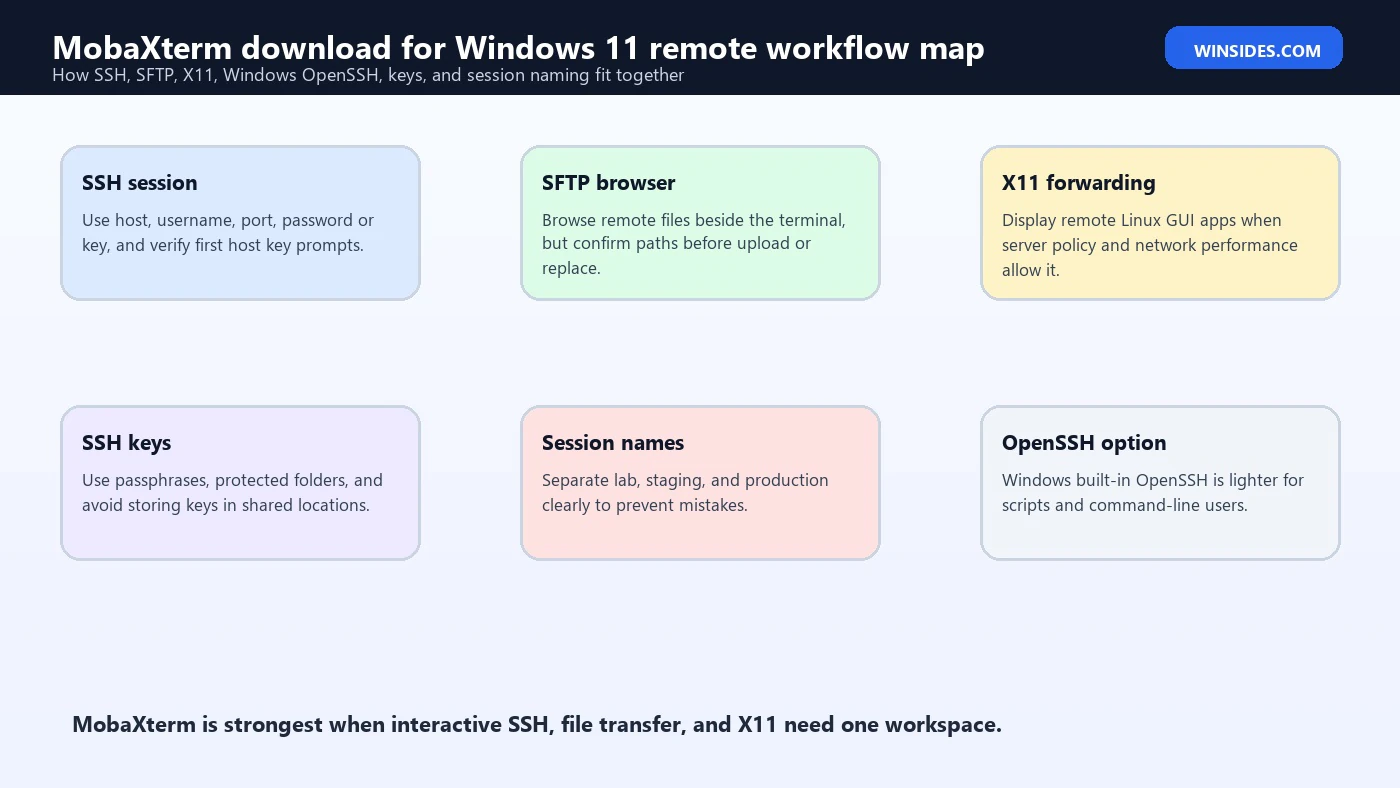
One of MobaXterms most loved features is the graphical SFTP browser that appears beside an SSH session. It lets you browse remote files, upload, download, and sometimes edit files without opening a separate SFTP application.
This is convenient, but it can also make mistakes easier. Dragging a file into the wrong server directory can overwrite important content. Downloading a sensitive config file to the wrong local folder can create a data leak. Treat the SFTP panel as a powerful admin tool, not just a file explorer.
Before uploading, confirm the remote path. Before replacing a file, make a backup if the system is important. Before editing configuration files, understand the service and restart impact.
Use meaningful session names so you know whether you are connected to development, staging, or production. Many mistakes happen because a user has several similar sessions open and uploads to the wrong host.
If you use SSH keys, the SFTP browser uses the same secure session context. Keep private keys protected. Do not store unencrypted keys in shared folders or cloud sync directories without understanding the risk.
If SFTP does not open, check whether the server allows SFTP, whether the SSH subsystem is enabled, whether the account has file permissions, and whether a restricted shell is in use.
X11 Forwarding on Windows 11
MobaXterm includes an embedded X server, which is one reason Linux and Unix users like it. With X11 forwarding, a graphical application running on a remote Linux system can display on your Windows 11 desktop.
This is useful for lab tools, engineering utilities, installers, legacy admin consoles, and remote Linux apps that still use X11. It can save time compared with configuring a separate Windows X server.
To use X11 forwarding, the remote server must support it, SSH must allow it, and the session settings must enable it. If the server is locked down, X11 forwarding may be disabled by policy.
Performance depends on network latency and the application. X11 was not designed for every modern graphics-heavy workload. Lightweight tools may work well, while heavy graphical apps can feel slow over remote connections.
Security matters. X11 forwarding can expose sensitive UI interaction if misconfigured. Use trusted servers and avoid enabling features you do not need.
For many Windows 11 users, X11 is optional. If all you need is SSH and SFTP, you can ignore it. But if you work with Linux desktop tools from Windows, it is one of MobaXterms strongest advantages.
MobaXterm vs Windows Built-In OpenSSH
Windows 11 can use OpenSSH, and Microsoft documents how to install and use OpenSSH on Windows. Microsoft Learn OpenSSH on Windows guidance That means MobaXterm is not the only way to SSH from Windows.
Windows built-in OpenSSH is great if you prefer command-line work in Windows Terminal, PowerShell, or Command Prompt. It is lightweight, scriptable, and familiar to users who already know ssh, scp, and config files.
MobaXterm is better when you want an integrated GUI around sessions, saved profiles, SFTP browsing, X11, tunnels, serial tools, macros, and multiple remote protocols. It is especially convenient for users who move between Linux servers and Windows desktops all day.
Windows OpenSSH is better when you want fewer moving parts, native scripting, plain text configuration, and a workflow that matches Linux or macOS terminals. It is also easier to standardize in some enterprise environments.
You can use both. Many users keep OpenSSH for scripts and quick terminal commands, while using MobaXterm for interactive server work, SFTP, and X11 forwarding.
The choice is not about which one is universally better. It is about workflow. If you mostly type commands and automate, Windows OpenSSH may be enough. If you need a session manager and visual file transfer beside the terminal, MobaXterm is more comfortable.
MobaXterm Compared with PuTTY, FileZilla, and Windows Terminal
Many Windows 11 users find MobaXterm while looking for a replacement for several smaller tools. PuTTY is a classic SSH client, FileZilla is a dedicated FTP and SFTP client, Windows Terminal is a modern terminal host, and Windows OpenSSH provides command-line SSH. MobaXterm sits in a different place because it combines several of these workflows in one window.
If you only need a simple SSH terminal, PuTTY or Windows OpenSSH may be enough. If you only need file transfer, a dedicated SFTP client may feel more focused. If you need local shells, PowerShell profiles, tabs, and command-line customization, Windows Terminal may be the better daily interface.
MobaXterm becomes attractive when the same task needs several layers: connect over SSH, browse remote files through SFTP, open more than one server session, forward X11, use saved sessions, and keep tools in one workspace. That is why network engineers, Linux administrators, students, and lab users often like it.
The tradeoff is complexity. A tool that does more also has more settings, more session data, and more security implications. Start with the features you actually need, then add more gradually.
Safe Download Checklist
Before installing MobaXterm on Windows 11, use a short safety checklist.
- Confirm the URL is mobaxterm.mobatek.net.
- Use the official download page, not a mirror.
- Choose Home or Professional based on licensing and use case.
- Choose Installer or Portable based on how you want to run it.
- Avoid cracked Professional editions.
- Avoid repacked portable builds from forums.
- Avoid driver updater or software bundle sites.
- Scan the downloaded file if your security software requires it.
- Keep the installer or archive in a known folder.
- Delete suspicious duplicate downloads from unknown sources.
This checklist is not paranoia. A remote access client can expose credentials, SSH keys, and server names. The download source deserves attention.
Troubleshooting MobaXterm Download Problems
If the download does not start, try another browser or disable aggressive download blocking only after confirming you are on the official Mobatek page. Some corporate networks block remote access tools.
If the download is blocked by your organization, do not bypass the block. Ask IT whether MobaXterm is approved and whether they provide a packaged installer.
If the file is quarantined by antivirus, verify the source and re-download. If the warning persists, check Mobatek support or your security product details. Do not simply whitelist unknown files.
If the installer will not run, right-click it and check Properties. Confirm the file location. Run as administrator only if needed and only if you trust the file.
If Portable Edition does not save settings, check folder permissions. Do not place it in a protected folder where normal users cannot write configuration files.
If MobaXterm opens but SSH fails, troubleshoot the connection, not the installation. Check host, port, username, network, VPN, firewall, SSH service, and authentication method.
Security Tips After Installation
Do not save passwords unless you understand where and how they are stored. Convenience can become risk if the Windows account is shared or compromised.
Use SSH keys with passphrases. Private keys should be stored in a protected user folder, not in a shared Downloads folder or cloud folder used by multiple devices.
Name sessions clearly. Accidentally connecting to production instead of a lab server is a human security problem that good session naming can reduce.
Keep MobaXterm updated from the official site. Remote access tools can receive security and compatibility updates. Do not use old portable copies forever.
Protect exports and backups. MobaXterm configuration files may contain server names, usernames, paths, and other sensitive details. Treat them as internal information.
If using it for work, follow company rules. Some organizations prohibit saving passwords, require approved SSH key storage, or require specific logging and jump-host behavior.
Work, School, and Business Notes
MobaXterm is common in professional environments, but that does not mean every user should self-install it. Remote access clients can create compliance, licensing, and security concerns.
If you are on a work device, check whether your organization has an approved version. IT may deploy Professional Edition, configure defaults, restrict plugins, or manage sessions through a standard package.
If you connect to customer systems, check client rules. Some environments require approved jump hosts, VPNs, certificate-based authentication, session recording, or restricted tools.
If you are a student, Home Edition may be suitable for labs and coursework, but use school guidance when connecting to university servers.
If you are an administrator, keep a clean source trail. Store the official installer, version notes, hash information if provided, and licensing records. Do not let technicians copy random portable builds between machines.
If policy blocks MobaXterm, Windows built-in OpenSSH may still be allowed. Microsofts OpenSSH documentation can help users work within native Windows tooling when third-party tools are restricted. Microsoft Learn OpenSSH on Windows guidance
Updating or Removing MobaXterm
To update MobaXterm, download the current build from the official Mobatek download page. official MobaXterm download page If you use Installer Edition, install the newer version according to the installer prompts. If you use Portable Edition, replace the portable folder carefully while preserving settings if needed.
Before updating, close active sessions. Do not update while connected to important servers or transferring files.
Back up configuration if you have many saved sessions. This is especially important before moving from one PC to another or replacing a portable folder.
To remove Installer Edition, use Settings > Apps > Installed apps and uninstall it like a normal Windows program. Then review whether any leftover configuration folders should be kept or removed.
To remove Portable Edition, close the app and delete the portable folder. If the folder contains saved sessions, keys, macros, or configuration, decide whether to archive or securely delete them.
Do not leave old portable copies scattered across Downloads, Desktop, USB drives, and cloud folders. Each copy can contain stale sessions or sensitive configuration.
Frequently Asked Questions
Where should I download MobaXterm for Windows 11?
Download it from the official Mobatek page at https://mobaxterm.mobatek.net/download.html. Avoid third-party mirrors, cracked editions, and repackaged portable builds.
Is MobaXterm free for Windows 11?
MobaXterm has a Home Edition that many personal users can start with, and a Professional Edition for business or advanced use. Check the official Mobatek page for current edition details and licensing.
Should I choose Installer or Portable MobaXterm?
Choose Installer Edition if you want a normal Windows app with Start menu access and standard uninstall behavior. Choose Portable Edition if you want a self-contained folder or a portable toolkit workflow.
Is MobaXterm safe?
MobaXterm is safe when downloaded from the official Mobatek source and used responsibly. It becomes risky if you install cracked, modified, or repackaged builds from unknown sites.
Does Windows 11 already have SSH?
Yes, Windows 11 can use OpenSSH, and Microsoft documents OpenSSH setup for Windows. MobaXterm adds a graphical session manager, SFTP browser, X server, and other remote-access tools around similar workflows.
Can MobaXterm connect to Linux servers?
Yes. SSH and SFTP connections to Linux and Unix-like servers are among its most common uses. It can also support X11 forwarding when the remote server and session allow it.
Why is my MobaXterm SSH connection failing?
Check the host name, port, username, SSH service, VPN, firewall, key file, password policy, and server-side restrictions. If MobaXterm opens normally, the problem is often the connection details rather than the download.
Can I use MobaXterm at work?
Only if your organization allows it and the license fits your use case. Many businesses require Professional Edition or an approved software package from IT.
Conclusion: Download MobaXterm from Mobatek and Keep the Workflow Clean
MobaXterm download for Windows 11 is straightforward when you stay on the official path. Use the Mobatek download page, choose the right edition, decide between Installer and Portable, and avoid modified packages. A remote access tool handles too much sensitive information to trust random download mirrors.
For most personal users, Home Edition Installer is the simplest starting point. Portable Edition is useful for tool folders and controlled testing. Professional Edition belongs in business workflows where licensing, customization, and deployment matter.
After installation, create sessions carefully, protect SSH keys, avoid saving passwords casually, keep the app updated from official sources, and use Windows built-in OpenSSH when a lighter native workflow is enough.
For more interesting articles, stay tuned to Winsides.com!









Community
Comments (0)