

Introduction to Secure Socket Tunneling Protocol (SSTP)
In today’s interconnected digital landscape, safeguarding your online activities is paramount. Whether you’re working remotely, accessing sensitive corporate resources, or simply browsing the web from a public Wi-Fi network, a secure connection is non-negotiable. This is where Virtual Private Networks (VPNs) step in, creating encrypted tunnels for your data. Learn more at Deploy SSTP VPN and RFC 6893: Secure Socket Tunneling Protocol (SSTP)
Among the various VPN protocols available, the Secure Socket Tunneling Protocol (SSTP) on Windows 11 stands out as a robust and often overlooked solution. Developed by Microsoft, SSTP leverages the widely trusted SSL/TLS protocol, making it exceptionally resilient against network restrictions and highly secure.
This comprehensive guide will delve deep into SSTP, explaining its fundamental principles, how it operates on Windows 11, and its unique advantages. We’ll walk you through the setup process, troubleshoot common issues, and compare it with other popular VPN protocols.
By the end of this article, you’ll have a clear understanding of why SSTP can be an excellent choice for maintaining privacy and security on your Windows 11 device, empowering you to make informed decisions about your network security.
Table of contents
Key Takeaways
- SSTP is a Microsoft-developed VPN protocol that uses SSL/TLS for secure, encrypted tunnels, making it highly reliable.
- It operates over TCP port 443, which is commonly open for HTTPS traffic, allowing it to effectively bypass most firewalls and NAT devices.
- SSTP provides strong security through certificate-based authentication and 256-bit AES encryption, ensuring data integrity and confidentiality.
- Configuring an SSTP VPN on Windows 11 is straightforward, offering both manual setup and advanced customization options for specific needs.
- While generally stable, understanding common troubleshooting steps for connection, authentication, and certificate errors is crucial for maintaining access.
- SSTP offers a good balance of security and accessibility, especially beneficial for users in environments with strict network filtering.
- Regular system updates, strong certificate management, and continuous monitoring are vital security best practices for SSTP on Windows 11.
Understanding SSTP: What is Secure Socket Tunneling Protocol?
The Secure Socket Tunneling Protocol (SSTP) is a powerful VPN tunneling protocol introduced by Microsoft, primarily designed to provide a secure channel for point-to-point data transmission. It encapsulates PPP (Point-to-Point Protocol) traffic over an SSL/TLS channel, which is inherently secure.
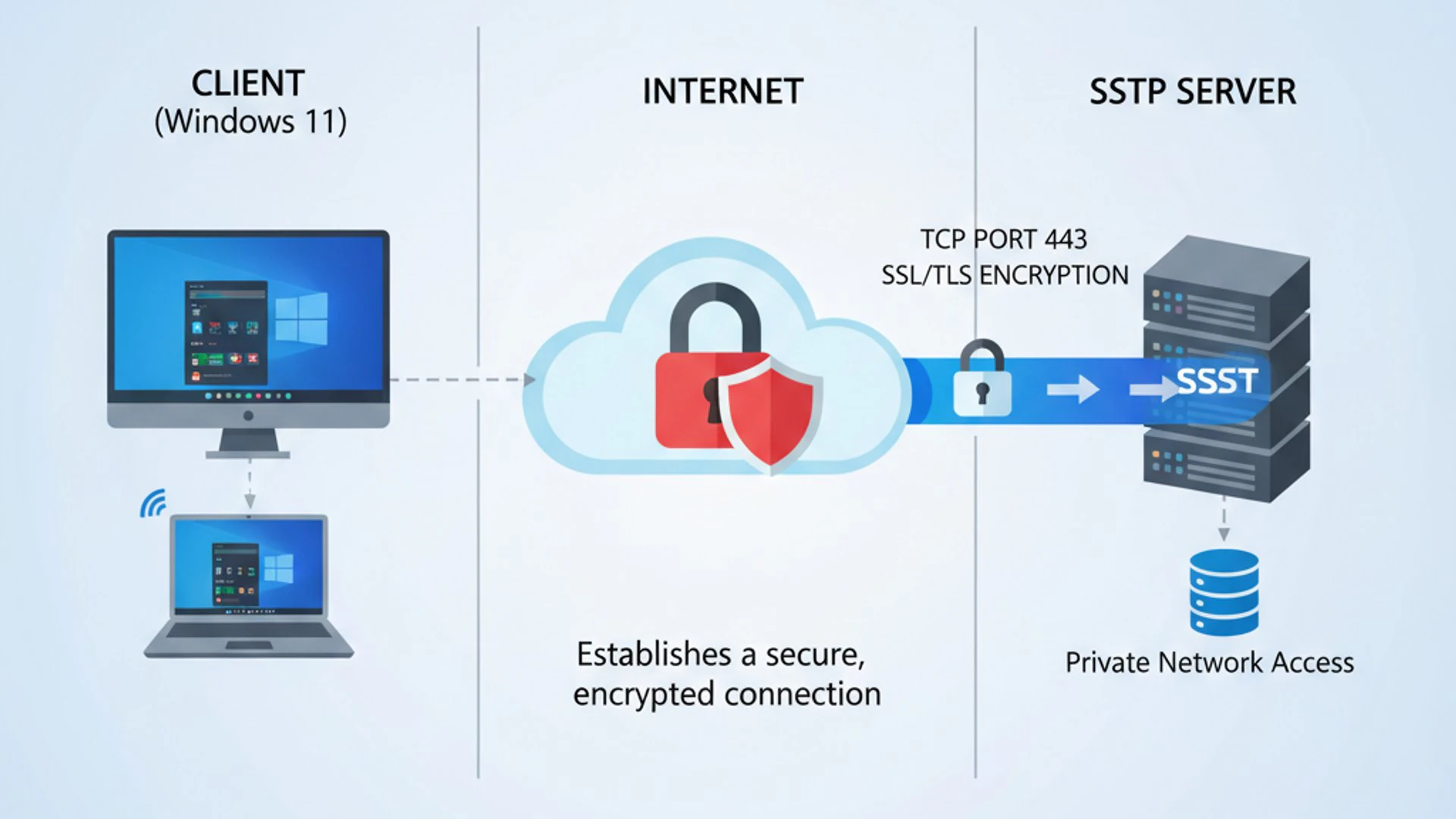
This design choice allows SSTP to leverage the robust encryption and authentication mechanisms of SSL/TLS, the same technology that secures your web browsing when you visit HTTPS websites. Its integration into the Windows operating system makes it a native and often convenient option for users.
Historically, VPN protocols faced challenges with network restrictions. Older protocols like PPTP were often blocked by firewalls due to their use of specific ports or protocols. SSTP was developed to overcome these limitations, offering a more reliable and secure alternative.
The protocol’s ability to operate over TCP port 443, the standard port for HTTPS traffic, is a key differentiator. This makes it appear as regular web traffic to most network devices, significantly reducing the likelihood of being blocked by firewalls or proxies.
The Evolution of VPN Protocols
The journey of VPN protocols has been one of continuous adaptation to evolving security threats and network complexities. Early protocols like Point-to-Point Tunneling Protocol (PPTP) emerged in the mid-1990s, offering basic encryption and ease of setup.
However, PPTP quickly revealed significant security vulnerabilities, making it unsuitable for sensitive data. This led to the development of more robust solutions. The Layer 2 Tunneling Protocol (L2TP), often paired with IPsec for encryption, provided a stronger alternative.
While L2TP/IPsec offered enhanced security, it sometimes struggled with firewall traversal due to its reliance on multiple ports and protocols. This complexity could lead to connectivity issues in restrictive network environments.
OpenVPN, an open-source solution, gained popularity for its flexibility, strong encryption, and ability to use various ports, including TCP 443. It offered a highly customizable and secure option, though it often required third-party client software.
Microsoft’s introduction of SSTP aimed to combine the best of both worlds: the strong security and firewall traversal capabilities of SSL/TLS, with native integration into the Windows ecosystem. This made it a compelling choice for Windows users seeking a reliable and secure VPN solution without additional software.
Core Principles of SSTP Security
At its heart, SSTP’s security relies on the well-established framework of SSL/TLS (Secure Sockets Layer/Transport Layer Security). This foundational technology is trusted globally for securing internet communications, from online banking to e-commerce.
The primary security mechanisms within SSTP include robust encryption, strong authentication, and data integrity checks. When an SSTP connection is initiated, a secure SSL/TLS tunnel is established first.
This tunnel uses cryptographic protocols to encrypt all data passing through it, making it unreadable to unauthorized parties. The encryption strength typically employs AES (Advanced Encryption Standard) with 256-bit keys, which is considered highly secure.
Authentication is another critical component. SSTP often uses certificate-based authentication, where both the client and the server verify each other’s identities using digital certificates. This prevents impersonation and ensures you’re connecting to a legitimate VPN server.
“SSTP’s reliance on the proven SSL/TLS framework provides a strong security posture, making it an excellent choice for protecting sensitive data on Windows 11.”
Furthermore, SSL/TLS provides mechanisms for data integrity, ensuring that the data transmitted over the VPN tunnel has not been tampered with during transit. This combination of encryption, authentication, and integrity forms the bedrock of SSTP’s robust security model.
How SSTP Functions on Windows 11
Understanding how SSTP operates on a technical level helps appreciate its effectiveness. When you initiate an SSTP VPN connection on Windows 11, a series of steps unfold to establish a secure, encrypted tunnel between your device and the VPN server.
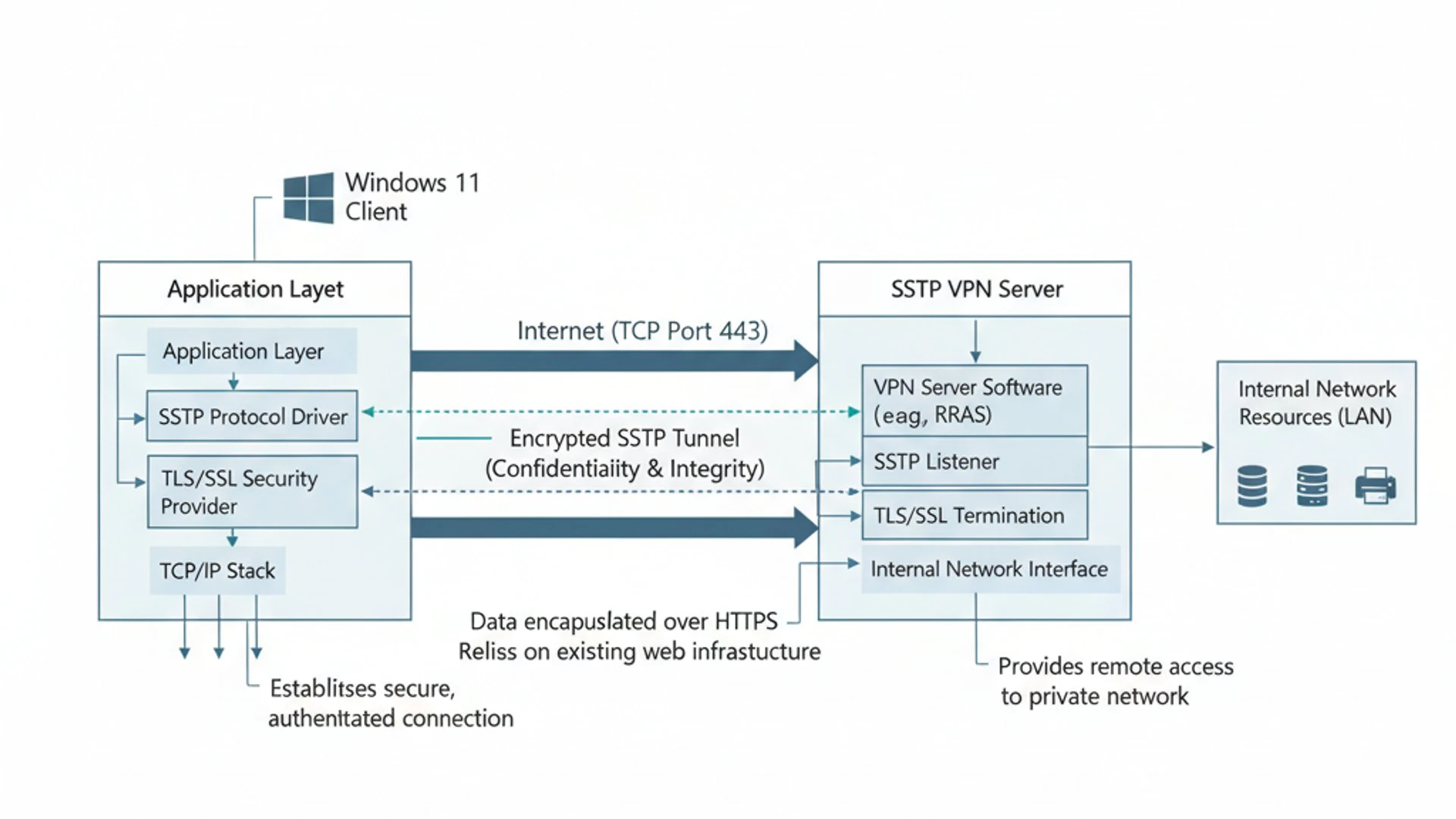
The process begins with your Windows 11 client attempting to connect to the SSTP server. This connection is initiated over TCP port 443, the same port used by HTTPS. This is a crucial design choice that allows SSTP traffic to blend in with regular web traffic, making it less likely to be blocked by firewalls.
Once the initial TCP connection is established, the SSL/TLS handshake process commences. This is where the client and server exchange cryptographic parameters, verify each other’s digital certificates, and agree upon the encryption algorithms to be used.
After a successful SSL/TLS handshake, a secure, encrypted tunnel is formed. It’s within this tunnel that the actual VPN traffic, encapsulated using the Point-to-Point Protocol (PPP), travels securely. This layered approach ensures both confidentiality and integrity of your data.
Encapsulation and Data Flow
The core of SSTP’s operation involves a process called encapsulation. Imagine your network data as a letter. Before sending it through the secure tunnel, SSTP “puts that letter inside another envelope.”
First, your original network data (e.g., a web request) is encapsulated within a PPP (Point-to-Point Protocol) frame. PPP is a standard protocol used for establishing a direct connection between two networking nodes.
Next, this PPP frame is then encapsulated within an SSTP header. This header contains information specific to the SSTP session, such as sequence numbers and acknowledgements, ensuring reliable delivery within the tunnel.
Finally, the entire SSTP packet (containing the PPP frame and your original data) is further encapsulated within an SSL/TLS record. This SSL/TLS record is then encrypted and transmitted over the standard TCP port 443.
When the encrypted data reaches the SSTP server, the process is reversed. The SSL/TLS layer is decrypted, revealing the SSTP packet. The SSTP header is then processed, and the PPP frame is extracted. Finally, the original network data is retrieved and forwarded to its intended destination on the VPN server’s network.
Authentication and Encryption Mechanisms
The strength of SSTP lies in its robust authentication and encryption mechanisms, inherited directly from the SSL/TLS protocol. These mechanisms work in concert to establish a trusted connection and protect data in transit.
Authentication ensures that both the client and the server are legitimate entities and not impostors. Encryption scrambles the data, rendering it unreadable to anyone without the correct decryption key.
Certificate-Based Authentication
Certificate-based authentication is a cornerstone of SSTP’s security. When an SSTP client on Windows 11 attempts to connect to a server, the server presents its digital certificate to the client.
This certificate contains the server’s public key and is digitally signed by a trusted Certificate Authority (CA). The client verifies this signature to ensure the certificate is authentic and has not been tampered with. It also checks if the certificate is still valid and if the server’s hostname matches the certificate’s subject.
For enhanced security, some SSTP setups might also require the client to present its own digital certificate to the server. This mutual authentication ensures that only authorized clients can connect to the VPN server, adding an extra layer of protection against unauthorized access.
Proper management of these certificates is crucial. Expired or revoked certificates can lead to connection failures, while compromised certificates can undermine the entire security of the VPN connection. Always ensure your certificates are up-to-date and issued by reputable CAs.
SSL/TLS Handshake Process
The SSL/TLS handshake process is a complex but vital series of steps that establishes the secure communication channel for SSTP. It typically involves several messages exchanged between the client and the server.
- Client Hello: The client initiates the handshake, sending information like the highest SSL/TLS version it supports, a random number, and a list of supported cipher suites (encryption algorithms).
- Server Hello: The server responds, selecting an SSL/TLS version and a cipher suite from the client’s list, sending its own random number, and presenting its digital certificate.
- Certificate Verification: The client verifies the server’s certificate using its trusted root certificates. If mutual authentication is required, the server might request a client certificate.
- Key Exchange: The client and server use their random numbers and cryptographic algorithms (often involving the server’s public key from its certificate) to generate a shared secret key. This key will be used for symmetric encryption during the session.
- Finished: Both parties send “Finished” messages, encrypted with the newly established shared key, to confirm that the handshake is complete and secure communication can begin.
Once the handshake is completed, all subsequent data exchanged between the Windows 11 client and the SSTP server is encrypted using the agreed-upon cipher suite and the shared secret key, ensuring a highly secure VPN tunnel.
Benefits and Advantages of Using SSTP
SSTP offers several compelling advantages that make it a strong contender for secure remote access, especially for Windows 11 users. Its design addresses common challenges faced by other VPN protocols, providing both enhanced security and excellent reliability.
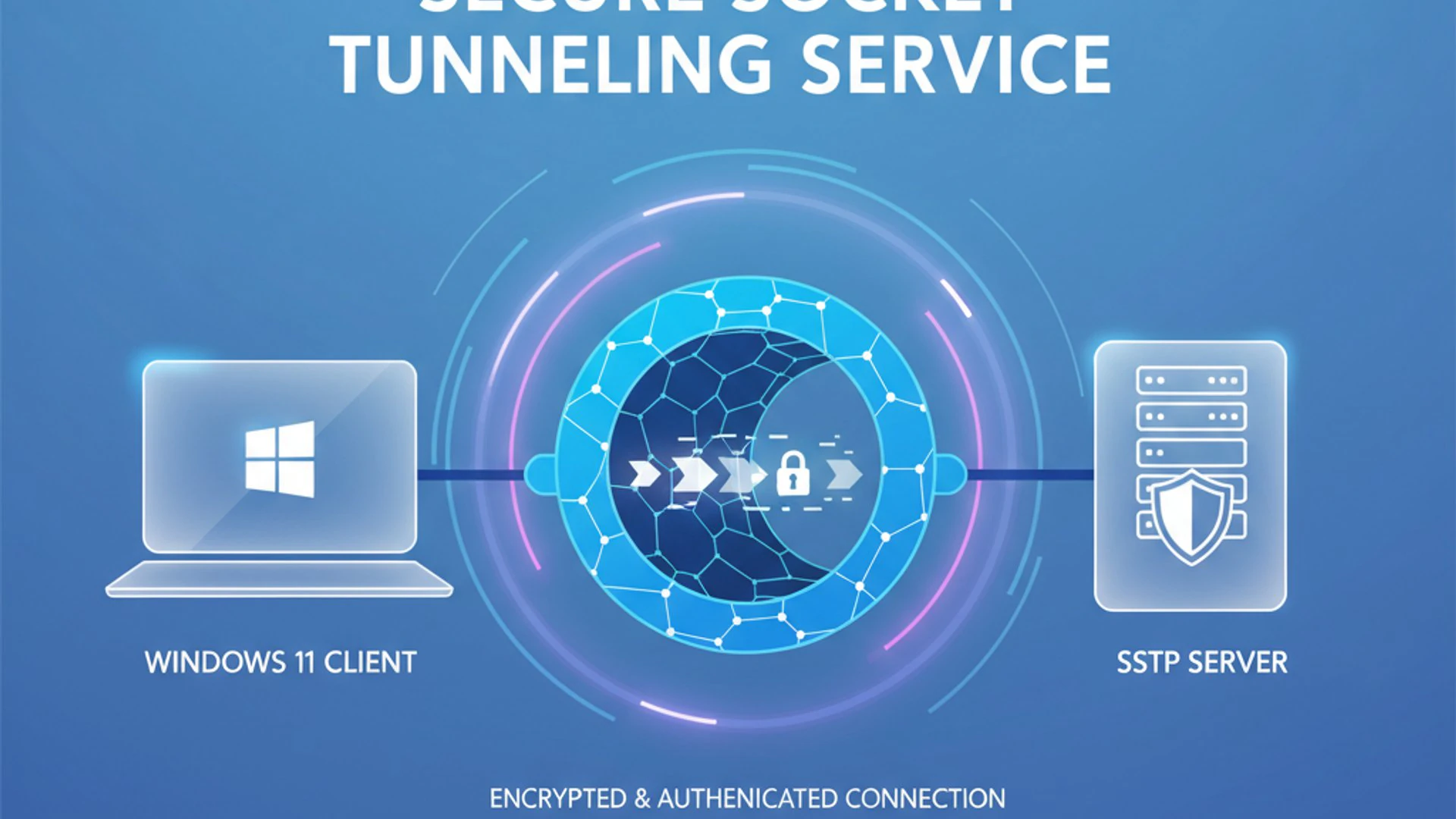
One of the primary benefits is its deep integration with the Windows operating system. This means that setting up and managing an SSTP connection often feels more seamless and intuitive compared to third-party VPN clients.
Furthermore, SSTP’s use of SSL/TLS for tunneling means it benefits from the continuous security improvements and widespread trust associated with this protocol. This ensures that your connection leverages state-of-the-art cryptographic practices.
Its ability to traverse restrictive networks is another significant advantage. For users frequently connecting from corporate networks, public Wi-Fi, or regions with strict internet censorship, SSTP often provides a reliable connection where other protocols might fail.
Enhanced Security Features
The security provided by Secure Socket Tunneling Protocol on Windows 11 is one of its most significant selling points. By building upon the SSL/TLS framework, SSTP inherits a robust suite of security features that protect your data effectively.
At its core, SSTP utilizes strong encryption algorithms, typically AES-256, to scramble all data passing through the VPN tunnel. This level of encryption is considered virtually unbreakable with current computing technology, safeguarding your sensitive information from eavesdropping.
Beyond encryption, SSTP employs rigorous certificate-based authentication. This mechanism ensures that both your Windows 11 device and the VPN server can verify each other’s identities using trusted digital certificates. This prevents man-in-the-middle attacks and ensures you are connecting to a legitimate server.
The protocol also supports various authentication methods for user credentials, including MS-CHAPv2 and EAP-TLS, providing flexibility while maintaining high security standards. The combination of these features makes SSTP a highly secure choice for protecting your online privacy and data integrity.
Firewall and NAT Traversal Capabilities
Perhaps the most practical advantage of SSTP is its exceptional ability to traverse firewalls and Network Address Translators (NATs). This capability makes it incredibly reliable in diverse and often restrictive network environments.
The key to this capability lies in SSTP’s use of TCP port 443. This is the same port used by HTTPS, the protocol that secures almost all legitimate web traffic. Network administrators rarely block port 443, as doing so would prevent access to most secure websites.
Because SSTP traffic appears as regular HTTPS traffic, it can often pass through firewalls and proxies without detection or blocking. This is a significant improvement over protocols like L2TP/IPsec, which can struggle with NAT traversal due to their reliance on specific UDP ports and IPsec negotiation.
For users who travel frequently, work from various locations, or operate in environments with strict network policies, SSTP offers a consistent and dependable VPN connection. It effectively bypasses many common network restrictions that hinder other VPN protocols, ensuring uninterrupted, secure access.
Configuring SSTP VPN Connections on Windows 11
Setting up an SSTP VPN connection on Windows 11 is a straightforward process, thanks to its native integration. You don’t need to download any third-party software, making it convenient for most users. This section will guide you through the steps to establish a new connection and explore advanced customization options.
Before you begin, you’ll need a few pieces of information from your VPN provider or network administrator: the VPN server address (or hostname), your username, and your password. If certificate-based authentication is used, you might also need to install a specific certificate.
The Windows 11 interface for VPN configuration is user-friendly, guiding you through the necessary fields. Pay close attention to the server address and authentication details to ensure a successful connection.
Once configured, the VPN connection will appear in your network settings, allowing for easy connection and disconnection. Remember to always verify the authenticity of your VPN server details to maintain security.
Setting Up a New VPN Connection
To establish a new SSTP VPN connection on your Windows 11 device, follow these steps carefully. The process is intuitive and designed for users of all technical levels.
- Open Settings by pressing
Windows key + I. - Navigate to Network & Internet from the left-hand menu.
- Click on VPN.
- Click the “Add VPN” button.
A new window will appear where you’ll input your VPN connection details. This is where you specify the type of VPN protocol and server information.
Manual Configuration Steps
When adding a new VPN connection, you’ll be prompted to fill in several fields. Here’s a breakdown of the essential information for an SSTP setup:
- VPN provider: Select “Windows (built-in)”.
- Connection name: Give your VPN connection a descriptive name (e.g., “My Secure SSTP VPN”).
- Server name or address: Enter the IP address or hostname of your SSTP VPN server. This is crucial for establishing the connection.
- VPN type: From the dropdown menu, select “Secure Socket Tunneling Protocol (SSTP)”. This explicitly tells Windows to use SSTP.
- Type of sign-in info: Choose your authentication method. Most commonly, this will be “User name and password”.
- User name (optional): Enter your VPN username.
- Password (optional): Enter your VPN password.
After filling in all the required details, click “Save”. Your new SSTP VPN connection will now appear in the list of VPN connections. To connect, simply click on its name and then click the “Connect” button.
Advanced SSTP Settings and Customization
While the basic setup covers most needs, Windows 11 also provides options for advanced configuration and customization of your SSTP VPN connections. These settings can fine-tune performance, security, or address specific network requirements.
To access advanced settings, go back to Settings > Network & internet > VPN, click on the VPN connection you wish to modify, and then select “Advanced options” or “Properties.”
One common advanced setting involves proxy server configuration. If your network requires a proxy to access the internet, you can configure it here. You can choose to automatically detect proxy settings or manually specify a proxy server address and port.
Another important area is DNS settings. By default, your VPN connection might inherit DNS servers from the VPN server. However, you can manually specify preferred and alternate DNS servers if you wish to use specific DNS providers for privacy or content filtering.
You can also control whether the VPN connection should be used for all traffic (“Use default gateway on remote network”) or only for specific traffic destined for the VPN server’s network (split tunneling). Disabling the default gateway routes only traffic intended for the VPN’s network through the tunnel, while other internet traffic goes directly, which can improve speed for non-VPN-related activities.
Troubleshooting Common SSTP Issues on Windows 11
Even with its reliability, you might occasionally encounter issues when connecting to an SSTP VPN on Windows 11. Understanding common problems and their solutions can save you time and frustration. Most issues stem from network configuration, authentication errors, or certificate problems.
Before diving into complex troubleshooting, always start with the basics. Ensure your internet connection is active and stable. Double-check the VPN server address, username, and password for any typos. A simple mistake in credentials is a frequent cause of connection failures.
Windows 11 provides built-in network diagnostics that can sometimes pinpoint the root cause. Access these by right-clicking the network icon in the taskbar and selecting “Troubleshoot problems.”
If the problem persists, systematically work through potential issues related to connectivity, authentication, and certificates. Patience and methodical testing are key to resolving VPN connection difficulties.
Diagnosing Connection Problems
When your SSTP VPN fails to connect, the first step is to diagnose the specific type of connection problem. Several factors can prevent a successful tunnel establishment.
Check your internet connectivity. Can you browse the web normally without the VPN? If not, the issue might be with your local network or ISP, not the VPN itself. Restart your router and modem if necessary.
Verify the VPN server address. Ensure there are no typos in the server name or IP address entered in your Windows 11 VPN settings. An incorrect address will prevent your device from even reaching the VPN server.
Firewall interference can also be a culprit. Although SSTP uses port 443, which is usually open, a very restrictive local firewall (on your PC or router) might still block the connection. Temporarily disable your Windows Defender Firewall or third-party firewall to test if it’s the cause. Remember to re-enable it afterward.
Network Address Translation (NAT) issues, though less common with SSTP, can sometimes occur if your router’s firmware is outdated or misconfigured. Ensure your router’s firmware is up to date.
Resolving Authentication and Certificate Errors
Authentication and certificate errors are distinct from general connection issues and often indicate problems with identity verification or cryptographic trust. These errors typically manifest as specific messages during the connection attempt.
If you receive an “authentication failed” or “username/password incorrect” error, meticulously re-enter your VPN username and password. Pay attention to case sensitivity and any special characters. If possible, try logging into the VPN using another device or client to rule out a Windows 11-specific issue.
Certificate errors are common when the VPN server’s certificate has expired, is invalid, or is not trusted by your Windows 11 system. You might see messages like “The certificate could not be validated” or “A certificate chain could not be built to a trusted root authority.”
To resolve certificate issues, ensure that the VPN server’s certificate is valid and issued by a trusted Certificate Authority (CA). If your organization uses an internal CA, you might need to install the CA’s root certificate on your Windows 11 device. Your IT administrator should provide instructions for this.
Check your system date and time. An incorrect date or time on your Windows 11 PC can cause certificate validation to fail, as certificates have specific validity periods. Synchronize your system clock with an internet time server.
Comparing SSTP with Other VPN Protocols
Choosing the right VPN protocol depends on your specific needs, balancing security, speed, and compatibility. While Secure Socket Tunneling Protocol on Windows 11 offers distinct advantages, it’s helpful to understand how it stacks up against other popular protocols.
Each protocol has its strengths and weaknesses, making them suitable for different scenarios. Factors like encryption strength, firewall traversal capability, ease of setup, and platform compatibility all play a role in this comparison.
For instance, some protocols prioritize raw speed, potentially at the expense of security, while others offer maximum security but might be slower or more complex to configure. SSTP generally aims for a good balance.
Understanding these differences will help you make an informed decision about whether SSTP is the best choice for your particular use case or if an alternative might be more appropriate.
SSTP vs. OpenVPN
OpenVPN is an open-source VPN protocol renowned for its flexibility, strong security, and widespread support across various platforms. When comparing SSTP with OpenVPN, several key differences emerge.
Security: Both protocols offer excellent security. OpenVPN supports a wide range of strong encryption algorithms (e.g., AES-256) and robust authentication methods, similar to SSTP. OpenVPN’s open-source nature means its code is publicly auditable, fostering trust in its security.
Firewall Traversal: SSTP excels here due to its exclusive use of TCP port 443, making it very effective at bypassing firewalls and NATs. OpenVPN can also use TCP port 443, but it can also operate over UDP, which can be faster but might be blocked more easily by restrictive firewalls.
Performance: OpenVPN, especially when configured to use UDP, can often offer slightly better performance (speed and lower latency) than SSTP, which is strictly TCP-based. TCP introduces overhead for error correction and retransmissions, which can impact speed over unreliable networks.
Ease of Use: SSTP is natively integrated into Windows 11, making setup relatively simple without third-party software. OpenVPN typically requires a separate client application, which, while powerful, adds an extra step to the setup process. However, OpenVPN’s client is highly customizable.
Platform Support: OpenVPN boasts broader platform support, with clients available for Windows, macOS, Linux, Android, and iOS. SSTP is primarily a Microsoft protocol, though some third-party clients exist for other platforms.
In summary, SSTP is an excellent choice for Windows users needing reliable firewall traversal and native integration. OpenVPN is ideal for those prioritizing maximum flexibility, open-source transparency, and cross-platform compatibility, often with slightly better performance potential.
SSTP vs. L2TP/IPsec and PPTP
Let’s compare SSTP with two other established VPN protocols: L2TP/IPsec and PPTP, highlighting their respective strengths and weaknesses.
PPTP (Point-to-Point Tunneling Protocol):
- Security: PPTP is considered highly insecure due to known vulnerabilities and weak encryption. It should generally be avoided for any sensitive data.
- Firewall Traversal: Poor. It uses TCP port 1723 and the Generic Routing Encapsulation (GRE) protocol (IP protocol 47), which are often blocked by firewalls and NAT devices.
- Performance: Generally fast due to minimal encryption overhead.
- Ease of Use: Very easy to set up natively on Windows.
PPTP’s only real advantage is its ease of setup and speed, but these come at a high cost to security. It’s largely obsolete for modern security needs.
L2TP/IPsec (Layer 2 Tunneling Protocol with IPsec):
- Security: Good. L2TP itself provides no encryption, but it’s almost always paired with IPsec for robust encryption and authentication. IPsec offers strong cryptographic protection.
- Firewall Traversal: Moderate. L2TP/IPsec uses UDP ports 500 (for IKE), 4500 (for NAT traversal), and IP protocol 50 (ESP). These can sometimes be blocked by firewalls or cause issues with NAT.
- Performance: Generally good, but the double encapsulation (L2TP over IPsec) can introduce some overhead compared to single-layer protocols.
- Ease of Use: Native support on Windows 11, making setup relatively easy, though sometimes it requires pre-shared keys or certificates.
L2TP/IPsec offers a good balance of security and performance, but can sometimes struggle with firewall traversal. SSTP generally outperforms L2TP/IPsec in restrictive network environments due to its single-port, HTTPS-like traffic.
In conclusion, SSTP offers superior security and firewall traversal compared to PPTP and generally better firewall traversal than L2TP/IPsec, making it a more reliable choice for secure remote access on Windows 11, especially in challenging network conditions.
Security Best Practices for SSTP on Windows 11
While SSTP inherently offers strong security, its effectiveness ultimately depends on how it’s implemented and maintained. Adhering to security best practices is crucial to ensure your Secure Socket Tunneling Protocol on Windows 11 connection remains robust and your data is protected.
Security is an ongoing process, not a one-time setup. It requires vigilance, regular checks, and proactive measures to guard against evolving threats. Neglecting these practices can undermine even the most secure protocols.
These recommendations focus on maintaining the integrity of your system, securing the authentication mechanisms, and staying informed about potential vulnerabilities. Implementing them will significantly enhance the overall security posture of your SSTP VPN usage.
Always remember that a chain is only as strong as its weakest link. A secure VPN protocol is only part of a comprehensive security strategy for your Windows 11 device.
Maintaining System and Certificate Integrity
Maintaining the integrity of your Windows 11 system and the digital certificates used by SSTP is paramount for a secure VPN connection. Compromised components can render the entire tunnel vulnerable.
Keep your Windows 11 operating system updated. Microsoft regularly releases security patches that address vulnerabilities. Delaying updates can leave your system exposed to exploits that could compromise your VPN connection or even your entire device. Ensure automatic updates are enabled or check for them regularly via Windows Update Troubleshooter on Windows 11.
Manage your digital certificates carefully. If your SSTP connection relies on client certificates, ensure they are stored securely and protected by strong passwords. Never share your private keys. Regularly review the validity periods of both client and server certificates.
If you’re managing an SSTP server, ensure its certificates are issued by a trusted Certificate Authority (CA) and are not self-signed for production environments. Self-signed certificates, while functional, offer less trust and can be more susceptible to man-in-the-middle attacks without proper client-side trust configuration.
Use strong, unique passwords for your VPN credentials. Avoid common passwords or reusing passwords from other services. Consider using a password manager to generate and store complex passwords securely.
Regular Monitoring and Updates
Proactive monitoring and consistent updates are critical for maintaining the long-term security of your SSTP VPN on Windows 11. Security threats are constantly evolving, and your defenses must evolve with them.
Monitor your VPN connection status. Periodically check your network settings to ensure the VPN is connected when it should be and that no unexpected disconnections are occurring. Unusual connection drops could indicate network issues or, in rare cases, attempted interference.
Keep your antivirus and anti-malware software up to date. Even with a secure VPN, your local system can be a point of vulnerability. Robust endpoint protection helps detect and remove threats that could compromise your device before or during a VPN session.
Stay informed about security advisories. Follow reputable cybersecurity news sources and Microsoft’s security bulletins. If a vulnerability is discovered in SSTP or its underlying SSL/TLS components, being aware of it allows you to take corrective action promptly.
“Proactive security measures, including diligent updates and vigilant monitoring, are indispensable for safeguarding your SSTP VPN connections against emerging digital threats.”
Finally, periodically review your VPN configuration. Ensure that only necessary protocols and authentication methods are enabled. Disable any features you don’t use to minimize the attack surface. Regularly auditing your settings helps ensure they align with current security best practices.
Conclusion: The Role of SSTP in Modern Windows 11 Security
The Secure Socket Tunneling Protocol (SSTP) remains a highly relevant and valuable VPN solution for Windows 11 users in today’s complex digital landscape. Its unique blend of robust security, native integration, and exceptional firewall traversal capabilities positions it as a strong choice for secure remote access.
By leveraging the widely trusted SSL/TLS protocol, SSTP provides strong encryption and authentication, safeguarding your data from eavesdropping and tampering. Its ability to operate over TCP port 443 makes it remarkably effective at bypassing restrictive firewalls and NAT devices, ensuring connectivity where other protocols might fail.
For individuals and organizations heavily invested in the Microsoft ecosystem, SSTP offers a seamless and often overlooked path to secure communications without the need for additional third-party software. This ease of deployment and management on Windows 11 is a significant advantage.
While other protocols like OpenVPN offer greater flexibility and cross-platform support, SSTP’s reliability and inherent security make it an excellent default option for Windows 11 users seeking a dependable and secure VPN. Adhering to best practices, such as regular updates and diligent certificate management, further strengthens its utility.
In an era where remote work is prevalent and cyber threats are ever-present, understanding and utilizing protocols like Secure Socket Tunneling Protocol on Windows 11 is crucial. It empowers users to maintain privacy, access corporate resources securely, and navigate the internet with confidence, solidifying its role as a cornerstone of modern Windows 11 security.









Community
Comments (0)