

Introduction to Shell Hardware Detection on Windows 11
Windows 11, with its sleek interface and enhanced performance, relies on a multitude of background services to deliver a seamless user experience. Among these critical components is the Shell Hardware Detection service, often abbreviated as ShellHWDetection. This unsung hero quietly works behind the scenes, acting as the primary orchestrator for how your system recognizes and responds to newly connected hardware devices. Learn more at ShellHWDetection service documentation and AutoPlay functionality.
Imagine plugging in a USB drive, inserting an SD card, or connecting an external hard drive, only for your computer to remain oblivious to its presence. This frustrating scenario is precisely what Shell Hardware Detection prevents. It’s the mechanism that enables your Windows 11 machine to instantly identify these devices and prompt you with appropriate actions, such as opening a folder to view files or initiating a software installation.
Understanding Shell Hardware Detection on Windows 11 is crucial for anyone looking to optimize their system’s responsiveness and troubleshoot device connectivity issues. This service is fundamental to the Plug and Play experience we often take for granted, ensuring that your peripherals are not just recognized but also integrated smoothly into your workflow. Without it, the convenience of modern computing would be significantly diminished.
In this comprehensive guide, we will delve deep into the intricacies of ShellHWDetection, exploring its core functions, its role in device management, and how you can effectively manage and troubleshoot it to ensure your Windows 11 system always responds perfectly to your hardware needs.
Table of contents
Key Takeaways
- Shell Hardware Detection (ShellHWDetection) is a vital Windows 11 service responsible for identifying newly connected hardware.
- It triggers actions like Autoplay for media devices and facilitates interaction with external storage.
- While related, ShellHWDetection is distinct from the broader Plug and Play system, focusing on user-interface responses.
- Troubleshooting often involves checking the service status, Autoplay settings, and device drivers.
- Users can configure its behavior through the Control Panel, Group Policy Editor, and Registry Editor.
- Disabling the service can impact security and user convenience, but might be considered for specific performance or security needs.
- Maintaining a healthy ShellHWDetection service ensures a smooth and responsive hardware experience on Windows 11.
What is Shell Hardware Detection (ShellHWDetection)?
At its heart, Shell Hardware Detection (ShellHWDetection) is a fundamental service within the Windows operating system, specifically designed to monitor for and respond to the connection of new hardware devices. On Windows 11, its role is as critical as ever, acting as the bridge between the physical world of peripherals and the digital environment of your operating system.
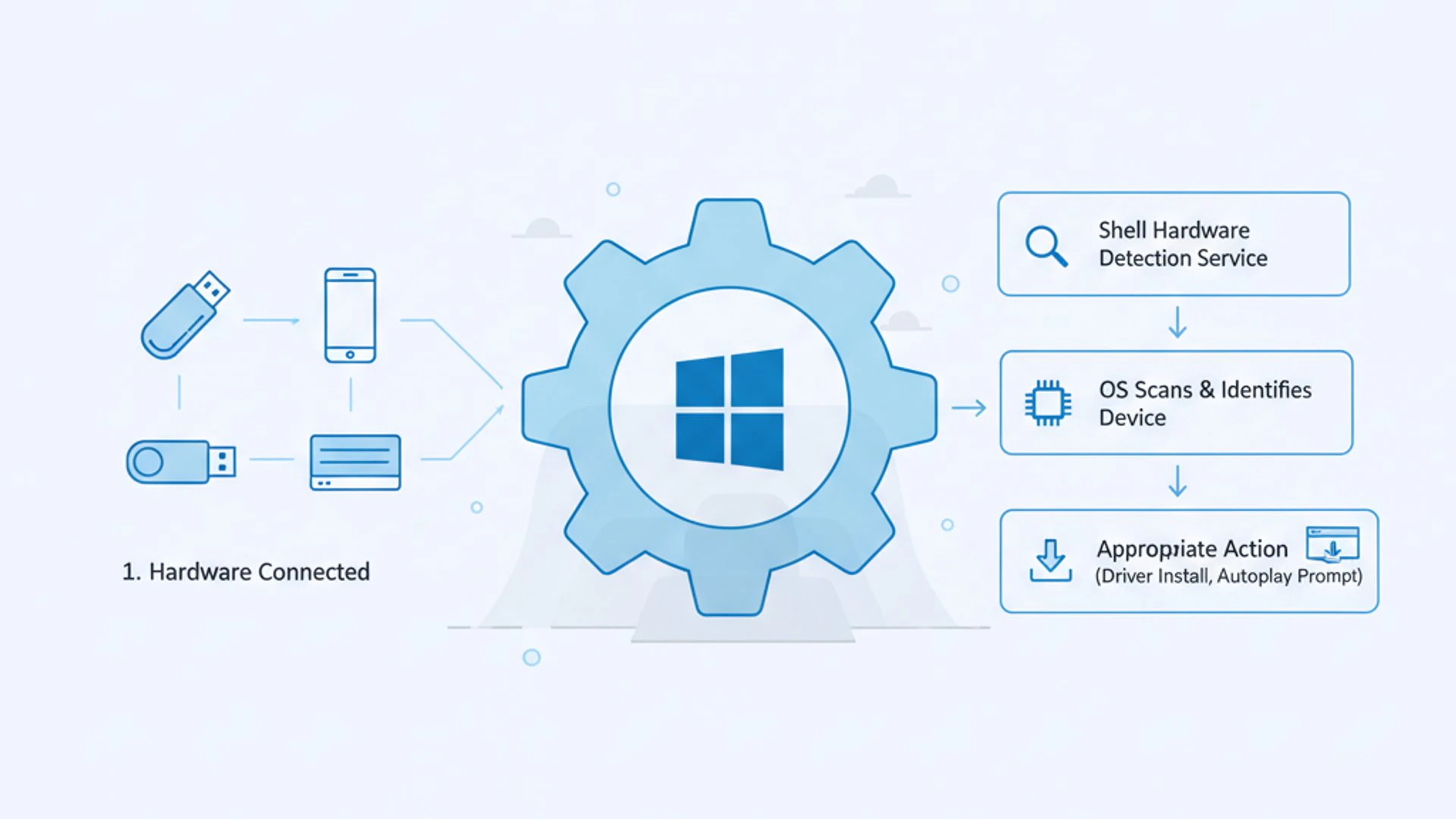
When you connect a device, be it a USB flash drive, an external hard drive, a camera, or an optical disc, ShellHWDetection springs into action. It doesn’t just recognize the device; it also determines its type and then initiates the appropriate user-facing actions. This immediate recognition and response mechanism is what makes modern computing so intuitive and user-friendly.
The service is particularly important for devices that are frequently connected and disconnected, such as portable storage or media devices. It ensures that your system doesn’t just see the hardware, but also understands its purpose and offers relevant options, often through the familiar Autoplay dialog. This proactive approach significantly enhances the overall user experience.
The Core Functionality of ShellHWDetection
The primary function of Shell Hardware Detection is to listen for hardware events. When a new device is physically connected to your Windows 11 computer, the operating system’s kernel detects the physical connection. This detection then triggers a series of events that ShellHWDetection monitors.
Upon detecting a new device, the service queries the system for information about it. This includes identifying the device type, its capabilities, and any associated drivers. Based on this information, ShellHWDetection then decides what actions to propose to the user. For instance, if it’s a photo camera, it might offer to import pictures.
This process is highly automated and typically happens within moments of connection. The service works in conjunction with other system components to ensure that the device is not only recognized but also ready for use, often presenting a choice of actions directly to the user. This immediate feedback is a hallmark of a well-functioning ShellHWDetection service.
“Shell Hardware Detection is the unsung hero that transforms a mere hardware connection into an interactive and user-friendly experience on Windows 11.”
Its core job is to initiate the user-interface responses to hardware changes, making it easier for you to interact with your peripherals without manually navigating through File Explorer or device managers. It’s the proactive element that makes your PC feel responsive and aware of its connected environment.
How ShellHWDetection Differs from Plug and Play
While often conflated, Shell Hardware Detection and the broader Plug and Play (PnP) system are distinct, albeit interconnected, components of Windows 11. Understanding their differences is key to grasping the specific role of ShellHWDetection.
Plug and Play is a foundational technology within Windows that handles the low-level detection, enumeration, and driver installation for hardware devices. When you connect a new device, PnP is responsible for identifying it at a hardware level, allocating system resources (like IRQs, DMA channels, and I/O ports), and installing the necessary device drivers to make the hardware functional.
In essence, PnP makes the hardware work with the operating system. It ensures that the device has the resources it needs and that the system can communicate with it. For example, if you plug in a new graphics card, PnP will detect it, install drivers, and make it available to the system.
Shell Hardware Detection, on the other hand, operates at a higher level, focusing on the user experience once a device has been made functional by PnP. Once PnP has done its job and the device is ready, ShellHWDetection steps in to provide the user with options for interacting with that device.
It’s the service that presents the “What do you want to do with this device?” dialog or automatically launches a media player when you insert a CD. Think of PnP as the engineer who builds the bridge, and ShellHWDetection as the traffic controller who guides vehicles across it. They are both essential, but serve different purposes in the overall hardware integration process.
The Role of Shell Hardware Detection in Device Management
The Shell Hardware Detection service plays a pivotal role in how Windows 11 manages and interacts with various devices, particularly those that are frequently connected and disconnected. Its influence extends across multiple facets of device management, from automatic media playback to seamless handling of external storage. This service ensures that your system is not just aware of connected hardware, but also provides intuitive and immediate ways to use it.
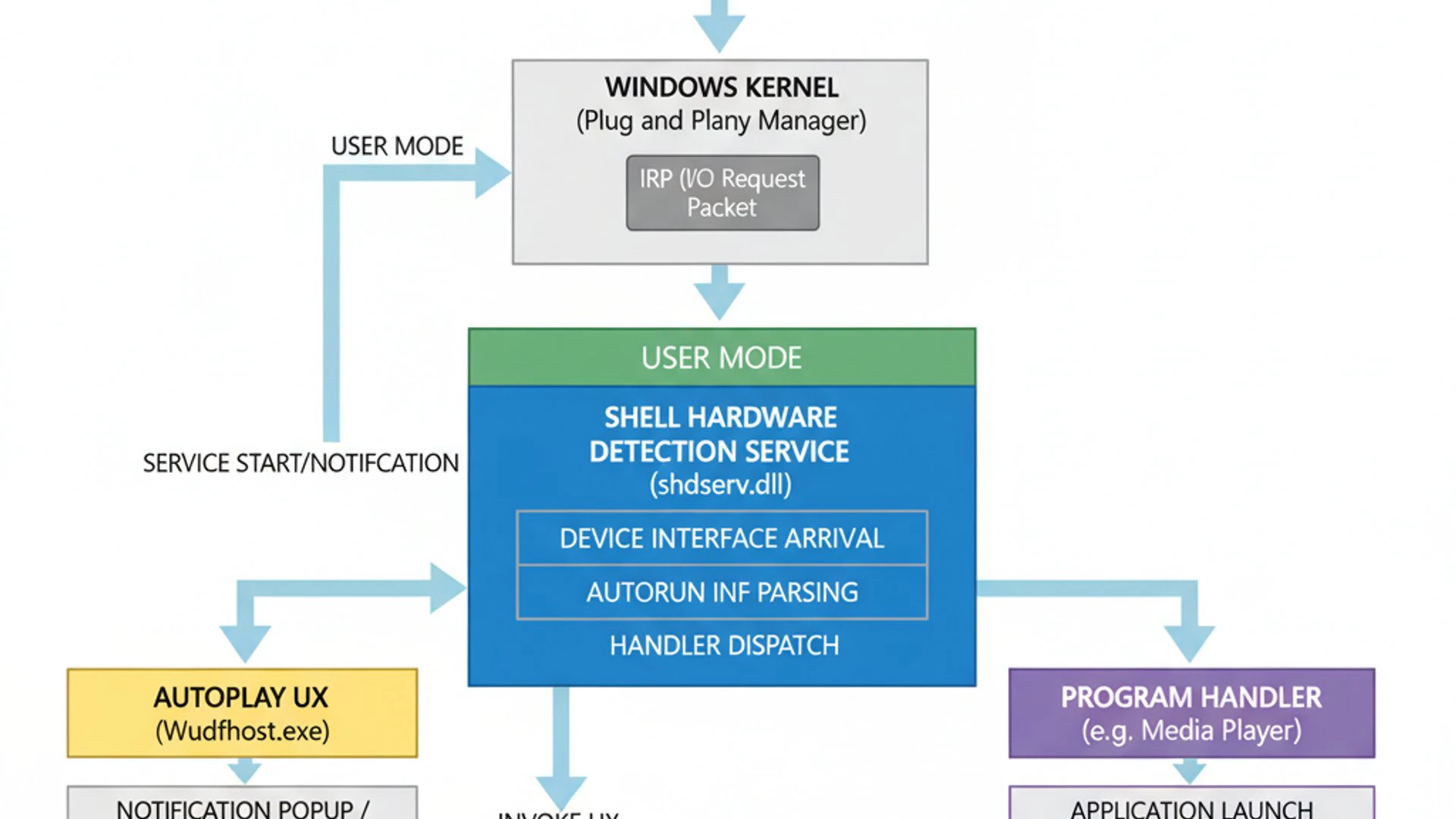
Without ShellHWDetection, every time you plugged in a USB drive or inserted a DVD, you would have to manually navigate through File Explorer to find the device and then open the desired application. This would be a significant disruption to workflow and a major step backward in user convenience. The service streamlines these interactions, making your Windows 11 experience much more fluid and efficient.
It acts as an intelligent agent, anticipating your needs based on the type of hardware connected. This proactive behavior is a cornerstone of modern operating system design, aiming to minimize user effort and maximize productivity. Its integration with other system components ensures a cohesive and responsive environment for all your peripherals.
Automatic Playback and Autoplay Features
One of the most recognizable functions of Shell Hardware Detection is its enablement of Autoplay features. This mechanism is designed to automatically detect media content on newly connected devices and offer relevant actions, or even initiate playback without user intervention, depending on your settings.
When you insert an audio CD, a DVD movie, or connect a camera with photos, ShellHWDetection identifies the media type. It then consults your Autoplay settings to determine the predefined action. This could be playing the CD with your default music player, launching a photo import tool, or opening a folder to view files.
This feature significantly enhances the user experience, especially for tasks involving media. Instead of manually launching an application and then navigating to the device, Autoplay provides a direct shortcut to the desired action. It’s a prime example of how ShellHWDetection adds convenience and efficiency to daily computing tasks on Windows 11.
Configuring Autoplay Settings for Different Media Types
Windows 11 provides robust options to customize Autoplay behavior, giving you control over how your system responds to various media types. These settings are managed through the Settings app, allowing for granular control.
To configure Autoplay settings:
- Open Settings by pressing
Windows + I. - Navigate to Bluetooth & devices, then select Autoplay.
- Here, you’ll find options for “Removable drive” and “Memory card.” You can choose actions like “Open folder to view files,” “Ask me every time,” “Configure storage settings,” or “Take no action.”
- Further down, under “Autoplay defaults,” you can specify actions for different media types, such as audio CDs, enhanced audio CDs, DVD movies, Blu-ray discs, and more.
You can set a default action for each type or choose “Ask me every time” if you prefer to be prompted for a decision. This level of customization ensures that Shell Hardware Detection responds exactly how you want it to, tailoring the automatic actions to your specific preferences and workflow. Careful configuration here can save you a lot of time.
Interacting with External Storage Devices
Beyond media playback, Shell Hardware Detection is absolutely critical for seamless interaction with external storage devices. This includes the ubiquitous USB flash drives, SD cards from cameras, external hard drives, and even older optical media like CDs and DVDs. Its role here is to ensure these devices are not just recognized, but also readily accessible.
When you plug in a USB drive, ShellHWDetection works in tandem with the Plug and Play system to ensure the device is mounted and assigned a drive letter. Immediately after, it presents you with options, typically to open the drive in File Explorer. This immediate feedback is vital for productivity, allowing you to quickly access your files.
For photographers, inserting an SD card often triggers an option to import photos using the Photos app or another preferred application, thanks to ShellHWDetection. This automation removes the need to manually browse for the device and then launch the import utility, streamlining the entire process of getting your images onto your PC.
Impact on USB Drives, SD Cards, and Optical Media
The impact of Shell Hardware Detection on these devices is profound. For USB drives and SD cards, it ensures instant recognition and offers immediate access to their contents. Without it, you might have to manually refresh File Explorer or even restart your system for the drive to appear.
For optical media (CDs, DVDs, Blu-ray discs), ShellHWDetection detects the disc type and content, then applies your configured Autoplay settings. This means a movie DVD can automatically launch your media player, or a software installation disc can prompt you to run the setup program.
This service is also crucial for external hard drives, ensuring they are properly recognized and accessible for data transfer or backup operations. In essence, Shell Hardware Detection transforms the act of connecting an external storage device from a manual chore into a smooth, automated interaction, greatly enhancing the usability of your Windows 11 system.
Common Scenarios and Benefits of ShellHWDetection
The presence and proper functioning of Shell Hardware Detection on Windows 11 bring numerous benefits to the everyday user experience. It’s one of those services that you rarely notice when it’s working correctly, but its absence or malfunction can quickly lead to frustration. Its primary goal is to make your interaction with hardware as effortless and intuitive as possible.
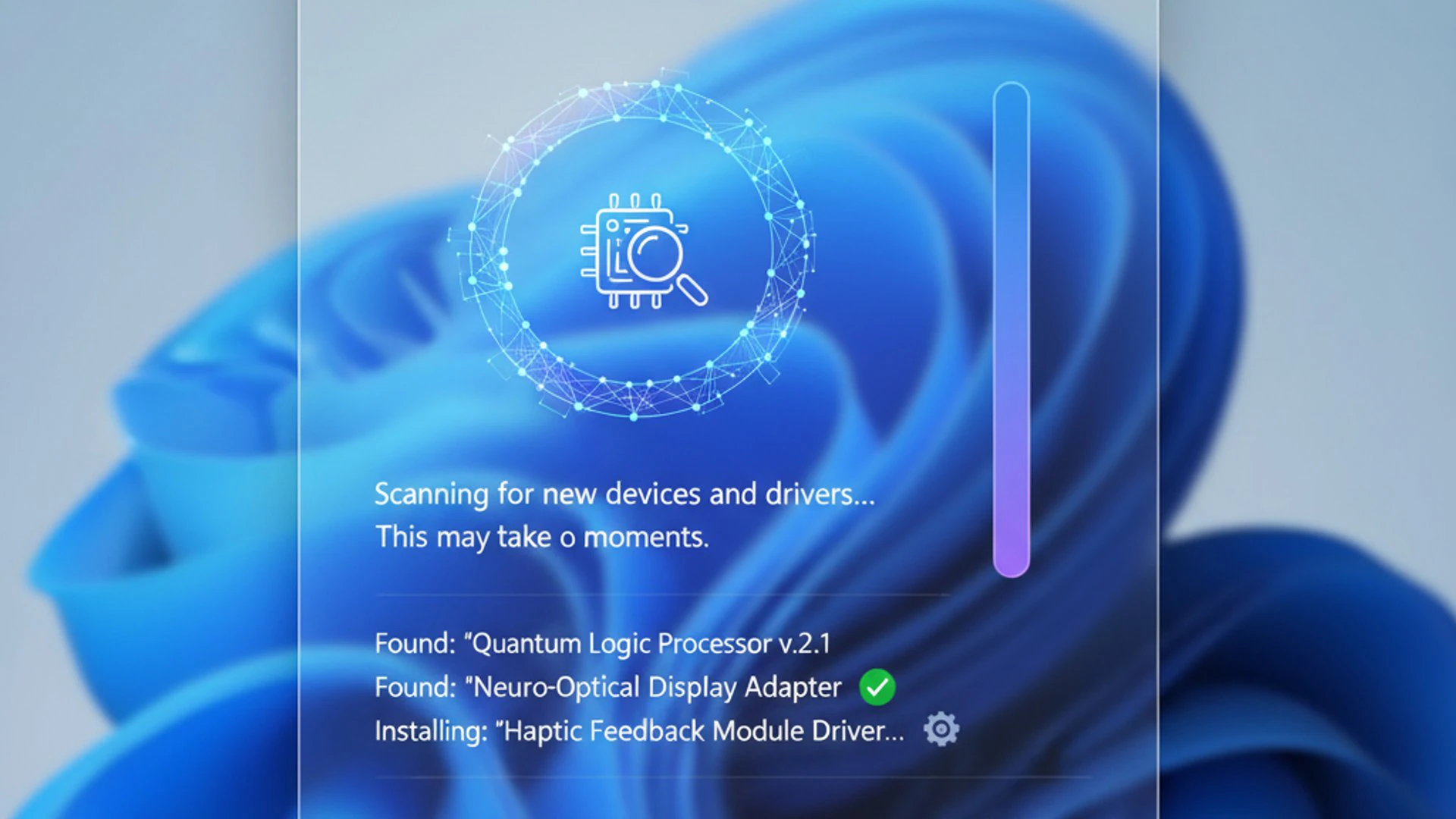
From the moment you plug in a new peripheral to the regular use of external storage, ShellHWDetection streamlines processes that would otherwise require manual intervention. This automation not only saves time but also reduces the cognitive load on the user, allowing them to focus on their tasks rather than on managing hardware connections.
Understanding these common scenarios helps appreciate the underlying value of this service. It underpins much of the “it just works” philosophy that modern operating systems strive for, making Windows 11 a more pleasant and productive environment for all users.
Enhancing User Experience with Automated Actions
One of the most significant benefits of Shell Hardware Detection is its ability to enhance the user experience through automated actions. This means that instead of having to manually initiate processes, your Windows 11 system anticipates your needs and offers relevant options or takes predefined steps.
Consider these practical examples:
- Photo Import: When you connect a digital camera or insert an SD card, ShellHWDetection can automatically prompt you to import photos using the Photos app or another imaging software. This saves you the trouble of opening the app and navigating to the device manually.
- Media Playback: Inserting an audio CD or a movie DVD can trigger your default media player to start playback immediately, creating a seamless entertainment experience.
- Software Installation: For software distributed on optical media, the service can automatically detect the setup file and prompt you to run it, simplifying the installation process.
These automated actions are configurable, allowing users to tailor the responses to their preferences, further personalizing their Windows 11 environment. This proactive approach by ShellHWDetection significantly contributes to a smoother and more efficient workflow.
Streamlining Peripheral Connectivity
Beyond automated actions for media, Shell Hardware Detection plays a crucial role in streamlining peripheral connectivity in a broader sense. It ensures that a wide array of external devices are not just recognized by the system but also presented to the user in an accessible and functional manner.
When you connect a new USB printer, for example, while Plug and Play handles the driver installation, ShellHWDetection might offer to open the printer’s setup utility or direct you to the Devices and Printers section. This guides the user through the next logical steps after initial hardware detection.
For external hard drives or USB flash drives, the service ensures that they appear promptly in File Explorer, ready for file transfer. This immediate visibility and accessibility are paramount for productivity, especially for users who frequently move data between devices.
“The true power of Shell Hardware Detection lies in its ability to transform complex hardware interactions into simple, intuitive user choices.”
Without this service, every new connection could potentially become a manual troubleshooting exercise, detracting significantly from the ease of use that modern operating systems promise. ShellHWDetection is thus integral to maintaining a fluid and responsive computing environment on Windows 11.
Troubleshooting Shell Hardware Detection Issues on Windows 11
Even though Shell Hardware Detection is designed to operate seamlessly in the background, like any complex system component, it can occasionally encounter issues. When ShellHWDetection malfunctions, you might experience problems such as devices not being recognized, Autoplay not working, or your system failing to prompt you for actions when new hardware is connected.
Troubleshooting these issues systematically can help restore proper functionality and ensure your Windows 11 system responds correctly to all your peripherals. It often involves checking the service’s status, verifying Autoplay settings, and ensuring device drivers are up to date. Addressing these problems is key to maintaining a smooth and efficient hardware experience.
A non-responsive ShellHWDetection can be a major inconvenience, especially for users who frequently connect external devices. By following the steps outlined below, you can diagnose and resolve most common problems associated with this vital service.
Checking the Shell Hardware Detection Service Status
The first and most crucial step in troubleshooting any Shell Hardware Detection issue is to verify that the service itself is running correctly. If the service is stopped or configured improperly, none of its functions, including Autoplay, will work.
To check the service status:
- Press
Windows + Rto open the Run dialog. - Type
services.mscand press Enter to open the Services management console. - Scroll down the list and locate Shell Hardware Detection.
- Examine the “Status” column. It should show “Running.”
- Check the “Startup Type” column. It should typically be set to “Automatic.”
If the status is not “Running” or the startup type is not “Automatic,” this is likely the root cause of your problems. Adjusting these settings is usually straightforward and can quickly resolve many detection issues.
Steps to Start, Stop, or Restart the Service
If the Shell Hardware Detection service is not running, or if you suspect it’s stuck, you can manually manage its state. Restarting a service is often a good first step for minor glitches.
From the Services management console (services.msc):
- Right-click on Shell Hardware Detection.
- To start it, select Start. If it’s already running, this option will be grayed out.
- To stop it, select Stop. This might be necessary before changing the startup type.
- To restart it, select Restart. This will stop and then start the service, which can resolve temporary issues.
- To change the startup type, double-click the service. In the Properties window, select “Automatic” from the “Startup type” dropdown menu, then click “Apply” and “OK.”
After making changes, try connecting your hardware again to see if the issue is resolved. A simple restart of the service can often clear up minor communication errors and restore proper detection functionality.
Diagnosing Autoplay Problems
If Shell Hardware Detection is running but Autoplay isn’t functioning as expected, the problem might lie in your Autoplay settings or specific device configurations. This is a common scenario where the service itself is fine, but its instructions are either missing or incorrect.
First, revisit the Autoplay settings in the Windows 11 Settings app (Settings > Bluetooth & devices > Autoplay). Ensure that the desired actions are selected for “Removable drive,” “Memory card,” and other media types. Sometimes, these settings can get inadvertently changed or reset.
Next, check if the issue is specific to a particular device or media type. If only one USB drive isn’t triggering Autoplay, try another. If only DVDs aren’t working, check your default media player settings. For example, your media player might not be correctly associated with DVD playback.
Also, consider if any third-party software might be interfering. Some security suites or optimization tools can sometimes override Windows’ default Autoplay behavior. Temporarily disabling such software can help diagnose if it’s the culprit. Always re-enable security software after testing.
Resolving Device Not Detected Errors
When devices are not detected at all, even after confirming the Shell Hardware Detection service is running, the issue likely extends beyond Autoplay and points to a more fundamental problem with hardware recognition or drivers. ShellHWDetection relies on the device being recognized by the system first.
Here’s a systematic approach:
- Check Device Manager: Press
Windows + Xand select “Device Manager.” Look for any devices with a yellow exclamation mark or listed under “Other devices.” These indicate driver issues. - Update/Reinstall Drivers: If a device has a driver issue, right-click it in Device Manager and select “Update driver.” If that doesn’t work, try “Uninstall device” and then restart your PC. Windows will often reinstall the driver automatically.
- Try Different Ports/Cables: A faulty USB port or a damaged cable can prevent detection. Test the device with a different port or cable if possible.
- Test on Another PC: If the device isn’t detected on your Windows 11 PC, try connecting it to another computer to rule out a faulty device itself.
- Run Hardware Troubleshooter: Windows 11 has built-in troubleshooters. Go to
Settings > System > Troubleshoot > Other troubleshootersand look for options related to hardware or devices.
Remember that Shell Hardware Detection only provides the user interface for detected hardware. If the hardware isn’t detected at a lower system level (by Plug and Play), ShellHWDetection cannot offer any options. Addressing driver or physical connection issues is paramount in such cases.
Advanced Management of Shell Hardware Detection
While the basic Autoplay settings cover most user needs, Windows 11 offers more advanced ways to manage the behavior of Shell Hardware Detection. These methods provide greater control, especially for system administrators or users who require specific configurations for security, performance, or specialized workflows. Understanding these tools allows for precise adjustments beyond the standard graphical interface.
These advanced management techniques involve using administrative tools like the Control Panel for legacy settings, the Group Policy Editor for system-wide rules, and the Registry Editor for granular, low-level modifications. Each tool serves a different purpose and offers varying degrees of control over how ShellHWDetection operates on your system.
By delving into these options, you can fine-tune how your Windows 11 machine interacts with all connected hardware, ensuring optimal performance and adherence to specific operational requirements. This level of control is essential for power users and IT professionals.
Modifying Autoplay Settings via Control Panel
Although Windows 11 has moved many settings to the modern Settings app, the classic Control Panel still retains some relevant configurations, including a dedicated section for Autoplay. This can be useful for users familiar with the older interface or for accessing options not immediately apparent in the new Settings app.
To access Autoplay settings through the Control Panel:
- Press
Windows + R, typecontrol, and press Enter to open the Control Panel. - Change the “View by” option to “Large icons” or “Small icons” if you’re in Category view.
- Click on Autoplay.
Here, you’ll find a comprehensive list of device types and media, allowing you to choose default actions for each. You can select actions for pictures, videos, audio files, mixed content, and various types of discs and devices. This interface often presents a more detailed breakdown compared to the Settings app, offering more specific choices for certain media types.
Ensure the “Use Autoplay for all media and devices” checkbox at the top is ticked if you want Autoplay to function. This traditional Control Panel interface provides a robust way to manage Autoplay behavior, complementing the modern Settings app.
Using Group Policy Editor to Control ShellHWDetection Behavior
For Windows 11 Pro, Enterprise, or Education editions, the Group Policy Editor (gpedit.msc) offers a powerful way to manage Shell Hardware Detection behavior, particularly for system administrators who need to enforce policies across multiple machines. This tool allows for system-wide control over Autoplay and device access.
To configure Autoplay via Group Policy:
- Press
Windows + R, typegpedit.msc, and press Enter. - Navigate to
Computer Configuration > Administrative Templates > Windows Components > Autoplay Policies. - You’ll find several settings here, including:
- Turn off Autoplay: This is the most impactful setting. Enabling it completely disables Autoplay for all or specific types of drives.
- Default behavior for Autoplay: Defines the default action when a device is connected.
- Disallow Autoplay for non-volume devices: Prevents Autoplay for devices like cameras that don’t appear as drives.
- Double-click a policy, select “Enabled” or “Disabled,” and configure any specific options. Click “Apply” and “OK.”
Changes made in Group Policy Editor override settings in the Control Panel and Settings app. This is an invaluable tool for IT departments to manage security and user experience consistently across an organization. For example, disabling Autoplay for all removable drives can be a key security measure against malware propagation.
Registry Editor Tweaks for Advanced Configuration
The Registry Editor (regedit.exe) provides the deepest level of control over Shell Hardware Detection, though it should be used with extreme caution. Incorrect modifications to the registry can lead to system instability. Always back up your registry before making changes.
Registry settings for Autoplay are primarily found under:
HKEY_CURRENT_USER\SOFTWARE\Microsoft\Windows\CurrentVersion\Explorer\AutoplayHandlers
and
HKEY_LOCAL_MACHINE\SOFTWARE\Microsoft\Windows\CurrentVersion\Explorer\AutoplayHandlers
Key values to look for include:
DisableAutoplay: A DWORD value that, if set to1, disables Autoplay.NoDriveTypeAutoRun: A DWORD value that controls Autoplay for specific drive types. This is a bitmask, where each bit corresponds to a drive type (e.g., removable drives, fixed drives, CD-ROMs).
For instance, to disable Autoplay for all drive types, you would set NoDriveTypeAutoRun to 0xFF. This requires a detailed understanding of bitmasks and their corresponding drive types. Modifying these values should only be attempted by experienced users who understand the potential ramifications.
Registry tweaks can resolve persistent Autoplay issues that higher-level settings can’t fix, or implement very specific behaviors not available through the GUI. However, due to the risk involved, Group Policy is generally preferred for system-wide control when available.
When to Disable or Enable Shell Hardware Detection
While Shell Hardware Detection is a cornerstone of user convenience on Windows 11, there are specific scenarios where users might consider disabling it. These decisions often stem from security concerns or a desire to optimize system performance. However, it’s crucial to understand the implications of such actions before proceeding, as disabling this service can significantly alter your daily computing experience.
Conversely, if you’ve previously disabled the service and are now experiencing issues with device recognition or Autoplay, knowing how to re-enable it is equally important. Balancing security and performance with usability is key to managing ShellHWDetection effectively.
This section will explore the rationale behind disabling the service and provide clear instructions on how to restore its functionality when needed, ensuring you can make informed choices about your Windows 11 system’s behavior.
Security Considerations and Performance Impact
Disabling Shell Hardware Detection, particularly its Autoplay component, is often considered a security best practice in environments where there’s a risk of malware spreading via removable media. If Autoplay is enabled, connecting an infected USB drive could automatically execute malicious code, potentially compromising your system.
By turning off Autoplay, you prevent any automatic actions from taking place when a device is connected, forcing you to manually open the drive and scrutinize its contents. This adds an extra layer of defense against certain types of threats. For organizations, this is often a standard security policy enforced via Group Policy.
From a performance perspective, the impact of Shell Hardware Detection is generally minimal on modern Windows 11 systems. It’s a lightweight service that only becomes active when new hardware is connected. However, in very resource-constrained environments or on older hardware, disabling unnecessary services might contribute to a marginal improvement in boot times or overall responsiveness. For the vast majority of users, the performance gain from disabling it would be negligible and likely outweighed by the loss of convenience.
“While disabling Shell Hardware Detection can enhance security, it often comes at the cost of significant user convenience.”
Therefore, the decision to disable it should be carefully weighed against the loss of the seamless Plug and Play experience it provides. For most home users, the built-in security features of Windows Defender and careful internet practices offer sufficient protection without sacrificing Autoplay functionality.
Re-enabling the Service for Optimal Functionality
If you’ve previously disabled Shell Hardware Detection or its Autoplay features, and you’re now experiencing difficulties with device recognition or wish to restore the convenience of automatic actions, re-enabling the service is straightforward. Reverting these changes will bring back the full functionality of ShellHWDetection.
To re-enable the service:
- Via Services Console:
- Open the Services console (
services.msc). - Locate Shell Hardware Detection.
- Double-click it, set the “Startup type” to “Automatic,” and click “Start” if the service is not running. Click “Apply” and “OK.”
- Open the Services console (
- Via Settings App (for Autoplay):
- Go to
Settings > Bluetooth & devices > Autoplay. - Ensure “Use Autoplay for all media and devices” is toggled On.
- Configure your preferred actions for “Removable drive” and “Memory card.”
- Go to
- Via Group Policy Editor (if previously disabled there):
- Open Group Policy Editor (
gpedit.msc). - Navigate to
Computer Configuration > Administrative Templates > Windows Components > Autoplay Policies. - Double-click “Turn off Autoplay” and set it to Not Configured or Disabled.
- Do the same for any other Autoplay policies you might have enabled.
- Open Group Policy Editor (
- Via Registry Editor (if previously disabled there):
- Open Registry Editor (
regedit.exe). - Navigate to
HKEY_CURRENT_USER\SOFTWARE\Microsoft\Windows\CurrentVersion\Explorer\AutoplayHandlers. - Delete the
DisableAutoplayDWORD value if it exists, or set it to0. - Check
HKEY_LOCAL_MACHINE\SOFTWARE\Microsoft\Windows\CurrentVersion\Explorer\AutoplayHandlersfor similar values. - For
NoDriveTypeAutoRun, set it to0x91(default for Windows 11) or0x95(common for older Windows versions) to enable Autoplay for most drives.
- Open Registry Editor (
After re-enabling, it’s a good idea to restart your computer to ensure all changes take effect. This will restore the seamless interaction with external hardware that Shell Hardware Detection provides on Windows 11.
Conclusion: Mastering Shell Hardware Detection on Windows 11
The Shell Hardware Detection service, or ShellHWDetection, is an integral, though often unnoticed, component of the Windows 11 operating system. It quietly orchestrates the seamless interaction between your computer and the myriad of external devices you connect daily. From the instant recognition of a USB drive to the automatic playback of a movie DVD, this service underpins much of the intuitive Plug and Play experience we’ve come to expect.
Understanding its core functionality, its role in managing devices, and its distinction from the broader Plug and Play system empowers you to better manage your Windows 11 environment. We’ve explored how it enhances user experience through automated actions and streamlines the connectivity of peripherals, making your digital life significantly more convenient.
Furthermore, this guide has equipped you with the knowledge to troubleshoot common issues, from checking the service status to diagnosing Autoplay problems and resolving device detection errors. For those seeking greater control, we delved into advanced management techniques using the Control Panel, Group Policy Editor, and even the Registry Editor, offering granular control over its behavior.
Finally, we weighed the considerations for disabling or enabling Shell Hardware Detection, balancing security concerns with the undeniable benefits of optimal functionality. By mastering Shell Hardware Detection on Windows 11, you gain a deeper understanding of your system’s capabilities and ensure a consistently smooth, responsive, and secure interaction with all your hardware. This knowledge is invaluable for both casual users and IT professionals alike, transforming potential frustrations into effortless operations.
Have Queries?
If you have any queries, kindly let us know in the comments. For more interesting articles, stay tuned to Winsides.com









Community
Comments (0)