

Introduction to Still Image Acquisition Events on Windows 11
In the intricate ecosystem of Windows 11, countless background processes and services work in concert to deliver a seamless user experience. Among these, the mechanisms governing how your computer interacts with imaging devices like scanners and cameras are particularly crucial. This interaction is largely orchestrated by what are known as Still Image Acquisition Events. Learn more at WIA architecture and WIA events
These events are the digital signals that Windows 11 uses to detect, manage, and respond to actions involving still image devices. Whether you’re connecting a new camera, initiating a scan, or transferring photos from your smartphone, these events are silently at play, ensuring your applications can access the hardware effectively.
At the heart of this system lies the Windows Image Acquisition (WIA) service. WIA acts as a universal translator, allowing different imaging devices and software to communicate harmoniously. Understanding these events and the WIA service is not just for tech enthusiasts; it empowers every user to troubleshoot common issues, optimize device performance, and maintain system stability.
This comprehensive guide will demystify Still Image Acquisition Events on Windows 11, exploring their underlying architecture, impact on system performance, and offering practical troubleshooting and optimization techniques. By the end, you’ll possess the knowledge to manage your imaging devices with greater confidence and efficiency.
Table of contents
Key Takeaways
- Still Image Acquisition Events are critical signals that Windows 11 uses to manage interactions with imaging devices like cameras and scanners.
- The Windows Image Acquisition (WIA) service is the core component responsible for facilitating communication between imaging hardware and software.
- Common event triggers include device connection, image capture, and scanning completion, all logged for system monitoring.
- Mismanaged WIA processes or outdated drivers can lead to performance issues, including system slowdowns and application crashes.
- Effective troubleshooting involves checking WIA service status, updating drivers, and utilizing the Event Viewer for detailed diagnostics.
- Advanced users can fine-tune WIA behavior through device-specific settings, Group Policy, and Registry modifications.
- Understanding WIA security implications and implementing best practices is essential for protecting your system from potential vulnerabilities.
Understanding Still Image Acquisition (WIA) in Windows 11
The concept of Still Image Acquisition Events on Windows 11 is intrinsically linked to the broader framework of Windows Image Acquisition (WIA). This robust architecture provides a standardized way for applications to interact with various imaging devices, from basic webcams to sophisticated professional scanners.
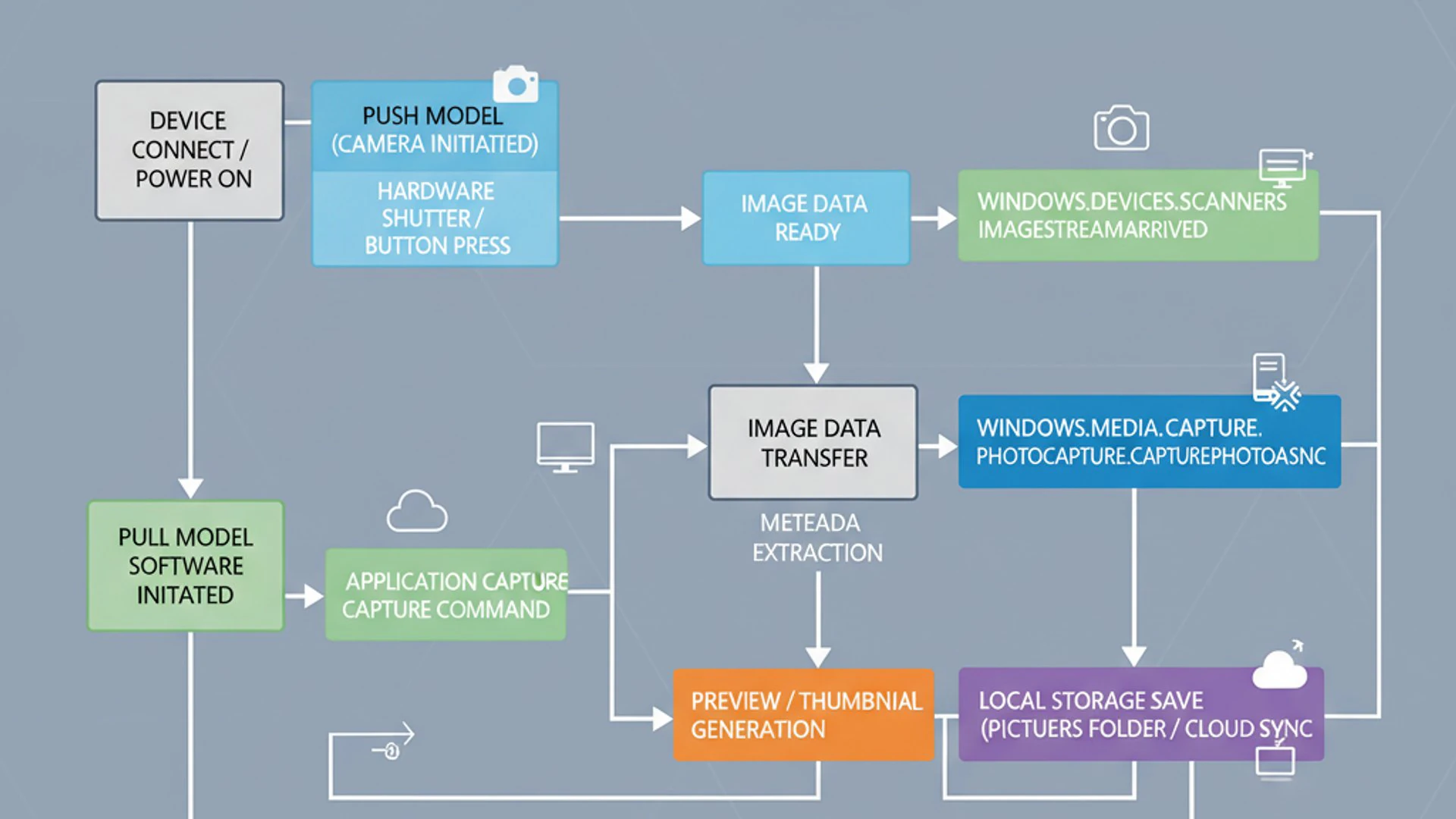
Before WIA, developers often had to write custom drivers and code for every single imaging device, leading to compatibility nightmares and a fragmented user experience. WIA was introduced to streamline this process, offering a unified interface that abstracts away the complexities of device-specific communication.
Essentially, WIA acts as an intermediary. When an application wants to acquire an image, it doesn’t talk directly to the scanner or camera. Instead, it sends a request to the WIA service, which then translates that request into commands the device understands, retrieves the image data, and passes it back to the application. This layered approach ensures stability and broad compatibility across a diverse range of hardware.
For more detailed information on the WIA service itself, you can explore our dedicated article: Windows Image Acquisition on Windows 11.
The Role of the Windows Image Acquisition Service
The Windows Image Acquisition (WIA) service is a fundamental component of Windows 11, operating in the background to manage all aspects of still image device interaction. Its primary role is to provide a consistent and reliable interface for imaging hardware, ensuring that applications can easily discover, configure, and acquire images from these devices.
When you plug in a new camera or initiate a scan, it’s the WIA service that springs into action. It enumerates the connected devices, loads the appropriate drivers, and makes the device accessible to any WIA-compliant application. This service is crucial for features like automatic image import wizards and direct scanning from within photo editing software.
Without the WIA service running correctly, your Windows 11 system would struggle to communicate with scanners, digital cameras, and multifunction printers for image-related tasks. It essentially acts as the bridge between the physical world of imaging hardware and the digital realm of your operating system and applications.
The WIA service is the unsung hero behind seamless photo imports and document scanning on your Windows 11 PC. Ensuring its health is key to smooth imaging operations.
Core Components of WIA
The WIA architecture is composed of several key elements that work together to enable still image acquisition. Understanding these components helps in grasping how the system functions and where potential issues might arise.
Firstly, there’s the WIA Service itself, which runs as a system process (wiaservc.dll). This service manages the overall WIA infrastructure, handles device enumeration, and acts as a central hub for communication.
Secondly, WIA Drivers are essential. These are device-specific mini-drivers provided by hardware manufacturers that allow the WIA service to communicate with particular scanners or cameras. They translate generic WIA commands into device-specific instructions.
Thirdly, WIA Applications are programs like Windows Photos, Paint, or third-party photo editors that utilize the WIA API to interact with imaging devices. These applications don’t need to know the intricacies of each device; they simply make calls to the WIA service.
Finally, the WIA Event System is responsible for notifying applications when significant events occur, such as a device being connected, an image being captured, or a scan completing. This allows applications to react dynamically to user actions and device status changes.
How WIA Facilitates Device Communication
The process by which WIA facilitates communication between imaging devices and applications is a sophisticated dance of software layers. When a user initiates an action, such as clicking “Scan” in an application, the request travels through a well-defined path.
The application first sends a request to the WIA service through its Application Programming Interface (API). This API provides a standardized set of functions that any WIA-compliant application can use, regardless of the underlying device.
Upon receiving the request, the WIA service identifies the target imaging device and loads its specific WIA driver. This driver then translates the generic WIA command into a precise instruction that the hardware understands, sending it directly to the device.
Once the device performs the requested action (e.g., scanning a document), the WIA driver receives the raw image data. It then processes this data, often converting it into a standardized format, and passes it back to the WIA service. Finally, the WIA service delivers the processed image data to the requesting application, completing the communication cycle.
What Are Still Image Acquisition Events?
Still Image Acquisition Events are specific notifications generated by the Windows Image Acquisition (WIA) system whenever an action related to an imaging device occurs. These events are crucial for enabling a dynamic and responsive interaction between your Windows 11 PC and connected cameras, scanners, or multifunction printers.
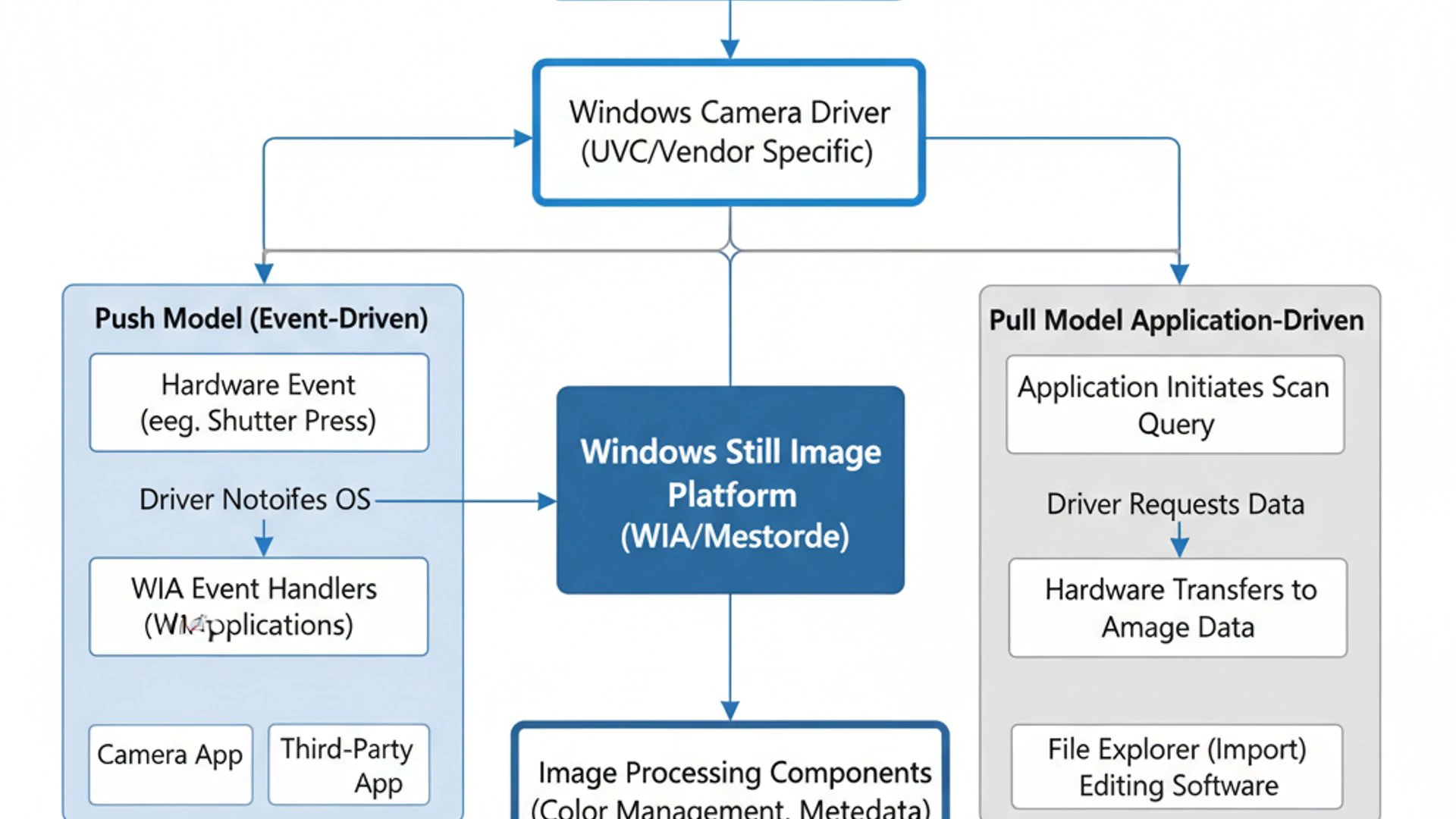
Think of them as digital signals that tell the operating system and interested applications that something significant has happened. Without these events, applications would have to constantly poll devices, consuming unnecessary resources and leading to a less efficient user experience. Instead, they can simply listen for these specific notifications.
These events are not just about successful operations; they can also signal errors, device disconnections, or changes in device status. Understanding these events is a key step in diagnosing issues with your imaging hardware and ensuring smooth operation of your Windows Fax and Scan on Windows 11 or other imaging applications.
Common Event Triggers and Their Significance
Still Image Acquisition Events are triggered by a variety of user actions and device states. Recognizing these common triggers helps in understanding the flow of interaction and diagnosing problems.
One of the most frequent triggers is Device Connection. When you plug in a digital camera via USB or turn on a network scanner, WIA detects the new device and generates an event. This allows Windows 11 to prompt you with actions, such as importing photos, or for applications to recognize the device’s availability.
Another significant trigger is Image Capture. This occurs when you press the shutter button on a connected camera (if supported for remote capture) or initiate a scan from an application. The event signals that new image data is ready for transfer or processing.
Scanning Completion is also a common event. Once a scanner finishes its pass and delivers the image data, an event is generated, informing the application that the scan operation is complete and the image is available. Other triggers include device disconnection, errors during acquisition, or changes in device properties.
Event Logging and Identification
Windows 11 meticulously logs many system activities, and Still Image Acquisition Events are no exception. These events are recorded in the Event Viewer, providing a valuable diagnostic tool for users and administrators.
When an imaging device event occurs, details such as the event ID, source (typically WIA), and a description of the event are stored. This logging mechanism allows you to trace the history of device interactions and pinpoint exactly when and why a problem might have occurred.
To identify these events, you typically navigate to the Event Viewer (eventvwr.msc) and look under Windows Logs > System or Applications and Services Logs > Microsoft > Windows > WIA. Specific event IDs are associated with different WIA activities, such as device detection, driver loading, or acquisition failures.
Understanding these logs is crucial for troubleshooting. For instance, if your scanner isn’t working, checking the Event Viewer for recent WIA errors can quickly reveal if the device failed to initialize, if a driver issue occurred, or if the WIA service itself encountered a problem. This systematic approach helps in resolving issues efficiently.
Impact of Still Image Acquisition Events on System Performance
While Still Image Acquisition Events on Windows 11 are essential for device functionality, their underlying processes can sometimes affect system performance. Like any background service, WIA consumes system resources, and if not managed properly, this consumption can become noticeable, especially on systems with limited resources.
The impact is usually minimal during normal operation. However, frequent device connections/disconnections, driver conflicts, or misconfigured WIA settings can lead to increased CPU usage, memory consumption, and even system instability. It’s important to strike a balance between full functionality and efficient resource utilization.
Understanding these potential impacts allows users to proactively manage their imaging setup, ensuring that essential services run smoothly without unnecessarily burdening the system. This proactive approach contributes to a snappier and more reliable Windows 11 experience.
Resource Consumption and Background Processes
The Windows Image Acquisition (WIA) service, along with its associated drivers and background processes, requires a certain amount of system resources to operate. When an imaging device is connected or in use, these processes become active, consuming CPU cycles and RAM.
Typically, the WIA service remains relatively dormant when no imaging devices are active. However, if you have multiple devices connected or if a device is constantly polling for status updates, the background resource usage can increase. This is particularly true for network-connected devices that might maintain a persistent connection.
Issues can arise if a WIA driver is poorly written or if a device enters an error state, causing the WIA service to continuously attempt communication or recovery. Such scenarios can lead to a “runaway” process that consumes excessive CPU, slowing down your entire system. Monitoring task manager for unusual WIA-related process activity can help identify these situations.
Potential Issues Arising from Event Mismanagement
Mismanagement or errors within the Still Image Acquisition Events system can lead to a range of frustrating problems for Windows 11 users. These issues often manifest as difficulties in using scanners, cameras, or multifunction printers.
One common problem is the failure of applications to detect imaging devices. If WIA events are not properly generated or processed, your photo editing software might not “see” your connected camera, or Windows Fax and Scan might not find your scanner. This often points to a problem with the WIA service itself or its associated drivers.
Another significant issue is system slowdowns or freezes during image acquisition. If a WIA driver crashes or gets stuck in a loop, it can monopolize system resources, leading to unresponsiveness. Similarly, conflicts between multiple WIA drivers or between WIA and other services can cause instability, including blue screens of death (BSODs).
Finally, you might encounter repetitive error messages related to imaging devices, even when they appear to be functioning. These persistent notifications indicate underlying event mismanagement, often requiring driver updates or WIA service resets to resolve.
Managing and Troubleshooting Still Image Acquisition Events
Effective management and troubleshooting of Still Image Acquisition Events on Windows 11 are essential for maintaining the smooth operation of your imaging devices. When problems arise, a systematic approach can quickly identify and resolve the root cause, preventing prolonged frustration.
The key to successful troubleshooting lies in understanding where to look and what actions to take. This includes verifying the status of core services, ensuring drivers are up-to-date, and leveraging built-in diagnostic tools like the Event Viewer.
By following these steps, you can often resolve common issues related to scanners, cameras, and multifunction printers, ensuring that your Windows 11 system remains fully functional for all your imaging needs.
Checking WIA Service Status and Configuration
The first step in troubleshooting any WIA-related issue is to verify that the Windows Image Acquisition service is running correctly. If this service is stopped or misconfigured, no imaging devices will be detected or function properly.
- Press
Win + R, typeservices.msc, and press Enter to open the Services management console. - Scroll down and locate Windows Image Acquisition (WIA) in the list.
- Check its Status column. It should display “Running.”
- Check its Startup type. It should typically be set to “Automatic” or “Automatic (Delayed Start).”
If the service is not running, right-click on it and select “Start.” If it’s already running but you’re experiencing issues, you can try right-clicking and selecting “Restart” to refresh the service. Incorrect startup types can prevent the service from launching at boot, so ensure it’s set to automatic for reliable operation.
Updating and Reinstalling Device Drivers
Outdated or corrupted device drivers are a very common cause of problems with Still Image Acquisition Events. Drivers are the software bridge between your hardware and the WIA service, and any issues with them can disrupt communication.
Always ensure your imaging device drivers are up-to-date. You can do this through several methods:
- Windows Update: Go to Settings > Windows Update > Advanced options > Optional updates and check for driver updates.
- Device Manager: Press
Win + Xand select “Device Manager.” Expand “Imaging devices” or “Printers,” right-click your device, and select “Update driver.” Choose “Search automatically for drivers.” - Manufacturer’s Website: This is often the most reliable method. Visit the support section of your camera or scanner manufacturer’s website, locate your specific model, and download the latest Windows 11 drivers.
If updating doesn’t resolve the issue, consider reinstalling the driver. In Device Manager, right-click your device and select “Uninstall device.” Then, restart your computer. Windows will often attempt to reinstall a generic driver, or you can manually install the latest driver downloaded from the manufacturer’s site. This process can often resolve deep-seated driver conflicts.
Using Event Viewer for Diagnosis
The Event Viewer is an indispensable tool for diagnosing issues related to Still Image Acquisition Events on Windows 11. It provides a chronological log of system events, including errors and warnings from the WIA service and associated drivers.
- Press
Win + R, typeeventvwr.msc, and press Enter to open the Event Viewer. - Navigate to Windows Logs > System. Here, you can filter for “WIA” in the Source column to see general WIA errors.
- For more specific WIA events, go to Applications and Services Logs > Microsoft > Windows > WIA > Operational. This log often contains detailed information about WIA device interactions, including successful operations and failures.
Look for events marked as “Error” or “Warning” around the time you experienced the problem. The Event ID and Description fields are particularly helpful. For example, an Event ID indicating a driver load failure or a device communication error can point you directly to the cause of the problem. You can then search online for the specific Event ID to find known solutions or further diagnostic steps.
Advanced Configuration and Optimization for Image Acquisition
Beyond basic troubleshooting, there are advanced configuration options that allow users to optimize how Still Image Acquisition Events on Windows 11 behave. These adjustments can enhance performance, resolve persistent conflicts, or tailor device interaction to specific needs.
While some settings are accessible through standard device properties, others might require delving into more technical areas like the Group Policy Editor or the Windows Registry. These advanced tweaks should be approached with caution, as incorrect modifications can lead to system instability.
However, for users who need fine-grained control over their imaging environment, these options provide powerful tools to ensure their scanners and cameras operate exactly as desired, without unnecessary resource drain or unexpected behavior.
Adjusting Device Settings for Event Behavior
Many imaging devices come with their own set of configurable options that can influence how Still Image Acquisition Events are generated and handled. These settings are typically found within the device’s properties or its dedicated control panel software.
To access these settings:
- Open Settings > Bluetooth & devices > Printers & scanners.
- Click on your specific scanner or multifunction printer.
- Look for options like “Scanning preferences,” “Device properties,” or “Manage.”
Within these menus, you might find settings that control:
- Automatic actions: What happens when an image is acquired (e.g., open Photos app, import to a specific folder).
- Scan resolution and format defaults: Pre-setting these can reduce processing time.
- Power management: How the device goes to sleep or wakes up, which can affect event responsiveness.
Adjusting these settings can prevent unwanted pop-ups, optimize image quality, and ensure that the device responds efficiently to acquisition events.
Group Policy and Registry Tweaks for WIA
For system administrators or advanced users, Group Policy and the Registry Editor offer granular control over the Windows Image Acquisition service and its event handling. These tools allow for system-wide enforcement of WIA behavior.
In Group Policy Editor (gpedit.msc, available in Pro/Enterprise editions), you can navigate to Computer Configuration > Administrative Templates > Windows Components > Windows Image Acquisition. Here, you might find policies to:
- Disable WIA events: Prevent specific events from triggering actions.
- Configure WIA service startup: Ensure the service always starts or is disabled.
- Restrict WIA access: Control which users or applications can utilize WIA.
The Registry Editor (regedit.exe) provides even deeper access, though changes here should be made with extreme caution and after creating a backup. Relevant keys are often found under HKEY_LOCAL_MACHINE\SYSTEM\CurrentControlSet\Services\WiaRpc or HKEY_LOCAL_MACHINE\SOFTWARE\Microsoft\Windows Image Acquisition. Here, you might adjust timeout values, buffer sizes, or specific device handling parameters not exposed elsewhere. Incorrect Registry edits can render your system unstable, so proceed only if you know exactly what you are doing.
Security Implications and Best Practices
While Still Image Acquisition Events on Windows 11 are designed for convenience and functionality, like any system service, they also present potential security considerations. Understanding these implications and implementing best practices is crucial for maintaining the integrity and security of your Windows 11 environment.
The WIA service, by its nature, interacts directly with hardware and handles data transfer, making it a potential vector for exploits if not properly secured. Malicious software could attempt to leverage WIA vulnerabilities to gain unauthorized access, inject malicious code, or exfiltrate sensitive data.
Therefore, it’s not enough to just ensure WIA works; you must also ensure it works securely. Adopting a proactive security posture regarding your imaging devices and their associated services is a vital part of overall system protection.
Protecting Your System from Malicious WIA Exploits
To safeguard your Windows 11 system against potential malicious exploits targeting the WIA service or Still Image Acquisition Events, several best practices should be followed:
- Keep Windows 11 Updated: Microsoft regularly releases security patches that address vulnerabilities in system services, including WIA. Ensure your system is always up-to-date via Windows Update.
- Use Reputable Drivers: Only install device drivers from the official manufacturer’s website or through Windows Update. Avoid third-party driver download sites, which may bundle malware.
- Run Antivirus/Anti-Malware Software: A robust security solution can detect and block attempts by malicious software to exploit WIA or other system services.
- Limit User Privileges: Operate your computer with a standard user account whenever possible. Administrative privileges should only be used when necessary, reducing the impact of potential exploits.
- Be Wary of Unknown Devices: Avoid connecting unknown or untrusted imaging devices to your PC, as they could be designed to exploit system vulnerabilities.
These measures collectively create a stronger defense against potential threats that might target the WIA framework.
Secure Device Management for Image Acquisition
Secure device management extends beyond just protecting against exploits; it also involves responsible handling of the data acquired through WIA and the physical security of the devices themselves.
When acquiring sensitive documents or images, ensure they are stored in secure locations, preferably encrypted folders, especially if your device has Microsoft Passport on Windows 11 enabled for enhanced security. Regularly delete temporary scan files that might contain confidential information. Consider using a secure shredder for physical documents after scanning.
Physically secure your imaging devices, especially network scanners or multifunction printers, to prevent unauthorized access. Ensure they are on a protected network segment and have strong, unique passwords if they are network-enabled. Regularly check their firmware for updates, as manufacturers often release security patches for network-connected devices.
Always remember that the data you acquire is only as secure as the weakest link in your acquisition chain. Secure device management encompasses both digital and physical safeguards.
Frequently Asked Questions About Still Image Acquisition Events
Users often have questions about the purpose and troubleshooting of Still Image Acquisition Events on Windows 11. This section addresses some of the most common inquiries to provide quick answers and practical guidance.
Why do I see WIA events in Event Viewer?
You see WIA events in Event Viewer because Windows 11 diligently logs significant activities and errors related to the Windows Image Acquisition service. This logging is a standard operating procedure for many system services, providing a historical record of operations.
These events are not necessarily indicative of a problem. Successful device connections, image transfers, and service startups are all logged as informational events. However, if you are experiencing issues with your scanner or camera, filtering for “Error” or “Warning” events from the WIA source can help pinpoint the exact time and nature of the problem, aiding in troubleshooting.
Can I disable Still Image Acquisition Events?
While you cannot disable the concept of “events” themselves, you can disable the Windows Image Acquisition service, which would effectively prevent any still image acquisition events from being generated or processed. However, doing so is generally not recommended.
Disabling the WIA service will prevent your Windows 11 system from communicating with most scanners, digital cameras, and multifunction printers for image acquisition tasks. Applications like Windows Photos, Paint, and third-party imaging software will lose the ability to import photos or scan documents directly. If you rarely use such devices, you could set the WIA service to “Manual” startup type via services.msc, so it only starts when an application explicitly requests it.
How do I resolve WIA errors?
Resolving WIA errors typically involves a systematic troubleshooting approach. Here are the common steps:
- Check WIA Service Status: Ensure the “Windows Image Acquisition (WIA)” service is running and set to “Automatic” in
services.msc. Restart it if necessary. - Update Device Drivers: Download and install the latest drivers for your scanner or camera from the manufacturer’s official website.
- Reinstall Device: In Device Manager, uninstall the imaging device, then restart your PC to allow Windows to reinstall it.
- Check Cables/Connectivity: Ensure USB cables are securely connected or that network devices are properly configured on your network.
- Use Event Viewer: Examine the Event Viewer (specifically Applications and Services Logs > Microsoft > Windows > WIA > Operational) for specific error codes or descriptions that can guide further research.
- Run System File Checker: Open Command Prompt as administrator and type
sfc /scannowto check for corrupted system files. - Disable Antivirus Temporarily: Occasionally, overzealous antivirus software can interfere with WIA. Test by temporarily disabling it (at your own risk).
Conclusion
The world of Still Image Acquisition Events on Windows 11, powered by the Windows Image Acquisition (WIA) service, is a critical yet often overlooked aspect of a smooth computing experience. These events are the silent orchestrators behind every photo import, every document scan, and every interaction with your imaging devices.
Understanding WIA’s architecture, its core components, and how it facilitates communication is fundamental to appreciating the seamless integration of hardware and software in Windows 11. We’ve explored the common triggers for these events, their logging mechanisms, and the potential impact on system performance if mismanaged.
Crucially, this guide has provided actionable steps for troubleshooting and optimizing WIA, from checking service status and updating drivers to leveraging the powerful Event Viewer for detailed diagnostics. For advanced users, we touched upon Group Policy and Registry tweaks that offer fine-grained control.
Finally, we emphasized the critical security implications and advocated best practices to protect your system from potential vulnerabilities. By applying the knowledge gained from this comprehensive article, you are now better equipped to manage your imaging devices, resolve issues efficiently, and ensure a more robust and secure Windows 11 environment. Embrace this understanding to unlock the full potential of your imaging hardware.









Community
Comments (0)