

Introduction to Time Broker on Windows 11
In the intricate ecosystem of Windows 11, countless processes and services operate silently in the background, ensuring a seamless and responsive user experience. Among these, the Time Broker on Windows 11 is a particularly fascinating, yet often misunderstood, component. It’s not a flashy application you interact with directly, nor is it a service that frequently demands your attention through error messages. Learn more at Change background app settings in Windows and the timeGetSystemTime function.
Instead, the Time Broker acts as a sophisticated orchestrator, meticulously coordinating time-sensitive tasks and resource allocation for various applications and system components. Imagine a conductor leading an orchestra, ensuring every instrument plays its part at precisely the right moment; that’s essentially the role of the Time Broker.
Without its diligent work, your system’s background activities might become chaotic, leading to unnecessary resource consumption, delayed notifications, or even application malfunctions. This article will peel back the layers, revealing the critical functions of the Time Broker, how it interacts with your system, and how you can monitor and manage it for optimal performance on Windows 11.
Table of contents
Key Takeaways
- The Time Broker on Windows 11 is a crucial system service responsible for coordinating time-sensitive background tasks and resource management.
- It acts as an intermediary, efficiently allocating CPU and memory resources to various applications and system components based on their scheduling needs.
- Time Broker works closely with the Task Scheduler and manages the lifecycle of background applications, ensuring they run only when necessary.
- Monitoring its activity through Task Manager and Event Viewer can help diagnose unexpected system behavior or resource spikes.
- While generally efficient, high CPU or memory usage by Time Broker can indicate underlying issues with specific applications or system processes.
- Disabling the Time Broker service is strongly discouraged due to potential instability and functionality loss for many modern Windows features.
- Optimizing background applications and keeping your system updated are key strategies for ensuring Time Broker operates smoothly and efficiently.
What Exactly is the Time Broker Service?
The Time Broker service, often appearing as TimeBrokerSvc in system utilities, is a fundamental component of the Windows operating system, particularly prominent in modern versions like Windows 11. Its primary purpose revolves around efficient resource management and task coordination.
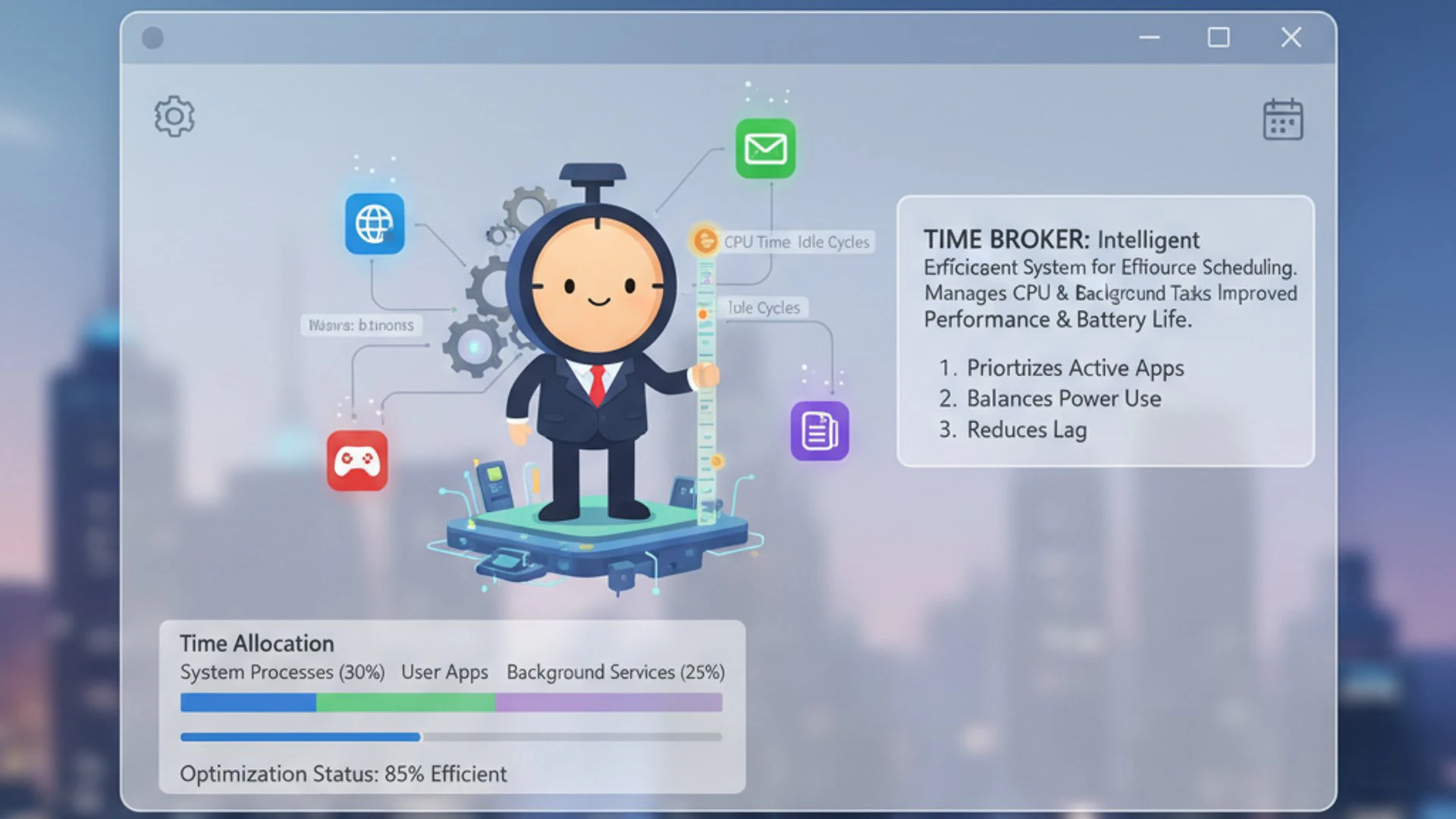
It acts as a centralized hub for applications and system processes that require precise timing for their operations. Instead of each application independently waking up the system or competing for resources, they communicate their needs to the Time Broker, which then intelligently schedules and allocates resources.
This intelligent brokerage prevents a “thundering herd” problem, where multiple applications simultaneously demand attention, leading to system slowdowns and increased power consumption. The Time Broker on Windows 11 is designed to optimize performance, especially on devices with limited resources or those prioritizing battery life.
The Core Functionality of Time Broker
At its heart, the Time Broker service is about orchestration. It manages the execution of tasks that are not constantly active but need to run at specific intervals or in response to certain events. Think of it as a smart traffic controller for background processes.
One of its key functions is to wake up applications or components at predetermined times. This could be for checking for updates, syncing data, sending notifications, or performing maintenance tasks. It ensures these actions happen efficiently without unnecessarily draining system resources.
The service also plays a vital role in managing the state of background applications, particularly those from the Microsoft Store (UWP apps). It helps suspend and resume these apps, allowing them to remain responsive while consuming minimal resources when not actively in use.
Why Time Broker is Essential for Modern Windows
In today’s computing landscape, where devices range from powerful desktops to ultra-portable laptops and tablets, efficient resource management is paramount. Modern Windows applications, especially those designed for the Universal Windows Platform (UWP), rely heavily on services like Time Broker.
Without the Time Broker on Windows 11, applications would have to implement their own scheduling mechanisms, leading to fragmented resource requests and potential conflicts. This would inevitably result in higher CPU usage, increased power consumption, and a less responsive user interface.
It contributes significantly to the overall snappiness and battery life of your Windows 11 device. By centralizing and optimizing the timing of background operations, it ensures that your system remains agile and energy-efficient, delivering a smooth experience whether you’re working, gaming, or simply browsing.
The Time Broker service is a silent guardian of your system’s efficiency, ensuring that background tasks are performed intelligently and without disrupting your primary activities.
How Time Broker Interacts with Other Windows Services
The Time Broker doesn’t operate in isolation; it’s deeply integrated into the Windows ecosystem, collaborating with numerous other services and processes to fulfill its role. Understanding these interactions provides a clearer picture of its importance and how it contributes to the overall stability and performance of your system.
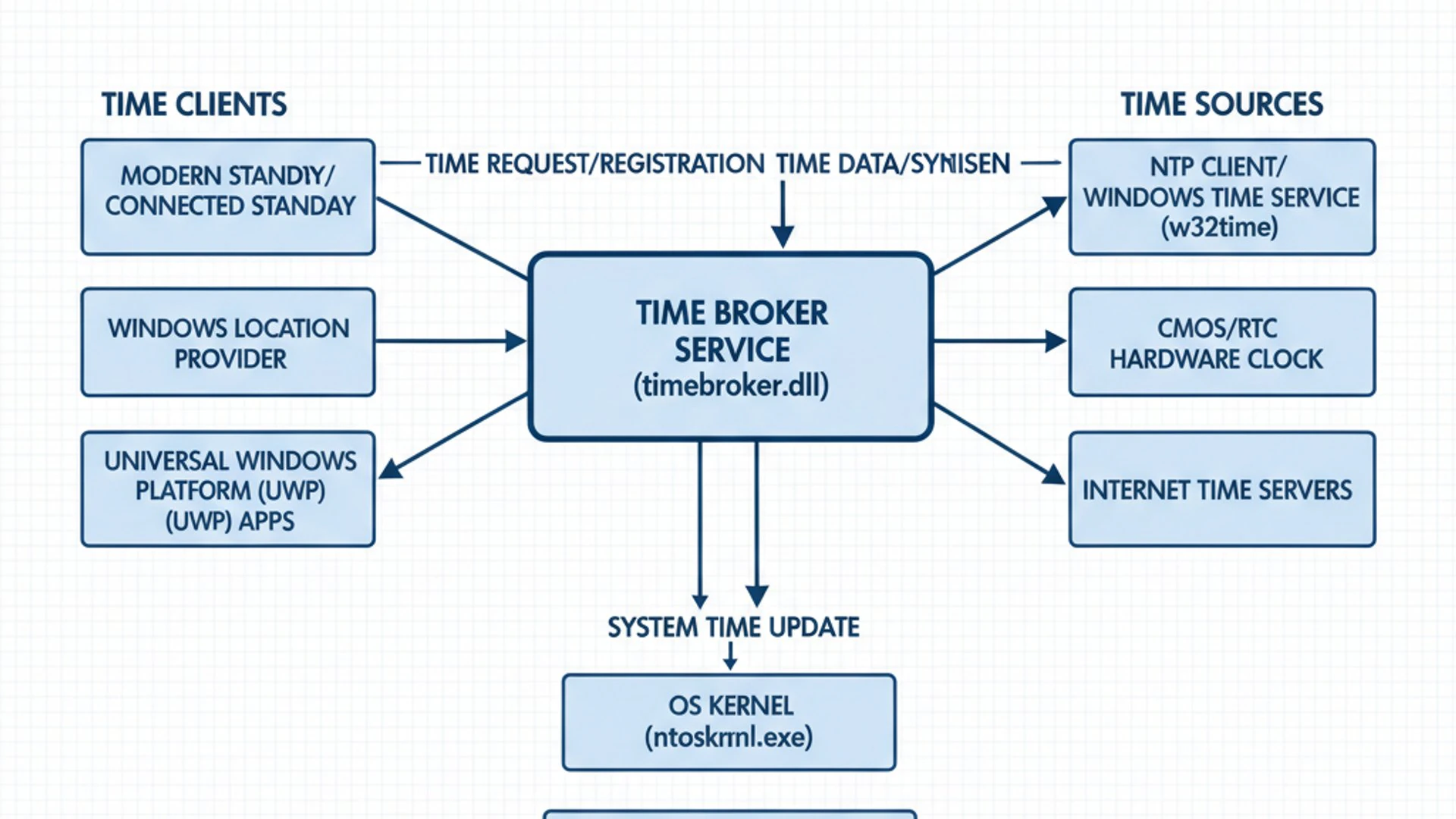
Its interconnectedness means that issues with other services or applications can sometimes manifest as unusual behavior in Time Broker, such as elevated resource usage. This makes diagnosing problems a bit like solving a puzzle, where Time Broker is often a key piece.
This service acts as a mediator, translating the timing requirements of various components into actionable schedules. It’s a testament to the complex, layered architecture of Windows 11, where specialized services work in harmony.
Time Broker and System Processes
The Time Broker’s influence extends across a wide array of system processes. It’s not just about user applications; many core Windows functionalities rely on its scheduling capabilities. This includes everything from system maintenance tasks to network synchronization.
For instance, Windows Update might use Time Broker to schedule checks for new updates at opportune moments, minimizing impact on active usage. Similarly, various diagnostic and telemetry services might leverage it to send data without causing noticeable slowdowns.
Its role is to ensure that these essential background operations are performed efficiently and without interfering with the user’s primary activities. This delicate balance is crucial for maintaining a responsive and stable operating environment on Windows 11.
Relationship with Task Scheduler
One of the most significant relationships the Time Broker maintains is with the Task Scheduler. While the Task Scheduler is responsible for defining and managing scheduled tasks, the Time Broker often acts as the execution engine or coordinator for certain types of these tasks.
For example, if a task in Task Scheduler is configured to run only when the system is idle or at a specific time, the Time Broker might be involved in monitoring system state and triggering that task. It helps ensure that tasks are not just scheduled, but also executed efficiently and intelligently.
This partnership allows for more granular control over when and how background processes consume resources. The Task Scheduler defines what needs to happen and when, while the Time Broker helps decide the optimal how, especially concerning power management and resource allocation.
Connection to Background Apps
The Time Broker is particularly vital for managing modern background applications, especially those downloaded from the Microsoft Store. These Universal Windows Platform (UWP) apps are designed to be energy-efficient and responsive, even when not in the foreground.
When a UWP app needs to perform a background task—like fetching new emails, updating a live tile, or syncing cloud data—it registers these needs with the Time Broker. The Time Broker then intelligently groups these requests and executes them at optimal times, often consolidating multiple tasks to reduce system wake-ups.
This mechanism is crucial for extending battery life on laptops and tablets, as it prevents individual apps from constantly waking up the CPU. It ensures that background activities are performed efficiently, contributing to the overall smooth operation of Web Threat Defense Service on Windows 11 and other components.
Identifying and Monitoring Time Broker Activity
Understanding what the Time Broker does is one thing; seeing it in action and monitoring its behavior is another. Windows 11 provides several built-in tools that allow users to observe the activity of the Time Broker on Windows 11, helping to diagnose potential issues or simply satisfy curiosity about its operations.
These tools offer different levels of detail, from a high-level overview of resource consumption to granular event logs that record specific actions. Familiarizing yourself with these utilities is a valuable skill for any Windows user looking to maintain a healthy system.
Monitoring can be particularly useful if you suspect the Time Broker is consuming excessive resources or if you’re experiencing unexplained system slowdowns. It provides the initial clues needed for further investigation.
Using Task Manager to Observe Time Broker
The Task Manager is your first port of call for a quick overview of system processes, including the Time Broker. It provides real-time data on CPU, memory, disk, and network usage for all running processes.
- Press Ctrl + Shift + Esc to open Task Manager.
- Navigate to the Processes tab.
- Scroll down to the Background processes section.
- Look for Time Broker or TimeBrokerSvc.
Here, you can see its current resource consumption. If you notice consistently high CPU or memory usage from Time Broker, especially when your system is otherwise idle, it might indicate an underlying problem. You can sort processes by CPU or Memory usage to quickly identify resource hogs.
Event Viewer Insights into Time Broker Operations
For a more detailed historical record of Time Broker’s activities and any related issues, the Event Viewer is an invaluable tool. It logs system events, including those related to services like Time Broker.
- Press Win + X and select Event Viewer.
- In the left pane, navigate to Applications and Services Logs > Microsoft > Windows > TimeBroker.
- You might see sub-categories like Operational or Diagnostic.
Within these logs, you’ll find entries detailing when Time Broker started, stopped, or encountered errors. These events can provide crucial context if you’re troubleshooting performance issues. Look for warnings or error messages that might point to specific applications or system components interacting poorly with Time Broker.
Regularly checking Event Viewer can help you catch subtle issues before they escalate into major problems, providing a proactive approach to system maintenance.
Common Issues and Troubleshooting Time Broker
While the Time Broker on Windows 11 is designed to be a highly efficient and stable service, like any complex software component, it can occasionally encounter issues. The most common concern users report is elevated resource consumption, particularly high CPU or memory usage.
Understanding how to diagnose and address these problems is key to maintaining a healthy and responsive Windows 11 system. Often, the Time Broker itself isn’t the root cause, but rather an indicator of another application or system component misbehaving.
This section will guide you through identifying these issues and provide initial steps to troubleshoot them effectively, helping you pinpoint the real culprit behind any unexpected behavior.
High CPU or Memory Usage by Time Broker
Seeing Time Broker consuming a significant percentage of your CPU or a large chunk of your RAM can be alarming. While brief spikes are normal, sustained high usage warrants investigation. This usually points to an underlying application or system process making excessive or faulty requests to the Time Broker.
It’s rare for the Time Broker service itself to be inherently buggy in a way that causes continuous high resource usage. More often, it’s a symptom of another problem, acting as a proxy for the resource demands of other components it’s trying to manage.
Identifying the true source requires a systematic approach, leveraging the monitoring tools discussed previously, along with some logical deduction about recent system changes or installed applications.
Diagnosing Resource Consumption
When Time Broker shows high resource usage, start by observing your system’s behavior. Is it happening consistently or only at certain times? Does it coincide with launching a specific application or performing a particular task?
Use Task Manager to identify other processes that might be active around the same time. Check the Details tab in Task Manager and sort by CPU or Memory. Sometimes, a poorly optimized background app or a stuck update process can continuously ping Time Broker, leading to its elevated activity.
Also, check the Event Viewer for any recurring errors or warnings related to applications or system components. These logs can often provide direct clues about what might be overworking the Time Broker service.
Potential Causes and Initial Fixes
Several factors can lead to Time Broker’s increased resource usage:
- Misbehaving Background Applications: A UWP app that is stuck in a loop or constantly trying to sync data can make continuous requests to Time Broker.
- Fix: Check your Privacy & security > Background apps settings and disable unnecessary apps. Consider reinstalling or updating problematic apps.
- Pending System Updates: Windows Update processes can sometimes cause temporary spikes in Time Broker activity.
- Fix: Ensure all pending Windows updates are installed. You can check for updates in Settings > Windows Update.
- Corrupt System Files: Damaged system files can lead to erratic behavior in various services.
- Fix: Run a System File Checker (SFC) scan. Open Command Prompt as administrator and type
sfc /scannow.
- Fix: Run a System File Checker (SFC) scan. Open Command Prompt as administrator and type
- Malware or Viruses: Malicious software can sometimes interfere with legitimate system services.
- Fix: Perform a full system scan with a reputable antivirus program.
Time Broker Related Errors in Event Logs
Event logs can be a treasure trove of information when troubleshooting. If you find specific errors or warnings under the TimeBroker logs in Event Viewer, pay close attention to their details. These messages often include error codes or descriptions that can be searched online for more context.
Common errors might include issues with specific background tasks failing to complete, or problems with applications registering their background activity. The log entries usually provide a timestamp, which can help correlate the error with other system events or user actions.
If an error consistently points to a particular application, consider updating, reinstalling, or temporarily disabling that application to see if the issue resolves. This systematic approach helps isolate the problem.
Managing Time Broker Service Settings
While direct manipulation of the Time Broker service is generally not recommended for the average user, understanding its settings can be beneficial for advanced troubleshooting or specific system configurations. The primary tool for this is the Services snap-in (services.msc).
It’s crucial to approach these settings with caution, as incorrect modifications can lead to system instability or loss of functionality. The Time Broker on Windows 11 is deeply embedded in the operating system’s core functions, especially for modern applications.
We’ll explore how to access these settings, what different startup types mean, and the significant risks associated with attempting to disable this essential service.
Accessing Services.msc for Time Broker
To access the Time Broker service settings:
- Press Win + R to open the Run dialog.
- Type
services.mscand press Enter. - In the Services window, scroll down alphabetically until you find Time Broker (or TimeBrokerSvc).
- Double-click on the service to open its properties window.
Here, you’ll see various options, including the service status (Running/Stopped) and its startup type. You can also view dependencies, which show other services that rely on Time Broker or that Time Broker relies upon.
Understanding Startup Types
The Startup type setting determines how a service starts when Windows boots up. For Time Broker, you’ll typically find it set to Automatic or Automatic (Delayed Start).
- Automatic: The service starts automatically when the system boots. This is the default and recommended setting for Time Broker.
- Automatic (Delayed Start): The service starts automatically but only after other critical services have started. This helps improve boot time by staggering service launches.
- Manual: The service must be started manually by a user or another service. This is not suitable for Time Broker as many system components rely on it.
- Disabled: The service is prevented from starting. This is highly discouraged for Time Broker.
Changing the startup type for Time Broker away from its default Automatic setting can severely impact system performance and stability. It’s designed to be an always-on, essential background component.
When to Consider Disabling (and its Risks)
Frankly, you should never consider disabling the Time Broker service on Windows 11 under normal circumstances. While the option exists in services.msc, Exercising it will almost certainly lead to significant problems.
Disabling the Time Broker service can lead to unresponsive UWP applications, broken notifications, failed background tasks, and general system instability. It is a critical component for modern Windows functionality.
Many core Windows features, including notifications, live tiles, background synchronization for apps like Mail and Calendar, and even some aspects of system maintenance, rely on Time Broker. Disabling it would essentially cripple a significant portion of the modern Windows experience.
Group Policy Editor Options for Time Broker
For advanced users and system administrators, the Local Group Policy Editor (gpedit.msc) offers more granular control over various Windows components. While there aren’t direct policies specifically named “Time Broker,” policies related to background application activity and power management can indirectly affect its operation.
For example, policies under Computer Configuration > Administrative Templates > Windows Components > App Runtime might control aspects of background app activity that Time Broker manages. Similarly, power management policies can influence when Time Broker is allowed to wake up the system.
These settings are typically used in enterprise environments to enforce specific configurations across multiple machines. For individual users, making changes here without a deep understanding of their implications is not recommended and could lead to unintended consequences.
Optimizing Time Broker Performance on Windows 11
While you shouldn’t disable the Time Broker on Windows 11, you can certainly take steps to ensure it operates as efficiently as possible. Optimization isn’t about tweaking the service itself, but rather managing the environment in which it operates. By reducing the demands placed upon it, you allow it to perform its coordination role with minimal overhead.
A well-maintained system with judiciously managed background applications will naturally result in a Time Broker that consumes fewer resources. These optimization strategies focus on proactive management rather than reactive troubleshooting.
Implementing these practices will not only benefit Time Broker but also contribute to overall system responsiveness, battery life, and stability, creating a more pleasant computing experience.
Managing Background Apps to Reduce Time Broker Load
One of the most effective ways to optimize Time Broker’s performance is to manage the applications that rely on it for background activity. Many UWP apps, by default, are allowed to run in the background, even if you rarely use them.
Each of these background apps can make requests to Time Broker, potentially increasing its workload. By selectively disabling background activity for apps you don’t need, you reduce the number of tasks Time Broker has to coordinate.
To manage background apps:
- Go to Settings > Apps > Apps & features.
- Find an app you want to manage, click the three dots next to it, and select Advanced options.
- Under “Background app permissions,” choose Never for apps you don’t need running in the background.
Alternatively, you can go to Settings > Privacy & security > Background apps. Here, you can toggle off individual apps or use the master switch to disable all background app activity, though this is generally too restrictive for most users.
Keeping Your System Updated for Optimal Service Functionality
Microsoft continuously releases updates for Windows 11, which include performance enhancements, bug fixes, and security patches for core services like Time Broker. Keeping your system up-to-date is crucial for ensuring all services, including Time Broker, operate optimally.
Updates often contain optimizations that make services more efficient, reduce resource consumption, and resolve compatibility issues that might inadvertently cause Time Broker to work harder than necessary. A system running outdated software is more prone to inefficiencies and potential conflicts.
Regularly check for and install updates via Settings > Windows Update. This simple practice is one of the most fundamental steps in maintaining a healthy and high-performing Windows 11 environment, ensuring that the Mastering Time Update Service on Windows 11 and other critical components function as intended.
Security Implications and Best Practices
While the Time Broker on Windows 11 is a legitimate and essential system service, its critical role in coordinating background tasks makes it a potential target or vector for malicious activity if compromised. Understanding its security implications and following best practices is vital for maintaining a secure computing environment.
The service itself is not inherently a security risk; rather, its interaction with other applications and system components means that a vulnerability in one of those components could indirectly affect Time Broker’s behavior. Protecting your system broadly protects all its intricate parts.
This section will touch upon Time Broker’s contribution to system stability and outline general security practices that indirectly safeguard this important service from interference.
Time Broker and System Stability
The Time Broker service contributes significantly to overall system stability by intelligently managing resource allocation and task scheduling. By preventing multiple applications from simultaneously demanding resources, it reduces the likelihood of system slowdowns, freezes, or crashes.
Its role in suspending and resuming background applications also helps maintain a consistent system state, ensuring that apps don’t consume resources unnecessarily or interfere with foreground activities. This controlled environment is a cornerstone of modern operating system design.
A stable system is inherently more secure, as it reduces the attack surface for exploits that often target system vulnerabilities or resource exhaustion issues. The efficient operation of Time Broker is thus indirectly linked to your system’s resilience against various threats.
Protecting Against Malicious Interference
Protecting Time Broker from malicious interference primarily involves comprehensive system security best practices:
- Use Reputable Antivirus Software: A robust antivirus solution can detect and remove malware that might attempt to exploit or interfere with system services. Regularly scan your system.
- Keep Windows and Applications Updated: As mentioned, updates patch security vulnerabilities. An unpatched system is an open invitation for attackers.
- Be Wary of Suspicious Downloads: Only download software from trusted sources. Malicious programs often masquerade as legitimate applications and can compromise system services.
- Employ Strong Passwords and Multi-Factor Authentication: Protecting your user accounts prevents unauthorized access that could lead to tampering with system services.
- Use a Firewall: A firewall helps control network traffic, preventing unauthorized external access to your system and its services.
While Time Broker itself is a protected system service, its reliance on other applications means that securing those applications and your overall system environment is the best defense against any potential malicious interference.
Frequently Asked Questions about Time Broker
The obscurity of services like Time Broker often leads to many questions from users, especially when they encounter it in Task Manager or Event Viewer. Here, we address some of the most common queries to clarify its nature and function.
These FAQs aim to dispel myths and provide straightforward answers, reinforcing the understanding that Time Broker is a legitimate and vital part of your Windows 11 experience. Knowing these answers can help alleviate concerns and guide appropriate actions.
If you’ve ever wondered about Time Broker’s safety or necessity, the following points should provide the clarity you need.
Is Time Broker a Virus?
No, Time Broker is absolutely not a virus. It is a legitimate and essential system service developed by Microsoft as part of the Windows operating system. Its official name is TimeBrokerSvc, and it plays a critical role in managing background tasks and resource allocation.
The confusion often arises because users might see it consuming resources in Task Manager and, unfamiliar with its purpose, mistakenly assume it’s malicious. Rest assured, it’s a core component designed to improve your system’s efficiency and responsiveness.
Can I Safely Disable Time Broker?
No, you cannot safely disable the Time Broker service. Disabling it is strongly discouraged and will lead to significant instability and loss of functionality in Windows 11. Many modern features, especially those related to Universal Windows Platform (UWP) applications, background synchronization, and notifications, rely heavily on Time Broker.
Attempting to disable it will likely result in unresponsive apps, broken notifications, increased power consumption (as apps might try to work around the missing service), and general system errors. It’s a fundamental part of how Windows 11 operates efficiently.
What if Time Broker is Not Running?
If the Time Broker service is not running, it indicates a significant problem with your Windows 11 installation. Since it’s an essential service, Windows is designed to keep it running. If it’s stopped, you would likely experience immediate and noticeable issues, such as:
- Background apps failing to update or sync.
- Notifications are not appearing or are being delayed.
- Live tiles on the Start Menu are not updating.
- Increased power consumption due to inefficient background task management.
- General system instability or application crashes.
If you find that Time Broker is not running, you should investigate your system for corruption, malware, or other severe issues. Running SFC scans, checking Event Viewer for errors, and ensuring your system is fully updated would be initial diagnostic steps.
Conclusion
The Time Broker on Windows 11, often operating unseen and unheard, is a silent workhorse critical to the modern Windows experience. It acts as an intelligent orchestrator, ensuring that background tasks, notifications, and application synchronizations occur efficiently, without unnecessarily draining resources or disrupting your workflow.
Far from being a malicious entity, Time Broker is a cornerstone of system stability, responsiveness, and energy efficiency. While it can occasionally exhibit high resource usage, this is typically a symptom of underlying issues with other applications or system components, rather than a problem with the service itself.
By understanding its role, monitoring its activity with tools like Task Manager and Event Viewer, and practicing good system hygiene—such as managing background apps and keeping Windows updated—you can ensure Time Broker continues to perform its vital functions flawlessly. Embrace its presence as a testament to the sophisticated engineering that makes Windows 11 a powerful and efficient operating system.









Community
Comments (0)