

Introduction to Block Level Engine Backup Service
In the digital age, safeguarding your data is paramount. Whether it’s cherished family photos, crucial work documents, or your operating system’s core files, unexpected data loss can be catastrophic. Windows 11, like its predecessors, offers a suite of tools and services designed to protect your information. Among these, the Block Level Engine Backup Service plays a particularly vital, though often unseen, role. Learn more about block-level backup technology and block-level vs. file-level backup.
This sophisticated service underpins many of Windows’ built-in backup and restore functionalities, working diligently in the background to ensure your system can be recovered efficiently. It’s not just about copying files; it’s about capturing your disk’s state at a fundamental level, providing a robust foundation for disaster recovery. Understanding this service is key to optimizing your data protection strategy on Windows 11.
This article will delve deep into the mechanics of the Block Level Engine Backup Service, exploring its purpose, how it differs from other backup methods, and its impact on your system. We’ll guide you through managing it, discuss best practices, and even touch upon advanced configurations, empowering you to take full control of your Windows 11 backup strategy.
Table of contents
Key Takeaways: Block Level Backup on Windows 11
For those seeking a quick overview, here are the essential points regarding the Block Level Engine Backup Service on Windows 11:
- The Block Level Engine Backup Service is a core Windows 11 component facilitating efficient data backup and system recovery.
- It operates by backing up data at the block level, meaning it copies changes to individual disk blocks rather than entire files, significantly improving backup speed and reducing storage space for incremental backups.
- This service is crucial for features like System Restore, File History, and Windows Backup (if configured), ensuring their underlying operations are performed effectively.
- While generally beneficial, understanding its resource consumption is important; managing its startup type can help balance performance and data protection needs.
- Disabling the service can severely impair Windows 11’s built-in backup capabilities, making system recovery much more challenging.
- It forms a critical part of a comprehensive data protection strategy, complementing other backup methods for robust data integrity.
Understanding Block-Level vs. File-Level Backups
To truly appreciate the efficiency and importance of the Block Level Engine Backup Service on Windows 11, it’s essential to understand the fundamental distinction between block-level and file-level backup methodologies. These two approaches represent different philosophies in how data is captured and stored during a backup operation, each with its own set of advantages and disadvantages.
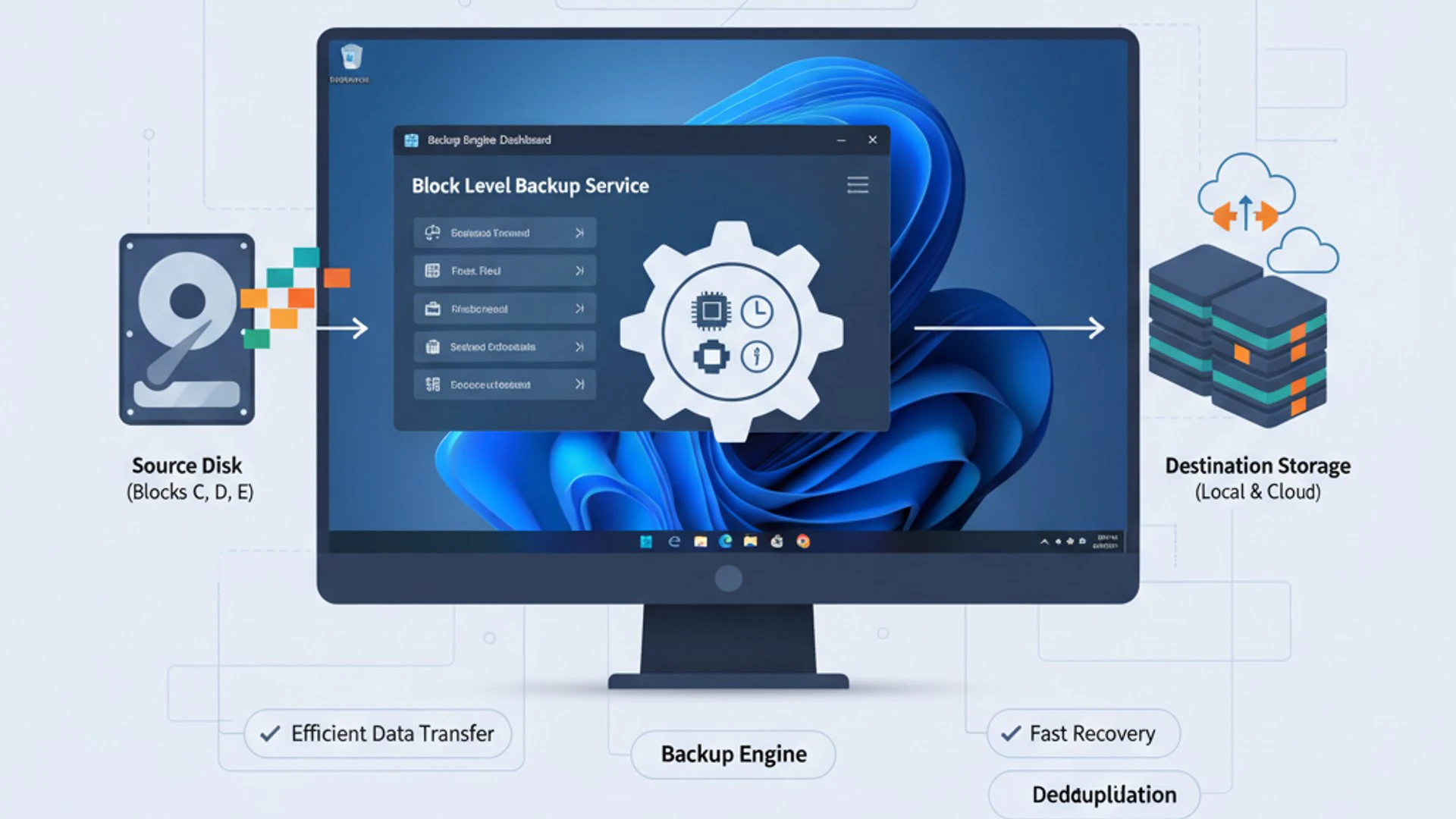
Most users are familiar with the concept of copying files, which is the essence of file-level backup. However, block-level backup operates at a much deeper, more granular level, directly interacting with the physical storage structure. This difference has significant implications for backup speed, storage requirements, and recovery flexibility.
Choosing the right backup method, or a combination thereof, depends heavily on your specific needs for data protection, recovery time objectives, and available storage resources. Windows 11 leverages both, but the Block Level Engine Backup Service specifically focuses on the more efficient block-level approach for its core system recovery functions.
What is File-Level Backup?
File-level backup is perhaps the most straightforward and commonly understood method of data protection. When you perform a file-level backup, the backup software identifies individual files and folders that you’ve selected and copies them from their source location to a designated backup destination. This process is similar to manually dragging and dropping files.
Each file is treated as a distinct unit. If even a tiny portion of a file changes, the entire file is typically marked for backup again during an incremental or differential backup, depending on the specific implementation. This can lead to increased backup times and larger backup sizes, especially for frequently modified large files.
The primary advantage of file-level backups lies in their simplicity and ease of restoration. You can easily browse the backup archive, locate specific files or folders, and restore them individually without needing to restore an entire disk image. This makes it ideal for recovering accidentally deleted documents or older versions of files.
What is Block-Level Backup?
In contrast, block-level backup operates at a much lower level of abstraction, directly interacting with the hard drive’s physical storage structure. A hard drive is fundamentally composed of numerous fixed-size data blocks. When you save a file, it occupies a certain number of these blocks, which may or may not be contiguous.
During a block-level backup, the system doesn’t look at files or folders. Instead, it scans the disk for changes at the block level. If a single byte within a file changes, only the specific data block(s) containing that change are backed up, not the entire file. This method is incredibly efficient, especially for incremental backups.
The Block Level Engine Backup Service on Windows 11 utilizes this technique to capture system states and data efficiently. It minimizes the amount of data transferred and stored, making backups faster and requiring less storage space over time. This efficiency is critical for maintaining system performance while ensuring robust data integrity.
Advantages of Block-Level Backup
Block-level backups offer several compelling advantages, making them a preferred method for system-level protection and efficient incremental backups:
- Efficiency and Speed: By only backing up changed data blocks, block-level backups are significantly faster, especially after the initial full backup. This reduces the backup window and minimizes impact on system resources.
- Reduced Storage Requirements: Since only modified blocks are stored, the overall storage footprint for backup versions is much smaller compared to file-level backups, where entire files might be duplicated.
- Robust System Recovery: Block-level backups are ideal for creating full disk images or system state backups. They capture the entire partition or disk volume as a complete entity, which is crucial for bare-metal recovery scenarios.
- Less Resource Intensive: The process of identifying changed blocks is often less CPU and I/O intensive than scanning and copying entire files, especially for large datasets.
“Block-level backups are the unsung heroes of efficient data protection, capturing changes with surgical precision rather than broad strokes.”
Disadvantages of Block-Level Backup
Despite their numerous benefits, block-level backups also come with certain trade-offs:
- Granular File Recovery Can Be Complex: While excellent for full system recovery, restoring individual files or folders from a block-level backup can sometimes be more involved. It often requires mounting the backup image or using specialized software to extract specific items.
- Initial Setup Complexity: Setting up block-level backups might require a deeper understanding of disk structures compared to simply selecting files and folders.
- Dependency on Backup Software: Accessing and restoring data from block-level backups typically requires the same backup software that created the backup, unlike file-level backups, which can often be browsed with standard file explorers.
- Potential for Incomplete Backups: If the underlying block-level tracking mechanism encounters issues, it could lead to an incomplete or corrupted backup, which might be harder to diagnose than a missing file in a file-level backup.
The Role of Block-Level Engine Backup Service in Windows 11
The Block Level Engine Backup Service on Windows 11, often seen as wbengine.exe In process lists, it is a foundational component for various data protection features. It acts as the core engine responsible for performing efficient block-level operations that underpin several critical system functionalities. Without this service, many of Windows 11’s built-in recovery and backup mechanisms would either fail to operate or perform with significantly reduced efficiency.
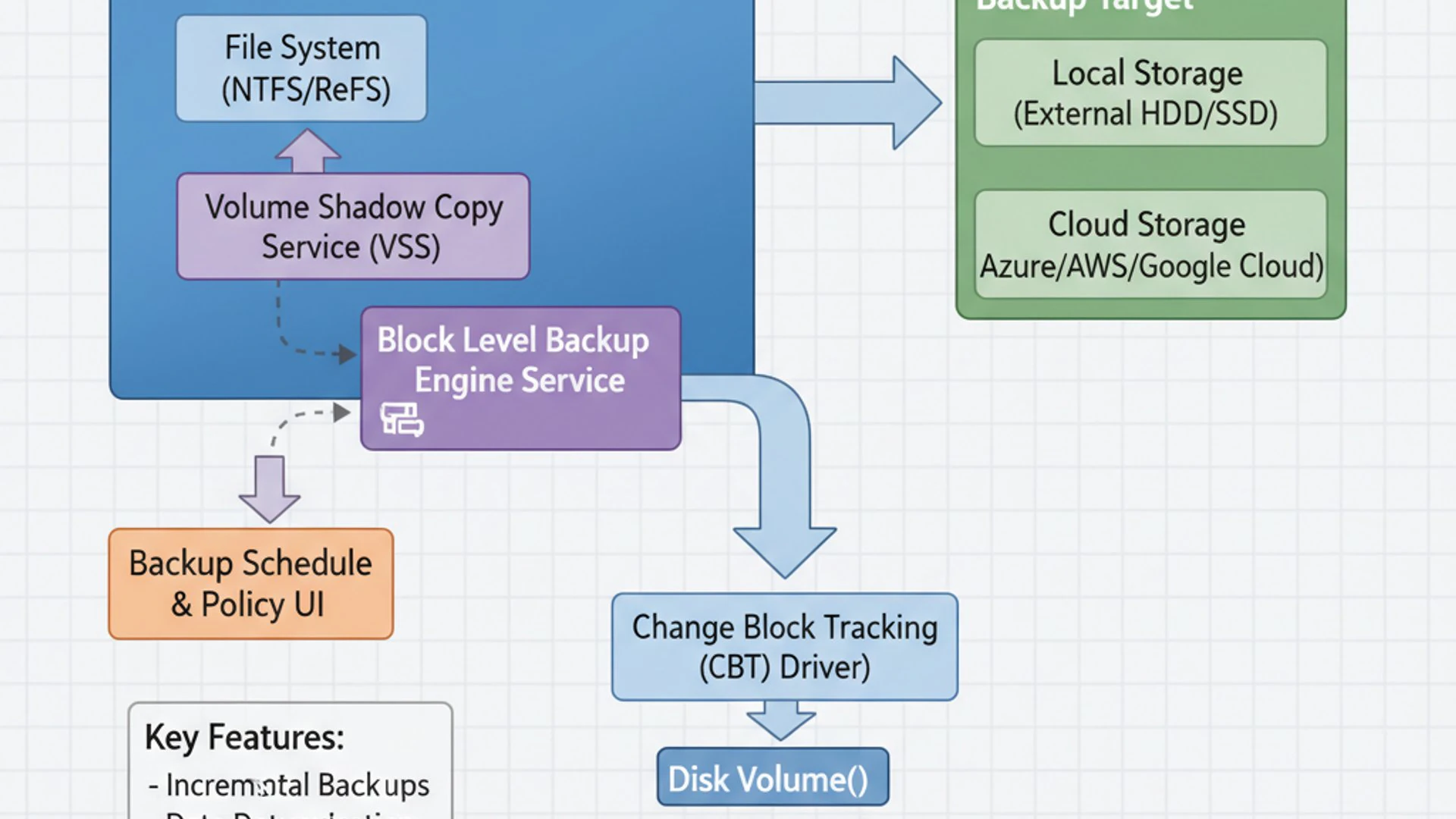
Its primary role is to manage the reading and writing of data at the block level, specifically for backup and restore purposes. This includes handling the creation of volume shadow copies, which are essential for backing up files that are currently in use, and ensuring data consistency during backup operations. The service is designed to work seamlessly with other Windows components to provide a robust and reliable data protection framework.
Understanding its operational mechanics helps in appreciating why it’s generally recommended to keep this service running. It’s not merely an optional utility; it’s an integral part of Windows 11’s resilience against data loss and system failures. Its presence allows for quicker backups and more reliable system state captures, which are invaluable in a recovery scenario.
How it Integrates with System Restore and Backup Features
The Block Level Engine Backup Service is deeply integrated with several key Windows 11 data protection features. It provides the underlying mechanism for their efficient operation:
- System Restore: When you create a system restore point, the service plays a critical role in capturing the state of system files and registry settings. It uses block-level technology to efficiently record changes, ensuring that restore points are created quickly and consume minimal disk space. This allows you to revert your system to a previous working state without affecting your personal files.
- File History: While File History primarily deals with file versions, the Block Level Engine Backup Service can contribute to its efficiency, especially when dealing with large volumes of data or system-level snapshots. It ensures that changes to files are tracked and backed up effectively.
- Windows Backup (Legacy & Modern): For older backup utilities or even the more recent “Windows Backup” feature, this service is often the workhorse. When you create a full system image backup, for instance, it’s the Block Level Engine Backup Service that handles the intricate process of copying entire disk partitions block by block, ensuring a complete and accurate replica of your operating system and data.
These integrations highlight the service’s critical nature. Disabling it would severely cripple your ability to use these essential Windows 11 recovery tools effectively, leaving your system vulnerable.
Impact on System Performance and Resource Usage
Like any background service, the Block Level Engine Backup Service on Windows 11 consumes system resources. However, its design aims for efficiency, particularly during idle times or scheduled backup windows. During active backup operations, you might observe a temporary increase in CPU, disk I/O, and memory usage. This is expected as the service works to capture data.
The impact on performance is generally optimized to be minimal during regular usage. The service often leverages idle system resources and prioritizes background operations. Modern solid-state drives (SSDs) further mitigate potential bottlenecks, as their high I/O speeds allow for rapid block-level data transfers.
If you notice persistent performance slowdowns unrelated to active backups, it might indicate an issue with the service or a conflicting application. However, for most users, the benefits of robust data protection far outweigh the occasional, temporary resource spikes during backup operations. It’s a trade-off for data integrity.
Locating and Managing the Service via Services.msc
While the Block Level Engine Backup Service operates largely in the background, Windows 11 provides tools to monitor and manage its behavior. The primary utility for this purpose is the Services management console, accessible through services.msc. This console allows you to view all services running on your system, check their status, and configure how they start.
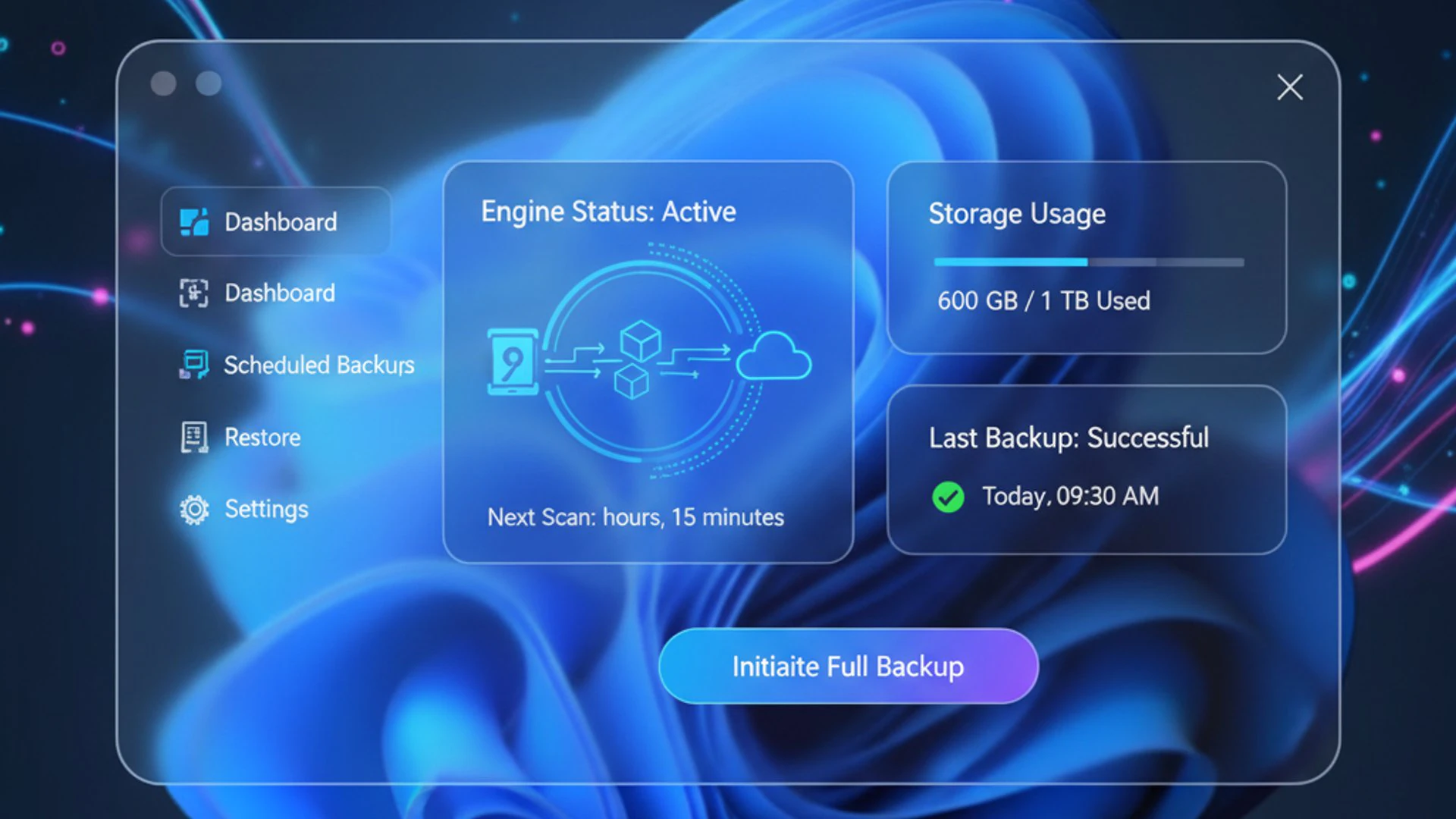
Understanding how to navigate services.msc It is a valuable skill for any Windows user who wants to gain more control over their operating system. It provides a centralized hub for managing critical system components, including those related to backup and recovery. By familiarizing yourself with this tool, you can ensure your Block Level Engine Backup Service is configured optimally for your needs.
It’s important to exercise caution when modifying service settings, especially for critical system components. Incorrect configurations can lead to system instability or the failure of essential features. Always understand the implications before making changes.
Steps to Access Services.msc
Accessing the Services console is a straightforward process on Windows 11. Here’s how you can do it:
- Press the Windows key + R simultaneously to open the Run dialog box.
- In the Run dialog box, type
services.mscand press Enter or click OK. - Alternatively, you can type “Services” into the Windows Search bar and select the “Services” app from the results.
- The Services window will open, displaying a comprehensive list of all services installed on your Windows 11 system.
For more detailed methods on accessing this console, including running it with administrative privileges, you can refer to resources like How to Run Services.msc as Administrator on Windows 11?
Identifying and Configuring the Block Level Backup Engine Service
Once you are in the Services console, you’ll need to locate the specific service. Scroll down the list until you find “Block Level Backup Engine Service”. It’s usually listed alphabetically.
Double-click on the service name to open its Properties window. Here, you’ll find several tabs, but the “General” tab is where you’ll primarily interact with its configuration. This window displays the service’s name, description, and its current status (Running, Stopped, Paused).
The most important setting to observe and potentially modify is the “Startup type”. This determines how and when the service initiates when your system starts up. Understanding these options is crucial for managing its behavior.
Understanding Service Startup Types
The “Startup type” setting in the service’s properties dictates its behavior upon system boot. Here are the common options:
- Automatic: The service starts automatically when Windows 11 boots up. This is the default and recommended setting for the Block Level Engine Backup Service, ensuring that backup features are always ready.
- Automatic (Delayed Start): The service starts automatically after other critical system services have initialized. This can help improve boot times by deferring non-essential services.
- Manual: The service will only start when it is explicitly called upon by another service or application. If no other component requests it, it remains stopped.
- Disabled: The service is completely prevented from starting, either manually or automatically. This should be used with extreme caution for critical system services like the Block Level Engine Backup Service, as it will disable dependent functionalities.
For the Block Level Engine Backup Service on Windows 11, the default “Automatic” or “Automatic (Delayed Start)” is generally the best choice to ensure your backup and restore capabilities are fully functional. Changing it to “Manual” or “Disabled” can lead to unexpected issues with system recovery.
When to Enable or Disable the Block Level Engine Backup Service
Deciding whether to enable or disable the Block Level Engine Backup Service is a critical choice that impacts your system’s data protection capabilities and, to a lesser extent, its performance. For most users, keeping the service enabled is the recommended course of action due to its fundamental role in Windows 11’s recovery mechanisms. However, there are specific scenarios where altering its state might be considered, though always with a clear understanding of the potential consequences.
It’s important to weigh the benefits of robust, efficient backups against any perceived performance gains from disabling a service. Data loss is far more impactful than a minor, temporary slowdown during a backup operation. Therefore, any decision to disable this service should be made after careful consideration and with alternative backup strategies firmly in place.
This section will outline the scenarios where enabling the service is beneficial and discuss the risks associated with disabling it, helping you make an informed decision for your Windows 11 environment.
Scenarios for Enabling the Service
Keeping the Block Level Engine Backup Service enabled is the default and generally recommended configuration for almost all Windows 11 users. Here’s why:
- Robust System Restore: If you rely on Windows 11’s System Restore points to revert your system to a previous working state after software installations or driver issues, this service is essential. It ensures restore points are created efficiently and reliably.
- Full System Image Backups: For users who create full system image backups using Windows’ built-in tools, the service is indispensable. It provides the block-level efficiency needed to capture an entire drive’s contents accurately.
- File History Functionality: While File History focuses on individual files, the underlying block-level mechanisms can still contribute to its efficient operation, especially for large volumes or frequent changes.
- General Data Integrity: The service contributes to the overall health and recoverability of your Windows 11 installation. Keeping it active ensures that the foundational components for data protection are always ready.
“For comprehensive data protection and reliable system recovery on Windows 11, maintaining the Block Level Engine Backup Service in an enabled state is paramount.”
Scenarios for Disabling the Service (and potential risks)
Disabling the Block Level Engine Backup Service is generally not recommended for most users. However, in very specific, niche scenarios, an advanced user might consider it, but only with a full understanding of the severe risks involved:
- Dedicated Third-Party Backup Solutions: If you use a comprehensive, enterprise-grade third-party backup solution that completely bypasses Windows’ native backup mechanisms and manages its own block-level operations, you might consider disabling it. However, even then, Windows’ own System Restore points would be affected.
- Extreme Resource Constraints: On extremely old or underpowered hardware where every background process counts, and you have absolutely no intention of ever using Windows’ native backup or restore features, you might consider it. This is a very rare scenario for Windows 11.
Potential Risks of Disabling:
- Loss of System Restore Functionality: Your ability to create and use System Restore points will be severely impaired or completely disabled, making it much harder to recover from system instability.
- Failure of Windows Backup: Any attempts to create full system image backups using Windows’ native tools will likely fail.
- Data Loss Risk: Without these built-in safety nets, your system becomes significantly more vulnerable to data loss from software corruption, driver issues, or other system failures.
- Unexpected Issues: Other Windows components or updates that rely on this service might encounter unexpected errors or fail to install correctly.
In summary, the benefits of disabling this service are minimal (a slight reduction in background resource usage), while the risks to your system’s recoverability are substantial. It is almost always better to keep it enabled.
Best Practices for Data Protection on Windows 11
While the Block Level Engine Backup Service is a crucial component, it’s just one piece of a larger puzzle when it comes to comprehensive data protection on Windows 11. A truly robust strategy involves multiple layers of defense, combining different backup methodologies and diligent management practices. Relying solely on a single backup method, even an efficient one like block-level, can leave you vulnerable to specific types of data loss.
The goal is to ensure that no matter what kind of data loss event occurs – whether it’s a corrupted file, a failed hard drive, a ransomware attack, or a complete system crash – you have a reliable way to recover your valuable information. This involves understanding how different backup types complement each other and establishing a routine that guarantees your data is consistently protected.
By adopting these best practices, you can significantly enhance your peace of mind, knowing that your digital life is secure and recoverable. It’s about proactive management rather than reactive panic when disaster strikes.
Complementing Block-Level Backups with Other Strategies
Block-level backups, particularly those facilitated by the Block Level Engine Backup Service on Windows 11, are excellent for system-level recovery and efficient incremental updates. However, they are best used in conjunction with other backup strategies:
- File-Level Backups for Granularity: For frequently accessed personal documents, photos, and media, a dedicated file-level backup solution (like File History or cloud storage synchronization) allows for easy, granular recovery of individual items without needing to restore an entire system image.
- Cloud Backups for Offsite Protection: Storing backups in the cloud (e.g., OneDrive, Google Drive, Dropbox) provides crucial offsite protection against physical disasters like fire or theft that could affect local backups. Cloud services often offer versioning, adding another layer of safety.
- External Drive Backups for Redundancy: Maintaining a physical backup on an external hard drive provides a quick local recovery option. Consider having multiple external drives and rotating them for added redundancy.
- 3-2-1 Backup Rule: A widely recommended strategy is the 3-2-1 rule: keep 3 copies of your data, on at least 2 different types of media, with 1 copy stored offsite. This multi-faceted approach offers the highest level of data security.
Regular Backup Schedules and Verification
Having a backup strategy is only half the battle; consistently executing and verifying it is equally important. An outdated or corrupted backup is as good as no backup at all.
- Establish a Schedule: Determine how frequently your data changes and set up an appropriate backup schedule. For critical work data, daily backups might be necessary. For personal files, weekly or bi-weekly might suffice. Utilize Windows’ built-in scheduling features or your third-party software’s options.
- Automate Backups: Wherever possible, automate your backup processes. This minimizes human error and ensures backups happen consistently without manual intervention.
- Verify Backups Regularly: This is a crucial, often overlooked step. Periodically, attempt to restore a few files or, ideally, perform a test system restore from your backups. This confirms that your backup files are intact and recoverable. Without verification, you can’t be certain your backups will work when you need them most.
- Monitor Backup Reports: Pay attention to any backup reports or notifications from your software. Error messages should be investigated promptly to prevent future backup failures.
Proactive verification is the cornerstone of a reliable backup strategy. Don’t wait until disaster strikes to discover your backups are unusable.
Troubleshooting Common Issues with Block-Level Backups
Even with the sophisticated Block Level Engine Backup Service on Windows 11, backup operations can sometimes encounter issues. These problems can range from cryptic error messages to noticeable performance slowdowns during the backup process. Understanding how to diagnose and resolve these common issues is vital for maintaining a healthy and reliable data protection system. Timely troubleshooting ensures that your backups remain effective and ready for when they are truly needed.
Many backup problems stem from underlying system conflicts, insufficient resources, or corrupted backup targets. Addressing these root causes often requires a systematic approach, starting with interpreting error messages and then moving on to examining system logs and resource usage. This section aims to equip you with the knowledge to tackle these challenges effectively, minimizing downtime and data vulnerability.
Remember that patience and methodical investigation are key when troubleshooting. Rushing to solutions without understanding the problem can often lead to further complications.
Error Messages and Their Meanings
When a block-level backup fails, Windows often provides an error message or code. While these can sometimes seem obscure, they usually point towards the nature of the problem:
- “The backup failed. A shadow copy could not be created.” (Error 0x8004230F, 0x8004230C): This often indicates issues with the Volume Shadow Copy Service (VSS), which the Block Level Engine Backup Service relies on. VSS ensures files can be backed up even if they are in use.
- Solution: Check if the VSS service is running (
services.msc). Ensure there’s enough disk space on the source drive for shadow copies. Runvssadmin list writersin an elevated Command Prompt to check for VSS writer errors.
- Solution: Check if the VSS service is running (
- “The specified backup disk cannot be found.” (Error 0x8078002A): This means the backup destination (e.g., external hard drive, network share) is unavailable.
- Solution: Verify the backup drive is connected and accessible. Check network connectivity for network shares. Ensure permissions are correctly set for the backup location.
- “Not enough disk space to create the volume shadow copy.” (Error 0x80070070): The source drive lacks sufficient free space to create the temporary shadow copy needed for the backup.
- Solution: Free up space on the source drive. Adjust VSS storage limits if necessary (
vssadmin resize shadowstorage).
- Solution: Free up space on the source drive. Adjust VSS storage limits if necessary (
Always consult the Windows Event Viewer (specifically “Application” and “System” logs under “Windows Logs”) for more detailed error information, as it often provides specific error codes and descriptions that can guide your troubleshooting.
Performance Slowdowns During Backup Operations
While block-level backups are efficient, you might still experience temporary performance slowdowns during an active backup. If these slowdowns are excessive or persistent, consider these troubleshooting steps:
- Check Disk I/O: Use Task Manager (Ctrl+Shift+Esc) to monitor disk usage during a backup. If disk usage is consistently at 100% for extended periods, it might indicate a slow drive, a failing drive, or a bottleneck.
- Solution: Upgrade to an SSD if using an HDD. Check drive health using tools like CrystalDiskInfo.
- Resource Contention: Other applications running simultaneously might be competing for disk, CPU, or memory resources.
- Solution: Schedule backups during off-peak hours or when the computer is idle. Close unnecessary applications during backup windows.
- Antivirus Interference: Real-time scanning by antivirus software can sometimes interfere with backup processes, especially if it scans every block being read or written.
- Solution: Temporarily disable real-time scanning (with caution) to see if performance improves. Configure your antivirus to exclude backup folders or processes from scanning.
- Corrupted Files/Blocks: If the Block Level Engine Backup Service encounters corrupted files or bad blocks on the source drive, it can slow down significantly as it tries to read or bypass them.
- Solution: Run
chkdsk /f /ron the source drive to check for and repair disk errors.
- Solution: Run
Optimizing your system’s overall health, including regular disk maintenance and managing background processes, can significantly improve backup performance.
Advanced Configuration and Registry Tweaks (Caution Advised)
For advanced users who seek deeper control over their Windows 11 system, there are sometimes options to tweak services like the Block Level Engine Backup Service beyond the standard services.msc interface. This typically involves modifying the Windows Registry or utilizing command-line tools. These methods offer a granular level of control but come with significant risks. The Windows Registry is a critical database of system settings, and incorrect modifications can lead to severe system instability, boot failures, or data loss.
Therefore, any exploration into advanced configuration should be approached with extreme caution. It is imperative to create a full system backup or at least a Registry backup before attempting any changes. This section is provided for informational purposes for those with a strong technical background and a clear understanding of the potential consequences. For the vast majority of users, the default settings and management through services.msc are perfectly adequate and much safer.
Exploring Related Registry Keys
The settings for services, including the Block Level Engine Backup Service, are stored within the Windows Registry. You can access the Registry Editor by typing regedit in the Run dialog (Win + R). The primary location for service configurations is:
HKEY_LOCAL_MACHINE\SYSTEM\CurrentControlSet\Services
Within this path, you would typically find a subkey named after the service, such as WbEngine for the Block Level Engine Backup Service. Inside this key, you’ll find values like:
- Start: This DWORD value corresponds to the startup type (e.g., 2 for Automatic, 3 for Manual, 4 for Disabled).
- Type: Defines the service type.
- ImagePath: Specifies the executable path for the service.
Modifying these values directly in the Registry is generally not recommended unless you are following specific, trusted instructions and understand the implications. Incorrect values can prevent the service from starting or cause unexpected system behavior. Always prefer using services.msc for standard configuration changes.
Command-Line Management Options
For those comfortable with the command line, Windows offers tools like sc.exe (Service Control) and PowerShell cmdlets to manage services. These can be useful for scripting or remote management.
- Using
sc.exe:- To query the service status:
sc query WbEngine - To change the startup type to automatic:
sc config WbEngine start= auto - To stop the service:
sc stop WbEngine - To start the service:
sc start WbEngine
- To query the service status:
- Using PowerShell:
- To get service information:
Get-Service -Name WbEngine - To set the startup type to automatic:
Set-Service -Name WbEngine -StartupType Automatic - To stop the service:
Stop-Service -Name WbEngine - To start the service:
Start-Service -Name WbEngine
- To get service information:
These command-line tools provide the same functionality as services.msc but in a text-based interface. They are powerful but require precise syntax. Always run Command Prompt or PowerShell as an administrator when managing services.
The Future of Backup Technologies in Windows
The landscape of data backup is constantly evolving, driven by advancements in storage technology, network capabilities, and the ever-increasing volume of data we generate. The Block Level Engine Backup Service on Windows 11, while robust, is part of a broader ecosystem that is continually adapting to these changes. Looking ahead, we can anticipate further integration, smarter automation, and more resilient solutions for data protection.
Trends like the pervasive adoption of cloud computing, the rise of hybrid IT environments, and the growing threat of cyberattacks are shaping the next generation of backup strategies. Windows will undoubtedly continue to evolve its native capabilities to meet these challenges, offering users more seamless and secure ways to protect their digital assets.
Understanding these future trends helps users and IT professionals alike to plan their long-term data protection strategies, ensuring they remain resilient against emerging threats and technological shifts. The core principles of backup will remain, but the methods and integrations will become increasingly sophisticated.
Cloud Integration and Hybrid Backup Solutions
Cloud integration is no longer a niche feature but a fundamental aspect of modern backup strategies. Services like Microsoft OneDrive are already deeply integrated into Windows 11, offering seamless file synchronization and versioning. The future will likely see even tighter integration, making cloud backups an effortless, almost invisible part of the user experience.
Hybrid backup solutions, which combine local backups with cloud storage, are gaining prominence. These offer the best of both worlds: fast local recovery for common issues and offsite cloud protection against major disasters. Windows’ native backup tools, potentially leveraging the Block Level Engine Backup Service, could evolve to facilitate these hybrid models more directly, allowing users to configure tiered backups that automatically move older or less critical data to the cloud while keeping recent, vital data locally accessible.
“The future of Windows backup lies in intelligent, hybrid solutions that seamlessly blend local speed with cloud resilience.”
Evolving Data Protection Standards
As data becomes more valuable and cyber threats more sophisticated, data protection standards are continuously evolving. This includes stricter regulations around data privacy (like GDPR and CCPA), increased focus on immutable backups to counter ransomware, and advanced encryption techniques.
Future Windows backup technologies will likely incorporate these evolving standards directly. We might see enhanced encryption options built into backup processes, more robust integrity checks to prevent tampering, and perhaps even AI-driven anomaly detection to identify potential ransomware attacks before they compromise backups. The Block Level Engine Backup Service could play a role in these advancements by providing the efficient, granular data handling necessary for such sophisticated protection mechanisms. This ongoing evolution aims to make data protection not just functional, but truly resilient and compliant.
Conclusion: Optimizing Your Windows 11 Backup Strategy
The Block Level Engine Backup Service on Windows 11 is a critical, yet often overlooked, component of your system’s data protection framework. It underpins essential features like System Restore and Windows Backup, providing the efficient, block-level operations necessary for reliable and timely data recovery. Understanding its function, how it differs from file-level backups, and its impact on your system is the first step towards a truly optimized backup strategy.
While the service is designed to run automatically and efficiently in the background, knowing how to locate and manage it via services.msc empowers you to monitor its status and ensure it’s configured correctly. For the vast majority of users, keeping the Block Level Engine Backup Service enabled and set to “Automatic” is the recommended best practice, as disabling it severely compromises your system’s ability to recover from unforeseen issues.
Ultimately, a robust data protection strategy on Windows 11 extends beyond this single service. It involves a multi-layered approach, combining block-level system backups with granular file-level backups, off-site cloud storage, and diligent external drive copies. Critically, it demands regular backup schedules and, most importantly, consistent verification of those backups. By embracing these principles and understanding the role of the Block Level Engine Backup Service on Windows 11, you can build a resilient defense against data loss, ensuring your digital life remains secure and recoverable.









Community
Comments (0)