

In the rapidly evolving landscape of operating systems, Windows 11 stands as Microsoft’s latest iteration, offering a sleek interface, enhanced security features, and improved performance. However, this advancement often presents a unique challenge for users who rely on older software. Many beloved applications, particularly legacy games, specialized business tools, or even specific utilities, were designed for previous versions of Windows and may struggle to run seamlessly on the modern architecture of Windows 11.
This is where the Program Compatibility Troubleshooter on Windows 11 becomes an indispensable tool. It acts as a bridge between the past and the present, designed specifically to address and resolve common compatibility issues that prevent older programs from functioning correctly. Instead of abandoning your essential legacy software, this built-in utility offers a robust solution to adapt its environment to meet the demands of a contemporary operating system.
This comprehensive guide will delve deep into the intricacies of the Program Compatibility Troubleshooter. We will explore why compatibility issues arise, how to access and utilize this powerful tool effectively, and advanced settings that can fine-tune its approach. Furthermore, we’ll discuss common scenarios where it shines, alongside alternative solutions for those particularly stubborn applications. Our goal is to empower you to keep your vital older software running smoothly, ensuring that your transition to Windows 11 doesn’t mean leaving behind your essential digital toolkit.
Table of contents
Key Takeaways
- The Program Compatibility Troubleshooter on Windows 11 is a built-in utility designed to help older applications run on the modern operating system.
- Compatibility issues often stem from architectural changes, API differences, and enhanced security features in Windows 11 compared to older versions.
- Users can access the troubleshooter via the Settings app or by right-clicking an executable file, offering flexible entry points.
- The tool provides two main modes: ‘Try recommended settings’ for quick fixes and ‘Troubleshoot program’ for a more guided, manual configuration.
- Advanced options include running programs in compatibility mode for specific Windows versions, adjusting display settings, and, crucially, running as an administrator.
- For persistent issues, consider alternatives like updating drivers, using virtual machines, or contacting software developers for official support.
- Maintaining overall system compatibility involves regular Windows updates and health checks to prevent future conflicts.
Understanding Program Compatibility on Windows 11
Windows 11 represents a significant leap forward in operating system design and functionality. While it brings numerous benefits, it also introduces a new set of challenges, especially concerning software compatibility. Many users upgrade to Windows 11 expecting all their existing applications to work flawlessly, only to encounter unexpected errors, crashes, or complete failure to launch. Learn more at Make older apps or programs compatible with Windows 10 and Application Compatibility on Windows.
This phenomenon is not unique to Windows 11; it’s a recurring theme with every major operating system release. Software is developed within a specific ecosystem, relying on particular system libraries, APIs, and security models prevalent at the time of its creation. When the underlying operating system evolves, these dependencies can break, leading to compatibility problems.
Understanding these underlying reasons is crucial for appreciating the value of the Program Compatibility Troubleshooter on Windows 11. It’s not just a magic button; it’s a sophisticated tool that attempts to simulate the environment an older program expects, allowing it to function correctly despite the advancements of the new OS.
Why Older Programs Face Compatibility Issues
The journey from an older Windows version to Windows 11 involves numerous fundamental shifts. These changes, while beneficial for overall system performance and security, can inadvertently create hurdles for applications not designed to anticipate them. Identifying these core differences helps in understanding the scope of compatibility challenges.
Often, programs designed for Windows XP or Windows 7, for instance, might make assumptions about system resources or security permissions that are no longer valid on Windows 11. This discrepancy is the root cause of many frustrating “program has stopped working” messages or installation failures.
Architectural Changes and API Differences
One of the primary reasons older software struggles on Windows 11 lies in the evolution of the operating system’s core architecture and its Application Programming Interfaces (APIs). Over the years, Microsoft has continuously refined the Windows kernel, memory management, and how applications interact with hardware and software components.
Legacy programs might call upon APIs that have either been deprecated, removed, or significantly altered in Windows 11. When a program attempts to use a non-existent or modified function, it can lead to errors, unexpected behavior, or outright crashes. This is a fundamental mismatch at the code level.
Furthermore, changes in hardware abstraction layers and driver models can impact applications that directly interface with hardware, such as certain games or specialized peripheral software. The way Windows 11 handles graphics, sound, and input devices is more modern and secure, which can be a stumbling block for older software expecting a different interaction model.
Security Enhancements and UAC
Windows 11 boasts significantly enhanced security features compared to its predecessors. While these improvements are vital for protecting users from modern threats, they can sometimes be overly restrictive for older applications that were not designed with such stringent security protocols in mind.
User Account Control (UAC), introduced in Windows Vista and refined in subsequent versions, is a prime example. Many legacy programs were developed assuming they would have full administrative privileges to write to system directories or modify registry keys without explicit user consent. On Windows 11, UAC prevents this by default, prompting users for permission or blocking the action entirely.
“Modern operating systems prioritize security, which can inadvertently create roadblocks for legacy software expecting unfettered access. The Program Compatibility Troubleshooter aims to bridge this gap by adjusting permissions and environmental settings.”
This elevated security posture, coupled with features like Windows Defender’s advanced threat protection and stricter digital signature requirements, means that older, unsigned executables or those attempting to perform actions deemed risky might be flagged or blocked. The troubleshooter often addresses these by suggesting running the program with administrative privileges or adjusting security contexts.
Accessing the Program Compatibility Troubleshooter
The good news is that Microsoft has made the Program Compatibility Troubleshooter on Windows 11 relatively easy to access, offering a couple of straightforward methods. Whether you prefer to navigate through the system settings or quickly launch it from the application itself, Windows 11 provides convenient pathways to initiate the troubleshooting process.
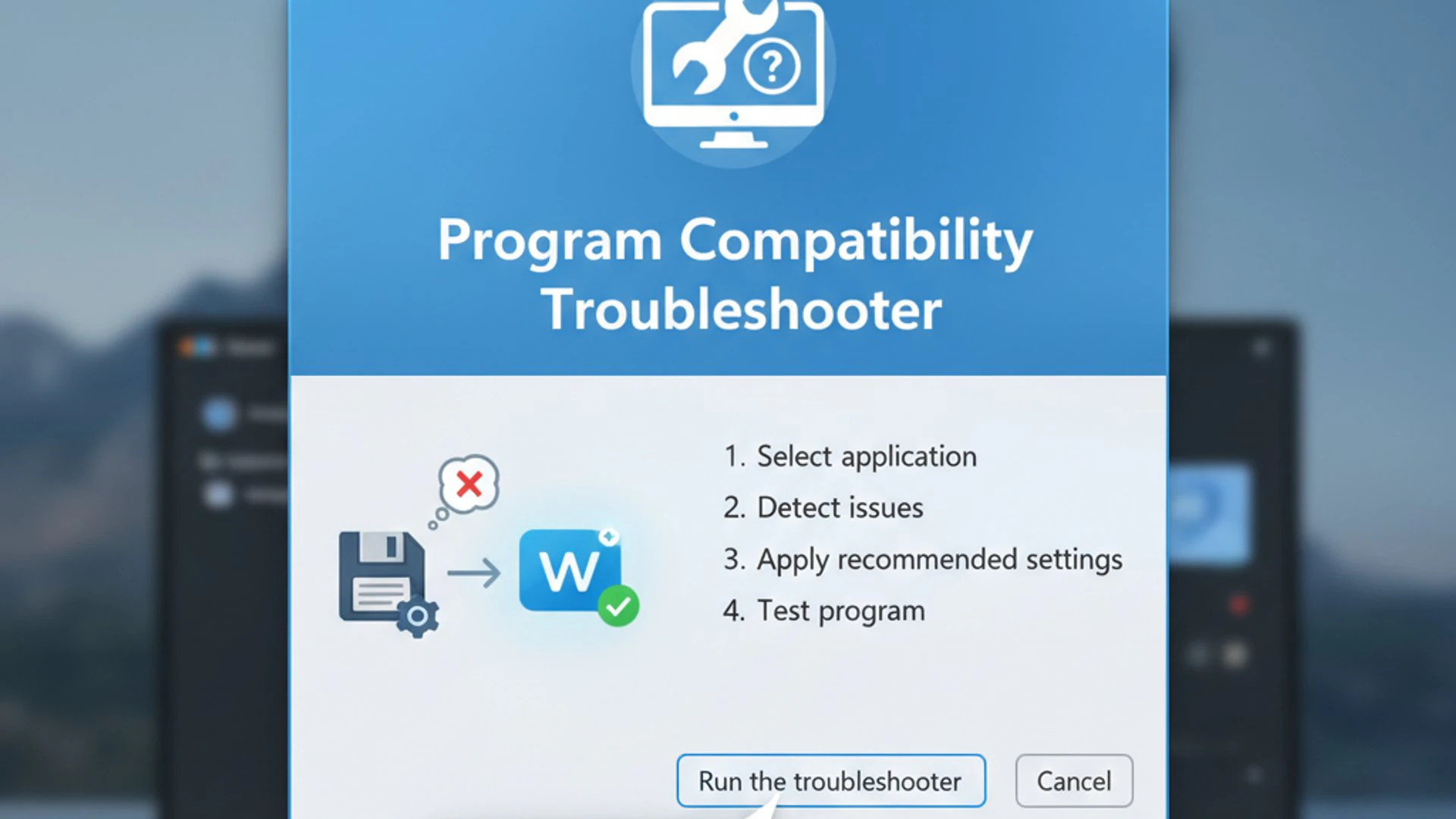
Knowing both methods ensures you can quickly respond to compatibility issues as they arise, regardless of how you typically interact with your operating system. Both approaches lead to the same powerful tool, but they cater to different user preferences and scenarios.
Via Settings App
For those who prefer a centralized approach to system management, accessing the Program Compatibility Troubleshooter through the Windows 11 Settings app is a clear and organized method. This path is particularly useful if you’re unsure where the program’s executable file is located or if you want to browse a list of installed applications.
Here’s how to launch it using the Settings app:
- Open the Settings app by pressing
Windows key + Ion your keyboard, or by clicking the Start button and selecting ‘Settings’. - In the Settings window, navigate to System on the left-hand sidebar.
- Scroll down and click on Troubleshoot from the options presented.
- Under the ‘Troubleshoot’ section, select Other troubleshooters.
- Scroll through the list of troubleshooters until you find Program Compatibility Troubleshooter. Click the Run button next to it.
Windows will then launch the troubleshooter wizard, which will scan your system for installed programs and allow you to select the one you’re having issues with. This method provides a guided experience from the outset, making it ideal for users who might be less familiar with file system navigation.
Through the Context Menu
Perhaps the most direct and frequently used method to access the Program Compatibility Troubleshooter on Windows 11 is via the right-click context menu. This approach is incredibly efficient when you know exactly which program is causing problems and have its executable file readily accessible.
This method allows you to initiate the troubleshooting process directly from the program’s shortcut or its installation directory, saving time and clicks. It integrates seamlessly into the Windows Explorer workflow, making it a favorite for many power users.
Follow these steps to use the context menu:
- Locate the executable file (
.exe) of the program you want to troubleshoot. This could be on your desktop, in the Start menu, or within the program’s installation folder (e.g.,C:\Program Files\Program Name). - Right-click on the executable file.
- From the context menu that appears, select Show more options (if you’re using the new Windows 11 context menu).
- Then, choose Troubleshoot compatibility.
The troubleshooter wizard will immediately launch, pre-selected with the program you right-clicked. This bypasses the need to search for the program within a list, streamlining the process significantly. It’s an excellent option for quick, targeted troubleshooting.
Step-by-Step Guide: Using the Troubleshooter Effectively
Once you’ve accessed the Program Compatibility Troubleshooter on Windows 11, you’ll be presented with a wizard designed to guide you through the process of resolving compatibility issues. The troubleshooter offers two primary modes, each suited for different scenarios, providing flexibility in how you approach problem-solving.
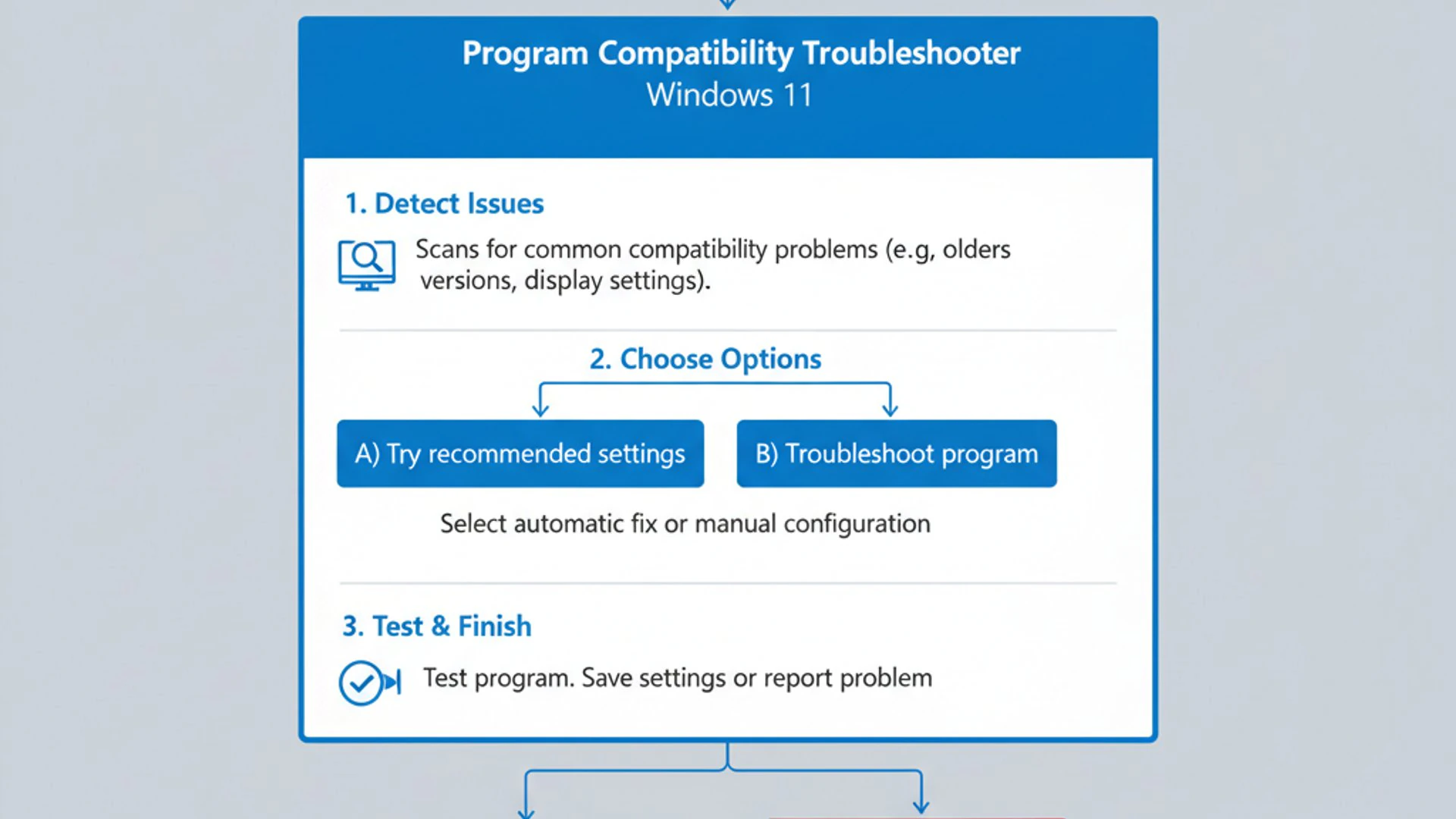
Understanding when to use each mode is key to effectively utilizing this tool. The wizard’s interface is user-friendly, prompting you with questions and offering suggestions based on its analysis of the selected program.
Recommended Settings Mode
The ‘Try recommended settings’ mode is the troubleshooter’s quickest and often most effective approach. It’s designed for users who want a fast solution without delving into manual configurations. When you select this option, Windows automatically applies a set of compatibility settings that it believes will resolve the issue, based on common problems encountered by similar programs.
This mode is particularly useful for widely used older applications or games that have a known history of compatibility challenges. Windows leverages its vast database of software information to make an educated guess about the best settings.
- After launching the troubleshooter and selecting your program, choose the option Try recommended settings.
- The troubleshooter will then apply the settings. You’ll see a message indicating what changes have been made (e.g., “This program will run in compatibility mode for Windows 7”).
- Click Test the program… to launch the application with these new settings. Observe if the program now functions correctly.
- If the program works, click Yes, save these settings for this program. This will permanently apply the recommended compatibility settings.
- If the program still doesn’t work, or if new issues arise, click No, try again using different settings, or No, report the problem to Microsoft and check for a solution. This will typically lead you to the ‘Troubleshoot program’ mode for more manual control.
This mode is an excellent starting point, as it often resolves issues with minimal effort. It’s the troubleshooter’s best guess, and frequently, it’s the right one.
Troubleshoot Program Mode (Manual Selection)
If the ‘Try recommended settings’ mode doesn’t resolve your issue, or if you prefer a more hands-on approach, the ‘Troubleshoot program’ mode offers granular control over compatibility settings. This mode presents you with a series of questions, allowing you to specify the exact nature of the problem you’re experiencing.
This manual selection process empowers you to tailor the compatibility adjustments to the specific symptoms your program exhibits. It’s ideal for less common applications or when you have a good understanding of why your program might be failing.
- After launching the troubleshooter, select Troubleshoot program.
- You will then be presented with a list of common problems. Check all the boxes that apply to your situation:
- The program worked in earlier versions of Windows but won’t install or run now.
- The program opens, but doesn’t display correctly.
- The program requires additional permissions.
- I don’t see my problem listed. (This will lead to more general options).
- Click Next after making your selections.
- Based on your choices, the troubleshooter will offer specific compatibility options. For example, if you selected “worked in earlier versions,” it will ask you to choose which version of Windows it previously worked on.
- Adjust the settings as suggested or based on your knowledge. This might include selecting a specific Windows version for compatibility mode, reducing color modes, or disabling display scaling.
This iterative process allows you to experiment with different combinations of settings until you find a configuration that works. It’s a powerful way to fine-tune the environment for your legacy applications.
Testing Compatibility Settings
After applying any settings in either mode, the troubleshooter will always prompt you to Test the program… This step is critical. It launches the application with the newly configured compatibility settings, allowing you to immediately verify if the changes have had the desired effect.
During the test, pay close attention to whether the program launches, if it functions as expected, and if any previous errors are resolved. If the program works correctly, return to the troubleshooter wizard and select Yes, save these settings for this program. This action creates a permanent compatibility fix for that specific executable, so you won’t have to troubleshoot it again.
If the program still doesn’t work, or if new issues appear, click No, try again using different settings. This will take you back to the previous step in the wizard, allowing you to choose different problem descriptions or adjust the compatibility settings further. The iterative nature of this testing phase is what makes the Program Compatibility Troubleshooter on Windows 11 so effective.
Advanced Compatibility Settings and Options
While the automated and semi-automated modes of the Program Compatibility Troubleshooter on Windows 11 are often sufficient, there are times when a deeper dive into advanced settings is necessary. These options allow for highly specific adjustments, catering to the unique demands of particularly stubborn legacy applications. Accessing these advanced settings provides a level of control that can be crucial for resolving complex compatibility issues.
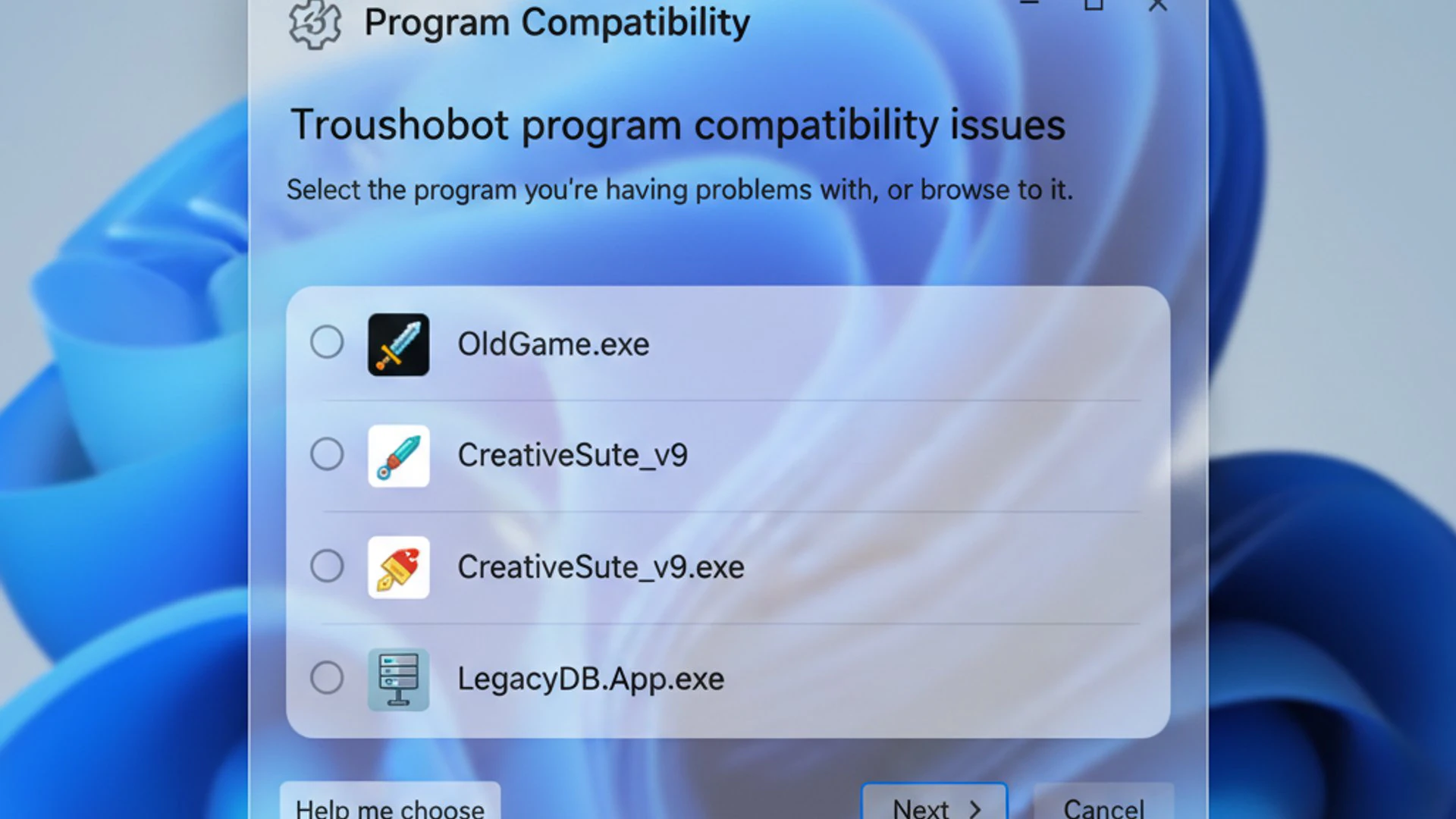
These settings are typically found by right-clicking the program’s executable file, selecting ‘Properties’, and then navigating to the ‘Compatibility’ tab. This dedicated tab offers a comprehensive suite of tools to fine-tune how Windows 11 interacts with the application, allowing you to mimic older operating system environments or adjust display behaviors.
Running as Administrator
One of the most common and effective solutions for older programs is to run them with administrative privileges. As discussed earlier, many legacy applications were developed assuming they would have unrestricted access to system resources, a behavior that modern Windows versions, including Windows 11, restrict by default for security reasons.
When a program attempts to write to a protected system directory, modify a critical registry key, or access certain hardware components without administrator rights, it can fail or exhibit unexpected behavior. Granting administrative privileges bypasses these UAC restrictions, allowing the program to perform its intended actions.
To configure a program to always run as an administrator:
- Locate the program’s executable file (
.exe) or its shortcut. - Right-click on it and select Properties.
- Go to the Compatibility tab.
- Under the ‘Settings’ section, check the box next to Run this program as an administrator.
- Click Apply, then OK.
This simple change can resolve a surprising number of compatibility issues, especially for older games or utility software that requires deeper system access. It’s often the first advanced setting to try when troubleshooting.
Compatibility Mode for Older Windows Versions
The cornerstone of the Program Compatibility Troubleshooter on Windows 11 is its ability to run applications in compatibility mode for older Windows versions. This feature essentially tells Windows 11 to emulate the environment of an earlier operating system, such as Windows XP, Windows 7, or Windows 8, for the selected program.
This emulation involves adjusting system calls, API behaviors, and environmental variables to match what the legacy program expects. It’s like giving the program a virtual time machine, allowing it to believe it’s running on its native OS.
To manually set compatibility mode:
- Right-click the program’s executable or shortcut and select Properties.
- Navigate to the Compatibility tab.
- Under the ‘Compatibility mode’ section, check the box that says Run this program in compatibility mode for:.
- From the dropdown menu, select the version of Windows the program was originally designed for, or the last version it was known to work correctly on. Common choices include Windows 7 or Windows XP (Service Pack 3).
- Click Apply, then OK.
Experimenting with different Windows versions in this dropdown list can be crucial. Sometimes, a program designed for Windows Vista might work best in Windows XP compatibility mode, or vice versa, depending on its specific dependencies.
Color Mode and Display Settings
Certain very old applications, particularly games or graphic design software from the late 90s or early 2000s, were designed for display environments that are vastly different from modern Windows 11. These might include systems with limited color palettes or specific screen resolutions.
Modern graphics cards and display drivers often handle these legacy modes poorly, leading to visual glitches, incorrect colors, or even crashes. The compatibility tab offers specific display-related settings to address these issues:
- Right-click the program’s executable or shortcut and select Properties.
- Go to the Compatibility tab.
- Under the ‘Settings’ section, you’ll find options like:
- Reduced color mode: This can be set to 8-bit (256 colors) or 16-bit color. This is rarely needed today but can be a lifesaver for truly ancient software.
- Run in 640 x 480 screen resolution: Some very old programs expect this low resolution.
- Disable fullscreen optimizations: This can help with display issues in full-screen games, especially those that struggle with modern display scaling.
- Override high DPI scaling behavior: This is particularly important for programs that appear blurry or have tiny text on high-resolution screens. You can set it to ‘Application’, ‘System’, or ‘System (Enhanced)’. Often, ‘System’ or ‘Application’ can resolve scaling problems.
- Check the relevant boxes and adjust settings as needed.
- Click Apply, then OK to save changes and test the program.
These display-specific adjustments, especially DPI scaling overrides, can significantly improve the user experience for older applications that look out of place or are difficult to read on a high-resolution Windows 11 display.
Common Scenarios and Solutions
The Program Compatibility Troubleshooter on Windows 11 isn’t just a theoretical tool; it’s a practical solution for a myriad of real-world problems. Many users encounter similar issues when trying to run older software, and the troubleshooter is specifically designed to address these common scenarios. Understanding these use cases can help you quickly identify when and how to deploy the tool effectively.
From nostalgic gaming sessions to critical business operations, legacy software plays a vital role for many. The following scenarios highlight where the troubleshooter truly shines, offering actionable advice for each.
Legacy Games Not Launching
One of the most frequent applications of the Program Compatibility Troubleshooter is bringing old games back to life. Many classic titles, beloved by gamers, were developed for operating systems like Windows 98, XP, or 7. On Windows 11, these games often refuse to launch, crash immediately, or display graphical anomalies.
Problem: A game like Star Wars: Knights of the Old Republic or Age of Empires II, developed for Windows XP, might fail to start, present a black screen, or show corrupted graphics on Windows 11.
Solution using Troubleshooter:
- Right-click the game’s executable (e.g.,
kotor.exe) and select ‘Troubleshoot compatibility’. - First, try ‘Try recommended settings’. If that doesn’t work, proceed to ‘Troubleshoot program’.
- In ‘Troubleshoot program’, select “The program worked in earlier versions of Windows but won’t install or run now” and choose Windows XP (Service Pack 3) or Windows 7 from the dropdown.
- Additionally, on the Compatibility tab in Properties, ensure Run this program as an administrator is checked.
- For graphical issues, experiment with Reduced color mode (if very old) and Disable fullscreen optimizations. Also, try overriding high DPI scaling behavior to ‘Application’ or ‘System’.
Many older games also benefit from community patches or fan-made fixes, which often address compatibility issues beyond what the troubleshooter can achieve. Always check online forums for specific game titles.
Business Applications with Outdated Dependencies
Beyond entertainment, many businesses rely on specialized, often proprietary, software that was developed years ago and hasn’t been updated for modern operating systems. These applications can be critical for specific workflows, data management, or hardware control.
Problem: A custom inventory management system developed in the early 2000s might rely on specific versions of .NET Framework or ActiveX controls that are no longer natively supported or behave differently on Windows 11, causing the application to crash or display errors.
Solution using Troubleshooter:
- Locate the main executable of the business application.
- Right-click and select ‘Troubleshoot compatibility’.
- Typically, these applications require elevated permissions, so always ensure Run this program as an administrator is enabled via the Compatibility tab in Properties.
- Set the Compatibility mode to the oldest Windows version the software was known to work on, such as Windows 7 or even Windows XP, as these often have better support for older frameworks.
- If the application opens but specific functions fail, it might be due to missing dependencies. The troubleshooter can help with the environment, but you might need to manually install older versions of .NET Framework or Visual C++ redistributables.
For critical business applications, it’s also advisable to consult with the software vendor or an IT professional, as they might have specific recommendations or patches for newer OS versions.
Installer Issues for Older Software
Sometimes, the problem isn’t with running the program itself, but with its initial installation. Older installers might fail to execute, get stuck, or report errors about unsupported operating systems, preventing the software from even being placed on your Windows 11 machine.
Problem: You’re trying to install an old utility or a game from a physical disc, but the setup wizard immediately quits with an “Unsupported Operating System” error or simply doesn’t launch.
Solution using Troubleshooter:
- Locate the setup.exe or install.exe file on the installation media or downloaded folder.
- Right-click on the installer executable and select ‘Troubleshoot compatibility’.
- Choose Troubleshoot program.
- Select “The program worked in earlier versions of Windows but won’t install or run now.”
- Then, select the appropriate older Windows version (e.g., Windows XP (Service Pack 3) or Windows 7) that the installer was designed for.
- Crucially, ensure that Run this program as an administrator is checked for the installer. Many installers need elevated permissions to write to system directories.
- Click ‘Test the program…’ to attempt the installation with these compatibility settings.
By applying compatibility settings to the installer itself, you can often trick it into believing it’s running on a supported environment, allowing the installation to complete successfully. Once installed, you might then need to apply similar compatibility settings to the main program executable.
When the Troubleshooter Isn’t Enough: Alternative Solutions
While the Program Compatibility Troubleshooter on Windows 11 is a powerful and versatile tool, it’s not a silver bullet for every legacy software issue. Some applications are so deeply entrenched in older operating system architectures or rely on deprecated hardware that no amount of compatibility tweaking will suffice. In such cases, it’s essential to explore alternative solutions to keep your critical software running.
These alternatives range from basic system maintenance to more advanced virtualization techniques, offering a comprehensive toolkit for tackling even the most stubborn compatibility challenges. Knowing when to escalate beyond the troubleshooter can save you significant time and frustration.
Updating Drivers and System Components
Sometimes, what appears to be a program compatibility issue is actually a symptom of outdated or incompatible system drivers. Graphics card drivers, sound drivers, or even chipset drivers can profoundly impact how older applications, especially games or multimedia software, interact with your hardware on Windows 11.
Actionable Advice:
- Graphics Drivers: Always ensure your graphics drivers (NVIDIA, AMD, Intel) are up-to-date. Visit the manufacturer’s website directly, not just Windows Update, for the latest stable versions. Sometimes, rolling back to an older, but stable, driver version can also help with very specific legacy games.
- Sound Drivers: Outdated audio drivers can cause crashes or no sound in older games. Update these from your motherboard manufacturer’s website or sound card vendor.
- DirectX/Visual C++ Redistributables: Many older games and applications rely on specific versions of DirectX or Visual C++ Redistributables. While Windows 11 includes newer versions, some legacy software needs older ones. You can often find these installers on Microsoft’s website or within the game’s installation media.
- Chipset Drivers: Ensure your motherboard chipset drivers are current. These manage how your CPU communicates with other components and can impact overall system stability for older software.
Regularly checking for and installing Windows updates and driver updates is a good practice for overall system health and compatibility.
Utilizing Virtual Machines for Extreme Cases
For applications that absolutely refuse to run on Windows 11, even with the troubleshooter and updated drivers, a virtual machine (VM) is often the ultimate solution. A virtual machine allows you to install and run an entirely separate operating system (like Windows XP, 7, or 10) within a window on your current Windows 11 desktop.
This creates a completely isolated environment that perfectly mimics the original operating system the problematic software was designed for. It’s like having an old computer running inside your new one.
How to use VMs:
- Choose a Virtualization Software: Popular options include Oracle VirtualBox (free and open-source) or VMware Workstation Player (free for personal use). Windows 11 Pro users can also use Hyper-V, a built-in virtualization platform.
- Obtain an Older Windows ISO: You’ll need an installation disc or ISO file for the older Windows version you want to run (e.g., Windows 7). Ensure you have a legitimate product key.
- Install the Guest OS: Create a new virtual machine in your chosen software and install the older Windows version just as you would on a physical computer.
- Install Your Legacy Software: Once the guest OS is set up, install your problematic application within the virtual machine. It will now run in its native environment.
“For uncompromising compatibility, especially with highly sensitive or deeply integrated legacy software, a virtual machine provides an isolated and authentic environment that the Program Compatibility Troubleshooter cannot replicate.”
While setting up a VM requires a bit more effort and system resources, it guarantees the highest level of compatibility for truly difficult applications. It’s an invaluable tool for preserving access to essential legacy software.
Contacting Software Developers
Sometimes, the best solution comes directly from the source. If you’re struggling with a commercial application, especially one critical for business, reaching out to the software developer or publisher can yield unexpected results. They might have official patches, updated versions, or specific workarounds that are not publicly documented.
What to do:
- Check Official Support Pages: Visit the developer’s website for an FAQ, knowledge base, or support forum. They might have already addressed Windows 11 compatibility issues.
- Submit a Support Ticket: Clearly describe your operating system (Windows 11), the program version, and the specific issues you’re facing. Provide error messages if possible.
- Inquire About Updates: Ask if there’s a newer version of the software that is officially compatible with Windows 11, or if they plan to release one.
- Community Forums: For older games or niche software, community forums are often a treasure trove of user-created patches, configuration guides, and troubleshooting tips that can go beyond official support.
While not all developers actively support very old software, it’s always worth checking. Sometimes, a simple registry tweak or a specific DLL file provided by the developer can resolve persistent issues that the Program Compatibility Troubleshooter on Windows 11 cannot fix alone.
Best Practices for Maintaining Software Compatibility
Beyond reactively troubleshooting issues with the Program Compatibility Troubleshooter on Windows 11, adopting proactive best practices can significantly reduce the likelihood of encountering compatibility problems in the first place. A well-maintained system is inherently more stable and adaptable, making it easier for both modern and legacy applications to coexist peacefully.
These practices not only help with software compatibility but also contribute to the overall health, security, and performance of your Windows 11 environment. They represent a holistic approach to managing your digital workspace.
Keeping Windows 11 Updated
Regularly updating your operating system is perhaps the most fundamental best practice for maintaining software compatibility. Microsoft frequently releases updates for Windows 11 that include not only security patches but also bug fixes, performance improvements, and, crucially, enhanced compatibility layers for older software.
These updates can silently resolve issues that might otherwise require manual troubleshooting. They ensure that your system has the latest drivers, APIs, and security protocols, which can prevent conflicts with a wide range of applications.
Actionable Advice:
- Enable Automatic Updates: Ensure Windows Update is configured to automatically download and install updates. While you can pause updates, it’s generally best to let them run.
- Check for Optional Updates: Occasionally, Microsoft releases optional updates that include specific driver updates or non-critical fixes. These can sometimes address compatibility issues with particular hardware or software. You can find these in Settings > Windows Update > Advanced options > Optional updates.
- Review Update History: If a new issue arises after an update, check your update history (Settings > Windows Update > Update history) to identify if a recent update might be the cause. You might be able to temporarily uninstall it.
A well-updated Windows 11 system provides the most stable foundation for all your software, minimizing the need for the Program Compatibility Troubleshooter on Windows 11.
Regular System Scans and Health Checks
Maintaining the overall health of your Windows 11 system is intrinsically linked to software compatibility. A system riddled with corrupted files, malware, or disk errors is more prone to application crashes and unexpected behavior, regardless of the program’s age.
Regular system scans and health checks help identify and rectify underlying issues that could manifest as compatibility problems. This preventative maintenance keeps your operating system robust and reliable.
Actionable Advice:
- Run SFC and DISM Scans: Use the System File Checker (SFC) and Deployment Image Servicing and Management (DISM) tools to check for and repair corrupted system files. Open Command Prompt as administrator and run
sfc /scannow, followed byDISM /Online /Cleanup-Image /RestoreHealthif SFC finds issues. - Malware Scans: Regularly scan your system for malware using Windows Security or a reputable third-party antivirus solution. Malware can interfere with program execution and system stability.
- Disk Checks: Periodically check your hard drive for errors using the built-in Disk Check utility (
chkdsk). This can prevent data corruption that might affect installed applications. - Registry Cleaners (with caution): While often controversial, some reputable registry cleaners can help remove orphaned entries. However, use these sparingly and always back up your registry first. It’s generally safer to avoid them unless you know what you’re doing.
By keeping your system clean and error-free, you create an optimal environment where software, both old and new, has a better chance of running without hitches. This proactive approach complements the reactive capabilities of the Program Compatibility Troubleshooter on Windows 11.
Conclusion: Ensuring Smooth Software Operation on Windows 11
The transition to a new operating system like Windows 11, while exciting and beneficial, often brings the inevitable challenge of software compatibility. Many users find themselves grappling with beloved or essential legacy applications that simply refuse to cooperate with the modern architecture and enhanced security of the latest Windows iteration. Fortunately, Microsoft has provided a robust and accessible solution in the form of the Program Compatibility Troubleshooter on Windows 11.
Throughout this guide, we’ve explored the fundamental reasons why older programs encounter issues, from architectural shifts and API changes to stricter security protocols like UAC. Understanding these underlying causes is the first step toward effective troubleshooting. We’ve also detailed the various methods to access this powerful tool, whether through the centralized Settings app or the convenient right-click context menu, ensuring that initiating the process is straightforward for all users.
We delved into the practical application of the troubleshooter, differentiating between its ‘Try recommended settings’ and ‘Troubleshoot program’ modes, providing step-by-step instructions for each. Furthermore, we highlighted advanced compatibility options, such as running programs as an administrator, setting specific Windows compatibility modes, and adjusting display settings, which offer granular control for particularly stubborn applications. These tools collectively empower users to fine-tune the operating environment to suit the needs of almost any legacy software.
While the troubleshooter is incredibly effective, we also acknowledged its limitations and presented alternative solutions for extreme cases. Updating system drivers, utilizing virtual machines for truly incompatible software, and reaching out to software developers are all viable strategies when the built-in tool isn’t enough. Finally, we emphasized the importance of best practices, such as keeping Windows 11 updated and performing regular system health checks, as proactive measures to prevent compatibility issues from arising.
In essence, the Program Compatibility Troubleshooter on Windows 11 is more than just a utility; it’s a testament to Microsoft’s commitment to user flexibility and the longevity of software. It bridges the gap between past and present, allowing you to enjoy the benefits of a modern operating system without sacrificing access to your essential, albeit older, digital tools. By mastering this tool and adopting the recommended best practices, you can ensure a smooth and productive experience on Windows 11, extending the life and utility of your entire software library.









Community
Comments (0)