

Introduction to DevQuery Background Discovery Broker
In the intricate architecture of Windows 11, countless processes operate silently in the background, ensuring a smooth and responsive user experience. Among these, the DevQuery Background Discovery Broker on Windows 11 is a particularly vital, yet often overlooked, component. Many users might encounter its name in Task Manager or system logs and wonder about its purpose, especially when observing unexpected system behavior or resource consumption. Learn more at DevQuery API, device discovery mechanisms, and DQ_TARGET_DEVICE structure.
This service plays a crucial role in how your operating system interacts with various devices and applications, acting as a central hub for discovery and communication. It’s the silent orchestrator behind many of the seamless connections and functionalities we take for granted, from detecting a newly plugged-in USB drive to ensuring your applications can find and communicate with other services on your network.
Our aim with this comprehensive guide is to demystify the DevQuery Background Discovery Broker. We will delve into its core functions, explain its significance within the Windows 11 ecosystem, and provide actionable insights for users concerned about system performance or simply seeking a deeper understanding of their operating system. By the end of this article, you’ll have a clear picture of what this service does and how to manage it effectively.
Understanding components like the DevQuery Background Discovery Broker is key to maintaining a healthy and efficient Windows 11 environment. It empowers you to diagnose potential issues and optimize your system, moving beyond mere speculation to informed decision-making regarding your PC’s inner workings.
Table of contents
Key Takeaways
- DevQuery Background Discovery Broker is a fundamental Windows 11 service responsible for discovering and managing devices and applications.
- It facilitates crucial communication between various system components, hardware, and software, ensuring smooth operation.
- The service contributes significantly to system stability and responsiveness by indexing capabilities and states of connected entities.
- Under normal circumstances, its resource consumption is minimal, but elevated CPU or memory usage can indicate underlying issues.
- Users can monitor their activity using Task Manager and Resource Monitor to identify potential problems.
- Disabling the DevQuery Background Discovery Broker is generally not recommended due to its critical role in system functionality.
- Troubleshooting high resource usage often involves checking for driver updates, malware, or conflicting applications.
What Exactly is DevQuery Background Discovery Broker?
The DevQuery Background Discovery Broker on Windows 11 is a core system service designed to manage the discovery and communication aspects of devices and applications within your operating system. Think of it as a central intelligence agent, constantly scanning and cataloging the various entities that interact with your PC. This includes both physical hardware and installed software components.
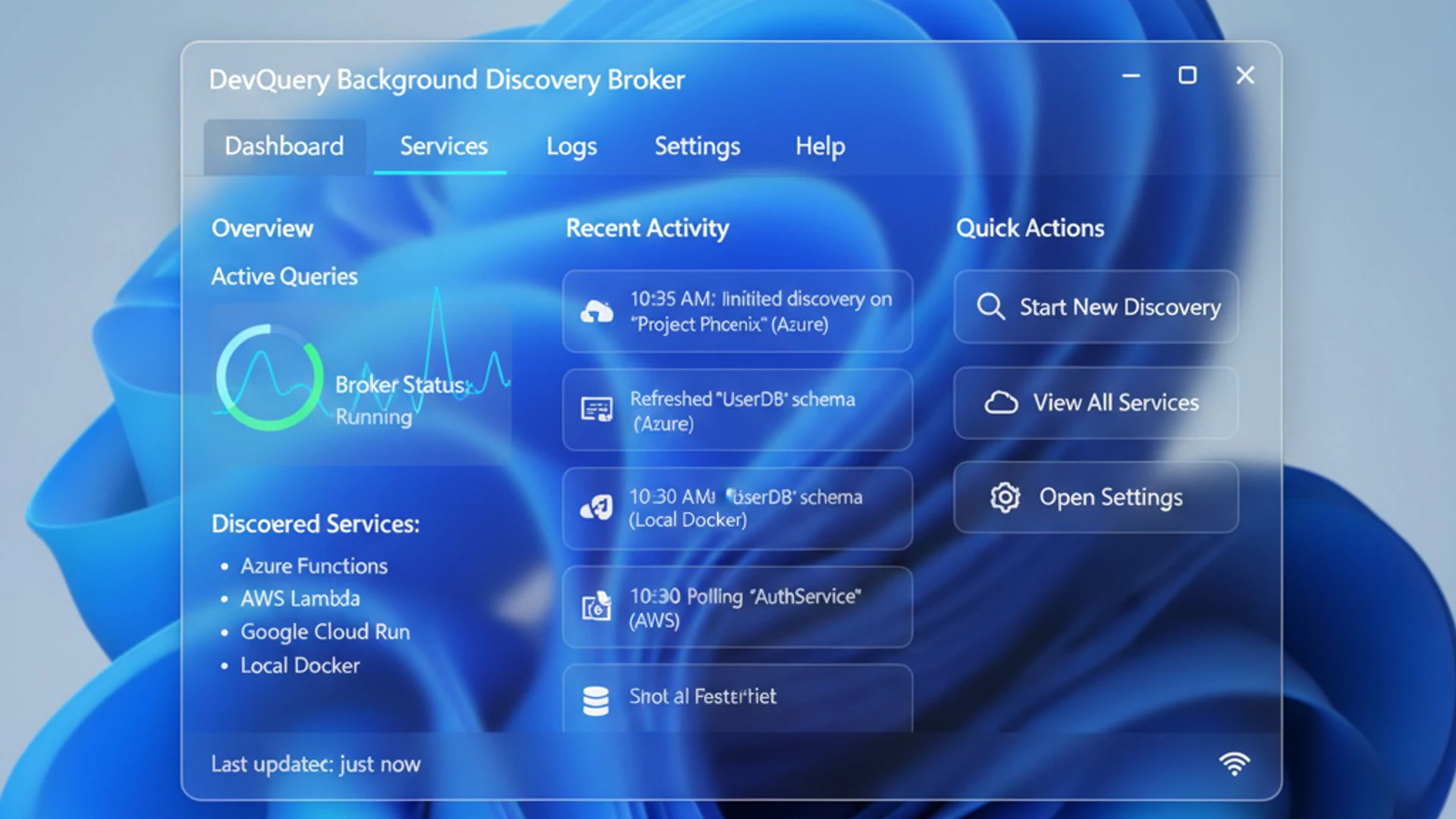
Its primary function revolves around providing other system services and applications with up-to-date information about available resources. When a new device is connected or an application needs to interact with another part of the system, DevQuery often plays a role in making that connection possible. It acts as a bridge, ensuring that the right information reaches the right place at the right time.
This service operates in the background, meaning it typically runs without direct user interaction. Its operations are largely automated, responding to system events such as device connections, network changes, or application launches. This constant, unobtrusive activity is essential for the dynamic nature of modern operating systems, where components are frequently added, removed, or updated.
Without the DevQuery Background Discovery Broker, many of the seamless interactions we expect from Windows 11 would simply not occur. It underpins a vast array of functionalities, from simple plug-and-play device recognition to complex inter-application communication, making it an indispensable part of the OS.
Understanding the Core Functionality
The core functionality of the DevQuery Background Discovery Broker on Windows 11 can be broken down into several key areas. Firstly, it’s responsible for hardware discovery. When you connect a new USB drive, a printer, or a Bluetooth device, this service helps the operating system identify it, retrieve necessary information, and prepare it for use. It ensures that the device drivers are correctly loaded and that the device is ready to interact with your system.
Secondly, it handles software and application discovery. This involves recognizing installed applications, understanding their capabilities, and facilitating their communication with other services or components. For instance, if an application needs to access a specific system resource or interact with another installed program, DevQuery can assist in establishing that connection.
A crucial aspect of its operation is maintaining an up-to-date registry or catalog of these discovered entities. This catalog allows other system services to quickly query for available devices or applications without having to perform a full scan every time. This pre-emptive indexing significantly improves system responsiveness and efficiency, reducing delays when resources are needed.
Furthermore, DevQuery facilitates inter-process communication (IPC) and inter-service communication. It acts as a broker, enabling different parts of the operating system and various applications to find and exchange information with each other. This is vital for complex features where multiple components must work in concert, such as multimedia playback, cloud synchronization, or even basic file operations.
In essence, the service ensures that your Windows 11 system is always aware of its surroundings, both hardware and software, and can efficiently manage the interactions between them. It’s a foundational piece of the puzzle that enables the plug-and-play experience and the seamless integration of diverse software components.
Its Role in the Windows Ecosystem
Within the broader Windows 11 ecosystem, the DevQuery Background Discovery Broker plays a deeply integrated and foundational role. It doesn’t operate in isolation but rather as a critical dependency for numerous other system services and applications. Its work ensures that the dynamic environment of a modern operating system can function without constant manual configuration.
Consider its interaction with device management. Services responsible for installing drivers or managing device power states often rely on DevQuery to first identify the presence and type of a device. Similarly, applications that need to list available printers, scanners, or network shares will query information that DevQuery has already gathered and indexed. This makes the system far more efficient.
The service also contributes to the stability of the operating system by maintaining a consistent and reliable source of information about discovered components. If a device or application suddenly becomes unavailable, DevQuery helps to update its status, preventing other services from attempting to interact with non-existent resources and potentially causing errors or crashes.
Moreover, in an era of connected devices and cloud services, the DevQuery Background Discovery Broker on Windows 11 is increasingly important for network discovery. It helps your PC identify other devices on your local network, such as network-attached storage (NAS) devices, smart home gadgets, or other computers, facilitating file sharing and remote access capabilities. For example, when you browse for network devices in File Explorer, DevQuery has likely played a part in populating that list.
“The DevQuery Background Discovery Broker is akin to the central nervous system of Windows 11, constantly monitoring, relaying, and coordinating information across all connected components to ensure a cohesive and responsive user experience.”
Its pervasive influence means that while you might not directly interact with it, its proper functioning is paramount for the overall health and responsiveness of your Windows 11 machine. It’s a silent workhorse, enabling the complex interplay that defines a modern operating system.
Why is DevQuery Background Discovery Broker Important?
The importance of the DevQuery Background Discovery Broker on Windows 11 cannot be overstated, even if its operations remain largely invisible to the average user. It’s a cornerstone of system stability and a significant contributor to the seamless user experience that Windows 11 aims to deliver. Without it, many everyday computing tasks would become cumbersome, if not impossible.
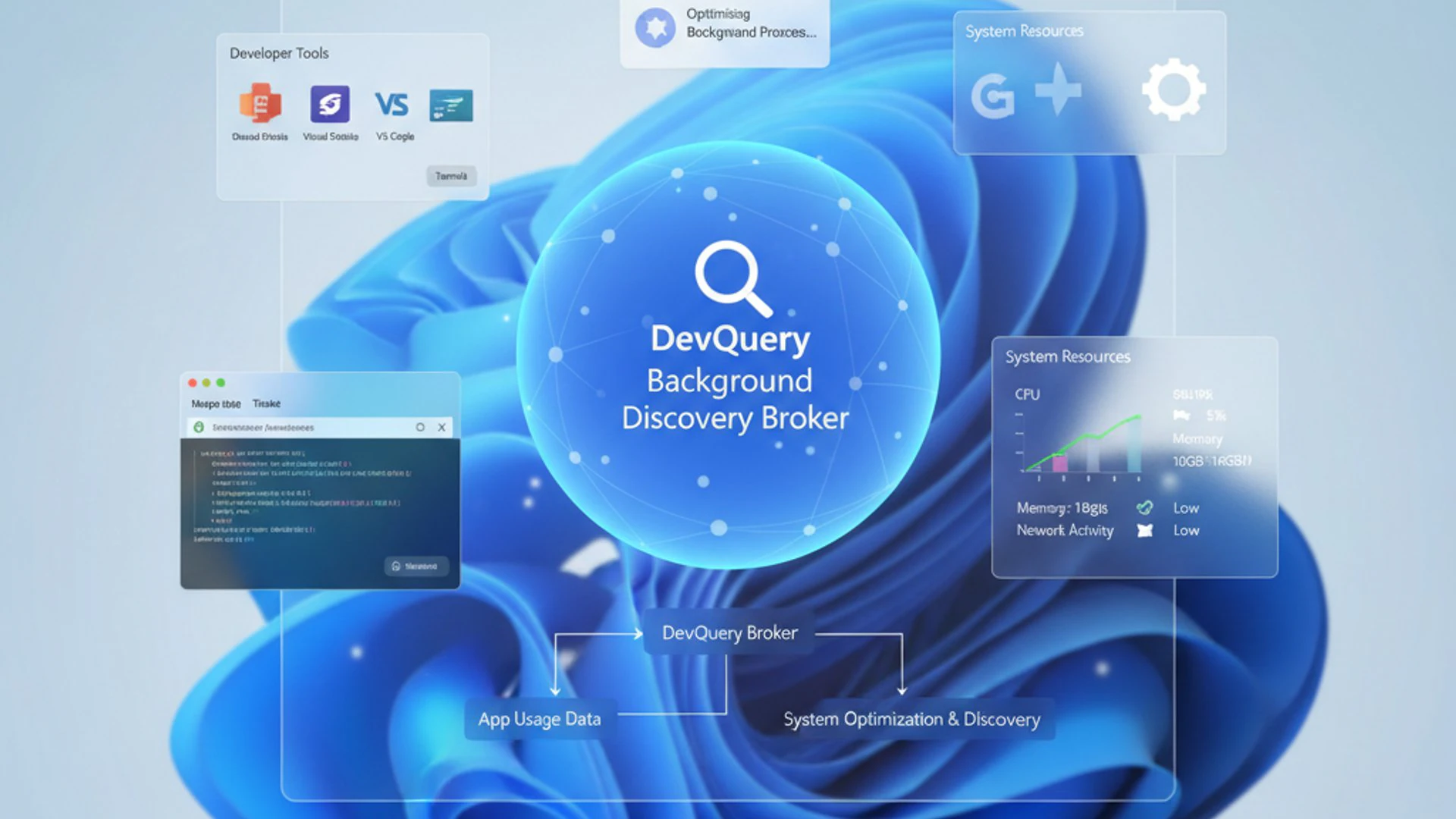
One of its primary contributions is ensuring that your system can adapt to changes in its environment dynamically. Whether you’re plugging in a new peripheral, installing a fresh application, or connecting to a different network, DevQuery works behind the scenes to integrate these changes smoothly. This adaptability is crucial for a modern OS, where hardware and software configurations are constantly evolving.
Furthermore, the service helps to reduce system overhead. Pre-discovering and indexing devices and applications, it prevents other services from having to perform their own resource-intensive searches every time they need information. This centralized approach to discovery saves CPU cycles and memory, contributing to overall system efficiency and responsiveness.
It also plays a vital role in security by helping the system identify legitimate devices and applications. While not a security feature in itself, its accurate cataloging of system components provides a foundation upon which security services can operate, ensuring that only recognized and authorized entities are interacting with the OS. Its proper functioning is integral to a well-oiled, secure, and efficient Windows 11 machine.
Facilitating Application Communication
A key area where the DevQuery Background Discovery Broker demonstrates its critical importance is in facilitating application communication. Modern applications rarely operate in isolation; they frequently need to interact with other programs, system services, or hardware components to perform their functions. The DevQuery service acts as the intermediary that makes these interactions possible and efficient.
Consider a scenario where a photo editing application needs to access images from a connected camera or a network drive. DevQuery helps the application discover these sources and establish a connection. Similarly, if a video conferencing tool needs to utilize your webcam and microphone, DevQuery ensures that these devices are properly identified and made available to the application.
This seamless communication extends to inter-application dependencies as well. Many software suites, for example, consist of multiple programs that need to share data or trigger actions in one another. The DevQuery Background Discovery Broker assists in this internal coordination, ensuring that components can find and communicate with their counterparts without issues. This prevents errors and improves the overall reliability of complex software.
Moreover, for applications that rely on network services or distributed computing, DevQuery can help in discovering available endpoints or resources on the local network. This is fundamental for features like casting content to a smart TV, printing to a network printer, or accessing shared folders on another PC. Its active role in this discovery process is what makes these functionalities feel effortless to the user.
Without this brokering capability, applications would either fail to find necessary resources or would have to implement their own, often less efficient, discovery mechanisms. This would lead to a fragmented and less stable user experience, underscoring why the DevQuery Background Discovery Broker is an indispensable part of Windows 11.
Enhancing User Experience and Responsiveness
Beyond mere functionality, the DevQuery Background Discovery Broker on Windows 11 significantly enhances the overall user experience and system responsiveness. Its proactive discovery and indexing capabilities mean that when you need a resource, it’s often already known to the system, leading to quicker response times and a smoother workflow.
Imagine plugging in a new USB flash drive. Thanks to DevQuery, Windows 11 can often recognize it almost instantly, mount it, and make its contents accessible within seconds. This “plug-and-play” experience, which users now take for granted, is heavily reliant on services like DevQuery efficiently identifying and configuring new hardware without requiring manual intervention.
Similarly, when you launch an application, DevQuery’s pre-indexed information about available system resources and other applications helps the newly launched program to quickly establish necessary connections. This reduces loading times and ensures that the application can begin its tasks without delay. A responsive system feels fluid and efficient, directly impacting user satisfaction.
The service also plays a role in maintaining system stability, which is a critical aspect of a positive user experience. Accurately tracking the status of devices and applications, it helps prevent conflicts or errors that could arise from attempting to interact with unavailable or misconfigured components. This proactive management contributes to fewer crashes and a more reliable computing environment.
Ultimately, the DevQuery Background Discovery Broker works to make your interactions with Windows 11 feel intuitive and immediate. It reduces friction by automating complex discovery processes, allowing you to focus on your tasks rather than troubleshooting connectivity issues or waiting for devices to be recognized. This behind-the-scenes efficiency is a cornerstone of a truly modern operating system.
Common Scenarios and Potential Impacts
While the DevQuery Background Discovery Broker on Windows 11 is designed to operate efficiently in the background, there are specific scenarios where its activity might become more noticeable or even raise concerns. Understanding these situations can help users differentiate between normal operation and potential issues that might require attention. Its impact on system resources is a common point of inquiry.
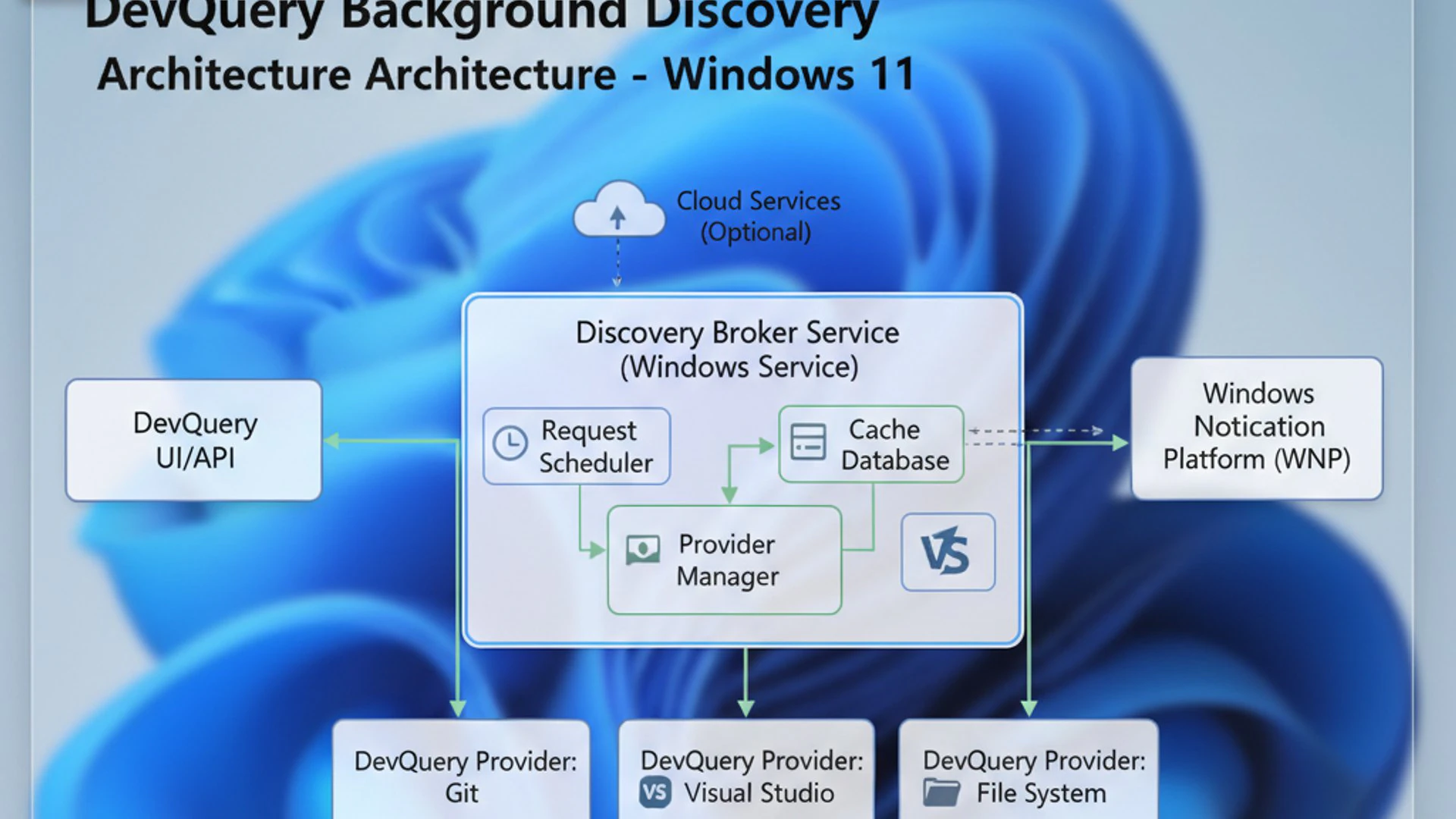
One frequent scenario involves the connection or disconnection of numerous devices. If you regularly plug in and remove various USB peripherals, external drives, or network devices, DevQuery will be more active, as it constantly updates its internal catalog. This increased activity is usually transient and should not lead to sustained high resource usage.
Another scenario is during system startup or after significant software installations. When Windows 11 first boots up, or when new applications are added, DevQuery will perform discovery tasks to integrate these new elements into the system. Again, this is a normal, albeit temporary, period of increased activity.
However, persistent high resource consumption by the DevQuery Background Discovery Broker can sometimes signal an underlying problem. This could range from driver conflicts to malware infections, or even issues with a particular application that is constantly querying the service in an inefficient manner. Identifying these scenarios is the first step towards effective troubleshooting.
It’s important to recognize that a healthy system will see DevQuery’s resource usage fluctuate. Spikes are normal; sustained high usage is what warrants investigation. Being aware of these patterns allows you to proactively manage your system’s health.
Resource Consumption Concerns
Users often become aware of the DevQuery Background Discovery Broker when they notice it appearing in Task Manager with seemingly high resource usage. While it’s a critical service, concerns about its CPU, memory, or network activity are valid, especially if they impact overall system performance. It’s essential to understand what constitutes normal versus abnormal consumption.
Under typical operating conditions, the DevQuery Background Discovery Broker should consume minimal resources. Its background operations are optimized to be lightweight and non-intrusive. However, there are instances where its resource footprint might temporarily increase, and in rare cases, become persistently high, leading to noticeable system slowdowns.
Identifying the root cause of elevated resource usage is key. It could be a legitimate response to a high volume of discovery tasks, or it could indicate a problem that needs addressing. Monitoring its behavior over time provides valuable insights into its normal operational baseline for your specific system configuration.
CPU and Memory Usage
When observing the DevQuery Background Discovery Broker on Windows 11 in Task Manager, you might occasionally see its CPU usage spike. This is often a normal reaction to specific events, such as:
- Connecting new hardware: Plugging in a USB device, an external monitor, or a network printer will trigger discovery processes.
- Installing or uninstalling software: Changes to your application landscape require DevQuery to update its catalog.
- Network changes: Joining a new network or significant changes in network topology can prompt the discovery of network-attached devices.
- System startup: During boot-up, the service is active as it inventories all available resources.
These CPU spikes should be brief, lasting only a few seconds to a minute. If you notice sustained high CPU usage (e.g., consistently above 5-10% for extended periods) without any apparent triggering event, it could indicate an issue. This might point to a problematic driver constantly re-enumerating a device, a software bug causing excessive queries, or even malware attempting to hide its activity.
Similarly, memory usage for DevQuery Background Discovery Broker is typically low, usually in the tens of megabytes. A sudden or sustained increase in memory consumption (e.g., hundreds of megabytes or even gigabytes) is a red flag. This could suggest a memory leak within the service itself, a corrupted system file, or a conflict with another application that is causing it to cache an excessive amount of discovery data.
Monitoring these metrics over time can help you establish a baseline for your system. Any significant deviation from this baseline, especially without a clear cause, warrants further investigation. It’s crucial to distinguish between normal, temporary surges and persistent, problematic resource drains.
Network Activity Implications
The DevQuery Background Discovery Broker on Windows 11 also affects network activity, particularly the discovery of network-connected devices and services. This is a vital function that enables features like network sharing, casting, and device identification on your local network. However, like CPU and memory, its network usage should generally be minimal and event-driven.
When you connect to a new Wi-Fi network or your computer wakes from sleep, DevQuery may initiate network discovery scans. These scans help your system identify other computers, printers, network-attached storage (NAS) devices, and smart home gadgets available on the local network. This activity is usually in the form of small data packets and should not consume significant bandwidth.
For example, if you frequently access shared folders on other PCs or use network printers, DevQuery ensures that these resources are consistently discoverable. Its network activity might slightly increase during these periods, but it should not cause noticeable slowdowns in your internet connection or local network performance.
However, if you observe persistent, high network activity attributed to the DevQuery Background Discovery Broker, especially when your system is idle, it could be a cause for concern. This might indicate:
- A misconfigured network device is constantly broadcasting discovery requests.
- A software application or driver repeatedly triggers network discovery in an inefficient loop.
- Malware attempting to scan your network or communicate with external servers masquerading as legitimate discovery traffic.
Monitoring network activity via tools like Resource Monitor can help pinpoint if DevQuery is sending or receiving an unusual amount of data. If such activity is observed, checking your network configuration, updating network drivers, and performing a malware scan are advisable steps.
Identifying DevQuery-Related Issues
Recognizing when the DevQuery Background Discovery Broker on Windows 11 is causing problems, rather than simply performing its normal functions, is crucial for effective troubleshooting. The key is to look for persistent and uncharacteristic behavior that impacts your system’s performance or stability.
One of the most obvious signs is sustained high CPU or memory usage. If you open Task Manager and consistently see “DevQuery Background Discovery Broker” at the top of the list for CPU or memory consumption, even when your system is idle or performing light tasks, it’s a strong indicator of an issue. Brief spikes are normal, but constant high usage is not.
Another symptom can be unexpected system slowdowns or unresponsiveness. If your computer feels sluggish, applications take longer to open, or multitasking becomes difficult, and you’ve ruled out other common culprits, checking DevQuery’s activity is a logical next step. High resource consumption by this service can directly impact overall system performance.
Frequent device recognition problems can also be linked. If your USB devices are not detected reliably, or network shares disappear and reappear, it might indicate that DevQuery is struggling to perform its discovery tasks correctly. This could manifest as devices constantly reconnecting or requiring multiple attempts to be recognized.
Furthermore, unusual network activity, particularly if you notice your internet connection slowing down or your router’s activity lights constantly flashing even when you’re not actively using the network, could warrant a check. While many services use the network, persistent network traffic from DevQuery without a clear reason is suspicious.
Finally, if you experience application crashes or instability that seem related to device or network interactions, it’s worth investigating DevQuery. While not always the direct cause, a malfunctioning discovery broker can lead to applications failing to find necessary resources, resulting in errors. Keeping an eye on these indicators will help you determine if DevQuery is the source of your system woes.
How to Monitor DevQuery Background Discovery Broker Activity
Understanding how to monitor the DevQuery Background Discovery Broker on Windows 11 is essential for diagnosing potential issues and ensuring your system runs smoothly. Windows 11 provides several built-in tools that allow you to observe the service’s resource consumption and activity in real-time. These tools range from quick overviews to detailed insights, catering to different levels of user expertise.
Regular monitoring helps you establish a baseline for what constitutes normal behavior on your specific machine. This baseline is invaluable for quickly identifying deviations that might signal a problem. For instance, if DevQuery usually consumes less than 1% CPU, a sudden jump to 15% would immediately stand out as unusual.
The primary tools for this task are the Task Manager for a glance and the Resource Monitor for a more in-depth analysis. Both provide different perspectives on how the service is interacting with your system’s resources, including CPU, memory, disk, and network.
By actively monitoring, you can catch potential issues early, before they escalate into significant performance problems. This proactive approach is a cornerstone of effective system maintenance and optimization, ensuring that the DevQuery Background Discovery Broker performs its vital functions without becoming a drain on your resources.
Utilizing Task Manager for Insights
The Windows 11 Task Manager is your first and most accessible tool for monitoring the DevQuery Background Discovery Broker on Windows 11. It provides a quick overview of running processes and their immediate resource consumption, making it ideal for initial checks and identifying sudden spikes.
Here’s how to use Task Manager to monitor DevQuery:
- Press
Ctrl + Shift + EscTo open Task Manager, or right-click on the Start button and select “Task Manager.” - If Task Manager opens in its compact view, click “More details” at the bottom left.
- Navigate to the “Processes” tab.
- Scroll down the list until you find “DevQuery Background Discovery Broker” under the “Background processes” section.
- Observe its current CPU, Memory, Disk, and Network usage. You can click on the column headers (e.g., “CPU”) to sort processes by their consumption, making it easier to spot high-usage entries.
Pay close attention to the CPU and Memory columns. A brief spike in CPU usage (e.g., for a few seconds) is often normal, especially after connecting a new device or launching an application. However, if DevQuery consistently shows high CPU usage (e.g., above 5-10%) for several minutes, or if its memory footprint is unusually large (hundreds of MBs), it warrants further investigation.
The Task Manager also allows you to quickly see if the service is actively using the disk or network. While disk usage should typically be minimal, network activity might increase during network discovery events. If you see continuous, high disk or network activity from DevQuery without a clear reason, it’s a sign to delve deeper.
While Task Manager offers a good snapshot, it doesn’t provide historical data or detailed insights into specific network connections or file operations. For that, you’ll need a more advanced tool like Resource Monitor.
Advanced Monitoring with Resource Monitor
For a more granular and in-depth analysis of the DevQuery Background Discovery Broker on Windows 11, the Resource Monitor is an invaluable tool. It offers detailed insights into process activity, including specific network connections, disk I/O operations, and CPU utilization over time, which Task Manager doesn’t provide.
To access and use Resource Monitor:
- Open Task Manager (
Ctrl + Shift + Esc). - Go to the “Performance” tab.
- At the bottom, click “Open Resource Monitor.” Alternatively, you can type “Resource Monitor” into the Windows Search bar and open it directly.
- Once Resource Monitor is open, navigate to the “CPU” tab.
- In the “Processes” section, locate “DevQuery Background Discovery Broker.” You can check the box next to it to filter the other sections (Disks, Network) to show only activity related to this service.
Within Resource Monitor, you can examine several critical metrics:
- CPU: Observe the “Average CPU” column for sustained usage. The graph on the right provides a visual history of its CPU activity, helping you identify patterns.
- Disks: Under the “Disk Activity” section, you can see which files DevQuery is accessing and how much data it’s reading or writing. High disk activity for this service might indicate issues with its internal database or a conflict.
- Network: The “Network Activity” section is particularly useful. It shows active network connections, listening ports, and the amount of data sent and received. If DevQuery is constantly sending or receiving large amounts of data, it could point to a problem with network discovery or even unauthorized communication.
Resource Monitor allows you to see the bigger picture of DevQuery’s impact on your system. It can help you pinpoint specific files being accessed or network endpoints being contacted, which is crucial for advanced troubleshooting. For example, if you suspect a network issue, Resource Monitor will show you the exact IP addresses DevQuery is communicating with. This level of detail is essential for diagnosing complex problems related to the DevQuery Background Discovery Broker on Windows 11.
Managing DevQuery Background Discovery Broker on Windows 11
Effectively managing the DevQuery Background Discovery Broker on Windows 11 involves understanding its dependencies and implementing best practices for system optimization. Unlike some services that can be easily disabled, DevQuery is deeply integrated into the operating system, making direct manipulation risky. Therefore, management focuses more on ensuring its environment is healthy rather than altering its core behavior.
The goal of management is to ensure the service runs efficiently, consuming minimal resources while still performing its vital discovery functions. This proactive approach helps prevent issues like high CPU usage or application instability before they arise. It also means recognizing that sometimes, problems attributed to DevQuery might originate from other parts of the system that interact with it.
Attempting to disable or severely restrict the DevQuery Background Discovery Broker is generally not recommended. Doing so can lead to a wide range of system malfunctions, including devices not being recognized, applications failing to communicate, and network features breaking. Instead, the focus should be on optimizing the system around it.
Proper management involves staying updated, maintaining a clean system, and understanding how other components interact with this critical broker. This ensures that DevQuery can do its job without becoming a burden on your Windows 11 experience.
Understanding Service Dependencies
To properly manage the DevQuery Background Discovery Broker on Windows 11, it’s crucial to understand its service dependencies. This service doesn’t operate in a vacuum; it relies on other Windows services to function correctly, and in turn, many other services and applications depend on it. This interconnectedness means that tampering with DevQuery without understanding its place in the ecosystem can have far-reaching negative consequences.
You can access and interpret service properties using the Services console:
- Press
Windows key + R, typeservices.msc, and press Enter. (For more ways to do this, see How to Run Services.msc as Administrator on Windows 11?). - Scroll down and locate “DevQuery Background Discovery Broker.”
- Double-click on it to open its properties window.
- Go to the “Dependencies” tab.
Here, you’ll see two lists: “This service depends on the following system components” and “The following system components depend on this service.” The first list shows what DevQuery needs to run, while the second list reveals which services would be affected if DevQuery were stopped or malfunctioned.
Common services that might depend on DevQuery include:
- Device Setup Manager: For installing and configuring new hardware.
- Plug and Play: Essential for automatic device recognition.
- Network Location Awareness: For identifying network connectivity and profiles.
- Various application-specific services that require device or network discovery.
Recognizing these dependencies highlights why disabling DevQuery is generally ill-advised. Stopping it would likely cause a cascade of failures, leading to devices not working, applications crashing, and network features becoming unavailable. Instead, understanding these links helps in troubleshooting: if DevQuery is misbehaving, checking the health of its upstream dependencies can often reveal the root cause.
Best Practices for Optimization
Since directly disabling the DevQuery Background Discovery Broker on Windows 11 is not recommended, optimization focuses on creating an environment where it can operate efficiently. These best practices aim to minimize unnecessary workload on the service and ensure its underlying components are healthy.
The most crucial practice is to keep your Windows 11 operating system fully updated. Microsoft regularly releases updates that include bug fixes, performance improvements, and security patches for system services like DevQuery. Outdated system files or drivers can lead to inefficiencies or conflicts that cause DevQuery to consume excessive resources. Ensure you have the latest cumulative updates and feature updates installed.
Next, maintain up-to-date device drivers. Outdated or corrupt drivers, especially for network adapters, USB controllers, and other peripherals, can cause DevQuery to constantly re-enumerate devices or struggle with discovery. Regularly check for driver updates from your hardware manufacturer’s website or through Windows Update. For example, issues with Windows Image Acquisition could indirectly affect how DevQuery interacts with scanning devices.
Avoid unnecessary third-party software that might interact poorly with background services. Some poorly coded applications, especially those that frequently scan for devices, monitor network activity, or manage peripherals, can inadvertently trigger excessive activity from DevQuery. If you suspect a recently installed program, try temporarily uninstalling it to see if the issue resolves.
Regularly scan your system for malware and viruses. Malicious software can hijack legitimate system processes, including DevQuery, to perform unauthorized activities like network scanning or data exfiltration. A clean system ensures that DevQuery is only performing its intended functions. Use a reputable antivirus program for routine scans.
Finally, manage your connected devices. If you have many devices constantly connecting and disconnecting, or if you use many virtual devices, DevQuery will naturally have more work to do. While this is often unavoidable, being mindful of your device ecosystem can sometimes help reduce its load. By following these practices, you ensure that DevQuery Background Discovery Broker operates as intended, contributing positively to your Windows 11 experience.
Troubleshooting Common DevQuery-Related Problems
Even with best practices in place, you might occasionally encounter issues related to the DevQuery Background Discovery Broker on Windows 11. Troubleshooting these problems effectively requires a systematic approach, starting with identifying the symptoms and then applying targeted solutions. The most common issues revolve around high resource usage and application instability.
It’s important to remember that DevQuery is a symptom, not always the root cause. Its elevated activity often points to an underlying problem elsewhere in the system, such as a faulty driver, a misbehaving application, or even malware. Therefore, troubleshooting involves investigating these potential external factors.
Before diving into complex solutions, always perform basic checks: restart your computer, ensure Windows is fully updated, and run a quick scan with your antivirus software. These simple steps can often resolve transient issues without further intervention.
When issues persist, the following sections provide actionable steps to address common DevQuery-related problems, guiding you through diagnostic processes and potential fixes. The goal is to restore the service to its normal, efficient operation, thereby improving overall system performance and stability.
Addressing High Resource Usage
When the DevQuery Background Discovery Broker on Windows 11 exhibits persistent high CPU, memory, or network usage, it’s a clear sign that something is amiss. Addressing this requires a methodical approach to identify and rectify the underlying cause.
1. Check for Driver Updates: Outdated or corrupted drivers are a frequent culprit. Focus on drivers for network adapters, USB controllers, and any recently installed peripherals.
- Open Device Manager (right-click Start button).
- Expand categories like “Network adapters” or “Universal Serial Bus controllers.”
- Right-click on devices and select “Update driver.” Choose to search automatically for drivers.
- Consider visiting your PC manufacturer’s website or the individual hardware component manufacturer’s site for the very latest drivers.
2. Scan for Malware: Malicious software can often masquerade as legitimate processes or force system services into excessive activity.
- Run a full system scan using Windows Security (Defender) or your preferred third-party antivirus software.
- Consider using a secondary, on-demand scanner like Malwarebytes for a deeper check.
3. Identify Conflicting Applications: A recently installed application might be causing DevQuery to work overtime.
- Think about what software you installed or updated just before the high resource usage began.
- Try temporarily uninstalling suspicious applications and monitor DevQuery’s behavior.
- Use the Program Compatibility Troubleshooter on Windows 11 if you suspect an older application is causing issues.
4. Run System File Checker (SFC) and DISM: Corrupted system files can sometimes lead to erratic service behavior.
- Open Command Prompt as administrator.
- Type
sfc /scannowand press Enter. Let it complete. - If issues persist, type
DISM /Online /Cleanup-Image /RestoreHealthand press Enter. This tool helps repair the Windows image.
5. Review Event Viewer Logs: The Event Viewer can provide clues about errors or warnings related to DevQuery or its dependencies.
- Press
Windows key + R, typeeventvwr.msc, and press Enter. - Navigate to “Windows Logs” -> “System” or “Application” and look for errors or warnings around the time you noticed high DevQuery usage.
By systematically working through these steps, you can often pinpoint the cause of high resource consumption and restore the DevQuery Background Discovery Broker to its optimal, low-impact operation.
Resolving Application Instability
Application instability, such as frequent crashes, freezing, or inability to detect devices, can sometimes be indirectly linked to issues with the DevQuery Background Discovery Broker on Windows 11. If applications are struggling to find or communicate with devices or other services, DevQuery might be a contributing factor. Here’s how to troubleshoot such scenarios:
1. Isolate the Problematic Application:
- Identify which specific applications are experiencing instability. Is it one particular app, or multiple?
- If it’s a single application, check its settings for device or network interaction preferences.
- Ensure the application itself is updated to its latest version.
2. Check Device Connectivity:
- If the application relies on a specific device (e.g., a printer, scanner, or webcam), ensure that the device is properly connected and recognized by Windows.
- Open Device Manager and check for any yellow exclamation marks or error symbols next to the device. Reinstalling the device driver might be necessary. Issues with services like Windows Image Acquisition could also impact device-dependent apps.
3. Verify Network Discovery Settings:
- If the application relies on network discovery (e.g., finding shared folders or network devices), ensure network discovery is enabled.
- Go to
Settings > Network & internet > Advanced network settings > Advanced sharing settings. - Ensure “Network discovery” is turned on for your current network profile (Private or Public).
4. Test in a Clean Boot Environment:
- A clean boot starts Windows with a minimal set of drivers and startup programs, helping to eliminate software conflicts.
- Search for “msconfig” and open System Configuration.
- On the “Services” tab, check “Hide all Microsoft services,” then click “Disable all.”
- On the “Startup” tab, click “Open Task Manager,” then disable all startup items.
- Restart your computer and see if the application instability persists. If it resolves, re-enable services and startup items one by one to find the culprit.
5. Consider System Restore:
- If the issue began recently and you’ve tried other solutions without success, a System Restore point might revert your system to a state where DevQuery and related services were functioning correctly.
- Search for “Create a restore point” and open System Properties.
- Click “System Restore…” and follow the prompts to choose a restore point before the problem started.
By methodically troubleshooting these areas, you can often resolve application instability that might be indirectly stemming from or exacerbated by issues with the DevQuery Background Discovery Broker on Windows 11.
Frequently Asked Questions About DevQuery
This section addresses common questions users have about the DevQuery Background Discovery Broker on Windows 11, providing quick and clear answers to frequently encountered concerns.
What is “DevQuery Background Discovery Broker” and why is it running on my PC?
It’s a core Windows 11 system service responsible for discovering and managing devices (hardware) and applications (software) on your computer and network. It runs to ensure seamless communication and functionality between these components, enabling features like plug-and-play and network sharing.
Is DevQuery Background Discovery Broker a virus or malware?
No, it is a legitimate and essential Windows system component. However, like any system process, malware can sometimes disguise itself as or inject itself into legitimate processes. If you suspect unusual behavior, run a comprehensive antivirus scan.
Can I disable the DevQuery Background Discovery Broker to improve performance?
Disabling the DevQuery Background Discovery Broker is not recommended. It is a critical service that many other system functions and applications depend on. Disabling it will likely lead to system instability, devices not being recognized, and applications failing to work correctly, potentially causing more performance issues than it solves.
Why is DevQuery Background Discovery Broker using high CPU or memory?
While typically low-impact, occasional spikes are normal (e.g., when connecting new devices, installing software, or during network changes). Persistent high usage can indicate an underlying problem such as outdated drivers, software conflicts, corrupted system files, or even malware. Refer to the troubleshooting section for steps to address this.
How can I monitor DevQuery’s activity?
You can use Task Manager for a quick overview of its current CPU, memory, disk, and network usage. For more detailed insights, including specific network connections and file access, use Resource Monitor. These tools help you identify if its resource consumption is abnormal.
Does DevQuery Background Discovery Broker affect my network speed?
Under normal circumstances, its network activity is minimal and should not impact your network speed. It primarily sends small discovery packets to identify local network devices. If you observe persistent high network usage from DevQuery, it could indicate a misconfiguration, a problematic application, or malware.
What should I do if I suspect DevQuery is causing problems?
First, ensure your Windows 11 is fully updated, and all device drivers are current. Then, run a full malware scan. If high resource usage persists, check for recently installed applications that might be conflicting. Reviewing Event Viewer logs can also provide diagnostic clues. Avoid disabling the service directly.
Conclusion: Balancing Performance and Functionality
The DevQuery Background Discovery Broker on Windows 11 is a quintessential example of the complex, behind-the-scenes engineering that makes modern operating systems function seamlessly. While often unnoticed, its role in discovering and managing devices, applications, and network resources is absolutely critical. It acts as the central nervous system for inter-component communication, ensuring that your Windows 11 experience is both stable and responsive.
We’ve explored its core functionalities, from enabling plug-and-play device recognition to facilitating intricate application interactions. Its importance lies in its ability to proactively index system components, thereby enhancing overall system responsiveness and preventing many common compatibility issues. Without this broker, the dynamic and interconnected nature of Windows 11 would be severely compromised.
While DevQuery is designed to be efficient, understanding its potential impacts on system resources is key to maintaining a healthy PC. We’ve provided practical guidance on how to monitor its activity using tools like Task Manager and Resource Monitor, empowering you to distinguish between normal operational spikes and persistent issues. This knowledge is invaluable for effective troubleshooting and optimization.
Ultimately, managing the DevQuery Background Discovery Broker on Windows 11 is about striking a balance. It’s about recognizing its indispensable role and focusing on maintaining a robust system environment through regular updates, driver management, and malware protection, rather than attempting to disable this vital service. By understanding and appropriately managing this background component, you ensure that your Windows 11 system remains optimized, reliable, and capable of delivering a superior user experience.









Community
Comments (0)