

Introduction to Capability Access Manager Service
In the intricate ecosystem of Windows 11, numerous background services work tirelessly to ensure a smooth, secure, and personalized user experience. Among these, the Capability Access Manager Service (camsvc) stands out as a crucial guardian of your privacy and system integrity. While often operating silently behind the scenes, its role is paramount in controlling how applications interact with your sensitive data and hardware resources. Learn more at UWP app capability declarations and Windows app permissions settings.
This service acts as the central gatekeeper, dictating which applications can access specific system capabilities like your camera, microphone, location, or even your documents. Without a robust mechanism like camsvc, modern applications could potentially exploit system resources without your explicit consent, leading to significant privacy breaches and security vulnerabilities.
Understanding the Capability Access Manager Service on Windows 11 is not just for power users; it’s essential for anyone who values their digital privacy. This comprehensive guide will demystify camsvc, exploring its fundamental purpose, operational mechanics, and the practical steps you can take to manage its settings effectively. We will delve into how it safeguards your personal information, contributes to the overall security posture of your device, and how to troubleshoot common issues that might arise.
By the end of this article, you will possess a clear understanding of this vital Windows component and be equipped with the knowledge to optimize your privacy settings, ensuring a more secure and controlled computing environment on your Windows 11 machine. Let’s embark on this journey to uncover the power of camsvc.
Table of contents
Key Takeaways
- Core Function: The Capability Access Manager Service (camsvc) is Windows 11’s central authority for managing application permissions to sensitive system capabilities like camera, microphone, and location.
- Privacy Guardian: It plays a critical role in enhancing user privacy by providing granular control over what resources each application can access, preventing unauthorized data collection.
- Security Enabler: camsvc is integral to the Windows security model, helping to prevent malicious apps from exploiting system hardware or personal data without explicit user consent.
- User Control: Users can easily manage camsvc settings through the Windows 11 Privacy & Security settings, allowing for individual app permission adjustments.
- Minimal Impact: Despite its importance, camsvc generally has a very low impact on system performance and resource usage, ensuring efficient operation.
- Troubleshooting Tool: Understanding camsvc helps in diagnosing why certain applications might not be functioning as expected, particularly when related to hardware access.
- Not Disablable: The service is fundamental to Windows 11’s security and privacy architecture and cannot be safely disabled, as doing so would compromise system integrity.
What is the Capability Access Manager Service (camsvc)?
The Capability Access Manager Service, often referred to by its short name camsvc, is a fundamental component within Windows 11 responsible for governing how applications access sensitive system resources and user data. Think of it as a sophisticated traffic controller, constantly monitoring and arbitrating requests from various applications to utilize specific hardware or data types on your device.
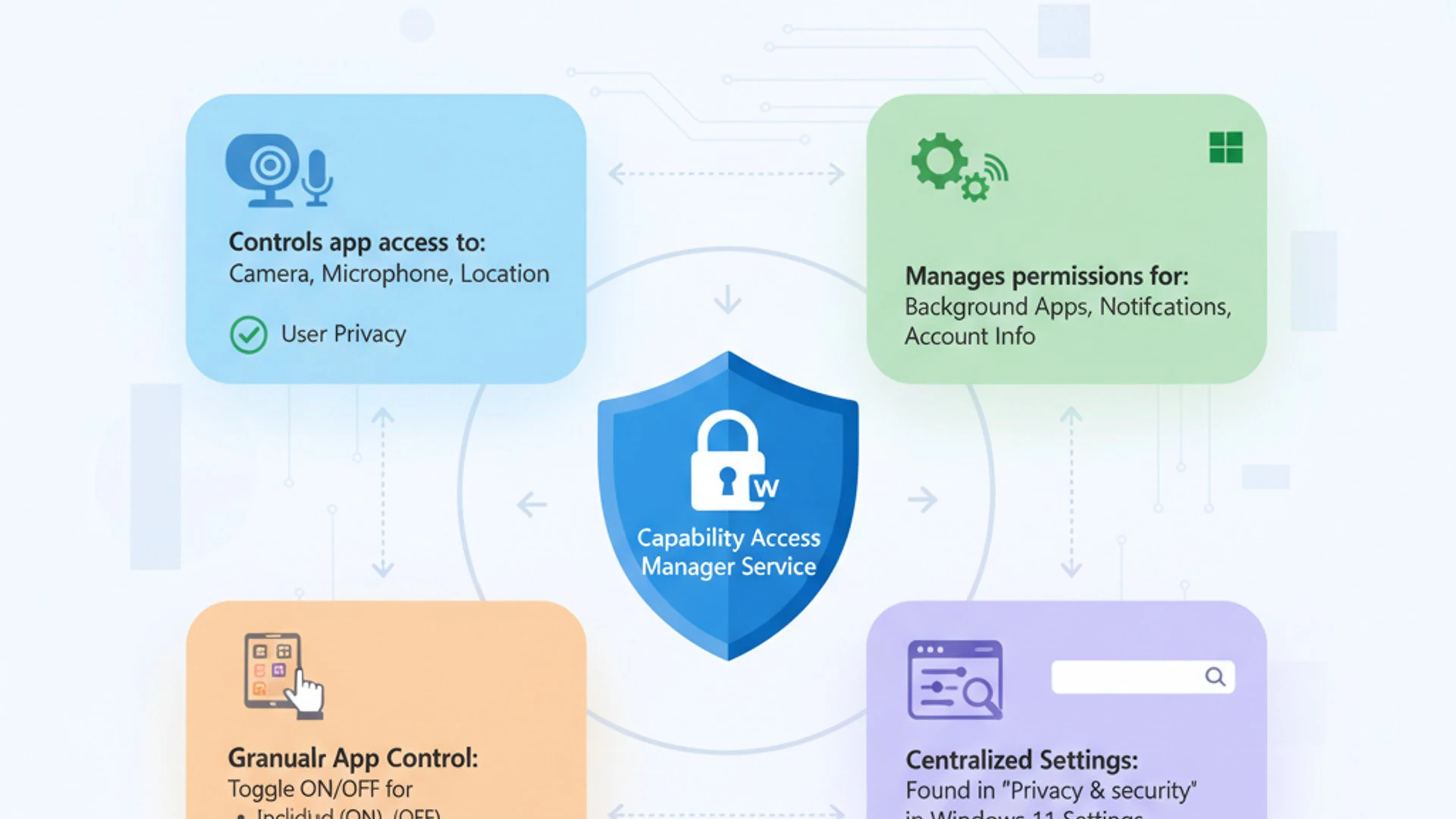
Its primary purpose is to enforce the permissions model for modern Windows applications, particularly those downloaded from the Microsoft Store or designed using the Universal Windows Platform (UWP) framework. This service ensures that no application can unilaterally access your camera, microphone, location, or other private information without your explicit and informed consent.
When an application requests access to a capability, camsvc intercepts this request. It then checks the user’s configured privacy settings and the application’s declared capabilities to determine whether access should be granted or denied. This centralized management provides a consistent and secure way to handle app permissions across the entire operating system.
The service is always running in the background, continuously monitoring app behavior and enforcing the established rules. Its presence is vital for maintaining the integrity of your privacy settings and preventing unwanted data exposure, making it a cornerstone of the Windows 11 security architecture.
The Role of App Capabilities in Windows 11
In Windows 11, applications don’t just ask for generic “access” to your system. Instead, they declare specific capabilities they require to function. These capabilities are granular permissions that define what an app can do or access. For instance, a video conferencing app needs the “webcam” and “microphone” capabilities, while a mapping app requires “location.”
These capabilities are integral to the modern app model, offering a more transparent and manageable approach to permissions. When you install an app, its required capabilities are often presented to you, allowing you to understand what resources it intends to use. The Capability Access Manager Service then takes over to enforce these declarations based on your privacy choices.
This model moves beyond a simple “all or nothing” approach, providing users with fine-grained control. You can decide to grant an app access to your microphone but deny it access to your camera, even if the app requests both. This level of control is crucial for protecting your digital footprint in an increasingly app-centric world.
The system relies on camsvc to ensure that these declared capabilities are respected and that apps do not overstep their boundaries. It’s a dynamic system, allowing users to revoke or grant permissions at any time, adapting to changing privacy preferences.
How camsvc Differs from Traditional Permissions
It’s important to differentiate the Capability Access Manager Service from traditional file system permissions, which have been a staple of Windows for decades. Traditional permissions, managed via Access Control Lists (ACLs), primarily govern who can read, write, or execute files and folders on your hard drive.
While ACLs are essential for securing your documents and system files, camsvc operates at a different layer. It focuses on modern app capabilities that extend beyond file system access. This includes hardware components like cameras and microphones, personal data types such as contacts and calendars, and system features like notifications or background tasks.
For example, an application might have full permissions to its own installation folder (traditional permission), but camsvc dictates whether that same application can *use* your webcam (capability permission). This distinction is critical because modern apps often require access to resources that aren’t simply files on a disk.
The service provides a unified framework for managing these sensitive accesses, especially for UWP apps and increasingly for Win32 applications that adopt the modern permissions model. It bridges the gap between traditional security and the evolving needs of contemporary software, offering a more comprehensive privacy shield.
Understanding How camsvc Works on Windows 11
The Capability Access Manager Service (camsvc) operates as a sophisticated intermediary, ensuring a delicate balance between application functionality and user privacy. Its operational mechanics are deeply integrated into the Windows 11 security and privacy framework, making it a central pillar for managing sensitive resource access.
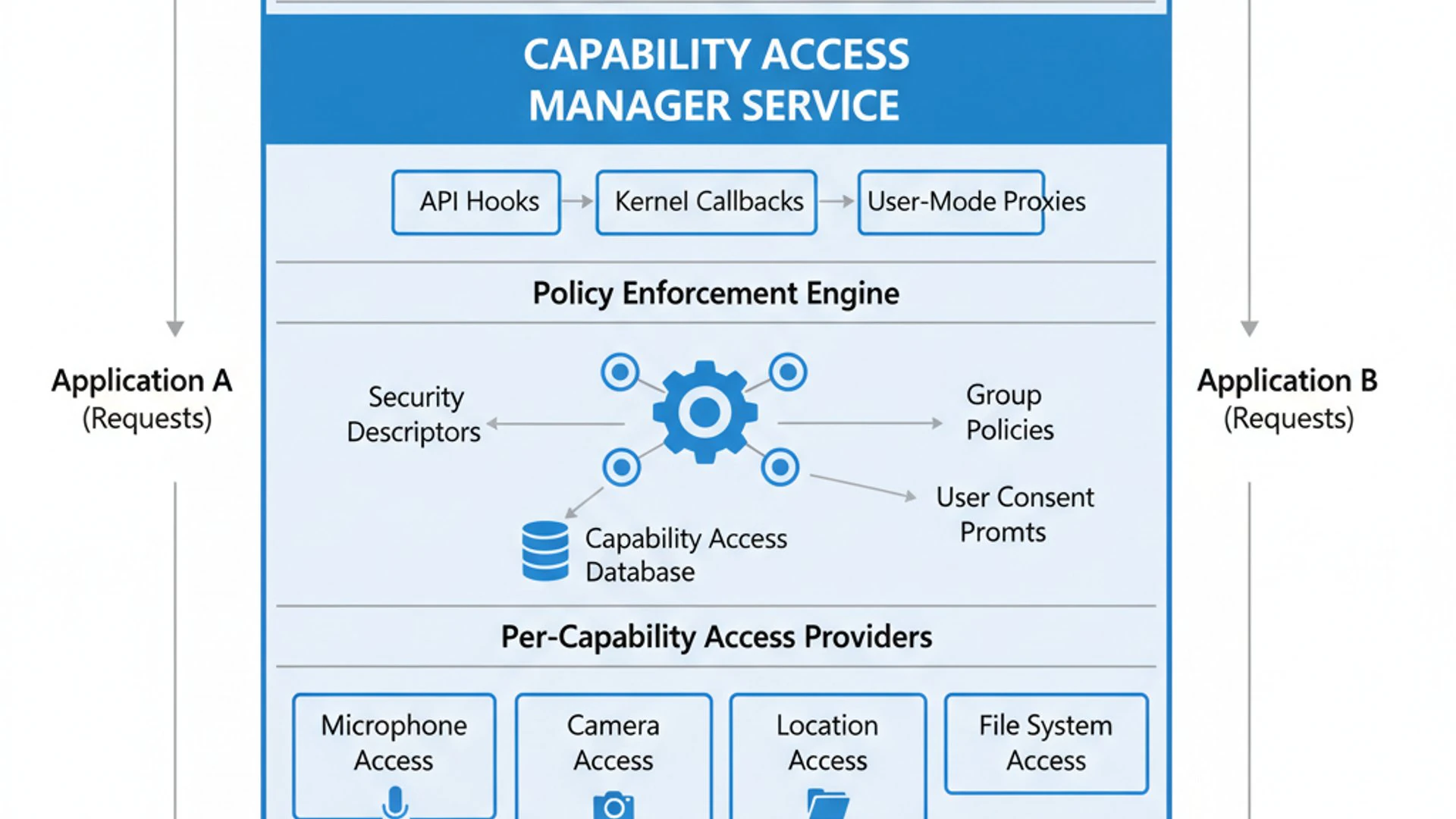
When an application, particularly a modern UWP app, attempts to access a protected capability—such as turning on your webcam or requesting your current location—it doesn’t directly interact with the hardware or data source. Instead, it sends a request to the operating system, which is then handled by camsvc.
The service consults a centralized database of user-defined privacy settings and application declarations. If the user has explicitly denied access for that specific app and capability, camsvc blocks the request. If access is permitted, the service facilitates the connection, allowing the app to utilize the resource. This process happens almost instantaneously, often without the user even noticing the underlying arbitration.
This layered approach ensures that even if an application were to somehow bypass other security measures, camsvc would still act as a final gatekeeper for sensitive capabilities. It’s a testament to Windows 11’s commitment to user control and data protection.
Architecture and Components of camsvc
The architecture of camsvc is designed for efficiency and robustness. It runs as a system service, meaning it’s a core part of the operating system that starts with Windows and operates in the background. Its primary executable is typically located within the system directories, ensuring its integrity and preventing unauthorized modification.
At its core, camsvc relies on a set of internal APIs and data stores. These stores contain information about all installed applications, their declared capabilities, and the user’s current privacy choices for each capability. When an application is installed, its manifest—which specifies its required capabilities—is registered with the system, and camsvc incorporates this information.
The service also interacts with other Windows components, such as the DevQuery Background Discovery Broker on Windows 11, to identify available hardware resources. It maintains a dynamic state of which applications are currently using which capabilities, allowing for real-time enforcement and status reporting, such as the “camera in use” indicator you might see in the taskbar.
This intricate network of components ensures that camsvc can effectively mediate all capability access requests, providing a seamless yet secure experience for users and developers alike. Its design reflects a modern approach to application security, moving beyond simple file permissions to encompass a broader range of system interactions.
Interaction with Privacy Settings
The Capability Access Manager Service is intrinsically linked to the Privacy & Security settings in Windows 11. These settings serve as the primary user interface for configuring camsvc’s behavior. When you navigate to these settings, you are directly interacting with the rules and policies that camsvc enforces.
For example, if you go to Settings > Privacy & security > Camera, you’ll see a toggle to allow or deny camera access for specific apps. When you make a change here, camsvc immediately updates its internal policies. Any subsequent attempt by an app to use the camera will be checked against this newly updated rule.
This direct interaction empowers users to have complete control over their privacy. It’s not just about initial consent during app installation; it’s about continuous management. You can review and adjust permissions at any time, ensuring that your preferences are always reflected in how apps access your device’s capabilities.
The transparency offered by these settings, combined with camsvc’s enforcement, creates a robust privacy ecosystem. Users are not left guessing about what their apps are doing; they have a clear dashboard to monitor and control access.
Integration with the Windows Security Model
camsvc is not an isolated component; it’s deeply woven into the broader Windows security model. It works in conjunction with other security features like Windows Defender, User Account Control (UAC), and the principle of least privilege to create a multi-layered defense system.
For instance, while UAC prompts for administrative privileges for system-level changes, camsvc handles granular permissions for application access to sensitive user data and hardware. This separation of concerns ensures that different aspects of security are managed by specialized components, leading to a more resilient system.
Its integration means that an app attempting to bypass camsvc would likely trigger other security alerts. The service contributes to the overall security posture by enforcing boundaries that prevent apps, even legitimate ones, from overstepping their intended functionality and potentially becoming vectors for exploits.
By preventing unauthorized access to capabilities, camsvc helps mitigate risks associated with malware, spyware, and data exfiltration. It acts as a critical barrier, reinforcing the trust users place in the Windows 11 operating system.
Common Capabilities Managed by camsvc
The range of capabilities managed by the Capability Access Manager Service is extensive, covering virtually all sensitive hardware and personal data types that modern applications might request. Understanding these common capabilities helps users make informed decisions about app permissions.
Some of the most frequently managed capabilities include:
- Location: Allows apps to access your precise geographical position. Essential for mapping, weather, and ride-sharing apps.
- Camera: Grants apps permission to use your device’s integrated or external webcam. Critical for video calls, photo capture, and augmented reality experiences.
- Microphone: Enables apps to record audio through your device’s microphone. Necessary for voice assistants, dictation software, and communication apps.
- Notifications: Permits apps to display pop-up alerts and banners.
- Account Info: Allows apps to access your name, picture, and other account details.
- Contacts: Grants apps access to your address book.
- Calendar: Enables apps to read and write events in your calendar.
- Phone Calls: Allows apps to make phone calls or access call history.
- Messaging: Grants apps permission to read or send messages.
- Radios: Controls access to wireless communication features like Bluetooth.
- Documents, Pictures, Videos: Provides apps with access to specific user folders for media and files.
Each of these capabilities represents a potential privacy exposure, and camsvc diligently manages access to them. The granular control offered ensures that you can tailor permissions precisely to your comfort level, enhancing your overall digital privacy.
Why is the Capability Access Manager Service Important?
The importance of the Capability Access Manager Service on Windows 11 cannot be overstated. In an era where digital privacy is a paramount concern and applications constantly seek access to more personal data, camsvc serves as a foundational defense mechanism. It transforms abstract privacy policies into actionable system enforcement, giving users tangible control over their digital footprint.
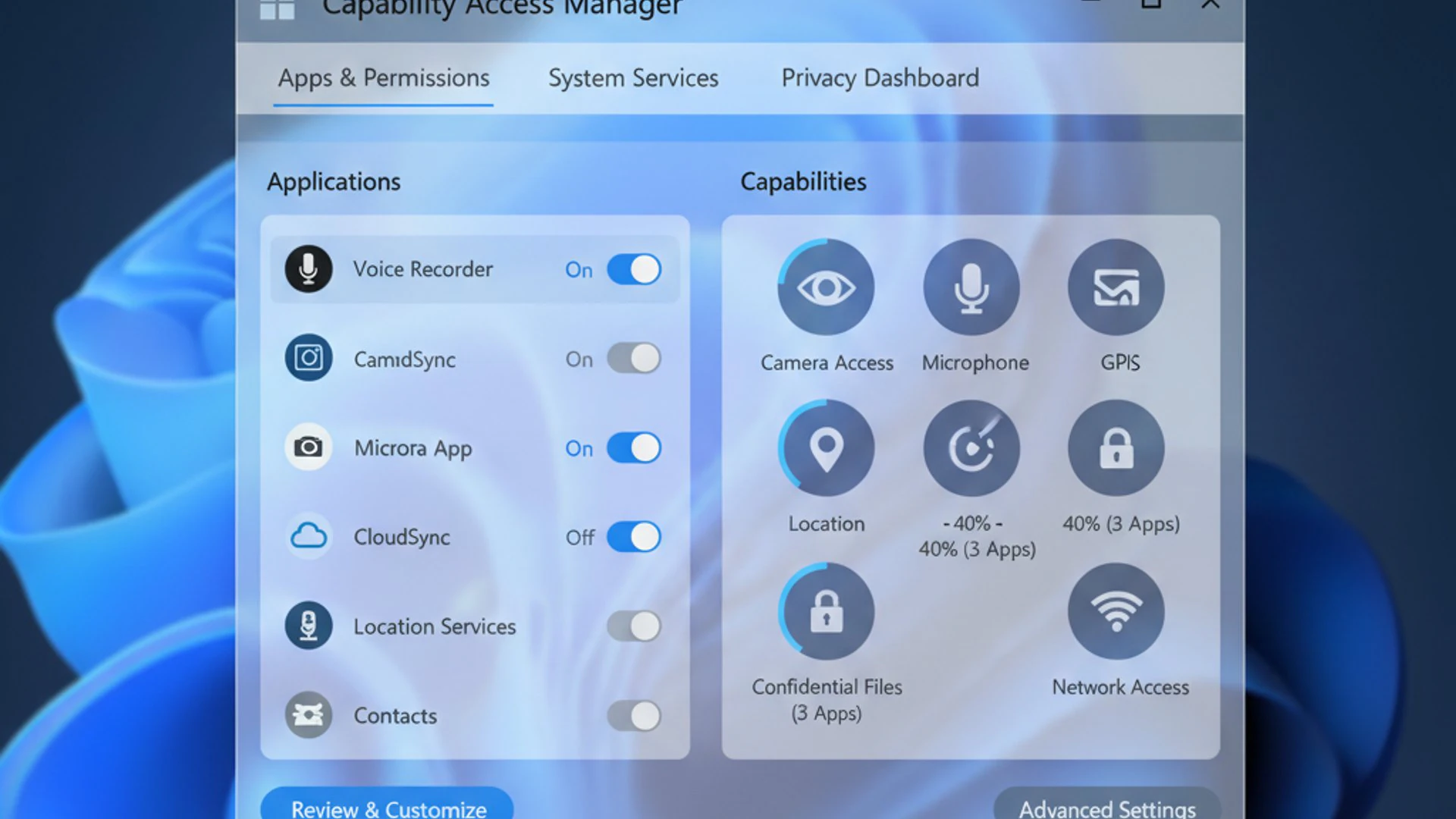
Without camsvc, the modern app ecosystem would be a Wild West, with applications potentially accessing sensitive hardware and data without user knowledge or consent. This service is not just a feature; it’s a necessity for maintaining trust in the operating system and ensuring a secure computing environment. It empowers users to be active participants in their own privacy management rather than passive observers.
Its significance extends beyond individual user privacy to the broader security landscape. By regulating app access, camsvc helps to mitigate a wide range of threats, from data harvesting by legitimate but overly zealous apps to malicious exploitation by malware. It’s a silent guardian, working tirelessly to protect your digital life.
The service’s role is particularly critical as more personal and professional activities migrate to digital platforms, making the security of our devices directly proportional to the security of our lives. camsvc is a key enabler of that security.
Enhancing User Privacy and Data Security
One of the primary reasons for camsvc’s importance is its direct contribution to enhancing user privacy and data security. By acting as the gatekeeper for sensitive capabilities, it ensures that your personal information remains under your control.
Imagine a scenario where a seemingly innocuous game app could silently activate your microphone to listen to your conversations or access your location history without your knowledge. camsvc prevents such scenarios by requiring explicit user permission for these actions. This granular control means you can approve access for apps you trust and deny it for those you don’t, or for capabilities they don’t genuinely need.
This level of control extends to various data types, from your contacts list to your photos and videos. By regulating which apps can access these personal repositories, camsvc significantly reduces the risk of unauthorized data collection, sharing, or misuse. It’s a proactive measure against privacy invasion.
Ultimately, camsvc empowers users to make informed decisions about their data. It provides the tools to enforce those decisions, thereby fostering a more secure and trustworthy digital environment on Windows 11. This proactive approach to privacy is a cornerstone of modern operating system design.
Preventing Malicious App Behavior
Beyond protecting privacy from legitimate apps, camsvc plays a crucial role in preventing malicious app behavior. Malware, spyware, and other harmful software often attempt to gain unauthorized access to system resources to steal data, monitor user activity, or compromise the device.
Even if a malicious application manages to bypass initial security checks and execute on your system, camsvc acts as a secondary line of defense. It restricts the app’s ability to activate your camera, record audio, or track your location without explicit permission, which a user would likely never grant to suspicious software.
This containment strategy limits the damage that even a successful infection can inflict. An app that cannot access your microphone cannot record your conversations; an app that cannot access your camera cannot spy on you. This makes camsvc an invaluable tool in the fight against cyber threats.
By enforcing a strict capability model, camsvc significantly raises the bar for attackers. They not only need to infiltrate the system but also need to trick the user into granting sensitive permissions, adding another layer of complexity to their malicious endeavors. This makes Windows 11 a more resilient platform against various forms of digital attack.
Managing Capability Access Manager Service Settings
Effectively managing the Capability Access Manager Service (camsvc) settings is crucial for maintaining your desired balance between privacy and app functionality on Windows 11. While camsvc operates in the background, Windows 11 provides user-friendly interfaces to interact with its policies, primarily through the Privacy & Security settings. For advanced users, there are also options via the Group Policy Editor and Registry Editor.
Regularly reviewing these settings is a best practice. As you install new applications or as your privacy concerns evolve, you may want to adjust which apps have access to which capabilities. Windows 11 makes this process intuitive, ensuring that you remain in control of your device’s sensitive resources.
Understanding where to find these controls and how to interpret them will empower you to make informed decisions about your digital privacy. This section will guide you through the various methods of managing camsvc, from basic user interface controls to more advanced system-level configurations.
By taking an active role in managing these settings, you can ensure that camsvc is configured precisely to meet your personal security and privacy requirements, without hindering the functionality of your essential applications.
Accessing Privacy & Security Settings
The primary gateway to managing camsvc’s permissions is through the Windows 11 Privacy & Security settings. This centralized hub provides a clear overview and granular controls for all capabilities.
To access these settings:
- Open the Start Menu.
- Click on Settings (the gear icon).
- In the left-hand navigation pane, select Privacy & security.
Once you are in the Privacy & security section, you will see a list of various capabilities under the “App permissions” and “Windows permissions” categories. Each item, such as “Location,” “Camera,” “Microphone,” “Notifications,” etc., represents a capability managed by camsvc.
Clicking on any of these categories will open a dedicated page where you can view and modify the permissions related to that specific capability. This organized approach makes it straightforward to navigate and adjust settings for different aspects of your privacy.
Controlling Individual App Permissions
Within each capability category (e.g., Camera, Microphone), you will find options to control individual app permissions. This is where the granular power of camsvc truly shines. For example, if you navigate to Privacy & security > Camera, you will typically see:
- A global toggle to Camera access for the device. If this is off, no app can use the camera.
- A toggle for Let apps access your camera. This controls whether modern apps can request camera access.
- A list of individual applications that have requested or been granted camera access.
For each app in the list, you can toggle its access on or off independently. This allows you to grant camera access to your preferred video conferencing app while denying it to a game that doesn’t legitimately need it.
Tip: Regularly review the app lists under each capability. You might find apps you no longer use or apps that have permissions you didn’t realize they had. Revoking unnecessary permissions is a key step in strengthening your privacy.
This level of control ensures that you are not forced into an all-or-nothing decision. You can fine-tune permissions to match your specific needs and comfort level, making your Windows 11 experience both functional and private.
Global Privacy Controls
In addition to individual app permissions, the Privacy & Security settings also offer global privacy controls. These are usually top-level toggles that can enable or disable access to a particular capability for *all* modern applications on your device.
For instance, on the “Location” settings page, you’ll find a “Location services” toggle. If you turn this off, no app, regardless of its individual permission setting, will be able to access your device’s location. This provides a quick and decisive way to shut down access to highly sensitive capabilities across the board.
While global controls offer convenience, it’s important to understand their impact. Disabling a global capability might prevent legitimate and necessary apps from functioning correctly. For example, turning off “Microphone access” globally would stop all voice chat applications from working.
Therefore, it’s often recommended to use global controls judiciously and rely more on individual app permissions for fine-tuning. Global controls are best reserved for situations where you want to completely block a capability for all apps, perhaps due to extreme privacy concerns or if you never use that particular hardware component.
Using Group Policy Editor for Advanced Management
For users in managed environments or those who prefer more centralized control, the Group Policy Editor (gpedit.msc) offers advanced options for managing camsvc-related settings. These policies can override user-level settings and are particularly useful for administrators deploying consistent privacy configurations across multiple machines.
To access Group Policy Editor:
- Press
Win + Rto open the Run dialog. - Type
gpedit.mscand press Enter.
Navigate to Computer Configuration > Administrative Templates > Windows Components > App Privacy. Here, you’ll find a comprehensive list of policies related to various capabilities, such as “Let Windows apps access the camera,” “Let Windows apps access the microphone,” and so on.
Each policy allows you to configure its state as “Not Configured,” “Enabled,” or “Disabled.” When “Enabled,” you can often choose a default behavior (e.g., “Force Allow,” “Force Deny,” or “User is in control”). These settings provide a powerful way to enforce privacy policies system-wide, bypassing individual user choices if necessary.
It’s important to exercise caution when modifying Group Policy settings, as they can have a significant impact on system behavior and application functionality. Always understand the implications of a policy before changing it. This method is generally recommended for experienced users or IT professionals.
Registry Editor Adjustments for camsvc
Similar to Group Policy, the Registry Editor (regedit.exe) provides another avenue for advanced users to adjust camsvc-related settings. Group Policy settings often translate into specific registry keys, so directly editing the registry can achieve the same results, though it requires a higher degree of technical expertise and carries greater risk.
To access Registry Editor:
- Press
Win + Rto open the Run dialog. - Type
regeditand press Enter.
You’ll typically find relevant settings under paths like HKEY_LOCAL_MACHINE\SOFTWARE\Microsoft\Windows\CurrentVersion\CapabilityAccessManager\ConsentStore and HKEY_CURRENT_USER\SOFTWARE\Microsoft\Windows\CurrentVersion\CapabilityAccessManager\ConsentStore.
Within these paths, you’ll see subkeys for various capabilities (e.g., webcam, microphone, location). Inside each capability’s subkey, there might be entries for specific applications or a default setting that indicates whether access is allowed or denied.
Warning: Modifying the Windows Registry incorrectly can lead to system instability or render your operating system unbootable. Always back up your registry before making any changes, and only proceed if you are confident in your understanding of the registry structure.
For most users, relying on the graphical Privacy & Security settings or, if applicable, Group Policy Editor, is a safer and more user-friendly approach. Registry edits should be reserved for specific troubleshooting scenarios or when official documentation explicitly recommends them.
Troubleshooting Common Issues with camsvc
While the Capability Access Manager Service (camsvc) is designed to operate seamlessly in the background, there are instances where its strict enforcement of permissions can lead to unexpected behavior. Users might encounter situations where an application isn’t working as expected, or they might perceive camsvc as impacting system performance. Understanding how to troubleshoot these common issues is vital for a smooth Windows 11 experience.
Most problems related to camsvc stem from incorrect permission settings rather than a malfunction of the service itself. It’s often a case of the service doing exactly what it’s configured to do, which might inadvertently block a desired app function. Identifying these scenarios and applying the correct fix can save a lot of frustration.
This section will guide you through diagnosing and resolving typical issues, focusing on practical steps to restore functionality while maintaining your privacy preferences. It’s about finding the right balance and ensuring your applications have the access they need without compromising your security.
By following these troubleshooting steps, you can quickly pinpoint the root cause of capability-related problems and implement effective solutions, ensuring that camsvc remains a helpful guardian rather than a source of inconvenience.
When Apps Cannot Access Required Capabilities
The most common issue related to camsvc is an application failing to access a necessary capability, such as the camera or microphone. This usually manifests as the app displaying an error message like “Camera not found” or “Microphone access denied,” even if the hardware is physically present and working.
Here’s a step-by-step approach to diagnose and resolve such issues:
- Check Global Toggles: First, verify that the global access for the capability is enabled. Go to Settings > Privacy & security, then select the relevant capability (e.g., “Camera”). Ensure that “Camera access” and “Let apps access your camera” (or similar for other capabilities) are both toggled On.
- Check Individual App Permissions: Scroll down on the same capability page to find the list of apps. Locate the problematic application and ensure its toggle is set to On. If it’s off, turn it on.
- Restart the App: After changing permissions, close and restart the application. Some apps require a restart to recognize the updated permissions.
- Check App Updates: Ensure the application is up to date. Developers often release updates to fix permission-related bugs or improve compatibility with Windows 11’s privacy model.
- Reinstall the App: As a last resort, try uninstalling and then reinstalling the application. This can sometimes reset its permission declarations and resolve underlying issues.
- Check Device Drivers: For hardware-related capabilities like camera or microphone, ensure that your device drivers are up to date. Outdated drivers can sometimes interfere with hardware access, even if permissions are correctly set.
By systematically checking these points, you can usually identify and rectify the reason an app is being denied access by camsvc.
Addressing Performance Concerns Related to camsvc
While camsvc is designed to be lightweight, some users might occasionally perceive it as contributing to system sluggishness or high resource usage. It’s important to note that direct performance issues from camsvc itself are rare, as its primary function is arbitration, not heavy processing.
However, an excessive number of applications constantly requesting and releasing capabilities, or poorly optimized apps that repeatedly try to access denied capabilities, could theoretically lead to minor overhead. If you suspect camsvc is impacting performance, consider these points:
- Identify Resource Hogs: Use Task Manager (Ctrl+Shift+Esc) to monitor CPU, memory, and disk usage. Look for applications that are consuming significant resources, especially when they are attempting to use capabilities. It’s more likely the app itself is the culprit rather than camsvc.
- Review Background Apps: Go to Settings > Apps > Apps & features, then click the three dots next to an app and choose “Advanced options.” Check the “Background app permissions” setting. Restricting apps from running in the background can reduce their chances of constantly pinging camsvc for capabilities.
- Disable Unnecessary Permissions: If you have many apps with broad permissions, especially for capabilities like location or notifications, consider revoking access for apps you don’t frequently use or those that don’t genuinely need it. This reduces the number of arbitration events camsvc needs to handle.
In most cases, any perceived performance impact is either coincidental or due to other factors. camsvc is a highly optimized service, and its resource footprint is generally negligible. Focus on optimizing the applications themselves and managing their background activity for significant performance gains.
Best Practices for Configuring Capability Access Manager on Windows 11
Configuring the Capability Access Manager Service (camsvc) effectively goes beyond simply enabling or disabling permissions. It involves adopting a mindful approach to app access, ensuring your privacy is protected without hindering your productivity. Establishing best practices for camsvc management is a crucial step towards a secure and efficient Windows 11 experience.
The goal is to strike a delicate balance: granting applications only the permissions they truly need to function, while simultaneously safeguarding your sensitive data and hardware. This proactive management minimizes your attack surface and reduces the risk of unwanted data exposure.
By integrating these practices into your regular digital habits, you can transform CamSVC from a background service into an active tool for personal security. It’s about being intentional with your digital permissions, rather than passively accepting default settings.
This section will provide actionable advice and strategies to help you optimize your camsvc configuration, fostering a computing environment that respects your privacy while remaining fully functional for your daily tasks.
Regularly Reviewing App Permissions
One of the most critical best practices for camsvc is to regularly review app permissions. Just like you might spring clean your physical space, it’s beneficial to periodically audit your digital permissions. Applications change, your usage habits evolve, and what was once a necessary permission might no longer be.
Make it a habit to visit Settings > Privacy & security > App permissions every few months. Go through each capability category (Camera, Microphone, Location, etc.) and examine the list of applications that have been granted access.
Ask yourself the following questions for each app:
- Do I still use this app?
- Does this app genuinely need access to this specific capability to perform its core function?
- Am I comfortable with this app having this level of access?
If the answer to any of these questions raises a concern, toggle off the permission for that app. You can always re-enable it later if you find the app stops functioning correctly without it. This proactive approach helps to prune unnecessary access and tighten your privacy posture over time.
Balancing Security with Usability
The ultimate goal of managing camsvc is to achieve a healthy balance between robust security and seamless usability. Overly restrictive permissions can lead to frustration and hinder your workflow, while overly permissive settings can compromise your privacy.
Consider the context of each application. A video conferencing tool clearly needs camera and microphone access. Denying these would make the app unusable. However, a simple calculator app has no legitimate reason to access your location or contacts. Denying these permissions for the calculator app enhances security without impacting its functionality.
Practical Tip: Start with a “least privilege” mindset. Grant apps only the minimum permissions required for their essential functions. If an app later requests additional access or malfunctions, you can always review and grant specific permissions on a case-by-case basis.
This iterative approach ensures that you maintain a strong security stance without sacrificing the convenience and functionality of your applications. It’s about making informed decisions tailored to your specific needs and the nature of each app you use on Windows 11.
Impact on System Performance and Resource Usage
A common concern with any background service is its potential impact on system performance and resource usage. Users often worry that services like the Capability Access Manager Service (camsvc) might consume excessive CPU, memory, or battery life, leading to a sluggish computing experience. However, for camsvc, these concerns are largely unfounded under normal operating conditions.
Microsoft designs core Windows services to be highly optimized and efficient, especially those critical to security and privacy. camsvc’s primary function is to arbitrate access requests, which is a relatively low-overhead operation compared to, say, complex data processing or continuous background tasks.
Understanding the minimal impact of camsvc can help alleviate unwarranted concerns and allow users to focus on optimizing other, more resource-intensive aspects of their Windows 11 system. It’s important to distinguish between a service’s inherent design and potential issues arising from misconfigurations or problematic applications.
This section will explore why camsvc generally has a negligible impact and discuss rare scenarios where its resource usage might become noticeable, along with strategies to address them.
Minimal Overhead of camsvc
The Capability Access Manager Service is engineered to have a minimal overhead on system resources. Its operations are primarily event-driven: it springs into action when an application requests a capability and then returns to a low-power state. It doesn’t constantly scan files, perform heavy calculations, or engage in continuous network activity.
When an app requests access to a camera, for example, camsvc quickly checks its internal permission database and either grants or denies the request. This check is a fast, lightweight operation that consumes very little CPU cycles or memory. The service isn’t actively processing video streams or audio; it’s simply mediating the connection.
Because of this design, camsvc typically appears with very low or zero CPU usage in Task Manager for most of the time. Its memory footprint is also usually small, often in the single-digit megabytes, which is negligible on modern systems with gigabytes of RAM.
Therefore, users should generally not worry about camsvc being a significant drain on their system’s performance or battery life. Its efficient design ensures that it can fulfill its critical security role without being a burden on your Windows 11 device.
Scenarios Where Resource Usage Might Increase
While camsvc generally maintains a low profile, there are specific, albeit rare, scenarios where its resource usage might become slightly more noticeable. These situations are usually not indicative of a problem with camsvc itself but rather with the applications interacting with it or underlying system issues.
One such scenario could involve a malfunctioning or poorly coded application that repeatedly attempts to access a denied capability in a tight loop. Each failed attempt would trigger camsvc, leading to a higher number of arbitration events. While each event is small, a rapid succession of them could accumulate into a measurable, albeit still minor, resource spike.
Another scenario might occur if there’s a system-wide issue causing numerous applications to crash or restart frequently, and each restart involves re-initializing capability requests. This would again increase the workload on camsvc, though the root cause would be the unstable applications, not the service.
If you observe consistently elevated resource usage attributed to camsvc in Task Manager, it’s advisable to:
- Check for any applications that are misbehaving or frequently crashing.
- Review your app permissions, especially for background apps, and revoke unnecessary access.
- Ensure your Windows 11 system and all installed applications are up to date.
In the vast majority of cases, these scenarios are rare, and CamSvc will continue to operate efficiently in the background, fulfilling its role as a privacy guardian without impacting your system’s responsiveness.
Security Implications and Advanced Protection
The Capability Access Manager Service (camsvc) is more than just a privacy feature; it’s a fundamental pillar of Windows 11’s overall security architecture. Its design and operation have significant security implications, contributing to a robust defense against various cyber threats. By controlling app access to sensitive capabilities, camsvc acts as a critical layer of protection, working in synergy with other built-in security features.
Understanding these deeper security aspects helps users appreciate the comprehensive protection offered by Windows 11. It’s not just about preventing a single app from spying on you; it’s about building a resilient system that can withstand sophisticated attacks and maintain data integrity.
This section will delve into how CamSvc contributes to advanced protection, specifically focusing on its role in safeguarding against unauthorized data access and its collaborative relationship with other security components like Windows Defender. It highlights how seemingly simple permission controls are part of a much larger, integrated security strategy.
By reinforcing the boundaries between applications and sensitive system resources, camsvc helps to create a computing environment where user data is respected and protected, even in the face of evolving digital threats.
Protecting Against Unauthorized Access
The core function of camsvc—mediating access to capabilities—is inherently about protecting against unauthorized access. This protection extends to various forms of digital intrusion, making it a critical component in preventing data breaches and maintaining system integrity.
Consider a scenario where malware attempts to exfiltrate sensitive documents from your PC. While traditional antivirus software might detect the malware’s presence, CamSvc adds another layer of defense. If the malware is disguised as a legitimate app and attempts to access your “Documents” folder (a capability managed by camsvc), it would first need your explicit permission.
Without that permission, camsvc would block the access, effectively containing the threat even if the malware managed to execute. This principle applies to all capabilities: camera, microphone, location, contacts, and more. By denying unauthorized access, camsvc prevents malicious software from collecting personal information, spying on users, or compromising privacy.
This granular control means that even if an attacker gains some level of access to your system, they still face significant hurdles in exploiting sensitive hardware or data without triggering a permission request that you would likely deny. It’s a powerful mechanism for limiting the blast radius of a security incident.
The Role of Windows Defender in Conjunction with camsvc
The Capability Access Manager Service does not operate in isolation; it works in close conjunction with other security features, most notably Windows Defender (now part of Windows Security). This synergy creates a multi-layered defense system that provides comprehensive protection.
Windows Defender focuses on detecting and neutralizing threats like viruses, malware, and ransomware. It scans files, monitors system behavior, and provides real-time protection against malicious software. Its role is to prevent threats from entering or executing on your system in the first place.
However, no antivirus is foolproof. This is where camsvc acts as a crucial complement. If a piece of malware manages to slip past Windows Defender, camsvc provides a containment mechanism. It ensures that even if a malicious app is running, it cannot freely access your camera, microphone, or personal data without explicit user consent.
For example, Windows Defender might detect and quarantine a suspicious file. If it misses something, and a malicious app attempts to use your webcam, CamSvc will prompt you for permission. This gives you a second chance to prevent a privacy breach. Together, they form a robust shield: Windows Defender tries to keep the bad guys out, and camsvc ensures they can’t do much harm even if they get in.
Frequently Asked Questions about camsvc
The Capability Access Manager Service (camsvc) often raises several common questions among Windows 11 users, particularly those concerned with privacy, security, and system performance. Addressing these frequently asked questions helps to clarify its role and dispel any misconceptions, providing users with a more complete understanding of this vital service.
From inquiries about disabling the service to understanding the consequences of its absence, these questions highlight key areas of user concern. Providing clear, concise answers empowers users to make informed decisions about their system settings and privacy preferences.
This section aims to be a quick reference guide for the most pressing questions regarding camsvc, offering practical insights and reinforcing the importance of the service within the Windows 11 ecosystem. By demystifying these common queries, we hope to enhance user confidence in Windows 11’s privacy and security features.
Let’s dive into some of the most common questions users have about the Capability Access Manager Service.
Can I Disable the Capability Access Manager Service?
No, you cannot and should not disable the Capability Access Manager Service (camsvc). Unlike some other Windows services that can be stopped or disabled, camsvc is a fundamental and critical component of Windows 11’s security and privacy architecture.
Attempting to disable it through the Services console (services.msc) or other means is not officially supported and could lead to severe system instability, application malfunctions, and significant security vulnerabilities. Windows 11 relies on camsvc to enforce app permissions for sensitive capabilities.
If you were to disable it, applications might gain unrestricted access to your camera, microphone, location, and other personal data without your consent, completely undermining your privacy. Furthermore, many modern applications, especially UWP apps, might fail to launch or function correctly if they cannot interact with camsvc to request necessary capabilities.
Instead of disabling the service, focus on managing individual app permissions through the Privacy & Security settings. This allows you to maintain control over your privacy without compromising the integrity or security of your operating system.
What happens if camsvc is Not Running?
If the Capability Access Manager Service (camsvc) were somehow not running (which is highly unlikely under normal circumstances, as Windows 11 ensures its continuous operation), the consequences would be significant and detrimental to your system’s security and functionality.
Firstly, your privacy would be severely compromised. Applications, particularly UWP apps, would likely gain unrestricted access to sensitive capabilities like your camera, microphone, location, contacts, and documents without any form of user consent or arbitration. This would open a wide door for data harvesting, surveillance, and other privacy invasions.
Secondly, many applications would likely malfunction or fail to launch. Modern apps are designed to interact with camsvc to declare and request capabilities. If the service is unavailable, these apps might not be able to obtain the necessary permissions, leading to errors, crashes, or incomplete functionality.
Thirdly, the overall security posture of your Windows 11 device would be significantly weakened. camsvc is a critical layer of defense against malicious software attempting to exploit sensitive hardware or data. Without it, the system would be far more vulnerable to various cyber threats.
In essence, a non-running camsvc would render Windows 11 insecure, unstable, and largely unusable for modern applications. This is why the operating system is designed to keep this service running at all times.
How to Reset App Permissions?
There might be instances where you want to reset all app permissions for a specific application, perhaps due to troubleshooting or simply wanting to start fresh with its access rights. Windows 11 provides a straightforward way to do this for individual applications.
Here’s how you can reset app permissions for a specific application:
- Open the Start Menu and click on Settings.
- Navigate to Apps, then select Apps & features.
- Locate the application for which you want to reset permissions. You can use the search bar or scroll through the list.
- Click on the three dots next to the application’s name and select Advanced options.
- Scroll down to the “Reset” section.
- You will see two options:
- Repair: This attempts to fix issues without deleting data. It might resolve minor permission glitches.
- Reset: This will reinstall the app and delete its data, including all permission settings. This effectively returns the app to its “freshly installed” state regarding permissions.
- Click the Reset button, and then click Reset again to confirm.
After performing a reset, the application will behave as if it’s being launched for the first time, and it will prompt you for permissions again when it attempts to access capabilities. This is an effective way to clear any potentially problematic or unwanted permission grants.
Conclusion
The Capability Access Manager Service (camsvc) on Windows 11, though largely invisible to the everyday user, is an indispensable component that underpins the operating system’s commitment to privacy and security. We’ve explored its fundamental role as the central arbiter of application permissions, differentiating it from traditional file system controls and highlighting its critical function in managing modern app capabilities.
Understanding how CamSvc integrates with Windows 11’s broader security model, interacts with user privacy settings, and safeguards against both unintentional data exposure and malicious exploitation is paramount. It empowers users with granular control over their digital footprint, ensuring that sensitive hardware and personal data remain protected.
We’ve also provided practical guidance on managing camsvc settings through the intuitive Privacy & Security interface, as well as advanced options for power users via Group Policy and Registry Editor. Troubleshooting common issues and adopting best practices for permission management further enhances the user’s ability to maintain a secure and functional computing environment.
Ultimately, the Capability Access Manager Service is a silent guardian, working tirelessly to enforce your privacy preferences and bolster the overall security of your Windows 11 device. By actively engaging with its settings and adopting a mindful approach to app permissions, you can ensure a safer, more controlled, and more private digital experience. Take the time to review your app permissions; your privacy depends on it.









Community
Comments (0)