

Introduction to Web Threat Defense on Windows 11
In our increasingly interconnected world, the internet has become an indispensable tool for work, communication, and entertainment. However, this digital landscape is also fraught with peril. Cybercriminals constantly devise new and more sophisticated methods to compromise user data, disrupt systems, and spread malware. From phishing scams to drive-by downloads, the threats lurking online are diverse and ever-evolving, making robust protection more critical than ever before. Learn more about Microsoft Defender SmartScreen and Network Protection capabilities.
Windows 11, Microsoft’s latest operating system, comes equipped with a suite of advanced security features designed to safeguard users against these pervasive dangers. Among these, the Web Threat Defense Service on Windows 11 stands out as a crucial component of its integrated security architecture. This service operates silently in the background, acting as your digital sentinel to protect your browsing activities and shield your system from malicious web content.
This comprehensive guide will delve deep into the intricacies of the Web Threat Defense Service. We will explore its core functionalities, understand how it leverages technologies like Microsoft Defender SmartScreen, and provide practical advice on how to configure and optimize it for maximum protection. We aim to empower you with the knowledge to navigate the web safely and confidently, ensuring your Windows 11 experience remains secure.
Table of contents
The Evolving Landscape of Web-Based Threats
The nature of online threats has shifted dramatically over the years. Gone are the days when simple antivirus software was sufficient. Today, threats are often cloaked in legitimate-looking websites, embedded within seemingly harmless advertisements, or delivered through sophisticated social engineering tactics. Phishing attacks, ransomware delivered via malicious links, and browser exploits targeting vulnerabilities are just a few examples of the dangers users face daily.
The sheer volume and complexity of these threats necessitate a proactive and multi-layered defense strategy. Web Threat Defense on Windows 11 is specifically engineered to address this challenge by providing real-time protection against malicious websites, suspicious downloads, and other web-borne attacks. Understanding this evolving threat landscape underscores the vital role such a service plays in modern cybersecurity.
Key Takeaways
- The Web Threat Defense Service on Windows 11 is a critical, built-in security feature designed to protect users from online threats.
- It leverages real-time URL filtering, reputation checks, and is deeply integrated with Microsoft Defender SmartScreen to block malicious websites and downloads.
- Users can manage and configure this service primarily through the Windows Security application, specifically under App & Browser Control settings.
- For advanced control, IT professionals and power users can utilize Group Policy and Registry Editor options to fine-tune its behavior.
- Maintaining an up-to-date Windows 11 system and Microsoft Defender is paramount for ensuring the effectiveness of web threat defense.
- While highly effective, the service balances robust protection with minimal impact on browsing freedom, offering a generally seamless user experience.
- In enterprise environments, it integrates with Microsoft Defender for Endpoint, providing enhanced visibility and centralized management for organizations.
Understanding the Web Threat Defense Service
The digital world is a vast and often unpredictable place, where threats can emerge from unexpected corners. Protecting your system from these dangers requires a vigilant guardian, and that’s precisely the role of the Web Threat Defense Service on Windows 11. This integral component of your operating system’s security infrastructure works tirelessly to ensure your online interactions remain safe and secure.
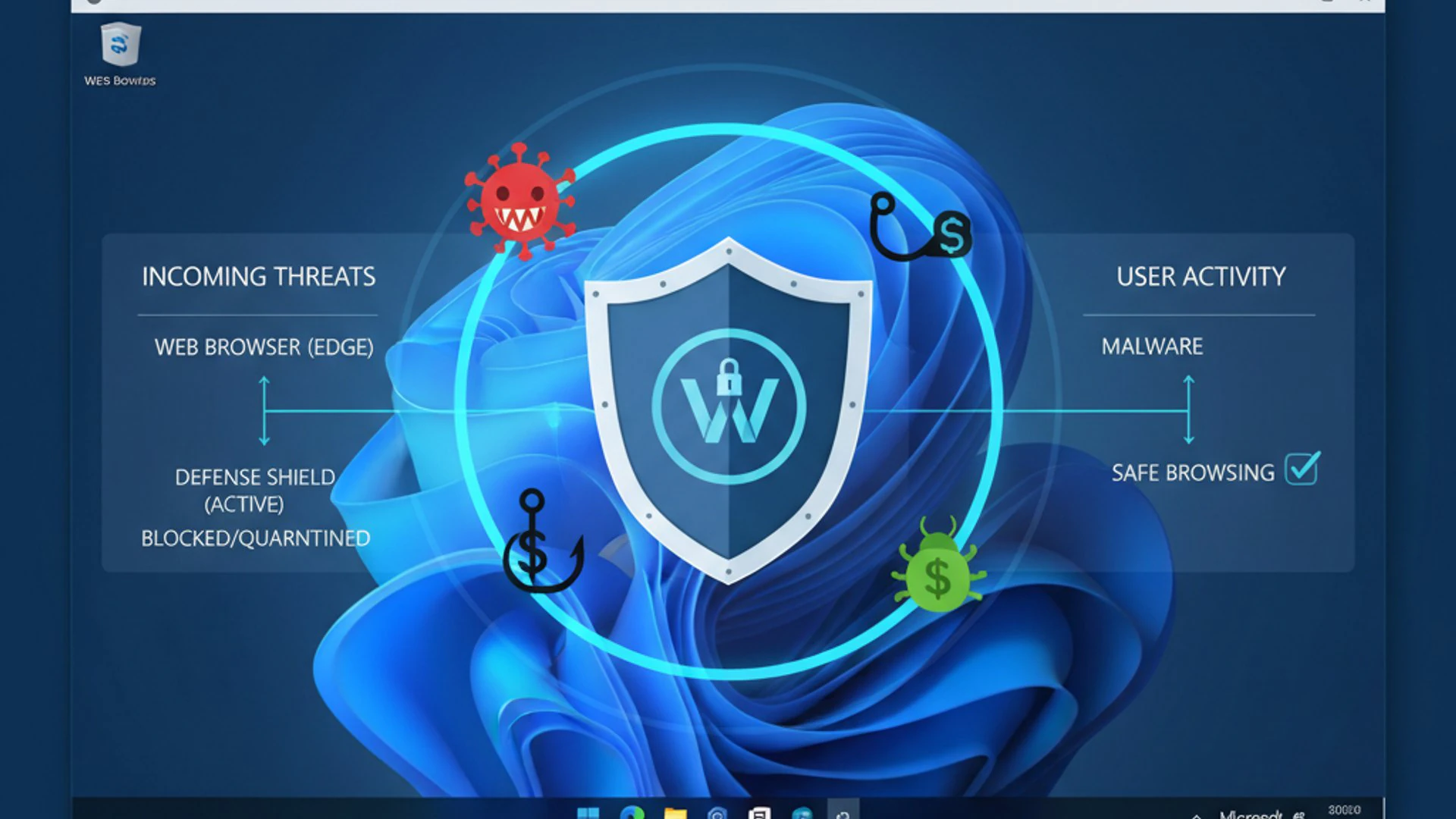
It’s not just about blocking known malware; it’s about anticipating and preventing access to potentially harmful content before it can even reach your device. This proactive approach is what makes the service so effective in mitigating a wide array of web-based risks. By understanding its fundamental operation, users can better appreciate the invisible shield it provides.
What is the Web Threat Defense Service?
At its core, the Web Threat Defense Service on Windows 11 is a sophisticated security mechanism designed to safeguard users from malicious websites, phishing attempts, and dangerous file downloads. It acts as a frontline defense, scrutinizing web content and network connections in real-time to identify and neutralize potential threats.
This service operates continuously in the background, providing a layer of protection across various applications, not just your web browser. Whether you’re clicking a link in an email, downloading a file, or visiting a website, the Web Threat Defense Service is actively evaluating the safety of that interaction. Its primary goal is to prevent you from inadvertently encountering harmful content that could compromise your system or personal data.
“The Web Threat Defense Service on Windows 11 is your system’s vigilant guardian, constantly scanning the digital horizon for threats to ensure your online safety.”
How Does it Protect Your System?
The protective capabilities of the Web Threat Defense Service are multifaceted, employing several advanced techniques to identify and block threats. It doesn’t rely on a single method but rather a combination of intelligent processes that work in concert to create a robust defense. This layered approach ensures comprehensive coverage against a broad spectrum of web-borne attacks.
The service is designed to be largely invisible, performing its duties without requiring constant user intervention. This seamless operation is crucial for maintaining a smooth user experience while upholding a high standard of security. Understanding these mechanisms helps demystify how your Windows 11 system remains protected.
Real-time URL Filtering and Reputation Checks
One of the primary ways the Web Threat Defense Service protects your system is through real-time URL filtering. When you attempt to access a website, the service rapidly checks the URL against a dynamic, cloud-based database of known malicious and suspicious sites. This database is constantly updated by Microsoft’s security intelligence, ensuring it reflects the latest threats.
Beyond simple blacklisting, the service also performs reputation checks. It analyzes various factors associated with a website, such as its age, historical behavior, and reported incidents, to determine its trustworthiness. If a site is deemed untrustworthy or malicious, the service will block access and display a warning, preventing you from navigating to potentially dangerous pages.
Integration with Microsoft Defender SmartScreen
The effectiveness of the Web Threat Defense Service on Windows 11 is significantly amplified by its deep integration with Microsoft Defender SmartScreen. SmartScreen is a cloud-based service that provides an early warning system against phishing attacks, socially engineered malware, and malicious software.
When you download a file or visit a website, SmartScreen quickly checks its reputation. For files, it verifies if the file is known and has a good reputation among other Windows users. If it’s an unknown or suspicious file, SmartScreen will warn you before you open it. This integration provides a powerful, proactive defense against both malicious web content and dangerous downloads, acting as a crucial barrier against infection.
Core Components and Technologies
The robust protection offered by the Web Threat Defense Service on Windows 11 is not a standalone feature but rather a symphony of interconnected technologies working in harmony. These components are meticulously engineered to provide a comprehensive shield against the ever-present dangers of the internet. Understanding these underlying mechanisms offers insight into the depth of security Windows 11 provides.
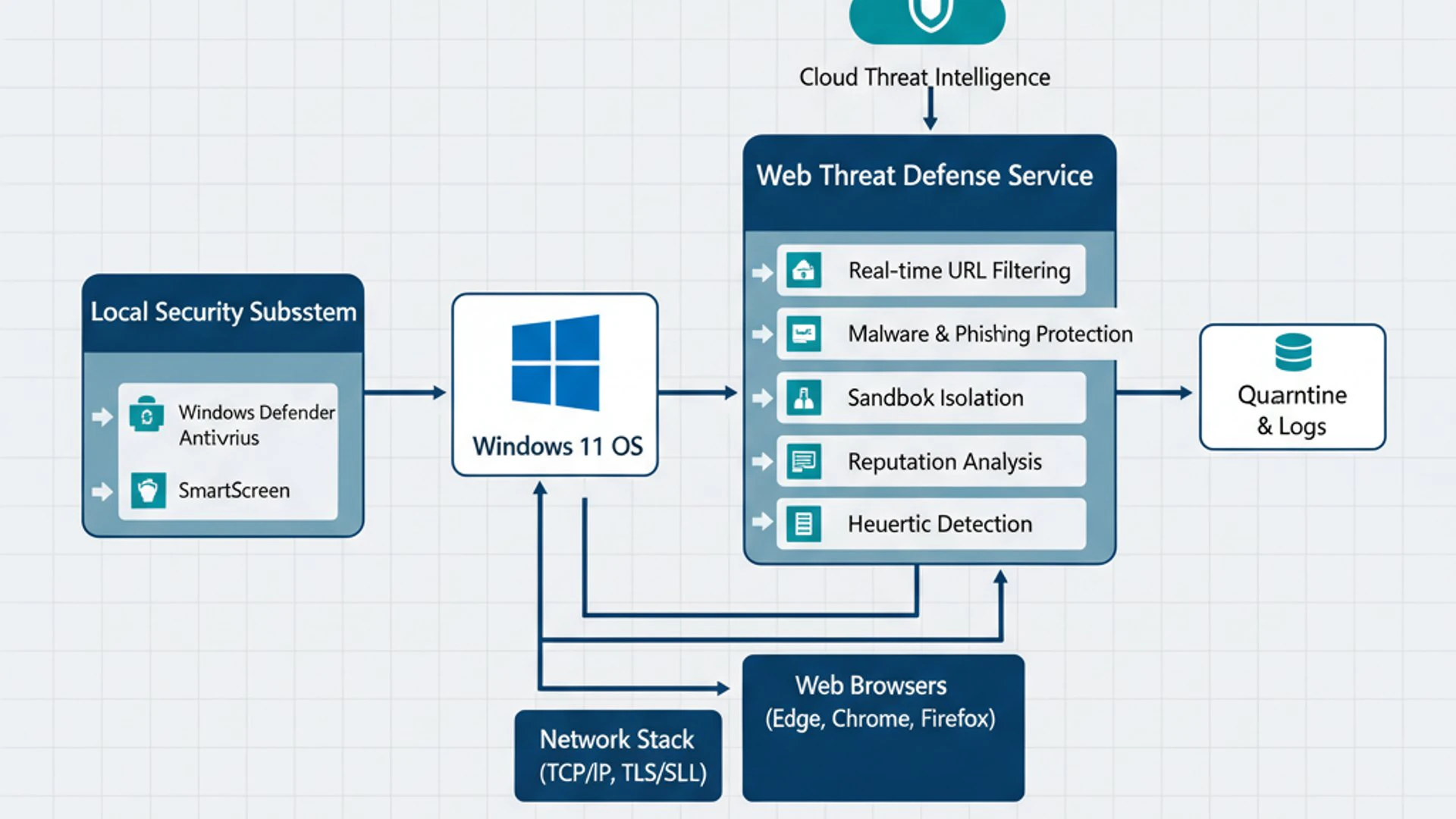
From cloud-powered intelligence to network-level enforcement, each element plays a vital role in fortifying your system. This section will break down these core technologies, highlighting how they contribute to a resilient defense posture against web-borne threats. It’s a testament to Microsoft’s commitment to user safety.
Microsoft Defender SmartScreen’s Role
As previously mentioned, Microsoft Defender SmartScreen is an indispensable pillar of the Web Threat Defense Service. Its role extends beyond merely blocking known bad sites; it’s a dynamic, intelligent filter that constantly adapts to new threats. SmartScreen employs a sophisticated reputation system that evaluates websites and downloads in real-time.
When you encounter a new website or download, SmartScreen compares it against a continuously updated list of reported phishing sites and malicious software. If a match is found or if the content exhibits suspicious characteristics, SmartScreen intervenes. It will either display a warning page, preventing you from proceeding, or block the download entirely, thereby protecting your system from potential infection. This proactive scanning is a cornerstone of effective web defense.
Network Protection and Firewall Integration
Beyond browser-level protection, the Web Threat Defense Service on Windows 11 also leverages Network Protection and integrates with the system’s firewall to provide a deeper layer of security. Network Protection extends the capabilities of SmartScreen to the entire operating system, not just web browsers.
This means that even if an application attempts to connect to a malicious domain or IP address, Network Protection can block that connection at the operating system level. This is particularly crucial for preventing malware from communicating with command-and-control servers or exfiltrating data. The firewall, in turn, acts as a gatekeeper, controlling incoming and outgoing network traffic based on predefined rules, further isolating your system from hostile networks.
How Network Protection Enhances Web Defense
Network Protection significantly enhances web defense by providing a broader scope of protection. While SmartScreen primarily focuses on web browsers and downloaded files, Network Protection operates at a more fundamental level, monitoring all outbound connections from your device. This comprehensive approach ensures that even non-browser applications are prevented from accessing malicious online resources.
For instance, if a piece of malware manages to bypass other defenses and attempts to “call home” to a malicious server, Network Protection can detect and block this communication. This prevents data exfiltration and further infection. It acts as a crucial safety net, catching threats that might slip past other security layers and solidifying the overall Web Threat Defense Service on Windows 11.
Enabling and Configuring Web Threat Defense
While the Web Threat Defense Service on Windows 11 is largely enabled by default, understanding how to access and configure its settings is crucial for maximizing your protection and tailoring it to your specific needs. Windows 11 provides user-friendly interfaces within the Windows Security application, alongside more advanced options for power users and IT administrators.
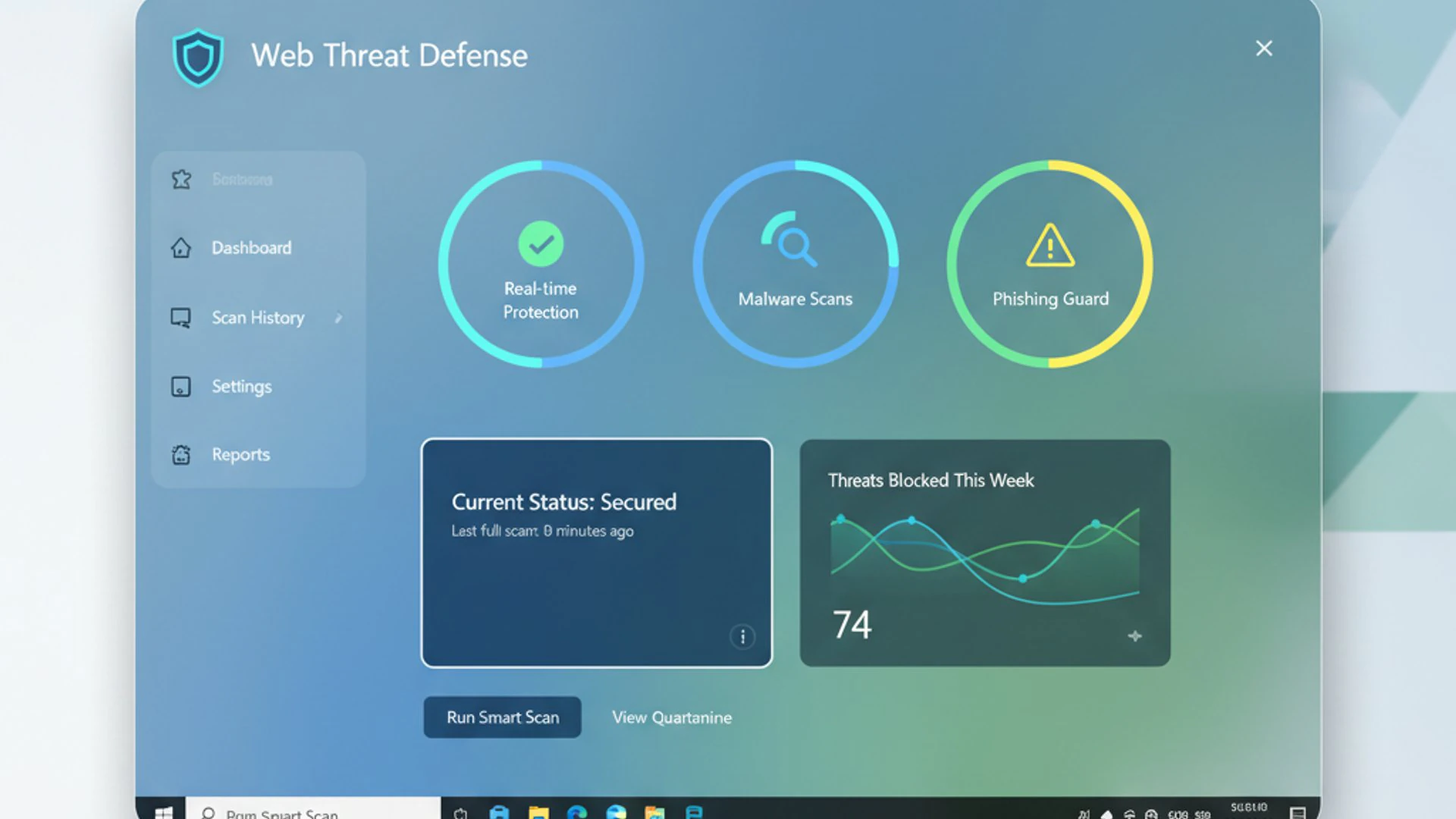
Taking control of these settings allows you to verify that your system is adequately protected and to make adjustments if necessary. This section will guide you through the practical steps involved in managing this essential security feature, ensuring you can confidently navigate its various options.
Accessing Security Settings in Windows Security
The primary hub for managing your Windows 11 security features, including web threat defense, is the Windows Security application. You can easily access it by searching for “Windows Security” in the Start menu or by clicking the shield icon in the system tray. Once open, you’ll find a clear dashboard outlining your system’s protection status.
Within Windows Security, navigate to the “App & browser control” section. This area is specifically dedicated to settings related to SmartScreen and other application-level protections. It’s here that you’ll find the core configurations for the Web Threat Defense Service, allowing you to review and adjust its behavior.
Managing App & Browser Control Settings
Under “App & browser control,” you’ll encounter several important sub-sections. The most relevant for web threat defense are:
- Reputation-based protection: This is where you manage Microsoft Defender SmartScreen for apps, files, and websites. You can toggle SmartScreen on or off for apps and files, and for Microsoft Edge.
- Exploit protection: While not directly part of web threat defense, this section offers advanced settings to protect against exploits used by malware, complementing web defense.
To ensure robust protection, confirm that Reputation-based protection is turned on for all categories. You can also click “Reputation-based protection settings” to fine-tune specific options, such as blocking potentially unwanted apps (PUAs) or warning about suspicious downloads. Remember, disabling these features can significantly reduce your security posture.
Group Policy and Registry Editor Options
For users requiring more granular control, especially in organizational settings, the Web Threat Defense Service on Windows 11 can also be managed through Group Policy and the Registry Editor. These tools offer advanced configuration options that are not available through the standard Windows Security interface.
Using Group Policy (accessible via gpedit.msc for Pro/Enterprise editions) allows administrators to enforce specific SmartScreen settings across multiple machines. For example, you can configure SmartScreen to always block unverified files or to prevent users from bypassing SmartScreen warnings. The Registry Editor (regedit.exe) provides direct access to these settings at a lower level, offering similar control but requiring more caution.
“Exercise extreme caution when modifying settings via Group Policy or Registry Editor, as incorrect changes can lead to system instability or security vulnerabilities. Always back up your registry before making significant alterations.”
These advanced methods are typically reserved for IT professionals who need to implement consistent security policies within a network. For the average home user, the Windows Security application provides more than sufficient control for managing their web threat defense.
Best Practices for Maximizing Web Defense
While the Web Threat Defense Service on Windows 11 provides a powerful baseline of protection, its effectiveness can be significantly enhanced by adopting certain best practices. Security is an ongoing process, not a one-time setup. By proactively managing your system and incorporating complementary measures, you can create an impenetrable digital fortress.
These practices are not just about enabling features; they involve a holistic approach to cybersecurity that empowers you to stay ahead of emerging threats. Implementing these recommendations will ensure that your web defense capabilities are always operating at their peak performance, safeguarding your online activities.
Keeping Windows and Defender Up-to-Date
The single most critical practice for maximizing your web defense is to consistently keep your Windows 11 operating system and Microsoft Defender up-to-date. Microsoft regularly releases security updates, patches, and definition updates that address newly discovered vulnerabilities and incorporate intelligence on the latest threats.
Outdated software is a common entry point for malware and exploits. Windows Update delivers these crucial fixes, while Microsoft Defender updates its threat definitions multiple times a day. Ensuring these updates are applied promptly guarantees that your Web Threat Defense Service on Windows 11 is equipped with the most current knowledge to identify and block emerging threats. Enable automatic updates to streamline this process.
Complementary Security Measures
A multi-layered defense strategy is always more effective than relying on a single security solution. While the Web Threat Defense Service is robust, combining it with other security measures creates a formidable barrier against cyber threats. Consider these complementary practices:
- Use a reputable web browser: Modern browsers like Microsoft Edge, Chrome, and Firefox have built-in security features that work alongside Windows’ native defenses.
- Employ strong, unique passwords: Protect your online accounts with complex passwords and enable two-factor authentication (2FA) wherever possible.
- Be wary of suspicious links and attachments: Always scrutinize emails and messages, especially from unknown senders, before clicking links or opening attachments.
- Regularly back up your data: In the unfortunate event of a successful attack, having recent backups can save you from data loss.
- Install a firewall: Ensure your Windows Firewall is active and configured correctly. For advanced users, a hardware firewall can add an extra layer.
By integrating these practices, you create a comprehensive security ecosystem that significantly reduces your exposure to online risks. The Web Threat Defense Service acts as a strong foundation, and these additional steps build upon it for enhanced protection.
Troubleshooting Common Issues
Even the most sophisticated security services can occasionally encounter hiccups or generate unexpected behavior. The Web Threat Defense Service on Windows 11 is designed to be highly effective, but users might sometimes experience situations where legitimate websites are blocked or notice minor performance impacts. Understanding how to troubleshoot these common issues is essential for maintaining both security and usability.
This section aims to provide practical solutions and workarounds, helping you resolve conflicts while ensuring your system remains protected. The goal is to empower you to manage the service effectively, striking a balance between robust security and a smooth user experience.
When Web Defense Blocks Legitimate Sites
One of the most common issues users might face is the Web Threat Defense Service incorrectly blocking a legitimate website or flagging a safe download as malicious. This is known as a false positive. While rare, it can happen, especially with new or niche websites that haven’t yet built up a strong reputation with SmartScreen.
If you encounter a legitimate site or file blocked by SmartScreen, you have a few options:
- Report the site/file: On the SmartScreen warning page, there’s usually an option to “Report that this site contains no threats” or “Report this file as safe.” This helps Microsoft improve its detection algorithms.
- Bypass the warning (with caution): For websites, you might see an option like “More information” or “Run anyway” for files. Only proceed if you are certain the site or file is safe, and you trust the source implicitly.
- Temporarily disable SmartScreen (not recommended): As a last resort, you can temporarily disable SmartScreen in Windows Security for testing, but remember to re-enable it immediately afterward. This should be done with extreme caution.
Always verify the legitimacy of a blocked resource through independent means (e.g., checking reputable security news sites or asking trusted colleagues) before bypassing any security warnings. Your vigilance is a key part of your defense.
Performance Considerations and Service Behavior
The Web Threat Defense Service on Windows 11 is designed to operate efficiently, with minimal impact on system performance. However, in some rare cases, users might notice a slight slowdown during web browsing or file downloads, particularly on older hardware or systems with limited resources. This is usually due to the real-time scanning and reputation checks performed by SmartScreen and Network Protection.
If you suspect the service is causing noticeable performance issues, consider these points:
- Ensure your system meets Windows 11 requirements: Adequate RAM and CPU are crucial for the smooth operation of all security services.
- Check for conflicting software: Other security software (e.g., third-party antivirus) can sometimes conflict with Microsoft Defender, leading to performance degradation. It’s generally recommended to use only one primary antivirus solution.
- Monitor resource usage: Use Task Manager to observe the resource consumption of “Antimalware Service Executable” (MsMpEng.exe), which is part of Microsoft Defender. High, sustained usage might indicate an issue.
Most modern systems will experience virtually no discernible performance impact from the Web Threat Defense Service. Its optimized design prioritizes both security and a fluid user experience.
The Impact of Web Threat Defense on User Experience
A critical aspect of any security feature is its ability to provide robust protection without unduly hindering the user’s daily activities. The Web Threat Defense Service on Windows 11 is meticulously engineered to strike this delicate balance, ensuring that security measures are effective yet largely unobtrusive. This thoughtful design contributes significantly to a positive overall user experience.
Understanding this balance helps users appreciate how the service operates seamlessly in the background, allowing them to browse, download, and interact online with confidence. It’s about empowering users with freedom, knowing that a strong protective layer is always active.
Balancing Security with Browsing Freedom
The primary design philosophy behind the Web Threat Defense Service on Windows 11 is to offer maximum security with minimal friction. Microsoft understands that overly aggressive security measures can frustrate users and lead them to disable vital protections. Therefore, the service aims to intervene only when necessary, providing clear warnings without completely locking down the system.
For instance, when SmartScreen blocks a potentially malicious site, it typically presents a warning page with options to go back to safety. In some cases, it might offer a carefully considered option to proceed at your own risk, acknowledging that users sometimes need to access content that might be flagged. This approach respects user autonomy while still prioritizing safety.
“The Web Threat Defense Service on Windows 11 is engineered to be a silent guardian, providing robust protection that empowers users to browse freely without constant interruptions.”
The goal is not to dictate your online behavior but to inform and protect you from known dangers. This balance ensures that the Web Threat Defense Service on Windows 11 enhances your online experience by making it safer, rather than detracting from it with constant alerts or restrictions.
Advanced Features and Enterprise Considerations
While the Web Threat Defense Service on Windows 11 provides excellent protection for individual users, its capabilities extend significantly in larger, more complex environments. For businesses and organizations, the integration of this service with Microsoft’s broader security ecosystem offers enhanced features, centralized management, and deeper insights into potential threats.
This section briefly touches upon these advanced aspects, providing a glimpse into how the service scales to meet the rigorous demands of enterprise-level cybersecurity. It highlights the versatility and power of Microsoft’s integrated security solutions.
Microsoft Defender for Endpoint Integration
In enterprise settings, the Web Threat Defense Service on Windows 11 becomes even more powerful through its integration with Microsoft Defender for Endpoint. This comprehensive enterprise endpoint security platform provides advanced threat protection, post-breach detection, automated investigation, and response capabilities.
When integrated, the web threat defense signals from individual Windows 11 machines are fed into the Defender for Endpoint console. This allows security teams to:
- Gain centralized visibility: Monitor web-based threats across the entire organization from a single dashboard.
- Implement consistent policies: Enforce web protection policies across all endpoints, ensuring uniform security.
- Respond to incidents: Automatically block access to malicious URLs and files detected by the service, and trigger automated investigations.
- Proactive threat hunting: Leverage the rich data collected by web threat defense to identify and hunt for emerging threats within the network.
This integration transforms the individual Web Threat Defense Service on Windows 11 into a powerful component of a holistic enterprise security strategy, offering unparalleled protection and management capabilities for organizations of all sizes. It underscores the scalability and sophistication of Microsoft’s security offerings.
Conclusion: Fortifying Your Online Security Posture
The digital landscape is a dynamic and often perilous environment, making robust cybersecurity an absolute necessity in today’s world. The Web Threat Defense Service on Windows 11 stands as a cornerstone of this protection, diligently working in the background to shield users from a myriad of online threats, from phishing scams to malicious downloads. Its seamless integration with Microsoft Defender SmartScreen and Network Protection forms a powerful, multi-layered defense that is both proactive and adaptive.
We’ve explored how this vital service operates, its core components, and how you can manage its settings to optimize your security. Ensuring your system is always up-to-date to adopting complementary security practices, empowering yourself with knowledge, and taking proactive steps are key to maintaining a secure online presence. While the service is designed to be largely invisible, its impact on your digital safety is profound, allowing you to browse and interact online with greater confidence.
Ultimately, a secure digital life is a shared responsibility. While Microsoft provides powerful tools like the Web Threat Defense Service on Windows 11, user awareness and vigilance remain paramount. By leveraging these built-in protections and adhering to best practices, you can significantly fortify your online security posture, ensuring that your Windows 11 experience remains safe, productive, and enjoyable. Stay informed, stay vigilant, and let your web defense be your trusted guardian.









Community
Comments (0)