

Introduction to the AVCTP Service on Windows 11
In the modern digital landscape, seamless wireless connectivity is not just a convenience; it’s an expectation. For Windows 11 users, Bluetooth technology plays a pivotal role in this experience, connecting everything from headphones to smartwatches. Yet, beneath the surface of effortless pairing and crystal-clear audio lies a complex ecosystem of services working in harmony. Learn more at Advanced Audio Distribution Profile (A2DP) and Bluetooth Special Interest Group (SIG).
One such vital, often overlooked, component is the AVCTP Service on Windows 11. This unsung hero is fundamental to how your Bluetooth audio devices communicate with your PC, enabling not just sound transmission but also crucial control functionalities.
Without the AVCTP service, your ability to play, pause, skip tracks, or adjust volume directly from your Bluetooth headphones would simply vanish. It acts as the invisible bridge that translates your commands into actions, ensuring a truly integrated and intuitive wireless audio experience.
This comprehensive guide will demystify the AVCTP Service, delving into its technical underpinnings, practical applications, and essential management tips. By understanding its role, you’ll be better equipped to troubleshoot common Bluetooth issues and optimize your wireless audio setup on Windows 11, transforming potential frustrations into smooth, uninterrupted enjoyment.
Table of contents
Key Takeaways
- The AVCTP Service on Windows 11 is crucial for Bluetooth audio control, enabling commands like play/pause and volume adjustment.
- It operates distinctly from audio data transmission, focusing solely on control signals between your PC and Bluetooth devices.
- AVCTP is a foundational component for profiles such as A2DP (audio streaming) and AVRCP (remote control), ensuring they function correctly.
- Users can manage the AVCTP service via the Windows Services Manager to check its status, startup type, and restart it for troubleshooting.
- Troubleshooting steps for AVCTP-related issues include restarting the service, updating Bluetooth drivers, and using the built-in troubleshooter.
- Disabling the AVCTP Service is strongly discouraged as it will severely impair Bluetooth audio and control functionality.
- Optimizing Bluetooth performance involves minimizing interference and ensuring device compatibility for a stable connection.
What is the AVCTP Service? Understanding its Core Function
The AVCTP Service, an acronym for Audio/Video Control Transport Protocol, is a fundamental component within the Bluetooth stack on Windows 11. Its primary function is to facilitate the exchange of control commands between your computer and connected Bluetooth audio/video devices. Think of it as the nervous system for your Bluetooth peripherals, carrying instructions rather than the actual sound or video data.
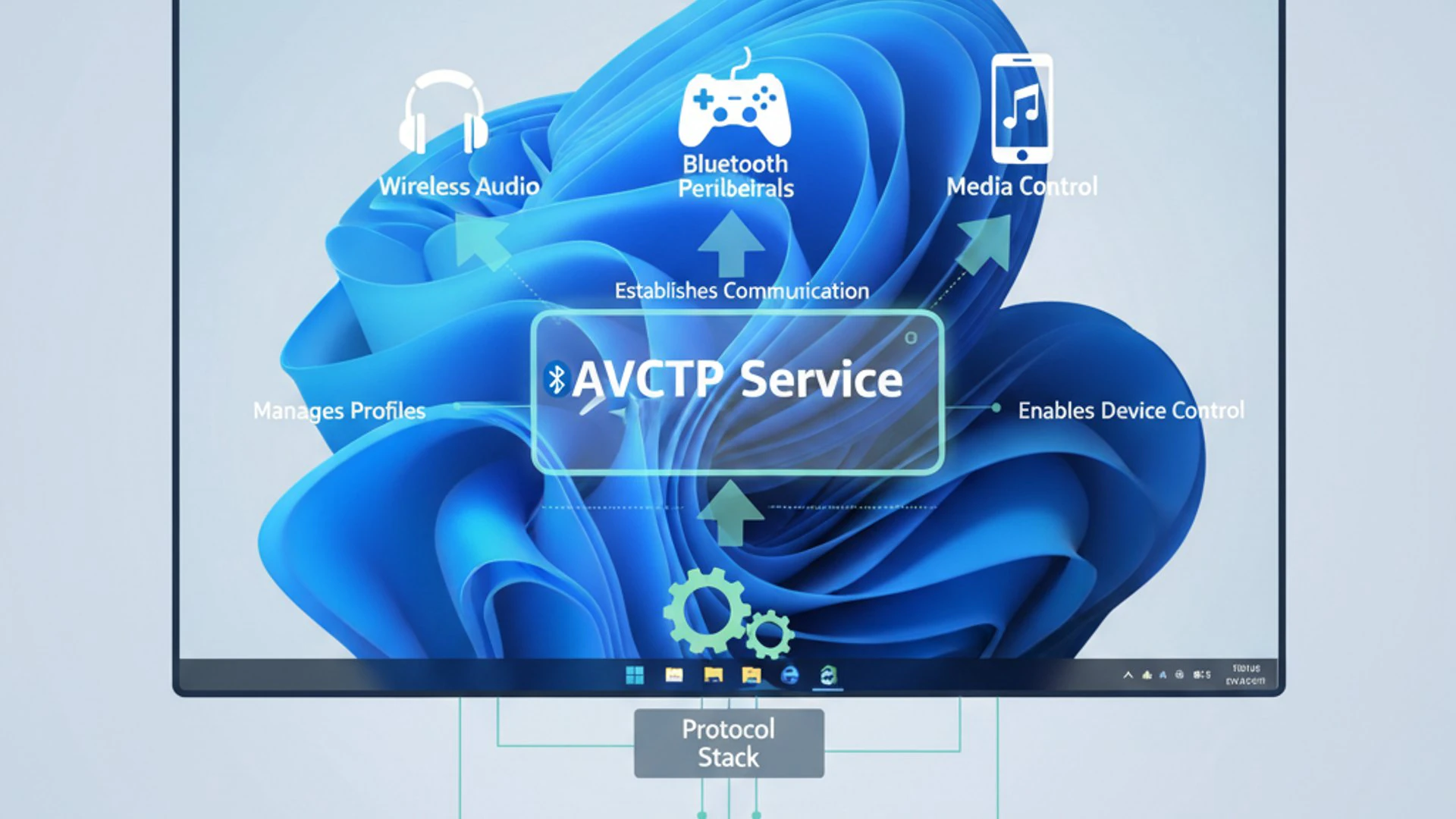
This service ensures that when you press the “play” button on your Bluetooth headphones or adjust the volume using a paired speaker, that command is correctly received and acted upon by your Windows 11 PC. It’s a dedicated channel for these interactive signals, keeping them separate from the high-bandwidth audio or video streams.
Without the AVCTP service, your Bluetooth audio devices might still connect and play sound (if other profiles are active), but you would lose all remote control capabilities. This means no skipping tracks, no pausing, and no volume control directly from the device, severely limiting the convenience of wireless audio.
It operates at a specific layer of the Bluetooth protocol stack, ensuring reliable and efficient delivery of these critical control messages. Understanding its role is key to diagnosing many common Bluetooth connectivity and control issues experienced by users.
The Role of Bluetooth Profiles in AVCTP
Bluetooth technology relies on various “profiles” to define how devices communicate for specific purposes. The AVCTP service doesn’t operate in isolation; it provides the underlying transport mechanism for several crucial profiles, particularly those related to audio and video control. These profiles build upon AVCTP to offer specific functionalities.
Two of the most prominent Bluetooth profiles that heavily depend on the AVCTP Service are A2DP and AVRCP. Their combined operation is what delivers a complete and satisfying wireless audio experience on Windows 11.
A2DP (Advanced Audio Distribution Profile)
The Advanced Audio Distribution Profile (A2DP) is perhaps the most well-known Bluetooth profile for audio. Its sole purpose is to stream high-quality stereo audio from a source device (like your Windows 11 PC) to a sink device (such as Bluetooth headphones or speakers).
A2DP handles the actual transmission of audio data, compressing it and sending it wirelessly. While it delivers the sound, it doesn’t inherently provide control over that sound. This is where the symbiotic relationship with AVCTP becomes evident.
Even though A2DP is responsible for the audio, the AVCTP service ensures that the control signals associated with that audio stream can be sent back and forth. For instance, when you’re listening to music via A2DP, the AVCTP facilitates the commands to pause or play that music.
AVRCP (Audio/Video Remote Control Profile)
The Audio/Video Remote Control Profile (AVRCP) is the profile that directly leverages the AVCTP Service to provide remote control capabilities. This is the profile that allows you to control media playback on your Windows 11 device from your Bluetooth headphones, speakers, or even a car infotainment system.
AVRCP defines the messages and procedures for these control commands. Actions like “play,” “pause,” “stop,” “next track,” “previous track,” and “volume up/down” are all managed through AVRCP, which in turn relies on AVCTP for their reliable transport.
Without a properly functioning AVCTP service, AVRCP would be unable to send or receive these commands, rendering your remote control features useless. This highlights why the AVCTP Service on Windows 11 is so critical for a fully functional Bluetooth audio experience.
How AVCTP Facilitates Bluetooth Audio Communication
The magic of seamless Bluetooth audio, complete with remote control, is orchestrated through a series of intricate steps, with the AVCTP Service playing a central role. It’s not just about sending sound; it’s about establishing a dialogue between devices, allowing them to understand and respond to each other’s commands.
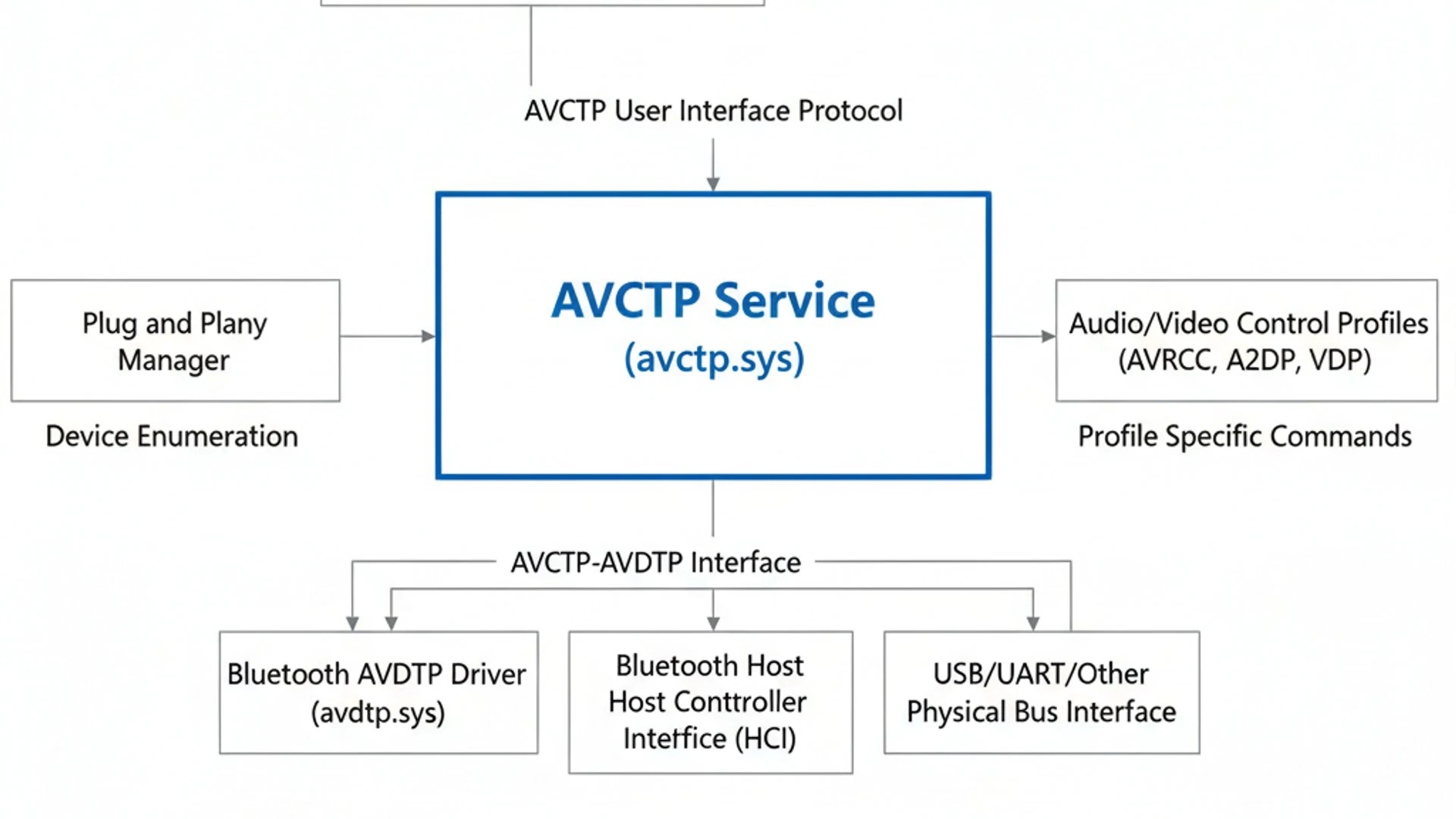
This process begins the moment you attempt to connect a new Bluetooth device and continues throughout your listening session. The AVCTP acts as a dedicated messenger, ensuring that control signals are prioritized and delivered without interfering with the audio stream itself.
Understanding this underlying mechanism helps in appreciating the complexity behind what appears to be a simple user interaction. It also provides insights into potential points of failure when troubleshooting connectivity issues.
The Connection Handshake Process
When you pair a Bluetooth audio device with your Windows 11 PC, a sophisticated “handshake” process occurs. This initial exchange establishes a secure and functional link, setting the stage for both audio streaming and control.
During this handshake, devices negotiate which Bluetooth profiles they support and how they will communicate. The AVCTP service is activated early in this process, preparing the ground for AVRCP to function.
This involves exchanging device capabilities and agreeing on a common communication channel. If this initial handshake fails, or if the AVCTP service isn’t running correctly, the connection might be established for basic audio (A2DP) but without any remote control (AVRCP) functionality.
“A successful Bluetooth connection isn’t just about pairing; it’s about a robust handshake where the AVCTP service ensures the control channels are ready for action.”
The integrity of this handshake is paramount for a stable and feature-rich Bluetooth connection. Any interruption or misconfiguration involving the AVCTP service at this stage can lead to frustratingly limited functionality.
Data Transmission and Control Signals
Once the connection is established, the AVCTP service continuously manages the transmission of control signals. These signals are distinct from the actual audio data, which is typically handled by the A2DP profile.
When you press a button on your Bluetooth headphones—be it play, pause, skip, or volume adjustment—that command is encapsulated within an AVRCP message. This message is then transported by the AVCTP service from your headphones to your Windows 11 PC.
Upon arrival, the Windows 11 operating system interprets the AVRCP command and executes the corresponding action, such as pausing the music player or adjusting the system volume. This entire process happens almost instantaneously, creating the illusion of direct control.
Conversely, if an application on your Windows 11 PC sends a command (e.g., a media player pausing playback), the AVCTP service will carry that command back to your Bluetooth device, potentially updating its status or display. This bidirectional communication is what makes the wireless experience truly interactive and responsive.
Locating and Managing the AVCTP Service in Windows 11
While the AVCTP Service typically operates silently in the background, understanding how to locate and manage it can be incredibly useful for troubleshooting or simply verifying its operational status. Windows 11 provides a dedicated tool for this: the Services Manager.
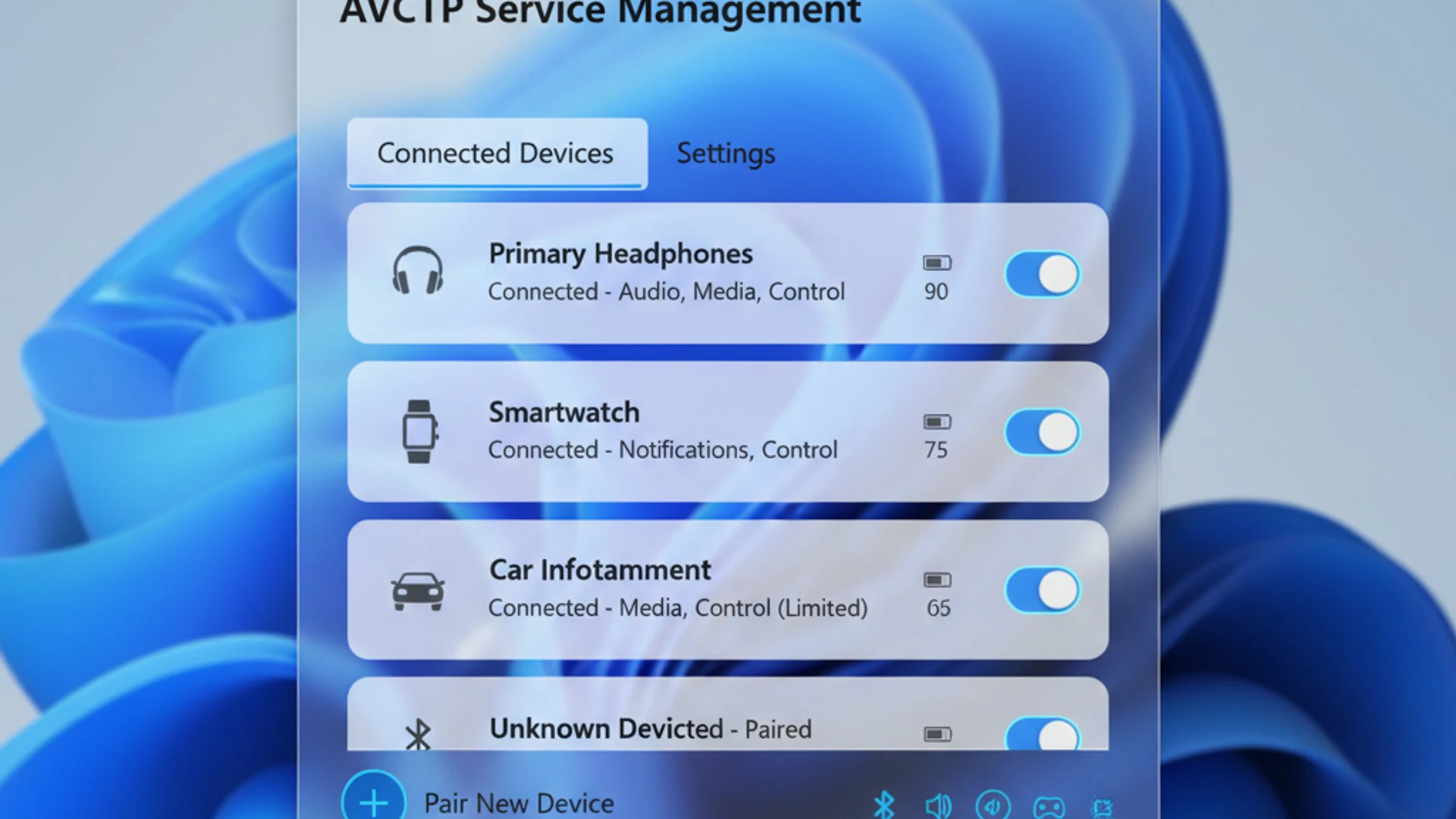
Accessing this tool allows you to view all services running on your system, including the AVCTP Service on Windows 11. You can check its current state, configure its startup behavior, and even manually restart it if you suspect it’s causing issues.
This level of control empowers users to take a more proactive role in maintaining their system’s Bluetooth functionality. It’s a simple yet powerful utility that can often resolve minor glitches without requiring extensive technical knowledge.
Accessing Services Manager
The Services Manager is your central hub for interacting with system services. Here’s how to access it in Windows 11:
- Press Windows Key + R to open the Run dialog box.
- Type
services.mscinto the dialog box and press Enter or click OK. - The Services window will appear, listing all services installed on your Windows 11 system.
Once inside the Services Manager, you can scroll through the alphabetical list to find the relevant Bluetooth services. Look for entries related to Bluetooth Audio Gateway Service, Bluetooth Support Service, and specifically, the AVCTP Service.
Checking Service Status and Startup Type
After opening the Services Manager, locate the “Bluetooth Audio Gateway Service” or “Bluetooth Support Service”. The AVCTP functionality is often intertwined with these, or can be listed as “AVCTP service” directly, depending on your Windows build and Bluetooth driver versions.
Double-click on the relevant service (e.g., Bluetooth Support Service) to open its Properties window. Here, you’ll find crucial information:
- Service Status: This indicates whether the service is currently running or stopped. For proper Bluetooth functionality, it should be running.
- Startup type: This setting determines how the service starts. Common options include:
- Automatic: The service starts automatically when Windows boots up. This is the recommended setting for essential services like AVCTP.
- Manual: The service must be started manually by a user or another program.
- Disabled: The service cannot be started. This should generally be avoided for AVCTP.
If the service status is not “Running” and the startup type is not “Automatic,” you might encounter issues with your Bluetooth audio control. You can change the startup type and click Start if the service is stopped to attempt to resolve problems.
Common Scenarios Where AVCTP Service is Crucial
The importance of the AVCTP Service on Windows 11 becomes most apparent in everyday scenarios where Bluetooth audio is involved. It’s not just a background process; it’s the enabler of convenience and seamless interaction with your wireless devices.
From enjoying your favorite music to making hands-free calls, AVCTP ensures that your commands are heard and acted upon. Without it, the user experience would be significantly degraded, turning what should be effortless into a frustrating ordeal.
Let’s explore some common situations where a properly functioning AVCTP service is absolutely indispensable for a smooth and enjoyable experience on your Windows 11 PC.
Connecting Bluetooth Headphones and Speakers
This is perhaps the most common application where the AVCTP service shines. When you connect Bluetooth headphones or speakers to your Windows 11 computer, you expect more than just audio playback. You want to be able to:
- Play and Pause: Instantly stop or resume your music or podcast with a button press on your device.
- Skip Tracks: Move to the next or previous song without reaching for your PC.
- Adjust Volume: Fine-tune the audio level directly from your headphones or speaker’s controls.
All these remote control functions are facilitated by the AVRCP profile, which, as we’ve established, relies entirely on the AVCTP service for command transmission. If you find your headphones playing audio but their control buttons are unresponsive, a malfunctioning AVCTP service is a prime suspect.
Using Bluetooth Car Infotainment Systems
Modern car infotainment systems often integrate seamlessly with your smartphone or laptop via Bluetooth. When you connect your Windows 11 device to your car’s system, the AVCTP service plays a critical role in enabling a truly hands-free experience.
This includes not only streaming audio (via A2DP) but also controlling playback from your car’s dashboard or steering wheel controls. You can navigate your music library, answer calls, and manage media without ever touching your PC, thanks to the AVCTP-powered AVRCP profile.
The convenience and safety aspects of this integration are immense. Imagine driving and being unable to pause your audiobook or skip a track using your car’s controls; it would be a significant distraction. The AVCTP Service on Windows 11 ensures these interactions are fluid and reliable.
Troubleshooting AVCTP Service Issues on Windows 11
Despite its critical role, the AVCTP Service, like any other system component, can occasionally encounter issues. These problems might manifest as unresponsive Bluetooth controls, intermittent connectivity, or even a complete failure of remote media management. Fortunately, Windows 11 offers several effective troubleshooting steps to address these concerns.
Before diving into more complex solutions, it’s always wise to start with the simplest fixes. Often, a minor glitch can be resolved with a quick restart or an update. This section will guide you through a systematic approach to diagnosing and resolving common AVCTP-related problems, helping you restore full functionality to your Bluetooth devices.
Restarting the Service
One of the most straightforward and often effective troubleshooting steps for any Windows service is to restart it. This can clear temporary glitches, refresh its state, and re-establish proper communication pathways. Here’s how to restart the relevant Bluetooth service:
- Open the Services Manager (as described earlier, by typing
services.mscin the Run dialog). - Locate the Bluetooth Support Service or Bluetooth Audio Gateway Service.
- Right-click on the service and select Restart.
- If the service is stopped, right-click and choose Start. Ensure its startup type is set to Automatic.
After restarting, try reconnecting your Bluetooth device and testing the control functions. This simple action often resolves many transient issues with the AVCTP Service on Windows 11.
Updating Bluetooth Drivers
Outdated or corrupted Bluetooth drivers are a common cause of connectivity and control problems. Keeping your drivers up-to-date ensures compatibility and optimal performance. There are two primary ways to update your Bluetooth drivers:
Checking for Windows Updates
Windows Update often includes driver updates for your system’s hardware, including Bluetooth adapters. It’s the easiest way to ensure you have the latest stable drivers provided by Microsoft.
- Go to Settings > Windows Update.
- Click Check for updates.
- Install any available updates, especially those categorized as “Optional updates,” which might include driver updates.
Regularly checking for Windows updates is a good practice for overall system health and security, not just for Bluetooth drivers. For more comprehensive troubleshooting related to updates, you might find Windows Update Troubleshooter on Windows 11: Ultimate Guide helpful.
Manually Updating Drivers via Device Manager
If Windows Update doesn’t provide a solution, you can manually update or reinstall drivers through Device Manager.
- Right-click the Start button and select Device Manager.
- Expand the Bluetooth section.
- Right-click on your Bluetooth adapter (e.g., “Intel(R) Wireless Bluetooth(R)”) and select Update driver.
- Choose “Search automatically for updated driver software” first. If that doesn’t work, select “Browse my computer for drivers” and then “Let me pick from a list of available drivers on my computer” to try a previous version or a generic driver.
- Alternatively, visit your PC manufacturer’s website or the Bluetooth adapter manufacturer’s website to download the latest drivers directly and install them manually.
A fresh driver installation can often resolve deep-seated issues that affect the AVCTP Service on Windows 11.
Running the Bluetooth Troubleshooter
Windows 11 includes built-in troubleshooters designed to automatically diagnose and fix common problems. The Bluetooth troubleshooter can often identify and resolve issues with your Bluetooth connection, including those that might impact AVCTP.
- Go to Settings > System > Troubleshoot.
- Click on Other troubleshooters.
- Find Bluetooth in the list and click Run.
Follow the on-screen instructions. The troubleshooter will attempt to detect problems and suggest solutions, such as restarting services or reconfiguring settings.
Reinstalling Bluetooth Devices
If all else fails, completely removing and then re-pairing a problematic Bluetooth device can often clear up persistent issues. This forces Windows to re-establish the connection from scratch, including all associated profiles and services.
- Go to Settings > Bluetooth & devices.
- Under “Devices,” find the problematic Bluetooth audio device.
- Click the three dots (…) next to the device name and select Remove device. Confirm your choice.
- Restart your Windows 11 PC.
- Put your Bluetooth device into pairing mode.
- Go back to Settings > Bluetooth & devices and click Add device, then select Bluetooth.
- Follow the prompts to re-pair your device.
This process ensures that any corrupted device-specific settings or profile configurations are reset, potentially resolving issues with the AVCTP Service on Windows 11.
Optimizing Bluetooth Audio Performance Related to AVCTP
Beyond troubleshooting, there are proactive steps you can take to ensure your Bluetooth audio experience, heavily reliant on the AVCTP service, remains consistently excellent. Optimization isn’t just about fixing problems; it’s about preventing them and ensuring the highest possible quality and reliability.
A strong, stable Bluetooth connection is the foundation for flawless audio streaming and responsive control. By understanding and addressing factors that can degrade this connection, you can significantly enhance your overall wireless audio enjoyment on Windows 11.
Minimizing Interference
Bluetooth operates on the 2.4 GHz radio frequency, a band shared by many other wireless devices. This crowded spectrum can lead to interference, which manifests as stuttering audio, dropped connections, or unresponsive controls, even if the AVCTP Service on Windows 11 is functioning correctly.
- Reduce Distance: Keep your Bluetooth device relatively close to your Windows 11 PC. The closer they are, the stronger and more stable the connection.
- Clear Line of Sight: Avoid physical obstructions like walls, furniture, or even your own body between the devices.
- Minimize Other 2.4 GHz Devices: Keep Wi-Fi routers, cordless phones, microwave ovens, and other Bluetooth devices away from your PC and audio peripherals when in use.
- Use 5 GHz Wi-Fi: If your router supports it, connect your Windows 11 PC to a 5 GHz Wi-Fi network to free up the 2.4 GHz band for Bluetooth.
By consciously managing your wireless environment, you can significantly improve the reliability of your Bluetooth connections and, by extension, the performance of the AVCTP service.
Ensuring Device Compatibility
Not all Bluetooth devices are created equal, and compatibility can sometimes be a subtle issue. While Bluetooth is designed for universal interoperability, differences in hardware, firmware, and supported profiles can lead to sub-optimal performance.
- Check Bluetooth Standards: Ensure your Windows 11 PC’s Bluetooth adapter and your audio device support similar or compatible Bluetooth versions (e.g., Bluetooth 5.0, 5.1, 5.2). Newer versions often offer better range, speed, and power efficiency.
- Firmware Updates: Check the manufacturer’s website for firmware updates for your Bluetooth headphones or speakers. These updates can often improve stability, fix bugs, and enhance compatibility with various operating systems, including Windows 11.
- Profile Support: Verify that both your PC and the audio device fully support A2DP and AVRCP. While most modern devices do, older or very specialized devices might have limitations.
Investing in quality, compatible Bluetooth hardware and keeping it updated is a proactive step towards a consistently excellent wireless audio experience, where the AVCTP Service on Windows 11 can perform at its best.
When to Disable or Modify the AVCTP Service (and why it’s not recommended)
In the vast landscape of Windows services, some can be safely disabled to conserve resources or resolve conflicts. However, the AVCTP Service on Windows 11 is emphatically *not* one of them. While technically possible to disable it via the Services Manager, doing so is almost universally detrimental to the user experience.
The service is fundamental to the interactive functionality of Bluetooth audio. Disabling it would be akin to removing the steering wheel from a car; the engine might still run, but you’d lose all control. For the vast majority of users, there is no practical benefit to disabling or modifying this service.
Potential Risks of Disabling AVCTP
The consequences of disabling the AVCTP Service are immediate and severe, directly impacting your ability to use Bluetooth audio devices effectively. Here’s what you can expect:
- Loss of Remote Control: This is the most significant impact. You will lose the ability to play, pause, skip tracks, or adjust volume from your Bluetooth headphones, speakers, or car infotainment system. All media control would have to be done directly on your Windows 11 PC.
- Impaired Bluetooth Audio Functionality: While A2DP might still stream audio, the overall stability and integration of your Bluetooth audio experience will suffer. Devices might behave erratically or fail to connect properly.
- General Instability of Bluetooth Connections: Because AVCTP is a core component of the Bluetooth stack, disabling it can introduce instability across all Bluetooth connections, not just audio. Other Bluetooth peripherals might experience issues.
- Error Messages and Unexpected Behavior: Applications that rely on Bluetooth media control might display errors or behave unexpectedly when the underlying AVCTP service is unavailable.
“Disabling the AVCTP Service is like cutting the communication lines for your Bluetooth audio controls. It’s a troubleshooting step that creates more problems than it solves.”
Unless you are an advanced user performing very specific debugging and fully understand the implications, it is strongly recommended to leave the AVCTP Service on Windows 11 set to “Automatic” and running. Its resource consumption is minimal, and its role in modern computing is indispensable.
Frequently Asked Questions About AVCTP Service
Users often have common questions about background services like AVCTP. Here are answers to some of the most frequently asked questions, providing quick insights and reinforcing key information about the AVCTP Service on Windows 11.
These FAQs aim to clarify any lingering doubts and provide practical, concise information to help you better understand and manage your Bluetooth experience.
Is the AVCTP Service necessary for Bluetooth audio?
Yes, absolutely. While your Bluetooth device might still *play* audio without it (via A2DP), the AVCTP service is essential for all remote control functions like play, pause, skip, and volume adjustment. Without it, your Bluetooth audio experience would be severely limited.
Does the AVCTP Service consume a lot of system resources?
No, the AVCTP Service is a lightweight background process. Its resource consumption (CPU, memory) is minimal and generally negligible. There’s no performance benefit to disabling it.
I can hear audio from my Bluetooth headphones, but the buttons don’t work. What’s wrong?
This is a classic symptom of an issue with the AVCTP service or the AVRCP profile. Try restarting the Bluetooth Support Service in Services Manager, updating your Bluetooth drivers, or re-pairing your device. The AVCTP service is likely not properly facilitating the control commands.
Can I disable the AVCTP Service to improve performance?
It is strongly not recommended. Disabling the AVCTP service will break critical Bluetooth audio control functionality and will not provide any noticeable performance improvement due to its minimal resource usage. It will only degrade your user experience.
How do I know if the AVCTP Service is running correctly?
You can check its status in the Services Manager. Look for “Bluetooth Support Service” or “Bluetooth Audio Gateway Service” and ensure its status is “Running” and its startup type is “Automatic.” If you experience issues, restarting it is a good first step.
Are there any security risks associated with the AVCTP Service?
The AVCTP service itself does not introduce unique security vulnerabilities beyond those inherent to Bluetooth technology in general. Keeping your Windows 11 operating system and Bluetooth drivers updated is the best way to mitigate any potential security risks.
My Bluetooth device connects but disconnects randomly. Is AVCTP involved?
While AVCTP primarily handles control, general Bluetooth instability can affect all profiles. Issues like interference, outdated drivers, or device compatibility can cause random disconnects. Troubleshooting general Bluetooth connectivity, as outlined in this article, is recommended.
Conclusion
The AVCTP Service on Windows 11, though often operating silently in the background, is an indispensable component of your wireless audio experience. It serves as the crucial bridge for control commands, transforming your Bluetooth headphones, speakers, and car systems from simple audio output devices into fully interactive peripherals.
Understanding its role in facilitating profiles like A2DP and AVRCP clarifies why your ability to play, pause, skip, and adjust volume remotely hinges entirely on its proper function. Without AVCTP, the seamless convenience we’ve come to expect from Bluetooth would largely vanish, leaving a fragmented and frustrating user experience.
By knowing how to locate, manage, and troubleshoot this vital service, you empower yourself to resolve common Bluetooth issues, ensuring uninterrupted enjoyment of your wireless audio. Remember to keep your drivers updated, minimize interference, and always ensure your devices are compatible.
Most importantly, resist the temptation to disable the AVCTP service, as its minimal resource footprint is far outweighed by its critical functionality. Embrace the knowledge shared in this guide to optimize your Bluetooth audio performance on Windows 11, making every listen, call, and interaction as smooth and responsive as possible.









Community
Comments (0)