

Introduction to SSDP and Its Importance on Windows 11
Imagine a smart home where your computer effortlessly finds and connects to your smart TV, network printer, or even your wireless speaker system. This seamless interaction, often taken for granted, is largely powered by a crucial network protocol known as Simple Service Discovery Protocol, or SSDP. On Windows 11, SSDP plays an indispensable role in enabling your system to discover and communicate with various network-connected devices without requiring manual configuration. Learn more at Simple Service Discovery Protocol (SSDP). Learn more at UPnP Device Host. Learn more at System File Checker (SFC). Learn more at System Restore.
When SSDP functions correctly, your Windows 11 machine can automatically detect Universal Plug and Play (UPnP) devices on your local network. This capability simplifies tasks like streaming media, printing documents, or even managing network-attached storage (NAS) devices. Without a healthy SSDP service, your system might struggle to see these devices, leading to frustrating connectivity issues and a significantly diminished user experience.
This article will serve as your comprehensive guide to understanding, diagnosing, and performing SSDP recovery on Windows 11. We’ll explore its underlying mechanisms, identify common problems, and provide a series of actionable, step-by-step methods to restore its functionality. By the end, you’ll be equipped to troubleshoot and resolve most SSDP-related issues, ensuring your Windows 11 system remains a central hub for all your network devices.
Table of contents
Key Takeaways
Before diving into the detailed troubleshooting steps, here are the most important points to remember about SSDP and its recovery on Windows 11:
- SSDP is Essential: The Simple Service Discovery Protocol is vital for Windows 11 to automatically discover and interact with network devices like printers, smart TVs, and media servers using UPnP.
- Common Symptoms: Failure to see network devices, issues with media streaming, or problems connecting to smart home gadgets often indicate a malfunctioning SSDP service.
- Restarting is Key: The simplest and often most effective first step in SSDP recovery on Windows 11 is restarting the SSDP Discovery service via the Services Manager.
- Startup Type Matters: Ensure the SSDP Discovery service is set to Automatic startup and its dependency, the UPnP Device Host, is also running correctly.
- Firewall and Network: Windows Defender Firewall can block SSDP traffic; verifying its rules and resetting network components can resolve connectivity issues.
- System Integrity: Corrupted system files or outdated network drivers can impact SSDP. Running SFC, DISM, and updating drivers are crucial diagnostic and repair steps.
- Malware Check: Malicious software can interfere with critical system services, including SSDP. A thorough system scan is always recommended if issues persist.
Understanding SSDP Discovery and Its Role
The Simple Service Discovery Protocol (SSDP) is a network protocol that forms the foundation of Universal Plug and Play (UPnP) technology. It allows network devices to advertise their services and for control points (like your Windows 11 PC) to discover these services without any prior configuration. Think of it as a digital “yellow pages” for devices on your local network, enabling them to find each other and communicate seamlessly.
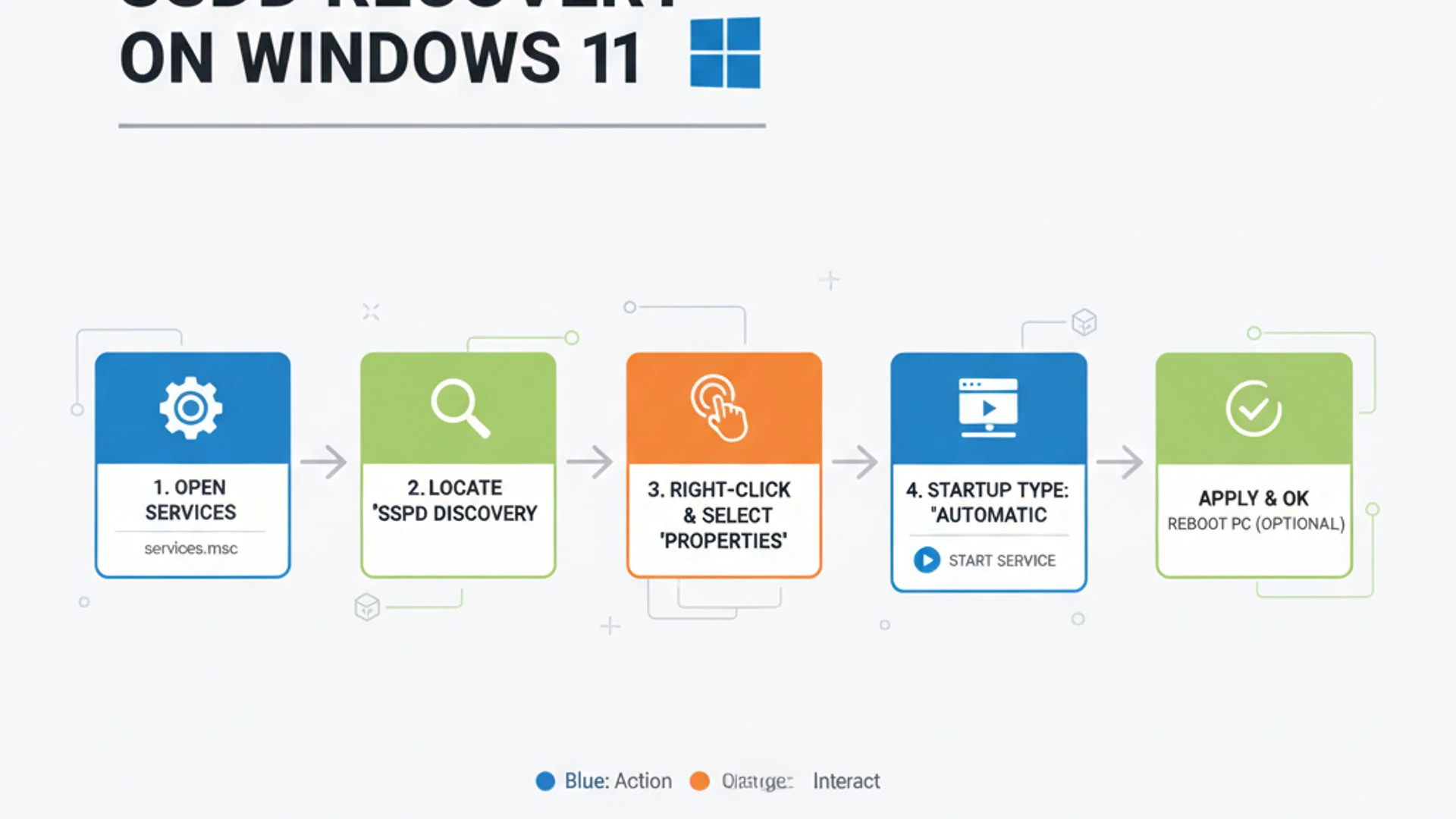
When your Windows 11 system needs to interact with a network device, it doesn’t need to know its IP address or specific port beforehand. Instead, it sends out a multicast message over the network, asking, “Are there any devices offering X service?” Devices offering that service then respond, providing their details. This dynamic discovery mechanism is what makes connecting to new network hardware so straightforward.
The SSDP Discovery service in Windows 11 is responsible for managing these discovery processes. It listens for incoming service advertisements and sends out requests to find specific types of devices. Without this service operating correctly, your system essentially becomes “blind” to many network resources, leading to a host of connectivity problems.
How SSDP Facilitates Network Device Communication
SSDP operates on top of the User Datagram Protocol (UDP) and uses multicast addressing to send out discovery messages. When a UPnP device, such as a smart TV, joins the network, it multicasts an advertisement message to a specific IP address and port (239.255.255.250:1900). This message announces its presence and the services it offers.
Your Windows 11 PC, with its SSDP Discovery service running, listens for these multicast advertisements. When it receives one, it processes the information, learning about the device’s capabilities and network location. Conversely, if your PC needs to find a specific type of device, it sends out a search request, and any matching devices respond directly.
This decentralized, dynamic communication model is incredibly efficient. It eliminates the need for a central server to register devices and allows for spontaneous networking. It’s a cornerstone of modern network convenience, making devices truly “plug and play” within a local network environment. Properly functioning SSDP is thus critical for a smooth Windows 11 experience.
Common Scenarios Requiring SSDP Functionality
SSDP’s influence extends across numerous everyday computing tasks. Understanding these scenarios helps underscore why SSDP recovery on Windows 11 is so important when issues arise. If you experience problems in any of the following areas, a malfunctioning SSDP service could be the culprit:
- Network Printer Discovery: When you try to add a new network printer, Windows 11 often uses SSDP to find it on your local network. Without it, you might have to manually enter the printer’s IP address.
- Smart TV and Media Streaming: Devices like Smart TVs, Roku, Chromecast, or DLNA-compatible media servers rely heavily on SSDP for your PC to discover them and stream content. If you can’t “cast” to your TV, SSDP might be the issue.
- Network-Attached Storage (NAS): Many NAS devices use UPnP for initial discovery and sometimes for media server functionality. Your Windows 11 machine needs SSDP to easily locate and connect to these storage solutions.
- Smart Home Devices: Some smart home hubs, lights, or other IoT devices might use UPnP/SSDP for their initial setup or for interaction with your PC-based control applications.
- Gaming Consoles: Certain gaming consoles leverage UPnP for network configuration, especially for port forwarding, which can be affected if SSDP is not working.
Pro Tip: If you notice that your Windows 11 PC suddenly can’t see devices it used to connect to effortlessly, especially after a system update or software installation, consider SSDP as a primary suspect.
Identifying SSDP Service Issues on Windows 11
Recognizing that you have an SSDP problem is the first step toward resolution. Many symptoms can point to a malfunctioning SSDP service, often mimicking other network issues. However, by paying close attention to specific behaviors, you can narrow down the potential causes and begin effective troubleshooting for SSDP recovery on Windows 11.
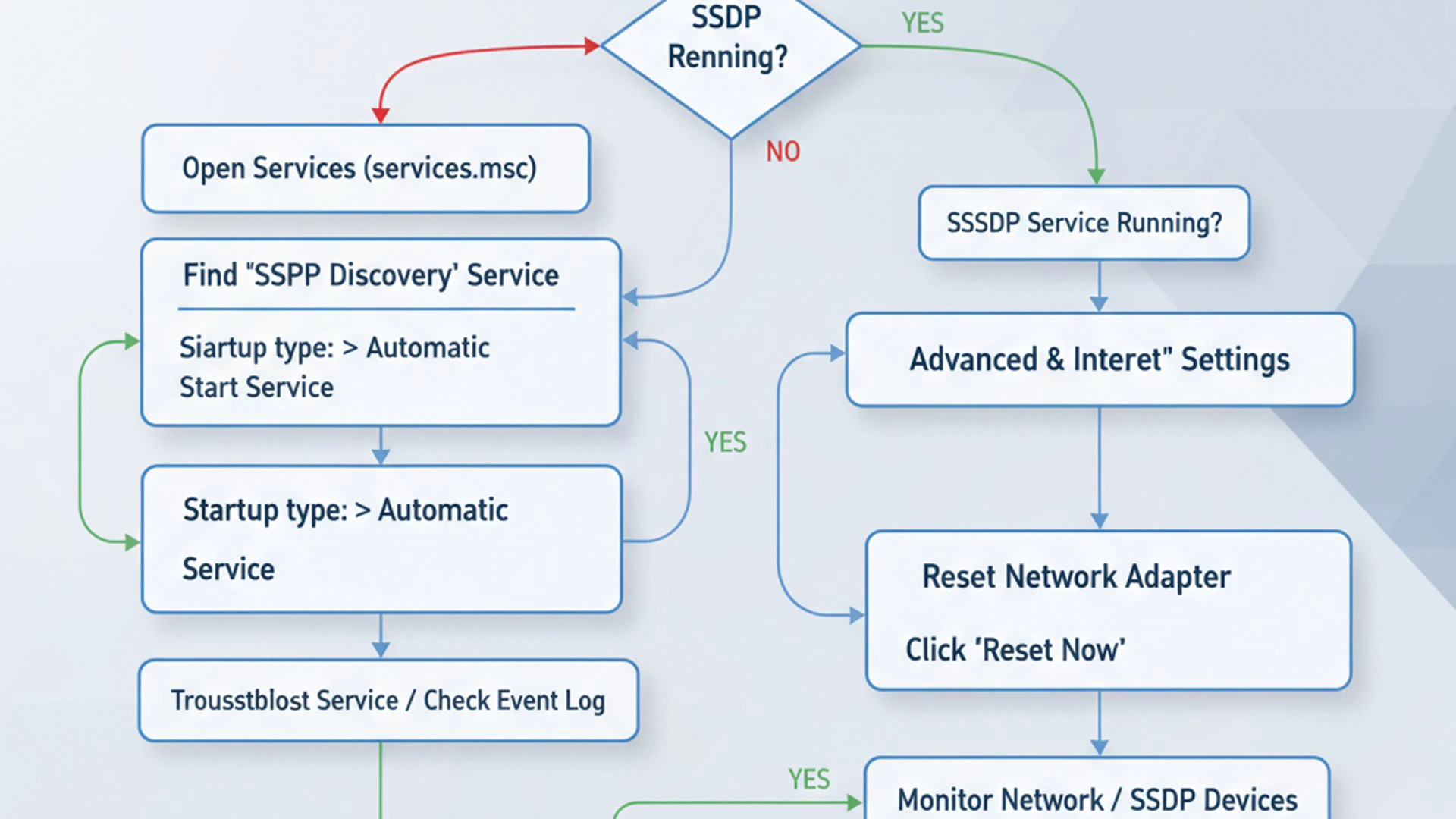
It’s important to distinguish between a general network connectivity problem and one specifically related to device discovery. If your internet works fine, but you can’t find local devices, SSDP is a strong candidate for investigation. This section will help you identify the tell-tale signs and guide you through initial diagnostic steps.
Understanding these indicators will save you time and effort, preventing you from chasing unrelated problems. Let’s explore what to look for and how to start diagnosing the issue.
Symptoms of a Malfunctioning SSDP Service
When the SSDP Discovery service isn’t working as it should, you’ll typically encounter specific problems related to device visibility and communication on your local network. These symptoms can be quite frustrating, especially if you rely on seamless connectivity with various peripherals and smart devices.
- Inability to discover network printers: Your Windows 11 PC might fail to list available network printers, even if they are powered on and connected to the same network.
- Failure to cast to smart TVs or media devices: Options to “cast” or “project” content to a smart TV, Roku, or other DLNA-enabled devices may be missing or fail to connect.
- Network drives or NAS devices not appearing: You might not see your Network-Attached Storage (NAS) device or shared folders from other local computers in File Explorer’s Network section.
- Smart home applications failing to find devices: Software designed to control smart lights, speakers, or other IoT gadgets on your PC may report that devices are “not found” or “offline.”
- Error messages related to UPnP: Occasionally, you might see specific error messages indicating UPnP device discovery failures in system logs or application interfaces.
These issues often arise when the SSDP Discovery service is stopped, disabled, or encounters internal errors. Addressing these underlying service problems is crucial for effective SSDP recovery on Windows 11.
Initial Diagnostic Steps for SSDP Problems
Before diving into more complex solutions, a few quick checks can help confirm if SSDP is indeed the root cause of your network discovery woes. These steps are simple and provide valuable diagnostic information.
- Check Network Connectivity: First, ensure your Windows 11 PC has a stable internet connection and can access other network resources (e.g., websites). This rules out general network issues.
- Verify Device Power and Connection: Confirm that the network devices you’re trying to discover (printer, TV, etc.) are powered on and properly connected to the same network as your PC.
- Simple Reboot: Sometimes, a full restart of your Windows 11 computer and your network router/modem can resolve temporary glitches affecting network services.
- Ping Test (Optional): If you know the IP address of a device you’re trying to find, open Command Prompt and type
ping [device IP address]. A successful ping indicates basic network reachability, suggesting the issue is with discovery, not connectivity. - Check Services Manager: The most direct diagnostic step is to look at the SSDP Discovery service itself.
- Press
Win + R, typeservices.msc, and press Enter. - Locate SSDP Discovery in the list.
- Check its Status and Startup type. If it’s not running or is disabled, this is a strong indicator of the problem.
- Press
These initial checks provide a solid foundation for understanding the problem before proceeding with specific recovery methods.
Method 1: Restarting the SSDP Discovery Service
Often, the simplest solutions are the most effective. A common reason for network discovery issues on Windows 11 is a temporary glitch or hang in the SSDP Discovery service. Just like restarting an application can fix minor bugs, restarting a system service can often resolve its operational problems. This method is the first and most straightforward step in any SSDP recovery on Windows 11 process.
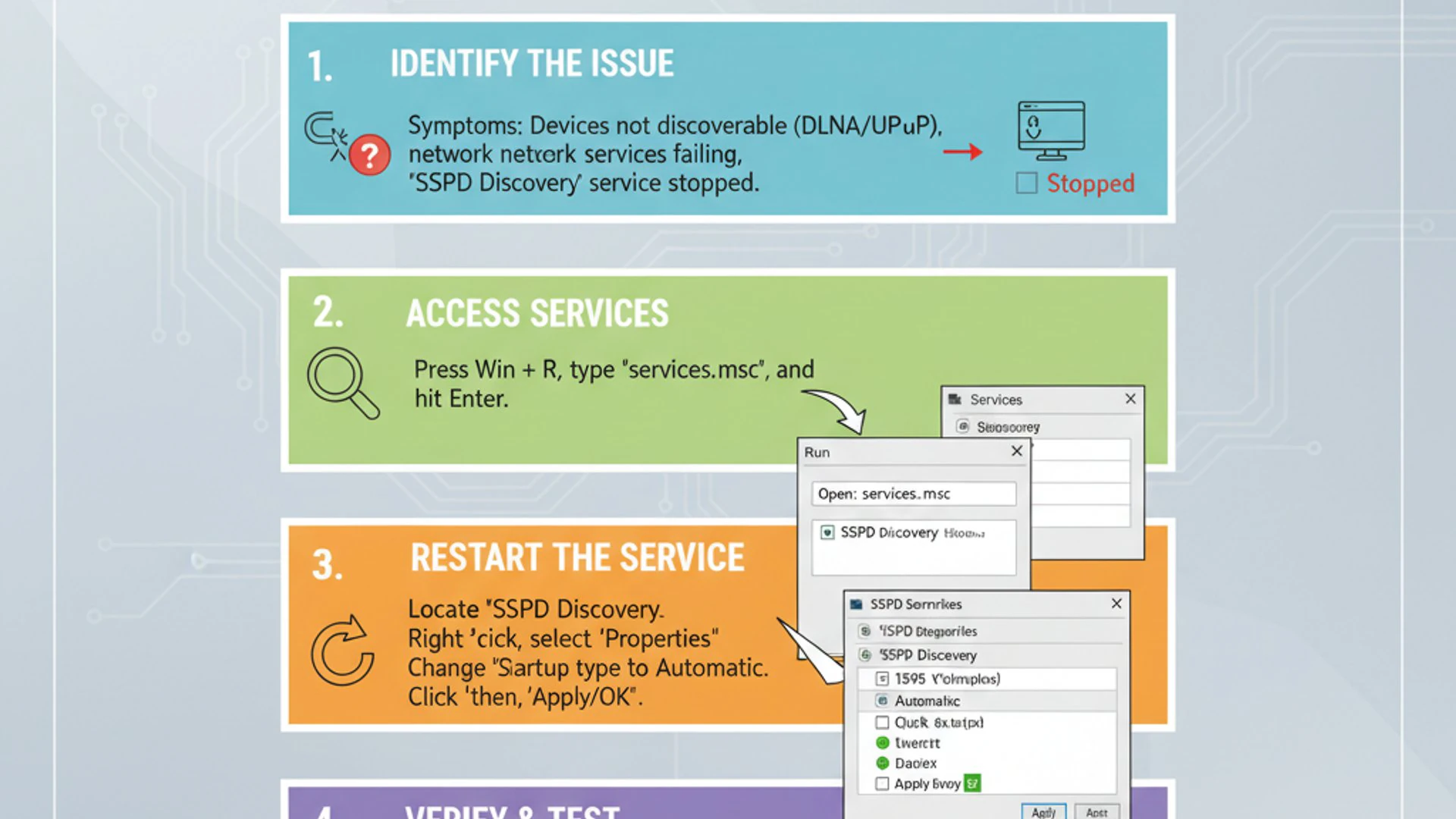
Restarting the service essentially stops it and then starts it again, clearing any transient errors or resource conflicts it might be experiencing. This process is non-invasive and carries virtually no risk, making it an ideal starting point for troubleshooting. We’ll walk through accessing the Services Manager and executing this quick fix.
Accessing Services Manager
The Services Manager is a fundamental Windows utility that allows you to view and control all the services running on your system. It’s your gateway to managing SSDP and its dependencies.
- Press the
Windows key + Rsimultaneously to open the Run dialog box. - Type
services.mscinto the Run box and then pressEnteror clickOK. - The Services window will appear, displaying a comprehensive list of all Windows services, their status, and their startup types.
This window is where you’ll interact directly with the SSDP Discovery service. Keep this window open as you proceed to the next step.
Executing a Service Restart
Once you’re in the Services Manager, restarting the SSDP Discovery service is a quick process.
- In the Services window, scroll down the list until you find SSDP Discovery. Services are typically listed alphabetically.
- Right-click on SSDP Discovery.
- From the context menu, select
Restart. If the service is currently stopped, the “Restart” option might be grayed out. In that case, selectStartinstead. - Wait a few moments for the service to stop and then start again. You should see its Status change to “Running.”
After restarting, try to discover your network devices again. If this simple step resolves your issue, you’ve successfully performed a quick SSDP recovery on Windows 11. If not, proceed to the next method.
Method 2: Verifying SSDP Service Startup Type and Dependencies
If simply restarting the SSDP Discovery service didn’t resolve your issue, the next logical step is to ensure it’s configured to start automatically and that its critical dependencies are also operational. A service might fail to start if its startup type is incorrect or if another service it relies upon is not running. This is a crucial aspect of thorough SSDP recovery on Windows 11.
The SSDP Discovery service isn’t an island; it often works in conjunction with other services to provide full functionality. The most notable dependency is the UPnP Device Host. Ensuring both are correctly configured and running is vital for seamless network device discovery.
Configuring Automatic Startup for SSDP Discovery
For SSDP to function reliably, it should be set to start automatically with Windows. If it’s set to Manual or Disabled, it won’t run unless explicitly started, leading to consistent discovery problems.
- Open the Services Manager again (
Win + R, typeservices.msc, press Enter). - Locate SSDP Discovery in the list and double-click on it to open its Properties window.
- In the Properties window, navigate to the
Generaltab. - Find the Startup type dropdown menu.
- Select
Automaticfrom the options. - Click
Applyand thenOKto save the changes. - If the service is not currently running, click the
Startbutton under “Service status” to initiate it immediately.
Setting the startup type to Automatic ensures that SSDP Discovery launches every time your Windows 11 PC boots up, preventing future manual intervention.
Checking for Dependent Services (UPnP Device Host)
The SSDP Discovery service relies on other system components to function correctly. One of its primary dependencies is the UPnP Device Host service. If this dependent service is not running, SSDP Discovery may also fail or operate improperly. Verifying its status is a critical step in advanced SSDP recovery on Windows 11.
To check the dependencies:
- In the Services window, double-click on SSDP Discovery to open its Properties.
- Go to the
Dependenciestab. Here, you’ll see a list of services that SSDP Discovery depends on. Typically, UPnP Device Host will be listed here. - Note down the names of any services listed under “This service depends on the following system components.”
- Close the SSDP Discovery Properties window.
- Now, locate each of the identified dependent services in the main Services list.
- For each dependent service, check its Status and Startup type.
Ensure that all listed dependencies are either running or set to an appropriate startup type (usually Automatic or Manual, depending on the service’s nature). The most common one to check is the UPnP Device Host.
Ensuring UPnP Device Host is Operational
The UPnP Device Host service is crucial for allowing your Windows 11 computer to host UPnP devices and services. If it’s not running, SSDP Discovery won’t be able to fully function, leading to device visibility problems.
- In the Services Manager, find UPnP Device Host.
- Double-click it to open its Properties.
- On the
Generaltab, ensure the Startup type is set toAutomatic. - If the Service status is “Stopped,” click the
Startbutton. - Click
Applyand thenOK.
After ensuring both SSDP Discovery and UPnP Device Host are set to Automatic and running, restart your computer for the changes to take full effect. Then, retest your device discovery capabilities. This step is often pivotal for complete SSDP recovery on Windows 11.
Method 3: Firewall and Network Configuration Checks
Even if the SSDP service is running perfectly, network discovery can still be hampered by firewall restrictions or corrupted network configurations. Firewalls, by design, block unauthorized network traffic, and sometimes they can be overly aggressive, preventing legitimate SSDP packets from traversing your network interface. This makes firewall and network checks an essential part of SSDP recovery on Windows 11.
Windows Defender Firewall is integrated into Windows 11 and can be a common culprit. Additionally, underlying issues with your network adapters or the TCP/IP stack itself can disrupt SSDP communication. This section will guide you through verifying and resetting these critical network components.
Allowing SSDP Through Windows Defender Firewall
Windows Defender Firewall can sometimes block SSDP traffic, preventing your PC from discovering or being discovered by other devices. You need to ensure that the necessary rules are in place to allow SSDP communication.
- Press
Windows key + STo open Search, typeWindows Defender Firewall, and select it from the results. - In the Windows Defender Firewall window, click on
Allow an app or feature through Windows Defender Firewallon the left pane. - Click
Change settings(You may need administrator privileges). - Scroll down and look for Network Discovery. Ensure that both the
PrivateandPubliccheckboxes are ticked. - Also, look for SSDP Discovery (it might not always be explicitly listed as an app, but its functionality is covered by Network Discovery).
- If Network Discovery is enabled, you might also want to check the inbound/outbound rules directly.
- Go back to the main Firewall window and click
Advanced settings. - In the “Windows Defender Firewall with Advanced Security” window, navigate to
Inbound RulesandOutbound Rules. - Look for rules related to SSDP, UPnP, or Network Discovery. Ensure they are enabled and allow UDP traffic on port 1900.
- Go back to the main Firewall window and click
If you made any changes, click OK and then restart your computer to apply them. This step is vital for ensuring unimpeded SSDP recovery on Windows 11.
Resetting Network Adapters and TCP/IP Stack
A corrupted network configuration or issues with your network adapter drivers can severely impact any network service, including SSDP. Resetting these components can often clear out lingering problems and restore proper functionality. This is a more comprehensive step for SSDP recovery on Windows 11 when other methods fail.
The TCP/IP stack is the core of your network communication. If it becomes corrupted, it can lead to various connectivity problems, including issues with device discovery. Resetting it essentially rebuilds this crucial component. Similarly, resetting network adapters can resolve driver-level glitches without needing to reinstall drivers manually.
Utilizing Network Reset Options
Windows 11 offers a convenient “Network Reset” feature that can often fix stubborn network issues by reinstalling network adapters and resetting network components.
- Open
Settingsby pressingWindows key + I. - Navigate to
Network & interneton the left pane. - Scroll down and click on
Advanced network settings. - Under “More settings,” find and click on
Network reset. - On the Network reset page, click the
Reset nowbutton. - Confirm your action by clicking
Yes.
Your computer will restart after this process. This action will remove and then reinstall all your network adapters and reset all network settings to their defaults. You might need to re-enter Wi-Fi passwords and reconfigure any custom network settings afterward. This powerful step often resolves deep-seated network issues impacting SSDP recovery on Windows 11.
Important Note: Performing a Network Reset will reset all network adapters and settings. Be prepared to reconfigure VPNs, Wi-Fi passwords, and any static IP addresses you might have set up.
Method 4: System File Checker and DISM Scans
Underlying operating system corruption can manifest in various ways, including the malfunctioning of critical services like SSDP. If system files related to networking or service management become damaged, it can prevent SSDP Discovery from starting or operating correctly. Therefore, checking and repairing system file integrity is a vital step in comprehensive SSDP recovery on Windows 11.
Windows provides two powerful built-in tools for this purpose: the System File Checker (SFC) and Deployment Image Servicing and Management (DISM). These utilities can scan for and repair corrupted system files, ensuring the integrity of your Windows 11 installation. Running both is recommended for the most thorough repair.
Running SFC to Repair Corrupted System Files
The System File Checker (SFC) tool scans for and restores corrupted Windows system files. It’s a frontline defense against many OS-related issues.
- Press
Windows key + S, typecmd, right-click onCommand Promptin the search results, and selectRun as administrator. - In the elevated Command Prompt window, type the following command and press
Enter:sfc /scannow - The scan will begin and can take some time to complete. Do not close the Command Prompt window until the verification is 100% complete.
- Upon completion, you will see one of the following messages:
- “Windows Resource Protection did not find any integrity violations.” (No issues found)
- “Windows Resource Protection found corrupt files and successfully repaired them.” (Issues found and fixed)
- “Windows Resource Protection found corrupt files but was unable to fix some of them.” (Issues found but not all fixed – proceed to DISM)
- Restart your computer after the scan, especially if repairs were made.
Running SFC is a crucial step for maintaining system health and can often resolve issues that prevent proper SSDP recovery on Windows 11.
Deploying DISM for Image Health Restoration
If SFC reports that it couldn’t fix all corrupted files, or if you suspect deeper system image issues, the Deployment Image Servicing and Management (DISM) tool is your next resort. DISM can repair the Windows system image itself, providing the necessary files for SFC to then complete its job.
- Open Command Prompt as an administrator, just as you did for SFC.
- Type the following commands one by one, pressing
Enterafter each, and allow each command to complete before starting the next. These commands check and repair the Windows image:DISM /Online /Cleanup-Image /CheckHealth(Checks for corruption)DISM /Online /Cleanup-Image /ScanHealth(Performs a more thorough scan for corruption)DISM /Online /Cleanup-Image /RestoreHealth(Repairs the image using Windows Update as a source)
- The
RestoreHealthcommand can take a significant amount of time, sometimes over an hour, depending on your system and internet speed. Ensure you have a stable internet connection for this step. - Once DISM completes, run the
sfc /scannowcommand again to ensure all system files are now properly repaired. - Restart your computer.
These powerful tools help ensure the fundamental integrity of your Windows 11 installation, which is paramount for the stable operation of all services, including successful SSDP recovery on Windows 11.
Method 5: Updating Network Drivers and Windows 11
Outdated or corrupted network adapter drivers can be a significant bottleneck for network services, including SSDP. Drivers are the software that allows your operating system to communicate with your hardware. If these drivers are not up-to-date or become corrupted, your network adapter might not function optimally, leading to issues with device discovery. This makes driver and OS updates a critical step in SSDP recovery on Windows 11.
Similarly, an outdated Windows 11 installation might contain bugs or lack necessary patches that address network service stability. Microsoft frequently releases updates that include driver improvements, bug fixes, and security enhancements that can directly impact network functionality. Ensuring your system is fully updated is a proactive approach to preventing and resolving many issues.
Ensuring Latest Network Adapter Drivers are Installed
Keeping your network adapter drivers current is essential for optimal performance and compatibility. Outdated drivers can cause various network-related problems, including those affecting SSDP.
- Press
Windows key + Xand selectDevice Managerfrom the quick link menu. - In Device Manager, expand the
Network adapterssection. - Right-click on your primary network adapter (e.g., your Ethernet adapter or Wi-Fi adapter) and select
Update driver. - Choose
Search automatically for drivers. Windows will attempt to find and install the latest driver. - If Windows reports that the best drivers are already installed, you might want to visit your network adapter manufacturer’s website (e.g., Intel, Realtek, Killer Networking) or your computer manufacturer’s support page. Download and install the latest drivers directly from there, as Windows Update doesn’t always have the absolute newest versions.
- After updating, restart your computer to ensure the new drivers are fully loaded.
Properly functioning network drivers are fundamental for successful SSDP recovery on Windows 11, as they dictate how your PC interacts with the network.
Performing a Windows Update Check
Regularly updating your Windows 11 operating system is crucial for security, performance, and stability. Microsoft often rolls out fixes for network-related issues and service glitches through these updates.
- Open
Settingsby pressingWindows key + I. - Navigate to
Windows Updateon the left pane. - Click the
Check for updatesbutton. - Allow Windows to download and install any available updates. This might include cumulative updates, feature updates, and even driver updates.
- If updates are found, ensure they are all installed. You may need to restart your computer multiple times to complete the installation process.
After all updates are installed and your system has restarted, re-check the functionality of SSDP. An up-to-date operating system provides the most stable environment for all services, greatly aiding in SSDP recovery on Windows 11.
Method 6: Checking for Malware Interference
Malicious software can be a stealthy culprit behind many system anomalies, including the disruption of core Windows services like SSDP. Viruses, spyware, or other forms of malware can interfere with service processes, modify system files, or even disable services to hide their presence or carry out their activities. If all other troubleshooting steps have failed, checking for malware is a crucial diagnostic measure for SSDP recovery on Windows 11.
Even if you have antivirus software installed, it’s wise to perform a thorough, deep scan, as some malware can evade real-time protection. A comprehensive scan can uncover hidden threats that might be silently sabotaging your system’s network discovery capabilities.
Performing a Full System Scan with Windows Security
Windows Security (formerly Windows Defender) is a robust, built-in antivirus solution that can effectively detect and remove many types of malware. A full system scan is more extensive than a quick scan and delves deeper into your system files.
- Press
Windows key + S, typeWindows Security, and select it from the search results. - In the Windows Security dashboard, click on
Virus & threat protection. - Under “Current threats,” click on
Scan options. - Select
Full scanfrom the options. - Click the
Scan nowbutton.
A full scan can take several hours to complete, depending on the size of your hard drive and the number of files. Allow it to run undisturbed. If any threats are detected, follow the prompts to quarantine or remove them. After the scan and any necessary removal, restart your computer and then re-evaluate the SSDP service functionality. Eliminating malware is a critical step for comprehensive SSDP recovery on Windows 11 and overall system health.
Consider a Second Opinion: If Windows Security finds nothing but you still suspect malware, consider running a scan with a reputable third-party anti-malware tool like Malwarebytes (malwarebytes.com) for a second opinion.
Advanced Troubleshooting: Registry Edits and System Restore
When standard troubleshooting methods fail to achieve SSDP recovery on Windows 11, you might need to consider more advanced solutions. These methods involve making changes to the Windows Registry or reverting your system to a previous state. While powerful, they carry a higher degree of risk and should only be attempted if you’re comfortable with advanced system operations and have exhausted all other options.
The Windows Registry is a hierarchical database that stores low-level settings for the operating system and applications. Incorrect modifications can lead to serious system instability. System Restore, on the other hand, provides a safety net by allowing you to undo recent system changes without affecting your personal files. Always proceed with caution when using these methods.
Cautious Approach to Registry Modifications
Modifying the Windows Registry should be approached with extreme care. An incorrect change can render your system unbootable or cause other severe issues. Always back up your registry or create a system restore point before making any changes.
- Backup the Registry:
- Press
Win + R, typeregedit, and press Enter. - In Registry Editor, go to
File > Export. - Choose a location, give it a descriptive name (e.g., “Registry Backup Before SSDP Fix”), and ensure
Export rangeis set toAll. ClickSave.
- Press
- Potential Registry Check (Use with Caution):
- Navigate to
HKEY_LOCAL_MACHINE\SYSTEM\CurrentControlSet\Services\SSDPSRV - Check the
Startvalue. For Automatic startup, it should be2. If it’s3(Manual) or4(Disabled), you can double-click it and change it to2. - Also, check the
DependOnServicevalue. It should typically includeRpcSsandDnscache(and sometimesNlaSvc). Ensure these services are also running as per Method 2.
- Navigate to
- Restart: After any registry modification, restart your computer for the changes to take effect.
Only modify registry values if you are certain about their purpose and the correct setting. This is a last resort for SSDP recovery on Windows 11.
Utilizing System Restore to Revert Changes
If the SSDP issue started recently, perhaps after installing new software, a driver, or a Windows update, System Restore can be an invaluable tool. It allows you to revert your system files, installed applications, Windows Registry, and system settings to an earlier point in time when SSDP was functioning correctly.
- Press
Windows key + S, typecreate a restore point, and select it from the search results. - In the System Properties window, click the
System Restore...button. - Click
Nexton the System Restore wizard. - You’ll see a list of available restore points. Choose a restore point dated before you started experiencing the SSDP problems. If you don’t see any, check the box that says “Show more restore points.”
- Click
Next, thenFinishto confirm your choice. - Your computer will restart and begin the restoration process. Do not interrupt it.
Once the system restore is complete, log back into Windows 11 and check if SSDP functionality has been restored. System Restore is a powerful method for SSDP recovery on Windows 11, especially when you can pinpoint a recent change as the cause of the problem.
Conclusion: Maintaining a Healthy SSDP Service
The Simple Service Discovery Protocol (SSDP) is an unsung hero in the world of Windows 11 networking. It quietly works in the background, enabling your PC to effortlessly connect with a myriad of network devices, from printers and smart TVs to NAS drives and smart home gadgets. A healthy SSDP service ensures a seamless and productive digital experience, making device discovery truly “plug and play.”
Throughout this comprehensive guide, we’ve explored the intricacies of SSDP, identified common symptoms of its malfunction, and provided a detailed arsenal of methods for effective SSDP recovery on Windows 11. From simple service restarts and configuration checks to firewall adjustments, system file repairs, driver updates, and even advanced registry modifications or system restoration, you now possess the knowledge to tackle almost any SSDP-related issue.
Remember that proactive maintenance is always better than reactive troubleshooting. Regularly updating your Windows 11 system and network drivers, maintaining vigilant antivirus protection, and periodically checking service statuses can prevent many issues before they arise. By understanding and actively managing services like SSDP, you ensure your Windows 11 environment remains robust, connected, and fully capable of interacting with your entire digital ecosystem.
For more interesting articles, stay tuned to Winsides.com









Community
Comments (0)