

Introduction to RPC Endpoint Mapper on Windows 11
In the intricate ecosystem of Windows 11, numerous background services work tirelessly to ensure seamless operation and robust communication. Among these, the RPC Endpoint Mapper on Windows 11 stands out as a foundational component, often operating silently but critically behind the scenes. This service is an indispensable pillar of the operating system’s architecture, particularly for distributed computing environments. Learn more at RPC architecture.
At its core, RPC, or Remote Procedure Call, is a powerful protocol that allows a program on one computer to execute code on another computer as if it were a local call. This capability is fundamental for network-aware applications and services to interact efficiently across different machines.
However, for a client application to make such a remote call, it first needs to know where on the server the desired service is listening. This is precisely where endpoint mapping becomes necessary. The RPC Endpoint Mapper acts as a directory service, helping clients discover the specific network addresses and port numbers of RPC services running on a server.
Without this crucial component, the sophisticated inter-process communication and distributed functionalities that define modern Windows environments would simply not be possible. Understanding its role is key to comprehending the underlying mechanisms of Windows 11’s network capabilities and troubleshooting common connectivity issues.
Table of contents
Key Takeaways
The RPC Endpoint Mapper is a critical, often overlooked, service in Windows 11. Here are the most important points to remember:
- Core Function: It acts as a dynamic directory service, allowing client applications to locate and connect to RPC services running on a server by mapping service identifiers to specific network addresses and port numbers.
- Distributed Computing Enabler: It is fundamental for enabling Remote Procedure Calls, which are essential for inter-process communication and distributed applications across a network.
- Dynamic Port Allocation: Crucially, it manages services that use dynamic port allocation, preventing port conflicts and simplifying network configuration for developers.
- System Stability: Many core Windows services and applications rely heavily on the RPC Endpoint Mapper for their functionality, making its proper operation vital for overall system stability and network connectivity.
- Troubleshooting Tool: Issues like “RPC server unavailable” often point to problems with the Endpoint Mapper or related network configurations, highlighting its importance in diagnostics.
- Security Aspect: While essential, it also presents potential security considerations, requiring careful management and adherence to best practices to prevent exploitation.
- Management: Users can check its status and configure its startup type via services.msc or command-line tools like
sc, providing control over its behavior.
What is RPC Endpoint Mapper and How Does it Function?
The RPC Endpoint Mapper is a pivotal service within the Windows operating system, acting as a dynamic registry for RPC-based services. Its primary function is to facilitate communication between a client application and a server-side RPC service, especially when that service uses dynamically assigned port numbers.
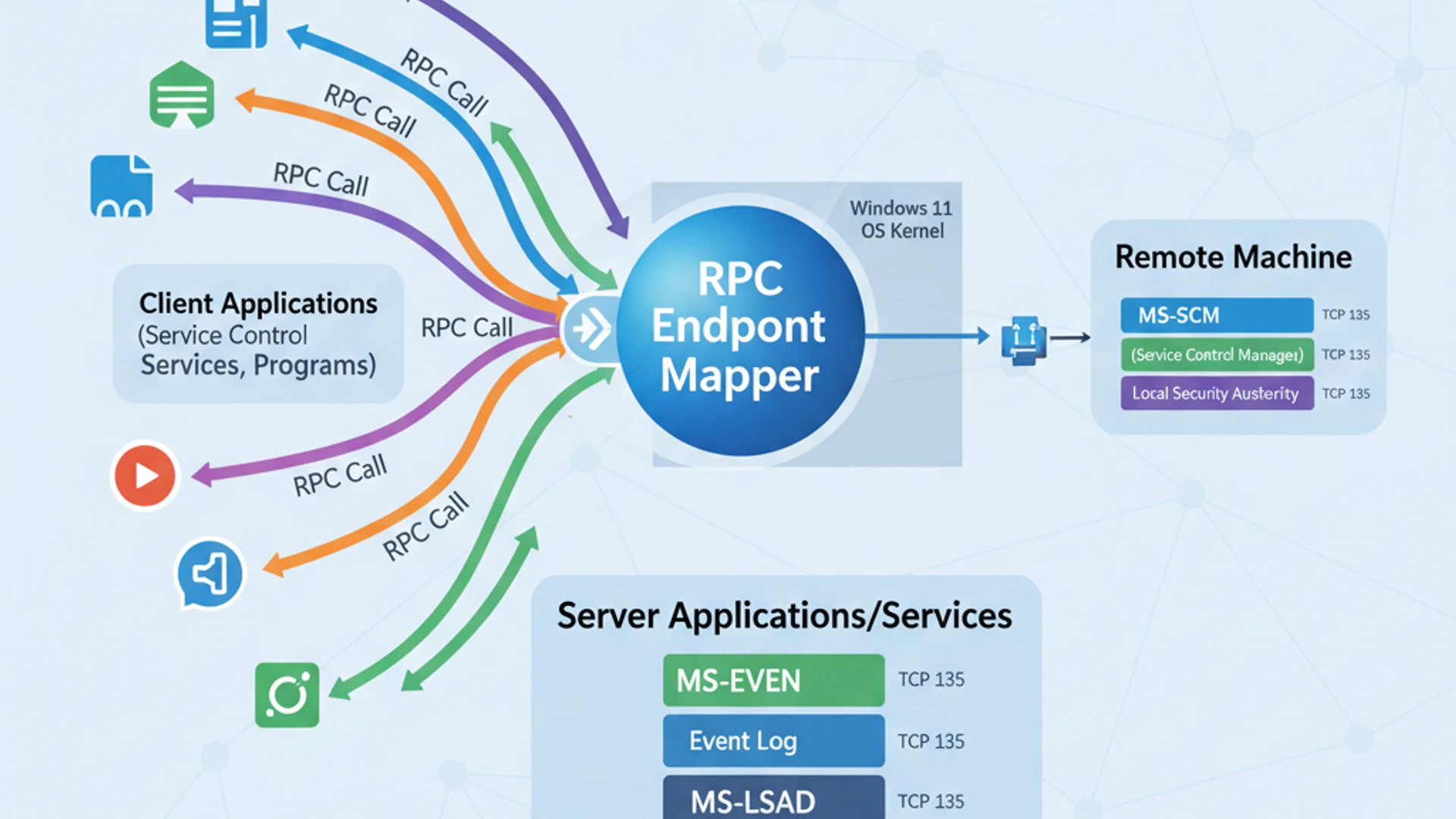
Imagine a bustling city with many businesses, each offering a unique service. A client needs to find a specific business but doesn’t know its exact address or phone number. The RPC Endpoint Mapper is like a central information desk that, given the business’s name (the RPC service interface UUID), provides its current location (the network address and port).
This mechanism is crucial in modern computing, where services often don’t bind to fixed, well-known ports. Instead, they request an available port from the operating system, which then registers this information with the Endpoint Mapper. This dynamic allocation offers flexibility and helps avoid port conflicts.
The Role of Remote Procedure Calls (RPC)
Remote Procedure Calls (RPC) represent a powerful paradigm in distributed computing. They allow a program to request a service from a program located on another computer on a network without having to understand the network’s details. The client-side stub and server-side stub handle the complexities of network communication.
When a client application wants to execute a function on a remote server, it makes a local call to a client-side stub. This stub then marshals (packs) the function parameters into a network message and sends it across the network to the server.
On the server, a server-side stub unmarshals (unpacks) the parameters, calls the actual server function, and then marshals the results back to the client. This entire process makes remote execution feel almost identical to a local function call, abstracting away the network’s inherent complexities.
The RPC framework is extensively used throughout Windows 11 for various system components and applications, enabling them to communicate seamlessly across processes and machines. It is a cornerstone for many network-dependent features and services.
Endpoint Mapping in Distributed Systems
In a distributed system, services can reside on different machines and might not always use static, predefined communication ports. This dynamic nature necessitates a mechanism for clients to discover where a service is currently listening.
Endpoint mapping solves this challenge. When an RPC server application starts, it registers its unique identifier (a UUID – Universally Unique Identifier) and its listening endpoint (network address and port number) with the local RPC Endpoint Mapper service.
When an RPC client wants to connect to a specific service, it first queries the Endpoint Mapper on the target server, providing the service’s UUID. The Endpoint Mapper then looks up its registry and returns the current network address and port number where that service can be reached.
This handshake allows the client to establish a direct connection with the desired RPC service, ensuring that communication can proceed effectively even in environments where service locations are not fixed.
Dynamic Port Allocation Explained
Dynamic port allocation is a key feature that makes endpoint mapping so essential. Instead of hardcoding services to specific, well-known port numbers (like port 80 for HTTP or 443 for HTTPS), many RPC services are designed to use dynamic ports.
When an RPC service starts, it requests an available port from a predefined range of dynamic ports (often called ephemeral ports). The operating system assigns an unused port, and the service then registers this port with the RPC Endpoint Mapper.
This approach offers several advantages. It reduces the likelihood of port conflicts between different applications and services, as they don’t all compete for a limited set of fixed ports. It also enhances security by making it harder for malicious actors to predict which ports services will be listening on.
However, it also introduces the challenge of discovery, which the RPC Endpoint Mapper elegantly addresses. Without it, clients would have no reliable way to find services that are constantly changing their listening ports.
The Architecture of RPC Endpoint Mapper Service (RpcEptMapper)
The RPC Endpoint Mapper service, identified internally as RpcEptMapper, is a fundamental component of the Windows 11 operating system. It operates as a system service, running in the background and performing its critical role of managing RPC endpoint registrations and resolutions.
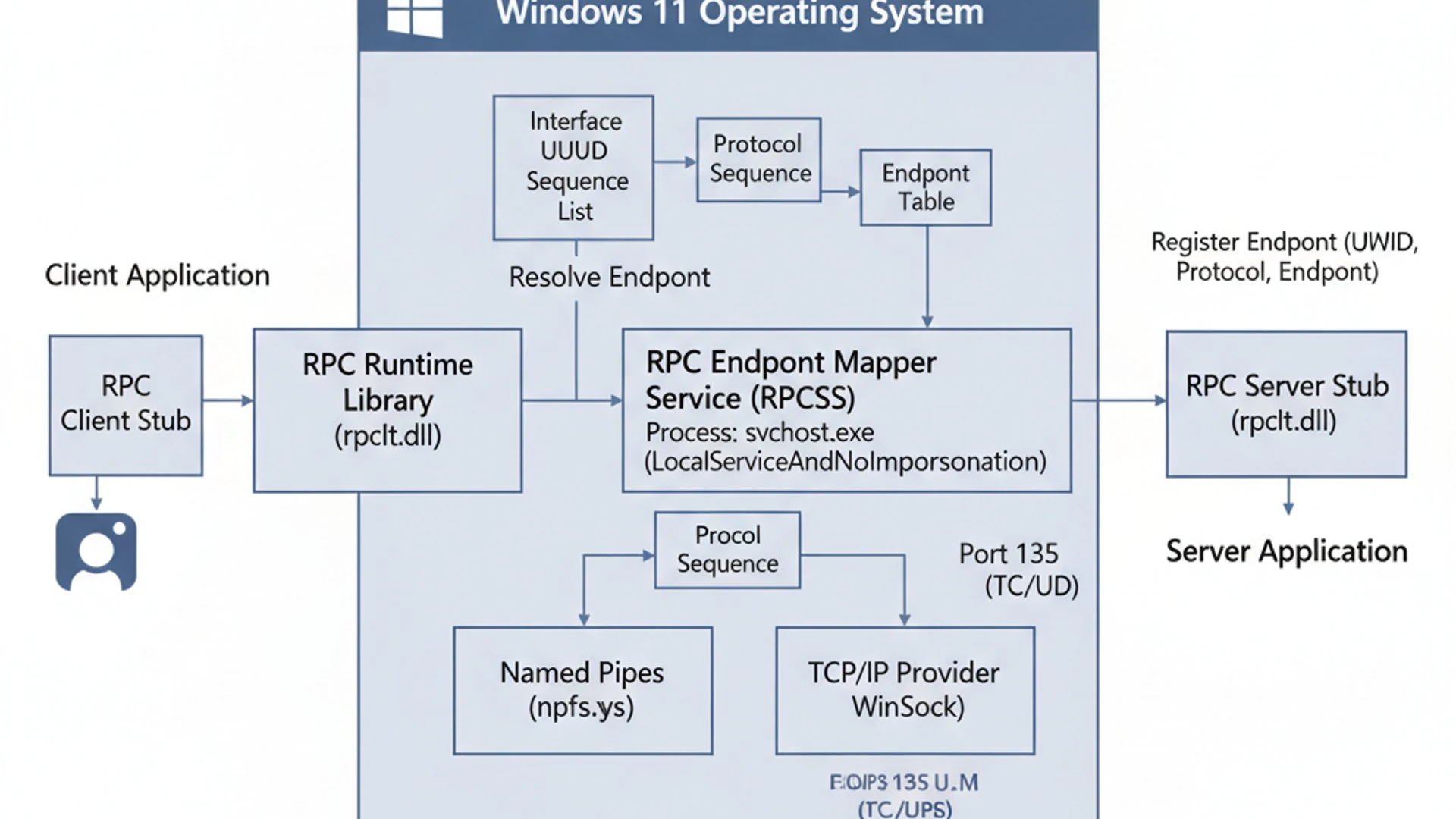
Its architecture is designed for reliability and efficiency, ensuring that RPC communication can occur smoothly across the network. Understanding its internal workings provides valuable insight into troubleshooting and optimizing network performance.
The service itself is relatively lightweight but provides a crucial lookup function that other, more complex services depend upon. It maintains a table of active RPC server endpoints, keyed by their unique interface UUIDs.
Service Dependencies and Interactions
The RpcEptMapper service does not operate in isolation; it has specific dependencies on other core system services to function correctly. Its primary dependency is typically the Remote Procedure Call (RPC) service itself.
The RPC service (RpcSs) is responsible for managing the RPC runtime environment, handling the marshaling and unmarshaling of data, and providing the underlying communication infrastructure. The Endpoint Mapper relies on RpcSs to actually perform the RPC calls once an endpoint has been resolved.
Additionally, the RpcEptMapper service interacts with the network stack. It needs to communicate with the operating system’s networking components to listen for client queries and to register server endpoints. This involves interaction with the TCP/IP and UDP protocols, which are fundamental for network communication.
A failure in any of these dependent services or underlying network components can directly impact the functionality of the RPC Endpoint Mapper, leading to communication failures for other RPC-dependent applications.
Communication Protocols Utilized
The RPC Endpoint Mapper primarily leverages standard network communication protocols to perform its duties. The two main protocols it utilizes are TCP/IP and UDP.
When an RPC client needs to query the Endpoint Mapper, it typically sends a request to a well-known port on the server. For the RPC Endpoint Mapper, this well-known port is port 135. Both TCP and UDP versions of port 135 are used for this initial contact.
- TCP Port 135: This is the most common port used for initial RPC communication. A client establishes a TCP connection to port 135 on the target server, sends its query (e.g., “Where is service X listening?”), and receives the endpoint information over this connection.
- UDP Port 135: While less common for the primary query, UDP can also be used for certain aspects of RPC endpoint resolution, particularly for connectionless queries or broadcasts in specific scenarios.
Understanding that port 135 is the gateway to the RPC Endpoint Mapper is critical for network administrators and security professionals. Blocking this port without careful consideration can severely disrupt RPC-dependent services across a network, leading to widespread communication failures.
Once the client receives the dynamic port number from the Endpoint Mapper, it then establishes a new connection directly to that specific port using either TCP or UDP, depending on the RPC protocol sequence specified by the service.
Why is RPC Endpoint Mapper Crucial for Windows 11?
The RPC Endpoint Mapper is not just another background service; it is a foundational element that underpins much of Windows 11’s functionality. Its continuous and correct operation is paramount for the stability, responsiveness, and network capabilities of the operating system.
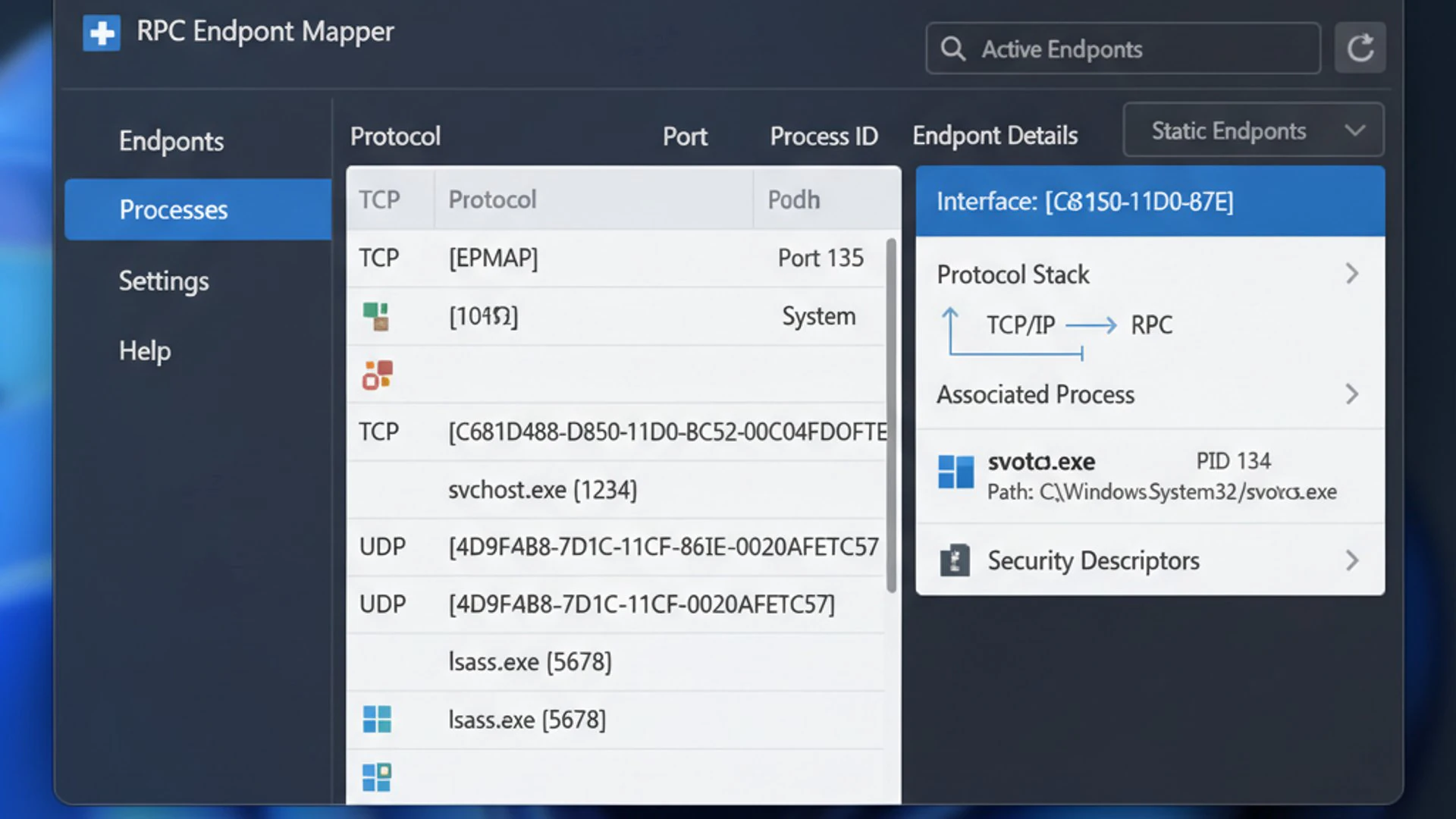
Without the RPC Endpoint Mapper, many of the sophisticated features and seamless integrations we expect from Windows 11 would simply cease to function. It acts as the nervous system for inter-process and inter-machine communication, ensuring that different parts of the system can find and talk to each other.
From core system processes to complex user applications, a vast array of software relies on the ability to perform remote procedure calls, making the Endpoint Mapper an unsung hero of the Windows architecture.
Enabling Inter-Process Communication (IPC)
Inter-Process Communication (IPC) is the mechanism by which different processes on a computer can exchange data and synchronize their activities. While RPC is often associated with network communication, it is also extensively used for IPC within a single Windows 11 machine.
Many system components and applications are structured as separate processes that need to interact. For instance, one process might request a service from another, or they might need to share information. RPC provides a robust and standardized way for these processes to communicate.
Even for local IPC, the RPC Endpoint Mapper plays a role. If a local service uses dynamic ports for its RPC interface, other local processes needing to connect to it will still query the local Endpoint Mapper to discover the correct port. This ensures consistent communication patterns, whether local or remote.
This reliance on RPC for IPC means that a malfunctioning RPC Endpoint Mapper can lead to failures even in seemingly local operations, impacting overall system responsiveness and stability.
Supporting Core Windows Services and Applications
A significant number of essential Windows 11 services and applications depend directly or indirectly on the RPC Endpoint Mapper. These include services critical for security, networking, management, and even user interface elements.
For example, services related to Active Directory, Group Policy, Distributed File System (DFS), Windows Management Instrumentation (WMI), and even printer spooling often use RPC for their internal and external communications. If the Endpoint Mapper is unavailable, these services may fail to start, operate incorrectly, or become unreachable.
Applications that rely on these underlying services will consequently experience issues. This could manifest as inability to join a domain, apply group policies, manage remote computers, or even print documents.
The widespread dependency underscores why the RPC Endpoint Mapper on Windows 11 is not merely a niche component but a cornerstone of the operating system’s functional integrity.
Impact on Network Services
The impact of the RPC Endpoint Mapper on network services is particularly pronounced. Any service that needs to be accessed remotely via RPC will register its endpoint with the mapper. This includes services like:
- File and Printer Sharing: When you share files or printers, the underlying mechanisms often use RPC to facilitate client connections.
- Remote Administration Tools: Tools like Remote Desktop Protocol (RDP) management interfaces, PowerShell Remoting, and other administrative utilities frequently leverage RPC.
- Domain Services: Active Directory and related services, crucial for enterprise networks, are heavily reliant on RPC for replication, authentication, and policy enforcement.
- Distributed Component Object Model (DCOM): DCOM, which extends COM for distributed environments, also uses RPC as its underlying communication protocol.
If the RPC Endpoint Mapper is not running or is blocked by a firewall, clients will be unable to locate these services, leading to “RPC server unavailable” errors and a complete breakdown of network-dependent functionalities. This highlights its critical role in enabling networked environments.
Managing the RPC Endpoint Mapper Service on Windows 11
While the RPC Endpoint Mapper typically runs without user intervention, understanding how to manage it is crucial for troubleshooting and system administration. You might need to check its status, restart it, or configure its startup type to address specific issues or optimize system behavior.
Windows 11 provides several tools for managing services, including the graphical Services console (services.msc) and command-line utilities like sc. These tools offer different levels of control and are useful in various scenarios.
Proper management ensures that this vital service is always running when needed, contributing to overall system stability and network connectivity. Conversely, mismanaging it can lead to significant operational problems.
Checking Service Status via Services.msc
The most straightforward way to check and manage the RPC Endpoint Mapper service is through the Services console.
- Press
Win + Rto open the Run dialog. - Type
services.mscand press Enter. This will open the Services window. - In the Services window, scroll down alphabetically until you find the service named “RPC Endpoint Mapper”.
- Observe the “Status” column. It should typically show “Running”. The “Startup Type” column usually displays “Automatic”.
- Double-clicking on the service will open its Properties window, where you can see more details and perform actions.
From the Properties window, you can start, stop, pause, resume, or restart the service. However, stopping the RPC Endpoint Mapper is generally not recommended unless you are fully aware of the consequences, as it will likely disrupt many other system services.
Configuring Startup Type (Automatic, Manual, Disabled)
The startup type determines how and when a service initiates. For the RPC Endpoint Mapper, the default and recommended startup type is Automatic.
- Automatic: The service starts automatically when Windows 11 boots up. This is the ideal setting for critical system services like the RPC Endpoint Mapper, ensuring it’s always available.
- Manual: The service must be started manually by a user or another service/program that depends on it. Setting the RPC Endpoint Mapper to Manual is generally ill-advised, as many services might attempt to start before it, leading to failures.
- Disabled: The service is prevented from starting by any means. Disabling the RPC Endpoint Mapper will cause severe system instability and network communication failures, and should never be done under normal circumstances.
To change the startup type:
- Open services.msc as described above.
- Double-click on “RPC Endpoint Mapper”.
- In the Properties window, select the desired startup type from the “Startup type” dropdown menu.
- Click “Apply” and then “OK”. You might need to restart your computer for the change to take full effect, especially if you changed it from “Disabled” to “Automatic”.
Command Line Management (SC Command)
For advanced users or scripting purposes, the sc command-line utility provides powerful control over services. It allows you to query, start, stop, and configure services directly from the Command Prompt or PowerShell.
To check the status of the RPC Endpoint Mapper:
sc query RpcEptMapperThis command will return details about the service, including its state (RUNNING, STOPPED, etc.) and startup type.
To start the service (if it’s stopped):
sc start RpcEptMapperTo stop the service (use with extreme caution):
sc stop RpcEptMapperTo set the startup type to Automatic:
sc config RpcEptMapper start= autoTo set the startup type to Disabled (again, extreme caution):
sc config RpcEptMapper start= disabledUsing these commands requires administrative privileges. They are invaluable for automating tasks or managing services on remote systems.
Common Issues and Troubleshooting RPC Endpoint Mapper
Despite its critical role, the RPC Endpoint Mapper can sometimes encounter issues, leading to various problems across Windows 11. These issues often manifest as connectivity errors or service failures, making it challenging to diagnose without understanding the mapper’s function.
Troubleshooting RPC Endpoint Mapper problems typically involves checking its service status, verifying network connectivity, and examining firewall configurations. Addressing these common pitfalls can restore proper system functionality.
A proactive approach to understanding these issues can save significant time and effort during system maintenance or when resolving user complaints.
RPC Server Unavailable Errors
The “RPC server unavailable” error is perhaps the most common and frustrating symptom of an RPC Endpoint Mapper problem. This error message indicates that a client application or service attempted to make an RPC call but could not reach the target RPC server.
This can happen for several reasons:
- RpcEptMapper service is stopped: The most direct cause is that the RPC Endpoint Mapper service itself is not running on the target machine.
- Network connectivity issues: The client cannot reach the target server at all, preventing any RPC communication.
- Firewall blocking port 135: A firewall (either on the client, server, or an intermediate network device) is blocking TCP/UDP port 135, preventing the initial query to the Endpoint Mapper.
- DNS resolution problems: If the client cannot resolve the server’s hostname to an IP address, it cannot initiate communication.
To troubleshoot, first verify the RpcEptMapper service status on the target server. Ensure it is running and set to Automatic. Then, check basic network connectivity using ping or tracert. Finally, investigate firewall rules.
Firewall and Network Configuration Challenges
Firewalls are a frequent source of RPC communication problems. While essential for security, overly restrictive firewall rules can inadvertently block necessary RPC traffic, particularly the initial query to port 135.
Windows Defender Firewall, or any third-party firewall, must be configured to allow inbound connections to TCP and UDP port 135 on any server that hosts RPC services. Additionally, if RPC services use dynamic ports, the firewall might need to allow a range of dynamic ports or be configured to allow the RPC runtime to dynamically open ports.
For domain environments, Group Policy often manages firewall rules. Ensure that the relevant GPOs permit RPC traffic. For complex network setups, intermediate firewalls or network access control lists (ACLs) can also block RPC traffic, requiring coordination with network administrators.
When troubleshooting firewall issues, temporarily disabling the firewall (in a controlled environment and for a brief period) can help confirm if it’s the root cause. If RPC communication works with the firewall off, you know where to focus your rule adjustments.
Network Address Translation (NAT) can also complicate RPC communication, as it might interfere with the dynamic port negotiation. In such cases, specific NAT configurations or RPC proxy solutions might be necessary.
Diagnosing Port Conflicts
Although dynamic port allocation is designed to prevent conflicts, they can still occasionally arise, especially in systems with many services or misconfigured applications. A port conflict occurs when two different applications or services try to bind to the same port.
While the RPC Endpoint Mapper helps manage dynamic ports, if a non-RPC application or a misbehaving RPC service attempts to use a port within the dynamic range that is already in use, it can lead to startup failures for one of the services.
To diagnose port conflicts:
- Use
netstat -anoin Command Prompt, to list all active connections and listening ports, along with the Process ID (PID) of the application using each port. - Identify any services or applications listening on ports that are known to be used by critical RPC services or within the dynamic port range.
- Use
tasklist | findstr <PID>to identify the process associated with a conflicting PID.
If a conflict is identified, you might need to reconfigure one of the applications to use a different port or investigate why a service is attempting to bind to an already occupied port. Modifying the dynamic port range (discussed later) can also help mitigate recurrent conflicts.
Security Considerations for RPC Endpoint Mapper
While the RPC Endpoint Mapper is a vital component for Windows 11, its exposed nature on port 135 also makes it a potential target for malicious activities. Understanding these security implications is crucial for maintaining a robust and secure computing environment.
Attackers often scan for open ports, and port 135 is a well-known entry point for Windows services. Exploiting vulnerabilities in the RPC Endpoint Mapper or the RPC runtime itself can lead to severe security breaches, including remote code execution or denial-of-service attacks.
Therefore, proper security measures and best practices are essential to protect the integrity and confidentiality of RPC communications.
Understanding Potential Vulnerabilities
Historically, vulnerabilities in the RPC subsystem have been exploited by various malware and worms. One of the most infamous examples is the Blaster worm, which targeted a vulnerability in the DCOM RPC interface, allowing remote code execution.
Potential vulnerabilities related to the RPC Endpoint Mapper include:
- Unauthenticated Access: If not properly secured, attackers might be able to query the Endpoint Mapper to discover running services, providing them with valuable reconnaissance information for further attacks.
- Denial of Service (DoS): Maliciously crafted RPC requests or a flood of requests to port 135 could potentially overwhelm the Endpoint Mapper, leading to a DoS condition for all RPC-dependent services.
- Exploitation of RPC Runtime: While the Endpoint Mapper itself might not always be the direct point of exploitation, vulnerabilities in the underlying RPC runtime can be leveraged through RPC calls initiated via the mapper.
- Information Disclosure: An attacker could potentially glean sensitive information about the services running on a system by querying the Endpoint Mapper.
Modern Windows versions, including Windows 11, have significantly improved RPC security, but vigilance and adherence to best practices remain critical.
Best Practices for Securing RPC Communication
Securing the RPC Endpoint Mapper and overall RPC communication involves a multi-layered approach:
- Firewall Configuration: Restrict access to TCP/UDP port 135 to only trusted networks and hosts. For servers that do not need to expose RPC services to the internet, ensure external firewalls block port 135. On internal networks, apply least-privilege principles.
- Patch Management: Keep Windows 11 and all installed software up to date with the latest security patches. Many RPC vulnerabilities are addressed through regular Windows Updates.
- Network Segmentation: Isolate servers hosting critical RPC services into separate network segments or VLANs, limiting their exposure to untrusted networks.
- IPsec and VPNs: For remote RPC communication, utilize IPsec (IP Security) or Virtual Private Networks (VPNs) to encrypt and authenticate RPC traffic, protecting it from eavesdropping and tampering.
- Authentication and Authorization: Ensure that RPC services enforce strong authentication (e.g., Kerberos) and authorization mechanisms. This prevents unauthorized users or systems from accessing sensitive RPC functions.
- Principle of Least Privilege: Configure RPC services to run with the minimum necessary privileges. This limits the damage an attacker can inflict if a service is compromised.
- Monitoring: Implement robust logging and monitoring solutions to detect unusual RPC activity, such as a high volume of failed authentication attempts or suspicious queries to the Endpoint Mapper.
By implementing these practices, organizations can significantly reduce the attack surface associated with the RPC Endpoint Mapper on Windows 11 and enhance the overall security posture of their systems.
Advanced Configuration and Optimization Tips
For most users, the RPC Endpoint Mapper operates efficiently with its default settings. However, in specific enterprise environments or when dealing with complex network architectures, advanced configuration and optimization might be necessary. These adjustments can help fine-tune performance, enhance security, or resolve unique communication challenges.
Understanding how to modify dynamic port ranges and monitor RPC activity provides administrators with greater control and insight into their Windows 11 systems.
These advanced techniques are particularly useful for network architects, system administrators, and developers working with distributed applications.
Modifying Dynamic Port Range
By default, Windows uses a specific range of dynamic ports for RPC and other services. This range has evolved over different Windows versions. For Windows Vista and later (including Windows 11), the default dynamic port range is 49152 through 65535.
In some scenarios, you might need to modify this range:
- Firewall Restrictions: If your network firewalls are very restrictive, you might want to narrow the dynamic port range to a smaller, contiguous block to simplify firewall rule creation.
- Port Conflicts: If you frequently encounter conflicts with other applications that use ports within the default dynamic range, you can adjust the range to avoid those conflicts.
- Security Policies: Some security policies might require specific port ranges for dynamic allocations.
You can modify the dynamic port range using the netsh command-line utility. This requires administrative privileges.
To view the current dynamic port range:
netsh int ipv4 show dynamicport tcp
netsh int ipv4 show dynamicport udp
netsh int ipv6 show dynamicport tcp
netsh int ipv6 show dynamicport udp
To set a new dynamic port range (e.g., for TCP, starting at port 50000, with a total of 1000 ports):
netsh int ipv4 set dynamicport tcp start=50000 num=1000Repeat for UDP and IPv6 if necessary. After making changes, a system reboot is usually required for them to take effect. Always choose a range that is sufficiently large to accommodate all necessary services.
Monitoring RPC Activity
Monitoring RPC activity is crucial for identifying performance bottlenecks, diagnosing communication issues, and detecting potential security anomalies. Windows 11 provides several built-in tools and mechanisms for this purpose.
- Event Viewer: The Windows Event Log contains valuable information about RPC errors, service startup/shutdown events, and potential security-related incidents. Look for events under “System” and “Security” logs, and potentially specific application logs that use RPC.
- Performance Monitor (Perfmon): This tool allows you to track various performance counters related to RPC. You can monitor the number of RPC calls, RPC failures, and network traffic associated with RPC. This helps in identifying overloaded servers or slow RPC responses.
- Network Monitor (or Wireshark): For in-depth analysis, a network protocol analyzer like Wireshark can capture and dissect RPC traffic. This allows you to see the actual RPC calls, parameters, and responses, which is invaluable for diagnosing complex communication problems or verifying security configurations.
- RPC Debugging Tools: For developers, Microsoft provides RPC debugging tools as part of the Windows SDK, which can offer very granular insights into RPC client and server interactions.
Regularly reviewing these logs and performance metrics can help maintain the health and security of your RPC-dependent infrastructure. For instance, a sudden spike in RPC failures might indicate a network issue or a problem with the RPC Endpoint Mapper on Windows 11 itself.
Conclusion: The Indispensable Role of RPC Endpoint Mapper
The RPC Endpoint Mapper on Windows 11, often operating silently in the background, is an absolutely indispensable component of the operating system’s architecture. Its fundamental role in enabling Remote Procedure Calls and facilitating endpoint resolution for dynamically allocated ports makes it a cornerstone of modern distributed computing and inter-process communication within Windows environments.
From supporting core system services and critical network functionalities to ensuring the smooth operation of countless applications, the RPC Endpoint Mapper’s proper functioning is directly tied to the overall stability, responsiveness, and connectivity of Windows 11. Any disruption to this service can quickly cascade into widespread system and network communication failures, manifesting as frustrating “RPC server unavailable” errors.
While typically robust, understanding how to manage, troubleshoot, and secure the RPC Endpoint Mapper is vital for system administrators, network professionals, and advanced users. By adhering to best practices for firewall configuration, patch management, and security, and by leveraging advanced monitoring techniques, we can ensure the integrity and efficiency of this crucial service.
In essence, the RPC Endpoint Mapper is the unsung hero that allows different parts of Windows 11, and indeed different computers, to find and communicate with each other seamlessly. Its continuous and secure operation is not just a convenience but a fundamental requirement for the sophisticated and interconnected computing experience that Windows 11 provides.
For more interesting articles, stay tuned to Winsides.com!








Community
Comments (0)