

Introduction to Natural Authentication Service on Windows 11
In an era where digital security threats are constantly evolving, the traditional password-based authentication model is increasingly showing its vulnerabilities. Windows 11, recognizing this critical need for enhanced protection and streamlined user interaction, introduces and refines the Natural Authentication Service on Windows 11. This isn’t merely an incremental update; it represents a fundamental shift in how users prove their identity to their devices and access their digital lives. Learn more at Credential Guard and how it works, and at NIST Special Publication 800-63B: Digital Identity Guidelines.
Imagine logging into your computer not by typing a complex string of characters, but by simply looking at your screen or touching a sensor. This seamless, intuitive experience is at the heart of natural authentication. It moves beyond memorized secrets to leverage inherent user attributes, making access both more secure and remarkably convenient.
This comprehensive guide will delve deep into the mechanics, benefits, and management of this innovative service. We’ll explore how Windows 11 integrates cutting-edge technologies to create a robust and user-friendly authentication ecosystem, setting a new standard for personal computing security. Get ready to discover how the Natural Authentication Service on Windows 11 is reshaping our digital interactions.
Table of contents
Key Takeaways
- The Natural Authentication Service on Windows 11 revolutionizes login security by moving beyond traditional passwords.
- It primarily leverages biometrics like facial recognition and fingerprint scanning through Windows Hello.
- Core security is bolstered by technologies such as Credential Guard and Virtualization-Based Security (VBS), isolating authentication processes.
- Users can manage and configure these features via Settings, and advanced options are available through the Group Policy Editor.
- Benefits include significantly enhanced security against credential theft and a dramatically improved, faster user experience.
- Troubleshooting common issues involves checking biometric sensors, updating drivers, and resolving service dependencies.
- Best practices emphasize regular biometric updates and combining natural authentication with multi-factor authentication for maximum protection.
What is the Natural Authentication Service?
The Natural Authentication Service on Windows 11 represents a sophisticated framework designed to authenticate users based on inherent characteristics or secure hardware, rather than relying solely on knowledge-based factors like passwords. It’s a strategic move by Microsoft to enhance both security and usability, addressing the inherent weaknesses and inconveniences associated with traditional password management.
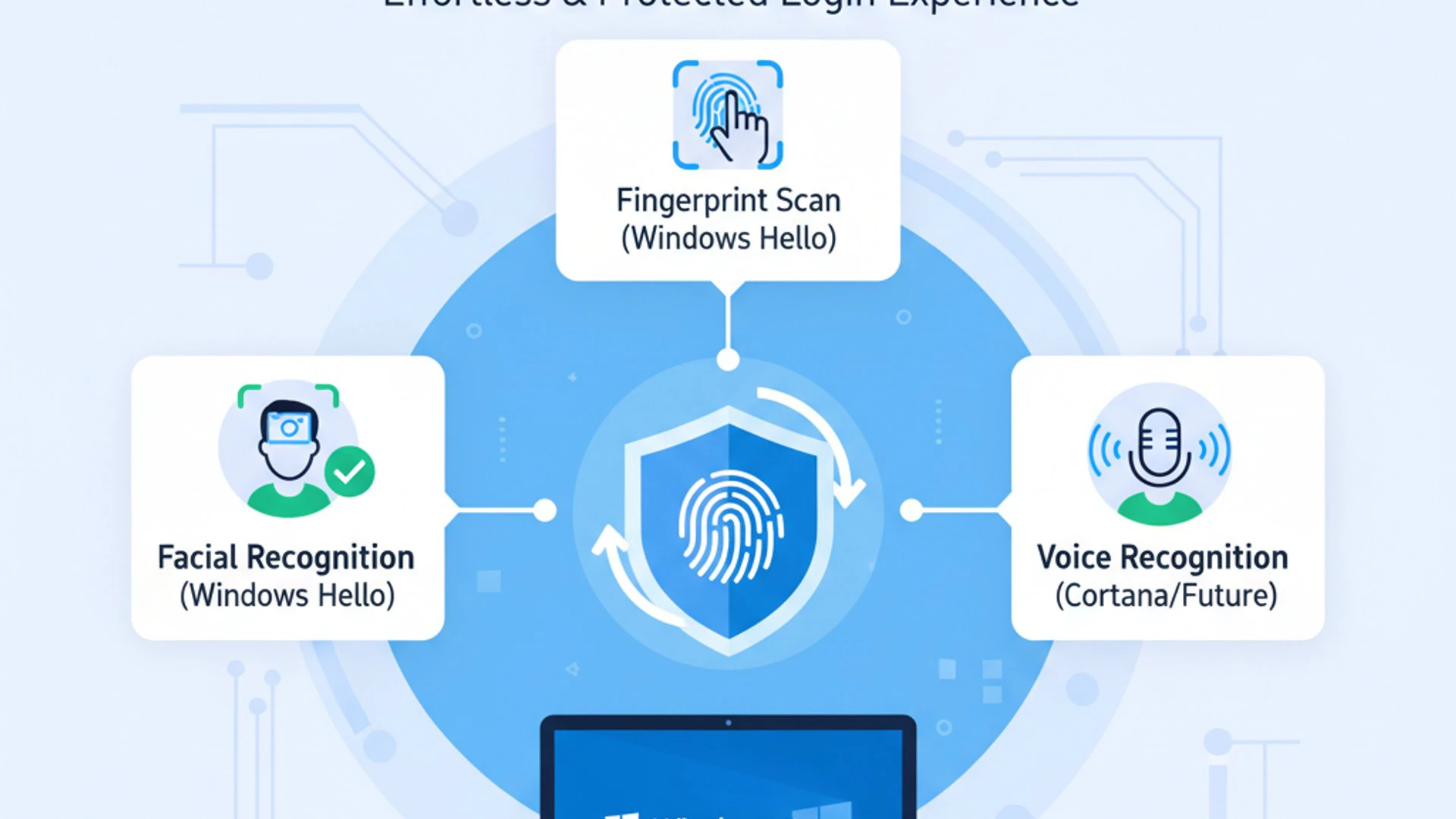
At its core, this service aims to make logging in feel more intuitive and less like a chore. By integrating advanced technologies, it allows users to unlock their devices with a glance or a touch, providing a faster and more secure gateway to their digital environment. This paradigm shift minimizes the risk of credential theft and phishing attacks, which often target weak or reused passwords.
The service is not a single application but an umbrella term for a suite of integrated technologies working in concert. It encompasses biometric authentication, hardware-backed security, and secure credential storage, all orchestrated to provide a seamless and highly protected user experience. Understanding its components is key to appreciating its comprehensive approach to modern security.
Core Principles of Natural Authentication
Natural authentication operates on several fundamental principles that differentiate it from older methods. Firstly, it prioritizes user-centric design, aiming to make the authentication process as effortless and natural as possible. This means leveraging actions that are already part of a user’s physical interaction with their device.
Secondly, it emphasizes strong identity verification. Biometric data, such as fingerprints or facial patterns, are far more unique and difficult to replicate than a password. This inherent uniqueness provides a higher level of assurance that the person attempting to access the device is indeed the legitimate owner.
Thirdly, security is built in from the ground up. The service employs hardware-level protection and isolation techniques to safeguard biometric data and authentication processes. This ensures that even if malicious software infiltrates the system, it cannot easily compromise the core authentication mechanisms or steal sensitive biometric templates.
Finally, it promotes a passwordless future. While passwords may still exist in some contexts, the goal is to reduce their reliance significantly for daily device access, thereby mitigating many common attack vectors. This forward-thinking approach is crucial for modern cybersecurity.
How it Differs from Traditional Authentication
The distinction between natural authentication and traditional methods, primarily password-based systems, is profound. Traditional authentication relies on a “secret” that only the user is supposed to know. This secret, a password, is susceptible to various threats:
- Theft: Passwords can be phished, keylogged, or stolen from compromised databases.
- Weakness: Many users choose simple, easily guessable passwords.
- Reuse: Users often reuse the same password across multiple services, creating a domino effect if one is compromised.
- Forgetfulness: Complex passwords are hard to remember, leading to frustration and frequent resets.
Natural authentication, conversely, uses “something you are” (biometrics) or “something you have” (secure hardware keys). This eliminates the need for memorized secrets for daily logins. Biometric data, while not a secret, is cryptographically secured and stored locally, making it far less susceptible to remote theft or brute-force attacks.
“Natural authentication shifts the burden of security from human memory to advanced technology, creating a more resilient and intuitive defense against digital threats.”
Furthermore, traditional systems often transmit passwords over networks, even if encrypted, creating potential interception points. Natural authentication often processes biometric data locally on the device, and only a cryptographic token or assertion is sent for verification, significantly reducing exposure. This fundamental difference makes the Natural Authentication Service on Windows 11 a superior choice for modern security.
Components and Technologies Powering Natural Authentication
The robustness of the Natural Authentication Service on Windows 11 stems from a sophisticated interplay of various hardware and software components. These technologies work in concert to provide a secure, efficient, and user-friendly authentication experience. Understanding these underlying elements is crucial to appreciating the comprehensive security posture Windows 11 offers.
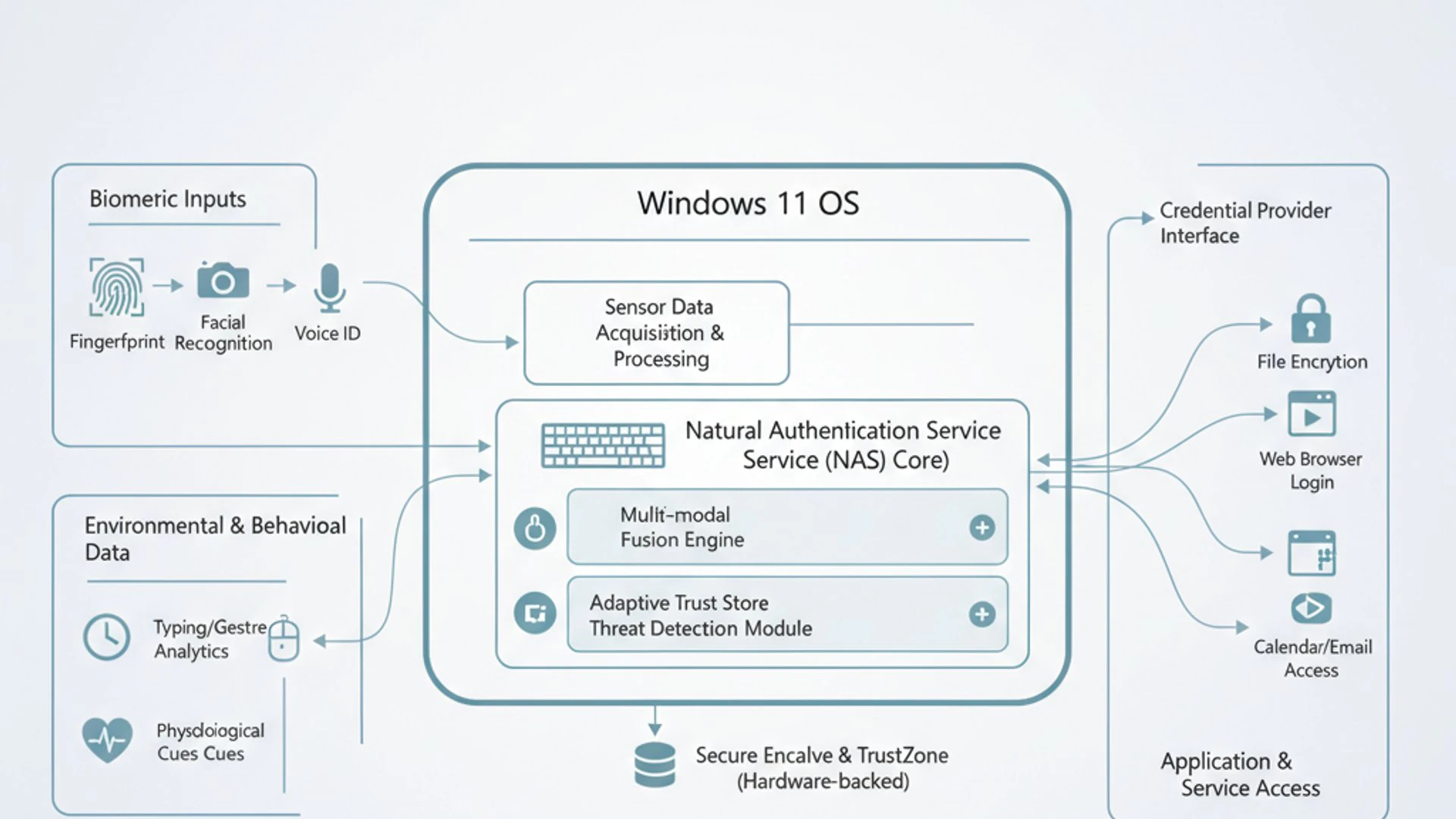
At the forefront is Microsoft’s flagship authentication feature, Windows Hello, which serves as the primary interface for natural authentication. However, its effectiveness is deeply intertwined with other critical security layers, including Credential Guard and Virtualization-Based Security (VBS), which provide a hardened environment for sensitive data and processes.
This multi-layered approach ensures that even if one component were to be compromised, the entire authentication chain remains protected. It’s a testament to Microsoft’s commitment to creating a resilient and adaptive security architecture for its operating system.
Windows Hello Integration
Windows Hello is perhaps the most visible and widely recognized component of the Natural Authentication Service on Windows 11. It’s Microsoft’s biometric authentication feature that allows users to sign in to their devices, apps, online services, and networks using their face, fingerprint, or PIN. It’s designed to be faster, more secure, and more personal than traditional passwords.
When you set up Windows Hello, your biometric data (facial scan or fingerprint) is not stored as an image or raw data. Instead, it’s converted into a unique cryptographic representation called a template. This template is then securely stored on your device, often within a dedicated secure hardware module like a Trusted Platform Module (TPM).
The beauty of Windows Hello lies in its seamless integration with the operating system. Once configured, it provides a consistent and convenient way to authenticate across various applications and services that support the FIDO (Fast IDentity Online) standard, further extending its utility beyond just logging into your PC.
Facial Recognition
Windows Hello’s facial recognition technology is a standout feature, offering an incredibly fast and convenient login experience. It utilizes specialized hardware, specifically an infrared (IR) camera, to capture a detailed 3D map of your face. This is not simply a 2D image, which can be easily spoofed with a photograph.
The IR camera projects invisible light patterns onto your face and measures their distortion to create a depth map. This technology is highly resistant to spoofing attempts using photos, videos, or even masks, making it a robust security measure. The system then compares this live 3D map to the securely stored template.
If there’s a match, access is granted almost instantaneously. This method is particularly appealing for its hands-free operation, allowing users to sign in without even touching their device. It’s a prime example of how the Natural Authentication Service on Windows 11 prioritizes both security and user convenience.
Fingerprint Scanning
For devices equipped with a fingerprint reader, Windows Hello offers highly accurate and secure fingerprint authentication. This method involves scanning the unique ridges and valleys of your fingerprint, converting them into a cryptographic template, and storing it securely.
Modern fingerprint sensors often employ advanced technologies, such as capacitive or optical scanning, to capture intricate details. Some even use ultrasonic technology for a more detailed 3D scan, making them incredibly difficult to spoof. When you place your finger on the sensor, the live scan is compared against the stored template.
Like facial recognition, fingerprint scanning provides rapid and secure access. It’s an excellent alternative or complement to facial recognition, especially in environments where a camera might be obscured or in situations where users prefer a tactile authentication method. Both biometric options underscore the versatility of Windows Hello within the broader natural authentication framework.
Credential Guard and Virtualization-Based Security (VBS)
While Windows Hello provides the user-facing biometric authentication, Credential Guard and Virtualization-Based Security (VBS) are the unsung heroes working behind the scenes to protect critical authentication data. These technologies are fundamental to the security posture of the Natural Authentication Service on Windows 11.
VBS is a security feature that uses the hypervisor to create an isolated, secure memory region. This “virtual secure mode” is separate from the standard operating system and is where sensitive processes and data, including those managed by Credential Guard, are executed and stored. This isolation makes it extremely difficult for malware running in the main OS to access or tamper with these protected assets.
Credential Guard specifically leverages VBS to protect derived domain credentials. It isolates and hardens the Local Security Authority (LSA) process, which stores user credentials like NTLM hashes and Kerberos tickets. By running LSA in a virtualized, isolated environment, Credential Guard prevents credential theft attacks such as Pass-the-Hash and Pass-the-Ticket, even if an attacker gains administrative privileges on the operating system.
“The combination of Windows Hello with Credential Guard and VBS creates an impenetrable fortress for your authentication data, making the Natural Authentication Service on Windows 11 incredibly resilient against sophisticated cyber threats.”
This layered defense is crucial. Even if an attacker manages to bypass Windows Hello, they would still face the formidable barrier of Credential Guard protecting the underlying credentials. This robust architecture is a cornerstone of modern Windows 11 security, providing peace of mind for both individual users and enterprise environments.
Managing the Natural Authentication Service
Effectively managing the Natural Authentication Service on Windows 11 is crucial for optimizing both security and user convenience. While the service is designed for seamless operation, users and administrators often need to configure settings, enable or disable specific features, or adjust policies to suit their particular needs. Windows 11 provides intuitive interfaces for these tasks, ranging from the straightforward Settings app to the more powerful Group Policy Editor.
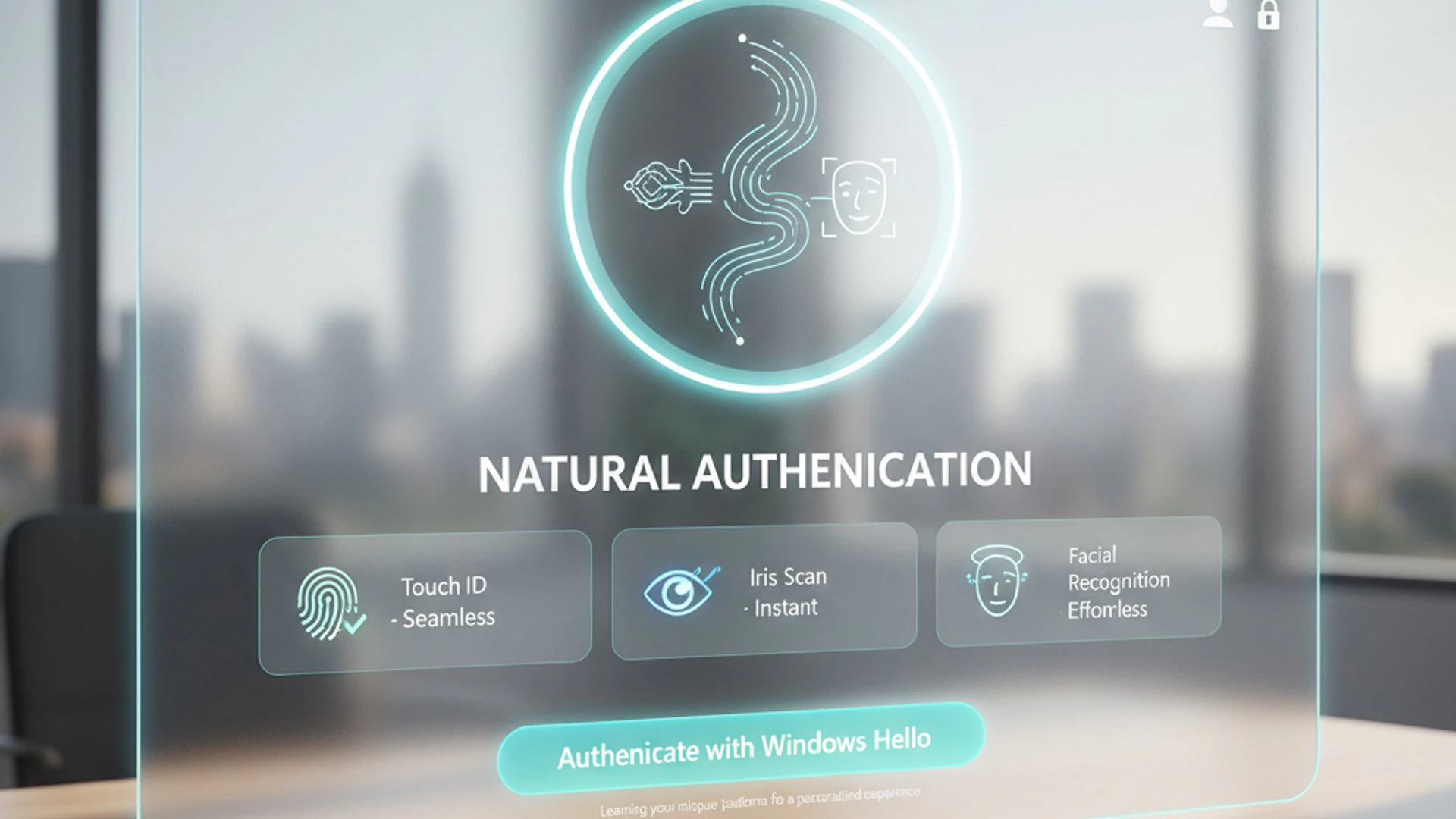
Understanding where and how to access these controls ensures that you can tailor the natural authentication experience to your preferences, whether it’s enrolling new biometrics, revoking old ones, or enforcing specific security policies across an organization. This section will guide you through the practical steps of managing this vital service.
Accessing Service Settings
For most users, managing the Natural Authentication Service on Windows 11 begins in the familiar Settings application. This centralized hub provides an easy-to-navigate interface for configuring Windows Hello and related authentication options.
To access these settings:
- Open the Start Menu and click on the Settings icon (gear).
- Navigate to Accounts from the left-hand pane.
- Select Sign-in options.
Here, you’ll find various options under “Ways to sign in.” This includes settings for Facial recognition (Windows Hello), Fingerprint recognition (Windows Hello), PIN, Security Key, and Password. Each option allows you to set up, remove, or modify your authentication methods. For instance, clicking on “Facial recognition” will present options to “Set up” or “Remove” your face data.
It’s important to regularly review these settings, especially if you get a new biometric device or if your current one starts misbehaving. Keeping your biometric data up-to-date can improve recognition accuracy and overall performance of the Natural Authentication Service on Windows 11.
Enabling and Disabling Features
Within the Sign-in options section of the Settings app, you have direct control over enabling or disabling specific natural authentication features. For example, to enable facial recognition, you would click on its entry and follow the on-screen prompts to enroll your face. This typically involves looking into the camera for a few seconds.
Similarly, for fingerprint recognition, you would select the option and repeatedly place your finger on the sensor as instructed until the system has a complete scan. If you wish to disable a feature, you can simply click on it and choose the “Remove” option. This deletes the stored biometric template from your device.
Disabling a feature might be necessary if a sensor is malfunctioning or if you temporarily prefer not to use a specific biometric method. Remember that removing biometric data is a security measure, ensuring that your unique identifiers are not left on a device you no longer use or share.
Beyond individual biometrics, you can also manage other sign-in preferences, such as requiring Windows Hello sign-in for Microsoft accounts or dynamically locking your device when you step away. These options contribute to a comprehensive security posture facilitated by the Natural Authentication Service on Windows 11.
Group Policy Editor Configurations
For advanced users and especially IT administrators in organizational settings, the Group Policy Editor (GPEdit.msc) offers granular control over the Natural Authentication Service on Windows 11. These policies allow for centralized management and enforcement of security settings across multiple devices, ensuring compliance and consistent security practices.
To access the Group Policy Editor:
- Press
Win + R, typegpedit.msc, and pressEnter. - Navigate to Computer Configuration > Administrative Templates > Windows Components > Windows Hello for Business.
Within this path, you’ll find numerous policies related to Windows Hello and its underlying mechanisms. Some key configurations include:
- Use Windows Hello for Business: Enables or disables the entire Windows Hello for Business framework.
- Turn on convenience PIN sign-in: Controls whether users can set up a PIN as an alternative to biometrics.
- Use biometrics: Specifically enables or disables the use of biometrics for Windows Hello.
- Configure the use of enhanced anti-spoofing when available: Enforces the use of advanced anti-spoofing features for facial recognition.
Administrators can also find policies related to Credential Guard under Computer Configuration > Administrative Templates > System > Device Guard. Here, you can configure settings like “Turn On Virtualization Based Security” and “Turn On Credential Guard.” These settings are crucial for hardening the environment where authentication secrets are processed and stored. Proper configuration via GPEdit ensures that the Natural Authentication Service on Windows 11 aligns with organizational security policies.
Benefits of Natural Authentication on Windows 11
The adoption of the Natural Authentication Service on Windows 11 is not merely a technological upgrade; it’s a strategic enhancement that delivers tangible benefits across two critical domains: security and user experience. By moving beyond the limitations of traditional passwords, Windows 11 offers a more robust defense against cyber threats while simultaneously making daily interactions with your device more fluid and intuitive.
These advantages are significant for both individual users seeking greater peace of mind and organizations aiming to bolster their cybersecurity posture. The shift towards natural authentication represents a win-win scenario, providing a powerful combination of protection and convenience that traditional methods simply cannot match. Let’s explore these benefits in more detail.
Enhanced Security Posture
One of the most compelling advantages of the Natural Authentication Service on Windows 11 is the significant boost it provides to your device’s security posture. Traditional passwords are inherently vulnerable to a multitude of attacks, including phishing, keylogging, brute-force attempts, and credential stuffing. Natural authentication largely mitigates these risks.
Biometric data, such as your face or fingerprint, is unique to you and exceedingly difficult to replicate or steal remotely. Unlike passwords, biometric templates are not transmitted over networks in their raw form and are securely stored on your device, often within a dedicated hardware module like a TPM. This makes them highly resistant to common cyber-attacks.
Furthermore, the integration of technologies like Credential Guard and Virtualization-Based Security (VBS) creates an isolated and hardened environment for processing and storing authentication secrets. This protection prevents even advanced malware from accessing critical credentials, effectively thwarting sophisticated attacks like Pass-the-Hash, which target the Local Security Authority (LSA).
“By leveraging biometrics and hardware-backed security, the Natural Authentication Service on Windows 11 significantly reduces the attack surface for credential theft, making it a cornerstone of modern cybersecurity.”
This layered security approach means that even if an attacker gains some level of access to your system, compromising your core authentication mechanism becomes an order of magnitude more difficult. This robust defense is a critical step towards a more secure digital future, making the Natural Authentication Service on Windows 11 an indispensable security feature.
Improved User Experience and Convenience
Beyond security, the Natural Authentication Service on Windows 11 dramatically improves the user experience by making device access faster, simpler, and more intuitive. The days of typing long, complex passwords multiple times a day are rapidly becoming a thing of the past, replaced by effortless biometric logins.
Imagine waking your computer from sleep and signing in with just a glance at your screen, or a quick touch of your finger. This near-instantaneous access saves valuable seconds every time you interact with your device, accumulating into significant time savings throughout the day. It removes a common point of friction and frustration for users.
Moreover, the convenience extends beyond just logging into your device. Windows Hello integrates with various applications and online services that support the FIDO standard, allowing you to authenticate to websites and apps without needing to remember or type passwords. This creates a unified and seamless authentication experience across your digital ecosystem.
The reduction in password-related issues, such as forgotten passwords and account lockouts, also contributes significantly to a better user experience. Users spend less time on administrative tasks and more time on productive work or leisure. This blend of heightened security with unparalleled convenience truly sets the Natural Authentication Service on Windows 11 apart.
Common Issues and Troubleshooting Natural Authentication
While the Natural Authentication Service on Windows 11 offers unparalleled security and convenience, users may occasionally encounter issues that prevent it from functioning correctly. These problems can range from hardware malfunctions with biometric sensors to software conflicts or driver-related glitches. Understanding how to diagnose and resolve these common issues is essential for maintaining a smooth and secure authentication experience.
This section will outline some of the most frequent challenges users face with natural authentication and provide practical, actionable troubleshooting steps. By following these guidelines, you can often resolve problems quickly, ensuring that your Windows Hello features remain reliable and effective.
Biometric Sensor Malfunctions
One of the most common issues involves the biometric sensors themselves. If your facial recognition or fingerprint scanner stops working, it could be due to several factors related to the hardware.
Symptoms: The camera doesn’t activate for facial recognition, or the fingerprint sensor doesn’t respond when touched. You might see an error message indicating that Windows Hello couldn’t start or recognize you.
Troubleshooting Steps:
- Clean the Sensor: For fingerprint readers, ensure the sensor is clean and free of dirt or oils. For facial recognition, ensure the camera lens is clear.
- Check Physical Obstructions: Make sure nothing is blocking the camera or fingerprint sensor.
- Re-enroll Biometrics: Sometimes, re-enrolling your face or fingerprint can resolve recognition issues. Go to Settings > Accounts > Sign-in options, remove your existing biometric data, and then set it up again.
- Test in Different Lighting (Facial Recognition): Extreme lighting conditions (too dark, too bright, or direct backlight) can affect facial recognition. Try in a well-lit, evenly lit environment.
- Check for Damage: Inspect the sensor hardware for any visible damage. If physical damage is present, professional repair might be necessary.
If these steps don’t resolve the issue, the problem might lie deeper within the system, potentially related to drivers or service dependencies, which we’ll cover next. A malfunctioning sensor directly impacts the effectiveness of the Natural Authentication Service on Windows 11.
Driver-Related Problems
Biometric sensors, like any hardware component, rely on specific drivers to communicate effectively with the operating system. Outdated, corrupted, or incompatible drivers are a frequent cause of natural authentication failures.
Symptoms: Windows Hello options are greyed out in settings, or you receive an error message about a missing or faulty driver. The device manager might show warning signs next to your biometric hardware.
Troubleshooting Steps:
- Update Drivers:
- Open Device Manager (Right-click Start button > Device Manager).
- Expand Biometric devices or Cameras.
- Right-click on your biometric device (e.g., “Windows Hello Face Software Device” or your fingerprint reader) and select Update driver.
- Choose Search automatically for drivers. If that doesn’t work, try Browse my computer for drivers and then Let me pick from a list of available drivers.
- Reinstall Drivers: If updating doesn’t help, try uninstalling the driver (right-click > Uninstall device, checking “Delete the driver software for this device” if available) and then restarting your computer. Windows will often reinstall a generic driver, or you can download the latest one from your device manufacturer’s website.
- Check Manufacturer’s Website: Always check your laptop or device manufacturer’s support page for the absolute latest drivers specifically designed for your model and Windows 11. Generic drivers might not always provide full functionality.
Ensuring your drivers are current and correctly installed is paramount for the reliable operation of the Natural Authentication Service on Windows 11. Outdated drivers can lead to instability and prevent the system from properly interacting with your biometric hardware.
Service Dependencies and Conflicts
The Natural Authentication Service on Windows 11 relies on several background services to function correctly. Conflicts with other software or issues with these underlying services can disrupt its operation.
Symptoms: Windows Hello features are unavailable, even with updated drivers, or you receive generic errors that don’t point to hardware. Other security features might also be behaving erratically.
Troubleshooting Steps:
- Check Related Services:
- Press
Win + R, typeservices.msc, and pressEnter. - Look for services like Windows Biometric Service. Ensure it’s running and set to “Automatic” startup type. If it’s stopped, try starting it.
- Also, check the status of services related to the Microsoft Passport or Credential Manager.
- Press
- Run System File Checker (SFC): Corrupted system files can impact service functionality.
- Open Command Prompt as administrator.
- Type
sfc /scannowand pressEnter. Allow the scan to complete.
- Check Event Viewer: For more detailed error messages, open Event Viewer (Right-click Start button > Event Viewer) and navigate to Windows Logs > System or Application. Look for errors related to biometrics, Hello, or security services around the time the issue occurred.
- Disable Fast Startup: Sometimes, Windows’ Fast Startup feature can interfere with hardware initialization.
- Go to Settings > System > Power & battery > Power mode.
- Click Additional power settings, then Choose what the power buttons do.
- Click Change settings that are currently unavailable and uncheck Turn on fast startup (recommended).
- Antivirus/Firewall Conflicts: Temporarily disable your third-party antivirus or firewall to see if it’s interfering. If it resolves the issue, you may need to configure an exception for Windows Hello components.
Addressing these service dependencies and potential conflicts is crucial for ensuring the smooth and reliable operation of the Natural Authentication Service on Windows 11. A systematic approach to troubleshooting will help pinpoint and resolve most issues.
Best Practices for Secure Natural Authentication
While the Natural Authentication Service on Windows 11 offers a robust and convenient security solution, its effectiveness is maximized when combined with best practices. Like any security measure, it’s not a set-it-and-forget-it solution. Regular maintenance and strategic integration with other security layers are essential to ensure your biometric authentication remains strong and resilient against evolving threats.
Adhering to these best practices will not only enhance the security of your device but also improve the reliability and accuracy of your natural authentication experience. It’s about creating a comprehensive security ecosystem where each component reinforces the others, providing maximum protection for your digital identity.
Regular Biometric Updates
Your biometric data, such as your face or fingerprints, can change over time due to various factors. Scars, changes in appearance (e.g., new glasses, beard growth), or even minor injuries to fingertips can affect the accuracy of biometric recognition. Therefore, regularly updating your biometric profiles is a critical best practice.
Why it’s important:
- Improved Accuracy: Updated profiles help the system recognize you more reliably, reducing failed login attempts.
- Adaptation to Changes: It allows the system to adapt to natural changes in your appearance or fingerprints.
- Enhanced Security: A fresh enrollment can sometimes capture more detailed data, making spoofing even harder.
How to update:
- Go to Settings > Accounts > Sign-in options.
- Select Facial recognition (Windows Hello) or Fingerprint recognition (Windows Hello).
- Choose the option to “Improve recognition” or “Remove” and then “Set up” again.
Consider re-enrolling your biometrics every few months, or immediately after any significant change to your appearance or if you notice a decline in recognition accuracy. This simple step can significantly enhance the reliability and security of the Natural Authentication Service on Windows 11.
Combining with Multi-Factor Authentication
Even with the advanced security of natural authentication, combining it with other authentication factors, known as Multi-Factor Authentication (MFA), provides the highest level of protection. MFA requires users to present two or more pieces of evidence to verify their identity, significantly increasing security.
While Windows Hello itself can be considered a form of MFA (something you are + something you have, if using a TPM), integrating it with an additional factor, especially for critical accounts or sensitive data, creates an almost impenetrable barrier. For instance, you might use Windows Hello to log into your device, and then a separate authenticator app or a physical security key for accessing your online banking or cloud storage.
Ways to combine:
- Windows Hello + PIN: Use your face/fingerprint for primary login, but have a strong PIN as a backup.
- Windows Hello + Authenticator App: Use Windows Hello for device login, then a time-based one-time password (TOTP) from an app like Microsoft Authenticator for online services.
- Windows Hello + Physical Security Key: For highly sensitive accounts, use Windows Hello to access your device, then a FIDO2-compliant security key (like a YubiKey) for the final authentication step.
This layered approach ensures that even if one factor is compromised (which is highly unlikely with Windows Hello), an attacker would still need to bypass a second, independent factor. This strategy is universally recommended by cybersecurity experts for maximum protection against sophisticated attacks, making the Natural Authentication Service on Windows 11 part of a broader, impenetrable security strategy.
Future of Natural Authentication in Windows
The Natural Authentication Service on Windows 11 is not a static technology; it’s an evolving framework at the forefront of Microsoft’s vision for a passwordless future. As technology advances and cybersecurity threats become more sophisticated, we can anticipate continuous innovation and expansion in how Windows handles identity verification. This trajectory promises even greater security, convenience, and integration across the entire digital ecosystem.
Microsoft’s commitment to the FIDO standard and its ongoing development of hardware-backed security features indicate a clear path towards making natural authentication the default, rather than an alternative, method of access. The focus will likely shift towards more ambient and continuous authentication, where your device intelligently verifies your presence without explicit action.
We can expect further refinements in biometric accuracy, resilience against spoofing, and deeper integration with cloud services and enterprise environments. The goal is to create an authentication experience that is not only invisible to the user but also inherently more secure than anything that has come before it. The Natural Authentication Service on Windows 11 is just the beginning of this exciting journey.
Conclusion
The Natural Authentication Service on Windows 11 represents a pivotal advancement in personal computing security and user convenience. By embracing biometric technologies like facial recognition and fingerprint scanning through Windows Hello, and fortifying them with robust features such as Credential Guard and Virtualization-Based Security, Windows 11 has set a new benchmark for how users interact with their digital devices.
This comprehensive approach moves beyond the inherent vulnerabilities of traditional passwords, offering a faster, more intuitive, and significantly more secure method of identity verification. From seamless logins to enhanced protection against sophisticated cyber threats, the benefits are clear and impactful for both individual users and organizations.
While occasional troubleshooting may be necessary, the overall reliability and ease of management make natural authentication an indispensable feature of modern Windows. As we look to the future, Microsoft’s continued investment in this area promises even more sophisticated and integrated authentication experiences, paving the way for a truly passwordless and inherently secure digital world. Embracing and understanding this service is key to navigating the evolving landscape of digital security.









Community
Comments (0)