

In the intricate ecosystem of modern operating systems, seamless wireless connectivity is no longer a luxury but a fundamental expectation. From browsing the web on Wi-Fi to pairing Bluetooth headphones or staying connected via cellular data, our Windows 11 devices constantly juggle multiple wireless technologies. Behind this effortless experience lies a critical yet often unseen component: the Radio Management Service, abbreviated as RmSvc. Learn more at Wi-Fi drivers and Bluetooth overview.
This essential Windows service acts as the central orchestrator for all wireless communication hardware and software on your system. It ensures that your Wi-Fi adapter can connect to networks, your Bluetooth devices can pair and communicate, and your cellular modem can establish data connections. Without the Radio Management Service on Windows 11 functioning correctly, your device’s ability to interact with the wireless world would be severely hampered, leading to frustrating connectivity issues.
Understanding the RmSvc is crucial for anyone looking to troubleshoot wireless problems, optimize system performance, or gain a deeper insight into how their Windows 11 machine manages its wireless capabilities. This article will delve into the technical underpinnings of this service, its interactions with various wireless devices, practical management techniques, and essential troubleshooting steps to keep your connections robust and reliable.
Table of contents
Key Takeaways
Before diving deep into the technicalities, here are the most important points to grasp about the Radio Management Service on Windows 11:
- The Radio Management Service (RmSvc) is a core Windows 11 component responsible for managing all wireless communication hardware and software, including Wi-Fi, Bluetooth, and cellular.
- It acts as an intermediary, orchestrating the interaction between wireless drivers, hardware, and system applications to ensure smooth connectivity.
- RmSvc is essential for features like Wi-Fi network discovery, Bluetooth device pairing, and cellular data activation, making it vital for modern computing.
- Users can manage the service via Services Manager (services.msc), Command Prompt, or PowerShell for starting, stopping, or configuring its startup type.
- Troubleshooting often involves checking the service status, updating wireless drivers, and examining system event logs for related errors.
- Maintaining updated wireless drivers and performing regular system health checks are crucial best practices for ensuring the service’s optimal performance.
- Disabling the Radio Management Service is generally not recommended as it will severely impair all wireless functionalities. Restarting it can often resolve minor glitches.
- The service plays a role in the security of wireless connections by managing the underlying hardware and software interfaces, contributing to a secure network environment.
What is the Radio Management Service (RmSvc)?
The Radio Management Service (RmSvc) is a fundamental background process within Windows 11 that serves as the central control point for all radio-based communication devices. Think of it as the air traffic controller for your computer’s wireless signals, ensuring that Wi-Fi, Bluetooth, and cellular technologies can coexist and function effectively.
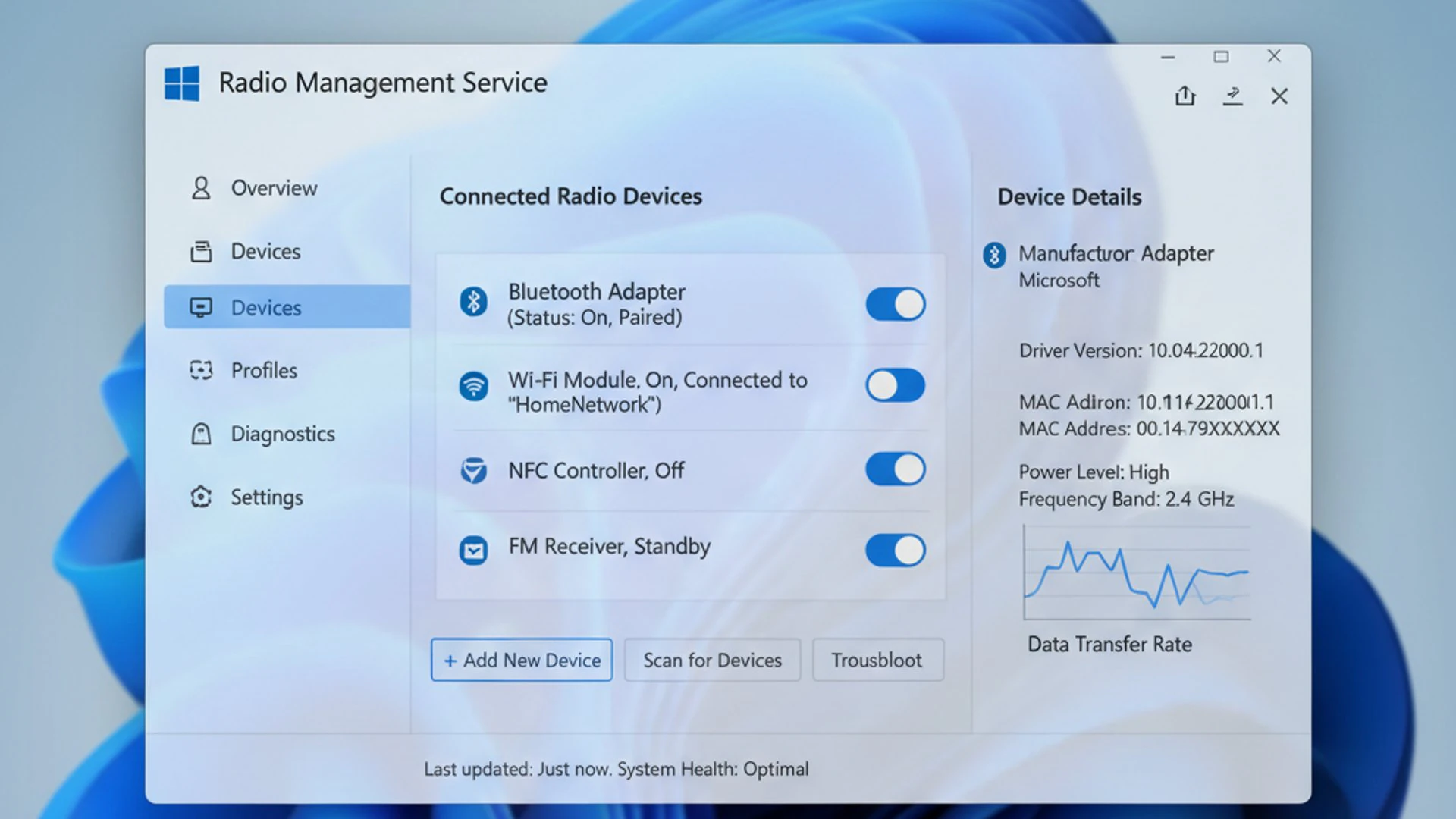
Its primary role is to abstract the complexities of various wireless hardware from the operating system and applications. This abstraction allows developers to write software that can utilize wireless capabilities without needing to understand the specific intricacies of every single Wi-Fi card or Bluetooth chip on the market.
Core Functionality and Purpose
At its heart, the Radio Management Service on Windows 11 provides a unified interface for managing wireless devices. It detects and enumerates available radio hardware, initializes these components, and facilitates their communication with the rest of the system. This includes tasks such as turning radios on or off, managing power states, and ensuring proper resource allocation.
When you enable Wi-Fi or Bluetooth from the Quick Settings panel, it’s often the RmSvc that translates that user command into actions for the underlying hardware. It ensures that the necessary drivers are loaded and that the radio is powered up and ready to transmit or receive signals. Without this service, these basic toggles would be ineffective.
The service also plays a role in maintaining the stability of your wireless connections. It monitors the status of your radio devices and can report issues to the operating system, which might then trigger troubleshooting steps or notifications to the user. Its continuous operation is vital for a consistent wireless experience.
Dependencies and Interconnections
The Radio Management Service does not operate in isolation; it relies on several other system components and services to perform its functions. Understanding these dependencies can be crucial for diagnosing problems. For instance, it often depends on the Plug and Play service to detect and configure new hardware.
It also interacts closely with various device drivers, particularly those for your Wi-Fi adapter, Bluetooth module, and any cellular modems. These drivers are the direct interface to the hardware, and the RmSvc communicates with them to send commands and receive status updates. An outdated or corrupt driver can directly impact the RmSvc’s ability to function.
Furthermore, the Radio Management Service on Windows 11 works in conjunction with network-related services, such as the WLAN AutoConfig service for Wi-Fi and the Bluetooth Support Service for Bluetooth. It provides the foundational radio management, while these other services build upon it to offer specific networking and device pairing functionalities.
Important Note: A healthy Radio Management Service relies heavily on up-to-date and correctly installed wireless device drivers. Always ensure your drivers are current to prevent unexpected connectivity issues.
How Radio Management Service Works with Wireless Devices?
The Radio Management Service (RmSvc) is the unseen conductor of your device’s wireless orchestra. It doesn’t directly transmit data, but rather manages the underlying hardware and software layers that do. This orchestration is critical for the seamless operation of various wireless technologies on your Windows 11 machine.
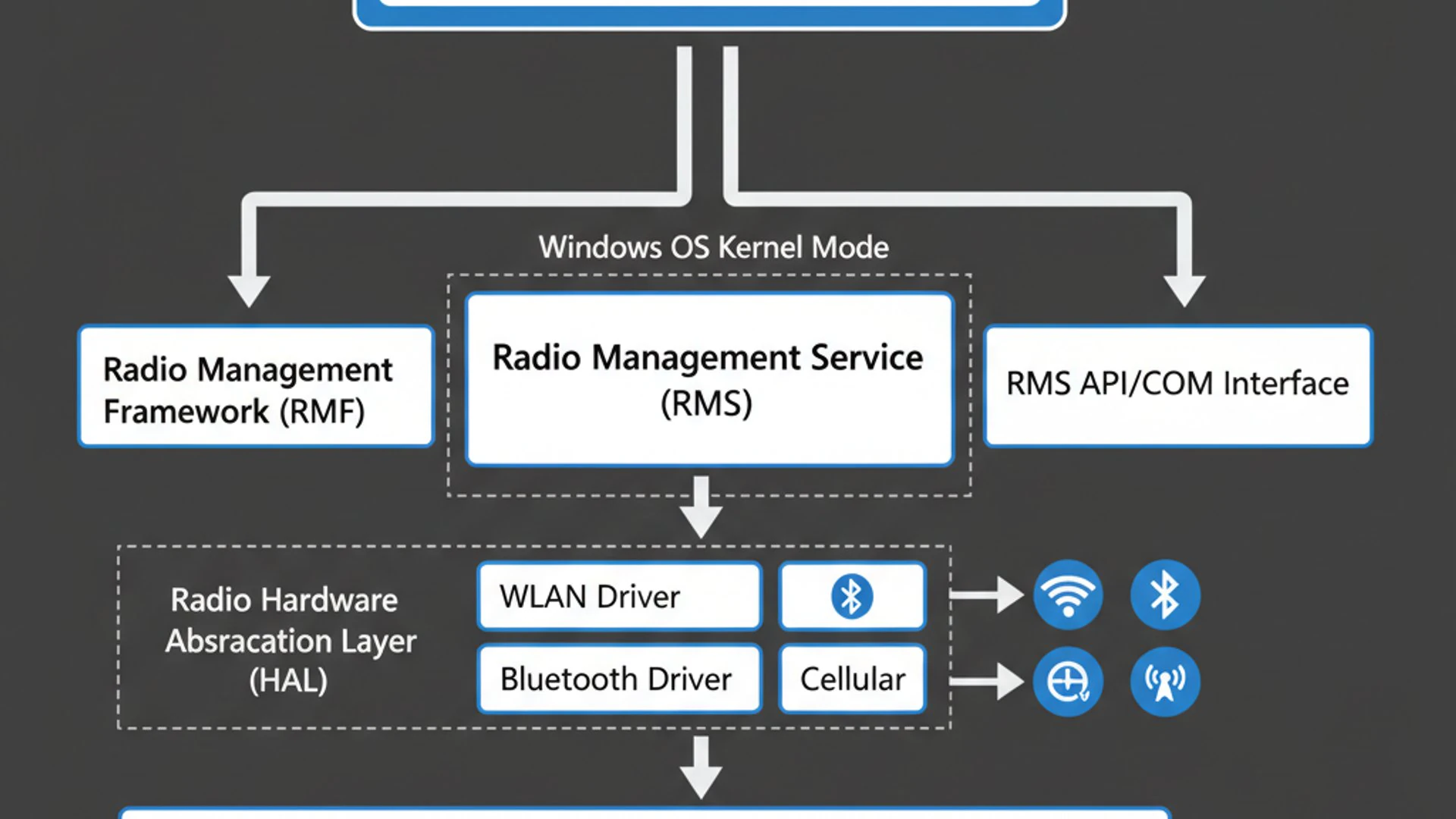
Its role involves initializing, configuring, and monitoring the state of your wireless adapters. When you interact with wireless settings, such as turning on Bluetooth or connecting to a Wi-Fi network, the RmSvc processes these requests and ensures the appropriate hardware responses. This makes it a central piece of the wireless puzzle.
Bluetooth Connectivity Management
For Bluetooth, the Radio Management Service on Windows 11 is instrumental in enabling device discovery and pairing. When you initiate a search for new Bluetooth devices, RmSvc ensures that your Bluetooth radio is active and broadcasting, allowing it to detect nearby compatible peripherals.
Once a device is discovered, the service facilitates the pairing process by coordinating with the Bluetooth Support Service and the specific Bluetooth driver. It manages the radio’s power state, ensuring that it’s ready to establish a secure connection with devices like headphones, keyboards, or mice. This initial setup is critical for all subsequent Bluetooth communication.
Even after pairing, RmSvc continues to monitor the Bluetooth radio’s status, helping to maintain stable connections and manage power consumption. If you experience issues with Bluetooth devices not connecting or frequently disconnecting, the Radio Management Service is one of the first components to investigate.
Wi-Fi Adapter Integration
The integration of the Radio Management Service with your Wi-Fi adapter is equally profound. It’s responsible for making sure your Wi-Fi radio is operational, allowing it to scan for available wireless networks and connect to them. When you toggle Wi-Fi on in Windows 11 settings, RmSvc is activated to prepare the adapter.
It works in tandem with the WLAN AutoConfig service to manage network profiles and connections. While WLAN AutoConfig handles the specifics of connecting to a network (like authentication and IP address assignment), RmSvc ensures the physical Wi-Fi radio is ready and capable of performing these tasks.
Role in Network Profiles
The Radio Management Service on Windows 11 plays an indirect but crucial role in network profiles. When you save a Wi-Fi network, the profile information (SSID, password, security type) is stored by the operating system. When you attempt to connect to that network again, RmSvc ensures that your Wi-Fi adapter is powered on and ready to use that profile.
It helps in the seamless transition between networks by ensuring the radio hardware is responsive to commands from the network profile management system. Without a functioning RmSvc, your Wi-Fi adapter might not even be detected, let alone be able to utilize stored network profiles for automatic connections.
Cellular Data Control
For devices equipped with cellular modems (like laptops with built-in LTE/5G), the Radio Management Service is just as vital. It manages the cellular radio’s state, enabling or disabling cellular data connectivity as per user or system commands. This includes activating the modem and preparing it to establish a connection with a cellular network.
RmSvc works with other services and drivers specific to your cellular modem to ensure proper initialization and communication. It helps in tasks like SIM card detection, network registration, and managing the radio’s power for optimal battery life. Any issues with cellular connectivity often trace back to the health of this service or its associated drivers.
Accessing and Managing the Radio Management Service
While the Radio Management Service typically operates silently in the background, there might be instances where you need to access or manage it directly. This could be for troubleshooting connectivity issues, verifying its status, or even restarting it to resolve minor glitches. Windows 11 provides several tools for this purpose, catering to different user preferences and technical skill levels.
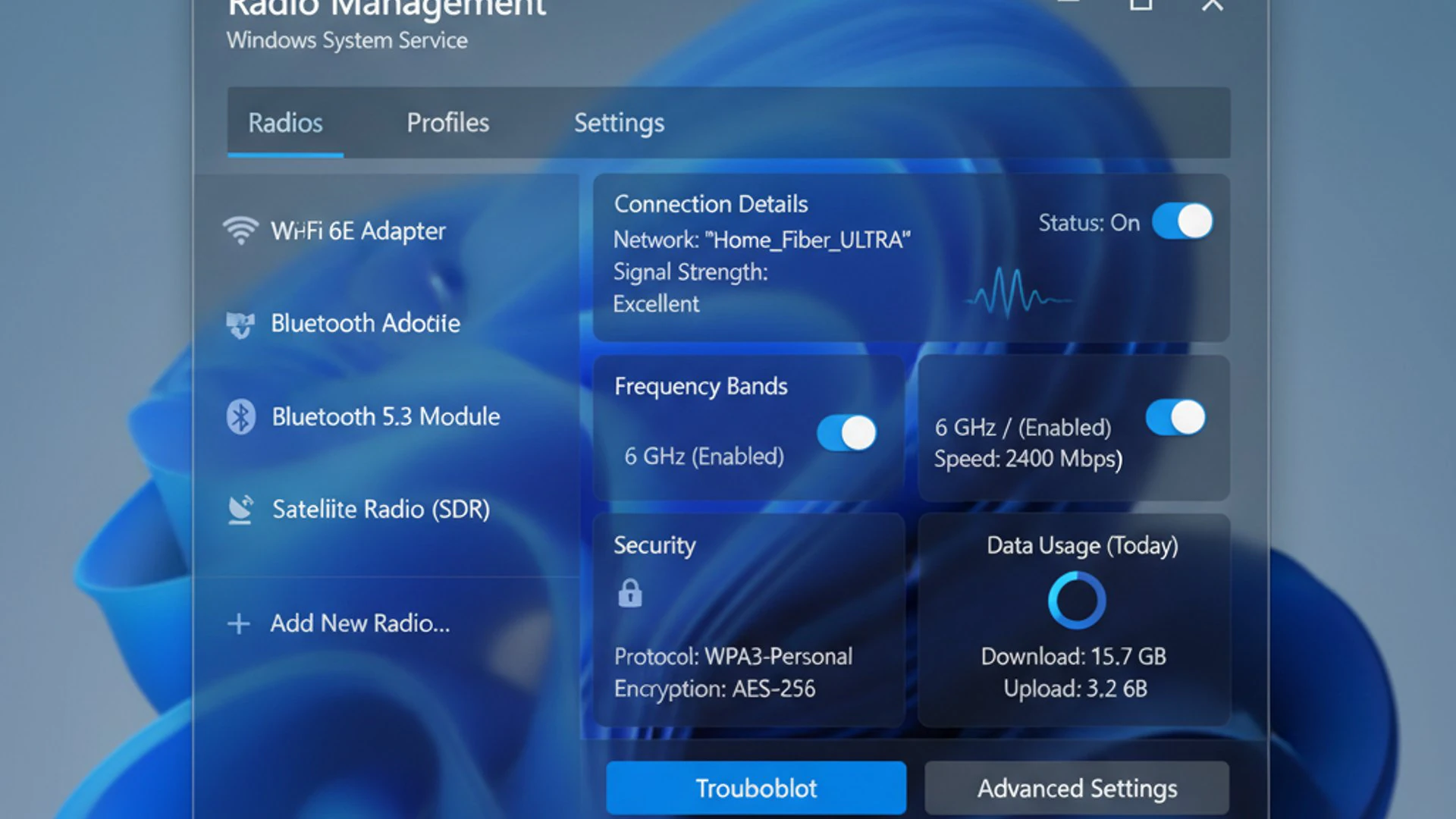
Understanding how to interact with RmSvc is a valuable skill for any Windows user. It empowers you to take control of your system’s wireless components and diagnose problems more effectively. We’ll explore the most common methods, from graphical interfaces to command-line tools.
Using the Services Manager (services.msc)
The Services Manager is the most common and user-friendly tool for managing Windows services. It provides a graphical interface where you can view, start, stop, pause, resume, and configure the startup type of any service, including the Radio Management Service on Windows 11.
Accessing it is straightforward and offers a clear overview of all running and stopped services. This is often the first place to check if you suspect a service-related issue. You can quickly see the current status and startup type, which are crucial pieces of information for troubleshooting.
Step-by-Step Guide to Services.msc
Here’s how to access and manage the Radio Management Service using the Services Manager:
- Press Win + R to open the Run dialog box.
- Type
services.mscand press Enter. This will open the Services window. - In the Services window, scroll down the list until you find “Radio Management Service”.
- Right-click on “Radio Management Service” to see available options:
- Start: Initiates the service if it’s stopped.
- Stop: Halts the service. This will disable all wireless functionality.
- Restart: Stops and then immediately starts the service. This is often useful for resolving temporary glitches.
- Properties: Opens a dialog box where you can configure the service’s startup type (e.g., Automatic, Manual, Disabled).
- To change the startup type, select Properties. In the “General” tab, locate the “Startup type” dropdown menu. For most users, Automatic is the recommended setting for the Radio Management Service.
- Click Apply and then OK to save any changes.
Pro Tip: If you’re experiencing wireless issues, try restarting the Radio Management Service via services.msc as a first troubleshooting step. This can often resolve minor software conflicts or hung processes.
Command Prompt and PowerShell Management
For users who prefer command-line interfaces or need to script service management, Command Prompt and PowerShell offer powerful alternatives. These methods allow for quick execution and can be particularly useful for remote administration or automated tasks.
Managing the Radio Management Service on Windows 11 through these interfaces provides flexibility and precision. You can check the status, start, stop, or configure the service without navigating through graphical menus, which can be faster for experienced users.
- Using Command Prompt (Admin):
- Open Command Prompt as an administrator (Search for “cmd”, right-click, and select “Run as administrator”).
- To check the status:
sc query RmSvc - To start the service:
net start RmSvc - To stop the service:
net stop RmSvc - To set the startup type to Automatic:
sc config RmSvc start= auto - To set the startup type to Manual:
sc config RmSvc start= demand - To set the startup type to Disabled:
sc config RmSvc start= disabled
- Using PowerShell (Admin):
- Open PowerShell as an administrator (Search for “PowerShell”, right-click, and select “Run as administrator”).
- To check the status:
Get-Service -Name RmSvc - To start the service:
Start-Service -Name RmSvc - To stop the service:
Stop-Service -Name RmSvc - To restart the service:
Restart-Service -Name RmSvc - To set the startup type to Automatic:
Set-Service -Name RmSvc -StartupType Automatic - To set the startup type to Manual:
Set-Service -Name RmSvc -StartupType Manual - To set the startup type to Disabled:
Set-Service -Name RmSvc -StartupType Disabled
Common Issues and Troubleshooting the Radio Management Service
Despite its critical role, the Radio Management Service on Windows 11 can sometimes encounter issues, leading to frustrating wireless connectivity problems. Understanding common symptoms and how to troubleshoot them can save you a lot of time and effort. Many wireless woes often trace back to this service or its related components.
Effective troubleshooting involves a systematic approach, starting with verifying the service’s status and then moving on to related dependencies and drivers. It’s important to remember that wireless issues can have multiple layers of complexity, but focusing on RmSvc is a good starting point.
Service Not Starting or Running
One of the most immediate signs of a problem is if the Radio Management Service fails to start or is found to be stopped when it should be running. This will invariably lead to a complete loss of Wi-Fi, Bluetooth, and cellular capabilities.
If you find the service in a stopped state:
- Attempt to Start Manually: Open services.msc, locate “Radio Management Service,” right-click, and select “Start.”
- Check Startup Type: Ensure its startup type is set to “Automatic” in its properties. If it’s “Disabled,” change it to “Automatic” and then try starting it.
- Review Event Viewer: Open Event Viewer (search for it in the Start menu) and navigate to “Windows Logs” > “System.” Look for error messages related to “RmSvc” or “Service Control Manager” around the time the service failed to start. These logs often provide specific error codes or dependency failures.
- Check Dependencies: In the service’s properties, go to the “Dependencies” tab. Ensure that all services listed under “This service depends on the following components” are running. For instance, if the Plug and Play service is stopped, RmSvc might not start.
Wireless Connectivity Problems
Even if the Radio Management Service is running, you might still experience intermittent Wi-Fi disconnections, Bluetooth pairing failures, or cellular data dropouts. These issues suggest that while the service is active, something is preventing it from interacting correctly with your hardware or network.
Learn more about fixing Wi-Fi connection issues.
Consider these steps:
- Restart the Service: A simple restart of the Radio Management Service (via services.msc or PowerShell) can often clear temporary glitches.
- Toggle Wireless Radios: Try turning Wi-Fi or Bluetooth off and then on again from Windows Quick Settings or Device Manager. This can reinitialize the hardware.
- Run Network Troubleshooter: Windows 11 has built-in troubleshooters. Go to Settings > System > Troubleshoot > Other troubleshooters and run the “Internet Connections” or “Bluetooth” troubleshooter.
- Reset Network Adapters: In Settings > Network & internet > Advanced network settings > Network reset, you can perform a full network reset. This reinstalls network adapters and resets network components, which can resolve deep-seated issues.
Diagnosing Driver Conflicts
Driver issues are a very common cause of wireless connectivity problems, even when the Radio Management Service itself appears to be running. An outdated, corrupted, or incompatible driver can prevent RmSvc from effectively communicating with your wireless hardware.
To diagnose driver conflicts:
- Check Device Manager: Press Win + X and select “Device Manager.” Expand “Network adapters” and “Bluetooth.” Look for any devices with a yellow exclamation mark, which indicates a driver issue.
- Update Drivers: Right-click on your Wi-Fi or Bluetooth adapter in Device Manager and select “Update driver.” Choose “Search automatically for drivers.” If Windows doesn’t find one, visit your computer manufacturer’s website or the wireless adapter manufacturer’s website for the latest drivers.
- Roll Back Driver: If problems started after a driver update, you can try rolling back the driver. In Device Manager, go to the adapter’s properties, select the “Driver” tab, and click “Roll Back Driver” if the option is available.
- Reinstall Driver: As a last resort, uninstall the driver (check the box to “Delete the driver software for this device” if prompted) and then restart your computer. Windows will often reinstall a generic driver, or you can manually install the latest one downloaded from the manufacturer.
Performance Impact and Resource Usage
Typically, the Radio Management Service on Windows 11 is lightweight and should not consume significant system resources. However, in rare cases, a misbehaving RmSvc or an underlying driver issue could lead to elevated CPU usage or memory consumption, impacting overall system performance.
If you suspect RmSvc is consuming too many resources:
- Check Task Manager: Open Task Manager (Ctrl + Shift + Esc), go to the “Details” tab, and look for “RmSvc.exe.” Monitor its CPU and memory usage over time.
- Update Drivers: Again, outdated or buggy wireless drivers are often the culprit behind high resource usage, as they might cause the service to work harder than necessary.
- Scan for Malware: Malicious software can sometimes interfere with legitimate Windows services, causing them to behave erratically and consume excessive resources. Perform a full system scan using Windows Security or a reputable third-party antivirus.
- System File Checker: Run
sfc /scannowin an elevated Command Prompt to check for and repair corrupted system files that might be affecting the service.
Best Practices for Maintaining Radio Management Service Health
Proactive maintenance is key to ensuring the smooth and reliable operation of the Radio Management Service on Windows 11. By following a few best practices, you can significantly reduce the likelihood of encountering wireless connectivity issues and keep your system running optimally. These practices focus on prevention rather than reactive troubleshooting.
A well-maintained system not only performs better but also offers a more stable and secure computing environment. For a critical service like RmSvc, consistency in maintenance is paramount to avoid disruptions to your daily tasks.
Keeping Drivers Updated
This cannot be stressed enough: keeping your wireless drivers updated is perhaps the single most important best practice for the health of the Radio Management Service. Drivers are the bridge between the operating system and your hardware. Outdated drivers can lead to:
- Compatibility issues with the new Windows updates.
- Reduced performance or slower connection speeds.
- Intermittent disconnections or complete loss of wireless functionality.
- Security vulnerabilities.
Regularly check for driver updates from your device manufacturer’s website (e.g., Dell, HP, Lenovo) or the wireless adapter manufacturer (e.g., Intel, Realtek, Broadcom). Windows Update also provides driver updates, but manufacturer websites often have the very latest versions optimized for your specific hardware.
Consider setting a reminder to check for driver updates quarterly or semi-annually. A quick search for ” [Your Laptop Model] drivers” or ” [Your Wi-Fi Adapter Model] drivers” will usually lead you to the official support page.
Regular System Scans and Health Checks
Beyond drivers, maintaining overall system health contributes directly to the stability of all Windows services, including the Radio Management Service. Regular scans and checks can identify and rectify underlying issues before they escalate into significant problems.
Here are some recommended health checks:
- Windows Update: Ensure your Windows 11 operating system is always up-to-date. Microsoft frequently releases patches and improvements that can affect service stability and security.
- Disk Cleanup and Defragmentation: While less directly related, a cluttered or fragmented hard drive can sometimes impact overall system responsiveness, which in turn can affect service performance.
- System File Checker (SFC): Run
sfc /scannowperiodically from an elevated Command Prompt. This tool checks for and repairs corrupted Windows system files, which might be affecting RmSvc. - Antivirus and Malware Scans: Regularly scan your system for malware. Malicious software can interfere with legitimate services, causing them to malfunction or consume excessive resources. Use Windows Security or a trusted third-party solution.
- Event Viewer Monitoring: Occasionally review the “System” and “Application” logs in Event Viewer for any recurring errors or warnings related to “RmSvc” or wireless components. Early detection can prevent major issues.
Actionable Advice: Schedule a monthly routine to check for Windows updates, driver updates, and run a full system scan. This proactive approach significantly enhances system stability and wireless reliability.
When to Disable or Restart the Radio Management Service
Understanding when and how to interact with the Radio Management Service (RmSvc) is crucial for effective system management. While it’s a vital component, there are specific scenarios where you might consider restarting it, and very few where disabling it is advisable. Mismanaging this service can lead to significant disruption of your wireless capabilities.
Always approach changes to core Windows services with caution. Before making any modifications, ensure you understand the potential consequences and have a plan to revert changes if necessary. The Radio Management Service on Windows 11 is not one to be trifled with lightly.
Scenarios for Disabling (and Why It’s Rarely Recommended)
Disabling the Radio Management Service is rarely recommended for a typical Windows 11 user. Here’s why and the very limited scenarios where it might be considered:
- Complete Loss of Wireless: Disabling RmSvc will immediately render all your Wi-Fi, Bluetooth, and cellular functionalities inoperable. Your system will not be able to detect, connect to, or manage any wireless devices.
- Dependency Issues: Other services and applications rely on RmSvc. Disabling it can cause these dependent services to fail or behave erratically, leading to broader system instability.
- Security Risks: While it might seem counterintuitive, disabling a core service could potentially expose your system to other vulnerabilities if not done carefully and with a full understanding of the implications.
The only conceivable scenarios where disabling RmSvc might be considered are in highly specialized, air-gapped environments where wireless communication is strictly prohibited for security reasons, and the system is physically isolated. Even then, hardware removal is often preferred. For 99.9% of users, do not disable this service.
Safely Restarting the Service
Restarting the Radio Management Service, however, is a common and often effective troubleshooting step for minor wireless glitches. It can resolve issues like:
- Intermittent Wi-Fi disconnections.
- Bluetooth devices are failing to pair or connect.
- Wireless adapters are not appearing in Device Manager after resuming from sleep.
- General sluggishness in wireless performance.
Restarting essentially gives the service a fresh start, clearing any temporary errors or hung processes without requiring a full system reboot. It’s a non-invasive way to try and restore normal functionality.
To safely restart the Radio Management Service on Windows 11:
- Using Services Manager (Recommended for most users):
- Open services.msc.
- Locate “Radio Management Service.”
- Right-click and select “Restart.”
- Using PowerShell (For advanced users):
- Open PowerShell as an administrator.
- Type
Restart-Service -Name RmSvcand press Enter.
After restarting, give your system a moment to reinitialize the wireless adapters, then check if your connectivity issues are resolved. You might need to reconnect to your Wi-Fi network or re-pair Bluetooth devices.
Security Implications and the Radio Management Service
In an increasingly connected world, the security of wireless communications is paramount. The Radio Management Service on Windows 11, by virtue of its role in orchestrating Wi-Fi, Bluetooth, and cellular connections, inherently plays a part in your system’s overall security posture. While it’s not a security service in itself, its proper functioning contributes to a secure environment.
Understanding these implications helps users appreciate the service’s importance beyond just connectivity. A compromised or malfunctioning RmSvc could potentially open doors for vulnerabilities or disrupt secure communications.
Protecting Wireless Connections
The Radio Management Service contributes to securing wireless connections by ensuring that the underlying hardware and software interfaces are correctly initialized and managed. It works in conjunction with other Windows components to enforce security protocols for Wi-Fi and Bluetooth.
- Wi-Fi Security: RmSvc ensures that your Wi-Fi adapter is ready to implement security standards like WPA2 or WPA3 when connecting to networks. It manages the radio’s state so that authentication and encryption processes can proceed without interference.
- Bluetooth Security: For Bluetooth, it facilitates secure pairing processes, ensuring that devices establish encrypted connections. It helps manage the radio’s power and state to prevent unauthorized access during discovery and connection phases.
- Driver Integrity: By relying on properly signed and updated drivers, RmSvc helps prevent malicious or unverified drivers from gaining control over your wireless hardware, which could otherwise be a significant security risk.
Essentially, a healthy Radio Management Service provides a stable and reliable foundation upon which Windows’ robust wireless security features can operate effectively. Any instability in RmSvc could potentially weaken this foundation.
Potential Vulnerabilities and Mitigation
While the Radio Management Service itself is generally secure, like any complex software component, it could theoretically be a target for exploits if vulnerabilities are discovered. More commonly, issues arise from its dependencies or interactions.
- Outdated Drivers: As mentioned, outdated wireless drivers are a significant vulnerability. They might contain known security flaws that could be exploited to gain unauthorized access or disrupt service. Mitigation: Regularly update your wireless drivers from official sources.
- Malware Interference: Malicious software can attempt to interfere with core Windows services, including RmSvc, to disable security features, monitor traffic, or cause denial of service. Mitigation: Maintain robust antivirus protection and perform regular system scans.
- Physical Access: If an attacker has physical access to your device, they could potentially manipulate services or drivers. Mitigation: Implement strong physical security measures for your device.
- Denial of Service (DoS): In some rare theoretical scenarios, a flaw in the service or its interaction with specific hardware could be exploited to cause the service to crash, leading to a denial of wireless services. Mitigation: Keep Windows 11 fully updated, as Microsoft regularly patches such vulnerabilities.
The best mitigation strategy for protecting the Radio Management Service on Windows 11 and your overall wireless security involves a multi-faceted approach: keep your operating system and drivers updated, use strong security software, and be vigilant against phishing and malware.
Conclusion
The Radio Management Service (RmSvc) on Windows 11 is an unsung hero of modern computing, quietly working in the background to ensure your device’s seamless wireless connectivity. From the moment you turn on your computer and connect to Wi-Fi, pair a Bluetooth device, or activate cellular data, RmSvc is orchestrating the intricate dance between hardware, drivers, and the operating system.
Its role as the central manager for all radio-based communication is indispensable. Without it, the convenience and flexibility we’ve come to expect from our Windows 11 devices would simply vanish. While often invisible, understanding its function, how to manage it, and how to troubleshoot common issues empowers users to maintain a stable and robust wireless experience.
By adhering to best practices such as keeping drivers updated, performing regular system health checks, and knowing when to safely restart the service, you can ensure the continued reliability and security of your wireless connections. The Radio Management Service on Windows 11 is a testament to the complex engineering that underpins our digital lives, and its proper functioning is key to an uninterrupted and efficient workflow.
For more interesting articles, stay tuned to Winsides.com!









Community
Comments (0)