

You can show or hide a background-app icon from Settings > Personalization > Taskbar > Other system tray icons. Turn an app's switch on to let its icon stay in the visible system tray, or turn the switch off to place the icon in the Hidden icon menu when that menu is enabled. This changes the icon's placement only; it does not stop the app, disable its notifications, or turn off its background activity.
I reproduced the complete change on Windows 11 build 26220.7872 by switching Windows Security notification icon from On to Off and then restoring it to On. The current labels match Microsoft's taskbar customization guidance. No administrator permission, restart, sign-out, or registry edit was required.
What does the notification-icon switch actually change?
Windows calls the area beside the clock the system tray; older documentation and many users also call it the notification area. Apps use this space for small status icons, quick menus, and background-state indicators. Microsoft's developer documentation explains the underlying notification-area role, but you do not need developer tools to control icon visibility.
An On switch means Windows may place that app's registered icon directly on the taskbar. Off means the icon is not kept in the visible row. If Hidden icon menu is On, select the chevron near the clock to reach icons whose app switches are Off. The switch does not guarantee that an icon will appear every second: the app must be running and must currently register a tray icon.
This page controls background-app icons such as Windows Security, OneDrive, or ShareX. It is separate from core system-tray controls such as the clock, network, volume, battery, touch keyboard, and notification bell. For clock-specific options, use the dedicated guides to show or hide the time and date or display seconds in the system tray clock.
Table of contents
What should you check before changing an icon?
- Identify the exact app. The list can contain similarly named entries or more than one historical registration for the same program. Change one switch at a time.
- Record the starting state. If you are testing or troubleshooting, note whether the target switch begins at On or Off so you can restore it exactly.
- Keep the Hidden icon menu distinction clear. An app switch controls one icon; the Hidden icon menu switch controls whether the overflow chevron itself is available.
- Expect inactive icons to stay absent. An On preference permits visibility but cannot create a tray icon for an app that is closed or not exposing one.
How do you open the correct Taskbar settings section?
- Right-click an empty area of the taskbar and select Taskbar settings. You can also press Windows + I, choose Personalization, and then select Taskbar.
- Scroll past Taskbar items and System tray icons.
- Find Other system tray icons. Its current description reads Show or hide additional system tray icons.
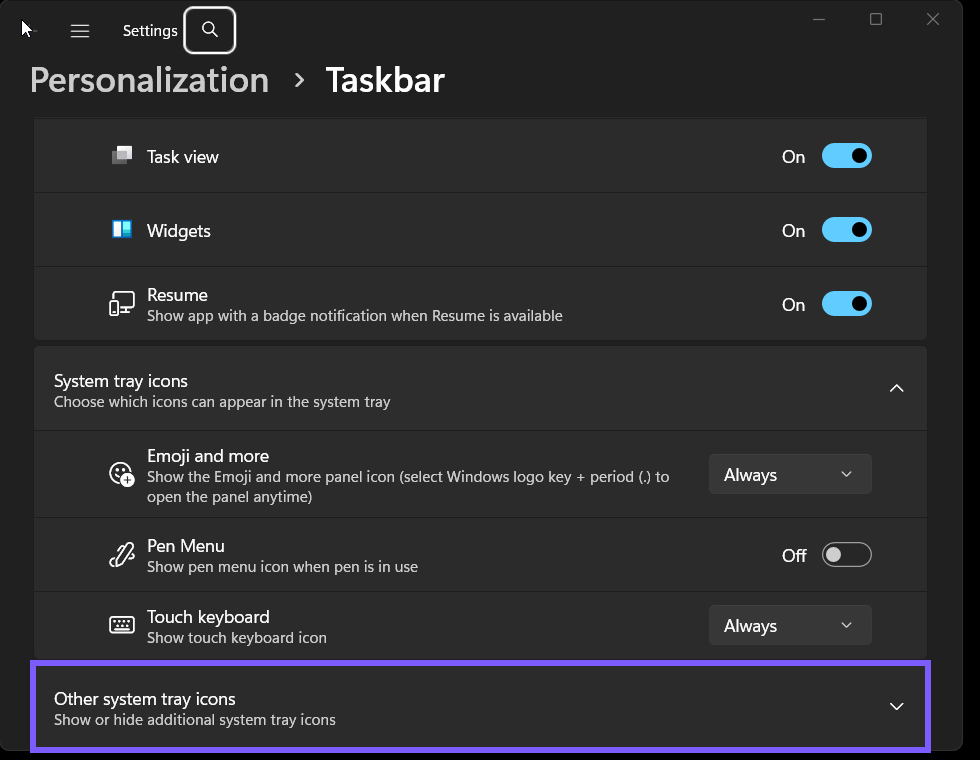
Select the row or its arrow to expand it. Do not change Hidden icon menu unless your goal is to enable or remove the overflow chevron; that is a different preference from showing or hiding one app icon.
How do you record the icon's current state?
- In the expanded list, locate the exact app whose icon you want to manage. I used Windows Security notification icon because its label is unambiguous on this device.
- Read the word beside the switch, not only its color. The tested starting state was On.
- If the app name appears more than once, leave the other entries untouched. A duplicate can belong to an older registration or another running instance.
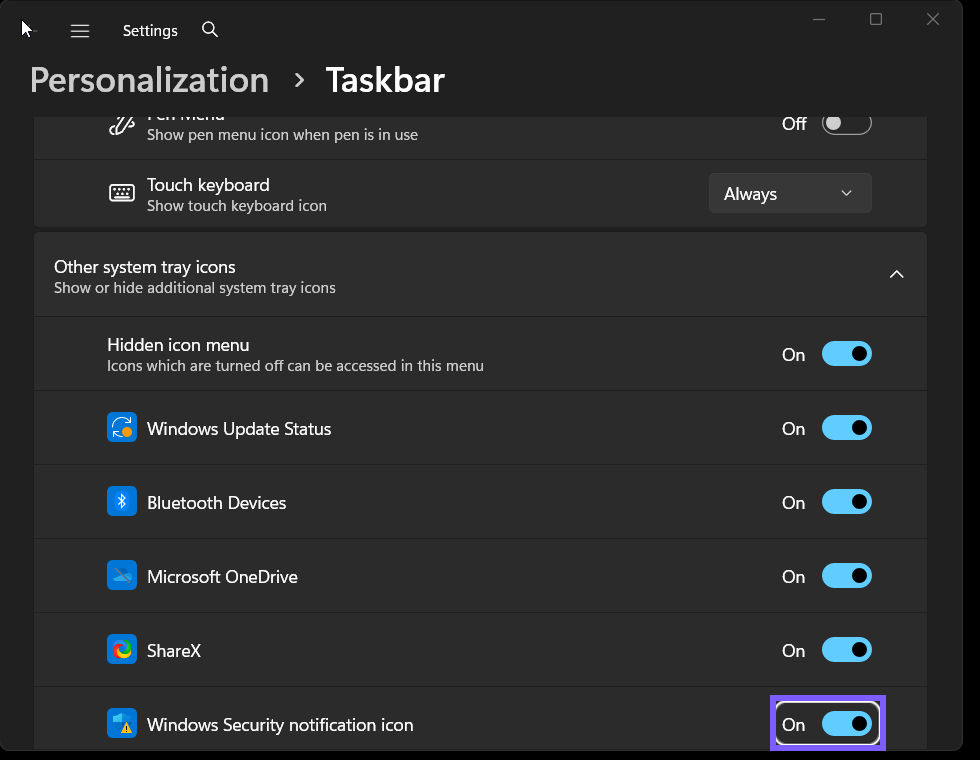
On means the icon is allowed in the visible system tray while Windows Security exposes it. It does not mean protection is enabled or disabled; Windows Security settings and security status are controlled elsewhere.
How do you hide one notification icon?
- Select the target app's switch once so it changes from On to Off.
- Look at the system tray. If the icon was active, it should leave the always-visible row. With Hidden icon menu enabled, open the chevron to find it in the overflow area.
- Leave the app running if you want to compare placement. Closing the app at the same time makes it impossible to tell whether the switch or the app exit removed the icon.
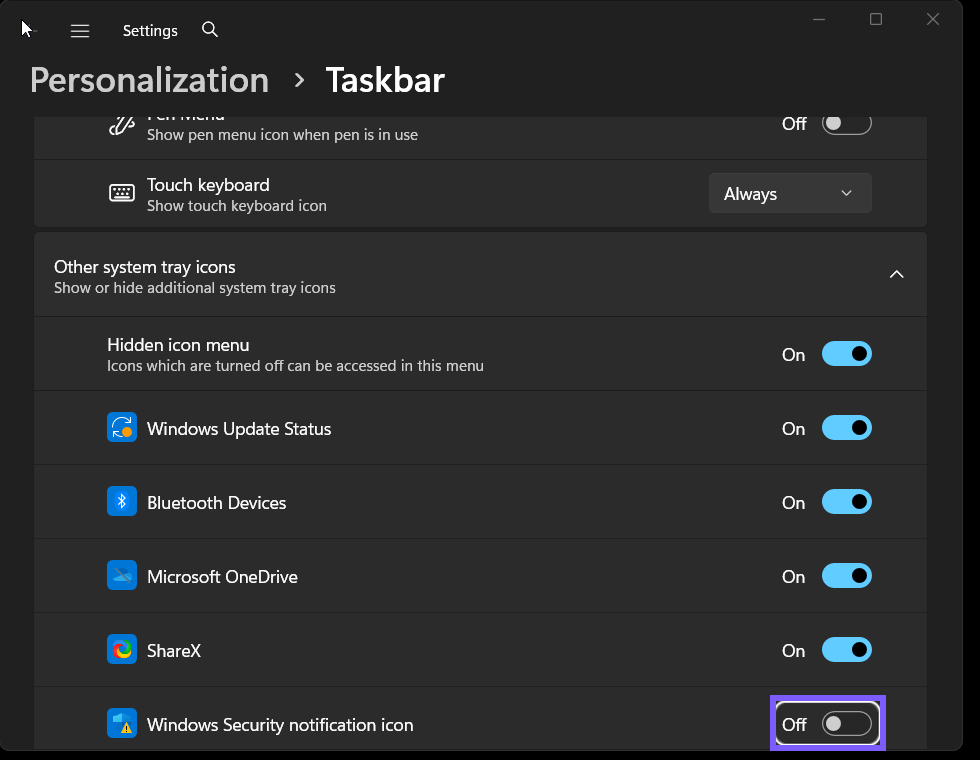
The change applies immediately and does not need an Apply button. Turning an icon Off is a layout choice, not a notification policy. The app can continue to run and may still show banners, sounds, badges, or alerts according to its separate notification settings.
How do you show the icon again and verify the rollback?
- Return to Other system tray icons if you closed Settings.
- Find the same app entry and change its switch back to the state you recorded. In this reproduction, that meant changing Windows Security notification icon from Off to On.
- Close Settings, reopen the Taskbar page, expand Other system tray icons, and read the switch again. A fresh Settings instance should still show On.
- Close Settings when verification is complete. No reboot or Explorer restart is necessary.
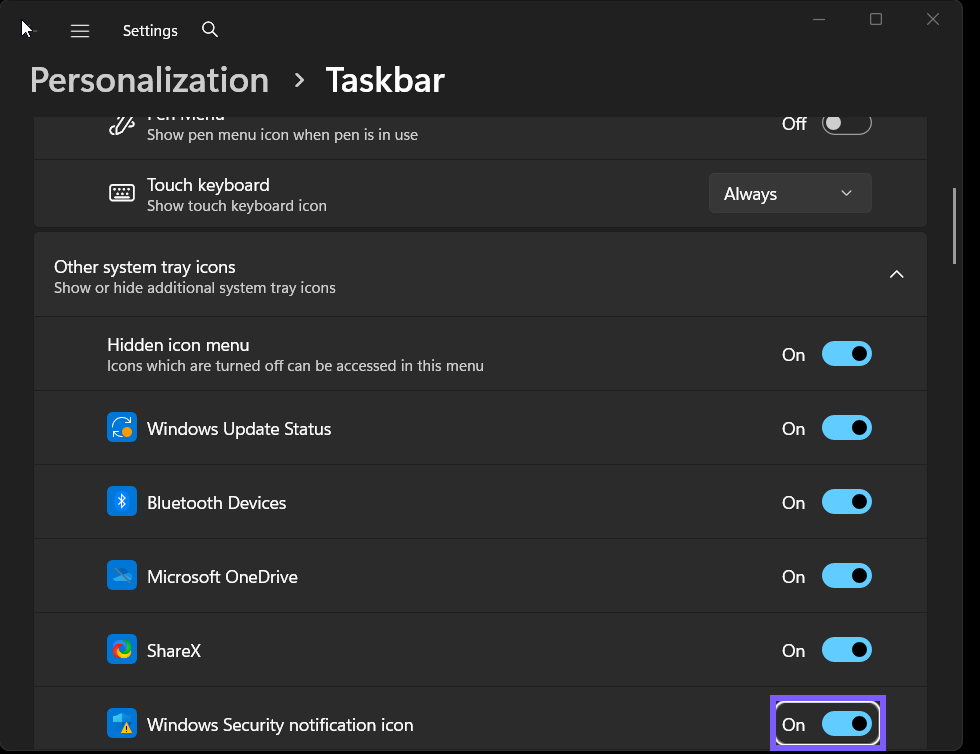
If the icon does not immediately reappear on the taskbar even though the switch reads On, verify that its app is running and currently publishes a tray icon. The preference can be correct while an inactive app has nothing to display.
Why is an app missing from Other system tray icons?
The list is built from tray-icon registrations Windows has observed, so it is not a catalog of every installed app. Start the app and enable its own tray-icon option if it has one, then close and reopen Taskbar settings. Some utilities add their entry only after they have run at least once.
If the name still does not appear, check whether you are looking for a core Windows control. Network, volume, battery, touch keyboard, pen menu, and similar controls use other sections of the Taskbar page. A program may also expose no notification-area icon at all, in which case Windows cannot add a switch for it here.
Why does an icon still appear after its switch is Off?
First confirm whether you are viewing the visible tray or the Hidden icon menu. Off normally moves an active app icon out of the always-visible row; it can remain available behind the chevron. Also check for duplicate entries with the same app name, because the active icon may belong to another registration.
Close and reopen Settings to rule out a stale list, but do not delete notification-area registry data merely to solve an ordinary visibility preference. Resetting the entire icon history is a broader operation that can remove remembered placements for every app and is unnecessary for this task.
Does hiding a tray icon affect notifications or security?
No. The per-app switch on this page changes where a notification-area icon is placed. It does not turn Windows notifications on or off, change notification banners, disable an app at startup, stop its background processes, or alter Windows Security protections. Use Settings > System > Notifications when your real goal is to control banners, sounds, or alerts.
That separation is useful: you can reduce visual clutter while retaining important app behavior. For security or sync utilities, read their status inside the app rather than assuming that a hidden icon means the feature is inactive.
Frequently Asked Questions
Where do hidden taskbar icons go in Windows 11?
When Hidden icon menu is On, app icons whose individual switches are Off are normally available behind the chevron near the clock. If the app is not running or is not publishing a tray icon, there may be nothing to show in either location.
Does turning a system tray icon Off stop the app?
No. The switch changes icon placement only. The app can keep running, syncing, protecting the device, or sending notifications according to its own settings.
Why does the same app appear more than once in the list?
Windows may retain more than one tray-icon registration for different versions or instances of an app. Change only the entry you can verify, and avoid resetting the complete notification-area history for a simple visibility change.
Do you need administrator rights or a restart?
No. The tested Taskbar setting changed immediately for the current user and was restored in a fresh Settings window without elevation, sign-out, Explorer restart, or reboot.
For more interesting articles, stay tuned to WinSides.com!
Community
Comments (0)