

Windows 11 lets you place the Start button and pinned taskbar icons in the center or move them to the left. To change the alignment, open Settings > Personalization > Taskbar, expand Taskbar behaviors, and choose Center or Left beside Taskbar alignment. The change appears immediately and does not require administrator approval on a standard personal PC.
I reproduced the full Center-to-Left-to-Center sequence on Windows 11 version 25H2, build 26220.7872. The test changed only the current user's taskbar alignment value, showed no warning or confirmation, and required no Explorer restart or sign-out. After restoring Center, I closed Settings, opened a new Settings instance, confirmed Center again, and verified that the underlying value was the same DWORD 1 recorded at the start.
What does taskbar icon alignment change?
The setting changes the horizontal starting position of the main taskbar button group. Center places Start and the nearby pinned or running app buttons around the middle of the taskbar. Left moves that group toward the lower-left corner, which resembles the familiar layout used by earlier Windows versions.
It does not move every taskbar element. The notification area, network and sound controls, battery indicator when present, and clock remain at the right. It also does not hide Search, Task view, Widgets, or other taskbar items; those have their own controls higher on the same Settings page. If your goal is to remove a button rather than move the group, use the relevant taskbar-item control. WinSides also has a focused guide to remove Copilot from the taskbar without disabling it.
Microsoft's current taskbar guidance says the Windows 11 taskbar stays at the bottom of the screen and the built-in alignment choices are Center and Left. The procedure in this guide therefore does not promise a supported top or side position, and it does not use third-party software to alter Explorer.
Table of contents
How do you open the taskbar alignment setting?
You can reach the same built-in control through either of two normal navigation routes. Use whichever is easier on the current desktop:
- Taskbar shortcut: Right-click or press and hold an empty area of the taskbar, then select Taskbar settings.
- Settings route: Press Windows + I, select Personalization, then select Taskbar.
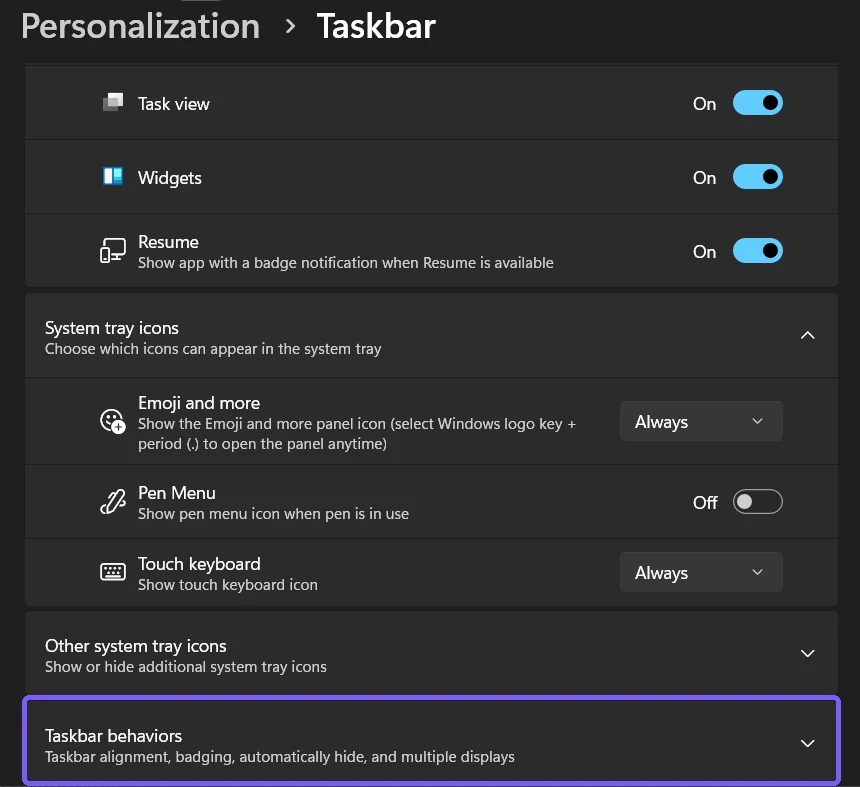
Both routes open the Taskbar page for the signed-in Windows account. Scroll to Taskbar behaviors. If the section is collapsed, select its row or arrow once to expand it. Avoid changing the Search, Task view, Widgets, Resume, system-tray, auto-hide, or multi-display controls while following this procedure; they are unrelated settings.
How do you choose Left or Center?
- Expand Taskbar behaviors.
- Find Taskbar alignment.
- Open the menu on the right. Record its current choice before changing it.
- Select Left to move the main button group left, or select Center to return it to the middle.
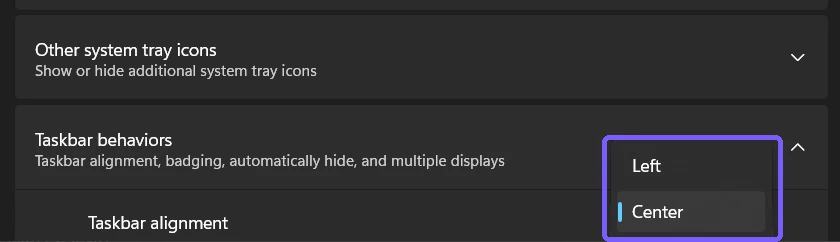
There is no separate Save or Apply button. Watch the taskbar as you choose an option: the Start button and the main icon group should move immediately. On the tested build, selecting Left changed the current-user TaskbarAl value from DWORD 1 to DWORD 0. That observation was used only as test evidence; Registry Editor is not necessary and is not recommended as a reader method.
How can you verify the left-aligned result?
First, confirm that the menu now displays Left. Then look at the bottom edge of the same display and check that Start and the main taskbar icon group begin near the left. The right-side status area should remain on the right. Opening an app from the taskbar still works normally; the alignment changes position, not the app-launch behavior. See the separate guide if you need more ways to open apps from the Windows 11 taskbar.
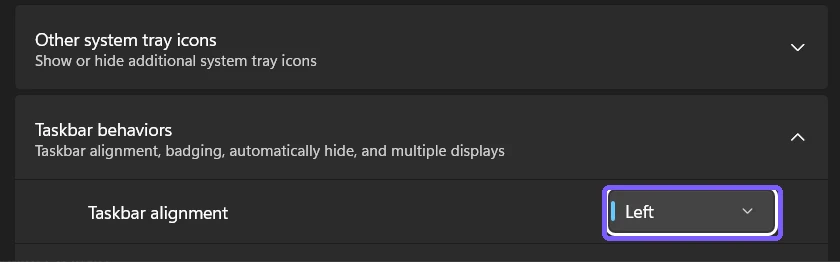
If you use more than one display, inspect the taskbar on the display you are viewing and remember that separate multi-display options can affect where taskbars and app buttons appear. Do not change those options merely to troubleshoot alignment. Keeping the test to one documented control makes the result and rollback unambiguous.
How do you restore Center and verify the rollback?
Return to Settings > Personalization > Taskbar > Taskbar behaviors and choose Center beside Taskbar alignment. Confirm that the main button group moves back to the middle. For stronger verification, close Settings completely, reopen the Taskbar page, expand Taskbar behaviors, and confirm that the menu still reads Center.
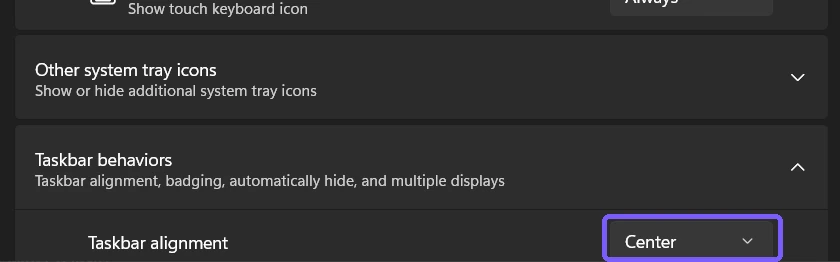
The reproduced rollback passed all three checks: the visible icons returned to the center, a fresh Settings instance showed Center, and the exact current-user value returned to DWORD 1. Settings and the screenshot tool were then closed. No files, credentials, network settings, cloud data, learned data, or system-availability controls were touched.
Should you use Center or Left?
Use Center if you prefer the default Windows 11 layout or want the main controls closer to the middle of a wide display. Use Left if muscle memory from earlier Windows versions matters more, or if you prefer a stable starting corner as app buttons appear and disappear. Neither choice makes apps faster, adds screen space, or changes system security.
The option is easy to reverse, so you can try both without adding software. Record the starting choice, test the alternative during normal use, and restore the original if it is less comfortable. Do not judge by a single screenshot alone: pinned apps, open windows, Search presentation, display width, and scaling can make the spacing look different between PCs.
What is different from auto-hide and Show desktop?
Alignment only changes where the main icon group begins. Automatically hide the taskbar controls whether the whole taskbar retracts until you point at its edge; use the dedicated guide to auto-hide the Windows 11 taskbar. Select the far corner of the taskbar to show the desktop controls the narrow desktop-preview target at the far right; WinSides covers that in its Show desktop corner guide.
Because these controls appear in the same Taskbar behaviors section, it is easy to change the wrong row. Read the label before opening a menu or selecting a check box. If you only want Left or Center, leave badging, auto-hide, multiple-display behavior, and the far-corner setting unchanged.
Why is Taskbar alignment missing or not staying selected?
- Check the page and section. The control belongs under Personalization > Taskbar > Taskbar behaviors, not Taskbar items or System tray icons.
- Expand Taskbar behaviors. The alignment row is hidden while that section is collapsed.
- Confirm you are using Windows 11. Earlier Windows versions expose different taskbar layouts and controls.
- Reopen Settings. If the page stopped responding, close Settings and open the Taskbar page again before changing anything else.
- Consider device management. A work or school administrator can enforce user-interface settings. If a documented choice reverses itself, ask the responsible administrator instead of editing the Registry or installing a taskbar replacement.
- Remove third-party variables. An Explorer customization or taskbar replacement can change the interface beyond Microsoft's supported layout. Follow that product's official removal or restore guidance before attributing its behavior to the built-in control.
A normal alignment change on the reproduced personal PC did not require restarting Explorer, signing out, restarting Windows, or approving an administrator prompt. Those disruptive actions should not be the first response to a missing row or a page that needs to be reopened.
What mistakes should you avoid?
- Do not confuse alignment with taskbar position. Center and Left do not move the Windows 11 taskbar to the top or side.
- Do not change nearby controls by accident. Auto-hide, badging, taskbar items, and multiple-display behavior have separate effects.
- Do not edit the Registry for this routine task. The built-in graphical control is clearer, safer, and immediately reversible.
- Do not install a taskbar replacement just to choose Left. Windows already provides the option.
- Do not publish account information in screenshots. Use a responsive Settings window or a crop that excludes identity-bearing areas, and inspect every retained raw frame.
Frequently Asked Questions
Can Windows 11 taskbar icons be aligned to the right?
No built-in Right choice appeared on the tested Windows 11 build. Microsoft's current consumer guidance documents Center and Left for the main taskbar button group.
Does changing taskbar alignment require administrator rights?
No administrator prompt was required on the reproduced personal PC. A managed device can still enforce settings through organizational policy.
Do you need to restart Explorer after changing taskbar alignment?
No restart was required on the tested Windows 11 build. The icon group moved immediately after Left or Center was selected.
Does Left alignment move the clock and system tray?
No. It moves the main Start and app-button group. The notification area and clock remain at the right on the normal Windows 11 taskbar.
Choose the built-in alignment and keep rollback simple
Open Taskbar behaviors, record the current choice, and select Left or Center. Verify the menu and the visible button group, then restore the recorded choice if you were only testing. This built-in path is immediate, reversible, and sufficient; it does not need Registry editing, Explorer restarts, elevated tools, or third-party taskbar software.
For more interesting articles, stay tuned to WinSides.com!



Community
Comments (0)