

To change the accent color in Windows 11, open Settings > Personalization > Colors, expand Accent color, and choose Automatic or Manual. Automatic picks a color from your desktop background. Manual lets you select a recent or built-in Windows color, and View colors opens a picker for an exact custom color.
This is a reversible appearance setting. It does not require administrator rights, and it does not change your files or installed apps. I tested every option below on Windows 11 version 25H2, build 26220.7872, then restored the original manual color.
What the Windows accent color changes
The accent color highlights interactive parts of the Windows interface, including selected controls, switches, links, and focus indicators. Windows can also apply it to Start and the taskbar or to title bars and window borders when you enable the related switches lower on the Colors page.
Microsoft describes the accent color as a way to highlight important interface elements. Its current Personalize your Colors in Windows guide confirms the same Automatic, Manual, Recent colors, Windows colors, and View colors choices used in this tutorial.
An accent color is different from the Windows color mode. The Light, Dark, and Custom modes control the broader appearance of Windows and apps. The accent color adds a highlight on top of that mode.
Table of contents
Change the accent color from Settings
- Press Windows + I to open Settings.
- Select Personalization in the left sidebar.
- Select Colors.
- Expand Accent color.
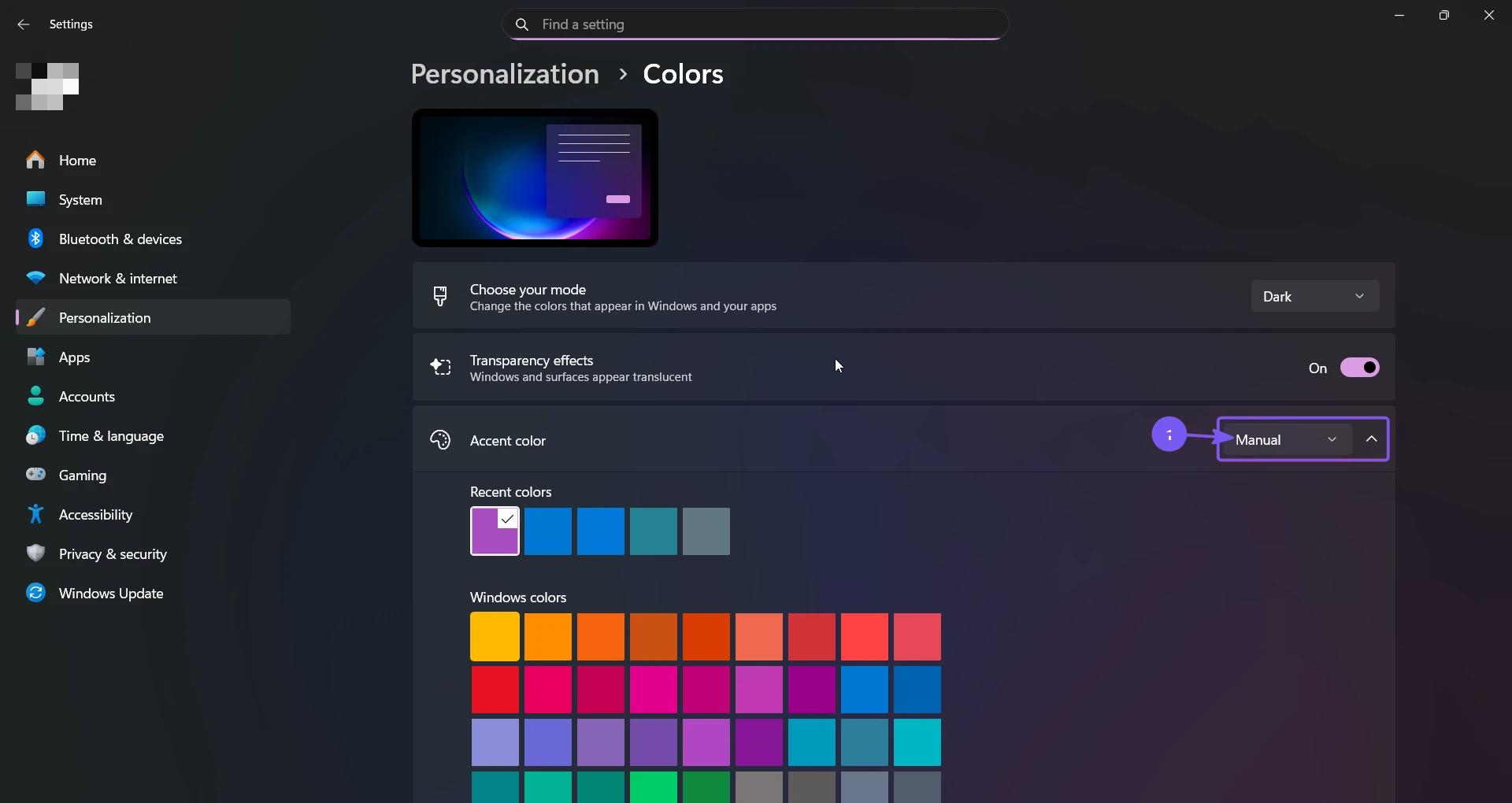
The change takes effect as soon as you select an option or color. There is no separate Apply button on the main Colors page.
Let Windows choose an automatic accent color
- Open Settings > Personalization > Colors.
- Expand Accent color.
- Select Automatic.
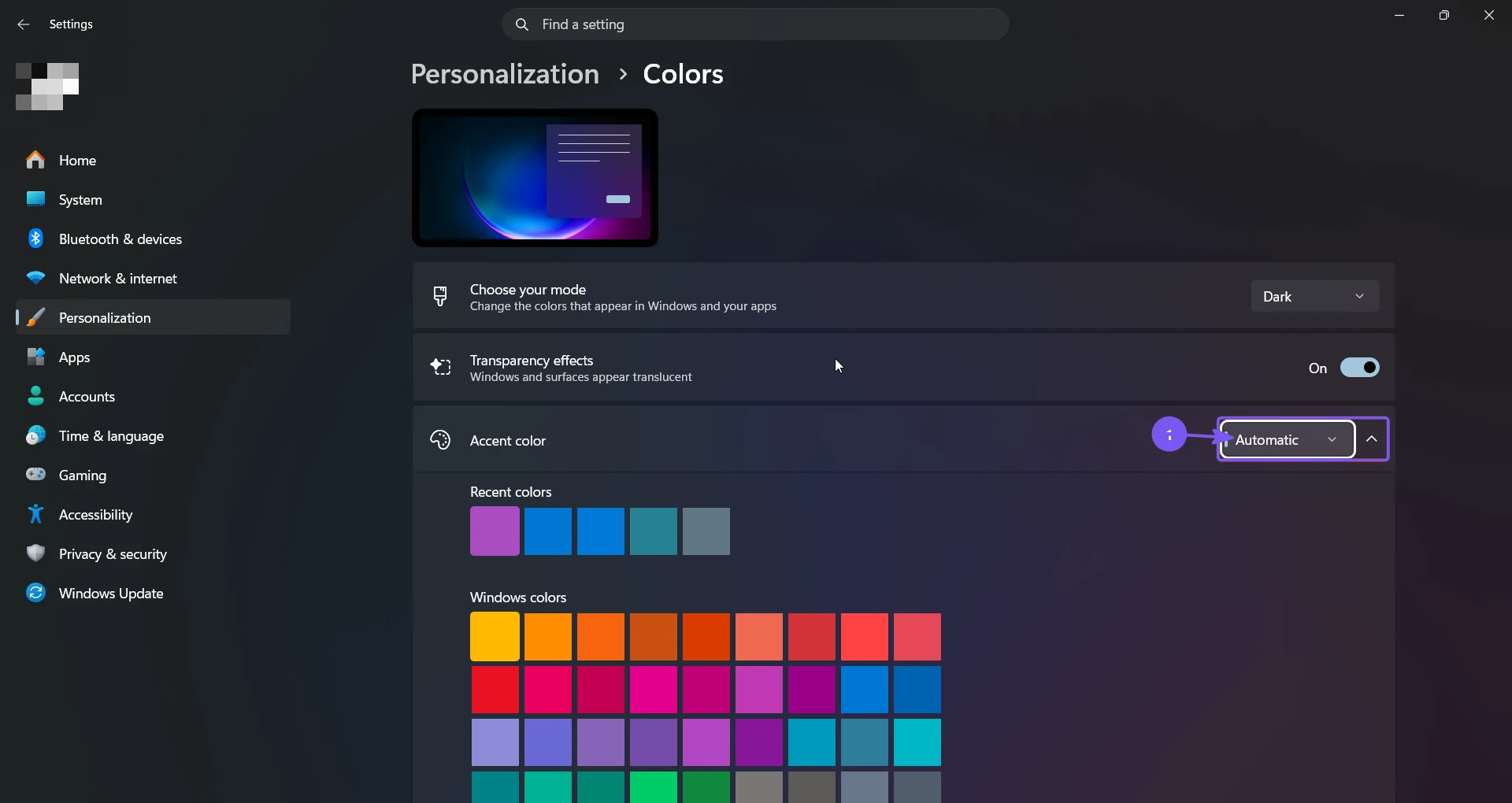
Windows immediately derives a color from the current desktop background. This works well when you want the interface to follow a wallpaper without choosing a matching color yourself.
If you use a desktop slideshow, the accent can change when the background changes. Select Manual instead when you want the same accent to remain in place.
Choose a built-in accent color manually
- On the Colors page, set Accent color to Manual.
- Select a swatch under Recent colors or Windows colors.
- Look for the check mark on the selected swatch and confirm that interface highlights use the new color.
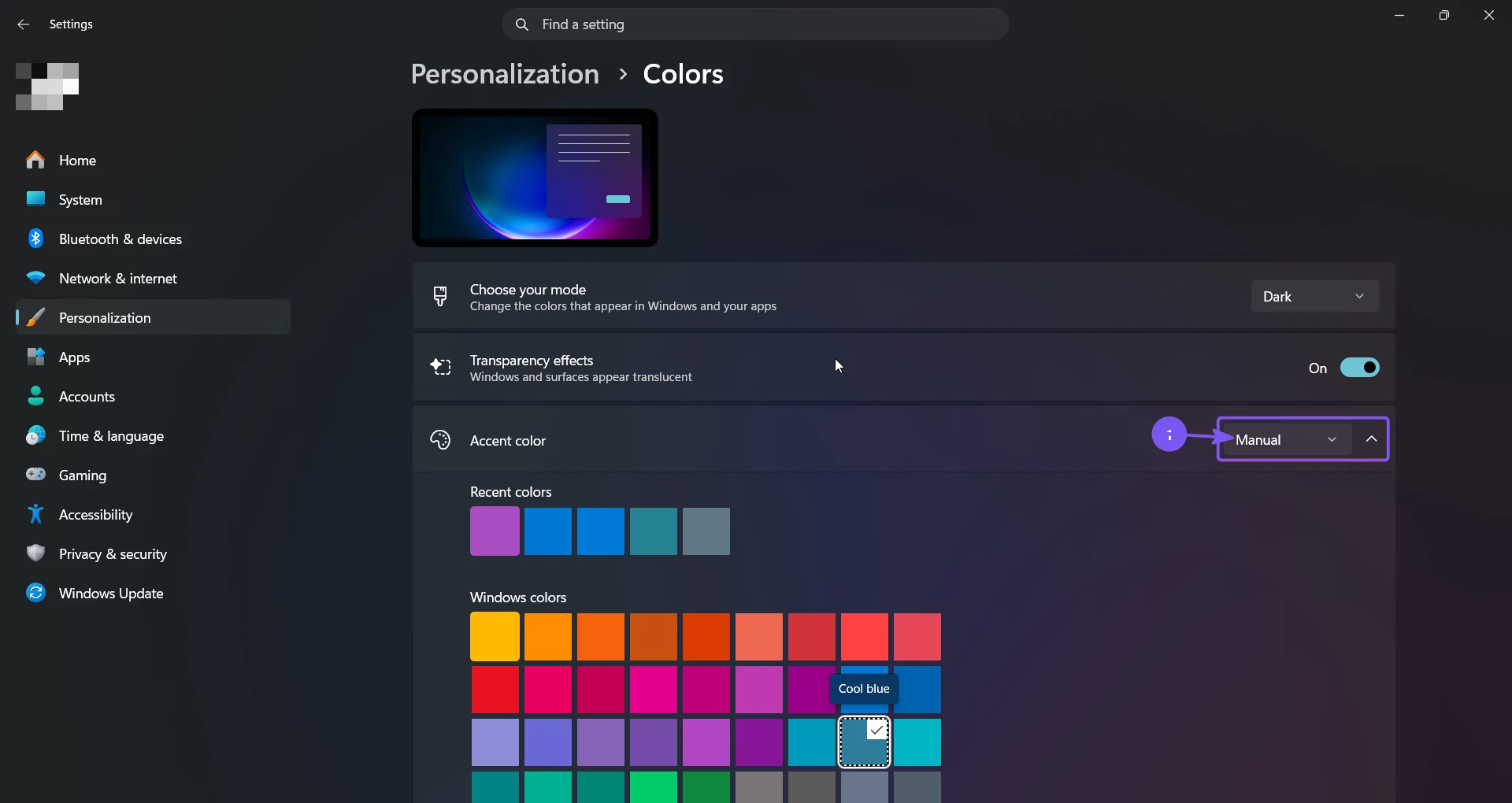
Recent colors are useful when you want to return to something you used before. Windows colors provide a larger fixed palette. The setting is per user, so another account on the same PC can choose a different accent.
Enter a custom accent color
Use the custom picker when the built-in swatches do not match the color you want.
- Set Accent color to Manual.
- Select View colors.
- Pick a color visually, or expand More to expose the color model and numeric fields.
- Leave the model set to RGB and enter an exact hex value if you have one. The reproduced example used
#107C10. - Review the preview, then select Done.
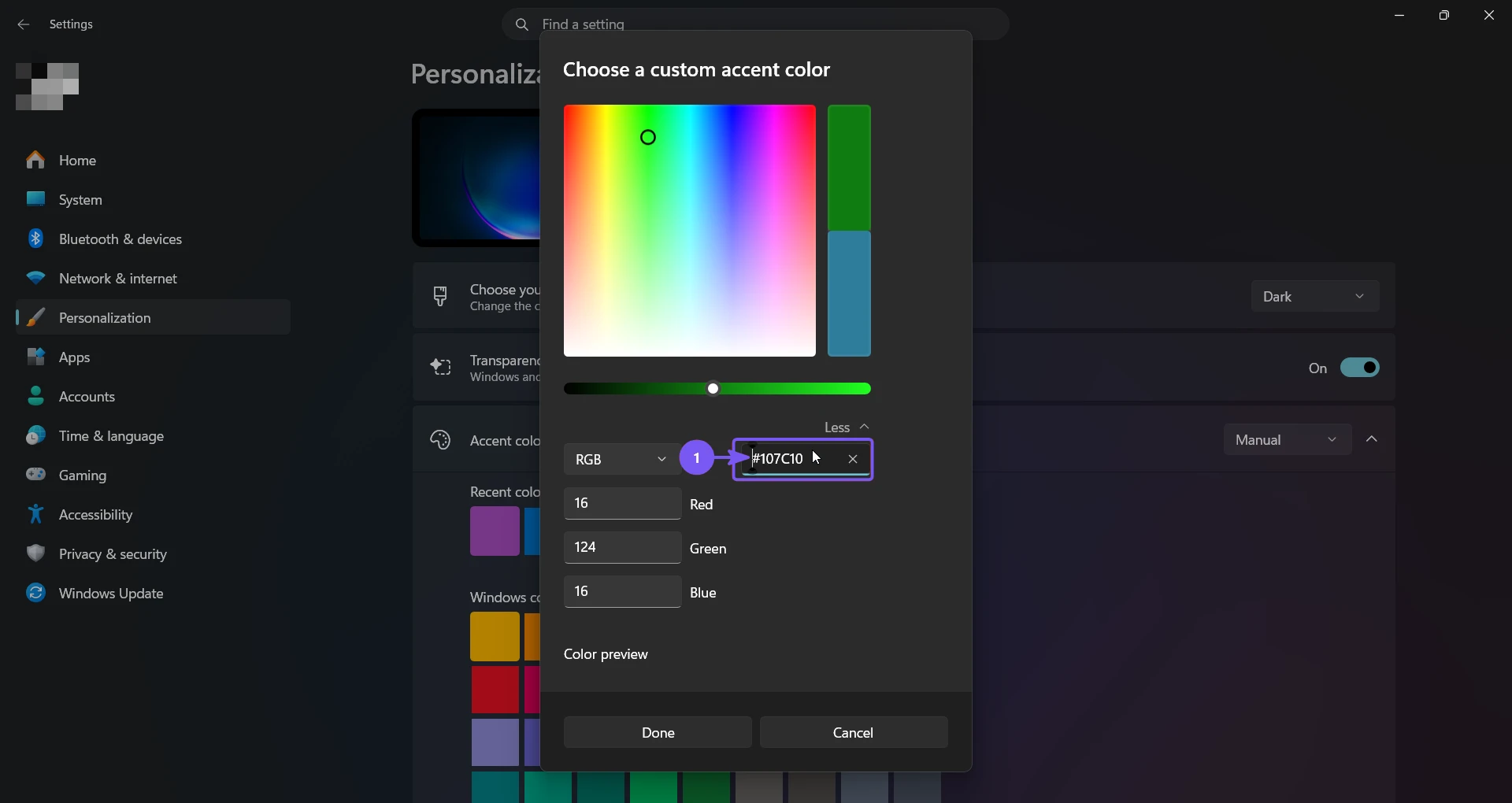
Windows may adjust how a very light or very dark color appears on individual controls so that text and focus indicators remain readable. Check the preview and the real interface rather than judging only by the hex value.
Open Colors directly from Run
You can skip the Settings navigation and open the same Colors page directly:
- Press Windows + R.
- Enter
ms-settings:colors. - Press Enter or select OK.
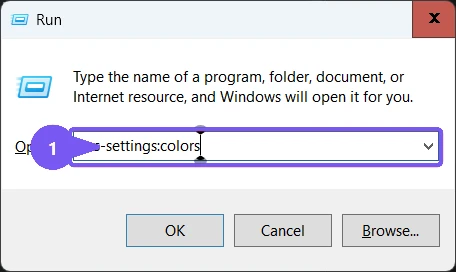
Microsoft lists both ms-settings:colors and ms-settings:personalization-colors for this page in its current Windows Settings URI reference. Both lead to the same user-facing controls; they are entry shortcuts, not separate ways of storing the color.
Show the accent on Start, taskbar, title bars, and borders
Scroll below the color palette to find two optional switches:
- Show accent color on Start and taskbar applies the color to those shell surfaces. Microsoft notes that this switch is available only when the Windows mode is Dark or Custom. If it is grayed out, change Choose your mode from Light to Dark, or use Custom with the Windows mode set to Dark.
- Show accent color on title bars and window borders applies the accent to supported desktop window frames.
These switches do not change which accent color is selected. They only decide where Windows displays it. Some apps use their own themes and colors, so the accent will not appear in every program.
Change accent options with Registry Editor
Registry Editor can switch between automatic and manual accent selection and control where the selected accent appears. It is not a dependable way to generate a complete custom color palette from one hexadecimal value on current Windows 11 builds, so use the Settings color picker when you need an exact RGB color.
Back up each key before changing it
These settings apply only to the current Windows account, but an incorrect registry edit can still damage personalization settings. In Registry Editor, select the key you are about to change, choose File > Export, select Selected branch, and save the .reg backup before continuing.
- Press Windows + R, enter
regedit, press Enter, and approve the User Account Control prompt. - Open
HKEY_CURRENT_USERControl PanelDesktop, back up the key, and double-click theAutoColorizationREG_DWORDvalue. - Enter
1to let Windows derive the accent from the desktop background, or enter0to keep manual accent selection. - To control the Start and taskbar placement switch, open
HKEY_CURRENT_USERSoftwareMicrosoftWindowsCurrentVersionThemesPersonalizeand set theColorPrevalenceREG_DWORDto1for On or0for Off. - To control the title-bar and window-border switch, open
HKEY_CURRENT_USERSoftwareMicrosoftWindowsDWMand set itsColorPrevalenceREG_DWORDto1for On or0for Off. - Sign out and sign back in if Settings or the shell does not reflect a change immediately.
Microsoft's current Windows settings reference documents these current-user values and their corresponding color controls. I verified that all three values accepted the documented data on the test PC and then restored their original values.
To undo the registry method, double-click each exported .reg backup and confirm the import, or manually restore the values you recorded before the change. The tested PC started with all three values set to 0, and the rollback returned all three to 0.
Restore the previous accent color
There is no dedicated Undo button, but rollback is straightforward:
- Open Settings > Personalization > Colors.
- Set Accent color to the mode you used before.
- If the previous color appears under Recent colors, select it. Otherwise, select View colors and re-enter the previous RGB value.
- Restore the Start/taskbar and title-bar/border switches to their earlier On or Off states.
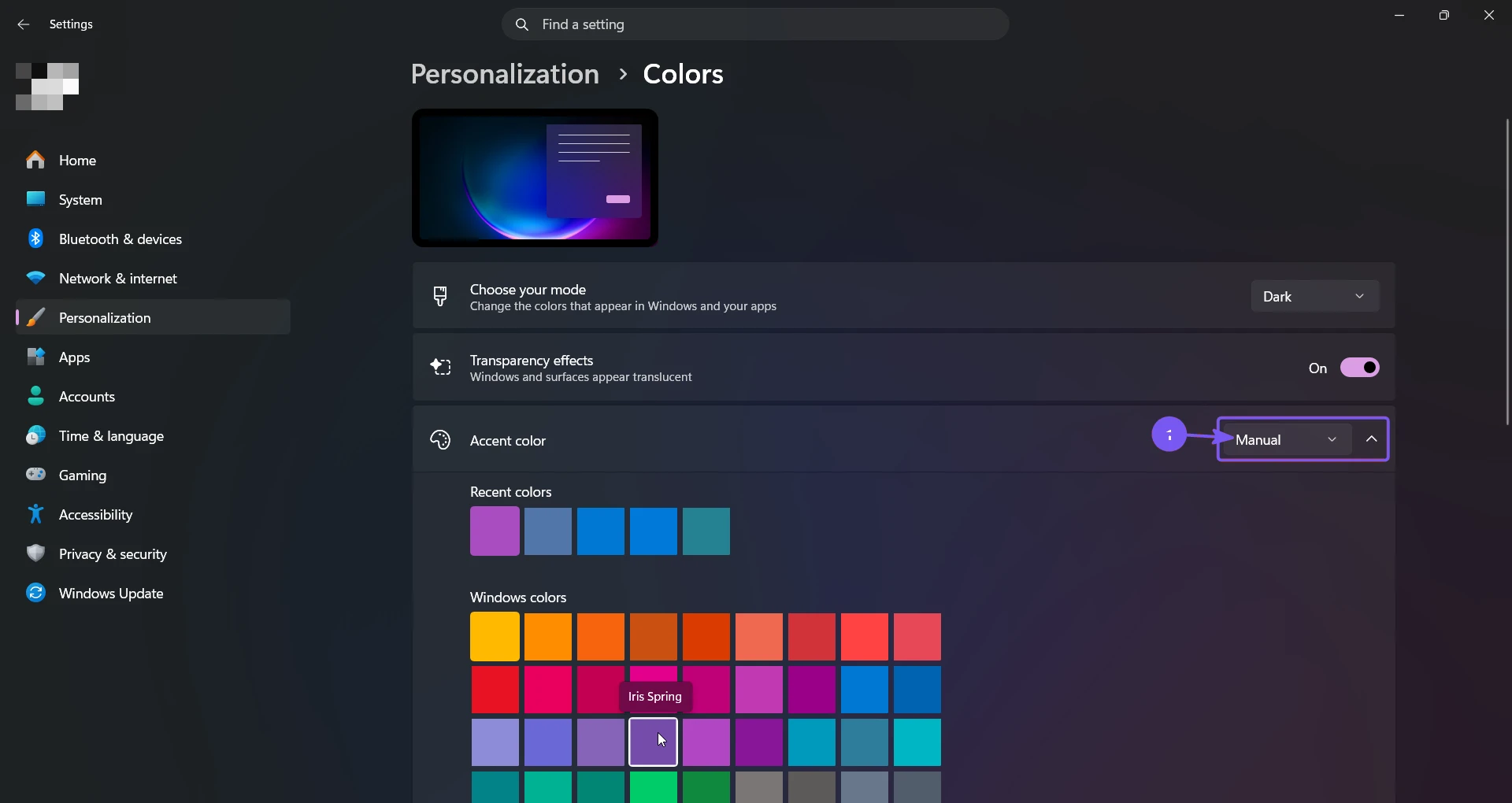
For this reproduction, the starting RGB value was #680081. Re-entering that value restored the effective accent color exactly, while both optional accent-placement switches remained off.
Frequently Asked Questions
Why is Show accent color on Start and taskbar grayed out?
Change Choose your mode to Dark, or select Custom and set the Windows mode to Dark. Windows does not make the Start and taskbar accent switch available while the Windows mode is Light.
Why does the Automatic accent color keep changing?
Automatic follows the desktop background. A wallpaper slideshow can therefore produce different accents over time. Select Manual and choose a fixed swatch or custom value when you want one color to remain in place.
Why does an app ignore the Windows accent color?
Windows exposes the accent to the system interface, but an app can use its own theme. Verify the selected color in Settings, Start, supported title bars, and standard Windows controls before assuming that the setting failed.
Can Registry Editor set an exact custom accent color?
Registry Editor can control automatic selection and the placement switches documented above. Current Windows builds maintain several related color and palette values, so changing one undocumented hexadecimal value is not a reliable exact-color method. Use View colors in Settings for an exact RGB value.
What should I use when I need stronger visibility instead of decoration?
An accent color is primarily a personalization choice. Use a Windows 11 contrast theme when you need stronger separation between text and controls. For warmer display color in the evening, configure Night light in Windows 11 instead.
Choose Automatic for matching or Manual for consistency
Automatic is the quickest choice when you want Windows to coordinate with the desktop background. Manual is better when you want one stable built-in or custom RGB color. Both are safe to test, take effect immediately, and can be reversed by selecting the earlier mode and color.
For more interesting articles, stay tuned to WinSides.com!

Community
Comments (0)