
To turn notification banners on or off for one app in Windows 11, open Settings > System > Notifications, select the app under Notifications from apps and other senders, and check or clear Show notification banners. Clearing only this checkbox stops that sender's pop-up banner while leaving its separate notification-center preference available.
I reproduced the complete change on Windows 11 25H2 build 26220.7872 with the Windows Explorer sender. Show notification banners began checked, changed to unchecked, and was restored to checked. A fresh Settings instance confirmed the restored state. The app's master Notifications switch and Show notifications in notification center checkbox remained On throughout, and no administrator permission, restart, sign-out, or Registry edit was used.
What does Show notification banners control?
A notification banner is the temporary panel that appears near the taskbar when an app sends a Windows notification. The Show notification banners checkbox controls that pop-up presentation for the selected sender. It does not decide whether every other app can send notifications, and it does not automatically erase an alert from notification center.
Windows keeps several controls separate. The sender's master Notifications switch permits or blocks that app's Windows notifications. Show notification banners controls pop-ups. Show notifications in notification center controls whether alerts remain in the panel you can open later. Sound, lock-screen privacy, and notification-center priority each have their own settings. Microsoft's current notification guidance documents these per-app choices separately.
This distinction makes banner control useful when you want fewer interruptions but still want a record to review later. If you want to block every sender instead, use the broader procedure to turn off Windows notifications. The similarly named preference that governs notices inside the Settings experience is also separate; see how to turn Settings notifications on or off.
Table of contents
What should you check before changing a banner preference?
- Record the starting checkbox state. You need that baseline to restore the exact preference after testing.
- Confirm the correct sender. Each app has its own detail page. Changing Windows Explorer does not change Mail, Clock, a browser, or another sender.
- Leave the app master switch On. If you turn the sender off completely, its banner checkbox becomes irrelevant and you cannot isolate the result.
- Record the notification-center checkbox. Keeping it unchanged proves that only the pop-up presentation was altered.
- Check Do not disturb separately. It can suppress banners even while the per-app checkbox is selected.
The list is history-dependent. An app normally appears after it has registered as a notification sender, so the names on your PC will not necessarily match the reproduced list. Use an ordinary, non-sensitive sender whose banner behavior you actually want to change.
How do you open the notification settings for one app?
- Press Windows + I to open Settings.
- Select System, and then select Notifications.
- Make sure the main Notifications switch is On. Do not change it when your goal is to adjust one sender.
- Scroll to Notifications from apps and other senders.
- Find the app you want to configure. Select the app's row or the arrow at its right; do not use the small On/Off switch unless you intend to disable all Windows notifications from that app.
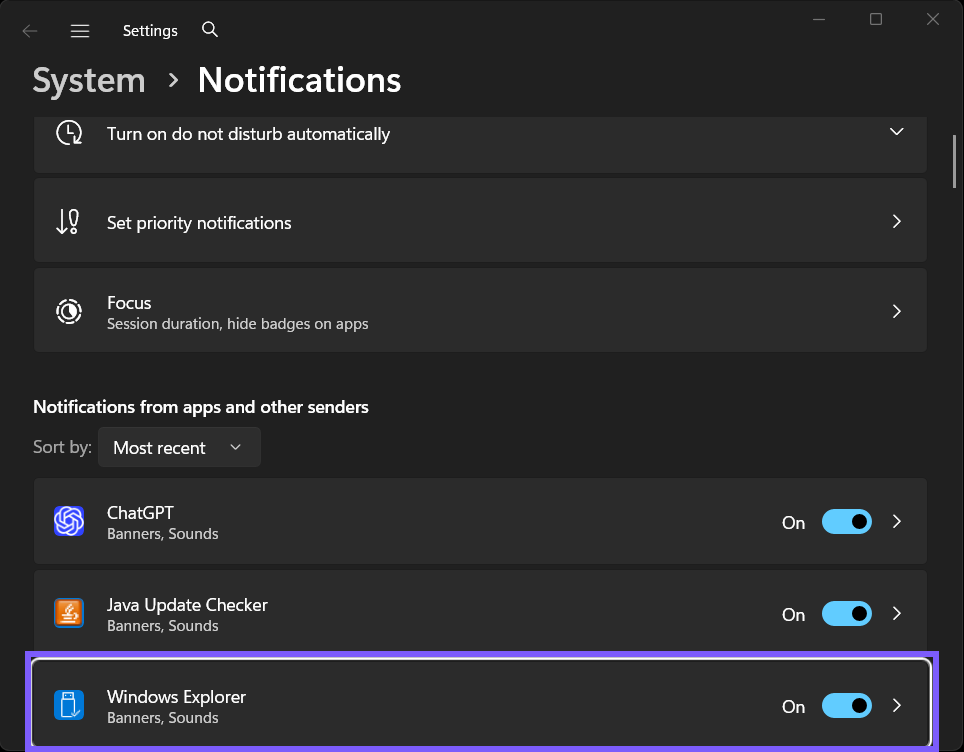
The summary beneath each sender can mention Banners and Sounds. That line describes enabled presentation options; it is not the checkbox itself. Open the row to make a precise change.
How do you check the current banner state?
- On the selected app's detail page, verify that its top Notifications switch is On.
- Find the two illustrated choices near the top of the page.
- Read the checkbox beside Show notification banners. A check mark means banners are allowed for this sender.
- Record whether Show notifications in notification center is checked, but leave it unchanged.
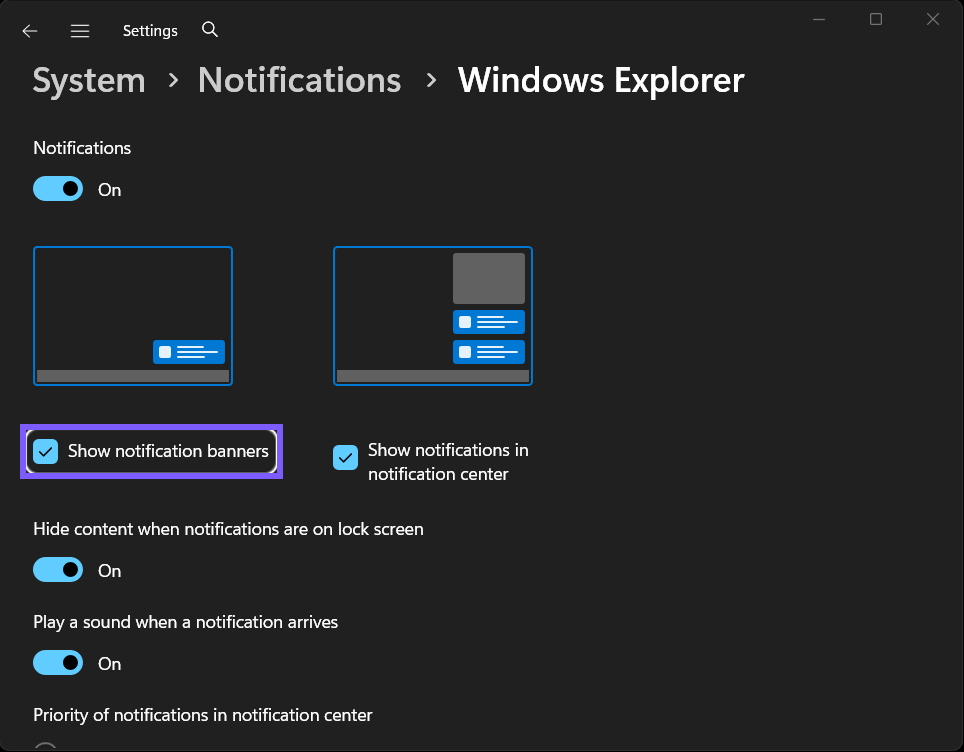
Also note Do not disturb on the parent Notifications page. A checked banner preference allows pop-ups under normal conditions; it does not force Windows to interrupt a Do not disturb session. Priority rules can create intentional exceptions.
How do you turn notification banners off for the selected app?
- Clear the Show notification banners checkbox once.
- Verify that the check mark disappears.
- Leave the top Notifications switch and Show notifications in notification center unchanged.
- Close Settings or return to your work. There is no Apply button and no restart is required.
- When the app next sends a notification, confirm that it does not present a pop-up banner. If notification-center delivery remains checked, open notification center later to look for the alert there.
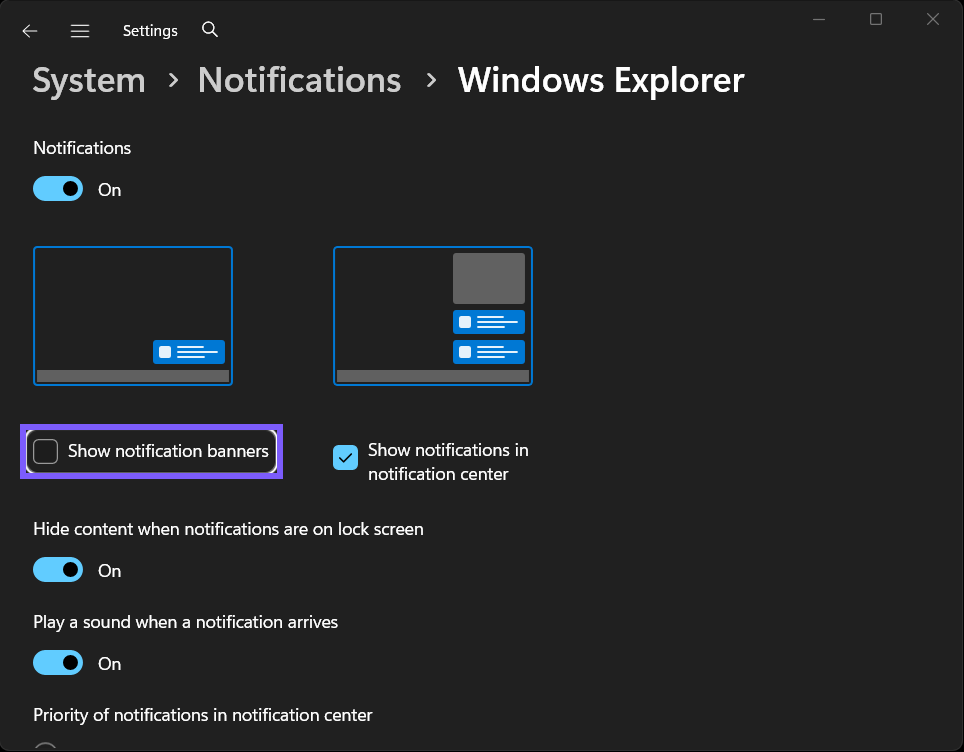
This is a narrow change: the selected app may still notify Windows, keep an entry in notification center, play a sound if its sound switch remains On, and use its existing lock-screen and priority choices. Turn off or adjust those controls separately only when that outcome is intentional.
How do you turn banners back on and verify the rollback?
- Return to Settings > System > Notifications.
- Select the same sender under Notifications from apps and other senders.
- Select Show notification banners so the check mark returns.
- Confirm that the app master switch and notification-center checkbox still match the states you recorded.
- Close Settings completely, reopen the same app detail page in a fresh Settings instance, and confirm that the banner checkbox remains checked.
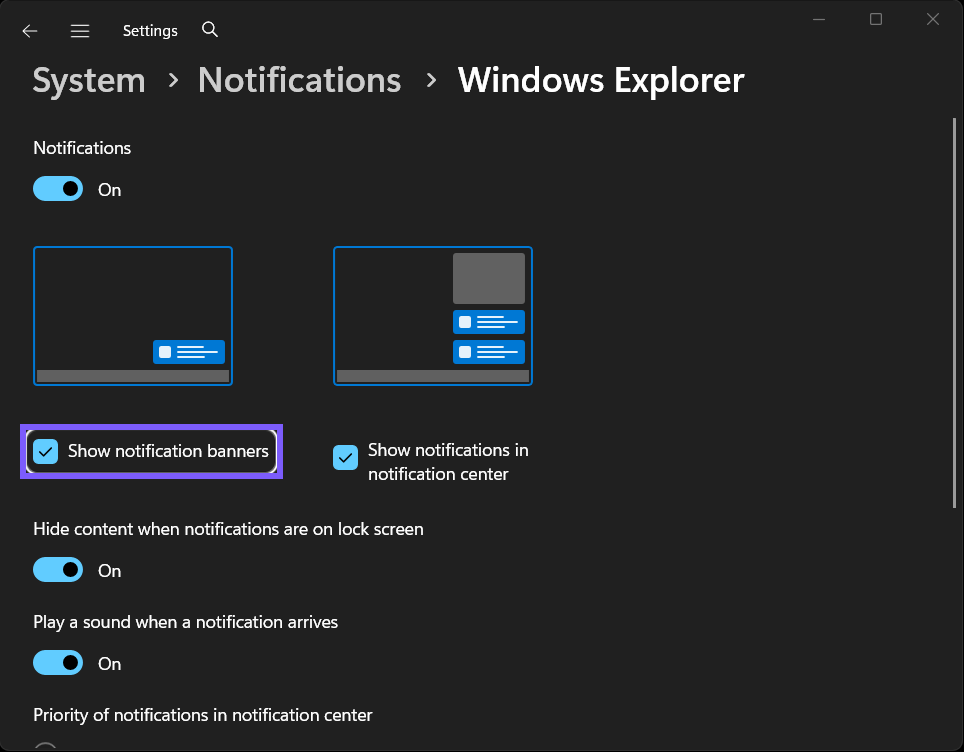
The reproduced value persisted after reopening Settings. A future alert is still the final behavioral check because an app must actually send a notification before Windows has a banner to display.
What is the difference between banners, notification center, sound, and Do not disturb?
- Show notification banners: permits or suppresses the selected sender's temporary on-screen pop-up.
- Show notifications in notification center: controls whether that sender's alerts remain available in notification center.
- Play a sound when a notification arrives: controls the audible cue independently of the two display choices.
- App Notifications switch: enables or disables Windows notifications from that sender as a whole.
- Main Notifications switch: is the broader system-level control for apps and other senders.
- Do not disturb: temporarily sends ordinary notifications directly to notification center instead of showing banners. You can also turn on Do not disturb automatically for scheduled or full-screen situations.
Because these controls stack, a banner appears only when the relevant system, sender, banner, and interruption conditions allow it. Diagnose them from broadest to narrowest instead of toggling several settings randomly.
Why might the app or banner checkbox be missing?
The app has not registered as a sender. Open the app and enable its own notification feature if it has one. After it sends or registers a Windows notification, check the sender list again.
The master control is Off. Turn on the main Notifications setting and the selected app's Notifications switch before assessing the banner checkbox.
The app uses its own alert window. Some programs do not use Windows notification banners for every message. Changing a Windows checkbox cannot control a custom in-app pop-up.
Do not disturb is active. The per-app checkbox may be correct while Windows intentionally routes the alert to notification center. Review Do not disturb and priority notifications before resetting anything.
The PC is managed. A work or school organization can enforce notification policy. If a control is unavailable, review the management notice or ask the administrator rather than importing an unverified Registry file.
How should you test the result without losing notifications?
Use a sender that can produce a harmless test alert, keep notification-center delivery checked, and change only the banner checkbox. Trigger one normal notification while banners are Off, then open notification center. If the entry is present without a pop-up, the narrow configuration is working. Restore banners, trigger another alert, and check for both the pop-up and the retained entry.
Do not test with an emergency, security, payment, or account-recovery message. App behavior can differ, and some critical Windows experiences use protected presentation rules. The Settings state and fresh reopen prove persistence; a low-risk sender proves the real display behavior.
Frequently Asked Questions
Will turning off banners remove notifications from notification center?
Not if Show notifications in notification center remains checked. The banner and retained notification-center entry are separate per-app choices.
Why do I still hear a sound after clearing Show notification banners?
The sound preference is independent. Turn off Play a sound when a notification arrives for that sender only if you also want silence.
Why is a banner missing even though the checkbox is selected?
Check the main and per-app notification switches, Do not disturb, priority rules, and whether the app actually uses Windows notifications for that event.
Do I need to restart Windows after changing app banners?
No. The reproduced checkbox changed immediately and remained restored after reopening Settings; no restart, sign-out, or Explorer restart was needed.
For more interesting articles, stay tuned to WinSides.com!
Community
Comments (0)