

To enable or disable acrylic in the Windows Terminal tab row, open Windows Terminal Settings, select Appearance, and change Use acrylic material in the tab row. Turn it On for the documented translucent tab-row background or Off for an opaque tab row, select Save, and start a new Terminal instance to apply the appearance change.
I reproduced the complete Off-to-On-to-Off preference sequence on Windows Terminal in Windows 11 version 25H2, build 26220.7872. The test used the visible switch as a standard user, displayed no warning or administrator prompt, and changed only one current-user Terminal preference. After testing, I restored the exact original settings file, opened a fresh Settings instance, confirmed Off, closed Terminal, and verified the original SHA-256 again.
What does acrylic do in the Windows Terminal tab row?
Microsoft documents useAcrylicInTabRow as an optional, window-wide Windows Terminal setting. When it is true, the tab row receives an acrylic background at 50% opacity. When it is false, the tab row is opaque. The documented default is false, which matched the reproduced PC: the property was absent from the settings file and the visible switch read Off.
This option affects the row that contains Terminal tabs and the new-tab controls. It does not make the text area of every PowerShell or Command Prompt profile transparent. Profile background opacity and profile acrylic are separate settings with different scope. If the goal is a broader Windows visual effect, see the WinSides guide to enable or disable Windows 11 Transparency effects before deciding which layer actually needs attention.
Acrylic is decorative. It does not change commands, shell permissions, environment variables, performance settings, or saved command history. Off is a sensible baseline when visual consistency or maximum contrast matters more than translucency.
Table of contents
How do you open the Windows Terminal Appearance page?
- Open Windows Terminal.
- Press Ctrl + ,, or open the arrow menu beside the new-tab button and select Settings.
- Select Appearance in the left navigation pane.
- Find Use acrylic material in the tab row.
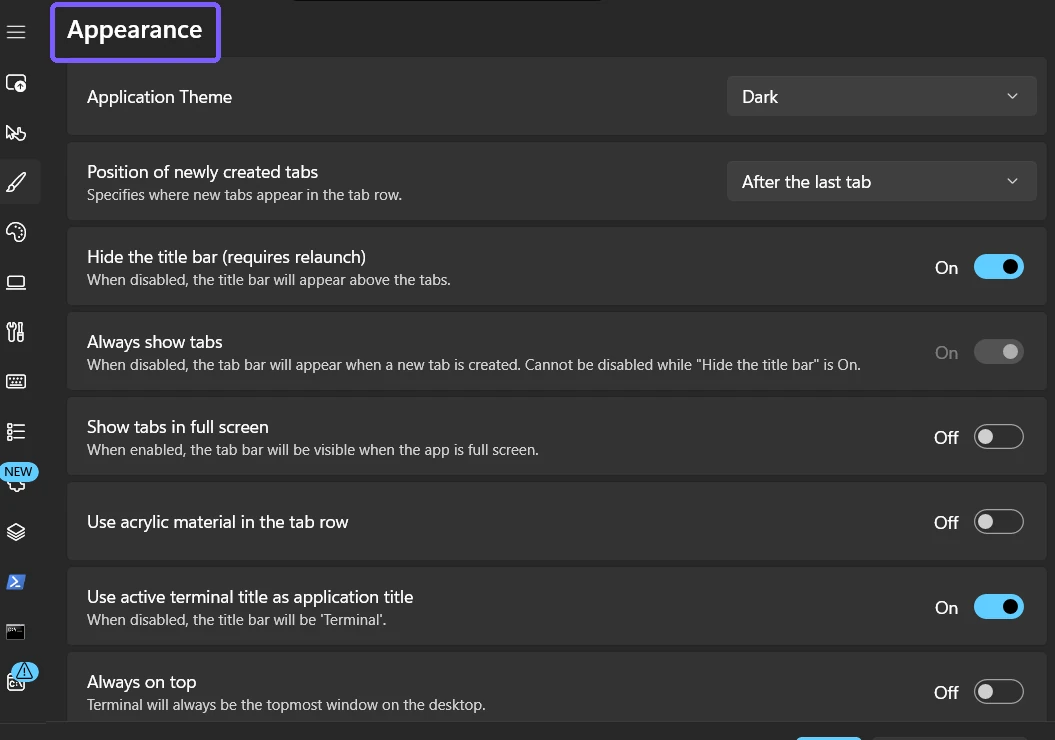
The Appearance page contains several neighboring controls, including Show tabs in full screen, Use active terminal title as application title, Always on top, Tab width mode, and Pane animations. Read the complete label before changing a switch. This procedure does not alter those neighboring settings or any individual shell profile.
How do you enable acrylic in the tab row?
- Record whether the switch currently reads On or Off.
- Select Use acrylic material in the tab row so it reads On.
- Select Save at the bottom of Settings.
- Close the Terminal window normally and open a new Terminal instance.
- Inspect the tab row rather than the terminal profile background.
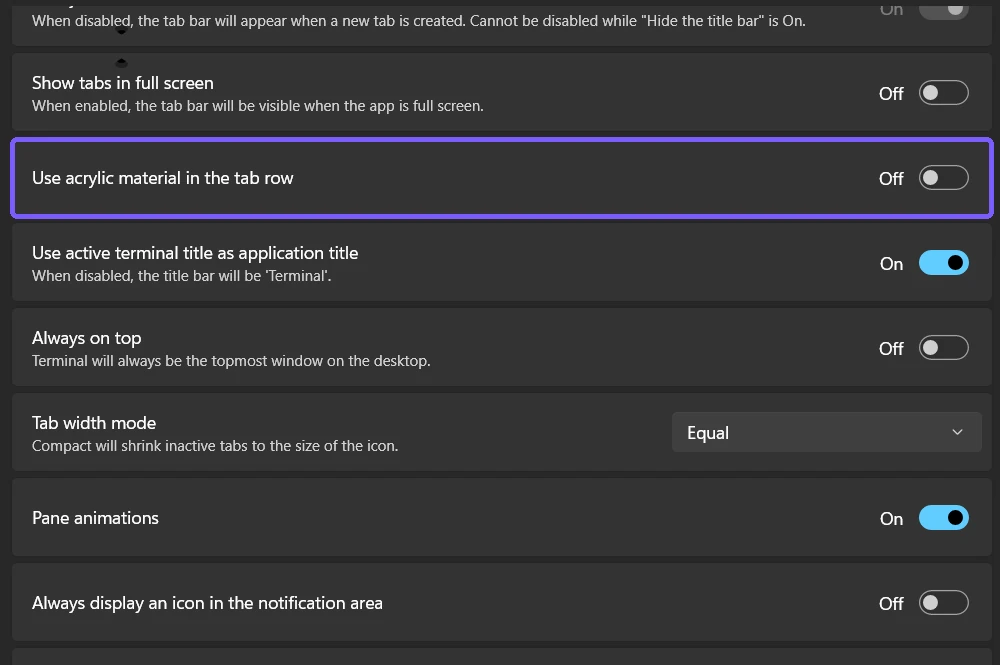
The Save step matters on the reproduced Terminal release. Moving the switch changed the visible selection, but the current-user preference was not written until Save was selected. After Save, the UI read On and the settings data contained useAcrylicInTabRow with the Boolean value true.
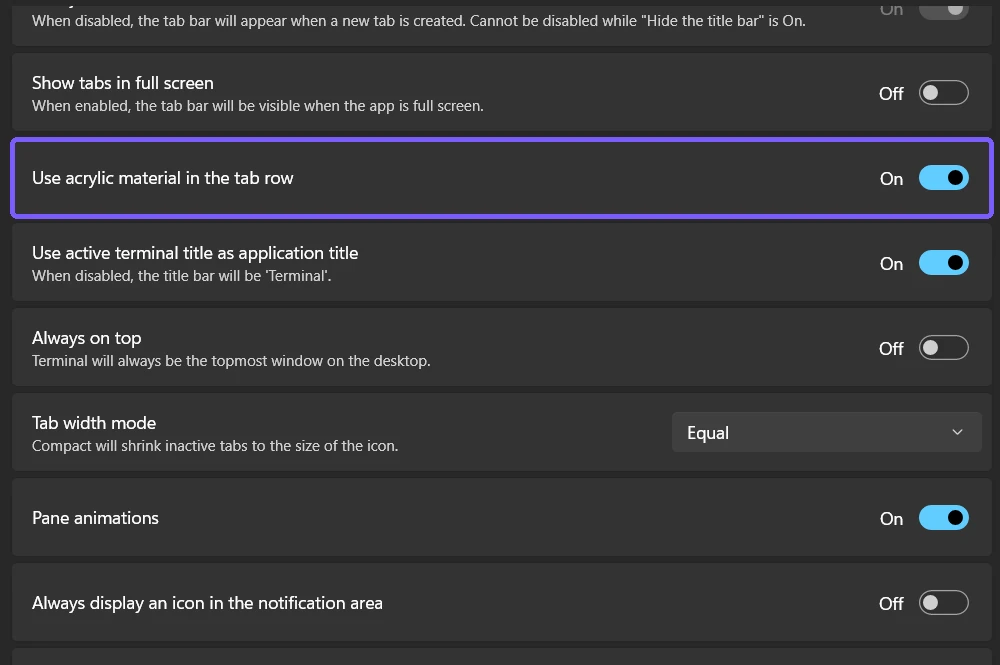
Microsoft notes that this setting requires a new Terminal instance. The On screenshot proves that the tested preference was saved; it is not presented as a color-calibrated comparison of acrylic pixels. Close and reopen Terminal for the appearance check instead of judging the already-open Settings window.
How can you verify the acrylic result?
Open a new Terminal window after saving On and look only at the tab row. Acrylic is a translucent material, so its visibility depends on the desktop content behind the window, the selected Terminal theme, Windows visual settings, and display conditions. A dark, nearly uniform background can make the effect subtle even when the preference is enabled.
Move the new window over a harmless area with visible tonal variation, such as the default desktop wallpaper. Do not place personal documents, notifications, account names, or confidential applications behind a translucent window for a screenshot. The goal is only to confirm the material, not to reveal other content through it.
If the tab row remains fully opaque, verify that you launched a new instance, not merely a new tab in the same window. Also confirm that the exact switch still reads On after reopening Settings. Windows accessibility choices can intentionally prioritize clarity; the guide to Windows 11 contrast themes explains a separate system-wide accessibility feature that should not be changed merely to force a decorative effect.
How do you disable acrylic and return to an opaque tab row?
- Return to Windows Terminal Settings > Appearance.
- Turn Use acrylic material in the tab row Off.
- Select Save.
- Close Terminal and start a new instance.
- Reopen Appearance if you want to confirm that Off persisted.
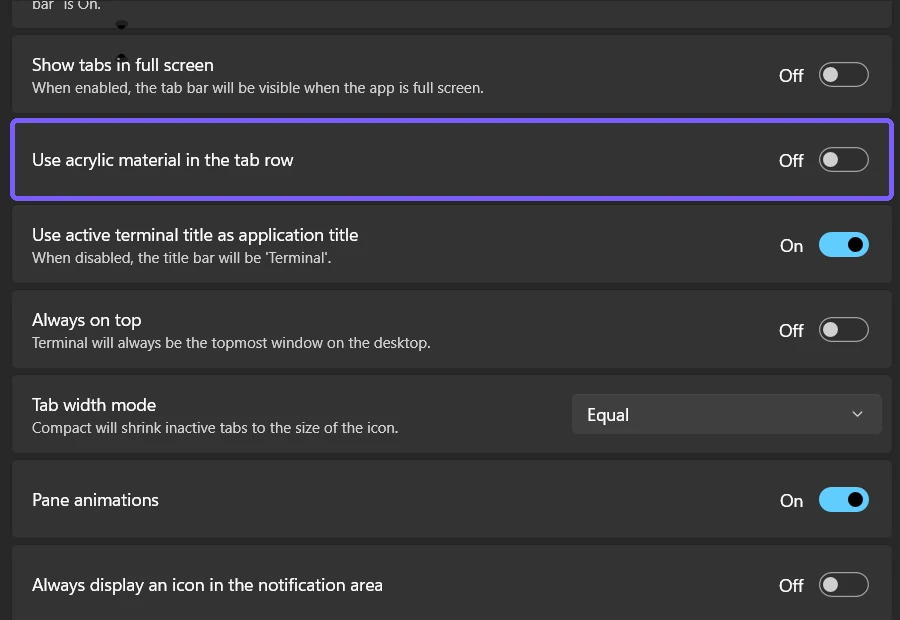
During reproduction, saving Off created an explicit false property. I then closed Terminal and restored the byte-for-byte original settings file, where the optional property was absent and therefore used Microsoft's false default. A fresh Settings instance showed Off, and the file kept the exact pre-test hash after Terminal closed.
How is tab-row acrylic different from profile transparency?
The app-wide switch controls the tab strip around the top of a Terminal window. A profile's background appearance controls the command surface inside a PowerShell, Command Prompt, WSL, or other profile. Changing one does not automatically configure the other. The Terminal application theme also remains a separate choice.
This scope distinction helps when troubleshooting. If only the command area is transparent, inspect that profile's Appearance settings. If only the tab strip is in question, use the app-wide switch covered here. If many Windows surfaces look different, inspect Windows transparency or accessibility settings. Avoid changing three layers at once because that makes the cause difficult to identify and the rollback harder to verify.
Why might the acrylic effect be hard to see?
- The old window is still open. Start a new Terminal instance after saving the switch.
- The background is uniform. Acrylic can be subtle against a flat dark area.
- You are checking the profile surface. This setting targets the tab row, not the command background.
- The change was not saved. Reopen Appearance and confirm that the switch retained On.
- Accessibility or visual policy takes priority. Respect managed or accessibility settings rather than bypassing them.
- The app is not Windows Terminal. Classic console windows and third-party terminals use different settings.
The tested UI method did not require elevation, editing JSON, restarting Explorer, signing out, or restarting Windows. Those disruptive actions are not sensible first responses to a missed Save or an unchanged existing window.
What mistakes should you avoid?
- Do not confuse tab-row acrylic with profile opacity. They affect different parts of the window.
- Do not forget Save. A visible switch movement can remain pending.
- Do not verify only an existing instance. Microsoft documents a relaunch requirement.
- Do not expose private content behind a translucent window. Use a harmless desktop area for visual testing.
- Do not edit the settings file for this routine task. The visible switch provides a clearer and safer rollback.
- Do not change Windows accessibility settings just for decoration. Preserve choices made for readability and comfort.
Frequently Asked Questions
Does tab-row acrylic make the Terminal command area transparent?
No. The app-wide switch affects the tab row. Profile background opacity and acrylic settings control the command surface separately.
Do you need to restart Windows after changing tab-row acrylic?
No Windows restart was required. Save the preference, close Terminal, and start a new Terminal instance as Microsoft documents.
Why does the switch say On but the effect look subtle?
Acrylic depends on surrounding colors and visual settings. Check the tab row in a newly launched window against a harmless background with some tonal variation.
Does disabling acrylic remove tabs or change the Terminal theme?
No. Off returns the tab row to an opaque background. It does not remove tabs, select a profile, or change the app theme.
Save the preference and verify a newly launched window
Open Windows Terminal Appearance, change Use acrylic material in the tab row, and select Save. Launch a new Terminal instance to judge the tab strip, keep private content out of the background, and return the switch to Off if an opaque row is easier to read. The setting is decorative, current-user, and separate from profile transparency, Windows-wide effects, and accessibility themes.
For more reproduced Windows 11 guides, stay tuned to WinSides.com!






Community
Comments (0)