

To enable or disable Always on top in Windows Terminal, open Windows Terminal Settings, select Appearance, and change Always on top. Turn it On to keep Terminal windows above ordinary windows or Off to return to normal window stacking, then select Save.
I reproduced the complete Off-to-On-to-Off sequence on Windows Terminal in Windows 11 version 25H2, build 26220.7872. The test used the graphical setting as a regular user, showed no warning or administrator prompt, and changed one current-user Terminal preference. I then restored the original settings file byte-for-byte, opened a fresh Terminal Settings instance, confirmed Off, closed Terminal, and verified the original SHA-256 again.
What does Always on top do in Windows Terminal?
Microsoft documents alwaysOnTop as a window-wide Windows Terminal setting. When enabled, newly launched Terminal windows are placed above other non-topmost desktop windows. It applies to the application window rather than to one shell profile, so it is not limited to Command Prompt, PowerShell, Azure Cloud Shell, or a particular tab.
The setting does not make a command run as administrator, increase shell permissions, prevent the window from being minimized, or force Terminal above another application that also uses a topmost window. It controls desktop stacking only. If you actually need an elevated shell for a trusted administrative procedure, use the separate WinSides guide to run Windows Terminal as administrator and review the prompt carefully.
Always on top can be useful while watching a long command, referring to output during another task, or keeping a small Terminal window visible. It can also cover controls in other apps, so Off is the calmer default for most everyday work.
Table of contents
How do you open Windows Terminal Appearance settings?
- Open Windows Terminal.
- Press Ctrl + ,, or open the arrow menu beside the new-tab button and select Settings.
- Select Appearance in the Settings navigation pane.
- Scroll until Always on top is visible.
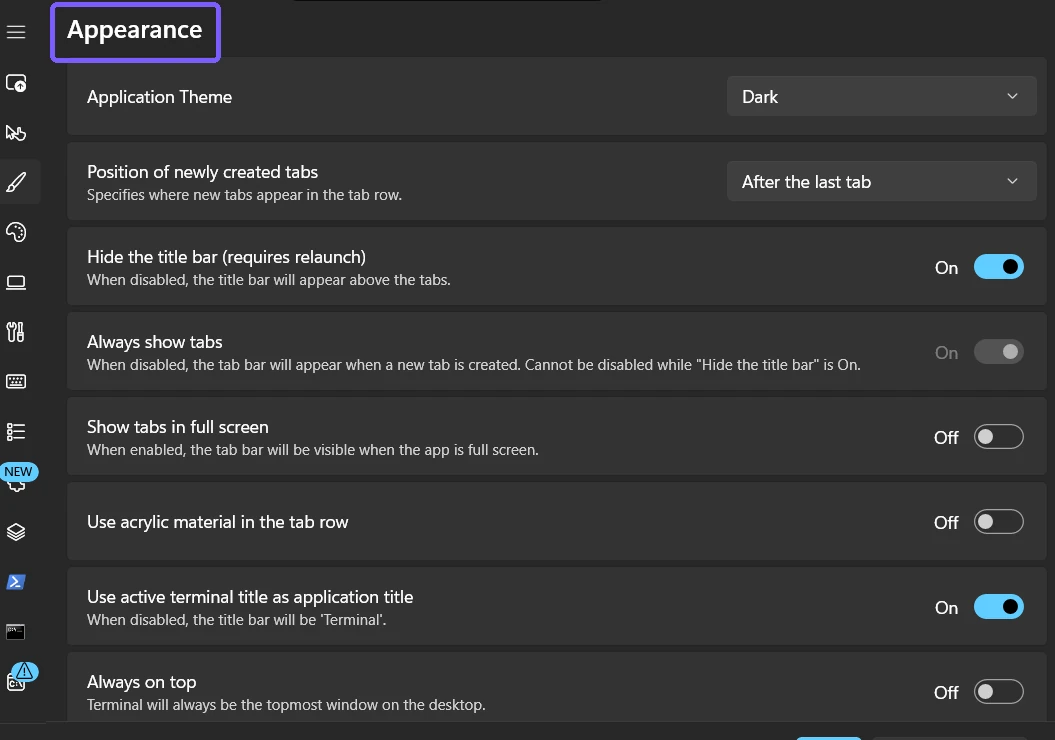
Appearance contains several unrelated window settings, including the application theme, tab presentation, acrylic material, title behavior, tab width, and animations. Read the row label before changing a switch. This guide does not change any of those nearby options or any individual profile.
How do you enable Always on top?
- Record the current state so you can restore it later.
- Select the Always on top switch so it reads On.
- Select Save at the bottom of the Settings window.
- Open a new Terminal window if you want to verify the documented launch behavior against another ordinary desktop window.
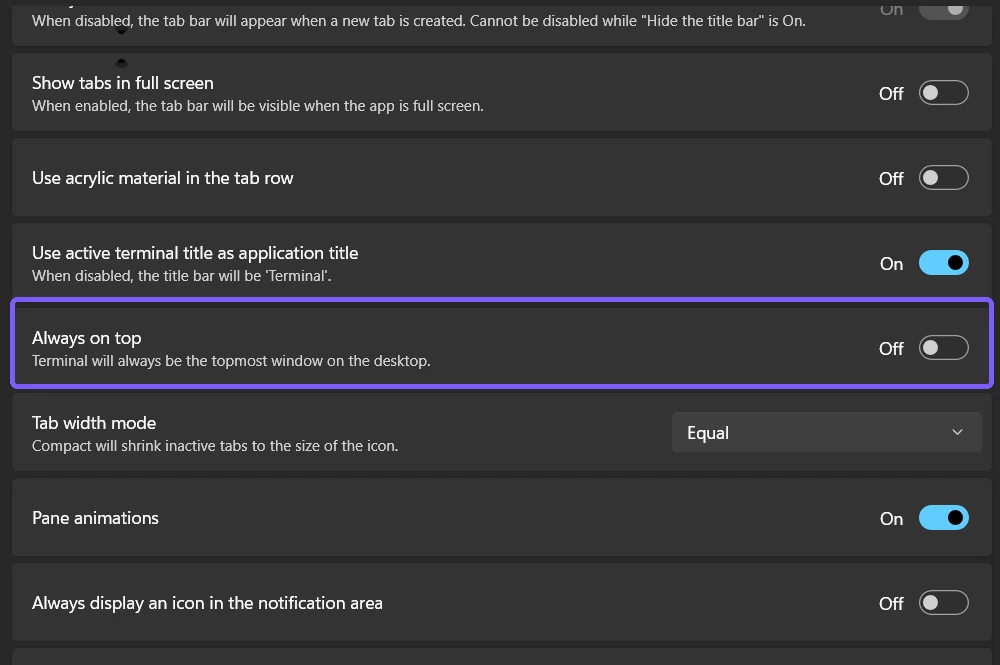
The Save step matters on the reproduced Terminal release. Moving the switch changed the visible selection, but the preference was not written until Save was selected. After Save, the UI read On and the current-user settings data contained alwaysOnTop with the Boolean value true.
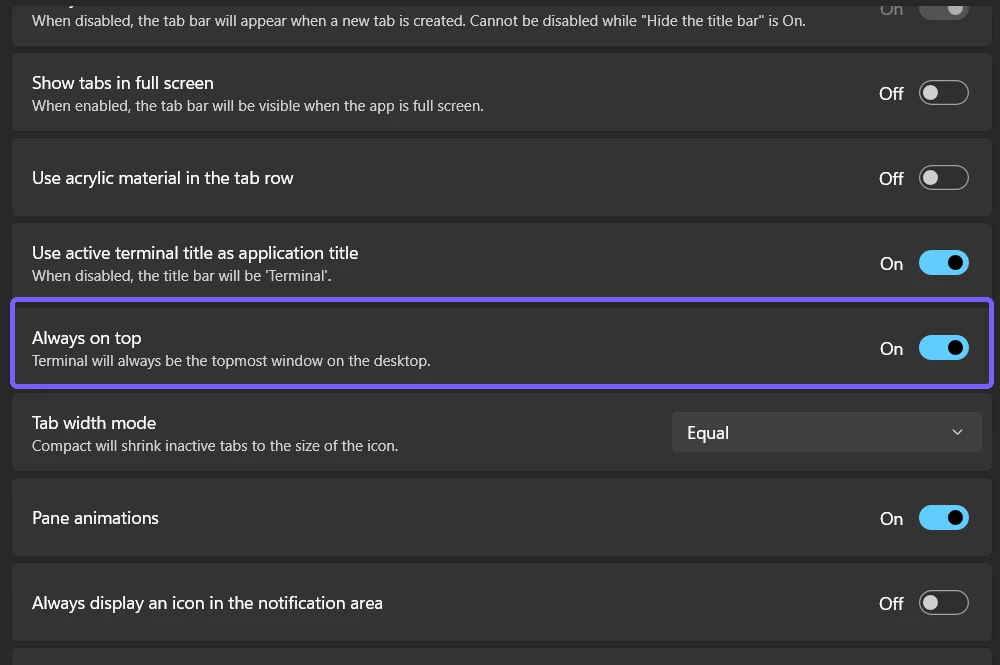
How can you verify the topmost behavior?
After saving On, open a new Windows Terminal window and place it so part of another ordinary application is visible behind it. Select the other application's visible area. If the setting is working, Terminal remains above that non-topmost window even though the other app has focus.
Use a harmless app such as Notepad for this visual check, and close it when you finish. Do not test with a full-screen game, secure desktop prompt, Task Manager configured as topmost, or another utility that deliberately pins its own window; those scenarios introduce separate stacking rules and can make the result misleading.
If a Terminal task raises a separate permissions question, first check whether the Windows 11 account is an administrator or standard user. Account type and topmost window behavior are independent.
How do you disable Always on top?
- Return to Settings > Appearance.
- Turn Always on top Off.
- Select Save.
- Close Terminal, open it again, and confirm that a fresh Appearance page still shows Off.
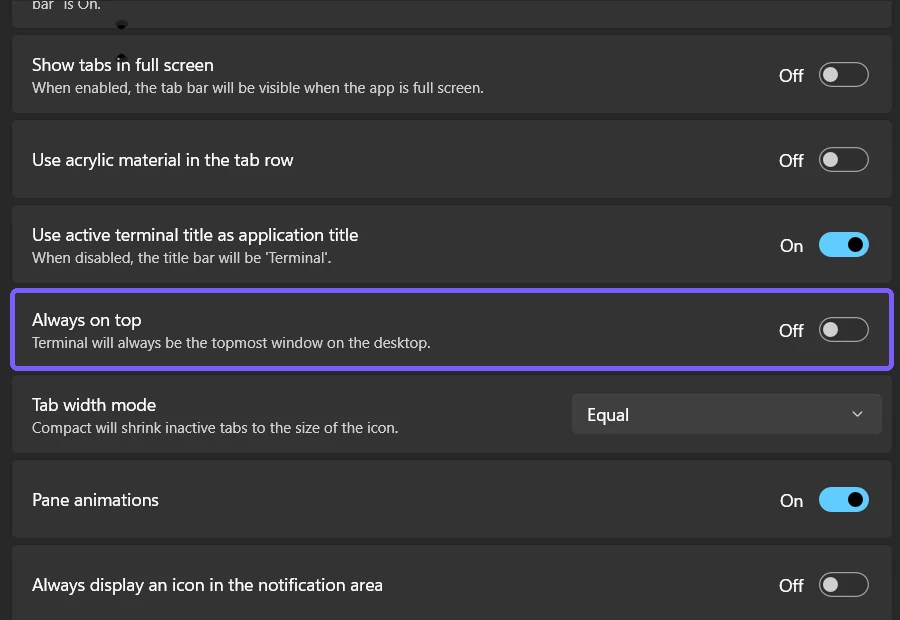
For the reproduced rollback, saving Off produced an explicit false value. I then closed Terminal and restored the exact original file, in which the optional property was absent and therefore used Microsoft's documented false default. A fresh Settings instance showed Off, and the file retained the exact pre-test hash after Terminal closed.
What is the difference between the setting and the toggle action?
The Appearance option sets the saved application preference. Microsoft also documents a toggleAlwaysOnTop action that can switch the state through a key binding. The action has no default shortcut in the referenced documentation, so do not assume a particular key combination exists on every PC.
A custom action can be convenient for frequent temporary changes, but it adds configuration scope that is unnecessary for a one-time preference. The graphical switch is easier to audit: its label, On or Off state, and Save control are visible together. This article therefore uses the UI method and does not instruct readers to edit JSON or create a key binding.
Is this the same as PowerToys Always On Top?
No. Windows Terminal's setting applies to Windows Terminal windows. The similarly named PowerToys utility can pin the currently active window across many applications and has its own shortcut, border, sound, and exclusion settings. Changing one does not configure the other.
If a colored border appears around Terminal or a system-wide pinning shortcut affects multiple apps, check whether PowerToys or another window-management utility is active. Disable the correct product through its own documented controls instead of repeatedly changing the Terminal preference.
Why does the setting not appear to work?
- Select Save. On the reproduced release, changing the switch without Save did not persist the property.
- Open a new window. Microsoft describes the saved property in terms of Terminal windows launching on top, so test a newly opened window.
- Use an ordinary comparison window. Another topmost app, secure prompt, or full-screen program can follow different stacking rules.
- Confirm the correct app. Windows Terminal, classic Windows PowerShell, Command Prompt, and third-party terminals do not all share the same settings surface.
- Check for management or sync. An organization or settings synchronization process can replace user preferences. Use the responsible support path instead of changing file permissions.
- Reopen Settings. If the page stops responding, close Terminal normally and retry before editing its settings file.
The normal UI method did not require elevation, restart Explorer, sign out, or restart Windows on the tested PC. Those disruptive steps should not be the first response to a missed Save or an unusual comparison window.
What mistakes should you avoid?
- Do not confuse topmost stacking with elevation. A window can stay visible without receiving administrator rights.
- Do not change profile Appearance. The app-wide option is on the main Appearance page, not inside a PowerShell or Command Prompt profile.
- Do not forget Save. A visible switch movement can remain pending.
- Do not edit JSON for a routine toggle. The UI provides a safer, reversible control.
- Do not use PowerToys instructions for Terminal's built-in setting. They are separate features with different scope.
Frequently Asked Questions
Does Always on top make Windows Terminal run as administrator?
No. It changes window stacking only. Elevation is a separate security action that can display a User Account Control prompt.
Does the Windows Terminal setting pin other applications?
No. It applies to Windows Terminal windows. PowerToys and other utilities can provide broader pinning behavior.
Do you need to restart Windows after changing Always on top?
No Windows restart was required. Save the setting and open a new Terminal window to verify the documented launch behavior.
Why did the switch change but the preference not persist?
The reproduced Windows Terminal Settings page required the Save button. Reopen Appearance after saving to confirm the retained state.
Save the app-wide preference and verify a new window
Open Windows Terminal Appearance, change Always on top, and select Save. Test a newly opened Terminal window against an ordinary app, and return the switch to Off if the topmost behavior becomes distracting. The setting is a current-user window preference—not elevation, profile configuration, or a system-wide pinning tool.
For more reproduced Windows 11 guides, stay tuned to WinSides.com!

Community
Comments (0)