

To open a second pane in Windows Terminal, right-click the active tab and select Split tab. Terminal places another pane in the same tab. To close only the pane you added, focus it, open Command Palette with Ctrl + Shift + P, search for Close pane, and select that exact action. The default direct shortcut is Ctrl + Shift + W.
I reproduced the complete one-pane to two-pane to one-pane transition on Windows 11 version 25H2, build 26220.7872, with Windows Terminal 1.24.11911.0. Both panes were disposable blank Command Prompt sessions with anonymous prompts. The focused added pane was closed through the exact Close pane action, a fresh restored frame showed one pane again, and Terminal settings remained byte-for-byte unchanged. No administrator prompt, file command, network connection, or persistent configuration change was involved.
What are panes in Windows Terminal?
Panes divide one Terminal tab into independent command-line surfaces. Each pane can host its own shell or command while remaining visible beside another pane. This is useful for watching output in one area while typing in another, comparing two folders, or keeping a local shell beside a remote session.
Microsoft's Windows Terminal panes guide describes panes as a way to run multiple command-line applications side by side within one tab. A pane is not a tab: tabs appear as separate labels across the tab row, while panes share one tab label and are separated inside its content area.
Splitting does not copy the text buffer or running process into a second live instance. The Split tab context action duplicates the focused pane's profile and, when the shell reports a usable working directory, can reproduce relevant launch context. Treat the new pane as a new shell session and verify its prompt before running commands.
Table of contents
What should you check before splitting or closing a pane?
Use an ordinary non-administrator tab and save any work controlled by the shell or program inside it. Opening a pane is nondestructive, but closing a pane terminates the command-line session hosted there. An editor, interactive tool, copy process, or unsaved prompt state may not survive that closure.
Identify the focused pane by its accent-colored edge or cursor. The Close pane action applies to the focused pane, not necessarily the pane you last looked at. When several panes contain important work, click inside the intended one and read its prompt before closing anything.
The context menu also contains Close tab, and Command Palette can show Close all other panes above Close pane. Read the entire action name. The reproduction deliberately used two blank disposable prompts so an incorrect close could not affect personal commands or data.
How do you open a second pane from the tab menu?
- Open Windows Terminal and select the tab you want to divide.
- Right-click its tab label at the top of the window.
- Find Split tab in the tab context menu.
- Select it once and wait for the second prompt to appear.
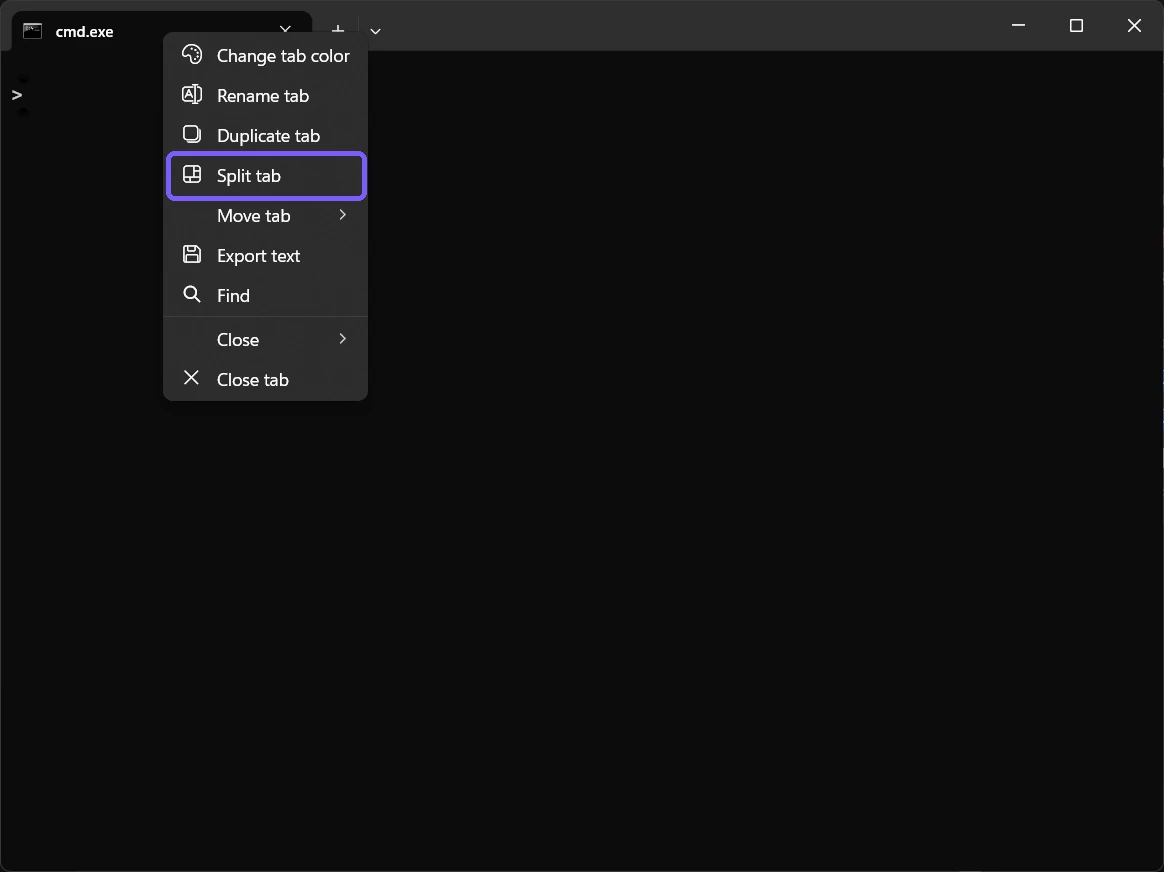
Right-click the tab itself, not the terminal text area. The terminal area has a different context menu for selection and clipboard tasks. If Split tab is absent, confirm that you are using a current Windows Terminal window instead of the legacy console host.
How do you verify that the tab contains two panes?
Look for two prompt areas separated by a divider inside the same tab. The currently focused pane shows an accent edge. Click inside each pane and confirm that the cursor or focus accent moves without changing the active tab label.
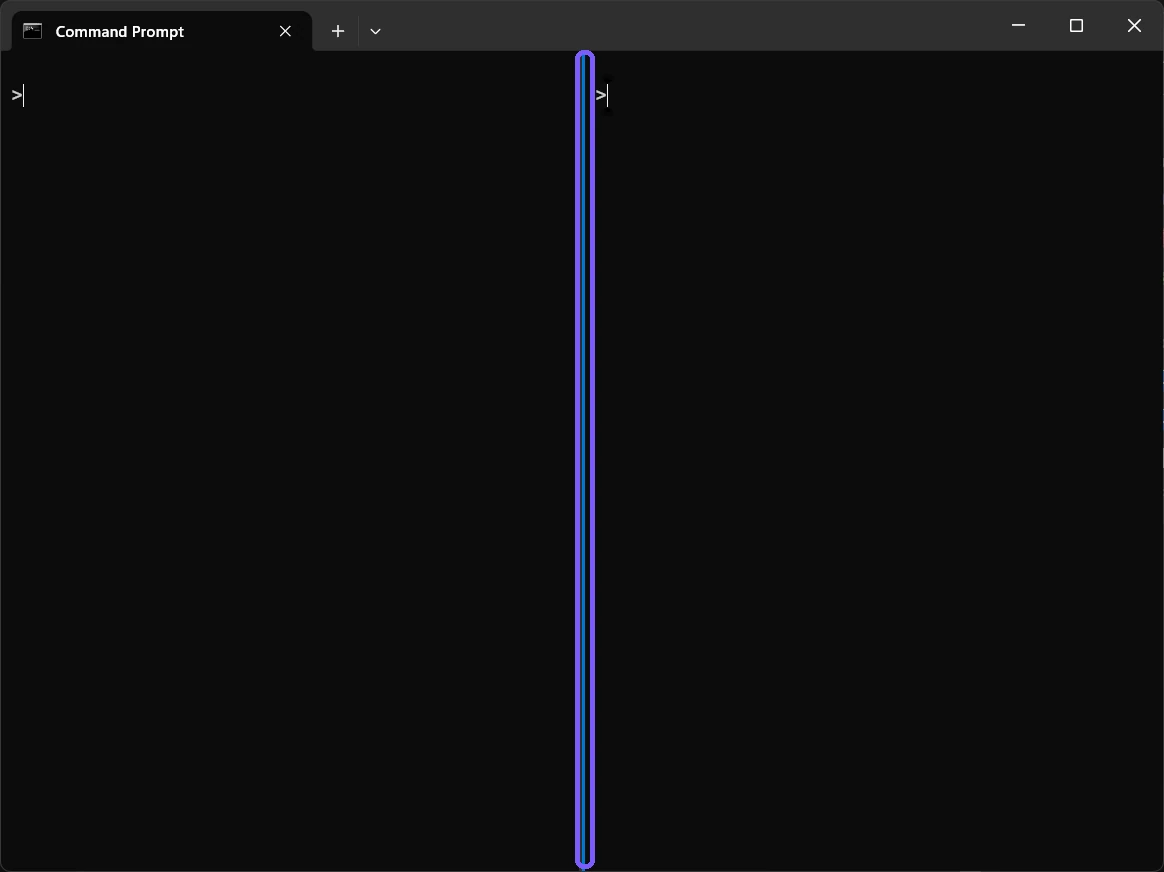
The reproduced window chose a vertical division because Split tab duplicates the pane using Terminal's current automatic layout behavior. Another window size or action can produce a horizontal division. Either orientation still represents two panes inside one tab; pane resizing and orientation changes are separate tasks.
Can you create a pane with the keyboard?
Yes. Microsoft documents Alt + Shift + + for a vertical pane and Alt + Shift + - for a horizontal pane using the default profile. Holding Alt while selecting the new-tab button or a profile in the dropdown can also create an automatic split.
Those routes do not all promise identical profile or working-directory behavior. Split tab is convenient when you want to duplicate the focused pane's profile. A keyboard directional split normally opens the default profile unless bindings have been customized. Check the new prompt rather than assuming it copied every aspect of the original session.
This article uses the visible tab-menu route for reproducible evidence. The shortcuts are supported alternatives, not extra persistent settings. Custom key bindings and JSON actions are outside the dominant intent because the installed defaults already provide safe pane creation.
How do you close only the focused pane?
- Click inside the pane you intend to close.
- Confirm that its focus edge or cursor is active and that no needed command is running.
- Press Ctrl + Shift + P.
- Type Close pane.
- Select the exact Close pane result, not Close all other panes.
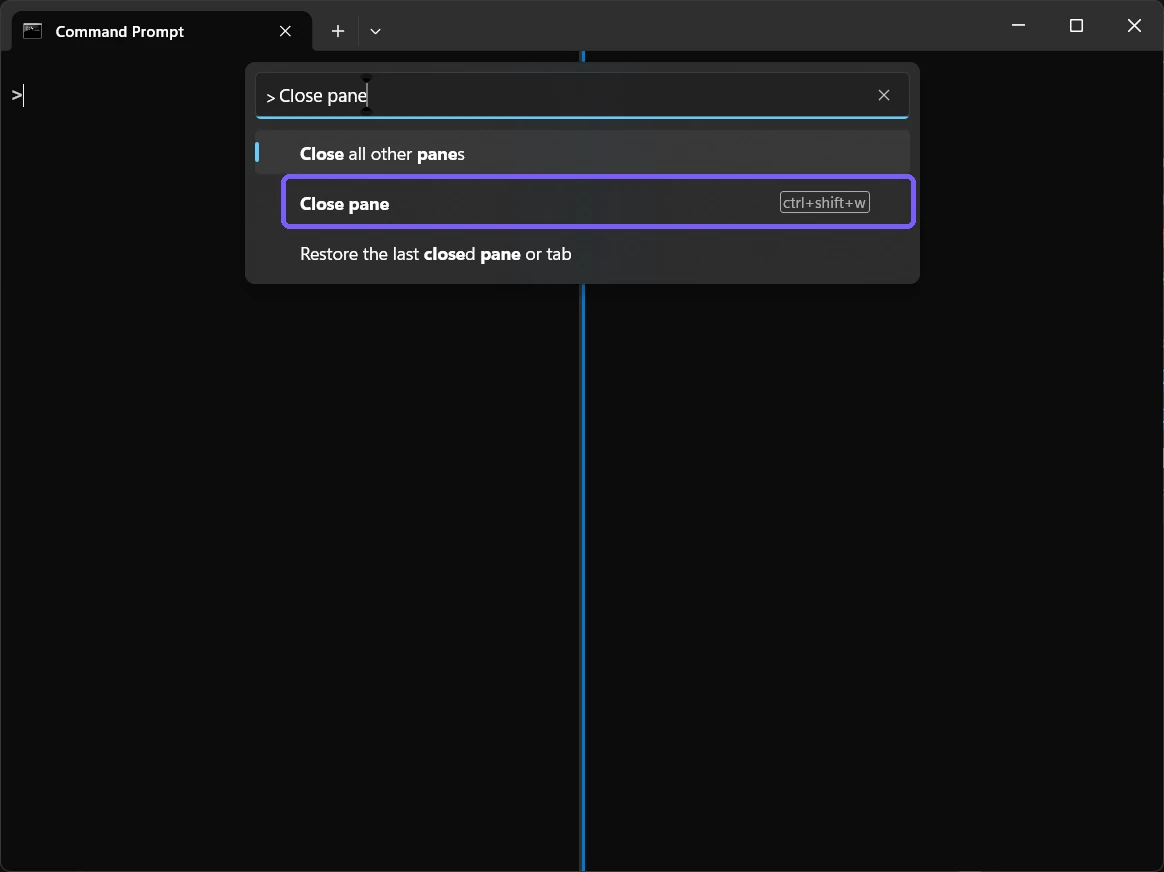
Microsoft's Windows Terminal actions reference documents closePane and its default Ctrl+Shift+W binding. The action is context-sensitive: with split panes it closes the active pane, with only one pane it closes the tab, and closing the last tab closes the window. That is why you should count panes and confirm focus before using the shortcut.
How do you verify the added pane is gone?
After invoking Close pane, the divider should disappear and the remaining pane should fill the tab's content area. Confirm the original prompt or program is still present. If the entire tab disappeared, the command was invoked when only one pane remained.
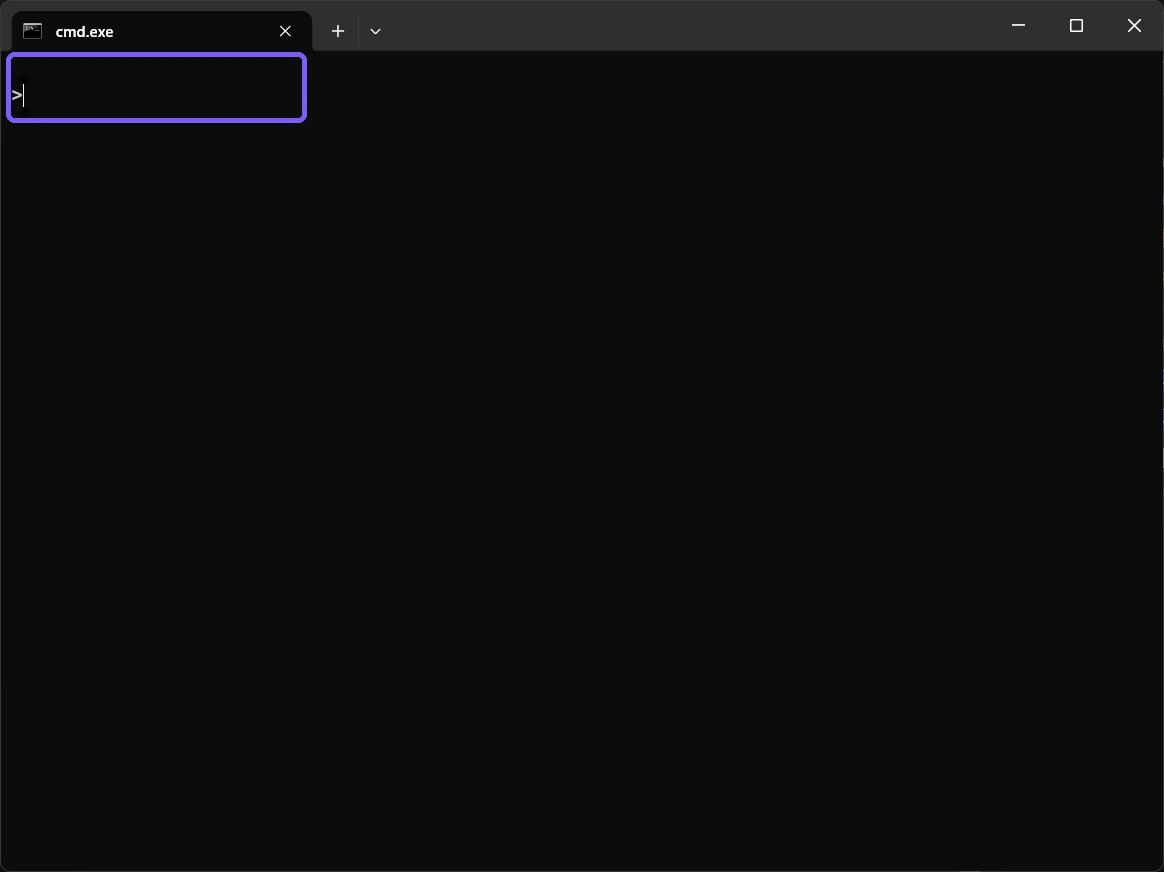
The reproduction recorded a fresh one-pane frame, closed the disposable Terminal window, restored ShareX configuration, and verified the exact original Terminal settings hash. Pane creation and closure were confined to the temporary session, so no settings rollback, Registry edit, or restart was needed.
What pane mistakes should you avoid?
- Do not confuse a pane with a tab. Close tab removes every pane in that tab.
- Do not choose Close all other panes by accident. It preserves the focused pane and closes its siblings, which is the opposite of this rollback.
- Do not close a busy pane casually. Closing terminates the hosted session and can interrupt work.
- Do not assume the new pane inherited every detail. Verify its profile, directory, privilege level, and connection independently.
- Do not edit settings for a one-time split. Built-in menu and keyboard actions already cover this temporary layout.
If a shortcut behaves differently, open Command Palette and inspect the displayed action and binding. Terminal lets users customize actions, so a PC may not retain the documented defaults. The palette gives you a labeled route even when memorized keys have changed.
Frequently Asked Questions
Does Split tab open another Windows Terminal tab?
No. It adds another pane inside the current tab. Both prompt areas remain under one tab label.
What is the default shortcut to close a Windows Terminal pane?
Microsoft documents Ctrl+Shift+W for Close pane. With no split remaining, the same action closes the current tab, so verify the layout first.
Does closing a pane stop its running command?
Yes. Closing the pane ends the command-line session hosted in it. Save work and stop important activity before closing.
Do you need administrator rights to open or close panes?
No administrator prompt was required during reproduction. Each pane can still run a separately elevated profile if a user deliberately launches one.
Use panes for side-by-side work and close them deliberately
Split tab gives one Terminal tab a second command surface without changing saved settings. Verify the new prompt, keep track of focus, and select the exact Close pane action when the temporary layout is finished. Because the same close action can remove a tab when only one pane remains, count the panes and protect running work before using its shortcut.
For more interesting articles, stay tuned to WinSides.com!

Community
Comments (0)