

Windows 11 includes Touch keyboard taskbar icon, a focused preference that provides a manual taskbar control that opens the Windows touch keyboard over the current desktop. The control is useful when you want that behavior, but it can be confusing when a nearby typing, speech, or taskbar option is doing something different.
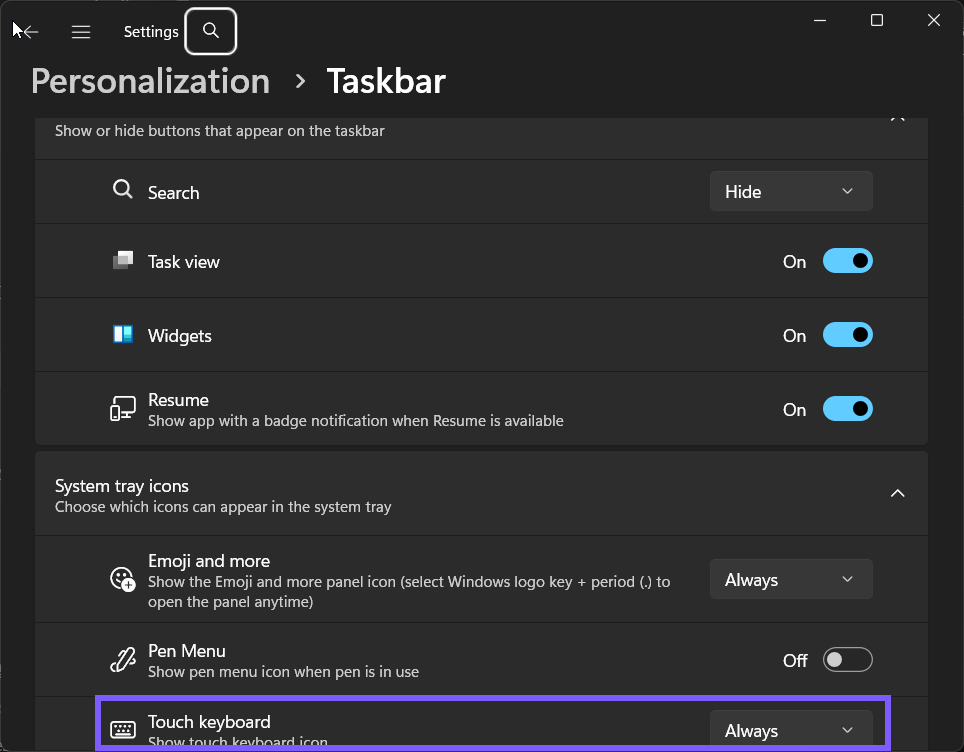
The supported location is Settings > Personalization > Taskbar > System tray icons. This guide explains the exact control, reproduces the visible result, and documents a clean return to the starting state. The test began at Always, used no elevation or private content, and left unrelated Windows preferences unchanged.
What does Touch keyboard taskbar icon do?
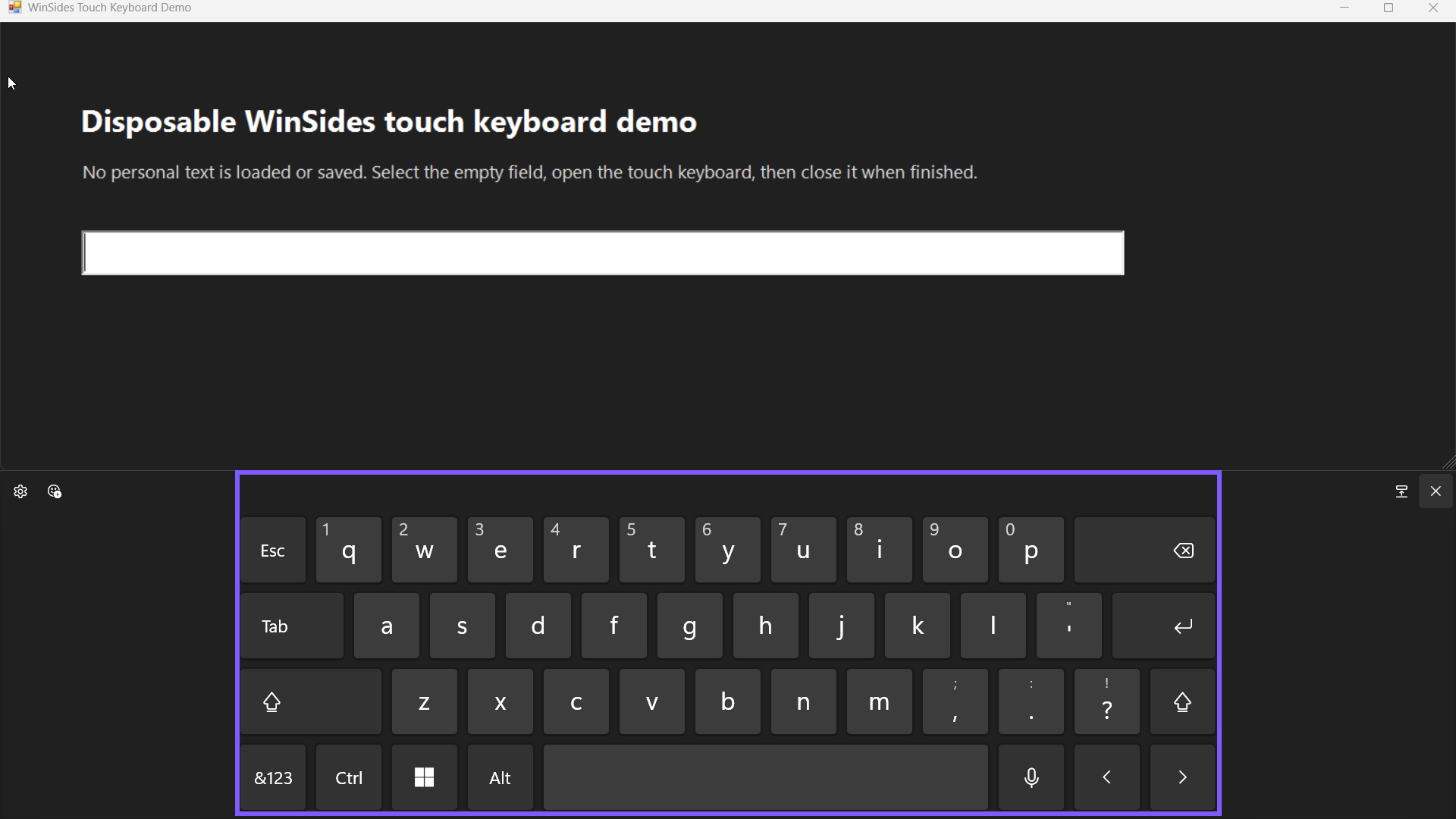
Provides a manual taskbar control that opens the windows touch keyboard over the current desktop. The touch keyboard is optimized for touch input and offers layouts, handwriting, themes, and a voice-typing key. It is different from the accessibility On-Screen Keyboard opened with Windows + Ctrl + O.
Microsoft Support documents the relevant Windows behavior. The official material supports the Settings route and the feature boundary; the screenshots below show the exact current control reproduced on Windows 11 rather than an assumed label from an older build.
Microsoft Support provides a second official boundary for the feature. It supports the distinctions in this guide without implying that every application, language, or device must behave identically.
Table of contents
What should you check before changing it?
Record the current value before selecting anything. Windows applies this kind of per-user choice immediately, so there is usually no Apply button. A short note such as “Touch keyboard taskbar icon: Always” is enough to make the rollback unambiguous.
Change only the named control. Nearby spelling, prediction, sound, capitalization, punctuation, voice, keyboard-invocation, and taskbar options solve different problems. If several are changed together, the result cannot be attributed to one preference with confidence.
Use a disposable local text field or a harmless demonstration window. Do not test with a password, payment detail, customer record, personal name, live chat, or draft that might be sent. The behavior can be verified without exposing any sensitive content.
How do you change Touch keyboard taskbar icon?
Press Windows + I to open Settings. For a taskbar-specific route, you can also right-click an empty part of the taskbar and select Taskbar settings.
Follow Settings > Personalization > Taskbar > System tray icons. Expand the Touch keyboard or System tray icons section only when that section is part of the route.
Find Touch keyboard taskbar icon. Confirm the label before using the checkbox, switch, or menu.
Choose Closed for the reproduced comparison, or choose the value that matches your intended behavior. Do not change adjacent controls.
Observe the result in a disposable field or the system tray, then return here if the setting needs to be restored.
Microsoft Support confirms that the relevant option belongs to the Windows Settings family described here. Wording can vary slightly by build, but the reproduced page used the label and hierarchy shown in the evidence.
How can you verify the behavior safely?
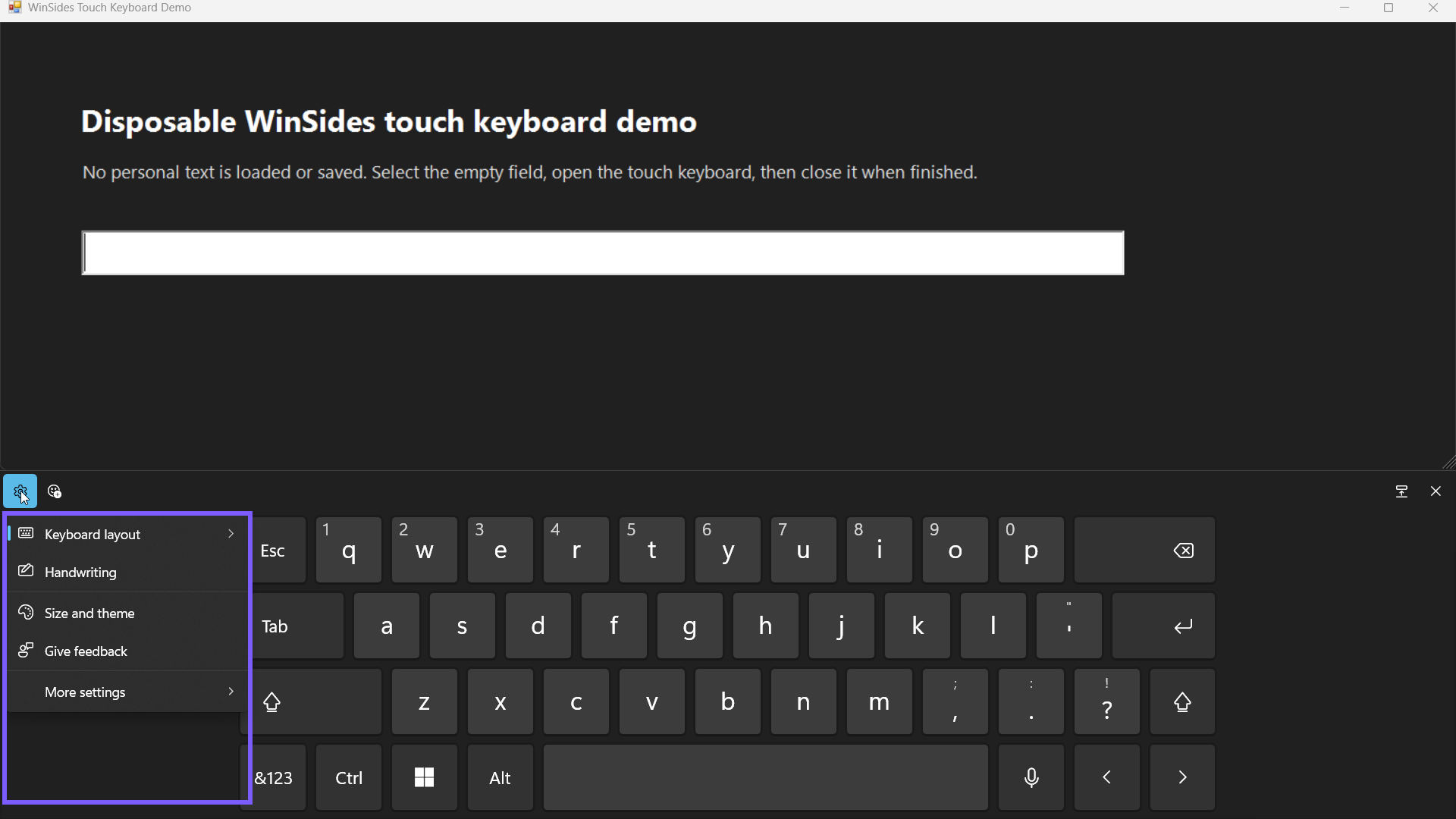
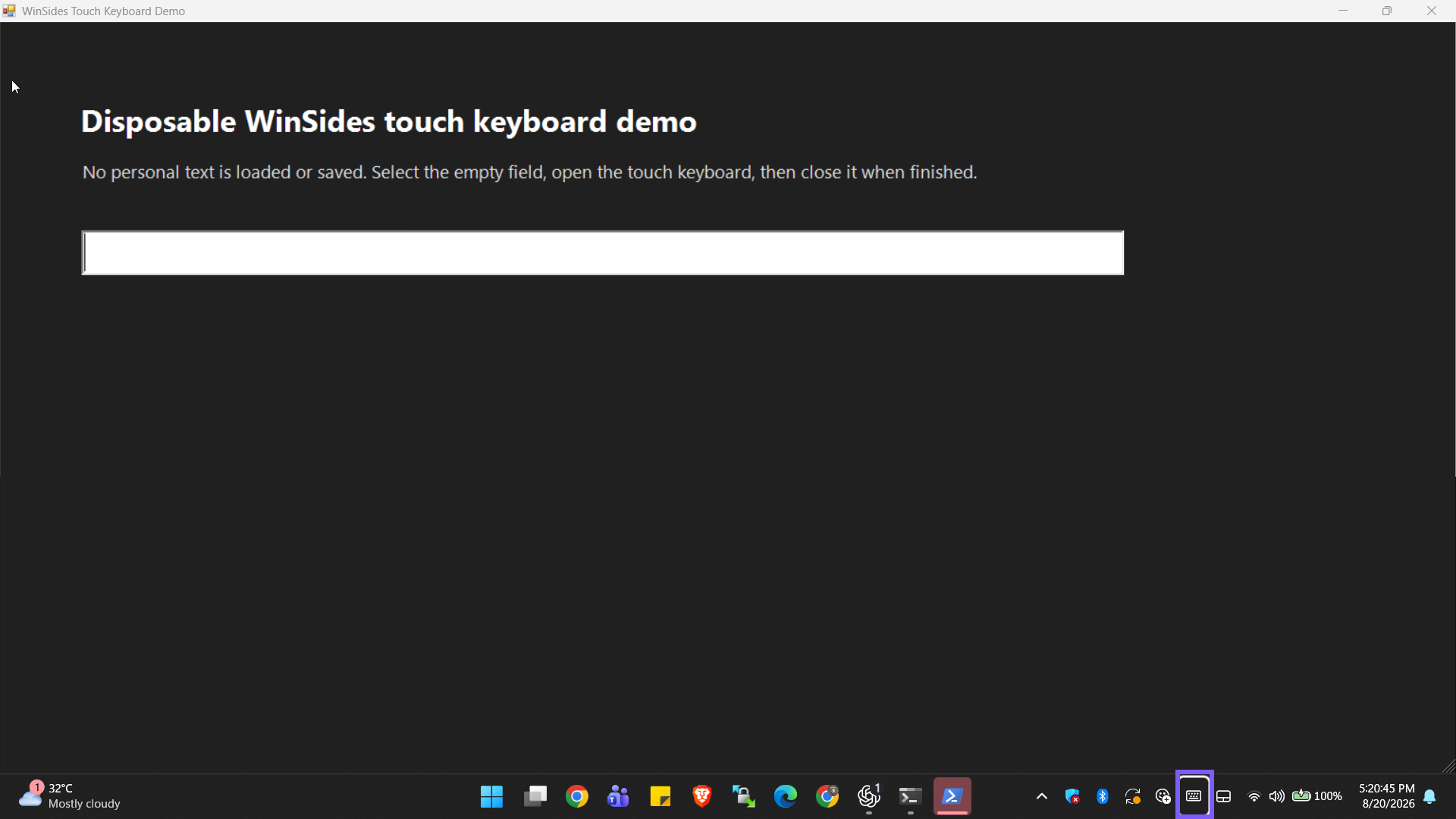
Use an empty disposable text field, select the keyboard icon in the system tray, and leave the field blank. The reproduced session used a dedicated local demo window with no personal text, opened the layout menu, then closed the keyboard.
Verify the exact control again before drawing a conclusion. A visible app-level spell checker, prediction panel, audio route, hardware state, or custom input field can overlap with Windows behavior. A second ordinary field is a more useful comparison than repeatedly toggling several settings.
The icon can be hidden by the Taskbar setting, moved into the overflow area, or shown only when Windows detects no attached keyboard. Automatic appearance after tapping a field is controlled separately.
What did the reproduced opening session show?
The evidence session recorded Always, changed only Touch keyboard taskbar icon to Closed, and read the same control again. The temporary state was visibly different while every captured sibling retained its original value. No administrator prompt, sign-out, or restart appeared.
This comparison is deliberately narrow. It proves that the reproduced Windows control changed and returned successfully; it does not claim that every program, keyboard language, audio device, or convertible PC implements the surrounding experience in exactly the same way.
How do you close the touch keyboard cleanly?
Select the X at the upper-right of the touch keyboard. The surface disappears, the disposable text field stays empty, and the taskbar icon remains available because its original Always choice was never changed. Close any temporary demonstration field when finished.
Returning the named control to the recorded value is the complete rollback. You do not need Registry Editor, an elevated command, a sign-out, or a broad Windows reset for this supported Settings procedure.
How is this option different from nearby controls?
The touch keyboard is optimized for touch input and offers layouts, handwriting, themes, and a voice-typing key. It is different from the accessibility On-Screen Keyboard opened with Windows + Ctrl + O.
The distinction matters during troubleshooting. A word can be highlighted without being corrected, a suggestion can appear without being inserted, a microphone button can be visible without having permission to listen, and a taskbar icon can be hidden while the underlying Windows component remains installed.
Keep the scope narrow: first decide whether the problem concerns text content, a visible suggestion, sound, the touch surface, automatic invocation, or an icon. Then change the one preference that owns that result.
Common problems and careful checks
Where is the touch keyboard icon?
Open Taskbar settings, expand System tray icons, and set Touch keyboard to Always for a dependable manual button.
Why did the keyboard not open after selecting a text field?
Automatic invocation has a separate Time & language > Typing > Touch keyboard menu. The taskbar icon remains the clearest manual method.
How do you change the keyboard layout?
Select the gear button on the touch keyboard, then choose Keyboard layout. Available layouts can depend on the device and Windows build.
How do you close the touch keyboard?
Select the X in its upper-right corner. Closing the surface does not erase the text field or change the saved taskbar icon choice.
Does this require administrator rights or a restart?
No elevation or restart was required in the reproduced session. These are current-user preferences. A managed work or school PC can lock a setting through policy; if the control is unavailable, contact the administrator instead of bypassing it with a script or Registry edit.
An application or input surface that was already open may need to be closed and reopened before it reflects the change. That refresh is smaller and safer than restarting Windows, resetting typing data, or changing language packs.
Related Windows input options
For efficient navigation while testing an input feature, the live guide to opening apps from the taskbar provides a broader reference. If the issue is about touch interaction rather than this exact control, see automatically hiding the taskbar and keep the two behaviors separate.
Frequently Asked Questions
Where is Touch keyboard taskbar icon in Windows 11?
Open Settings > Personalization > Taskbar > System tray icons and find the exact label shown in the screenshots.
Does changing this option affect every application?
Not always. Applications can use custom text controls, spelling engines, prediction features, audio handling, or input behavior, so compare a second ordinary field.
Can you restore the original value?
Yes. Return to the same Settings control and select the value you recorded before the test. The reproduced session restored Always.
Do you need to restart Windows after changing it?
No restart was needed in the reproduced Windows 11 session. Reopen the relevant Settings page or input surface before taking broader troubleshooting steps.
Conclusion
Use Settings > Personalization > Taskbar > System tray icons, change only Touch keyboard taskbar icon, and verify the result with disposable content. Record the starting value, distinguish the option from its neighbors, and restore Always when the change was only a test.
For more interesting articles, stay tuned to WinSides.com!


Community
Comments (0)