

Snap windows is a Windows 11 preference that controls the Windows feature that resizes and arranges app windows into screen layouts. The supported route is Settings > System > Multitasking, and the change applies to the current Windows profile without an administrator prompt.
This guide uses the exact control visible on the tested Windows 11 25H2 build. The evidence session began at On, changed only the target to Off, and restored On before Settings and ShareX were closed.
What does Snap windows change?
Controls the windows feature that resizes and arranges app windows into screen layouts. This is the master Snap preference. Turning it off disables the supported snapping experience even if individual Snap checkboxes still display their saved choices; turning it back on restores access to those choices.
Use it when you want Windows to stop arranging windows at edges, corners, or layouts. Leave it on when you use Win+Arrow, the Snap bar, the maximize-button layout menu, or Snap Assist.
Microsoft Support documents the current Windows feature and its supported Settings path. The official description and the locally reproduced labels agree, so the procedure below does not rely on an old Registry tweak, a third-party utility, or an assumed control name.
Table of contents
What should you record before changing it?
Write down the displayed value before selecting anything. For this test, it was On. Windows applies the preference immediately, and there is no separate Apply button, so the recorded baseline is the rollback reference.
Close confidential windows or move them out of the test workspace before checking a task switcher, taskbar preview, Snap suggestion, or keyboard behavior. The setting itself is low risk, but a verification surface can reveal titles or thumbnails from apps that were already open.
Change only the named control. The surrounding Multitasking or Accessibility page contains related choices that can alter a different part of the experience. Keeping every sibling unchanged makes the observed result attributable to one preference.
How do you change Snap windows?
Press Windows + I to open Settings.
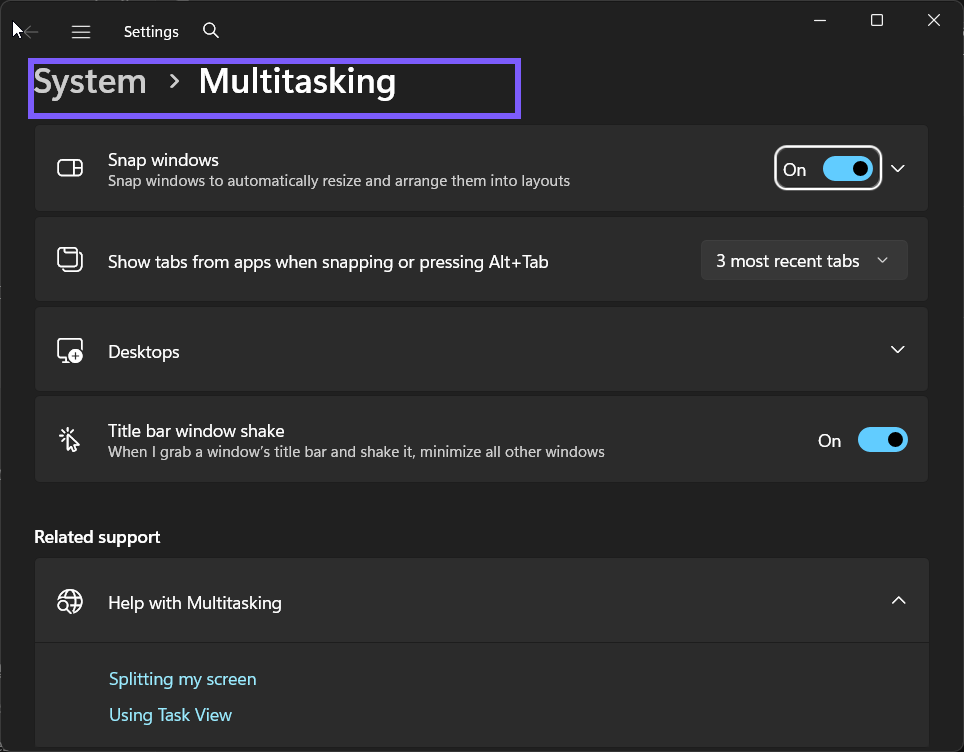
Follow Settings > System > Multitasking. Use the breadcrumb and section label to confirm that you are on the intended page.
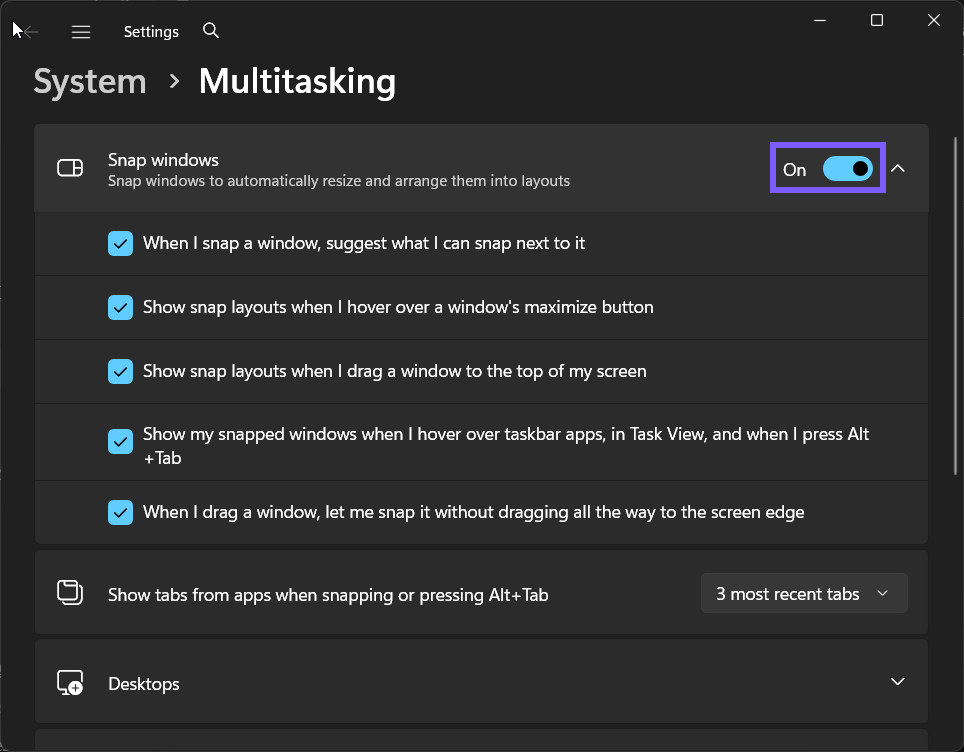
Use the Snap windows master switch. Expand its arrow to review the dependent choices before changing it.
Confirm that the current value matches the one you recorded. In the reproduced session, it was On.
For the controlled comparison, set the control to Off. If you are configuring your own PC, choose the value that matches the behavior you want.
Microsoft Support explains the broader Windows workflow around this control. It helps distinguish the setting from adjacent features and confirms that a normal Settings change is the supported approach.
How can you verify the result safely?
Open two disposable app windows. With Snap enabled, drag one toward a screen edge or press Windows+Left Arrow and confirm that Windows offers a layout. After the temporary Off comparison, return directly to Settings instead of forcing an arrangement that disrupts active work.
First re-read the exact Settings control and confirm that it displays Off. Then perform one narrow, disposable behavior check. Do not change another Snap, Alt+Tab, desktop, taskbar, or keyboard setting simply because the first app does not demonstrate the result.
Some apps impose minimum window sizes or custom title bars, so they may not fit every zone. A third-party window manager can also arrange windows independently of this Windows switch.
What did the reproduced comparison show?
The target moved from On to Off while every recorded sibling stayed at its original value. The transition required no elevation, sign-out, restart, service change, or Registry edit. The focused control in the next image is the temporary comparison state.
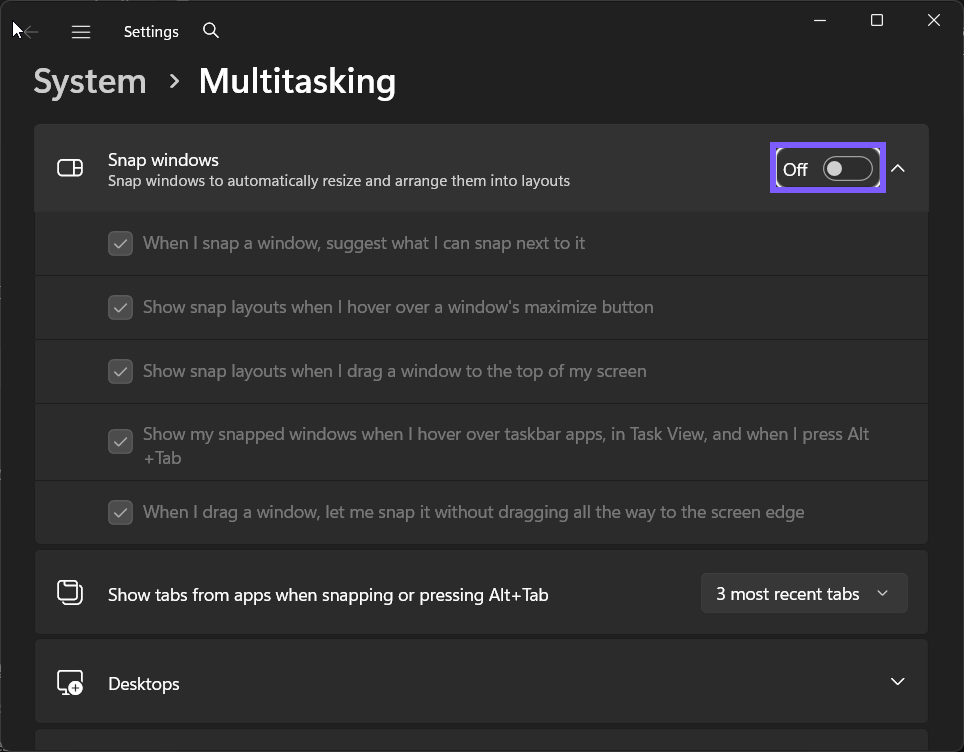
This proves the current Windows control can be changed and read back on the tested build. It does not claim that every app, keyboard, display arrangement, remote session, or third-party window manager presents the surrounding experience identically.
How do you restore the original value?
Return to Settings > System > Multitasking, find Snap windows, and choose On. Re-read the same control, then close the disposable apps or desktops used for verification.
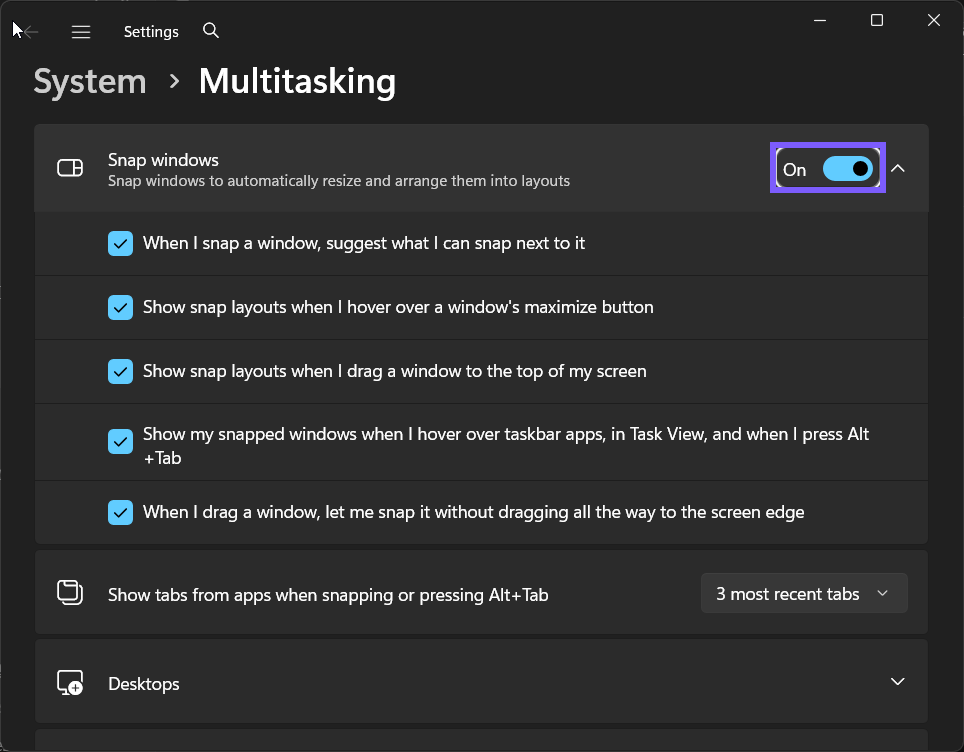
The fresh post-rollback frame confirms the original value. A system reset, Explorer restart, Registry import, or administrator command is unnecessary for this supported per-user preference.
How is this different from nearby options?
This is the master Snap preference. Turning it off disables the supported snapping experience even if individual Snap checkboxes still display their saved choices; turning it back on restores access to those choices.
Use the label as the scope boundary. If the problem concerns a different trigger, switching surface, desktop, app tab, or key-acceptance rule, return to the parent page and review that specific control instead of changing several options together.
Common problems and careful checks
Why does a window still move when Snap windows is Off?
The switch stops Windows Snap behavior; it does not prevent normal dragging, maximizing, or a third-party window manager from moving a window.
Why are the detailed Snap choices unavailable?
The child checkboxes depend on the master switch. Turn Snap windows On before trying to adjust one of those narrower behaviors.
Why does one app refuse a Snap zone?
An app can define a minimum size or custom title bar. Compare a standard resizable app before treating the Windows setting as broken.
Does turning Snap off close or unsnap open apps?
It does not close apps. Existing windows remain open, although future drag and keyboard snapping behavior changes.
Does this require administrator rights or a restart?
No administrator rights or restart were required in the reproduced session. A work or school policy can make a control unavailable; in that case, contact the administrator rather than attempting to bypass management with an unsupported script.
If an app or switching surface was already open, close and reopen that surface before troubleshooting further. That small refresh is safer than resetting Windows settings or changing system-wide policy.
Related Windows options
The live guide to Windows 11 keyboard shortcuts provides useful context for this workflow. You can also use Task View when that neighboring task better matches what you are trying to do.
Frequently Asked Questions
Where is Snap windows in Windows 11?
Open Settings > System > Multitasking and use the exact control shown in the screenshots.
Can you restore the original value after testing?
Yes. Return to the same control and choose On. The reproduced session captured a fresh frame after that rollback.
Why might one app or device behave differently?
Apps can use custom windows or controls, while displays, keyboards, remote sessions, policy, and third-party utilities can affect the surrounding experience. Compare a standard disposable example.
Do you need a Registry edit for this setting?
No. The supported Settings control changed immediately and rolled back without Registry Editor, elevation, or a restart.
Conclusion
Use Settings > System > Multitasking, record the starting value, and change only Snap windows. Verify the narrow behavior with disposable content, then restore On whenever the change was only a test.
For more interesting articles, stay tuned to WinSides.com!
Community
Comments (0)