

Introduction to DISM Online in Windows 11
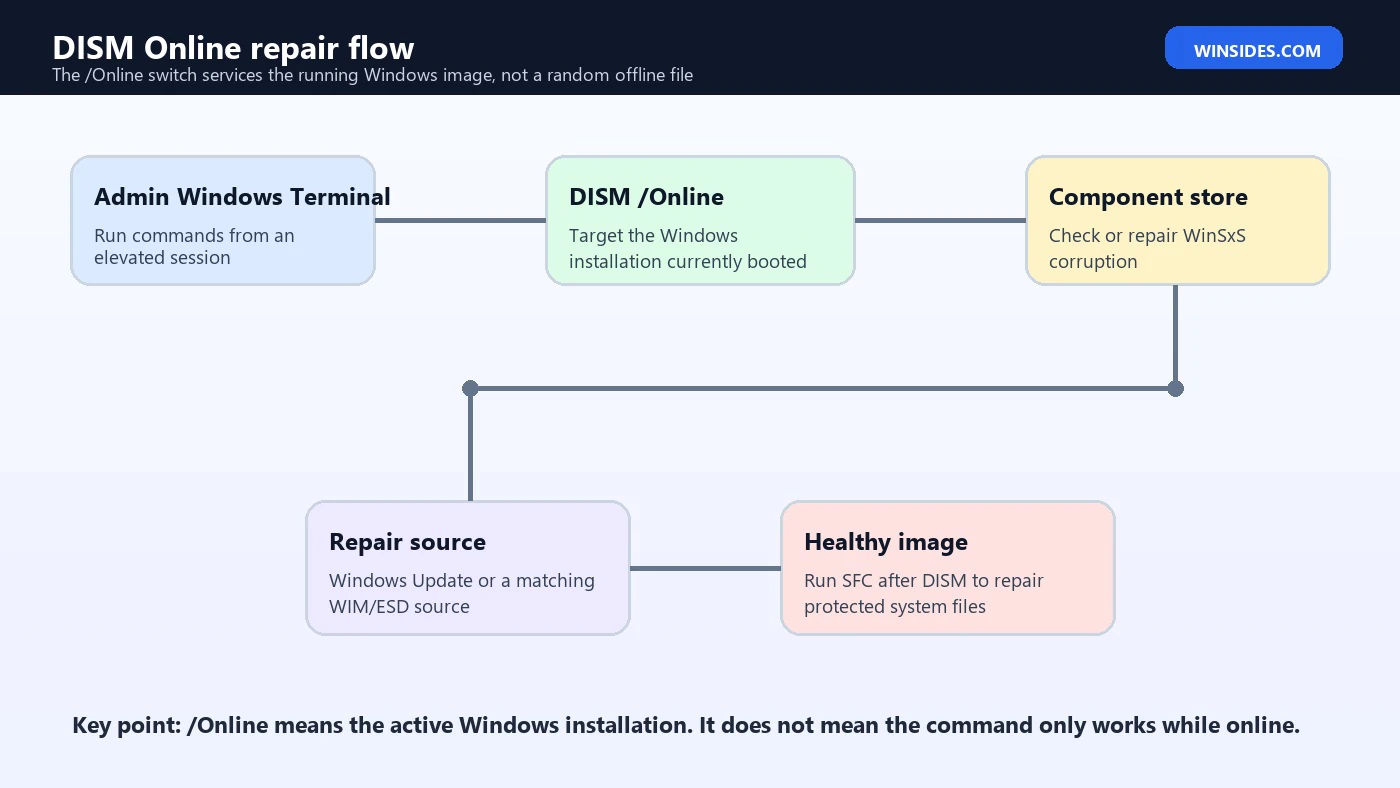
DISM Online is one of the most important repair commands available in Windows 11, but it is also one of the most misunderstood. Many users read the word Online and assume the command only means internet-based repair. In DISM syntax, /Online means the command targets the Windows image that is currently running on the computer. When you run DISM /Online /Cleanup-Image /RestoreHealth, you are asking Windows to inspect and repair the component store behind your live Windows installation, not an offline image file sitting in a folder.
That detail matters because the DISM Online workflow is often the difference between a frustrating repair loop and a clean fix. If Windows Update fails repeatedly, optional features refuse to install, SFC reports that it found corrupt files but could not repair some of them, or a cumulative update keeps rolling back, the component store may be unhealthy. The component store, commonly associated with the WinSxS folder, is where Windows keeps the component payloads and metadata used for servicing, feature installation, and many repair operations. If that store is corrupt, other repair tools can struggle because they depend on it.
Microsoft describes DISM as a command-line tool for servicing Windows images and explains that it can work with the running operating system through the /Online option. Microsoft also documents the Windows image repair flow using /CheckHealth, /ScanHealth, and /RestoreHealth in its Repair a Windows image guidance. This article turns those official building blocks into a practical Windows 11 repair guide: what DISM Online does, when to run it, how to read its results, how to use a repair source, and how to avoid common mistakes that create more work than they solve.
Table of contents
Key Takeaways
- DISM Online repairs the running Windows image. The
/Onlineswitch targets the active Windows installation, not a disconnected offline image. - RestoreHealth repairs the component store. It does not replace every damaged user file or application file, but it can restore the servicing foundation Windows uses for repair.
- Run DISM before SFC when corruption is suspected. A healthy component store gives
sfc /scannowa better source for protected system file repair. - CheckHealth is fast, ScanHealth is deeper, and RestoreHealth repairs. These commands answer different questions and should not be treated as identical.
- Windows Update is the default repair source. If Windows Update is blocked or the required files are missing, use a matching Windows image with
/Source. - Most DISM Online failures are source, syntax, servicing stack, or policy issues. Error
0x800f081f, error 87, access denied, and stuck percentages usually have different causes. - Do not interrupt repairs casually. DISM may pause at certain percentages while it processes data. Give it time before assuming it is broken.
What DISM Online Actually Means
DISM stands for Deployment Image Servicing and Management. The name sounds like it belongs only to deployment engineers, but the tool is also built into normal Windows 11 installations. Its most visible consumer repair use is servicing the active Windows image with /Online and /Cleanup-Image. In plain language, you use DISM Online when you want Windows to check or repair the servicing health of the operating system that is currently booted.
The /Online option is the target selector. It tells DISM to work against the running operating system. The alternative is an offline target, where you mount or point to a Windows image path and service that image instead. Offline servicing is common for deployment images, Windows setup media, or mounted WIM files. Online servicing is what most Windows 11 users need when the computer itself is having update, servicing, or system file repair problems.
Microsoft explains the broader role of DISM in its What is DISM? documentation: DISM can service Windows images and is used for tasks such as adding or removing drivers, packages, features, and language packs. For day-to-day repair, you do not need every deployment feature. You mainly need to understand how /Online, /Cleanup-Image, health checks, repair sources, and SFC fit together.
DISM Online vs Offline Servicing
The online and offline distinction is the first thing to get right. If you run DISM /Online, DISM is working on the Windows installation you are using right now. You do not need to mount an image. You do not need to specify /Image:C:\Mount. You normally need an elevated Windows Terminal or Command Prompt because servicing the running OS requires administrator permissions.
Offline servicing is different. In an offline scenario, you use DISM against a mounted Windows image, an offline Windows directory, or a WIM file prepared for deployment. That is useful for administrators who customize installation images before deploying Windows to many computers. It is also useful in recovery scenarios where the installed Windows environment cannot boot and you repair it from Windows Recovery Environment or installation media. But that is not the normal DISM /Online /Cleanup-Image /RestoreHealth repair path.
| Mode | Typical target | Common use |
|---|---|---|
/Online | The Windows 11 installation currently running | Repair the live component store, manage optional features, or inspect health. |
/Image | A mounted or offline Windows image path | Service deployment images, repair a non-booted installation, or prepare custom media. |
/Source | A repair payload source such as install.wim or install.esd | Provide replacement component files when the default source is unavailable. |
When You Should Use DISM Online
DISM Online is most useful when Windows servicing itself appears unhealthy. This includes update errors, feature installation failures, repair loops, and SFC results that suggest the system cannot replace corrupted files. You can also use it proactively as part of a structured repair workflow when Windows behaves strangely after driver problems, interrupted updates, disk issues, or sudden shutdowns. It is not a magic command for every Windows problem, but it is one of the safest first repair tools when system corruption is plausible.
- Windows Update downloads updates but fails during installation or rollback.
- Optional features such as .NET Framework components, Hyper-V, Windows Sandbox, or language features fail to install.
sfc /scannowreports that it found corrupt files but could not repair some of them.- A repair install, feature enablement, or cumulative update fails with component store or source-related errors.
- Windows behaves inconsistently after an interrupted servicing operation, forced power-off, storage problem, or malware cleanup.
- You need to verify whether the component store is repairable before trying heavier recovery actions.
There are also times when DISM Online is not the right first tool. If a third-party application is broken, reinstalling that application may be faster. If your disk is failing, DISM cannot turn unreliable hardware into a stable system. If Windows cannot boot, you may need offline repair from recovery media. If the user profile is corrupt, DISM may repair Windows components while leaving the profile issue untouched. Use DISM Online for the Windows image and component store, then choose additional tools based on the symptom.
The Core DISM Online Commands
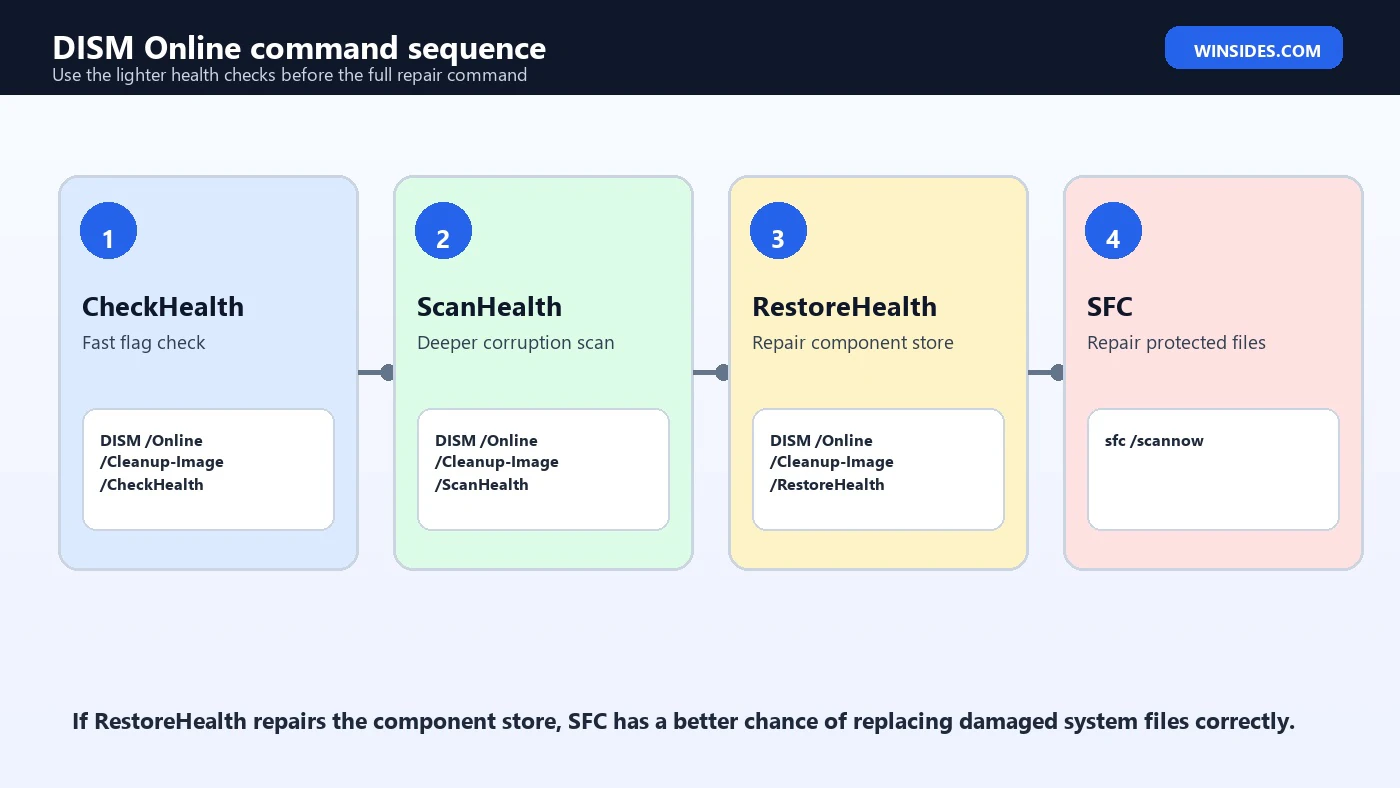
The common repair sequence uses three DISM health commands. They share the same base path, DISM /Online /Cleanup-Image, but each command has a different job. Running them in the right order is not mandatory every time, but it helps you understand what Windows is reporting and prevents unnecessary long repairs.
DISM /Online /Cleanup-Image /CheckHealth
DISM /Online /Cleanup-Image /ScanHealth
DISM /Online /Cleanup-Image /RestoreHealth
/CheckHealth is the quick check. It looks for whether the image has already been flagged as corrupted and whether that corruption is repairable. It does not perform a full scan. Because it is fast, it is useful when you need a quick indication before starting a deeper operation.
/ScanHealth is the deeper scan. It checks the component store for corruption and can take significantly longer. This is the command to run when you want a more thorough health assessment but are not ready to repair yet. On some systems it completes quickly; on others it can take many minutes.
/RestoreHealth is the repair command. It scans for corruption and attempts to repair the component store. By default, Windows may use Windows Update as a source for replacement files. If Windows Update is blocked by policy, broken, or missing the needed payload, you can point DISM to a matching local source.
How to Run DISM Online Safely
Before running DISM Online, open an elevated terminal. In Windows 11, right-click Start, choose Terminal (Admin) or Windows PowerShell (Admin), and approve the UAC prompt. You can also search for Command Prompt, choose Run as administrator, and run the same commands. The command syntax works in Command Prompt, PowerShell, and Windows Terminal, though PowerShell users should still type the DISM command exactly as shown.
- Save your work first. DISM repair should not delete documents, but repair operations and follow-up restarts should not be mixed with unsaved work.
- Keep the device plugged in if it is a laptop. A power loss during servicing can create avoidable recovery work.
- Do not close the terminal just because progress appears paused. DISM can sit at a percentage while it processes large servicing data.
- Run one servicing repair at a time. Do not run multiple DISM and Windows Update repair commands in parallel.
- Restart after a successful repair, especially if Windows Update or SFC was failing before.
DISM /Online /Cleanup-Image /RestoreHealthA successful repair usually ends with messages indicating that the restore operation completed successfully and that the operation completed successfully. If Windows says the component store corruption was repaired, restart and then run SFC. If DISM reports that source files could not be found, move to the repair source section instead of repeating the same command indefinitely.
Recommended Workflow: DISM First, Then SFC
DISM and SFC are related, but they do not do the same job. DISM repairs the Windows image and component store used for servicing. SFC checks and repairs protected system files in the active Windows installation. If the component store is damaged, SFC may not have a trustworthy source for replacing protected files. That is why a common Windows repair sequence is DISM first, SFC second.
The Windows command documentation for SFC describes sfc /scannow as a command that scans protected system files and repairs them. In practical troubleshooting, run RestoreHealth, reboot if needed, and then run sfc /scannow. If SFC previously failed, this second run is often the one that succeeds because the component source is healthier.
DISM /Online /Cleanup-Image /RestoreHealth
sfc /scannow
This sequence is especially useful after a Windows Update problem, a sudden shutdown during update installation, or repeated system file errors in CBS logs. If both commands succeed and the original symptom remains, you have useful evidence: the component store and protected system files are probably not the remaining cause. You can then investigate drivers, user profiles, application conflicts, policy, storage health, or hardware.
Using a Repair Source with DISM Online
By default, /RestoreHealth may use Windows Update to obtain replacement files. In many home and small business environments, that default path is fine. Problems begin when Windows Update is unavailable, controlled by policy, blocked by a proxy, broken on the local machine, or unable to provide the specific files needed. In those cases, DISM may return source-related errors such as 0x800f081f.
A repair source is a Windows image that contains the component payloads DISM needs. Common sources are install.wim or install.esd from Windows installation media. The source must match the installed Windows version, edition, language, architecture, and build as closely as possible. If the source is older, wrong edition, wrong index, or heavily mismatched, DISM can fail even though the command syntax looks correct.
DISM /Online /Cleanup-Image /RestoreHealth /Source:WIM:D:\sources\install.wim:1 /LimitAccessIn that command, D:\sources\install.wim is the path to the Windows image, and :1 is the image index. Your media may use install.esd instead of install.wim, and the right index may not be 1. You can inspect a WIM or ESD file with DISM /Get-WimInfo before choosing the index.
DISM /Get-WimInfo /WimFile:D:\sources\install.wim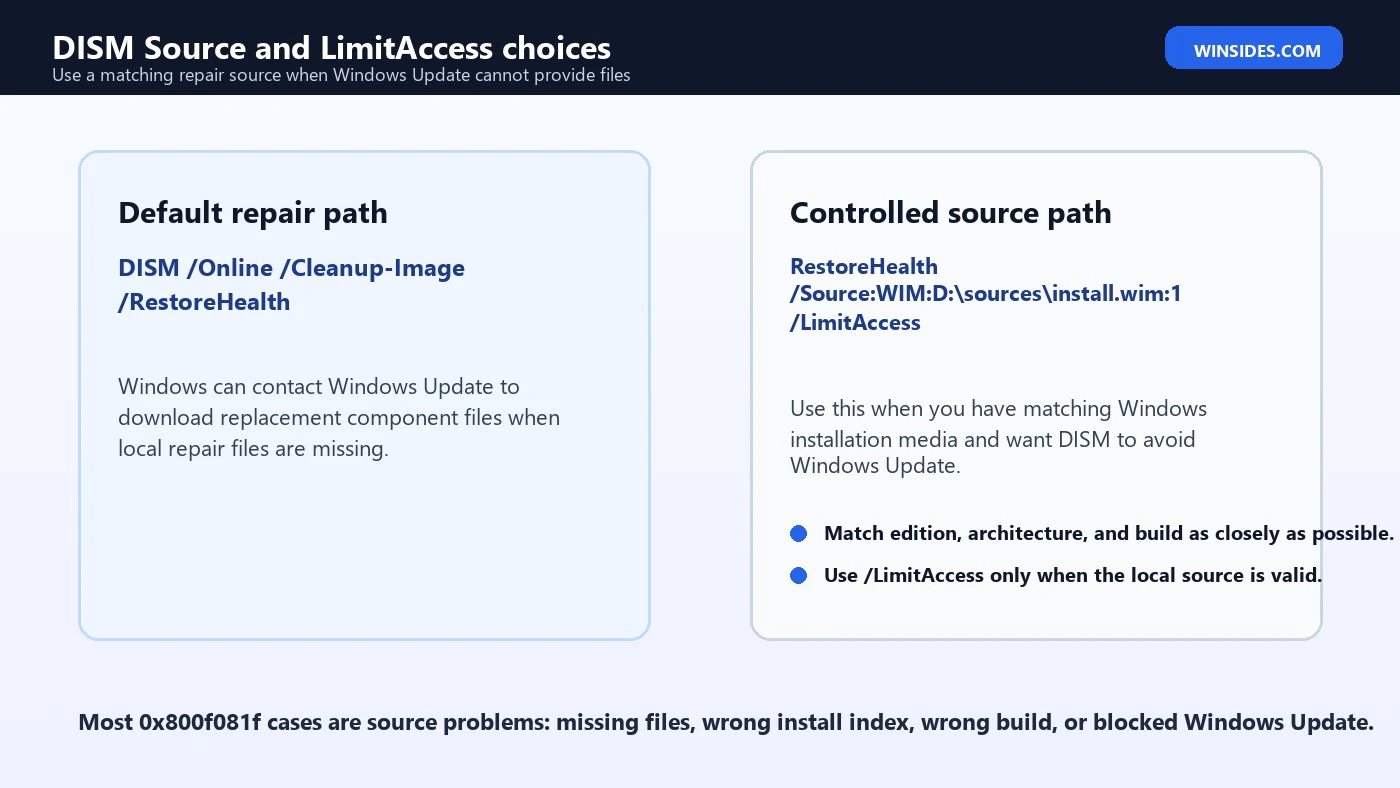
What /LimitAccess Does
/LimitAccess tells DISM not to contact Windows Update as a repair source. That is useful in controlled enterprise environments or offline-like repairs where you want the command to rely only on the source you provide. It is also useful when Windows Update itself is broken and you do not want DISM wasting time trying the online source first.
The risk is simple: if the local source is wrong, /LimitAccess removes the fallback path that might have helped. Do not add /LimitAccess automatically to every command you find online. Use it when you intentionally provide a valid local source and want to prevent Windows Update access. If you are unsure whether your source is valid, test without /LimitAccess first or confirm the image index and build.
How to Find the Correct Install.wim or Install.esd Index
Windows installation media often contains multiple editions in the same WIM or ESD file. Index 1 might not match the edition installed on your PC. If your computer is running Windows 11 Pro and index 1 is Windows 11 Home, the repair source may not be appropriate. The safest approach is to inspect the image and select the index that matches your installed edition.
DISM /Get-WimInfo /WimFile:D:\sources\install.esdThe output lists each index with a name and description. Note the index for your edition, then use that index in the source path. If the file is ESD, use ESD: in the source syntax. If it is WIM, use WIM:.
DISM /Online /Cleanup-Image /RestoreHealth /Source:ESD:D:\sources\install.esd:6 /LimitAccessBuild matching matters too. If your installed Windows 11 build is newer than the media, DISM may reject the source or fail to repair. When possible, use media created from the same Windows 11 release and patch level, or use a repair source maintained for your organization. For stubborn cases, a Windows repair install using current installation media may be more practical than hunting for a perfect WIM.
Understanding DISM Online Logs
DISM writes detailed logs that can help when the terminal output is too short. The main DISM log is usually located at C:\Windows\Logs\DISM\dism.log. Component servicing details may also appear in C:\Windows\Logs\CBS\CBS.log. You do not need to read every line, but the final error section can show whether the failure came from missing source files, access denial, pending operations, unsupported syntax, or servicing stack trouble.
When searching logs, start with the error code shown in the terminal. Then search nearby lines for phrases such as source files could not be found, component store corruption, the parameter is incorrect, access is denied, or the operation is pending. Do not paste huge raw logs into public forums without redacting machine names, paths, and environment details. Logs can reveal configuration and security context.
notepad C:\Windows\Logs\DISM\dism.logCommon DISM Online Errors and Fixes
DISM errors are easier to handle when you separate syntax errors from source errors and servicing-state errors. Repeating the same command rarely helps unless the first failure was caused by a temporary network or Windows Update issue. Read the code, check the source, and decide whether the problem is command format, permissions, Windows Update access, or a mismatched repair image.
| Error or symptom | Likely cause | Practical next step |
|---|---|---|
0x800f081f | The source files could not be found or Windows Update cannot provide the needed payload. | Use matching Windows media with /Source, verify the WIM or ESD index, and check policy blocking Windows Update. |
| Error 87 | DISM does not understand the option, often due to a typo, wrong slash, unsupported context, or copied formatting. | Retype the command manually, use spaces exactly, and confirm the option is valid for online servicing. |
| Access is denied | Terminal is not elevated or security policy is blocking servicing. | Run Windows Terminal as administrator and check endpoint security or enterprise restrictions. |
| Stuck at 62 percent or another value | DISM may be processing a stage, waiting on source access, or blocked by servicing state. | Wait longer, review logs, confirm source access, then restart and retry if the log shows no progress. |
| Source path not found | Wrong drive letter, missing file, or external media changed letter. | Confirm the mounted ISO drive letter and path before running the command. |
Fixing 0x800f081f with DISM Online
0x800f081f is one of the most common DISM Online repair errors because it usually means DISM could not find required source files. The fix is not to run the same command ten times. First, confirm whether Windows Update is available. If the machine is managed by an organization, group policy may prevent DISM from using Windows Update as a repair source. Second, provide a local source from Windows installation media. Third, verify that the image index and Windows edition match.
If you use a mounted ISO, confirm the drive letter in File Explorer. Then inspect the image file. If the ISO has install.esd, use the ESD source format. If it has install.wim, use the WIM format. Do not mix them. A command copied for WIM will not magically work against ESD.
DISM /Get-WimInfo /WimFile:E:\sources\install.esdDISM /Online /Cleanup-Image /RestoreHealth /Source:ESD:E:\sources\install.esd:6 /LimitAccessFixing DISM Error 87
DISM error 87 usually means the parameter is incorrect. In real troubleshooting, that often comes from a copied command with a bad dash, missing space, wrong slash direction, or an option used in the wrong context. Type the command manually in an elevated terminal and keep each option separated by a space. The standard repair command is short enough that typing it is safer than copying from a formatted page.
DISM /Online /Cleanup-Image /RestoreHealthIf error 87 appears only with /Source, check the source syntax. Use WIM: for WIM files and ESD: for ESD files. Keep the index after a colon at the end. Confirm that the drive letter exists. If you are in PowerShell, the command still works, but paths with unusual characters may need quoting.
What to Do if DISM Online Appears Stuck
DISM progress can be misleading. It may stay at one percentage for a long time while it verifies or applies servicing data. The commonly reported stuck percentages, including 62 percent, do not always mean the repair failed. If disk activity continues or the log is updating, give it time. On slow drives or heavily corrupted systems, a repair can take much longer than expected.
If nothing changes for a very long time, check the DISM log from another elevated window. If the log shows repeated source failures, fix the source rather than waiting forever. If the log stopped updating and the system is responsive, you can cancel with Ctrl+C, restart, and try again after ensuring Windows Update and the repair source are available. Avoid hard power-offs unless the computer is truly frozen.
DISM Online and Windows Update Policy
Enterprise devices may have policies that control where Windows obtains repair content. A device might be configured to use WSUS, Windows Update for Business, Microsoft Update, or internal sources. If DISM cannot retrieve files, the issue may be policy rather than corruption. This is especially common on domain-joined or managed devices where administrators intentionally block direct Windows Update access.
For managed PCs, check with your IT policy before forcing a local source. The organization may maintain a known-good repair source or recommend a repair install workflow. For personal PCs, a fresh Windows 11 ISO from Microsoft is usually the most practical repair source, but it still needs to match your installed Windows version closely.
DISM Online for Optional Features
DISM Online is not only for corruption repair. It can also enable, disable, and inspect Windows features. For example, administrators often use DISM to enable optional Windows components from an elevated terminal. This is related to repair because optional feature installation also depends on the component store and source files.
DISM /Online /Get-Features
DISM /Online /Enable-Feature /FeatureName:NetFx3 /All
If optional feature installation fails, the same source rules apply. Some features need payload files that may not be present locally. If Windows cannot obtain them from Windows Update or a configured source, the feature install fails. In those cases, source syntax and policy checks are just as important as they are for /RestoreHealth.
Best Practices Before and After Running DISM
- Create a restore point or full backup before major repair work on important systems.
- Run the terminal as administrator and keep the command syntax simple.
- Use
/CheckHealthor/ScanHealthwhen you need diagnosis before repair. - Use
/RestoreHealthwhen the image needs repair or SFC cannot fix files. - Restart after successful repair, then run
sfc /scannow. - Keep repair source media close to the installed Windows 11 release.
- Check
dism.logandCBS.logwhen a command fails instead of guessing. - If storage health is questionable, check the disk before running repeated repairs.
One useful habit is to record exactly what you ran and what Windows returned. A simple text note with the command, timestamp, error code, and whether Windows Update was available can save time later. If you need help from a technician or administrator, that evidence is more useful than saying DISM failed.
Frequently Asked Questions
Does DISM Online require an internet connection?
Not always. /Online means the command targets the running Windows installation. However, /RestoreHealth may use Windows Update as a repair source by default. If you provide a valid local source, DISM can repair without downloading from Windows Update.
Is DISM Online safe to run?
The standard health and repair commands are generally safe when run from an elevated terminal, but they should still be treated as system repair operations. Save your work, keep power stable, and avoid interrupting the process.
Should I run DISM or SFC first?
If you suspect component store corruption or SFC has already failed to repair files, run DISM first and then run sfc /scannow. DISM repairs the servicing foundation that SFC may depend on.
Why does DISM say source files could not be found?
Windows Update may be unavailable, blocked, or unable to provide the needed files. A local source may also be the wrong edition, index, build, architecture, or file type. Verify the source before retrying.
Can DISM fix blue screens?
DISM can repair Windows image corruption that contributes to instability, but it cannot fix every blue screen. Driver faults, memory errors, GPU issues, storage failure, overheating, and firmware problems require separate troubleshooting.
Can I close the terminal if DISM looks stuck?
Give DISM time first. If it has not moved for a long period and logs show no progress, cancel carefully, restart, and investigate the log or repair source. Avoid forced shutdowns unless Windows is completely unresponsive.
Conclusion: Use DISM Online as a Structured Repair Tool
DISM Online is powerful because it works on the live Windows 11 image and repairs the component store that many other servicing operations depend on. Used correctly, it can resolve update failures, optional feature problems, and system file repair issues that SFC alone cannot handle. Used blindly, it can also waste time, especially when the real issue is a bad source, a copied command typo, Windows Update policy, or failing hardware.
The best workflow is simple: understand that /Online means the running operating system, run the health commands in a sensible order, use /RestoreHealth for repair, provide a matching source only when needed, and follow with sfc /scannow. If a command fails, read the error and logs before repeating it. That approach keeps DISM from feeling like a mystery command and turns it into a reliable Windows 11 repair method.
For official context while troubleshooting, keep Microsoft guidance for DISM basics, Windows image repair, DISM image management options, and the SFC command nearby. Together, those references explain the supported repair flow and the command behavior behind common fixes.
For more interesting articles, stay tuned to Winsides.com!









Community
Comments (0)