

Introduction to DISM Error 87
Encountering a DISM error 87 can be a frustrating experience for any Windows user. This particular error code often indicates that a command-line option specified for the Deployment Image Servicing and Management (DISM) tool is unrecognized or invalid. Essentially, it means that DISM, a powerful utility designed to prepare, modify, and repair Windows images, couldn’t understand what you asked it to do. For additional context, see DISM Command-Line Options, Windows Update Errors, Microsoft’s official guide on DISM, and Windows Component Store Corruption.
The impact of this error can range from minor inconvenience to significant system instability. When DISM fails to execute correctly, it can prevent you from repairing corrupted system files, updating Windows components, or even performing essential maintenance tasks. This leaves your operating system vulnerable to further issues, potentially leading to performance degradation or even system crashes.
Understanding the root causes of DISM error 87 is the first step toward resolving it. While the error message itself points to an invalid command, the underlying reasons can be varied, including simple typos, incorrect syntax, or even more complex issues like corrupted system files or interference from third-party software. This article will guide you through a comprehensive set of solutions, from basic checks to advanced repair techniques, to help you restore your system’s health.
Our goal is to equip you with the knowledge and steps necessary to effectively troubleshoot and fix DISM error 87, ensuring your Windows installation remains robust and reliable. By following these detailed instructions, you’ll be able to leverage DISM’s capabilities to maintain an optimal computing environment.
Table of contents
Key Takeaways for Resolving DISM Error 87
Before diving into the detailed solutions, here’s a quick summary of the most critical steps and considerations for tackling DISM error 87. These points will serve as a valuable reference throughout your troubleshooting process.
- Verify Command Syntax: The most common cause is an incorrect or unrecognized command-line option. Double-check your typing and the exact syntax required for the DISM command you are attempting to run.
- Run as Administrator: Always execute DISM commands from an elevated Command Prompt or PowerShell window. Lack of administrative privileges is a frequent oversight.
- Check for Updates: Ensure your Windows operating system is fully up-to-date. Outdated system files can sometimes lead to unexpected DISM behavior.
- Use SFC Scan: Run the System File Checker (SFC) to repair corrupted system files that might be preventing DISM from functioning correctly.
- Specify a Valid Source: When repairing, provide a known good source for DISM, such as a Windows installation ISO or a local WIM/ESD file, especially if online repair fails.
- Temporarily Disable Security Software: Antivirus programs or firewalls can sometimes interfere with DISM’s ability to access necessary files or online resources.
- Consider System Restore/In-Place Upgrade: For persistent issues, reverting to a previous system restore point or performing an in-place upgrade can resolve deeper underlying system corruption.
Initial Checks and Basic Troubleshooting Steps
When faced with DISM error 87, it’s always wise to start with the simplest solutions. Many issues can be resolved by addressing fundamental oversights before moving on to more complex diagnostics. These initial checks are quick to perform and often pinpoint the problem immediately.
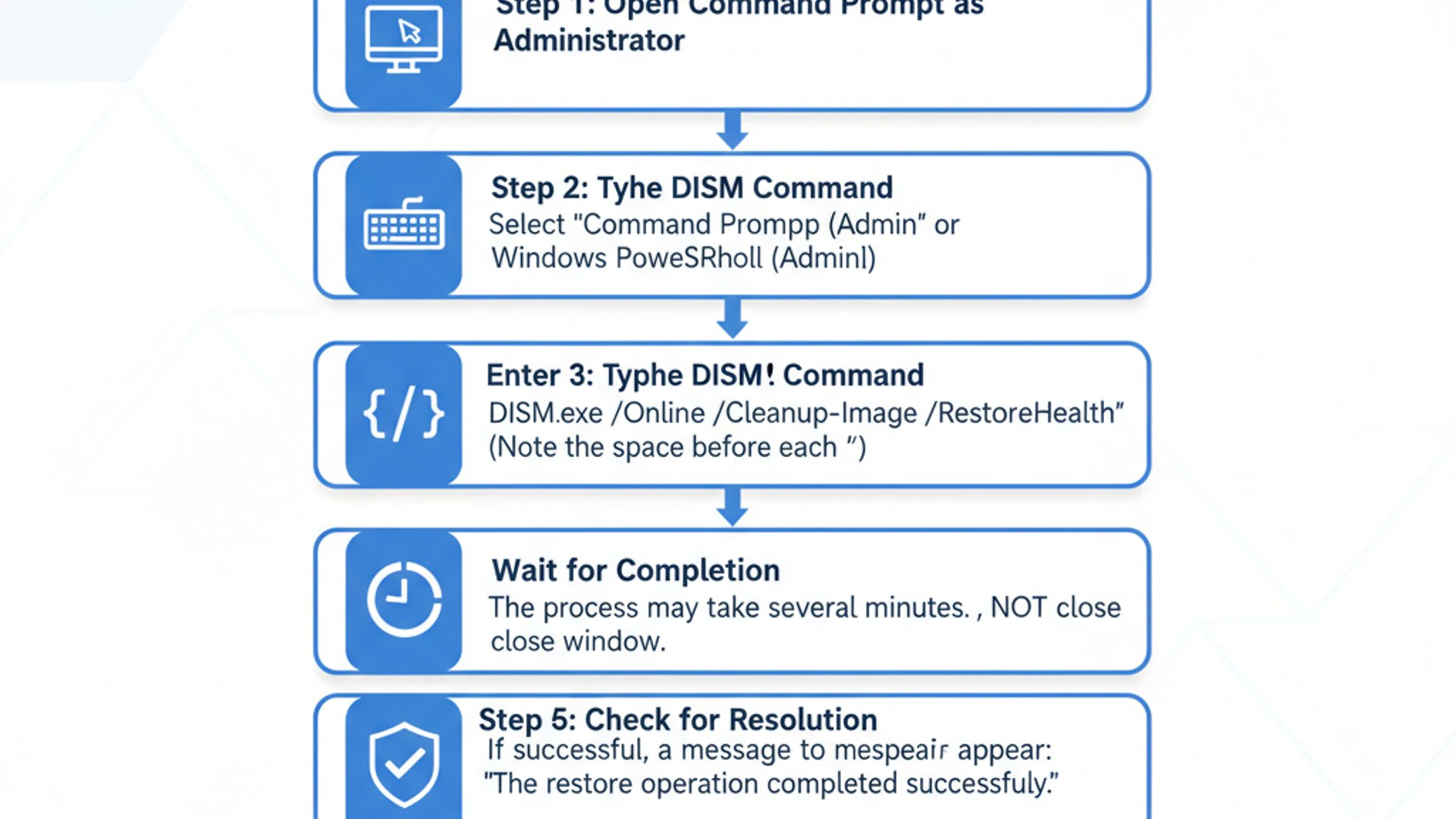
The core of this error often lies in how the DISM command is invoked. A small mistake can lead to the tool misinterpreting your intentions, resulting in the dreaded error message. Taking a moment to review these basics can save you a lot of time and effort in the long run.
Verifying Command Syntax and Privileges
The primary reason for DISM error 87 is almost always an issue with the command itself. DISM is very particular about its syntax, including spaces, hyphens, and the exact spelling of parameters. Even a single misplaced character can trigger this error.
Carefully review the command you are trying to execute. Compare it against official Microsoft documentation or reliable sources. For instance, the common health check command is DISM /Online /Cleanup-Image /CheckHealth. Notice the spaces and the forward slashes.
Another critical aspect is ensuring that you have the necessary permissions to run such powerful system commands. DISM requires elevated privileges to modify system images and components. Without these, it cannot perform its designated tasks, leading to errors.
Running Command Prompt as Administrator
To ensure DISM has the required permissions, you must always run Command Prompt or PowerShell with administrative rights. This is a common oversight that can easily lead to DISM error 87.
The process is straightforward:
- Click the Start button.
- Type
cmdorpowershellin the search bar. - Right-click on Command Prompt or Windows PowerShell in the search results.
- Select Run as administrator from the context menu.
- Confirm the User Account Control (UAC) prompt if it appears.
Once the elevated window opens, you will see “Administrator:” preceding the window title. Now you can safely execute your DISM commands, knowing that permission issues are likely no longer a factor.
Checking for Windows Updates
An outdated operating system can sometimes lead to unexpected behavior from system utilities, including DISM. Microsoft frequently releases updates that include bug fixes, performance improvements, and compatibility enhancements for core Windows components. If your system is significantly behind on updates, it might be using an older version of DISM that has known issues or doesn’t correctly interpret newer command parameters.
Ensuring your system is fully patched can resolve underlying conflicts that might manifest as DISM error 87. It’s a proactive measure that contributes to overall system stability and compatibility with the latest tools and features.
To check for and install Windows updates:
- Press
Windows key + Ito open Settings. - Navigate to Windows Update (or “Update & Security” on older Windows versions).
- Click on Check for updates.
- Allow Windows to download and install any available updates.
- Restart your computer if prompted, as many updates require a reboot to finalize installation.
After updating and restarting, attempt to run your DISM command again to see if the error persists. This simple step often resolves a surprising number of system-related issues.
Advanced Solutions for DISM Error 87
If the initial checks haven’t resolved your DISM error 87, it’s time to delve into more advanced troubleshooting. These solutions address common underlying causes that go beyond simple syntax errors or administrative privileges. They involve a deeper interaction with system files and the DISM tool itself.
The complexity of DISM commands means there are many avenues for things to go wrong. However, with a systematic approach, we can isolate and rectify the specific problem preventing DISM from working correctly. These steps are crucial for maintaining the integrity of your Windows installation.
Utilizing the Correct DISM Command Parameters
As mentioned, DISM error 87 is frequently a syntax error. It’s paramount to use the exact and correct parameters for the task you wish DISM to perform. Even subtle differences in capitalization, spacing, or the use of forward versus backward slashes can cause the error.
For example, when attempting to check the health of your Windows image, the correct command is DISM /Online /Cleanup-Image /CheckHealth. If you were to type DISM /Online /CleanupImage /CheckHealth (missing the hyphen), it would likely result in error 87 because CleanupImage is not a recognized parameter.
Here are some of the most commonly used DISM commands and their correct syntax:
- Check Health:
DISM /Online /Cleanup-Image /CheckHealth– This command quickly checks for any corruption in the component store. - Scan Health:
DISM /Online /Cleanup-Image /ScanHealth– Performs a more thorough scan to detect corruption. This can take several minutes. - Restore Health:
DISM /Online /Cleanup-Image /RestoreHealth– Attempts to repair any detected corruption using Windows Update as a source.
Always refer to official Microsoft documentation for the precise syntax of any DISM command you intend to use. A quick search for “DISM command-line options” on Microsoft’s support website (learn.microsoft.com) can provide the definitive guide.
Repairing System Files with SFC Scan
Corrupted or missing system files can indirectly cause DISM error 87. While DISM itself is designed to repair these, if the core components that DISM relies on are damaged, it might fail to execute properly. The System File Checker (SFC) tool is designed to scan for and restore corrupted Windows system files.
Running an SFC scan before or after attempting DISM commands can help ensure that the environment DISM operates within is healthy. It’s a foundational step in maintaining system integrity.
To run an SFC scan:
- Open Command Prompt as administrator (as detailed in the “Running Command Prompt as Administrator” section).
- Type the command:
sfc /scannow - Press
Enter.
The scan will take some time to complete. It will check all protected system files for corruption and attempt to repair them using cached copies. Once the scan is finished, you might see one of three messages:
- “Windows Resource Protection did not find any integrity violations.” (Good news!)
- “Windows Resource Protection found corrupt files and successfully repaired them.”
- “Windows Resource Protection found corrupt files but was unable to fix some of them.”
If SFC reports it repaired files or couldn’t repair some, it’s a strong indicator of underlying system file issues. After the SFC scan, restart your computer and then try running your DISM command again. This often clears up issues that were preventing DISM from working correctly.
Addressing Corrupted System Images
When DISM error 87 persists, especially after verifying syntax and running SFC, the problem often lies with the Windows component store itself. This store is where DISM retrieves files to repair your system. If this source is corrupted or inaccessible, DISM cannot perform its repair functions effectively.
In such cases, you need to provide DISM with a reliable, known-good source for repair files. This bypasses any issues with the default online source (Windows Update) or local corrupted copies. This approach is more involved but highly effective for resolving stubborn image corruption.
Using a Known Good Source for DISM Repair
When the standard DISM /Online /Cleanup-Image /RestoreHealth command fails to fix issues, it typically means that Windows Update, which is the default source for repair files, cannot provide the necessary components. This could be due to network issues, corrupted update components, or simply a missing file that Windows Update can’t supply.
The solution is to manually point DISM to an alternative, uncorrupted source. This source could be a mounted Windows installation ISO file, a local WIM (Windows Imaging Format) file, or an ESD (Electronic Software Distribution) file. These files contain a complete and pristine copy of the Windows installation files.
Mounting an ISO or Using a Local WIM/ESD File
Using an installation media as a repair source is a robust method to overcome DISM error 87 when related to corrupted image files. You’ll need a Windows installation ISO file that matches your currently installed version and edition of Windows.
Here’s how to do it:
- Download a Windows ISO: Obtain an ISO file for your specific Windows version (e.g., Windows 10 or 11). You can usually download this from Microsoft’s official website using their Media Creation Tool (microsoft.com/software-download).
- Mount the ISO: In Windows File Explorer, navigate to the downloaded ISO file. Right-click on it and select Mount. This will create a virtual DVD drive with the ISO content. Note the drive letter (e.g.,
D:orE:). - Identify the Index Number: Open Command Prompt as administrator. Type
dism /Get-WimInfo /WimFile:D:\sources\install.wim(replaceD:with your mounted ISO drive letter). Look for the Index Number corresponding to your Windows edition (e.g., “Windows 11 Pro”). - Run DISM with Source: Execute the following command, replacing
D:with your ISO drive letter and[IndexNumber]with the correct index:DISM /Online /Cleanup-Image /RestoreHealth /Source:wim:D:\sources\install.wim:[IndexNumber] /LimitAccessIf you have an ESD file instead of WIM, the command would be:DISM /Online /Cleanup-Image /RestoreHealth /Source:esd:D:\sources\install.esd:[IndexNumber] /LimitAccessThe/LimitAccessparameter tells DISM not to use Windows Update as a repair source.
This process forces DISM to use the clean files from your installation media, effectively bypassing any corruption in the online component store. This is a powerful way to resolve deep-seated image integrity issues that cause DISM error 87.
Resetting Windows Update Components
Issues with Windows Update components can often manifest as DISM errors, including DISM error 87. If the Windows Update service is corrupted, stuck, or misconfigured, it might prevent DISM from accessing the necessary files for its online repair operations.
Resetting these components can clear out any cached updates, stop and restart relevant services, and re-register essential DLLs, effectively giving Windows Update a fresh start. This can resolve underlying communication problems that hinder DISM.
To reset Windows Update components:
- Open Command Prompt as administrator.
- Stop the necessary services by typing these commands one by one, pressing Enter after each:
net stop wuauservnet stop cryptSvcnet stop bitsnet stop msiserver
- Rename the SoftwareDistribution and Catroot2 folders, which store update files. This effectively clears the update cache:
ren C:\Windows\SoftwareDistribution SoftwareDistribution.oldren C:\Windows\System32\catroot2 Catroot2.old
- Restart the services you stopped earlier:
net start wuauservnet start cryptSvcnet start bitsnet start msiserver
- Close Command Prompt and restart your computer.
After your system reboots, try running the DISM command that previously resulted in DISM error 87. This reset often resolves issues where DISM couldn’t connect to or utilize the Windows Update service properly.
Troubleshooting Network and Firewall Interference
Sometimes, DISM error 87 isn’t directly related to the command’s syntax or system file corruption, but rather to external factors preventing DISM from accessing online resources. When DISM attempts to use Windows Update to download repair files (e.g., with /RestoreHealth), it needs an unobstructed internet connection.
Security software, such as antivirus programs and firewalls, are designed to protect your system, but they can sometimes be overly aggressive, blocking legitimate system processes like DISM. Similarly, incorrect proxy settings or a general lack of internet connectivity can also impede DISM’s ability to function correctly.
Temporarily Disabling Antivirus/Firewall
Third-party antivirus software and even Windows Defender Firewall can occasionally interfere with DISM operations, particularly when the tool tries to connect to Microsoft servers to download repair components. This interference might manifest as DISM error 87 or other connection-related errors.
To rule out your security software as the culprit, you can temporarily disable it. Remember to re-enable it immediately after testing to ensure your system remains protected.
To temporarily disable security software:
- Third-Party Antivirus: Locate your antivirus icon in the system tray (usually in the bottom-right corner). Right-click it and look for options like “Disable,” “Pause protection,” or “Exit.” Choose to disable it for a short period (e.g., 15 minutes or until reboot).
- Windows Defender Firewall:
- Press
Windows key + Ito open Settings. - Go to Privacy & security > Windows Security > Firewall & network protection.
- Click on your active network profile (e.g., “Domain network,” “Private network,” or “Public network”).
- Toggle the Microsoft Defender Firewall setting to Off.
- Press
After temporarily disabling your security software, try running the DISM command again. If it succeeds, you’ve identified the cause. You may then need to add an exception for DISM in your antivirus or firewall settings, or consider a different security solution if the issue persists.
Checking Proxy Settings and Internet Connection
If your network configuration includes a proxy server, or if your internet connection is unstable, DISM might struggle to reach the necessary online repositories. Incorrect proxy settings can effectively block all outgoing connections that DISM relies on for its online repair capabilities, leading to DISM error 87 or similar network-related failures.
It’s crucial to ensure that your system has a stable and direct internet connection, or that proxy settings are correctly configured if they are in use.
To check proxy settings and internet connection:
- Verify Internet Connectivity: Open a web browser and try to access a few websites (e.g., Google, Winsides.com). If you can’t access websites, troubleshoot your internet connection first.
- Check Proxy Settings:
- Press
Windows key + Ito open Settings. - Go to Network & internet > Proxy.
- Ensure “Automatically detect settings” is turned on, and “Use a proxy server” is turned off, unless you specifically use a proxy for your network.
- If you use a proxy, confirm the address and port are correct.
- Press
- Reset Network Configuration (Optional): If you suspect network issues, you can reset your network adapters. Open Command Prompt as administrator and run:
Restart your computer after running these commands.
netsh winsock resetnetsh int ip resetipconfig /releaseipconfig /renewipconfig /flushdns
By ensuring a clear path to the internet and correct network settings, you eliminate a common barrier for DISM’s online operations, increasing the chances of resolving DISM error 87.
Restoring System Health Using System Restore or In-Place Upgrade
When all other troubleshooting steps fail to resolve DISM error 87, it might indicate a deeper, more pervasive corruption within your Windows installation. In such scenarios, more drastic measures are required to restore the system to a healthy state. These methods involve rolling back changes or reinstalling core system components without erasing your personal files.
These options are powerful and can often fix issues that individual command-line tools cannot. They essentially reset your operating system’s foundation, providing a fresh start for system files and configurations.
Performing a System Restore
System Restore is a Windows feature that allows you to revert your computer’s system files, installed applications, Windows Registry, and system settings to a previous point in time. This can be incredibly useful if the DISM error 87 started appearing after a recent software installation, update, or system change.
By restoring to a point before the issue began, you can often undo the underlying cause of the DISM error without affecting your personal documents. It’s like a “time machine” for your operating system.
To perform a System Restore:
- Press
Windows key + Rto open the Run dialog. - Type
rstrui.exeand pressEnterto open System Restore. - Click Next on the System Restore wizard.
- You will see a list of available restore points. Select a restore point created before you started experiencing DISM error 87. If you don’t see any, check the “Show more restore points” box.
- Click Next, then Finish to confirm your choice.
- Your computer will restart and begin the restoration process. Do not interrupt it.
After the restore completes, log back into Windows and try running your DISM command again. If the error is gone, the problem was likely introduced by changes made after the chosen restore point. For more details on system restoration and backup, you might find our guide on System Image Backup on Windows 11 useful.
Executing an In-Place Upgrade
An in-place upgrade, also known as a repair install, is a powerful method to fix severe system corruption without losing your personal files, installed applications, or most settings. It essentially reinstalls Windows over your existing installation, refreshing all system files and components while preserving your data.
This process is often a last resort before a clean installation, as it addresses deep-seated operating system issues that even DISM and SFC cannot repair. It can effectively resolve persistent DISM error 87 by replacing any corrupted core Windows files.
To perform an in-place upgrade:
- Download the Windows Media Creation Tool: Visit Microsoft’s official download page (microsoft.com/software-download) and download the tool for your Windows version.
- Run the Tool: Execute the downloaded Media Creation Tool. Accept the terms.
- Choose “Upgrade this PC now”: Select this option and click Next. The tool will download the necessary files.
- Follow On-Screen Prompts: Once the download is complete, the tool will prepare for the upgrade. When it asks “Ready to install,” ensure that “Keep personal files and apps” is selected. This is crucial to retain your data.
- Start Installation: Click Install. Your computer will restart several times during the process.
The in-place upgrade can take a significant amount of time, depending on your system’s speed. After it completes, your Windows installation will be refreshed, and the DISM error 87 should be resolved. This method is highly effective for comprehensive system repair.
When All Else Fails: Reinstalling Windows
There are rare instances where even the most advanced troubleshooting steps, including in-place upgrades, fail to resolve persistent system issues like DISM error 87. When you’ve exhausted every other option, a clean reinstallation of Windows becomes the ultimate solution. This process completely wipes your hard drive and installs a fresh copy of the operating system.
While this is the most drastic step, it guarantees a pristine Windows environment, free from any accumulated corruption, software conflicts, or deeply embedded errors. It’s a fresh start that almost always resolves stubborn problems.
However, a clean installation comes with a critical prerequisite: data backup. Since this process formats your primary drive, all personal files, documents, photos, and installed applications will be permanently deleted. Therefore, backing up your important data is not just recommended, it’s absolutely essential.
To reinstall Windows, you will typically use the same Media Creation Tool or a bootable USB drive/DVD you might have created. Boot from this media and choose the “Custom: Install Windows only (advanced)” option, then format the drive where Windows is currently installed. This ensures a truly clean slate.
“A clean Windows installation is the ultimate reset button. It guarantees a fresh start, but always remember to back up your precious data first.”
After the reinstallation, you’ll need to reinstall all your applications and restore your backed-up data. While time-consuming, it’s the most reliable way to overcome intractable system problems and ensure long-term stability, finally eradicating the nuisance of DISM error 87.
Preventing Future DISM Errors
Resolving DISM error 87 is a significant achievement, but preventing its recurrence is equally important for maintaining a healthy and stable Windows system. Proactive measures and good computing habits can significantly reduce the likelihood of encountering such errors in the future. It’s about fostering a robust environment where system tools can operate without hindrance.
By integrating regular maintenance and mindful command execution into your routine, you can ensure that your Windows installation remains in optimal condition. These preventative steps are not just for DISM errors, but for overall system longevity and performance.
Maintaining System Health and Regular Scans
A well-maintained system is less prone to corruption and errors. Regular health checks and routine maintenance are crucial for keeping your Windows installation robust and preventing issues that could lead to DISM error 87.
Think of it like car maintenance; regular oil changes and check-ups prevent major breakdowns. For your computer, this means periodically running built-in diagnostic tools and keeping your system tidy.
Here are some key practices:
- Regular Windows Updates: Keep your operating system updated. Microsoft releases patches that fix bugs and improve system stability.
- Scheduled SFC Scans: Periodically run
sfc /scannow(e.g., once a month) to proactively detect and repair corrupted system files before they cause major issues. - Disk Cleanup and Defragmentation: Use Windows’ built-in Disk Cleanup tool to remove temporary files and unnecessary data. For traditional HDDs, defragmentation can improve performance.
- Antivirus Scans: Regularly scan your system for malware and viruses. Malicious software can corrupt system files and interfere with legitimate processes.
- Driver Updates: Keep your device drivers updated, especially for critical hardware components. Outdated drivers can lead to system instability.
These routine checks help ensure that the underlying components DISM relies on are always in good working order, minimizing the chances of encountering errors when you need to use the tool.
Best Practices for Running System Commands
The very nature of DISM error 87 often points to how commands are executed. Adopting best practices when using powerful command-line tools like DISM is essential to avoid syntax errors and ensure successful operation.
Carelessness or a lack of attention to detail can quickly lead to frustration. By following a few simple guidelines, you can significantly reduce the risk of encountering this error again.
Consider these best practices:
- Always Run as Administrator: Make it a habit to open Command Prompt or PowerShell with administrative privileges when executing system-level commands.
- Double-Check Syntax: Before pressing Enter, always review the command you’ve typed. Pay close attention to spaces, hyphens, and capitalization. Even better, copy-paste commands from trusted sources like official Microsoft documentation or reputable tech blogs.
- Understand the Command: Don’t just copy-paste blindly. Take a moment to understand what each part of the command does. This helps in troubleshooting if something goes wrong.
- Use Official Documentation: When unsure about a command’s parameters, consult Microsoft’s official documentation. It’s the most reliable source for correct syntax and usage.
- Keep Notes: If you frequently use complex DISM commands, keep a personal log or text file with the correct syntax for quick reference.
By adhering to these practices, you’ll not only prevent DISM error 87 but also gain confidence and proficiency in managing your Windows system through the command line. This meticulous approach ensures that your efforts to maintain system health are always effective.
Conclusion: Restoring Your Windows System
Encountering DISM error 87 can be a significant roadblock in maintaining the health and stability of your Windows operating system. However, as this comprehensive guide has demonstrated, it is an entirely resolvable issue. By systematically working through the troubleshooting steps, from basic syntax checks to advanced system repairs, you can effectively diagnose and fix the root cause of this error.
We began by understanding that this error primarily signals an invalid command-line option, emphasizing the critical role of precise syntax and administrative privileges. We then explored how corrupted system files, issues with Windows Update components, and even network interference can indirectly contribute to DISM’s failure to execute properly.
The solutions provided, ranging from utilizing the System File Checker and providing a known good repair source to performing a System Restore or an in-place upgrade, offer a robust toolkit for addressing various levels of system corruption. While a complete Windows reinstallation remains the ultimate solution for intractable problems, it’s a step to consider only after exhausting all other avenues, always preceded by a crucial data backup.
Ultimately, preventing future occurrences of DISM error 87 hinges on proactive system maintenance and diligent command execution practices. Regular updates, routine scans, and careful attention to command syntax are your best defenses. By empowering yourself with this knowledge, you not only resolve the immediate problem but also strengthen your overall ability to manage and maintain a healthy, efficient Windows environment. Your system’s stability is within your control.
For more interesting articles, stay tuned to Winsides.com!









Community
Comments (0)