

Introduction to DISM Cleanup Image
Is your Windows 11 system feeling sluggish, or are you constantly battling low disk space warnings? Over time, your operating system accumulates various components, temporary files, and superseded updates that can bloat your installation and degrade performance. This digital clutter isn’t just an aesthetic issue; it can significantly impact your PC’s responsiveness and overall health. For additional context, see Clean Up the WinSxS Folder, DISM Command-Line Options, Fix Windows Update Errors, and Windows Update Troubleshooting.
Fortunately, Windows provides powerful built-in tools to combat this problem. One of the most effective is the Deployment Image Servicing and Management (DISM) utility, specifically its cleanup image capabilities. This command-line tool is a cornerstone for maintaining a lean and efficient Windows environment.
This comprehensive guide will walk you through everything you need to know about using DISM Cleanup Image on Windows 11. We’ll explore its core functions, delve into essential commands, and provide practical scenarios for its application. By the end, you’ll be equipped to reclaim valuable disk space, improve system stability, and ensure your Windows 11 machine runs at its optimal best.
Table of contents
Key Takeaways
- DISM Cleanup Image is a critical command-line tool for maintaining Windows 11 system health and performance.
- It helps reclaim significant disk space by removing outdated, superseded, and temporary system components.
- Regular use can prevent performance degradation and enhance system stability by fixing image corruptions.
- Key commands include
/ScanHealth,/CheckHealth,/RestoreHealthfor integrity checks and repairs. /StartComponentCleanup, especially with/ResetBase, is vital for deep cleaning and removing obsolete update files.- Always run DISM commands from an elevated Command Prompt or PowerShell for proper execution.
- Monitoring DISM logs and understanding common errors are essential for effective troubleshooting.
Understanding DISM and Its Role in System Maintenance
To effectively manage your Windows 11 system, it’s crucial to understand the tools at your disposal. Among these, the Deployment Image Servicing and Management (DISM) utility stands out as a powerful, yet often underutilized, resource. It’s not just for IT professionals; everyday users can leverage its capabilities to maintain a healthier PC.
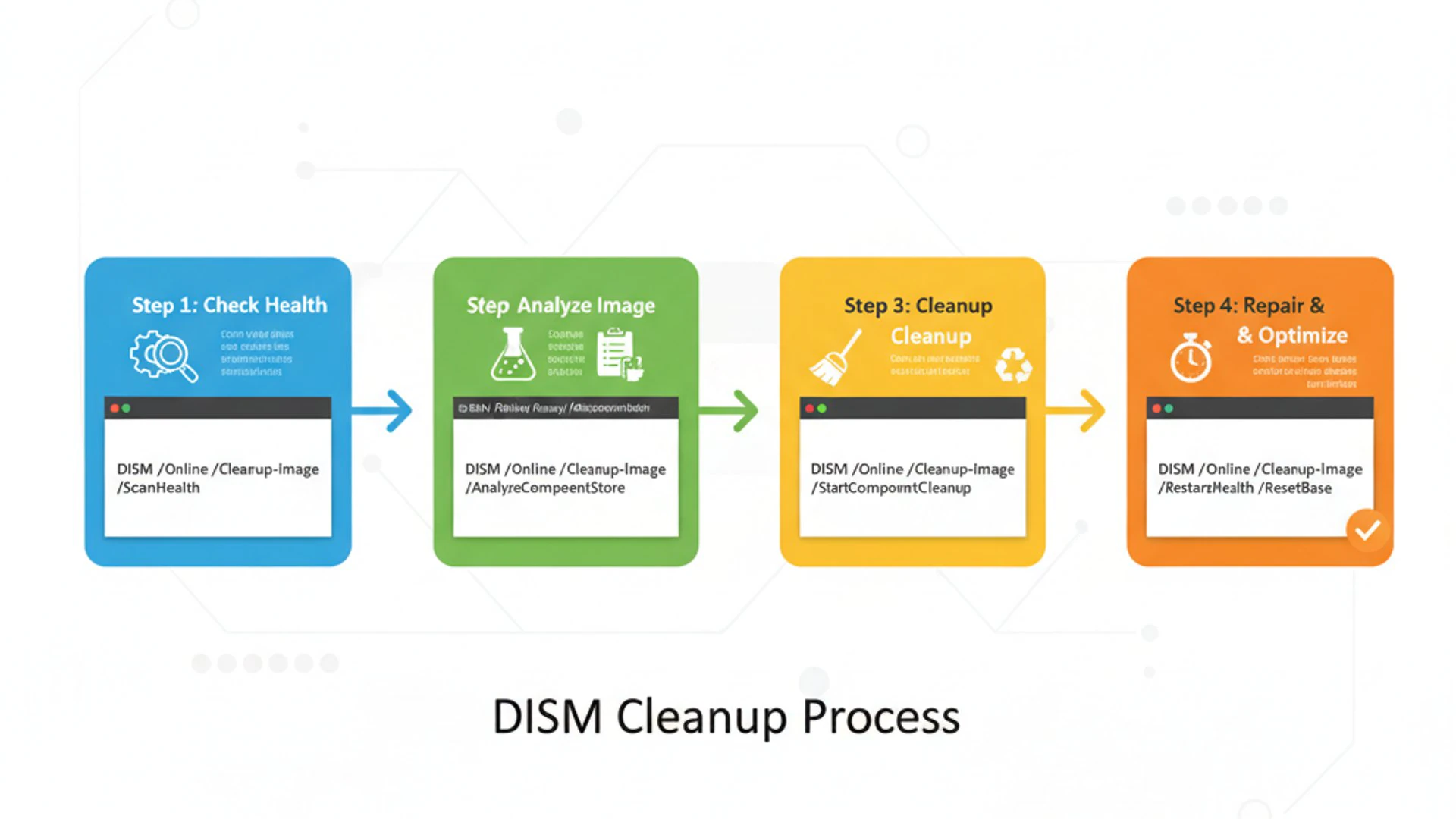
This section will demystify DISM, explaining its fundamental purpose and highlighting why regular image cleanup is an indispensable part of comprehensive system maintenance.
What is DISM?
DISM, or Deployment Image Servicing and Management, is a command-line utility integrated into Windows operating systems. Its primary function is to service a Windows image, whether it’s an online image (your currently running OS) or an offline image (like a recovery partition or installation media).
Think of DISM as a comprehensive toolkit for managing various aspects of your Windows installation. It can be used to prepare a Windows image for deployment, add or remove features, enable or disable Windows features, and, most importantly for our discussion, repair and clean up the Windows component store.
This tool is fundamental for ensuring the integrity and functionality of your operating system. It works by interacting directly with the Windows Component Store, a critical repository of all Windows components, updates, and system files.
Why is Image Cleanup Necessary?
Over time, your Windows 11 system accumulates a significant amount of data within its component store. This includes older versions of system files, superseded updates, and temporary installation files that are no longer actively used by the operating system.
While these files are necessary during the update process or for potential rollbacks, they can quickly become digital baggage. Without proper maintenance, this accumulation can lead to several undesirable outcomes, impacting both your storage and your system’s performance.
Preventing Disk Space Issues
One of the most immediate and noticeable benefits of performing a dism cleanup image is the reclamation of disk space. The Windows Component Store, located at C:\Windows\WinSxS, can grow to a considerable size, sometimes tens of gigabytes.
Each Windows update, feature installation, and system change adds new components while often retaining older versions for compatibility or rollback purposes. These superseded components remain on your drive, consuming valuable storage. For users with smaller SSDs, this can quickly lead to critical low disk space warnings.
Regularly cleaning this store helps keep your drive lean, freeing up space for your applications, documents, and media. This is especially important for devices with limited storage capacity.
Enhancing System Stability
Beyond just freeing up space, a clean Windows image contributes significantly to system stability. A bloated or corrupted component store can sometimes lead to various issues, including failed updates, application crashes, or even system instability.
When the operating system needs to access specific components, navigating through a vast, unoptimized store can introduce delays or errors. By removing unnecessary and outdated files, you streamline the component store, making it more efficient for Windows to manage its resources.
Furthermore, DISM’s repair functions can fix corruptions within the image, ensuring that all system files are intact and functional. This proactive approach helps prevent potential problems before they escalate into major system failures, contributing to a smoother and more reliable Windows 11 experience.
Preparing Your System for DISM Operations
Before you dive into executing powerful DISM commands, it’s essential to set up your system correctly. Improper execution or a lack of preliminary checks can lead to errors or, in rare cases, unintended consequences. This section outlines the crucial preparatory steps to ensure a smooth and effective DISM operation.
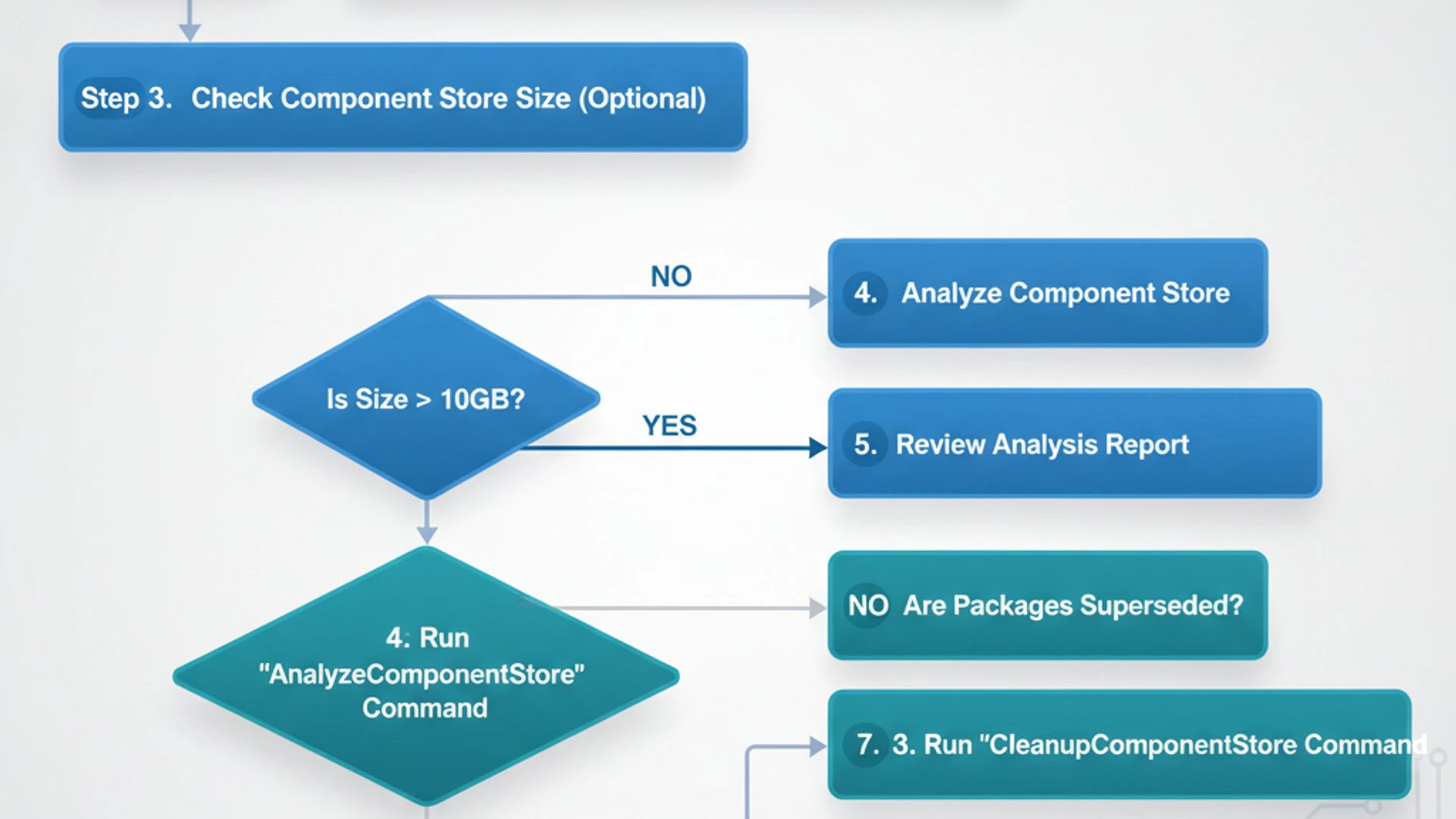
Running Command Prompt or PowerShell as Administrator
DISM commands modify core aspects of your Windows installation. Therefore, they require elevated permissions to function correctly. Attempting to run them from a standard user account or a non-elevated command prompt will result in permission errors.
The process is straightforward:
- Click the Start button or press the
Windows key. - Type
cmdorpowershellinto the search bar. - From the search results, right-click on “Command Prompt” or “Windows PowerShell”.
- Select “Run as administrator” from the context menu.
- If prompted by User Account Control (UAC), click “Yes” to grant administrative privileges.
You’ll know you’re in an elevated prompt if the window title begins with “Administrator: Command Prompt” or “Administrator: Windows PowerShell.” This crucial step ensures that DISM has the necessary authority to make changes to your system image.
Checking the Current State of Your Windows Image
Before initiating any cleanup or repair, it’s good practice to assess the current health of your Windows image. This preliminary check helps you understand if there are existing corruptions that need attention and provides a baseline before you start making changes. DISM offers specific commands for this diagnostic purpose.
To check the health of your Windows image, use the following command:
This command performs a quick check to see if any corruption has been detected by Windows. It doesn’t scan for corruption but reports on any issues that have already been logged by the operating system. The output will typically state whether the image is “Healthy,” “Repairable,” or “Non-repairable.”
For a more thorough scan that actively looks for component store corruption, use:
This command performs a more extensive scan of your Windows image for corruptions. It can take several minutes to complete, depending on your system’s speed and the extent of the image. It will report if any issues are found and if the image is repairable. These checks are vital for understanding the initial state of your system before proceeding with cleanup or repair operations.
Essential DISM Cleanup Image Commands Explained
Now that your system is prepared, let’s dive into the core functionality of DISM Cleanup Image. This section will detail the most important commands you’ll use to diagnose, repair, and optimize your Windows 11 installation. We’ll start with basic health checks and move towards advanced space-saving techniques.
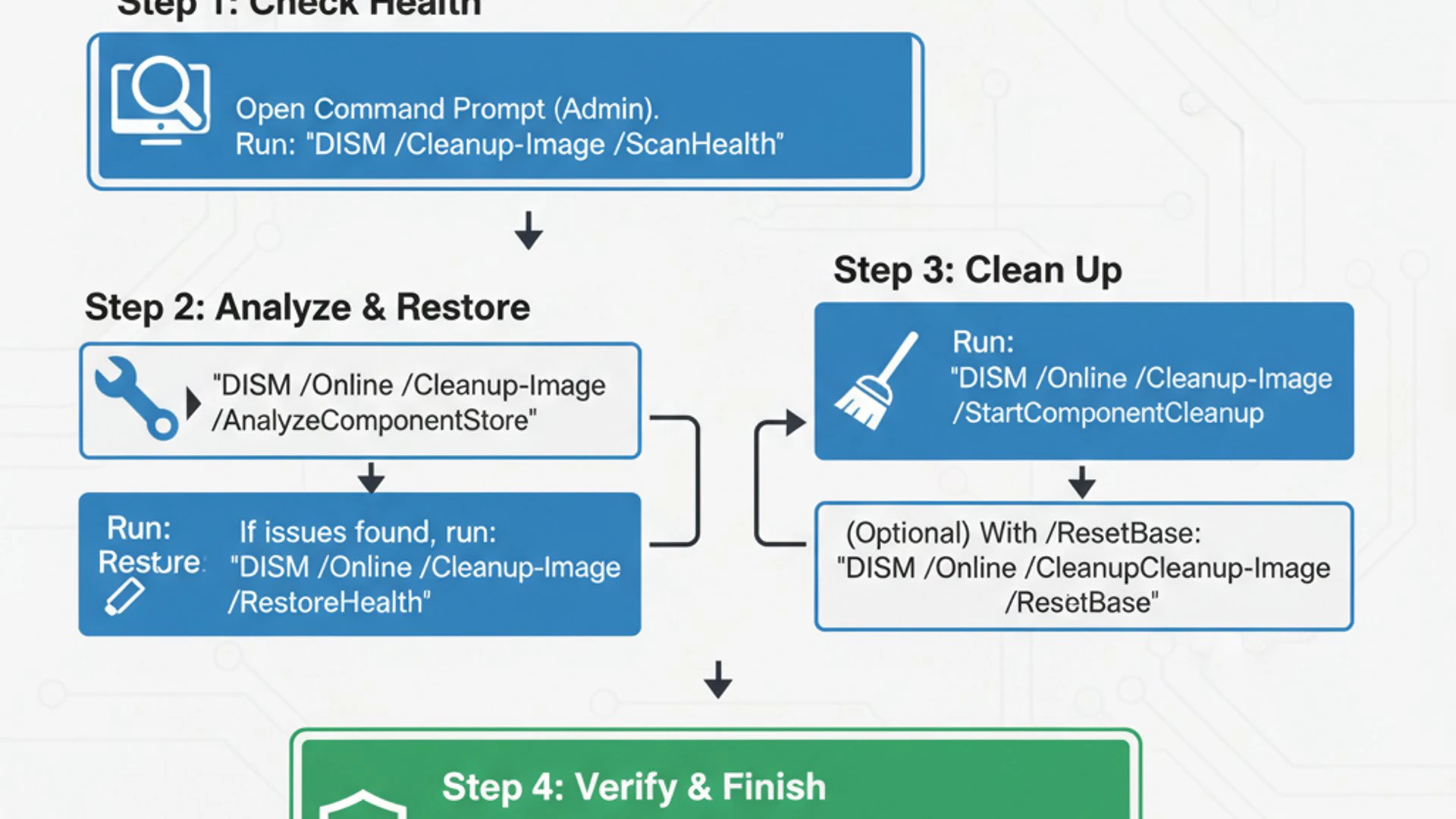
The Basic Cleanup: /ScanHealth, /CheckHealth, /RestoreHealth
Before performing any deep cleaning, it’s prudent to ensure the integrity of your Windows image. DISM provides a trio of commands specifically designed for this purpose: /ScanHealth, /CheckHealth, and /RestoreHealth. These commands are crucial for identifying and rectifying potential corruptions within the Windows Component Store.
Using /ScanHealth to Identify Potential Issues
The /ScanHealth command is your first line of defense for detecting image corruption. It performs a comprehensive scan of the Windows Component Store to check for any inconsistencies or damaged files. This process can take a significant amount of time, often 10-20 minutes or more, so patience is key.
When you run this command, DISM will analyze the integrity of your system files against the known good versions. It doesn’t fix anything but provides a detailed report on the health status. If it finds issues, it will indicate that the image is “Repairable,” signaling that further action is required.
Verifying Image Health with /CheckHealth
While /ScanHealth performs a deep dive, /CheckHealth offers a quicker assessment. This command doesn’t initiate a scan; instead, it checks the logs to see if any corruption has been previously detected and marked. It’s a rapid way to determine if Windows itself has identified problems with its image.
The output will quickly tell you if the image is “Healthy,” “Repairable,” or “Non-repairable” based on existing records. Use this command for a fast status update, especially if you suspect recent issues or after a failed update. It’s a good preliminary step before a full scan.
Repairing Corruptions with /RestoreHealth
If /ScanHealth or /CheckHealth indicates that your image is “Repairable,” the next logical step is to use the /RestoreHealth command. This powerful command attempts to repair any detected corruptions in the Windows Component Store by downloading and replacing damaged files from Windows Update.
For this command to work effectively, your computer needs an active internet connection to access Windows Update. Alternatively, you can specify a local source for repair files using the /Source parameter, pointing to a mounted Windows ISO or installation media. This command is crucial for resolving underlying system file issues that could otherwise lead to instability or update failures.
Reclaiming Space: /StartComponentCleanup
Once your Windows image is healthy, you can focus on reclaiming disk space. The /StartComponentCleanup command is specifically designed to reduce the size of the WinSxS folder by removing outdated and superseded components.
Standard Component Cleanup
The most basic form of cleanup removes previous versions of components that have been replaced by newer ones, but only if they have been superseded for a certain period (typically 30 days). This ensures that recent updates can still be uninstalled if necessary.
This command frees up a moderate amount of space and is generally safe to run regularly. It’s a good starting point for routine maintenance, helping to prevent the WinSxS folder from growing excessively large over time. The process can take several minutes to complete, depending on the amount of data to be cleaned.
Component Cleanup with /ResetBase
For a more aggressive and thorough cleanup, you can combine /StartComponentCleanup with the /ResetBase parameter. This command removes all superseded versions of every component in the component store. Once executed, you will no longer be able to uninstall any existing updates or service packs.
Using /ResetBase can free up significantly more disk space than the standard cleanup. It makes all currently installed updates permanent. Therefore, it’s recommended to use this command only when you are confident that your system is stable and you don’t anticipate needing to roll back any recent updates. This is a powerful command for maximizing disk space recovery.
Advanced Cleanup: /StartComponentCleanup /ResetBase /Defer
For scenarios where you want to perform a comprehensive cleanup but prefer to schedule the actual removal of files for the next automatic maintenance window, the /Defer parameter comes into play. This is particularly useful for enterprise environments or systems where immediate, resource-intensive operations are undesirable.
When you use this combination, DISM marks the components for removal, but the actual deletion process is deferred until the system’s next automatic maintenance task. This allows the cleanup to occur during idle periods, minimizing impact on active user sessions. It still provides the significant space savings of /ResetBase but with more flexibility in execution timing.
Cleaning Up Superseded Windows Update Components
Windows Update is a primary contributor to the growth of the WinSxS folder. Each cumulative update and feature update leaves behind older versions of files. While /StartComponentCleanup with /ResetBase handles many of these, sometimes you might want to specifically target update-related files.
The commands discussed above are the primary methods for cleaning up superseded update components. The /StartComponentCleanup /ResetBase combination is specifically designed to remove these older versions, making the current state of your system the “base” from which future updates will be applied.
There isn’t a separate, distinct command solely for “Windows Update Cleanup” within DISM that isn’t already covered by /StartComponentCleanup. However, it’s worth noting that the Disk Cleanup utility (cleanmgr.exe) also has an option to clean up Windows Update files, which often leverages similar underlying mechanisms as DISM for this specific task. For a truly deep clean, the DISM commands are generally more effective and comprehensive.
Practical Scenarios for Using DISM Cleanup Image
Knowing the commands is one thing; understanding when and why to use them is another. The dism cleanup image commands are not just abstract tools; they are practical solutions for common Windows 11 challenges. This section will outline real-world situations where employing DISM can significantly benefit your system.
After Major Windows Updates
Major Windows updates, such as annual feature updates or significant cumulative updates, often introduce a large number of new system files and supersede many existing ones. While this keeps your system secure and up-to-date, it also leads to a substantial increase in the size of your WinSxS folder.
Immediately following a major update, your system retains the old files for a period, allowing you to roll back if issues arise. Once you’re confident that the update is stable and your system is functioning correctly, it’s an ideal time to run DISM /Online /Cleanup-Image /StartComponentCleanup /ResetBase.
This action will permanently remove the superseded update components, freeing up several gigabytes of disk space. It’s a proactive step to prevent your drive from becoming unnecessarily cluttered and ensures that your system starts fresh with the new update as its baseline.
When Disk Space is Critically Low
One of the most common and urgent reasons to use dism cleanup image is when you receive warnings about critically low disk space. For users with smaller SSDs, this can be a frequent occurrence. A full drive not only prevents new installations but can also severely impact system performance and stability.
When faced with this situation, the /StartComponentCleanup /ResetBase command should be one of your go-to solutions. It offers one of the most effective ways to reclaim significant amounts of space from the operating system itself, often more than what traditional disk cleanup utilities can achieve.
Before resorting to uninstalling applications or deleting personal files, try this powerful DISM command. It targets the system’s core, where much of the hidden bloat resides, providing immediate relief for a struggling drive. Remember to back up important data before performing any aggressive cleanup.
Before Creating a System Image Backup
Creating a system image backup on Windows 11 is an excellent practice for disaster recovery. However, a bloated system image takes longer to create, consumes more storage space on your backup drive, and can be slower to restore.
Before you create a fresh system image, it’s highly recommended to perform a comprehensive dism cleanup image. First, run /ScanHealth and /RestoreHealth to ensure your image is free of corruption. Then, execute /StartComponentCleanup /ResetBase to remove all unnecessary superseded components.
This ensures that your system image backup is as lean, clean, and healthy as possible. A smaller, optimized image backup is faster to create, easier to store, and more reliable to restore, giving you greater peace of mind knowing your recovery solution is efficient and robust.
Monitoring and Troubleshooting DISM Operations
Running DISM commands is generally straightforward, but like any powerful utility, issues can arise. Understanding how to monitor the process and troubleshoot common errors is crucial for effective system maintenance. This section will guide you through interpreting DISM logs and resolving typical problems.
Understanding DISM Log Files
Every DISM operation generates a detailed log file, which is an invaluable resource for monitoring progress, verifying successful completion, and diagnosing errors. The primary DISM log file is located at:
C:\Windows\Logs\DISM\dism.log
This log file records every command executed, the parameters used, the actions taken, and any errors encountered during the process. It’s a chronological record of all DISM activity on your system.
When a DISM command fails or reports an unexpected outcome, the first step in troubleshooting should always be to examine this log file. You can open it with any text editor, such as Notepad. Look for keywords like “Error,” “Failed,” or specific error codes to pinpoint the source of the problem. The log often provides more context than the brief messages displayed in the command prompt.
Common Errors and Their Solutions
While DISM is robust, users occasionally encounter error messages. Knowing how to interpret and resolve these can save you a lot of frustration. Here are some of the most common DISM errors:
Error 87: Incorrect Syntax
Error Message: “Error: 87 The DISM option /cleanup-image is unknown.” or “Error: 87 The cleanup-image option is not recognized.”
Cause: This error almost always indicates a typo or incorrect syntax in the command you entered. DISM commands are case-sensitive for some parameters and require specific spacing and hyphens.
Solution: Carefully re-check your command for any spelling mistakes, missing spaces, or incorrect slashes (e.g., using \ instead of /). Ensure you are using the correct parameters as detailed in this guide. For instance, it should be /Cleanup-Image, not /CleanupImage. Double-check the full command against a reliable source.
Error 112: Not Enough Disk Space
Error Message: “Error: 112 Not enough space on the disk.”
Cause: This error occurs when DISM attempts to download or process files, but your system drive (usually C:) does not have sufficient free space to complete the operation. This can be ironic when you’re trying to free up space, but DISM sometimes needs temporary space for its operations.
Solution: Before running DISM, ensure you have at least a few gigabytes of free space. You might need to temporarily delete some non-essential files, empty your Recycle Bin, or use the built-in Windows Disk Cleanup utility (search for “Disk Cleanup” in the Start menu) to free up some initial space. Once you have enough breathing room, retry the DISM command.
Always ensure you are running Command Prompt or PowerShell as an administrator to avoid permission-related errors, which can sometimes manifest in less clear ways than Error 87 or 112.
Best Practices for Maintaining a Healthy Windows Image
Maintaining a healthy Windows image is an ongoing process, not a one-time fix. By integrating DISM cleanup into your regular maintenance routine and combining it with other optimization tools, you can ensure your Windows 11 system remains fast, stable, and free from unnecessary bloat. This section outlines key best practices for long-term system health.
Regular Maintenance Schedule
Consistency is key when it comes to system maintenance. Establishing a regular schedule for running dism cleanup image commands can prevent issues from accumulating and keep your system performing optimally.
- Monthly Cleanup: Aim to run
DISM /Online /Cleanup-Image /StartComponentCleanuponce a month. This basic cleanup helps manage the growth of the WinSxS folder by removing older, superseded components without making permanent changes to your update history. - After Major Updates: As discussed, always perform a full cleanup (
/StartComponentCleanup /ResetBase) after significant Windows feature updates or large cumulative updates, once you’re sure the update is stable. - Quarterly Health Check: Every three months, or if you notice any system instability, run
DISM /Online /Cleanup-Image /ScanHealthfollowed by/RestoreHealthif issues are detected. This proactive check ensures the integrity of your system files.
Adhering to such a schedule minimizes the chances of disk space issues and image corruption, contributing to a more reliable computing experience.
Combining DISM with Other Optimization Tools
While DISM is powerful for managing the Windows image, it’s just one tool in your system maintenance arsenal. For comprehensive optimization, it should be used in conjunction with other built-in Windows utilities.
- SFC (System File Checker): After running DISM’s repair commands (
/RestoreHealth), it’s a good practice to runsfc /scannow. While DISM repairs the component store, SFC verifies and repairs protected Windows system files using the healthy files from the component store. Together, they form a robust repair duo. - Disk Cleanup Utility: The traditional Disk Cleanup tool (
cleanmgr.exe) can remove temporary files, Recycle Bin contents, old Windows installation files, and other non-system-component clutter that DISM doesn’t target. Run this before or after DISM for a more thorough clean. - Storage Sense: Windows 11’s Storage Sense feature (found in Settings > System > Storage) can automate the cleanup of temporary files and manage cloud content. Enable and configure it to automatically free up space in the background, complementing your manual DISM efforts.
- Defragmentation/Optimization: For traditional HDDs, regular defragmentation (via the “Optimize Drives” tool) helps improve file access speeds. For SSDs, this tool performs TRIM operations, which maintain performance. While not directly related to DISM, it’s part of overall drive health.
By combining these tools, you create a holistic maintenance strategy that addresses various aspects of system health, from image integrity to temporary file management, ensuring your Windows 11 system remains in top condition.
Conclusion: Maximizing Your Windows 11 Performance
The journey through the capabilities of DISM Cleanup Image reveals a potent set of tools essential for any Windows 11 user. We’ve explored how this command-line utility serves as the backbone for maintaining a healthy, efficient, and stable operating system. From diagnosing and repairing image corruptions to reclaiming significant amounts of disk space, DISM offers unparalleled control over your Windows installation.
By understanding and regularly applying commands like /ScanHealth, /RestoreHealth, and particularly /StartComponentCleanup /ResetBase, you empower yourself to prevent common performance bottlenecks and storage woes. These techniques are not just for troubleshooting; they are vital components of proactive system care, ensuring your PC remains responsive and reliable over time.
Embrace the power of DISM. Make it a regular part of your Windows 11 maintenance routine, especially after major updates or when disk space becomes a concern. By doing so, you’ll not only enjoy a snappier, more efficient system but also extend its lifespan and enhance your overall computing experience. Your Windows 11 machine deserves to run at its peak, and DISM is your key to achieving that optimal performance.
For more interesting articles, stay tuned to Winsides.com!









Community
Comments (0)