

Introduction to BCDBOOT
BCDBOOT is a Windows command-line tool used to copy boot files, create or repair Boot Configuration Data, and make a Windows installation bootable again. It is one of those commands that most people only discover when Windows will not start, when a cloned drive refuses to boot, when a dual-boot menu loses an entry, or when a deployment image has been applied to a disk but the firmware has nothing useful to launch. The command is short, but the context around it matters a lot: the Windows partition, the system partition, the firmware type, and the drive letters visible from recovery can all change the correct command.
On modern Windows 11 PCs, BCDBOOT is most often used in UEFI/GPT scenarios. A typical repair command copies boot files from a Windows folder, such as C:\Windows or D:\Windows, into the EFI System Partition and creates a BCD store for Windows Boot Manager. In BIOS/MBR scenarios, BCDBOOT works with the active system partition instead. The same tool can also help with deployment, native boot to VHD, and multi-boot Windows configurations.
Microsoft describes BCDBOOT as a command-line tool for configuring boot files on a PC or device so it can run Windows. The official BCDBoot command-line options documentation explains that it can add boot files after applying a Windows image, repair the system partition, set up VHD boot, and add or repair boot menu entries. This guide focuses on practical Windows 11 repair and deployment use: how BCDBOOT works, when to use it, the safest command patterns, and how to avoid mistakes that can make a boot problem harder.
Table of contents
Key Takeaways
- BCDBOOT rebuilds boot files. It copies boot environment files from a Windows installation to the system partition and creates or updates the BCD store.
- The source is the Windows folder. A command such as
bcdboot C:\Windowsuses that Windows installation as the source for boot files. - Drive letters in recovery can differ. In WinRE or WinPE, your Windows partition may be
D:,E:, or another letter instead ofC:. - UEFI repairs usually target the EFI System Partition. Assign it a temporary letter, then use
/sand/f UEFI. - BCDBOOT is different from BCDEdit, Bootrec, and Bootsect. Those tools operate at different boot layers and should not be treated as interchangeable.
- Do not format the system partition unless you are certain. Formatting can be useful in specific recovery cases, but it is destructive to existing boot files and boot entries.
- BitLocker changes the recovery plan. Have the recovery key ready and suspend protection when appropriate before boot repair work.
What BCDBOOT Does
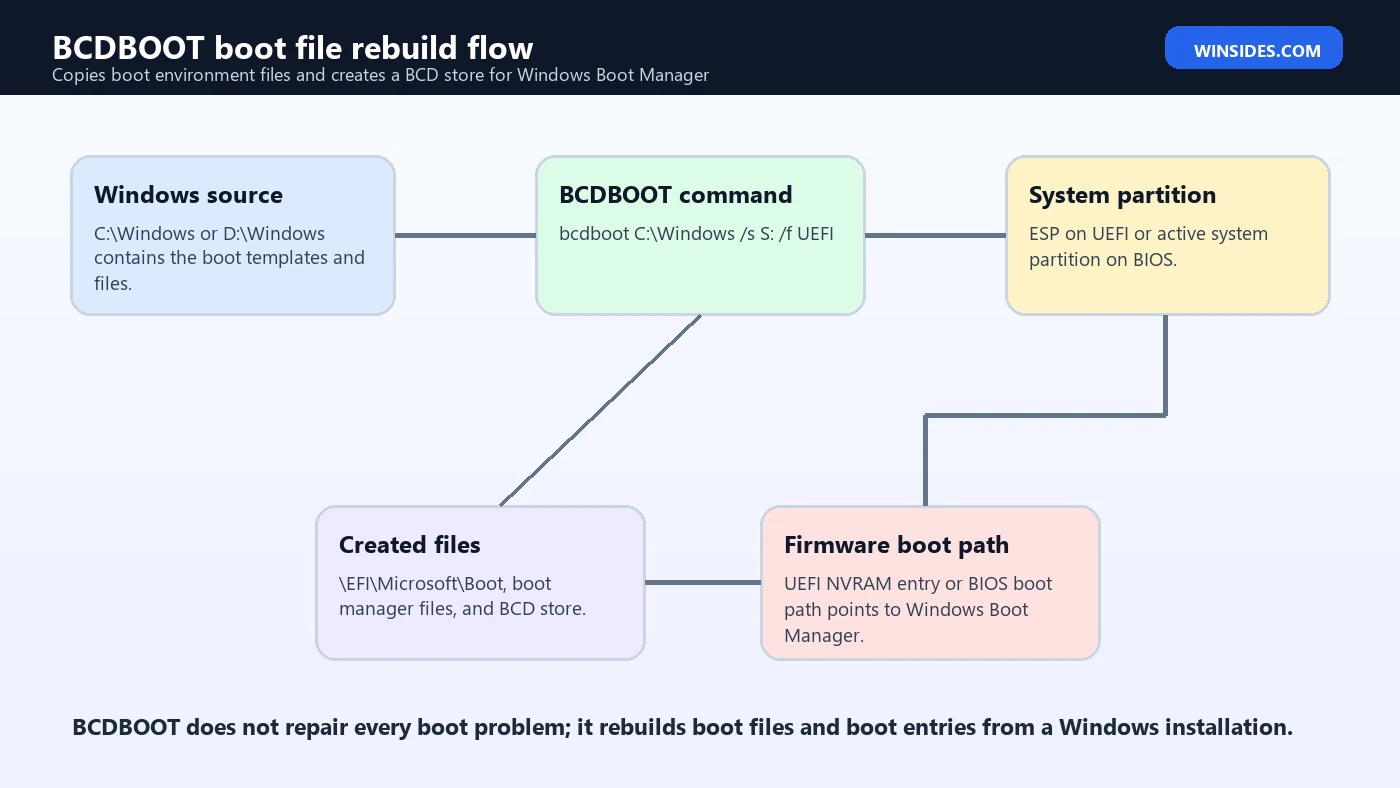
BCDBOOT works by taking boot-environment files from an installed Windows image and placing them onto the system partition that the firmware uses during startup. It can also create a new BCD store using the Windows BCD template and can update firmware entries on UEFI systems. In practical terms, BCDBOOT helps reconnect three things that must agree before Windows starts: the firmware boot path, the system partition boot files, and the Windows installation.
The BCD store is the Boot Configuration Data database. It tells Windows Boot Manager which operating system entries exist and how they should be loaded. If the BCD store is missing, damaged, points to the wrong partition, or no longer has a valid Windows entry, the computer may show errors such as Boot Configuration Data file is missing, Windows failed to start, no bootable device, or a boot loop back into firmware. BCDBOOT is not the only possible fix, but it is often the most direct way to rebuild the boot environment from a known Windows folder.
A basic command looks deceptively simple:
bcdboot C:\WindowsThat command tells BCDBOOT to use C:\Windows as the source. If Windows is running normally and the system partition is already understood, that may be enough. In recovery environments, deployment scenarios, cloned-drive repairs, or external-disk preparation, you usually specify the target system partition with /s and the firmware type with /f so the command does exactly what you intend.
Where BCDBOOT Fits in the Windows Boot Chain
To use BCDBOOT well, it helps to separate the boot chain into layers. The firmware starts first. On a UEFI system, firmware reads boot entries stored in NVRAM and looks for Windows Boot Manager on the EFI System Partition. Windows Boot Manager then reads the BCD store and loads the selected Windows installation. On a BIOS/MBR system, the firmware relies on MBR and partition boot code, then loads Boot Manager from the active system partition.
BCDBOOT mainly rebuilds the boot files and BCD store portion of that chain. On UEFI systems, it can also add or update the firmware entry that points to Windows Boot Manager. It does not repair a physically failing disk, it does not recreate every partition automatically, and it does not fix a Windows installation that has severe file corruption outside the boot files. If the Windows folder itself is missing or badly damaged, BCDBOOT has no reliable source to copy from.
Microsoft notes in the BCDBOOT documentation that the tool can copy boot-environment files and initialize BCD files on the system partition. Microsoft also explains in its UEFI/GPT partition guidance that the EFI System Partition is the system partition used for booting on GPT drives and should be formatted as FAT32. That is why identifying the ESP correctly is central to most Windows 11 BCDBOOT repairs.
When You Should Use BCDBOOT
BCDBOOT is appropriate when the boot files or boot entries are missing, damaged, or pointing to the wrong Windows installation. It is especially useful after image-based deployment, drive cloning, EFI System Partition corruption, manual partition repair, or a dual-boot change that caused Windows Boot Manager to disappear. It is also useful when you have applied a Windows image to a new disk and need to make that image bootable.
- You applied a Windows image with DISM and now need to create boot files.
- The EFI System Partition was damaged, formatted, or replaced.
- A cloned Windows drive shows no bootable device on the target PC.
- Windows Boot Manager is missing from UEFI boot options.
- A dual-boot Windows entry disappeared after installing or removing another Windows copy.
- BCD errors appear during startup and rebuilding the boot store is more practical than editing it manually.
- You are preparing a VHD or secondary drive that needs Windows boot files.
BCDBOOT is less appropriate when the root cause is elsewhere. If the disk has bad sectors, test the drive first. If Windows fails after the logo because of driver or system file corruption, DISM, SFC, Safe Mode, or System Restore may be more relevant. If the firmware cannot see the drive at all, no BCD command can fix a missing storage controller, disconnected SSD, or firmware-level detection problem. BCDBOOT repairs boot configuration; it does not repair every startup issue.
Before Running BCDBOOT: Safety Checklist
Boot repair commands are powerful because they change files and entries that determine whether Windows starts. Before using BCDBOOT, take a moment to identify the disk layout and protect the data. This is especially important on laptops with BitLocker, dual-boot systems, multi-disk desktops, and machines that have been cloned or restored from backup.
- Back up important data if the system is still accessible or if you can copy files from recovery.
- If BitLocker is enabled, locate the recovery key before making boot changes.
- Confirm whether the system uses UEFI/GPT or BIOS/MBR.
- Identify the Windows partition and the system partition in the environment you are using right now.
- Do not assume
C:is the Windows partition in WinRE or WinPE. - Disconnect extra internal or external drives if they create ambiguity during repair.
- Avoid formatting the EFI System Partition unless you are sure the existing contents are unusable and you understand the impact.
The most common mistake is running a command against the wrong drive letter. In normal Windows, the Windows partition is usually C:. In Windows Recovery Environment or Windows PE, the same partition might appear as D: because the recovery image itself uses X: and other volumes are assigned letters differently. Always inspect volumes before typing the final BCDBOOT command.
How to Identify Windows and System Partitions
Use DiskPart from Command Prompt to inspect volumes. You are looking for two things: the Windows partition, which contains a Windows folder, and the system partition, which contains or should contain boot files. On UEFI systems, the system partition is usually a small FAT32 EFI System Partition. On BIOS systems, it may be an NTFS active system reserved partition or the Windows partition itself, depending on how the disk was prepared.
diskpart
list vol
exit
After list vol, look at the file system, size, and labels. A UEFI EFI System Partition is usually FAT32 and may be around 100 MB to 300 MB, though exact sizes vary. A Windows partition is usually NTFS and much larger. The recovery environment may not show friendly labels, so use size and file system carefully. You can also check for the Windows folder after leaving DiskPart.
dir C:\Windows
dir D:\Windows
dir E:\Windows
The drive that contains the Windows folder is the source you use in the BCDBOOT command. If D:\Windows exists and C:\Windows does not, your source is D:\Windows. If the EFI System Partition does not have a drive letter, you can assign one temporarily with DiskPart.
Repairing UEFI Boot Files with BCDBOOT
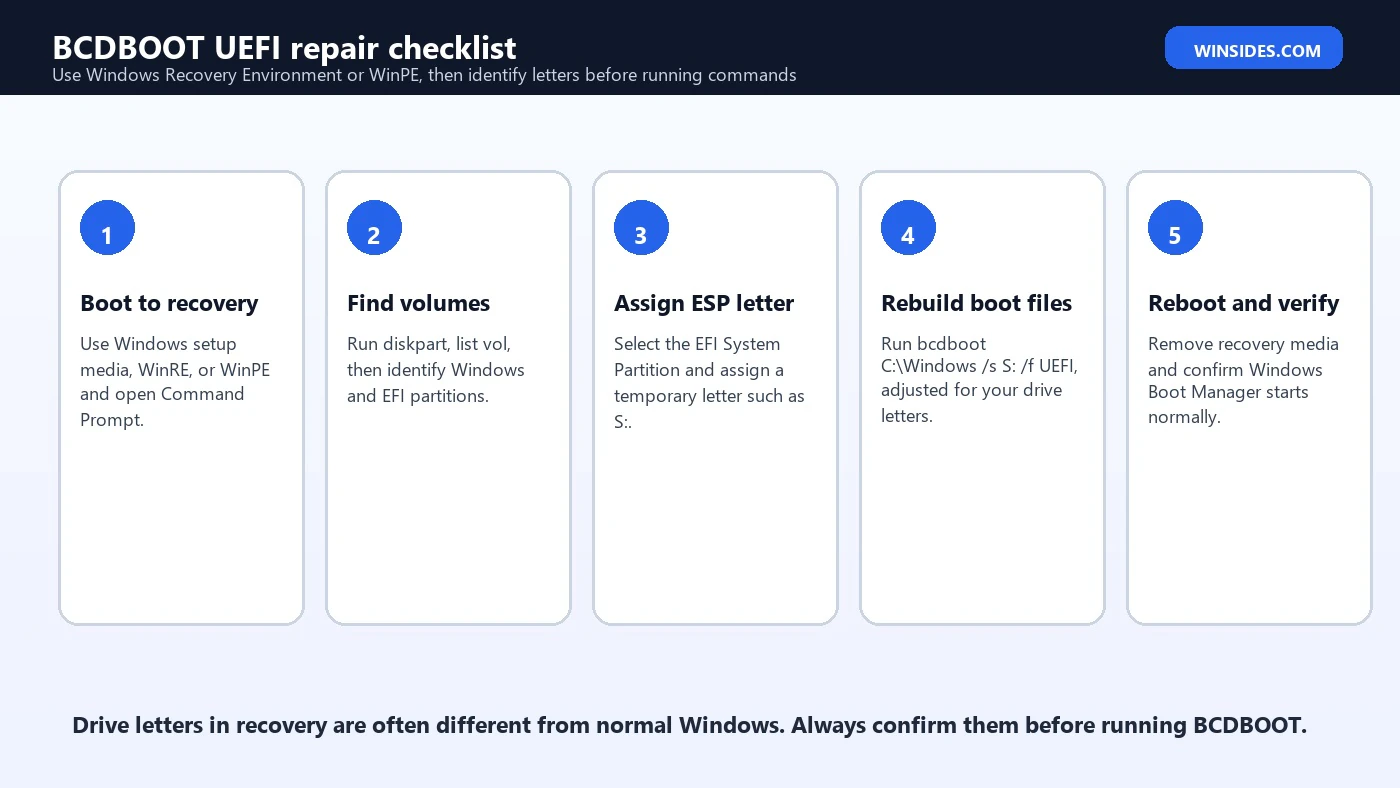
Most Windows 11 systems use UEFI and GPT. In a UEFI repair, the usual goal is to make sure the EFI System Partition contains the correct Microsoft boot files and a BCD store, and that firmware can locate Windows Boot Manager. The safest pattern is to boot into Windows setup media, WinRE, or WinPE; open Command Prompt; identify the Windows and EFI partitions; assign a temporary letter to the ESP; and then run BCDBOOT with /s and /f UEFI.
diskpart
list vol
select vol <EFI volume number>
assign letter=S:
exit
bcdboot C:\Windows /s S: /f UEFIReplace C:\Windows with the actual Windows folder path in your recovery environment. If Windows is on D:, use D:\Windows. The /s S: option targets the temporarily assigned system partition letter. The /f UEFI option tells BCDBOOT to create UEFI boot files. When the command succeeds, remove the recovery media and reboot.
Repairing BIOS or MBR Boot Files with BCDBOOT
Some older Windows systems still use BIOS/MBR boot. In that layout, BCDBOOT copies boot files to the active system partition and creates a BCD store there. The target may be a System Reserved partition or the Windows partition itself. You must be more careful here because BIOS boot also depends on MBR and volume boot code. BCDBOOT handles the boot files and BCD, while Bootsect may be needed when the boot code itself is wrong.
bcdboot C:\Windows /s S: /f BIOSThe same drive-letter caution applies. Use the actual Windows folder path and the correct system partition letter. If you are repairing a BIOS/MBR system and the partition boot code is also damaged, Microsoft documents Bootsect as the tool for updating master boot code. Do not use Bootsect simply because a tutorial lists it; use it when the boot code layer is part of the problem.
BCDBOOT Command Options Explained
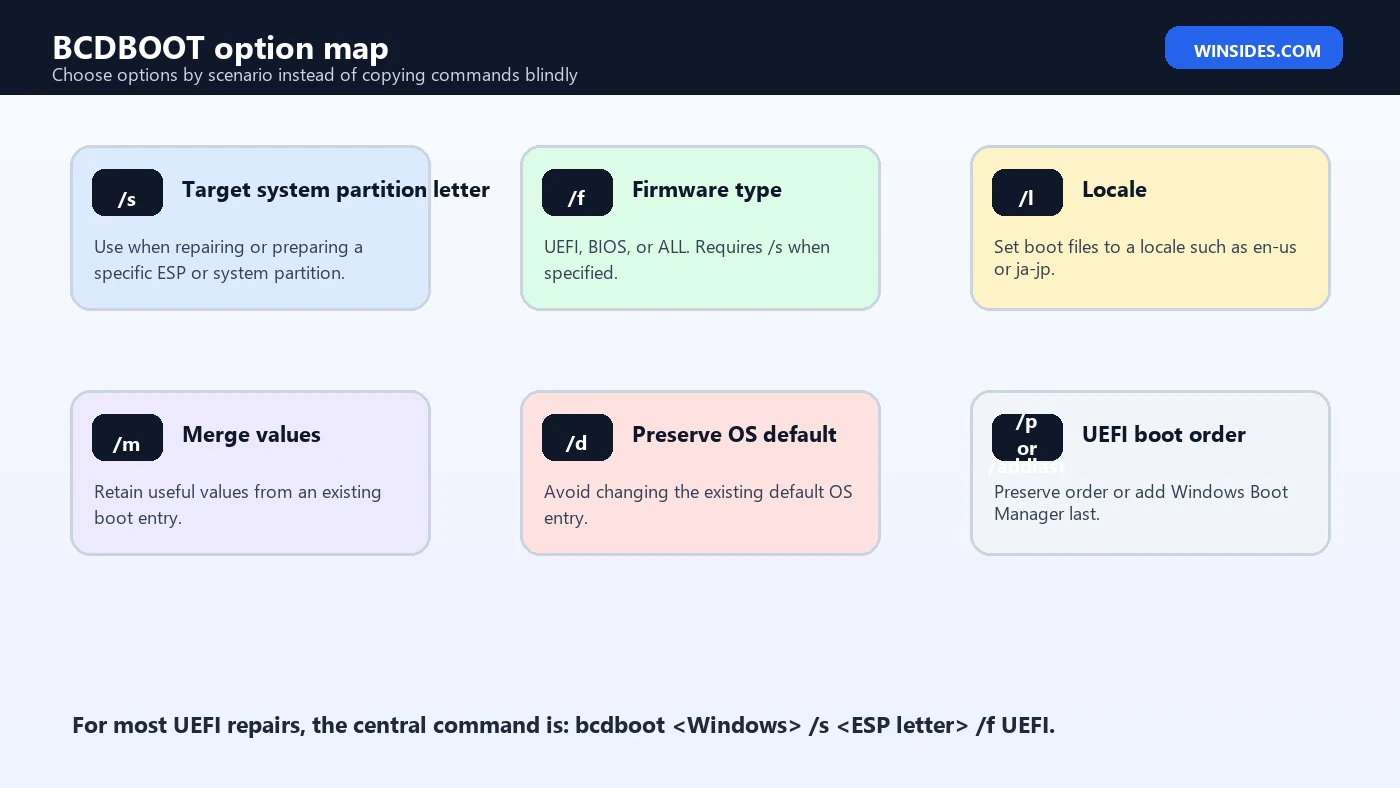
BCDBOOT has a small set of options, but each one changes behavior in a meaningful way. The base syntax is a Windows folder source followed by optional switches. For most Windows 11 repair work, the options you will see most are /s, /f, /l, /m, /d, /p, and /addlast.
| Option | Purpose | Practical use |
|---|---|---|
<source> | Windows directory used as the boot-file source. | Example: C:\Windows or D:\Windows. |
/s | Specifies the system partition letter. | Useful when repairing a specific ESP or preparing another disk. |
/f | Specifies firmware type: UEFI, BIOS, or ALL. | Use /f UEFI for modern Windows 11 UEFI systems. |
/l | Sets locale. | Useful for localized boot environments. |
/m | Merges values from an existing boot entry. | Useful when preserving selected loader settings. |
/d | Preserves the existing default OS entry. | Helpful in multi-boot scenarios. |
/p | Preserves existing UEFI boot order position. | Avoids moving Windows Boot Manager to the top when possible. |
/addlast | Adds Windows Boot Manager last in UEFI order. | Useful when you do not want it first in firmware order. |
Using /f UEFI, BIOS, and ALL
The /f option chooses the firmware type for the boot files. On a UEFI/GPT Windows 11 system, /f UEFI is the normal repair choice. On a BIOS/MBR system, /f BIOS is the matching choice. /f ALL creates files for both firmware styles and is useful when preparing removable media or a disk that may boot on either type of machine.
bcdboot C:\Windows /s S: /f UEFI
bcdboot C:\Windows /s S: /f BIOS
bcdboot C:\Windows /s S: /f ALL
Microsoft notes that when you specify /f, you must also specify /s to identify the system partition. That requirement is important because firmware-specific files need to be copied to the correct destination. If you get syntax errors or unexpected behavior, check whether you used /f without a target system partition.
BCDBOOT vs BCDEdit
BCDBOOT and BCDEdit both deal with boot configuration, but they are not the same. BCDBOOT rebuilds or initializes boot files and BCD entries from a Windows installation. BCDEdit edits entries and settings in an existing BCD store. If the store is missing, badly damaged, or the system partition has lost its boot files, BCDBOOT is often simpler. If the BCD store exists and you need to change timeout, display order, debug settings, default entry, or a specific loader option, BCDEdit is the more precise tool.
Microsoft describes BCDEdit as a tool for managing BCD stores and notes that some operations, such as recovering a partition or setting up a new PC system partition, may be easier with BCDBOOT. A good rule is this: use BCDBOOT when you need to recreate boot files or a boot entry from a Windows folder; use BCDEdit when you need to inspect or modify settings inside a working BCD store.
bcdedit /enum firmware
bcdedit /enum active
BCDBOOT vs Bootrec and Bootsect
Bootrec and Bootsect are also common in boot repair guides, but they operate at different layers. Bootrec is often associated with recovery commands such as rebuilding BCD or fixing MBR-related startup problems. Bootsect updates master boot code for partitions. BCDBOOT copies boot files and creates the BCD store from Windows source files. If you mix these tools without understanding the layer, you may run commands that are irrelevant to your firmware type.
For example, a UEFI/GPT Windows 11 machine does not rely on MBR boot code in the same way a BIOS/MBR machine does. Running MBR-oriented commands on a pure UEFI system may not address the actual issue. Conversely, rebuilding files on the EFI System Partition with BCDBOOT is exactly the kind of repair that makes sense when Windows Boot Manager is missing or the ESP contents were damaged.
Dual-Boot and Multi-Boot Repairs
BCDBOOT can also add a Windows installation back into the boot menu. This is useful when two Windows installations exist on separate partitions or drives and only one appears in Windows Boot Manager. You can boot into the working Windows installation or recovery environment, identify the missing Windows folder, and run BCDBOOT against that source.
bcdboot D:\WindowsIf you want to preserve boot order or default entries, consider /d, /p, or /addlast depending on the scenario. The goal is not only to make the missing Windows installation appear, but also to avoid surprising the user by changing the default operating system or firmware boot order unnecessarily.
Using BCDBOOT After Applying a Windows Image
In image-based deployment, applying a Windows image to a partition is only part of the job. The files may exist on disk, but the computer still needs boot files and boot configuration. This is where BCDBOOT appears in many deployment workflows. After applying the image with DISM, you run BCDBOOT using the applied Windows folder as the source and the system partition as the target.
dism /Apply-Image /ImageFile:D:\install.wim /Index:1 /ApplyDir:W:\
bcdboot W:\Windows /s S: /f UEFI
The drive letters in deployment examples are often deliberately chosen to avoid confusion. Microsoft deployment documentation commonly assigns letters such as W: for Windows and S: for System in Windows PE. After reboot, Windows normally becomes C:, and the EFI System Partition usually has no drive letter. Do not worry if the letters change after Windows starts; the key is using the correct letters inside the environment where you run the command.
Common BCDBOOT Errors and Fixes
BCDBOOT failures are usually caused by incorrect paths, wrong target partitions, missing permissions, file-system problems, or firmware mismatch. The command output may be brief, so the best troubleshooting approach is to verify each assumption: source path, target system partition, firmware type, write access, BitLocker state, and disk health.
| Symptom | Likely cause | What to check |
|---|---|---|
| Failure when copying boot files | Wrong source path or inaccessible Windows folder. | Use dir X:\Windows to confirm the real Windows drive letter. |
| The system cannot find the path specified | ESP or source letter is wrong. | Run DiskPart again and confirm volume letters. |
| Boot files created but firmware still does not boot | UEFI boot entry/order issue or wrong firmware mode. | Check firmware boot mode and use bcdedit /enum firmware where possible. |
| Access denied | Partition locked, BitLocker protected, or not running with proper privileges. | Unlock BitLocker, use recovery Command Prompt, and verify write access. |
| Windows boots into the wrong installation | Boot order or default entry changed. | Use BCDEdit or rerun BCDBOOT with preservation options as appropriate. |
BitLocker Considerations
BitLocker can make boot repair more sensitive. If the Windows partition is encrypted, you may need the recovery key to access it from WinRE or WinPE. If you change boot files or firmware entries, the next boot may trigger BitLocker recovery because the boot environment changed. That is expected protection behavior, not necessarily a failure.
Before planned boot repair on a working machine, suspend BitLocker protection when appropriate and record the recovery key. On a machine that already fails to boot, have the recovery key ready before attempting repairs. Do not format the EFI System Partition on a BitLocker-protected system unless you understand the recovery implications and have the key available.
A Practical UEFI Repair Example
Here is a cautious example for a Windows 11 UEFI system where Windows is found on C: and the EFI System Partition is assigned S:. Treat the letters as examples, not guarantees.
diskpart
list vol
select vol 2
assign letter=S:
exit
dir C:\Windows
bcdboot C:\Windows /s S: /f UEFI
If dir C:\Windows fails but dir D:\Windows succeeds, change the BCDBOOT command to bcdboot D:\Windows /s S: /f UEFI. If you assign the wrong partition as S:, stop and remove the letter or restart recovery before continuing. The system partition should be the small FAT32 ESP on UEFI systems, not your large Windows partition unless the disk layout is unusual.
Should You Format the EFI System Partition?
Microsoft includes optional formatting in the system partition repair flow, but that does not mean it should be your first move. Formatting the ESP removes existing boot files for Windows and possibly other operating systems or tools. It can be reasonable if the partition is badly corrupted, contains unusable files, or you are rebuilding a deployment target from scratch. It is risky on dual-boot systems, OEM recovery layouts, or devices where you are not sure what else uses the ESP.
A safer first attempt is usually to assign the ESP a temporary letter and run BCDBOOT without formatting. If the file system is damaged or the command cannot write files, then formatting may become part of a controlled repair. When formatting is necessary, verify the partition number, size, and file system more than once. Formatting the wrong volume can destroy data.
Best Practices for BCDBOOT
- Use official recovery media or a trusted WinPE environment.
- Confirm drive letters with DiskPart and
dirbefore running BCDBOOT. - Use
/f UEFIfor modern Windows 11 UEFI/GPT repairs. - Use
/swhen targeting a specific system partition. - Keep screenshots or notes of partition layout before changing anything.
- Avoid unnecessary formatting, especially on dual-boot or OEM systems.
- Use BCDEdit after BCDBOOT only when you need to inspect or adjust boot entries.
- Check disk health if boot files keep disappearing or corruption returns.
Frequently Asked Questions
Is BCDBOOT available in Windows 11?
Yes. BCDBOOT is included in Windows and Windows PE. In normal Windows it is available from the System32 folder, and in recovery environments it is commonly used from Command Prompt.
Does BCDBOOT delete my files?
The normal command copies boot files and creates or updates boot configuration. It should not delete personal files. However, related actions such as formatting a system partition or selecting the wrong target volume can be destructive, so verify partition letters carefully.
Should I use bcdboot C:\Windows or bcdboot D:\Windows?
Use whichever drive letter contains the actual Windows folder in the environment you are using. In WinRE or WinPE, Windows may not be on C:. Check with dir C:\Windows, dir D:\Windows, and similar commands.
What does /f UEFI do?
/f UEFI tells BCDBOOT to create UEFI boot files. It is the normal choice for Windows 11 systems installed on GPT disks with an EFI System Partition.
Can BCDBOOT fix no bootable device?
It can fix the problem when the cause is missing or damaged Windows boot files or boot entries. It cannot fix a drive that firmware cannot detect, a failed SSD, or a missing Windows installation.
Is BCDBOOT better than Bootrec?
It depends on the problem. BCDBOOT is often better for rebuilding boot files and BCD entries from a Windows folder, especially on UEFI systems. Bootrec is a recovery tool used in other boot repair scenarios, and Bootsect works on boot code.
Conclusion: Use BCDBOOT Carefully and Precisely
BCDBOOT is one of the most useful Windows boot repair commands because it rebuilds the boot environment from a real Windows installation instead of forcing you to manually create every BCD entry. When the EFI System Partition loses files, Windows Boot Manager disappears, a deployed image needs boot files, or a dual-boot entry is missing, BCDBOOT can often restore the missing connection between firmware, boot files, and Windows.
The command is powerful because it is direct. That also means precision matters. Identify the Windows partition, identify the system partition, choose the firmware type, and understand whether you are changing boot order or preserving it. If you keep those pieces straight, BCDBOOT becomes a reliable recovery and deployment tool rather than a risky command copied from a forum.
For official reference, keep Microsoft pages for BCDBoot command-line options, UEFI/GPT partition requirements, BCDEdit, Bootsect, and Windows PE nearby when doing boot repair work.
For more interesting articles, stay tuned to Winsides.com!









Community
Comments (0)