

Introduction to BCDEDIT
BCDEDIT is the Windows command-line editor for Boot Configuration Data, commonly shortened to BCD. If Windows Boot Manager decides what appears in the boot menu, which Windows installation starts by default, whether Safe Mode is forced, whether debugging is enabled, and how certain low-level boot options behave, BCDEDIT is one of the tools that can inspect or modify those settings. It is powerful, useful, and slightly dangerous in the way all direct boot configuration tools are dangerous: the command does exactly what you ask, even when the request is aimed at the wrong entry.
On Windows 11, BCDEDIT is most useful for administrators, advanced users, support technicians, and lab builders who need to inspect boot entries, change boot menu behavior, export or import BCD backups, set a one-time boot sequence, enable debugging, or remove a bad boot option. It is not a general Windows repair tool, and it is not always the safest first choice for ordinary boot setting changes. Microsoft explicitly recommends alternatives such as Startup Settings or MSConfig for some common scenarios because changing certain BCDEDIT options can make a computer difficult or impossible to boot.
Microsoft documents BCDEDIT as a command-line tool for managing BCD stores, including creating stores, modifying existing stores, and adding boot menu options. The official BCDEdit command-line options page also notes that administrative privileges are required for changes and that some recovery or system-partition setup tasks may be easier with BCDBoot. This guide explains how BCDEDIT works in Windows 11, how to read output safely, which commands are useful, and how to avoid risky changes.
Table of contents
Key Takeaways
- BCDEDIT edits Boot Configuration Data. BCD controls Windows Boot Manager entries and many boot-time settings.
- Run it as administrator. Viewing some data is simple, but modifying BCD requires elevated permissions.
- Export a backup before changes. Use
bcdedit /exportbefore editing the system store. - Identify the target entry first. Use
bcdedit /enumand/vbefore setting values on{current},{default},{bootmgr}, or a GUID. - Change one thing at a time. Boot settings can stack together in confusing ways if several values are changed before rebooting.
- Use safer tools when available. Startup Settings and MSConfig are better for many common Safe Mode or boot option changes.
- BCDEDIT is not BCDBOOT. BCDEDIT edits a BCD store; BCDBOOT rebuilds boot files and can create a new boot store from Windows files.
What BCDEDIT Actually Does
BCDEDIT reads and writes values in a Boot Configuration Data store. A BCD store is a structured database used by Windows boot components. It contains objects such as Windows Boot Manager, Windows Boot Loader entries, recovery entries, memory diagnostics entries, firmware application entries, and inherited settings. Each object can have elements, and those elements hold values such as description, device, path, timeout, display order, debugging state, Safe Mode state, and integrity-related settings.
This is different from editing a simple text file. BCDEDIT is a structured command tool that works with identifiers and data types. Some identifiers are friendly names enclosed in braces, such as {current}, {default}, and {bootmgr}. Others are GUIDs. If you use the wrong identifier, you may change the wrong Windows installation or boot manager setting. That is why the safest first command is a viewing command, not a setting command.
bcdedit /enum active
bcdedit /enum all
bcdedit /v
The /enum command lists entries. The /v option shows full identifiers instead of friendly shorthand. Full identifiers matter in multi-boot systems, recovery repairs, and remote troubleshooting because two entries may look similar until you inspect their device, path, description, and GUID values.
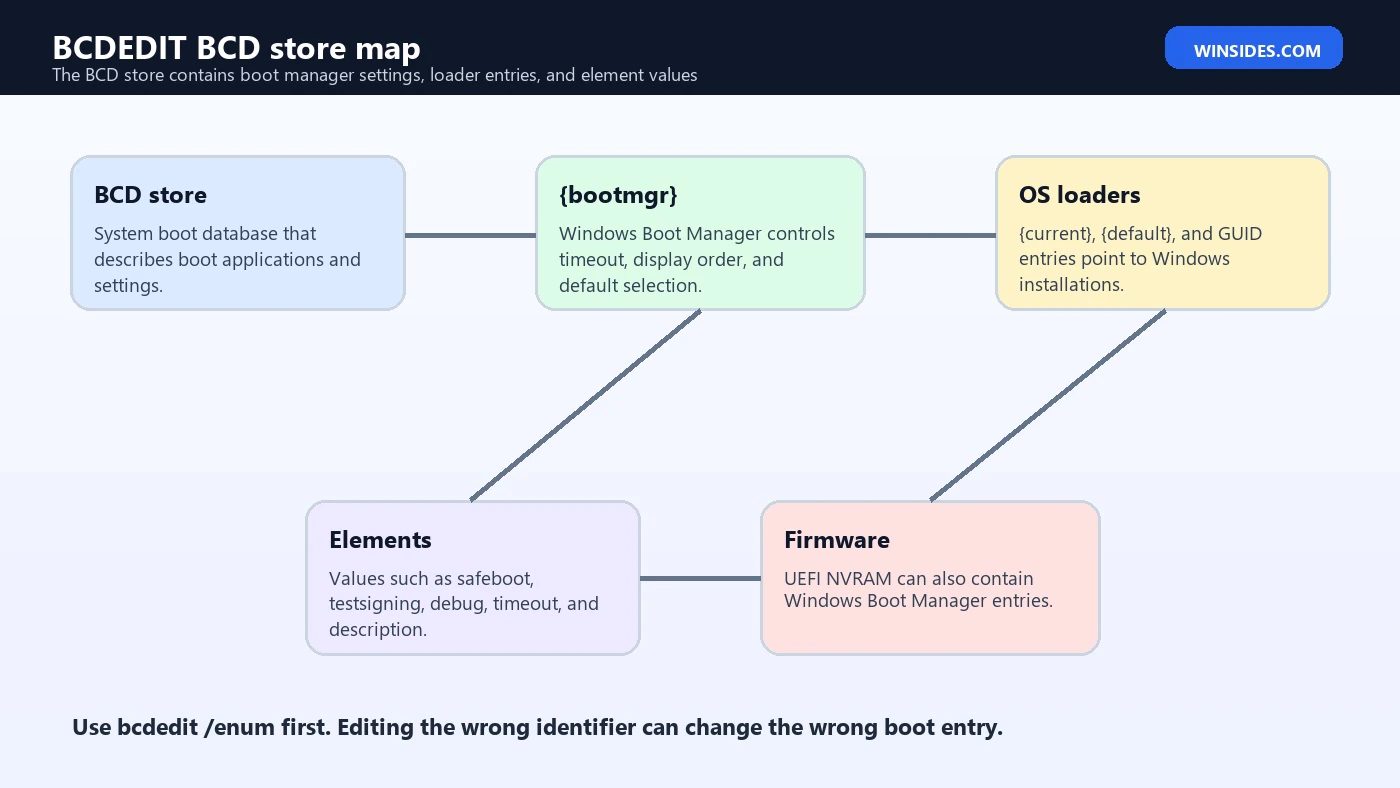
How BCD Stores, Entries, and Identifiers Fit Together
Think of BCD as a store that contains boot-related objects. The Windows Boot Manager object controls menu-level behavior. Windows Boot Loader objects describe operating systems that can be started. Other objects can describe recovery environments, device options, memory diagnostics, and inherited settings. BCDEDIT commands either operate on the store, operate on entries inside the store, or change values inside a specific entry.
| Concept | Meaning | Example |
|---|---|---|
| Store | The BCD database being read or edited. | The system store, or another store specified with /store. |
| Entry | A boot object in the store. | {bootmgr}, {current}, or a GUID. |
| Element | A specific setting inside an entry. | timeout, description, safeboot, debug. |
| Identifier | The name or GUID used to target an entry. | {current}, {default}, {bootmgr}. |
If a command does not specify an identifier, BCDEDIT often targets the current operating system entry for that command, but you should not rely on that behavior when making important changes. Being explicit is safer. In PowerShell, Microsoft notes that boot entry identifiers such as {current} or a GUID may need quotation marks because braces have special meaning in PowerShell parsing.
bcdedit /set "{current}" safeboot minimalSafety Rules Before Using BCDEDIT
Microsoft warns in the BCDEDIT /set documentation that changing some boot entry options can make a computer inoperable. That warning is not theoretical. If you force an invalid kernel option, point a loader at the wrong device, leave Safe Mode forced, enable testing options carelessly, or change boot manager settings on the wrong store, the next reboot may become the troubleshooting session you did not want.
The same Microsoft page also notes that administrative privileges are required and that BitLocker or Secure Boot may need attention before setting certain options. For ordinary boot configuration tasks, Microsoft suggests alternatives such as Startup Settings or the System Configuration utility when they cover the same need. That is excellent advice for everyday Safe Mode or diagnostic boot changes.
- Create a current backup or restore point before making boot changes on an important system.
- Export the BCD store before editing it.
- Suspend BitLocker or have the recovery key available before boot environment changes.
- Use
bcdedit /enum active /vto identify the exact entry first. - Prefer
{current}only when you are truly editing the currently running Windows entry. - Change one value, reboot, and verify before stacking more changes.
- Write down the rollback command before running a risky command.
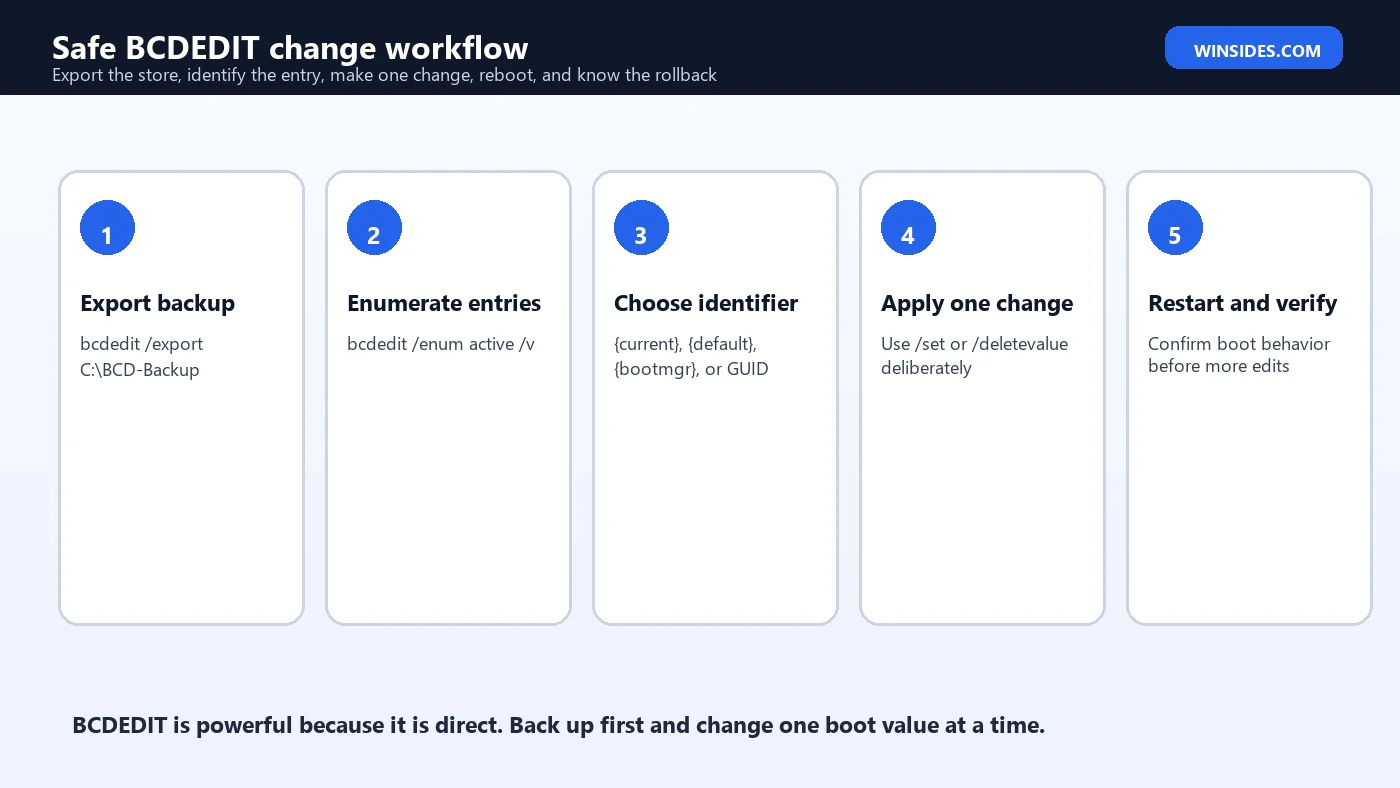
Back Up and Restore BCD with BCDEDIT
Before changing BCD settings, export a backup of the system store. The export file gives you a rollback path if a change produces unexpected boot behavior. The backup should be placed somewhere you can access from Windows Recovery Environment if necessary, such as the root of the Windows drive, a recovery USB, or another known partition. Do not store the only copy in a folder you cannot reach when Windows fails to boot.
bcdedit /export C:\BCD-BackupTo restore from that backup, use /import. Microsoft documents that /import restores the system store from a backup generated by /export and deletes existing entries in the store before the import. That means importing is not a casual undo for one setting. It is a store-level restore operation, so use it deliberately.
bcdedit /import C:\BCD-BackupViewing Boot Configuration Safely
Viewing BCD entries is the safest and most useful BCDEDIT habit. You can run bcdedit by itself to display active boot information. You can use /enum active to list active entries, /enum all to see a broader set of objects, and /v to display full identifiers. When troubleshooting a user system, capture the output before making changes so you can compare before and after.
bcdedit
bcdedit /enum active
bcdedit /enum all
bcdedit /enum active /v
The most important fields to notice are identifier, device, path, description, default, displayorder, timeout, recoveryenabled, and any unusual values such as safeboot, debug, testsigning, nointegritychecks, bootlog, or bootmenupolicy. An unexpected safeboot value can explain why Windows keeps returning to Safe Mode. An unexpected display order can explain why the wrong Windows installation appears first. A changed timeout can make a boot menu appear too quickly or wait too long.
Useful Boot Menu Commands
Some BCDEDIT commands are relatively common and easy to understand because they affect the boot menu. You can set how long Windows Boot Manager waits, which entry is selected by default, which entries appear in the menu, or which entry should boot only one time on the next restart.
bcdedit /timeout 10
bcdedit /default {current}
bcdedit /displayorder {current} /addfirst
bcdedit /bootsequence {current}
/timeout changes the number of seconds before the default entry is selected. /default changes the default operating system entry. /displayorder controls boot menu order. /bootsequence sets a one-time order for the next boot only. The one-time nature of /bootsequence makes it useful for testing without permanently changing the display order.
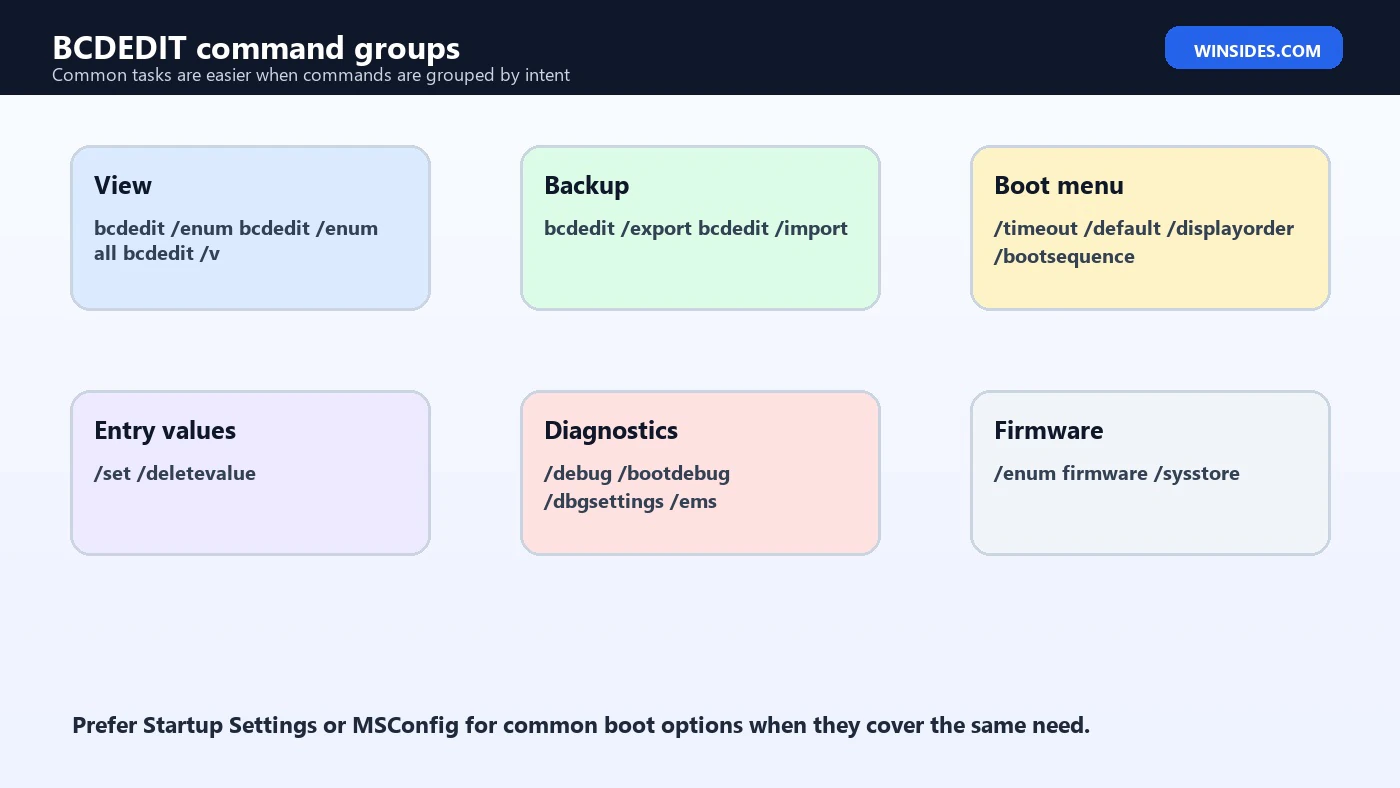
Using /set and /deletevalue Carefully
The /set command sets a boot entry option value. It is powerful because it can configure debugging, memory behavior, Safe Mode, boot logging, test signing, boot menu policy, and many other low-level options. It is risky for the same reason. The safest pattern is to view the existing entry, set one value, reboot to test, and remove the value with /deletevalue when it is no longer needed.
bcdedit /set {current} bootlog yes
bcdedit /deletevalue {current} bootlog
Microsoft documents BCDEdit /set as the command for configuring specific boot entry elements such as kernel debugger settings, memory options, test-signed code behavior, and alternate HAL or kernel files. The documentation also says to use /deletevalue to remove a boot entry option. That distinction matters: turning something off is not always the same as removing the explicit override.
Safe Mode with BCDEDIT
BCDEDIT can force Safe Mode by setting the safeboot element. This is useful when Windows will not open Settings or MSConfig but you still have an elevated terminal or recovery access. It can also trap people in Safe Mode if they forget to remove the value. If you use BCDEDIT for Safe Mode, write down the removal command first.
bcdedit /set {current} safeboot minimal
bcdedit /deletevalue {current} safeboot
For networking Safe Mode, the value is different:
bcdedit /set {current} safeboot networkIf Windows keeps booting into Safe Mode after troubleshooting, check for a remaining safeboot value. Remove it with /deletevalue, restart, and confirm that normal startup returns. For ordinary users, MSConfig is often a safer way to configure Safe Boot because it is easier to see and reverse.
Debugging and Test Settings
BCDEDIT is commonly used in driver development and low-level troubleshooting because it can enable kernel debugging, boot debugging, test signing, EMS, and other diagnostic modes. These settings are useful in labs and support scenarios, but they should not be left enabled casually on production machines. Some settings reduce security, change driver loading behavior, or require Secure Boot and BitLocker considerations.
bcdedit /debug on
bcdedit /bootdebug on
bcdedit /set testsigning on
bcdedit /set testsigning off
Test signing allows test-signed kernel-mode code under supported conditions. Debug settings can be essential for kernel debugging but are unnecessary for most startup repairs. If you inherit a PC with unusual boot behavior, look for debugging, test signing, integrity, or boot logging values in bcdedit /enum all output before assuming Windows itself is corrupt.
UEFI Firmware and BCDEDIT
On UEFI systems, boot behavior involves both the BCD store and firmware boot entries stored in NVRAM. BCDEDIT can enumerate firmware entries and, in specific cases, set the system store device with /sysstore. Microsoft documents /sysstore as affecting EFI-based systems and notes that it does not persist across reboots. That makes it a specialized tool for ambiguous system store situations, not a routine startup repair command.
bcdedit /enum firmware
bcdedit /sysstore
Microsoft has separate documentation for BCD system store settings for UEFI. In practical Windows 11 support, you usually inspect firmware entries when Windows Boot Manager is missing from firmware, when dual-boot entries appear in the wrong order, or when a repaired ESP still does not appear as an available boot option. In many missing-boot-file cases, BCDBoot is the better rebuild tool, while BCDEDIT is better for inspection and adjustment.
BCDEDIT vs BCDBoot
BCDEDIT and BCDBoot are often mentioned together, but they solve different problems. BCDEDIT edits a BCD store. BCDBoot copies boot files from a Windows installation, creates or recreates BCD boot files, and can add Windows Boot Manager entries. If the BCD store exists and you need to change timeout or remove a Safe Mode flag, BCDEDIT is the right tool. If the EFI System Partition is missing boot files or a deployed Windows image needs boot files, BCDBoot is usually the right tool.
Microsoft BCDEDIT documentation itself points out that some common BCD operations, including recovering a partition or setting up a new PC system partition, may be more easily handled with BCDBoot. That is an important distinction. Editing a broken store is not always better than rebuilding boot files from a valid Windows installation.
| Task | Better tool | Reason |
|---|---|---|
| Change boot menu timeout | BCDEDIT | The BCD store exists and only a value needs to change. |
| Remove forced Safe Mode | BCDEDIT | Delete the safeboot element from the target entry. |
| Recreate boot files on the EFI System Partition | BCDBoot | The boot files or store may need to be rebuilt from Windows source files. |
| Add a missing Windows installation to boot menu | BCDBoot or BCDEDIT | BCDBoot is simpler for recreating a Windows entry; BCDEDIT is precise for manual edits. |
| Enable kernel debugging | BCDEDIT | Debug values live inside BCD entries. |
Common BCDEDIT Problems and Fixes
BCDEDIT problems are often self-inflicted by wrong identifiers, missing elevation, PowerShell quoting mistakes, or changes made without a backup. The good news is that most of these problems are preventable. Read the output, quote identifiers in PowerShell when needed, and use exact rollback commands.
| Problem | Likely cause | Fix |
|---|---|---|
| Access is denied | Command was not run as administrator. | Open Windows Terminal as administrator or use recovery Command Prompt. |
| The set command fails in PowerShell | Identifier braces were parsed unexpectedly. | Quote identifiers, for example "{current}". |
| Windows keeps booting into Safe Mode | safeboot value remains set. | Run bcdedit /deletevalue {current} safeboot. |
| Wrong Windows entry changed | Wrong identifier was targeted. | Use bcdedit /enum active /v and restore from backup if needed. |
| Boot menu disappeared too quickly | Timeout set to 0 or very low. | Run bcdedit /timeout 10. |
| Computer asks for BitLocker recovery | Boot configuration changed and protection detected it. | Enter the recovery key and suspend protection before further planned changes. |
Practical Examples
The examples below are useful, but treat them as patterns. Always view your entries first. On a single Windows 11 installation, {current} is often the right entry when you are changing the running Windows loader. On a multi-boot system, a GUID may be safer because it targets the exact entry you inspected.
bcdedit /enum active /vSet a readable boot menu timeout:
bcdedit /timeout 10Turn on boot logging for the current Windows entry, then remove it later:
bcdedit /set {current} bootlog yes
bcdedit /deletevalue {current} bootlog
Force Safe Mode for one troubleshooting session, then remove it:
bcdedit /set {current} safeboot minimal
bcdedit /deletevalue {current} safeboot
List firmware entries on a UEFI system:
bcdedit /enum firmwareHow to Read BCDEDIT Output Without Guessing
BCDEDIT output looks plain, but it carries several clues that prevent mistakes. Start with the section title. Windows Boot Manager is not the same as Windows Boot Loader. Boot Manager controls menu-level behavior, while Boot Loader entries describe operating systems. A setting that belongs on {bootmgr}, such as timeout, should not be confused with loader-specific settings such as safeboot or bootlog.
Next, read the identifier. On a simple single-boot PC, you may only see {bootmgr} and one loader entry such as {current}. On a dual-boot PC, repaired system, or cloned drive, you may see multiple loader entries with similar descriptions. The description alone is not enough. Compare the device, osdevice, path, and identifier. If two entries both say Windows 11, the GUID and device path become the real way to tell them apart.
The device and osdevice fields are especially important. They tell Windows Boot Manager where the boot files and operating system files are expected to live. If an entry points to a removed partition or the wrong device, Windows may show a boot menu entry that fails after selection. In that case, blindly changing timeout or display order does not solve the underlying problem. You either need to repair the entry precisely or use BCDBoot to recreate the boot entry from the correct Windows folder.
bcdedit /enum active /vWhen documenting a support case, copy the full output before changes and then capture the output again after changes. This simple before-and-after record helps you understand what changed and gives you something useful to compare if the next reboot behaves differently than expected.
Working with PowerShell, Command Prompt, and Recovery
BCDEDIT works from Command Prompt, Windows Terminal, PowerShell, Windows Recovery Environment, and Windows PE, but the shell context changes the details. In Command Prompt, braces around identifiers usually pass through as typed. In PowerShell, Microsoft notes that identifiers may need quotes. If a command fails unexpectedly in PowerShell, try quoting {current}, {default}, {bootmgr}, or the GUID.
bcdedit /set "{current}" bootlog yesRecovery environments add another wrinkle: drive letters can change. If you are using BCDEDIT against an offline store, do not assume the Windows partition is C:. In WinRE, the recovery image often uses X:, and the installed Windows partition may appear as D: or another letter. Use DiskPart and directory checks before operating on an offline store.
diskpart
list vol
exit
dir C:\Windows
dir D:\Windows
For many boot menu edits, running BCDEDIT inside the working Windows installation is clearer because {current} points to the active system. For broken-boot recovery, you may need WinRE or WinPE, but that is also when BCDBoot may be the more appropriate tool if the boot files or store are missing rather than merely misconfigured.
When You Should Not Use BCDEDIT First
BCDEDIT is tempting because it looks like a universal boot fix, but many startup problems have causes outside BCD. If Windows crashes after the spinning dots, the boot manager already did its job. The remaining problem might be a driver, system file corruption, storage failure, a bad update, malware cleanup damage, or a service that fails during startup. In those cases, Safe Mode, Startup Repair, System Restore, DISM, SFC, driver rollback, or disk diagnostics may be more relevant.
Do not use BCDEDIT to bypass security features without a legitimate reason. Settings such as test signing, no integrity checks, debug mode, and alternate kernel files can affect the trust model of the boot process. On Secure Boot systems, some values are blocked or ignored; on BitLocker-protected systems, boot changes can trigger recovery. If a tutorial tells you to disable checks to make a driver load, pause and understand the security cost before copying it.
Also avoid using BCDEDIT as a substitute for BCDBoot when the EFI System Partition is empty or damaged. Editing a missing or corrupted store is not cleaner than rebuilding boot files from the installed Windows folder. A good diagnostic question is: do I need to change a value inside a working boot store, or do I need to recreate boot files and entries? The first points to BCDEDIT; the second often points to BCDBoot.
Rollback Planning for Common Changes
A strong BCDEDIT habit is to write the rollback command before the change command. This is practical. If you enable boot logging, know how to remove the explicit bootlog value. If you force Safe Mode, know how to delete safeboot. If you turn on test signing, know how to turn it off. If you adjust timeout, record the previous timeout value so you can restore it.
| Change | Command | Rollback |
|---|---|---|
| Enable boot logging | bcdedit /set {current} bootlog yes | bcdedit /deletevalue {current} bootlog |
| Force Safe Mode | bcdedit /set {current} safeboot minimal | bcdedit /deletevalue {current} safeboot |
| Enable test signing | bcdedit /set testsigning on | bcdedit /set testsigning off |
| Change timeout | bcdedit /timeout 10 | Run bcdedit /timeout again with the previous value. |
| One-time boot sequence | bcdedit /bootsequence {id} | Usually no rollback is needed because it applies only to the next boot. |
If a change prevents normal boot, Windows Recovery Environment can often still open Command Prompt. From there, you may be able to delete the problematic value or import your exported backup. This is why storing the backup at a known accessible path matters. A backup that only exists inside an encrypted or inaccessible folder is much less useful during recovery.
Best Practices for Windows 11
- Use Settings, Advanced Startup, or MSConfig when they can make the same change safely.
- Use BCDEDIT when you need precise inspection or a setting not exposed in the interface.
- Export BCD before edits and store the backup somewhere reachable.
- Keep BitLocker recovery keys available before boot environment changes.
- Do not copy commands involving
testsigning,nointegritychecks,debug, or alternate kernel settings without understanding why. - On UEFI systems, remember that firmware boot entries and BCD entries are related but not identical.
- For missing boot files, consider BCDBoot instead of trying to manually rebuild everything with BCDEDIT.
- After modifying BCD, do a normal shutdown and reboot so changes flush and startup behavior can be verified.
Frequently Asked Questions
Is BCDEDIT available in Windows 11?
Yes. BCDEDIT is included with Windows and is normally available from the System32 folder. You can run it from an elevated Windows Terminal, Command Prompt, Windows Recovery Environment, or Windows PE depending on the situation.
Can BCDEDIT make Windows unbootable?
Yes. Microsoft warns that changing some boot entry options can make the computer inoperable. That is why you should export a backup, identify the correct entry, and avoid low-level settings unless you know the rollback.
Should I use BCDEDIT to enter Safe Mode?
You can, but Startup Settings or MSConfig is safer for many users. If you use BCDEDIT, remember to remove the safeboot value afterward.
What is the difference between {current} and {default}?
{current} refers to the currently running Windows boot entry. {default} is the entry Windows Boot Manager selects by default when the timeout expires. On a simple system they may be the same, but not always.
Why does BCDEDIT need administrator permission?
BCD controls how Windows starts. Modifying it changes system boot behavior, so elevated permission is required.
Can BCDEDIT repair missing boot files?
Not usually by itself. BCDEDIT edits BCD data. If boot files are missing or the system partition needs to be rebuilt, BCDBoot is usually the more direct repair tool.
Conclusion: Treat BCDEDIT Like a Precision Tool
BCDEDIT is one of the most valuable Windows 11 boot tools because it gives direct access to the Boot Configuration Data store. It can show boot entries, control timeout and default selection, enable or remove Safe Mode, configure debugging, export and import the store, and inspect firmware-related boot data. Used carefully, it can solve boot menu and startup configuration problems that the graphical interface cannot easily reach.
The safest mindset is precision. View first, export a backup, identify the target entry, make one change, reboot, and verify. Use Startup Settings or MSConfig when those tools cover the same task. Use BCDBoot instead when the problem is missing boot files or a broken system partition. That separation keeps BCDEDIT from becoming a risky last-minute guess and turns it into a dependable Windows boot configuration tool.
For official context, keep Microsoft pages for BCDEdit command-line options, BCDEdit /set, UEFI BCD system store settings, and BCDBoot nearby when working on boot configuration.
For more interesting articles, stay tuned to Winsides.com!









Community
Comments (0)