Skip to content
Winsides.com

Windows Insides

Winsides.com

Windows Insides

  • Windows 11
  • Windows Features
  • Windows Security
  • Microsoft
    • Microsoft Copilot
    • Microsoft Powertoys
  • Shortcuts
    • Windows Shortcuts
    • Desktop Shortcuts
  • Video Tutorials
  • About
    • What’s New?!
    • About us
    • Contact us
    • Privacy Policy
    • Terms of Use
  • Follow us
    • Reddit
    • Dev.to
    • YouTube
    • Linked In
    • X
    • Tumblr
    • Facebook
    • Instagram
    • Buy Me A Coffee
  • Windows 11
  • Windows Features
  • Windows Security
  • Microsoft
    • Microsoft Copilot
    • Microsoft Powertoys
  • Shortcuts
    • Windows Shortcuts
    • Desktop Shortcuts
  • Video Tutorials
  • About
    • What’s New?!
    • About us
    • Contact us
    • Privacy Policy
    • Terms of Use
  • Follow us
    • Reddit
    • Dev.to
    • YouTube
    • Linked In
    • X
    • Tumblr
    • Facebook
    • Instagram
    • Buy Me A Coffee
Close

Search

Winsides.com

Windows Insides

Winsides.com

Windows Insides

  • Windows 11
  • Windows Features
  • Windows Security
  • Microsoft
    • Microsoft Copilot
    • Microsoft Powertoys
  • Shortcuts
    • Windows Shortcuts
    • Desktop Shortcuts
  • Video Tutorials
  • About
    • What’s New?!
    • About us
    • Contact us
    • Privacy Policy
    • Terms of Use
  • Follow us
    • Reddit
    • Dev.to
    • YouTube
    • Linked In
    • X
    • Tumblr
    • Facebook
    • Instagram
    • Buy Me A Coffee
  • Windows 11
  • Windows Features
  • Windows Security
  • Microsoft
    • Microsoft Copilot
    • Microsoft Powertoys
  • Shortcuts
    • Windows Shortcuts
    • Desktop Shortcuts
  • Video Tutorials
  • About
    • What’s New?!
    • About us
    • Contact us
    • Privacy Policy
    • Terms of Use
  • Follow us
    • Reddit
    • Dev.to
    • YouTube
    • Linked In
    • X
    • Tumblr
    • Facebook
    • Instagram
    • Buy Me A Coffee
Close

Search

Home/Windows 11/CMD & PowerShell/Enable Active Directory Lightweight Services Client using Command Prompt

Enable Active Directory Lightweight Services Client using Command Prompt

Vigneshwaran Vijayakumar
By Vigneshwaran Vijayakumar
December 7, 2024 4 Min Read
0

Enable AD LDS Client using CMD: The Active Directory Lightweight Directory Tools for Client is a set of tools and libraries that enables a client computer to interact and manage AD LDS Instances. It provides the necessary components to connect to and utilize directory services hosted on an AD LDS server. It also supports Lightweight Directory Access Protocol (LDAP) which is essential for querying and managing directory information. This article will navigate the steps on How to Enable AD LDS Client on Windows 11 using Command Prompt and PowerShell. Check out: Enable AD LDS Client on Windows 11 using Windows Features (GUI Method)

Table of Contents

  • Active Directory Lightweight Services available on various Windows Editions
  • A quick way to enable Active Directory Lightweight Services using CMD
    • Decoding AD LDS Client CMD Command:
  • How to Enable AD LDS Client on Windows 11 using Windows PowerShell
    • Decoding Active Directory Lightweight Services Client Windows PowerShell Command
  • Take away

Active Directory Lightweight Services available on various Windows Editions

This section provides information on AD LDS availability in different Windows editions.

Windows EditionsAvailability
Windows ServersFully Available (Both Client and Server)
Windows 11 HomeNo
Windows 11 ProfessionalYes
Windows 11 EducationYes
Windows 11 EnterpriseYes
Windows 11 Pro EducationYes
Windows 11 SENo
Windows 11 IoT EnterpriseNo

A quick way to enable Active Directory Lightweight Services using CMD

  • Open the Start menu, and search for Command Prompt. Run Command Prompt as Administrator.
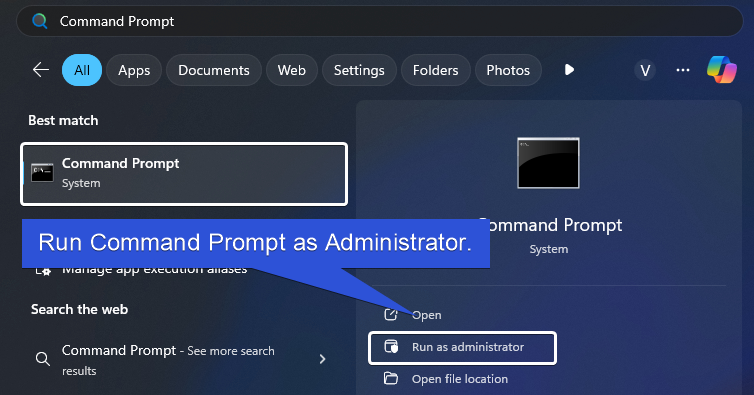
Run Command Prompt as Administrator
  • The User Account Control (UAC) will prompt you to confirm that you want to open Command Prompt as an Administrator. To confirm, click Yes.
  • On the CMD, enter the following command. DISM /online /Enable-Feature /FeatureName:DirectoryServices-ADAM-Client /All
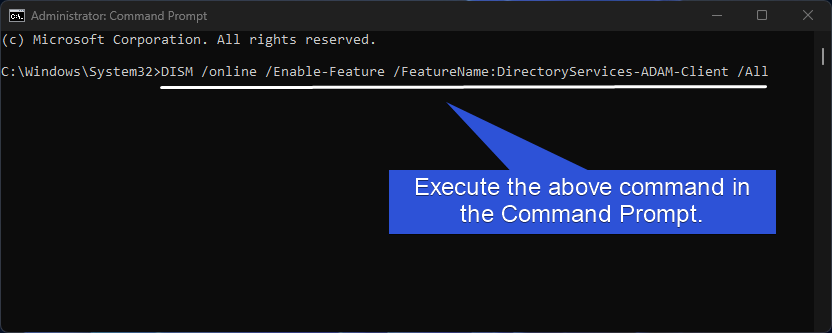
Command to Enable AD LDS Client on Windows 11 using Command Prompt
AD LDS Client CMD Command
  • This command will use the Deployment Image Servicing and Management Tool to enable the Active Directory Lightweight Services via the Command Prompt.
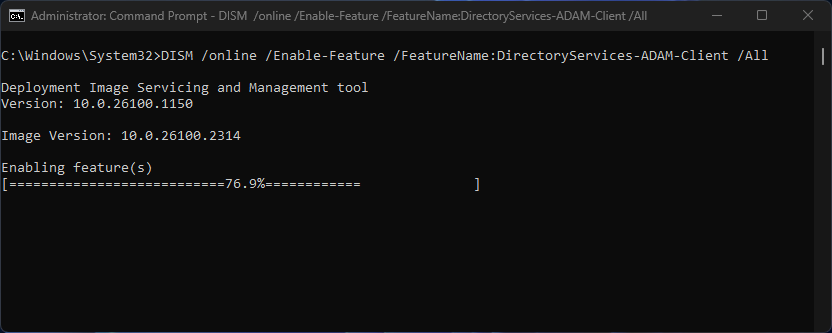
DISM Enabling the feature
DISM Enabling the Feature
  • Once, it completes the activation, you will get the message “The operation completed successfully“.
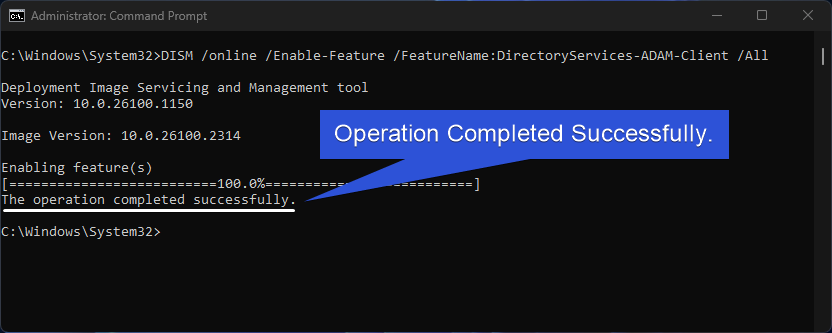
AD LDS Client Enabled on Windows 11
Operation Completed Successfully
  • That is it. Active Directory Lightweight Services Client is now enabled on your Windows 11 using Command Prompt.

Decoding AD LDS Client CMD Command:
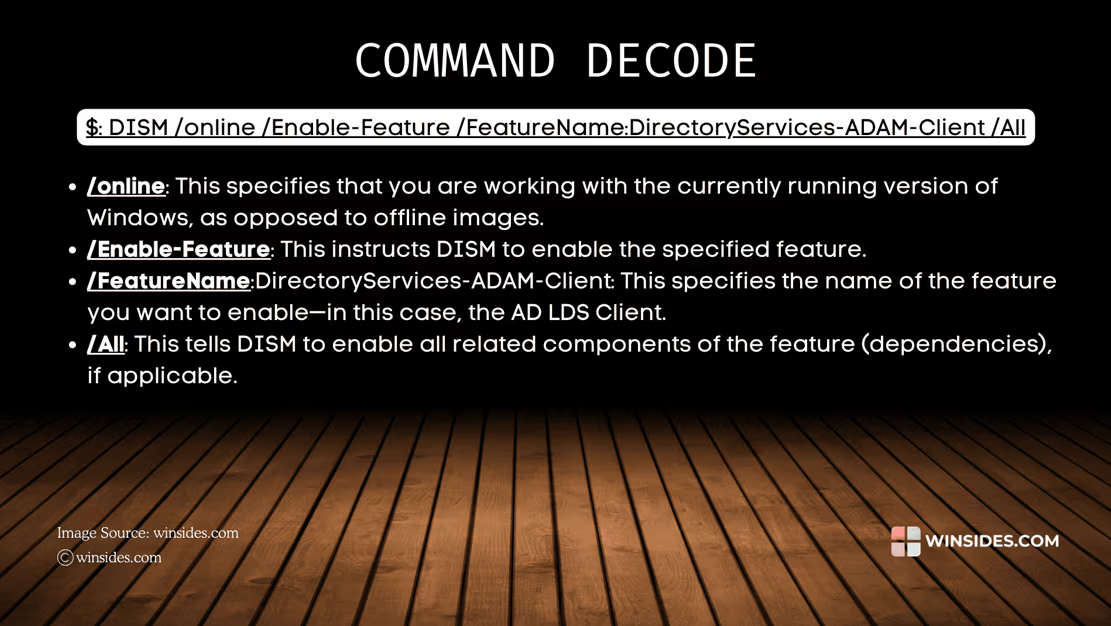
Decoding AD LDS Client CMD Command

How to Enable AD LDS Client on Windows 11 using Windows PowerShell

To Enable this feature on Windows 11 using PowerShell, kindly follow the below steps.

  • Open the Start menu and search for PowerShell.
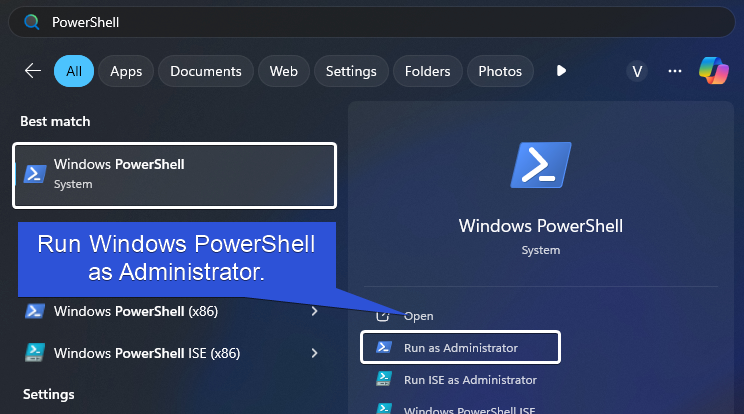
Open Windows PowerShell as Administrator
  • Run PowerShell as Administrator.
  • In the PowerShell, type the following command and click Enter. Enable-WindowsOptionalFeature -Online -FeatureName DirectoryServices-ADAM-Client -All
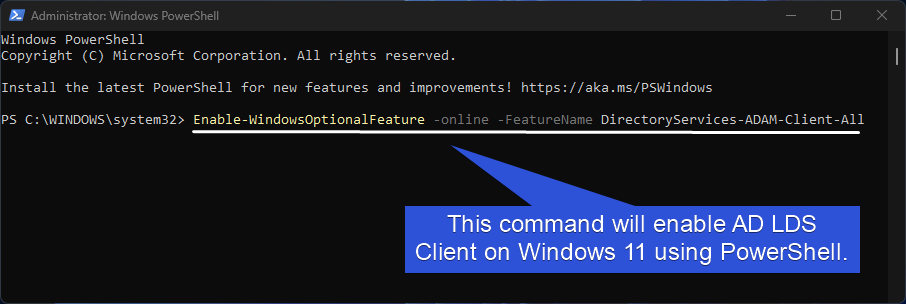
Enable AD LDS Client using Windows PowerShell
  • The above command will enable Active Directory Lightweight Services Client using the Windows PowerShell.
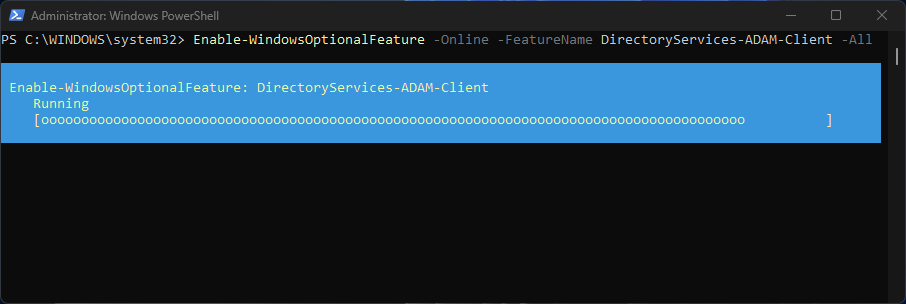
PowerShell Enabling AD LDS Client
  • Once, the process is complete, you will get the status column “Online“. It represents that the AD LDS Client is now enabled. Under Restart Needed, the value is False, which means a restart now is recommended in general however, It is not immediately required for the crucial operation of this feature.
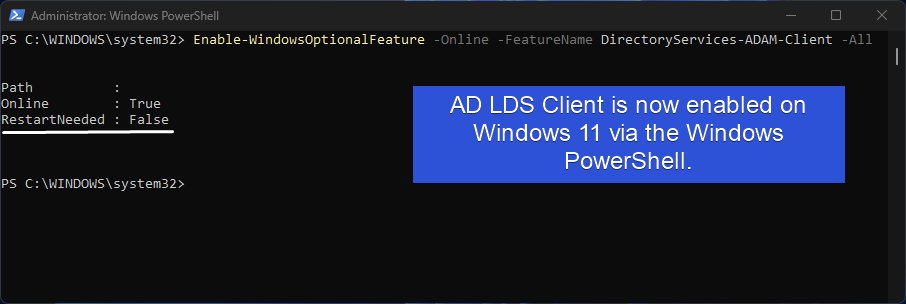
AD LDS Client Enabled via the PowerShell

Decoding Active Directory Lightweight Services Client Windows PowerShell Command
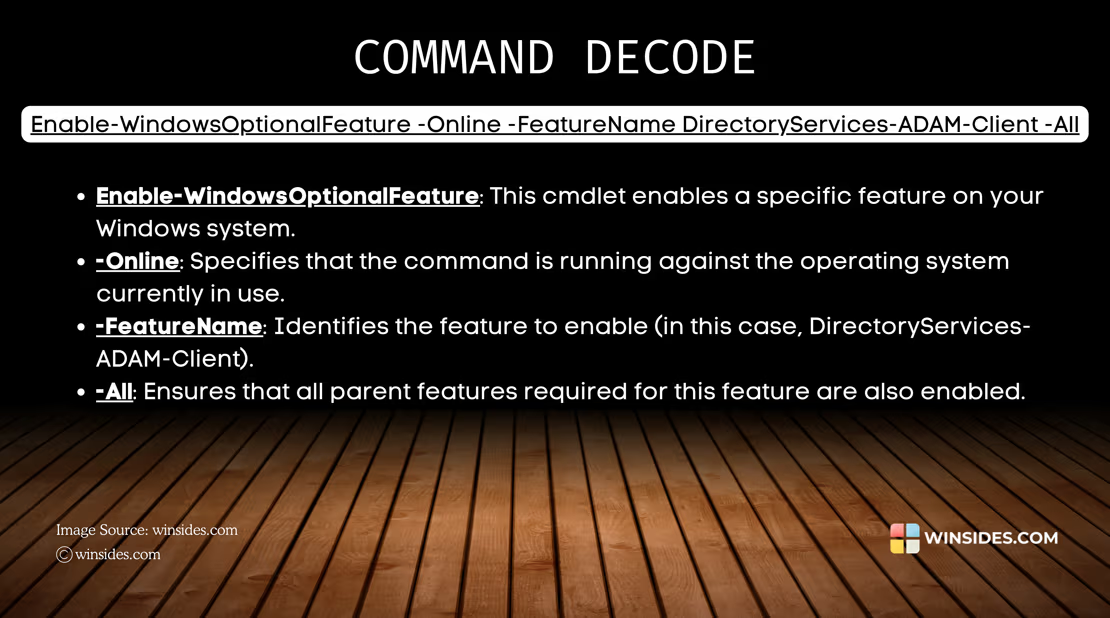
Decoding AD LDS Client PowerShell Command

Take away

For IT professionals who are managing enterprise systems, or for Developers who are working with the Directory Services, enabling AD LDS Client will allow you to access AD LDS Servers effectively on various Windows Editions, and Windows Server Editions. If you have any queries, kindly let us know in the comment section. For more interesting articles, stay tuned to Winsides.com. Happy Connecting! Peace out!
Tags:

How to Enable in Windows 11windows 11Windows Features
Vigneshwaran Vijayakumar
Author

Vigneshwaran Vijayakumar

Hello, I'm Vigneshwaran, the founder, owner, and author of WinSides.Com. With nearly a decade of experience in blogging across various domains and specializing in Windows-related tutorials for over five years, I bring a wealth of knowledge and expertise to WinSides.Com

Follow Me
Other Articles
Enable God Mode Folder on Windows 11
Previous

3+ ways to Enable God Mode on Windows 11?

Enable WSL 2 using CMD and PowerShell
Next

Enable Windows Subsystem for Linux (WSL 2) using Command Prompt & PowerShell

No Comment! Be the first one.

Leave a Reply Cancel reply

Your email address will not be published. Required fields are marked *

  • How to check System Information in Windows 11?
  • How to Install and Run X Server in Windows 11?
  • How to Enable Client for NFS in Windows 11?
  • 5+ Easy Methods to Find/Search Video Files Only in Windows 11!
  • How to Enable TFTP Client in Windows 11?
  1. Vigneshwaran Vijayakumar
    Vigneshwaran Vijayakumar on How to Enable Windows PowerShell 2.0 in Windows 11?October 5, 2025

    Hello Mr. Mohamad El-Kheir, Thank you for contacting us. Microsoft has removed PowerShell version 2.0 completely from Windows 11 24H2…

  2. Avatar of Mohamad El-Kheir
    Mohamad El-Kheir on How to Enable Windows PowerShell 2.0 in Windows 11?October 5, 2025

    i have a MSI laptop with windows 11 Home Installed on it. how to install powershell v2.0 on it

  3. Vigneshwaran Vijayakumar
    Vigneshwaran Vijayakumar on DxDiag Windows 11 – What is it & How to use it for Troubleshooting?August 14, 2025

    Hey Myla Shannon Thank you for your valuable feedback. We are delighted to hear your compliment and excited to know…

  4. Avatar of Myla Shannon
    Myla Shannon on DxDiag Windows 11 – What is it & How to use it for Troubleshooting?August 14, 2025

    This content is incredibly informative.

  5. Avatar of seven
    seven on How to Enable IIS [Internet Information Services] in Windows 11?July 29, 2025

    I found this post very helpful.

  • About us
  • What’s New?!
  • Guest Posts on Winsides.com – Terms and Conditions
  • Publication Sitemap
  • Careers
  • Authors
  • Why Trust Winsides.com?
  • Content Removal Request
  • Terms of Use
  • Disclaimer
  • Contact us
Copyright 2024-2026 - Winsides.com. All rights reserved.