Fix “Errors have been detected in the file Outlook.OST”

Outlook.OST File: It is a local copy of our mailbox data that Microsoft Outlook automatically creates when we configure Exchange, Outlook.com, or IMAP accounts, allowing us to access emails, contacts, calendar, and other items offline, and any changes we make while offline (like sending, deleting, or editing messages) are stored in the OST and later synchronized with the mail server once we reconnect. In this article, let’s check out the different errors related to Outlook.OST file, and the possible solution. Let’s get started.
Understanding OST and PST File
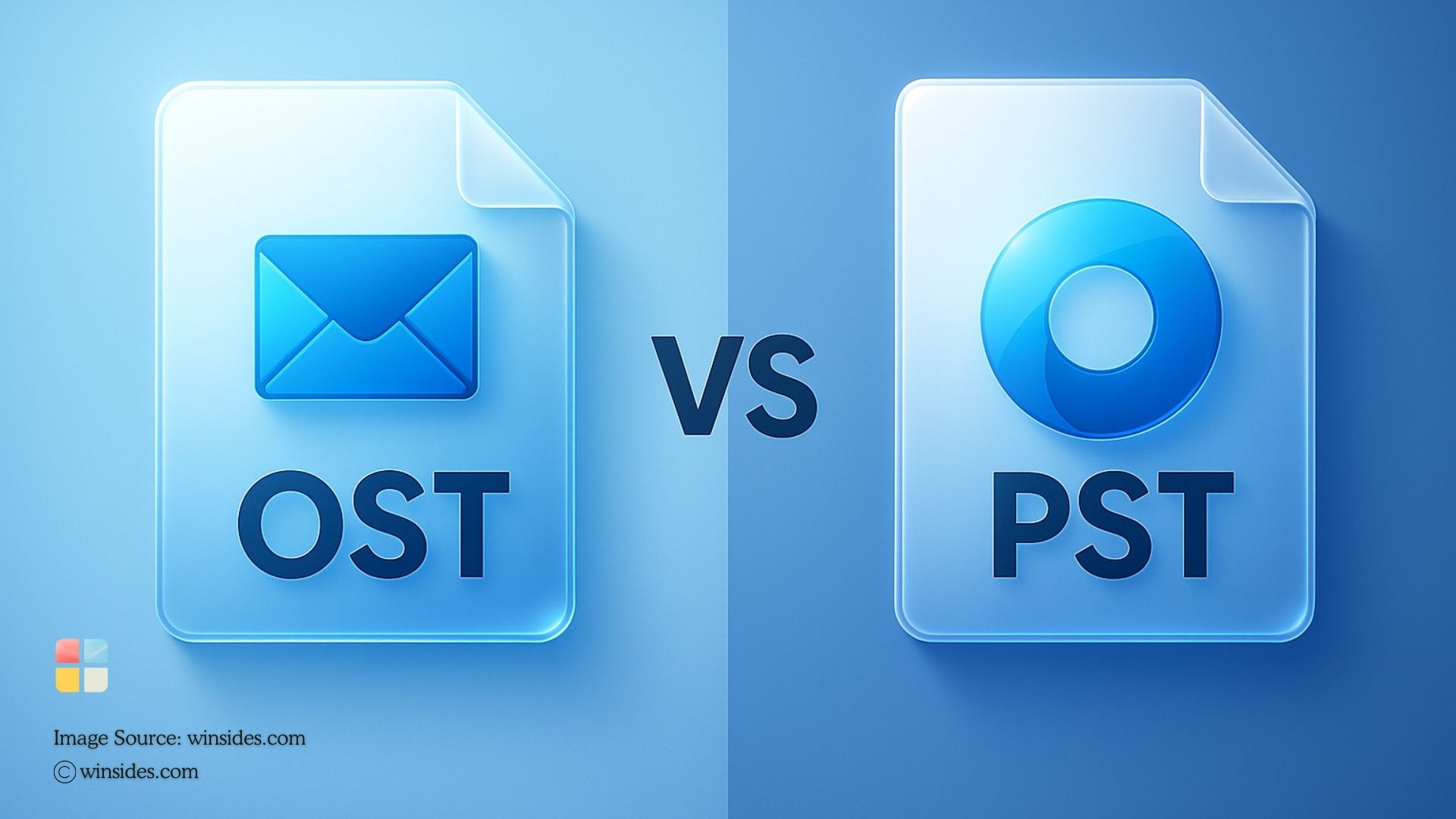
Microsoft Outlook stores all the mail data in an OST file and as mentioned in the above paragraph, it allows us to work offline, and automatically sync changes with the mail server. On the other hand, a PST file is a user-created data file used for archiving, exporting mailbox data, and more. A OST file is account-bound, and server synced, whereas, a PST file is Standalone, and portable.
| Feature | OST File | PST File |
| Creation | Created automatically by Outlook when using Exchange, Outlook.com, or IMAP accounts | Created manually by the user for backup or archiving |
| Dependency | Tied to a specific Outlook profile and mail server | Independent, not linked to a server |
| Purpose | Enables offline work and syncs changes with the mail server | Used for backup, archiving, or transferring mailbox data |
| Accessibility | Cannot be directly opened or used on another computer without syncing or conversion | Portable and can be imported into any Outlook profile |
Possible Errors that can be detected on an Outlook.OST
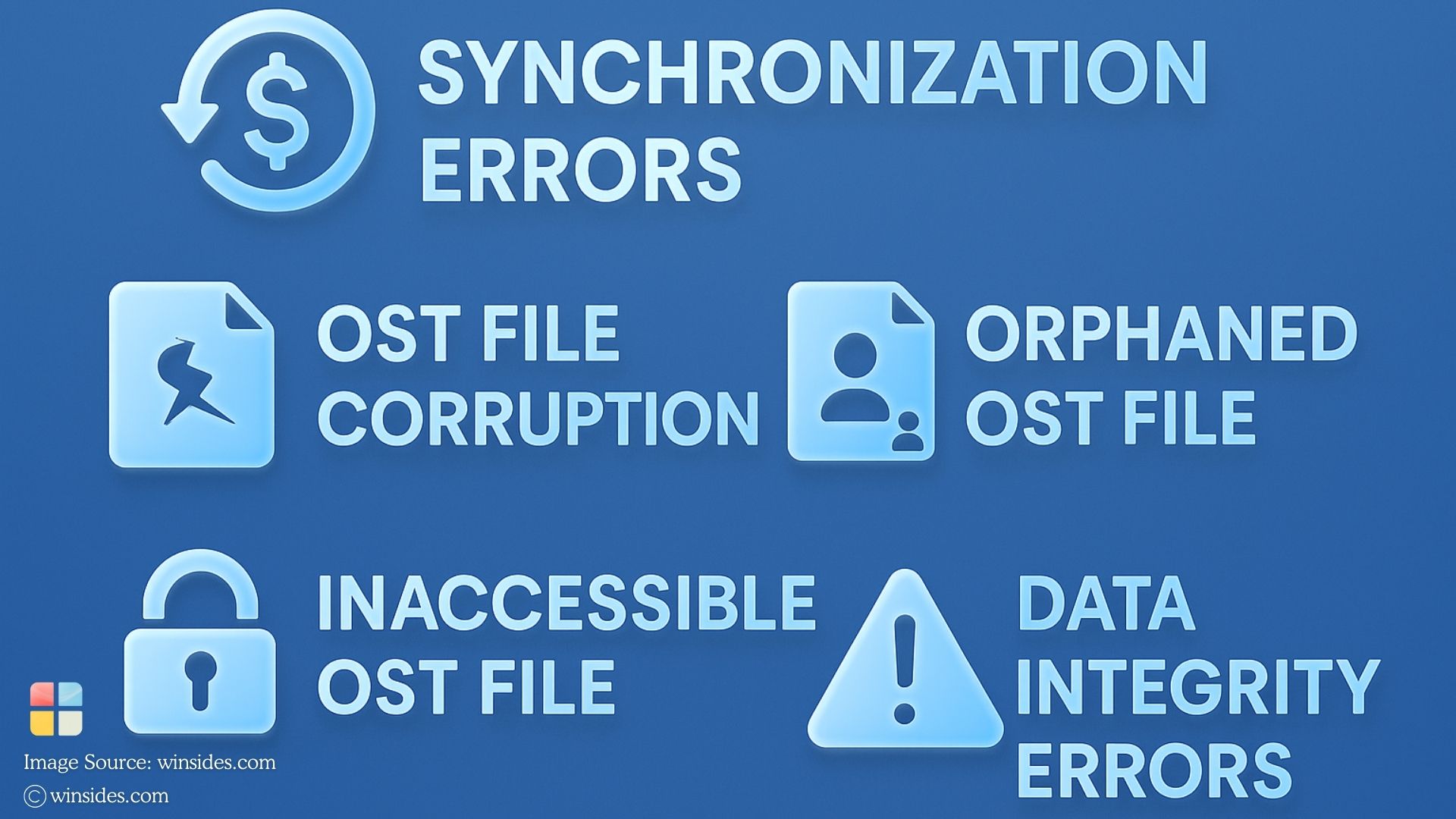
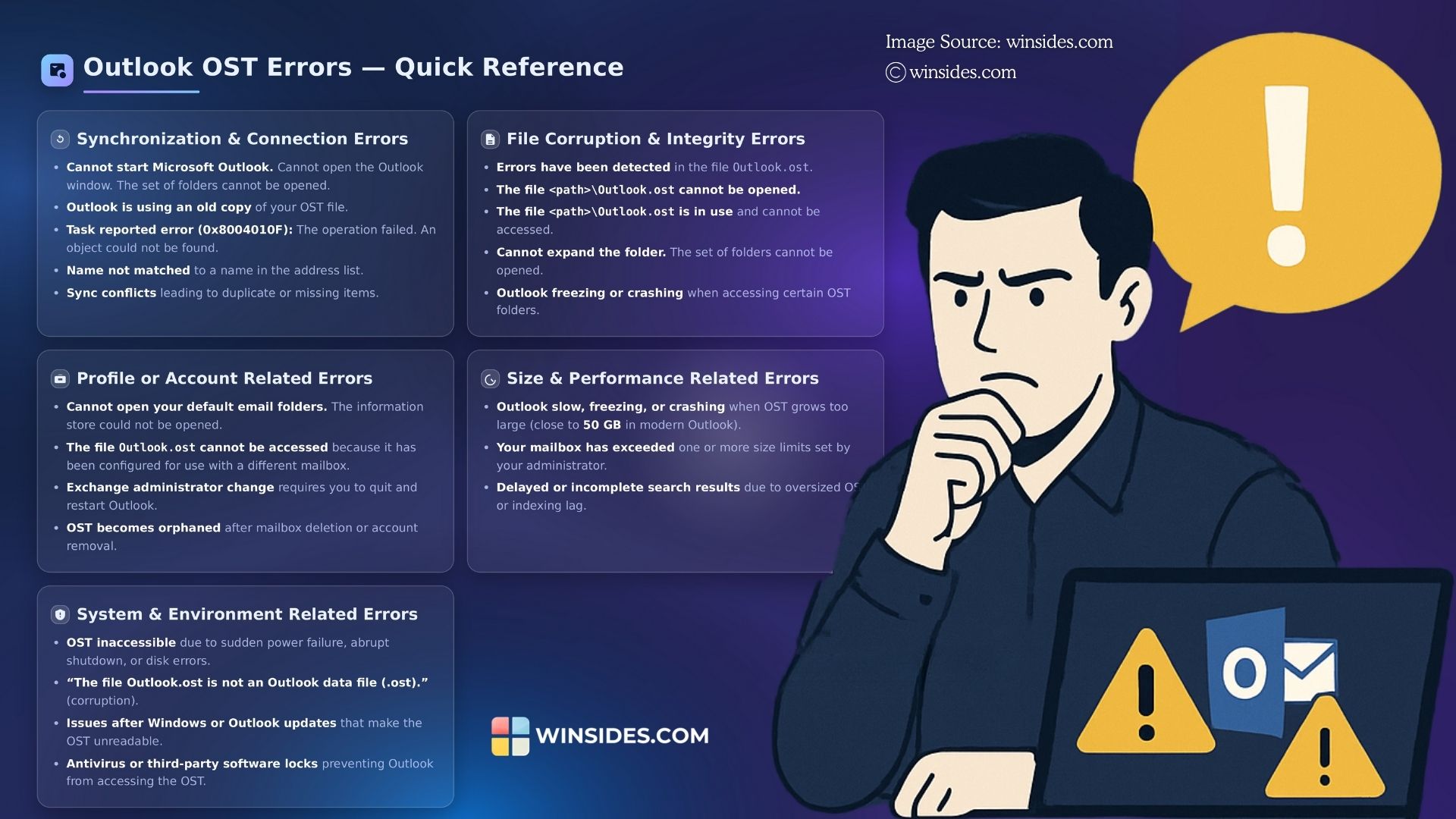
- Synchronization problems occur when the OST file fails to properly update with the Exchange or IMAP server. This may result in missing emails, calendar events not reflecting correctly, or certain folders not updating. Outlook often shows errors like “Task reported error (0x8004010F): The operation failed. An object could not be found.” These issues can be due to network instability, incorrect account configuration, or server downtime.
- Just like any other data file, an OST is prone to corruption. This typically happens because of sudden Outlook crashes, improper shutdown of the system, power failures during synchronization, or faulty storage drives. A corrupted OST may make Outlook unresponsive, freeze frequently, or throw errors such as “Errors have been detected in the file Outlook.ost“.
- An OST becomes “orphaned” when the account it is associated with is removed, disabled, or inaccessible on the mail server. Since the OST is account-bound, Outlook cannot use it without its corresponding Exchange or IMAP profile. This situation commonly arises if an employee leaves an organization and the Exchange account is deleted, leaving the OST file inaccessible.
- If an Outlook profile gets corrupted or misconfigured, the linked OST file also becomes inaccessible. This often presents as Outlook being unable to start or showing the error message “Cannot open your default email folders. The information store could not be opened.”
- Even if the OST is not entirely corrupted, partial damage or sync issues may cause integrity problems in the stored data. This can manifest as missing emails, duplicate messages, incomplete attachments, or incorrect timestamps. Such errors may not stop Outlook from opening but can affect data reliability.
- Though modern versions of Outlook support very large OST files, performance issues and corruption risks increase as the file size grows. An oversized OST often leads to sluggish Outlook performance, frequent freezing, or errors like “Outlook is using an old copy of your OST file.”
- Sometimes errors are not due to Outlook itself but rather external factors such as bad sectors on the hard drive, faulty RAM, or malware infections. These issues can corrupt the OST file structure, leading to frequent Outlook crashes or unexpected behavior.
Fixing the Errors with the Inbox Repair Tool (ScanPST.EXE)
ScanPST.EXE is a inbuilt Repair Tool provided by Microsoft Outlook primarily used to repair PST Files, however, it can sometimes be used to fix OST Files as well. With respect to OST File, the tool scans for structural corruption in the file, and attempts to fix it, however, it doesn’t always resolve deeper synchronization or orphaned OST issues. Essentially speaking, whether it is PST File or OST File, the inbox repair tool can only fix minor issues.
Rebuilding and Creating a New Outlook Profile
Rebuilding the OST file involves deleting or renaming the existing OST, which is essentially a cached copy of your mailbox, and allowing Outlook to create a fresh one when it restarts; once Outlook reconnects to the Exchange, Outlook.com, or IMAP server, it downloads all mailbox data again into a new OST, effectively fixing corruption or sync issues, though any non-synchronized local content such as drafts or “This computer only” data will be lost.
Creating a new Outlook profile means setting up a fresh configuration for Outlook that includes email account settings, data file associations, and connection preferences. If the old profile is corrupted or misconfigured, this method ensures Outlook can connect cleanly to the mail server, automatically generating a new OST file in the process and resyncing all mailbox data from the server, though just like rebuilding, only server-synced items are restored and any locally stored non-synchronized data will not be recovered.
These errors often disrupt workflow, especially in enterprise environments, and may require special repair tools like for profile recreation, or conversion to PST format to regain access to important mailbox data.
Getting Started with Professional Solutions for Outlook Repair
When built-in fixes such as rebuilding the OST file, creating a new Outlook profile, or using Microsoft’s repair options fail, professional repair tools become the most reliable way to resolve OST-related issues. These advanced utilities are specifically designed to handle situations where OST files are severely corrupted, oversized, or orphaned due to the unavailability of the associated mail server, and they allow users to not only repair damage but also recover mailbox data that would otherwise remain inaccessible.
Unlike native methods, they provide granular recovery options, such as restoring individual emails, attachments, or folders, and they often support exporting data into multiple formats like PST, MSG, or EML for flexible use. Professional Repair Tools combines strong recovery features with an easy-to-use interface, enabling users to safely convert inaccessible OST files into PST while maintaining folder hierarchy, metadata, and attachments, making it a dependable option for both individuals and organizations dealing with critical data loss.
Take Away
Outlook OST files are prone to various errors ranging from synchronization glitches to severe corruption, and while built-in methods like profile recreation or OST rebuilding, inbox repair tool, etc., can resolve basic issues, they often fall short when the file is orphaned or extensively damaged. In such scenarios, professional repair tools become indispensable, offering advanced recovery, selective restoration, and multiple export options that ensure no critical data is lost. The key is to use native solutions as a first line of defense, but when reliability and completeness truly matter, turning to a professional tools provides the safest and most effective path to regaining full access to your Outlook data.
Have Queries?
We hope you are satisfied with our article on Errors have been detected in the file Outlook.OST, and If you have any queries, kindly let us know in the comments. For more interesting articles, stay tuned to Winsides.com. Happy Computing! Peace out!