How to Enable Sysmon Tool on Windows 11?

Sysmon Tool on Windows 11: System Monitor, shortly known as Sysmon, is a Windows system monitoring utility that runs as a background service and records detailed information about system activity into the Windows Event Log, helping admins and security professionals track what is happening on a machine. Earlier, it was not built into Windows. However, it can be downloaded and installed separately. Microsoft recently introduced Sysmon Tool as an optional Feature on Windows 11 that can be enabled via the Windows Features dialog.
Different Methods to Enable Sysmon Tool on Windows 11 PCs & Servers
- Enable System Monitoring Tool on Windows 11 using Windows Features – GUI Method
- Turn on Sysmon on Windows 11 using CMD and PowerShell – CLI Methods
Enable Sysmon Tool on Windows 11 using Windows Features – GUI Method
On supported versions of Windows 11, you can follow the steps below to enable the System Monitoring Tool on your Windows 11.
My OS and Build Information: Windows 11 Version: 25H2, OS Build: 26220.7872 Experience: Windows Feature Experience Pack 1000.26100.333.0. Kindly note that my device is set to get Insider Preview Builds.
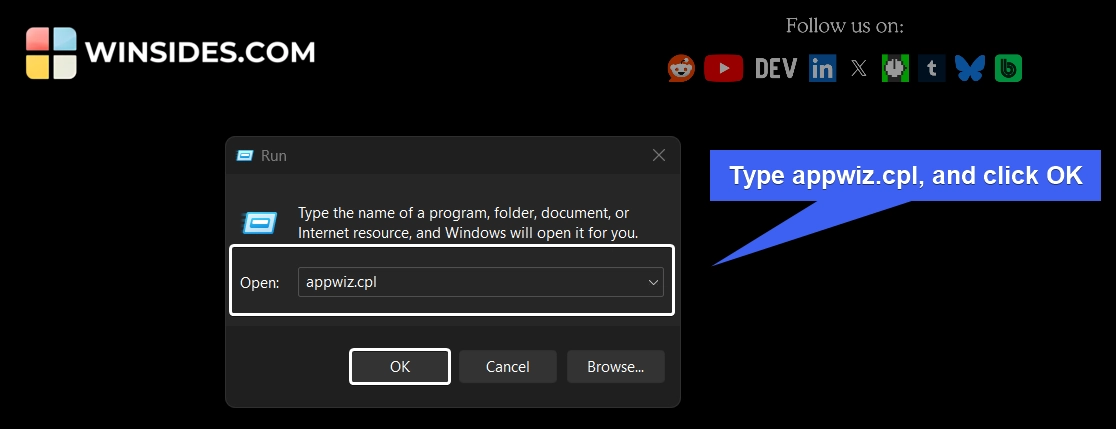
- There are several ways to access Windows Optional Features on Windows 11. Here, we will use the Run Command and access it via
appwiz.cpl.
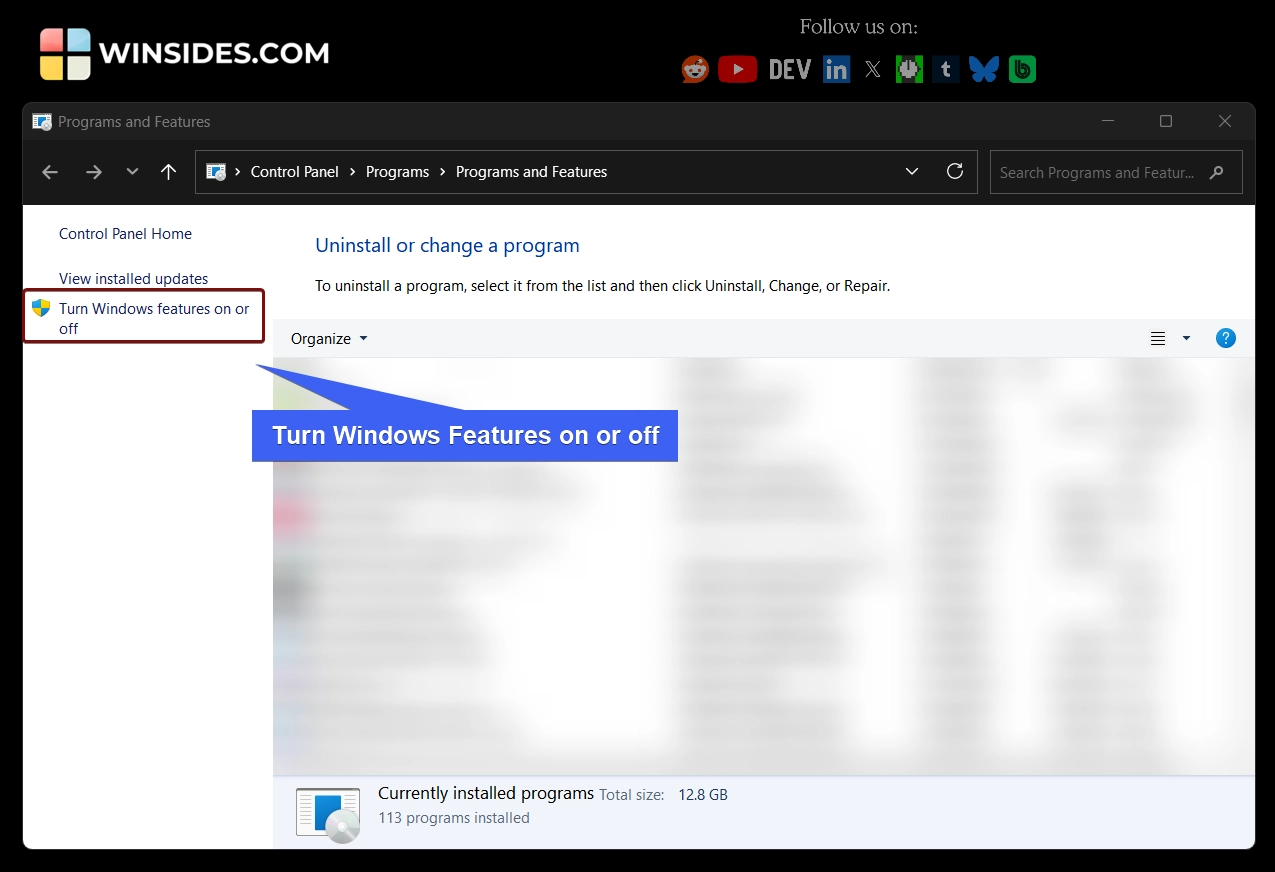
- From the left pane, click on Turn Windows Features on or off.
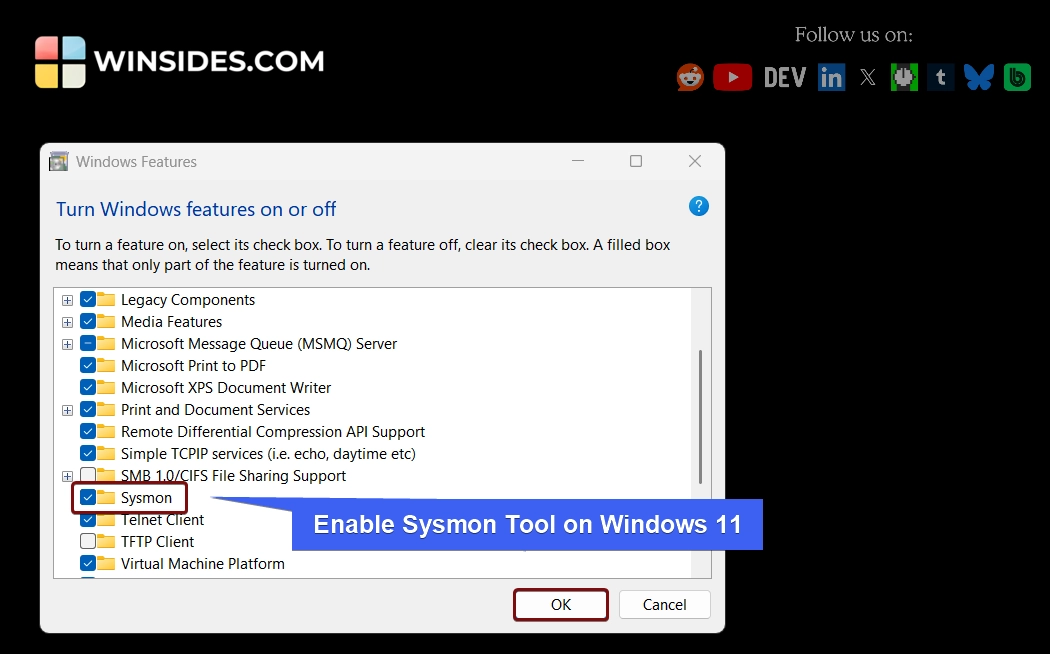
- The Windows Features dialog will open now. From the list, locate Sysmon. Click on the checkbox next to it to enable it. Finally, click OK.
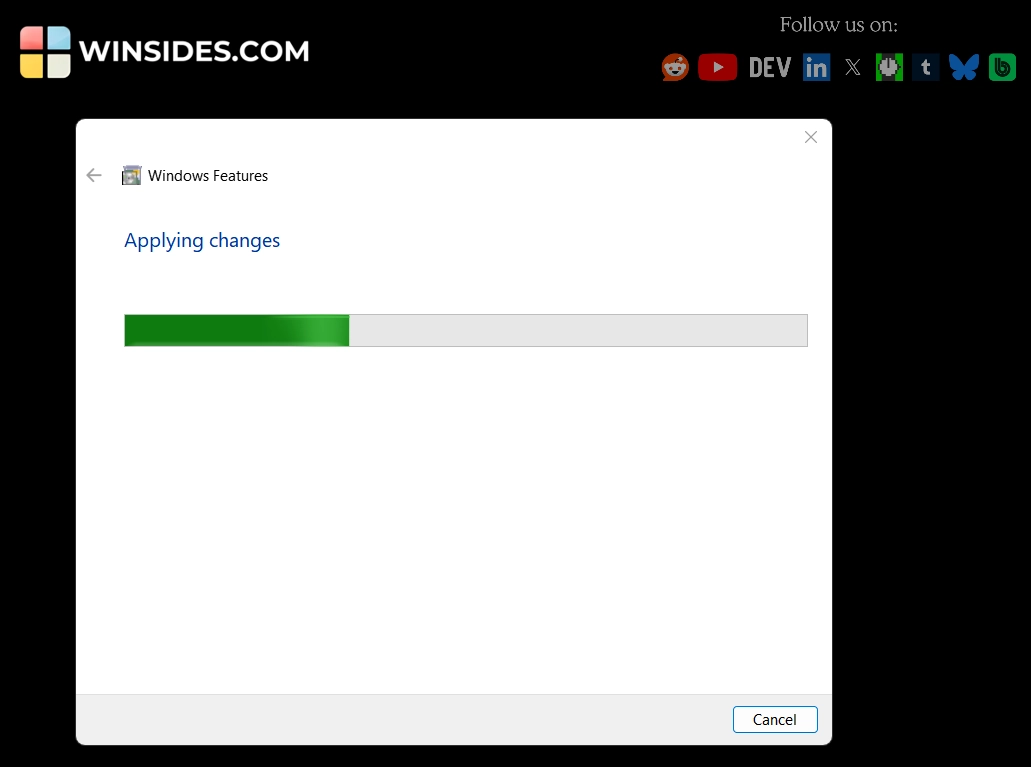
- Windows will search for the required files and apply the necessary changes.
- Finally, you must restart your PC to complete the installation of the requested changes. Kindly save your work, and click Restart now.
- Sysmon Tool is now ready to use on your Windows 11 rig.
Turn on Sysmon Tool using Command Prompt & Windows PowerShell – CLI Methods
To enable System Monitoring Tool on Windows using Command Prompt, we will use the Deployment Image Servicing and Management Tool. Hence, we have to run Command Prompt and Windows PowerShell as Administrator.
Command Prompt Command to install Sysmon Tool on Windows 11
dism /online /Enable-Feature /FeatureName:Sysmon /All
Windows PowerShell Command to Install Sysmon Tool on Windows 11
Enable-WindowsOptionalFeature -Online -FeatureName Sysmon -All
How to Use Sysmon Tool on Windows 11?
Once the feature is enabled on your Windows 11 PC or Server, you can access the System Monitoring Tool using Windows PowerShell. The service logs events immediately, and the driver installs as a boot-start driver to capture activity from early in the boot that the service will write to the event log when it starts.
- We have to run Windows PowerShell as an Administrator.
- In PowerShell, execute the following command.
sysmon -i - This command will start SysmonDRV, and you can perform various actions like Installation, Update Configuration, Install Event Manifest, Print Schema, and Uninstall.
| Command | Usage |
sysmon -i | Installation |
sysmon -c | Update Configuration |
sysmon -m | Install Event Manifest |
sysmon -s | Print Schema |
sysmon -u | Uninstall Sysmon |
Take Away
Sysmon is a powerful system monitoring tool from Microsoft that logs detailed information about activity on a Windows system. Unlike standard Windows Logs, it provides detailed data such as Hash Values of Files, Parent and Child process relationships, Full command-line arguments used to launch programs, and more. Microsoft recognizes the importance of detailed system telemetry in defending against modern threats, and it may encourage more organizations and users to adopt stronger security monitoring practices.
Have Queries?
The above article provides detailed information on how to enable Sysmon Tool on Windows 11. We hope you are satisfied with our article, and if you have queries, kindly let us know in the comments. For more interesting articles, stay tuned to Winsides.com. Happy Computing! Peace out!