Quick Ways to Rename This PC on Windows 11

Rename This PC on Windows 11: In Windows 11, renaming This PC changes the computer name, also known as the Hostname. This name is used by Windows to identify the device on Local Networks, Enterprise Domains, Microsoft Accounts, and System Logs. Renaming This PC on Windows 11 is a simple task, yet it plays an important role in Device Identification, Networking, Personalization, and System Management. In this article, let’s check out the different methods to rename This PC on Windows 11. Let’s get started.
What does “Rename This PC” on Windows 11 mean?
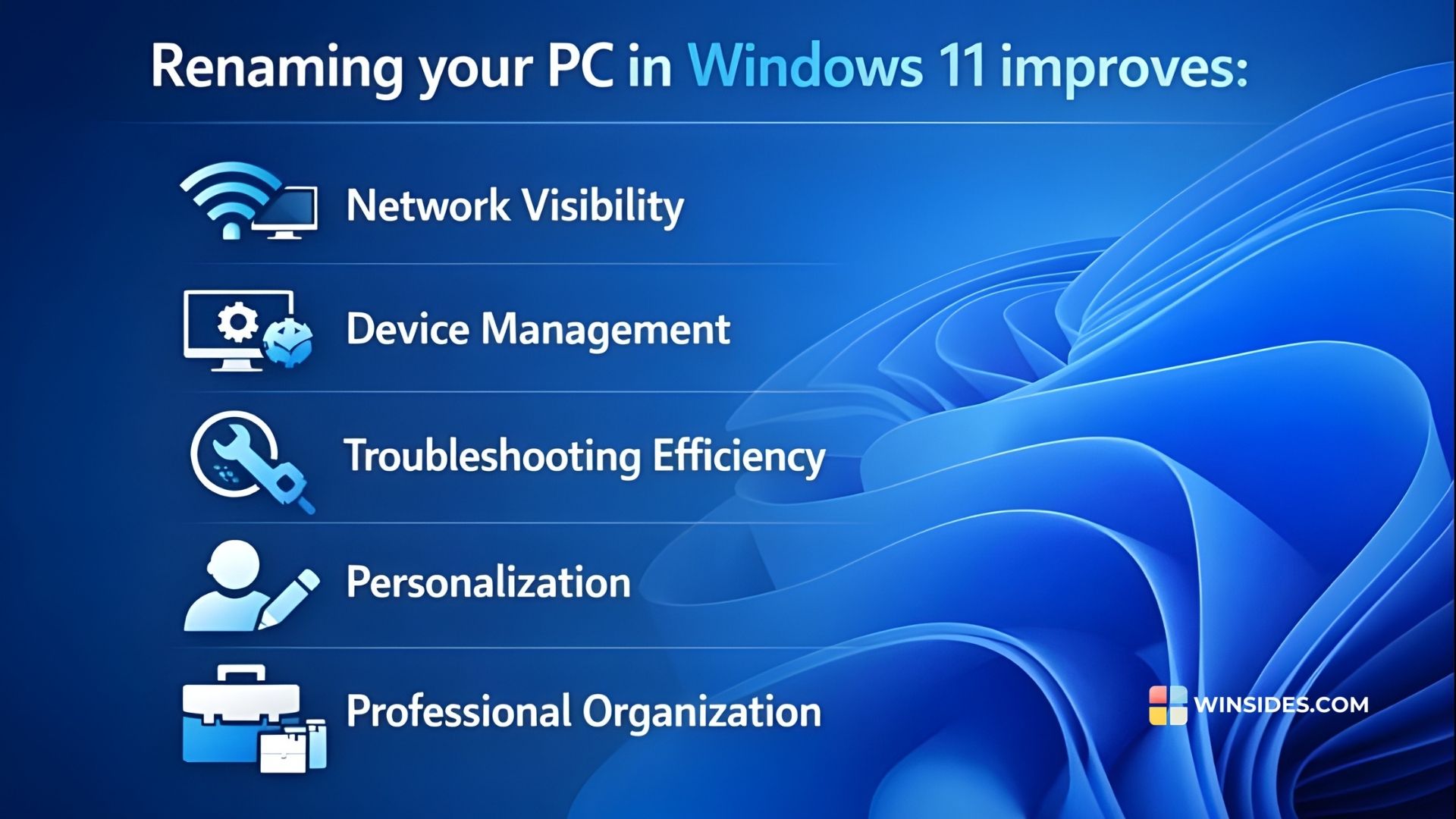
- Renaming Windows 11 is not just a cosmetic change, as it plays a crucial role in how your system identifies itself across Networks, Accounts, and Administrative Tools. Assigning a meaningful and intentional device name improves Usability, Organization, and Security.
- When multiple devices are connected to the same WIFI or Wired Network, then the Computer Name is essential to find the system. By default, Windows assigns a random name, which can be confusing, and hence, it is recommended to Rename this PC on Windows 11.
- For Professional Environments, Better Naming allows Faster Identification, Easier Tracking, Improved Inventory Management, and more.
- When using tools such as Remote Desktop, PowerShell remoting, or Network Monitoring Utilities, the computer name is often the Primary Identifier.
Windows 11 PC Nomenclature
It refers to the rules, structure, and conventions used to name a Windows 11 PC. These rules ensure Stable communication across networks, Compatibility with older systems, Predictable Behavior in Managed Environments, and Error-free Device Discovery. Windows 11’s long-standing naming standards are derived from NetBIOS, DNS Host Naming Rules, Active Directory Compatibility, and Cross-platform networking requirements. Windows 11 PC Naming Requirements are as follows.
- Maximum Length is 15 characters.
- Letters, Numbers, and Hyphens only.
- No Spaces, and No Special Characters like @ # $ % & * are allowed.
- Name must be unique on the network.
- Restarting the PC is required after renaming.
Quick Ways to Rename this PC on Windows 11
The following are the different methods to Rename this PC on Windows 11 to change your Computer Name.
GUI Methods:
- Rename this PC on Windows 11 using the Windows Settings.
- Windows 11 Renaming PC using System Properties.
- Use Control Panel and Rename the Windows 11 PC.
- Renaming PC on Windows 11 using Registry Editor.
Command Line Interface Methods:
- Use Command Prompt and Rename This PC on Windows 11.
- Rename Windows 11 PC using Windows PowerShell.
#1 Rename this PC on Windows 11 using Windows Settings
- Go to the Windows Settings using the keyboard shortcut WinKey + R.
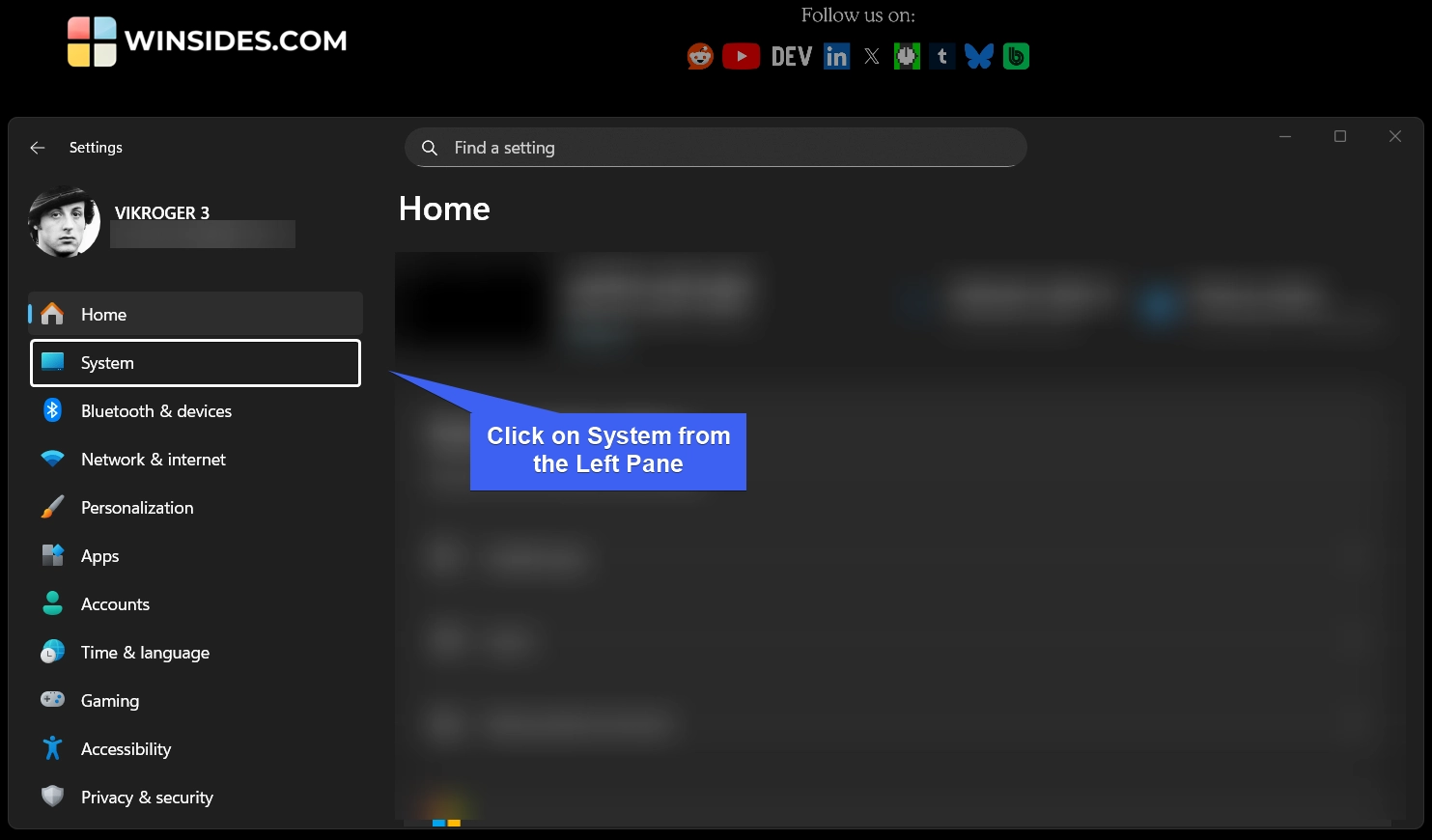
- From the left pane, click on System.
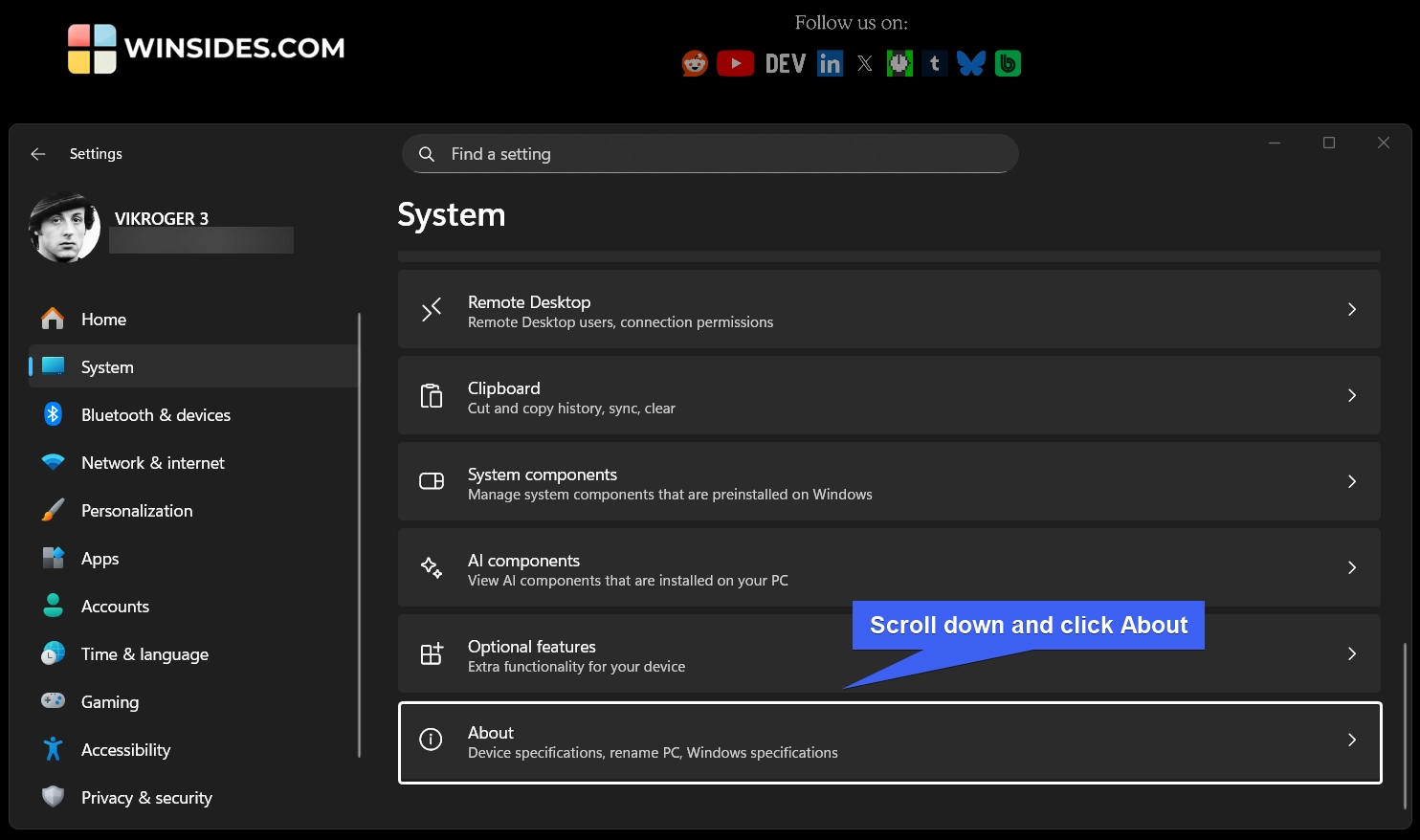
- Scroll down and locate About. Proceed with About.
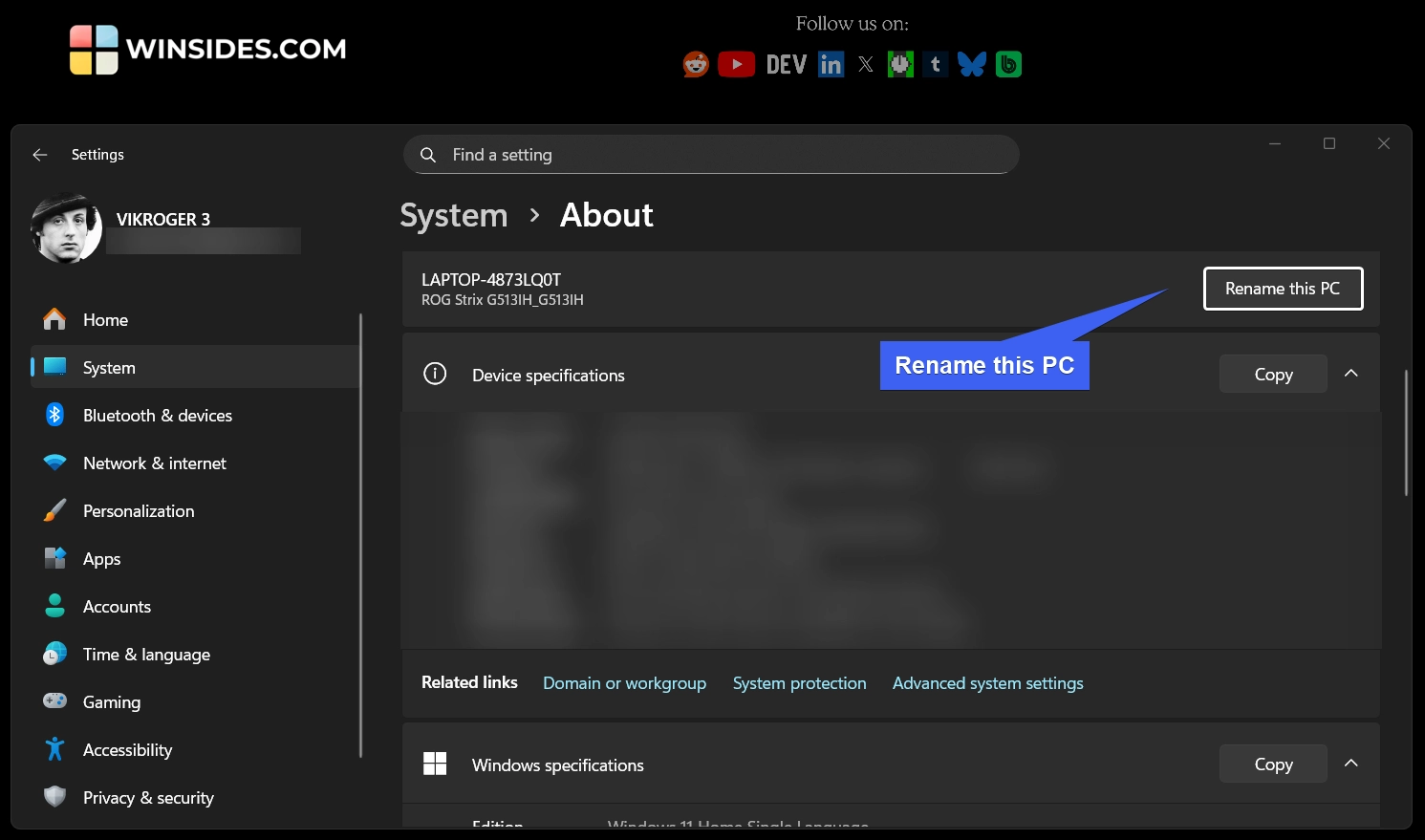
- Here, you can find your Computer Name. Next to it, you can find the button “Rename this PC“. Mine is a Laptop, and hence, the system, by default, is named it as LAPTOP-487LQ0T. Click on Rename this PC.
- Rename your PC window will pop up now. Enter the new name, click Next, and complete the process.
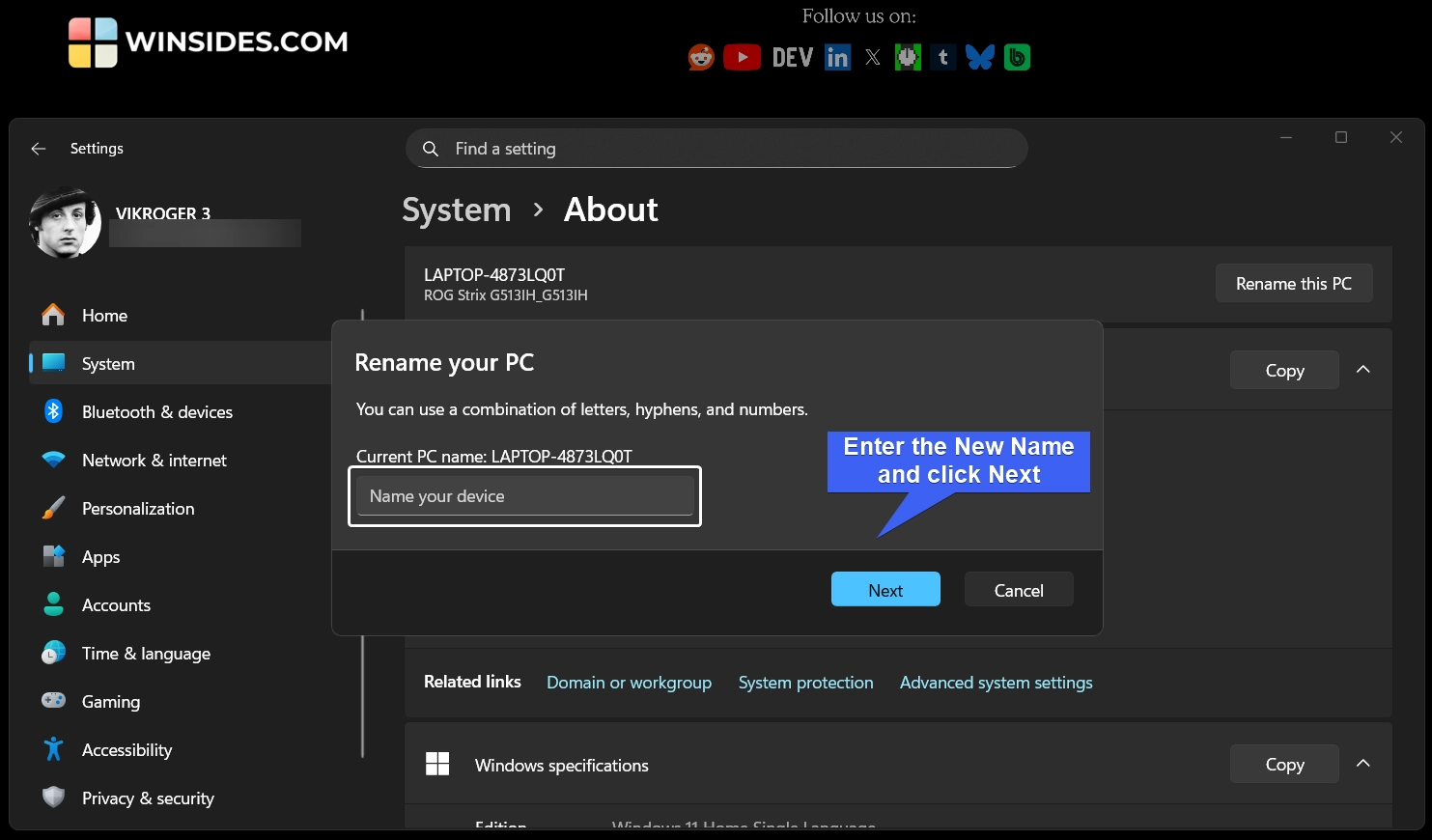
- Finally, restart your PC.
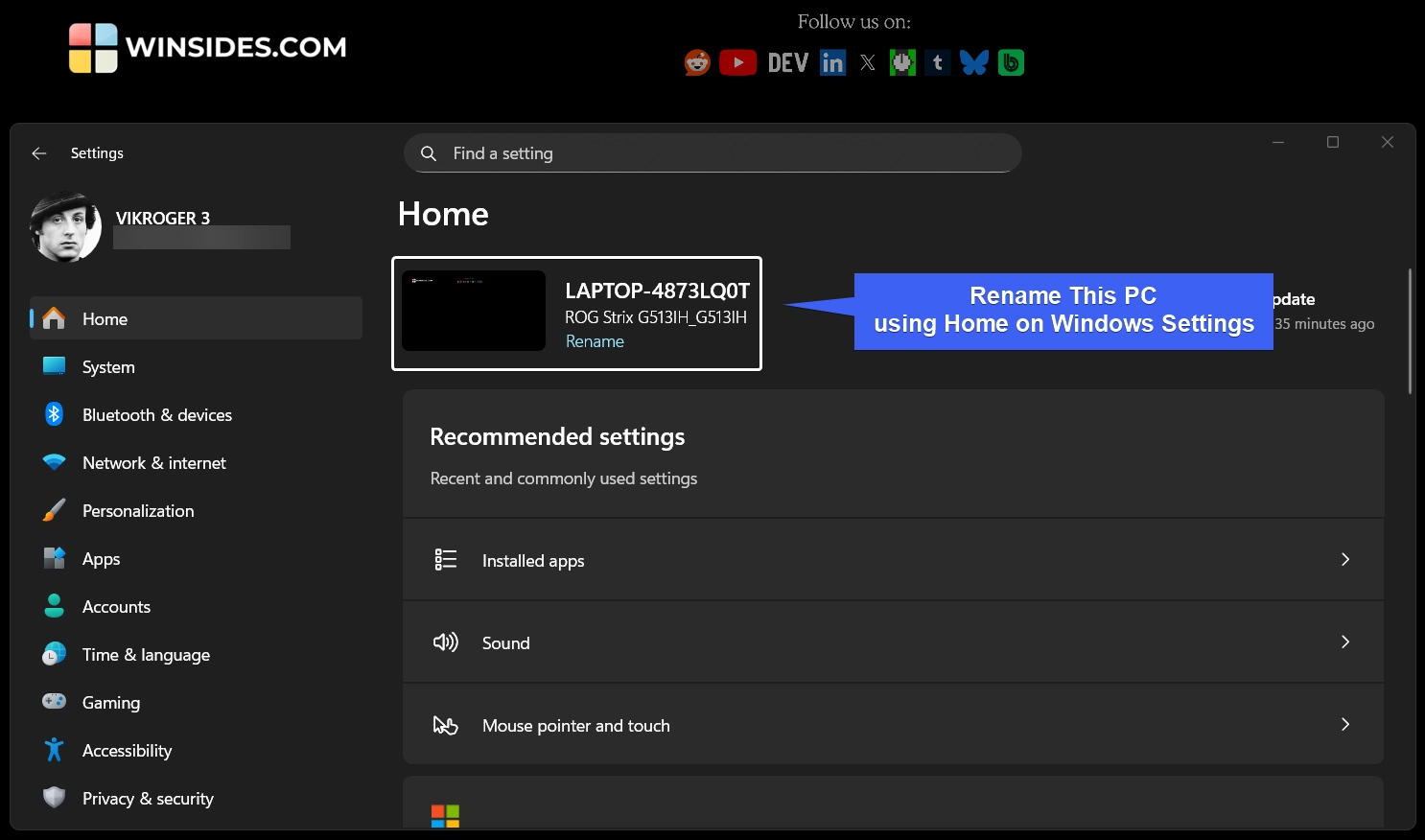
You can also rename your PC from the Home of the Windows Settings. Kindly refer to the following image.
#2 Use System Properties and Rename your Windows 11 PC
In this method, we will use the System Properties and change the Windows 11 PC name. Here are the steps.
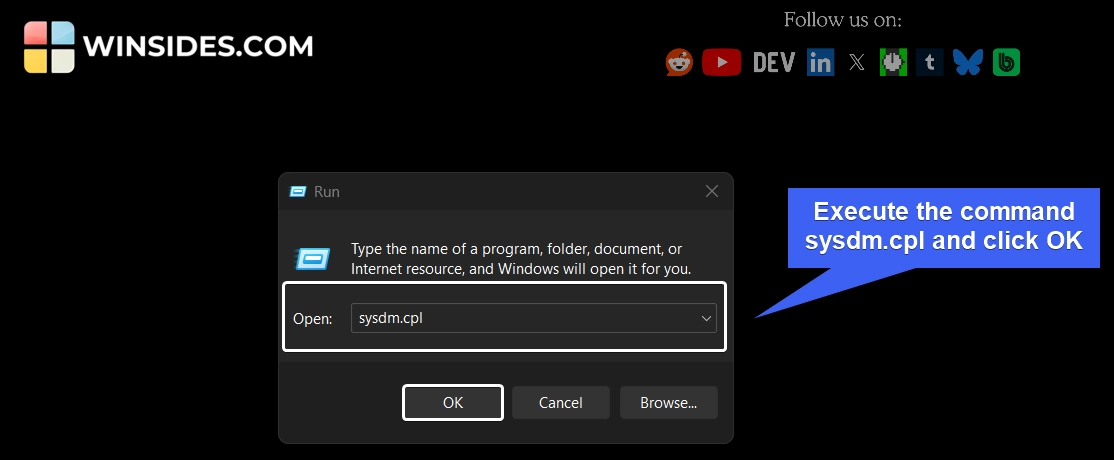
- Go to the Run Command using the keyboard shortcut WinKey + R.
- In the Run, execute the following command
sysdm.cpl
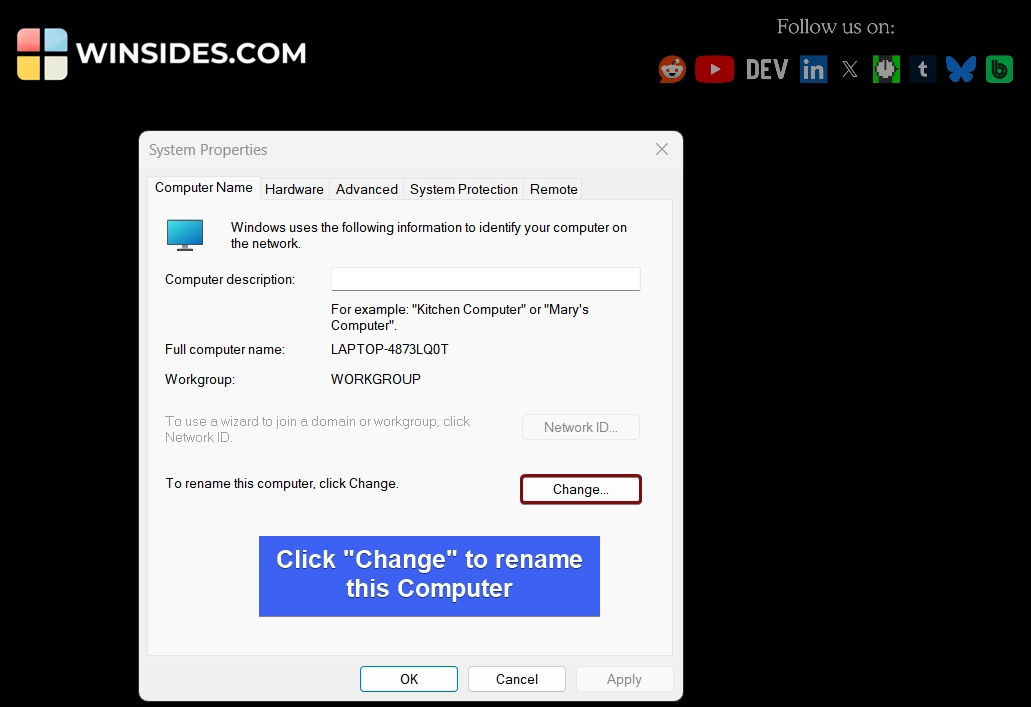
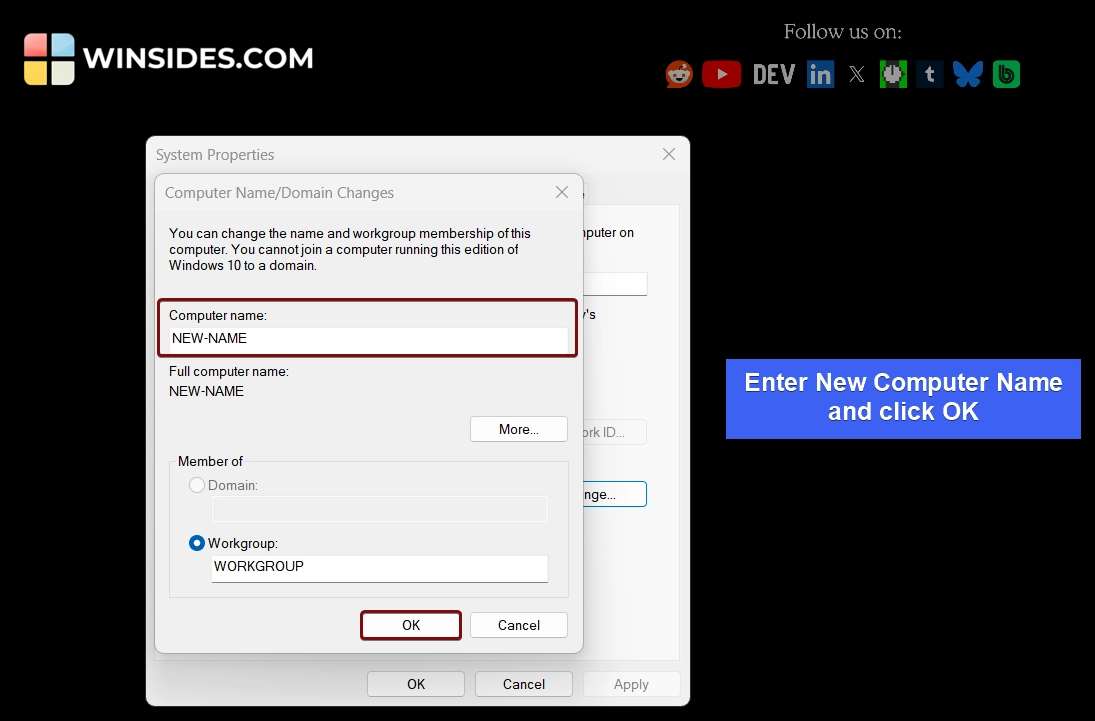
- The System Properties dialog will open now. Under the ComputerName Tab, click on Change to rename this computer.
- The Computer Name/Domain Changes dialog will pop up. In the Computer Name field, you can enter the New Name and click OK.
#3 Use Control Panel and Rename Windows 11 PC/Laptop
Most of the Control Panel Settings are being moved to the Windows Settings. However, almost all of the Windows Settings can be accessed via the Control Panel too.
- Go to the Start menu and search for Control Panel.
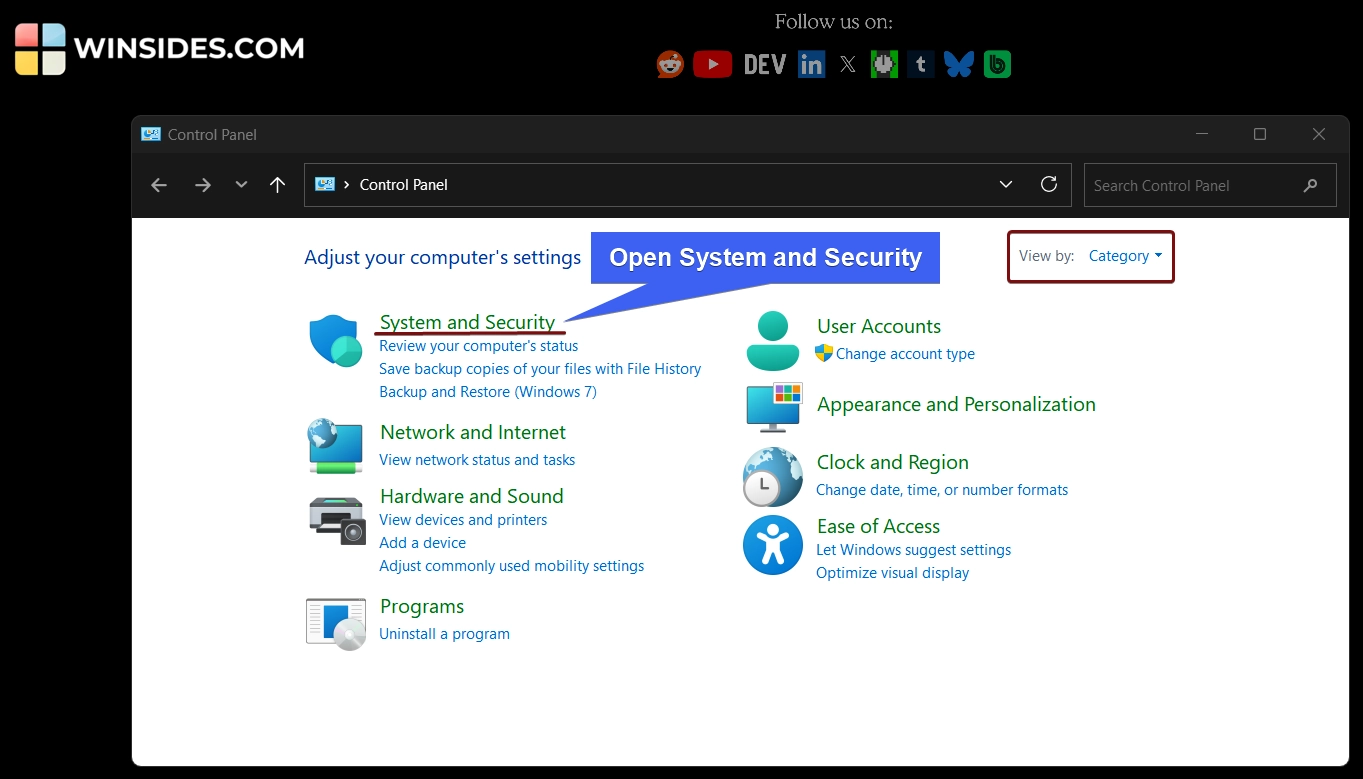
- Open Control Panel, and make sure the view is on Category.
- Click on System and Security.
- Under System, you can find the option “See the name of this computer“.
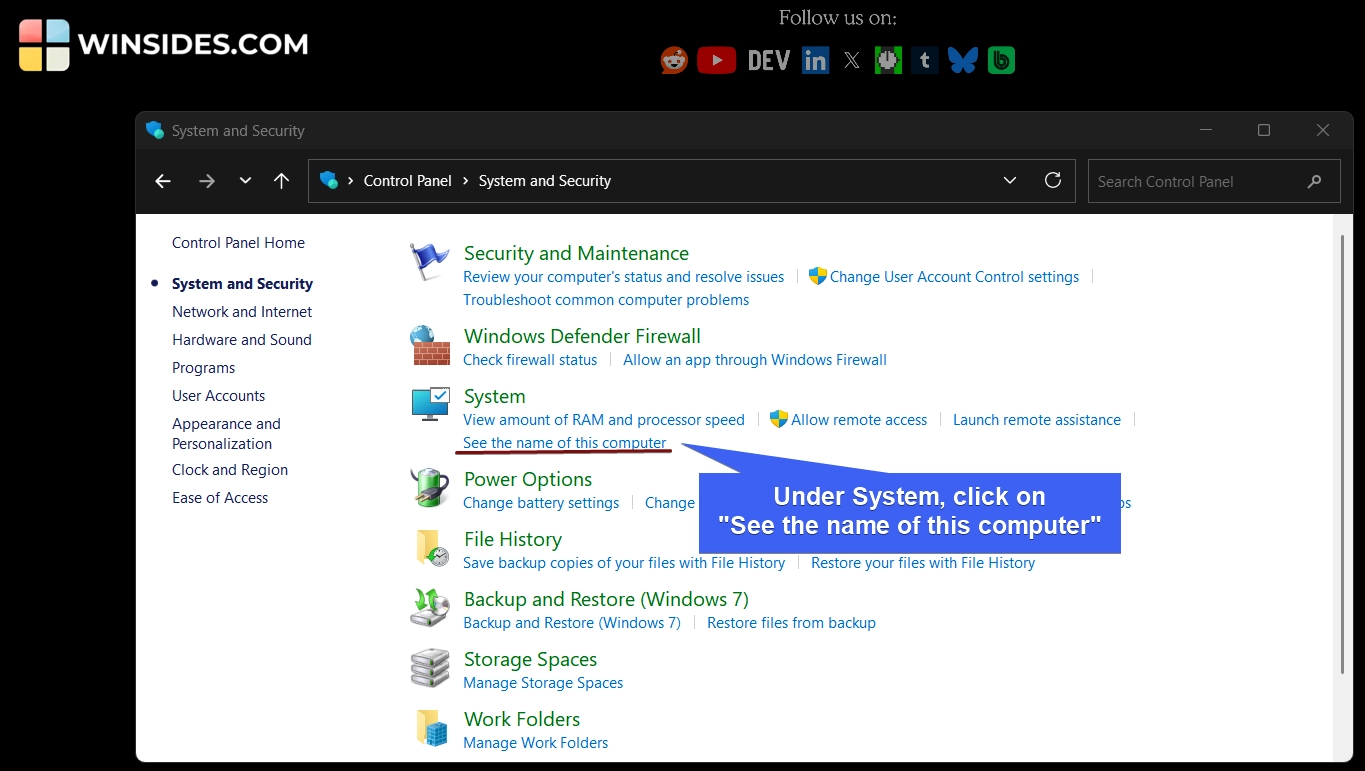
- Once you click on this option, you will be redirected to the Windows Settings’ Rename this PC option.
#4 Renaming PC on Windows 11 using Registry Editor
We don’t recommend this method unless it is necessary. Always make sure to take a backup before making any changes to the Registry. There are different ways to access Registry Editor on Windows 11. We will use the Run Command.
- Go to the Run Command using the shortcut Winkey + R.
- In the Run, execute the following command.
regedit - The User Account Control (UAC) will confirm and open Registry Editor.
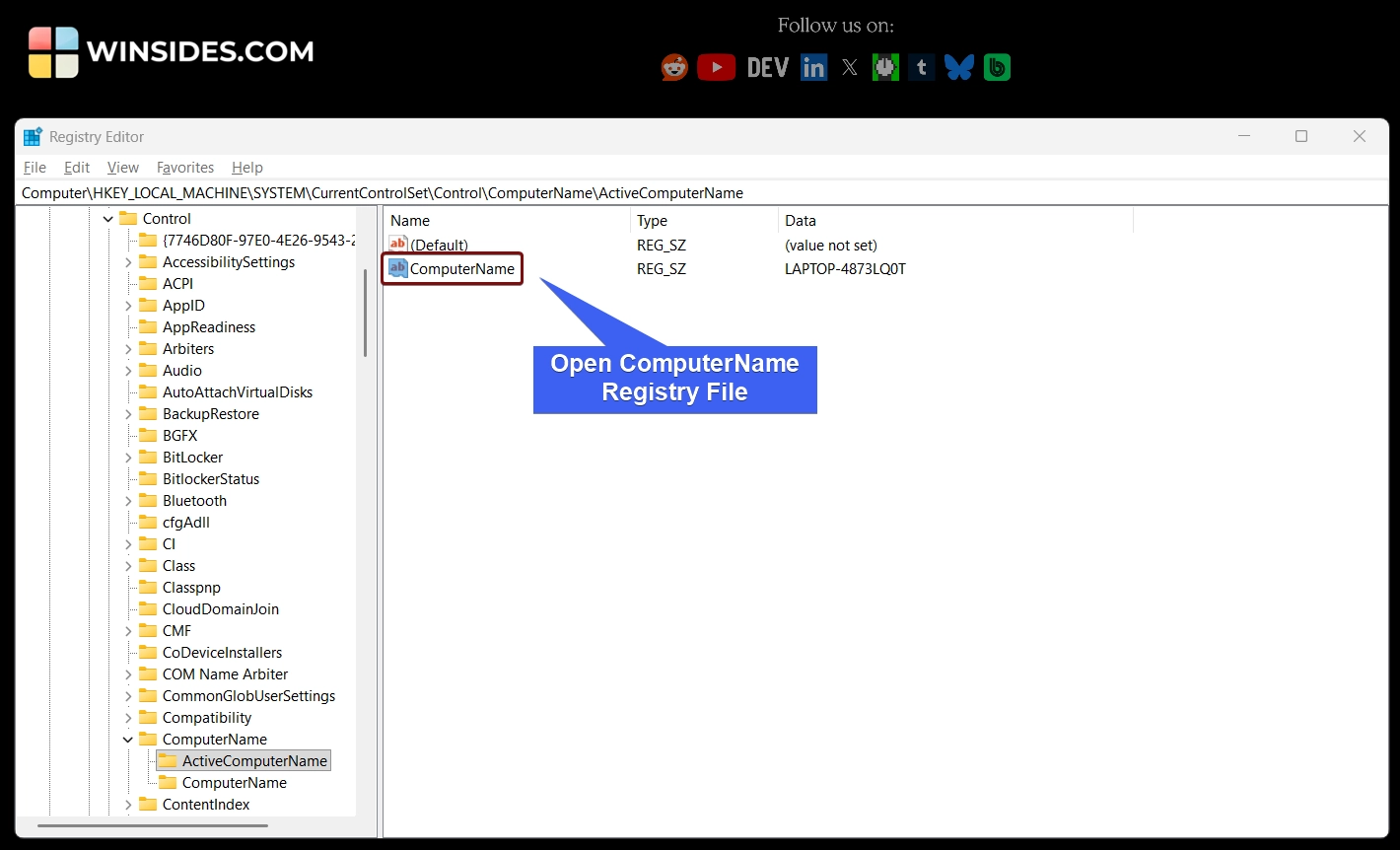
- In the Registry Editor, navigate to the following location.
HKEY_LOCAL_MACHINE\SYSTEM\CurrentControlSet\Control\ComputerName\ActiveComputerName
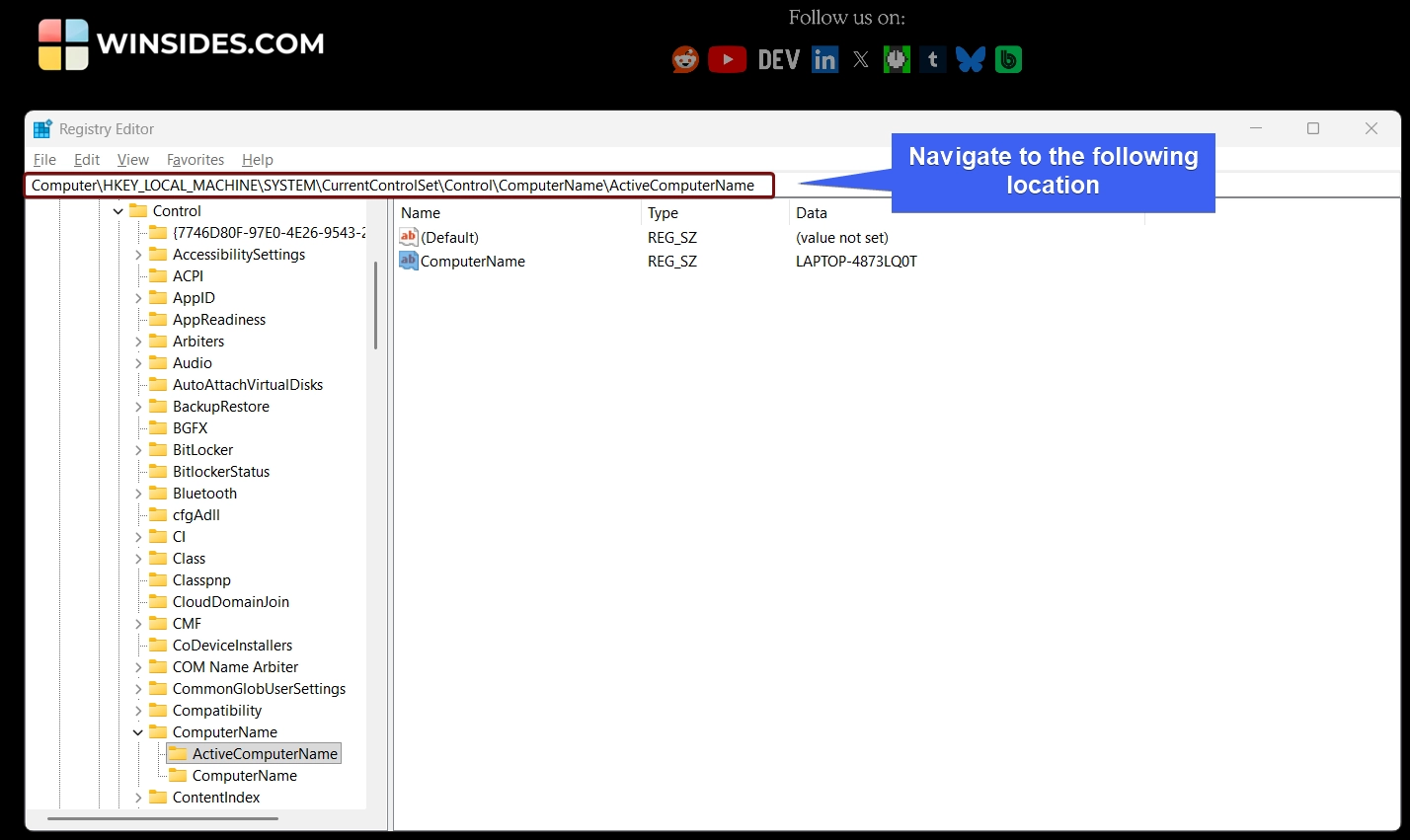
- Open the ComputerName Registry file.
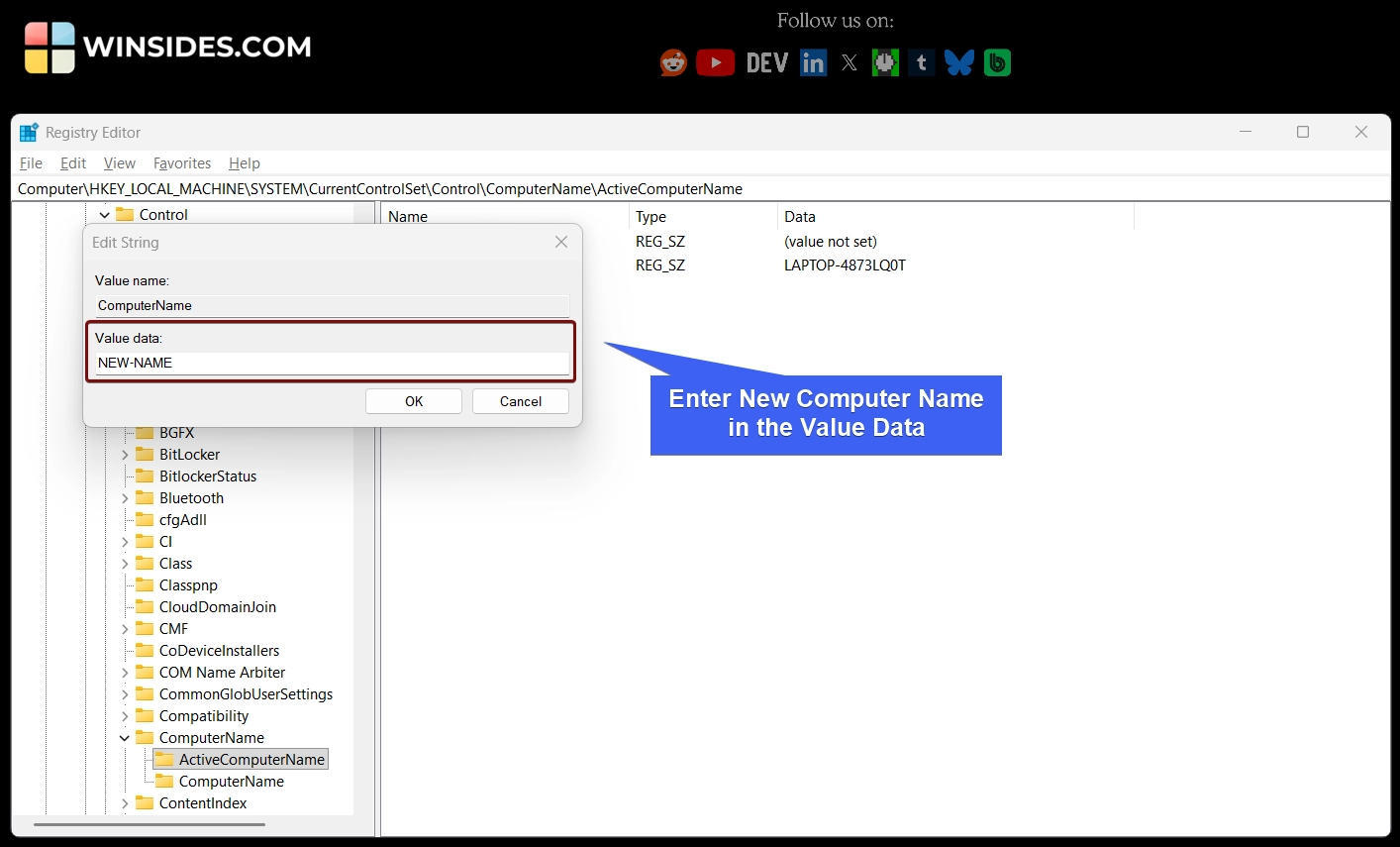
- In the Value Data field, enter the new computer name and click OK.
- Finally, make sure to restart your PC after the process.
#5 How to Rename This PC on Windows 11 using Command Prompt?
This is a Command Line Interface method, and we use the Command Prompt. This method is ideal for advanced users and those who require automation.
- Go to the Run Command and enter the following command
cmd, and make sure to press CTRL + SHIFT + ENTER. The UAC will prompt for your confirmation and run Command Prompt with Elevated Privileges. - In the Command Prompt, enter the following command. We will use the Windows Management Instrumentation Command-Line to rename this PC on Windows 11.
wmic computersystem where name="%computername%" call rename name="NewPCName"
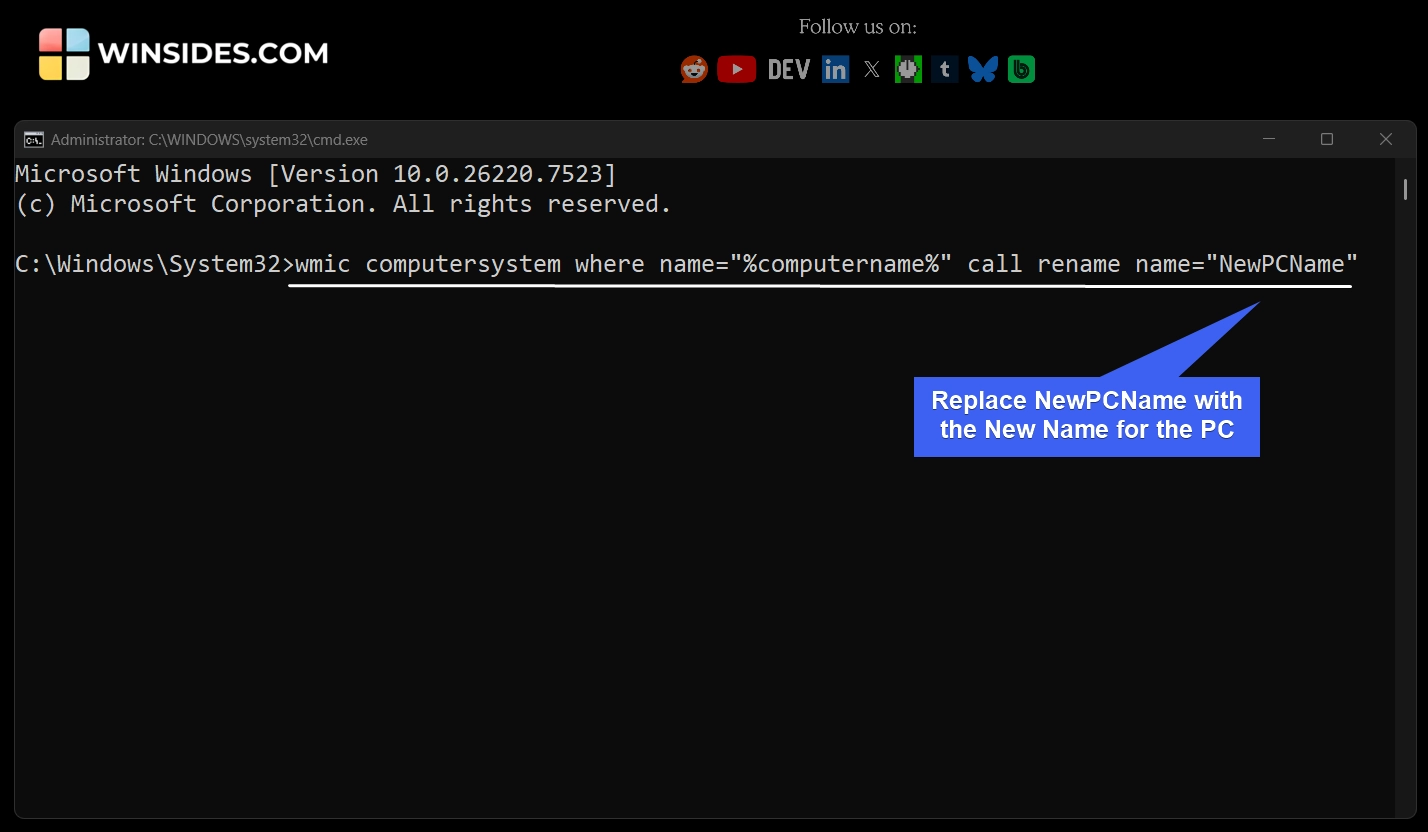
Replace NewPCName with the new PC Name
- Finally, restart your Windows 11 PC. That’s it.
#6 Rename Windows 11 PC using Windows PowerShell
- Open Windows PowerShell with Administrative Privileges.
- Execute the following command.
Rename-Computer -NewName "NEWPCNAME" -Restart
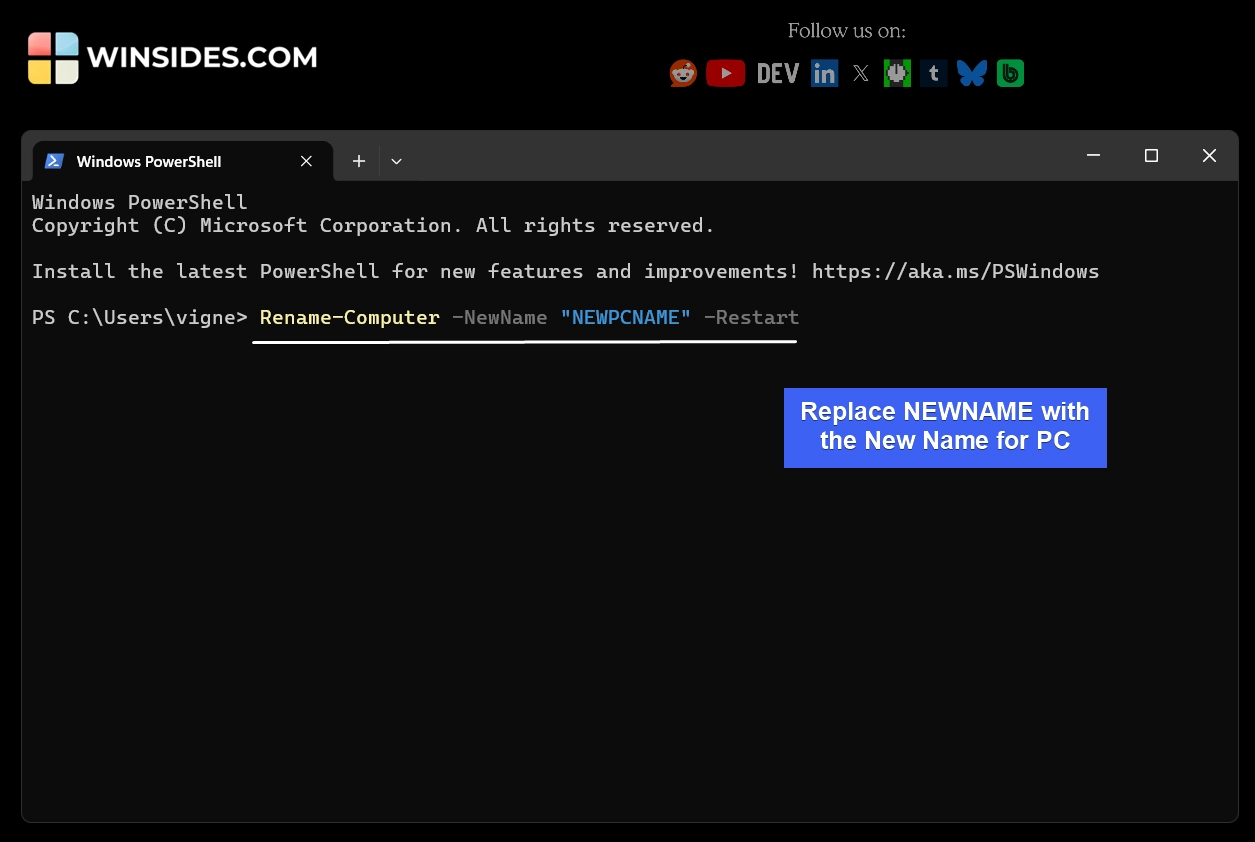
- Replace NEWPCNAME with the New Name and execute the command. The command will complete the process and restart your PC.
Take Away
The above article provides detailed information on different methods to rename this PC on Windows 11. If you have any queries, kindly let us know in the comments. For more interesting articles, stay tuned to Winsides.com. Happy Computing! Peace out!