

ODBC, the short form of Open Database Connectivity, is a standard Application Programming Interface. It allows applications to connect to various database systems such as Data Analytics and Reporting, Web Applications, Enterprise Systems like ERP, CRM, etc, using ODBC Drivers on Windows 11. ODBC is a programming interface that enables applications to access data in database management systems that use SQL as a data access standard. In this article, let us know more about ODBC, configuring ODBC, and more. Let’s get started.
Table of contents
Installing ODBC on Windows 11 OS
Windows 11 comes with pre-installed ODBC Drivers, and hence, we don’t have to install it separately. We can access ODBC on Windows 11 and start using it. To open ODBC on your Windows 11, kindly execute the following command in the Run.
- Open the Run Command using the shortcut WinKey + R.
- In the Run, execute the following command
odbcad32
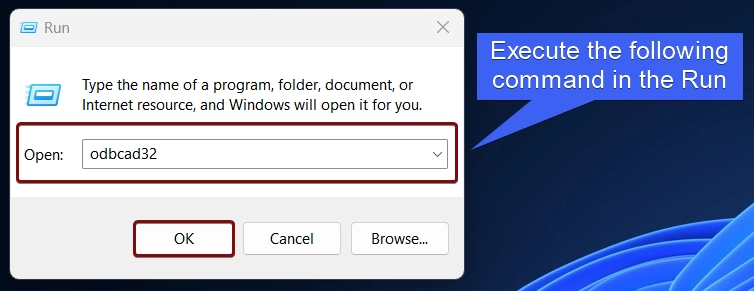
- This command will open Open Database Connectivity. Almost all the modern systems use 64-bit architecture. By default, the above command will open ODBC Data Source Administrator (64-bit) in the latest systems. If you are using a 32-bit architecture system, then ODBC Data Source Administrator (32-bit).
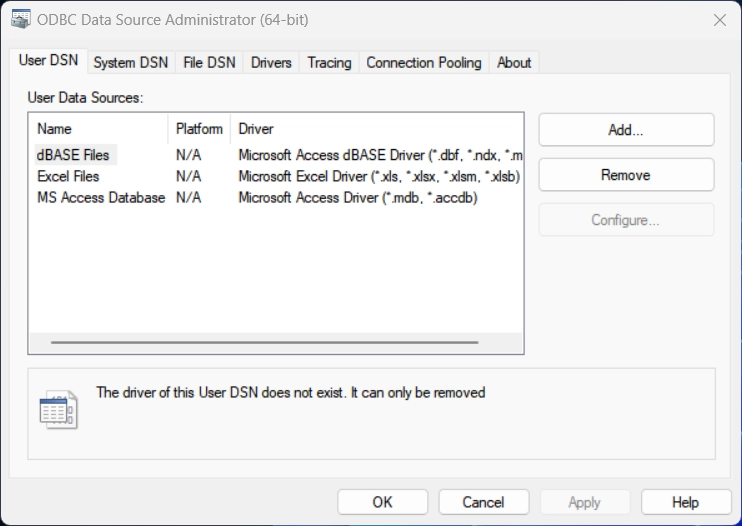
- I am using a system that is based on a 64-bit architecture. If you are not sure about your system architecture, then we have a detailed article explaining how to get to know about the System Architecture on Windows 11.
Download ODBC Drivers for Various Resources and Platforms
You can download various ODBC Drivers such as Microsoft SQL, MySQL, PostgreSQL, Oracle ODBC Driver, etc, from the official Microsoft Website. You can also install the ODBC Driver for SQL Server for other Platforms such as Linux and macOS.
Various Options on ODBC Data Source Administrator on Windows 11
Let’s explore all the options on the ODBC Data Source Administrator on Windows 11 one by one.
User DSN
- The first Tab in the ODBC Data Source is the User DSN. User Data Source Name is a configuration that is unique to a single user account on Windows 11. An ODBC User Data Source stores information about how to connect to the indicated data provider. This User Data Source will only be visible to you and can only be used on the respective computer. In my Windows 11, I can see several ODBC Drivers, dBASE Files, Excel Files, and MS Access Database. These files are used for connecting legacy dBase databases, Microsoft Excel Spreadsheets, and MS Access Databases.
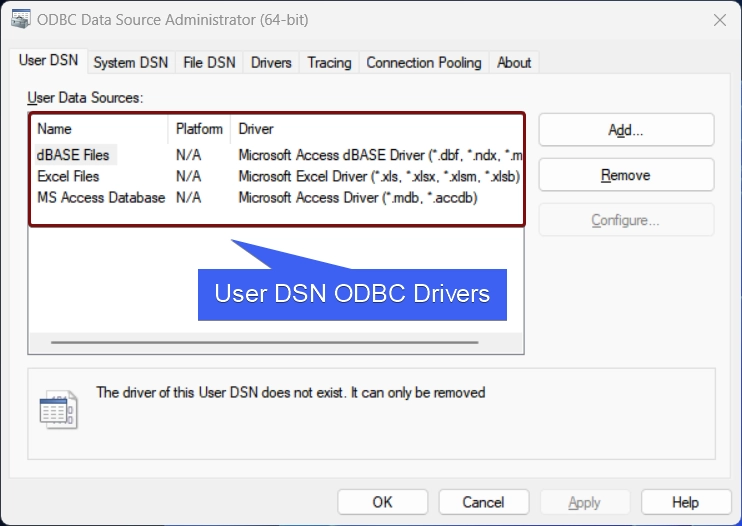
- You can add or remove a User DSN in ODBC here.
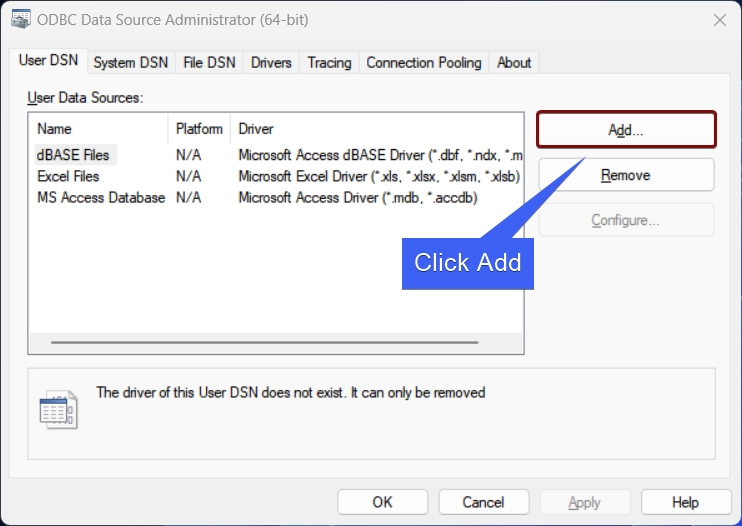
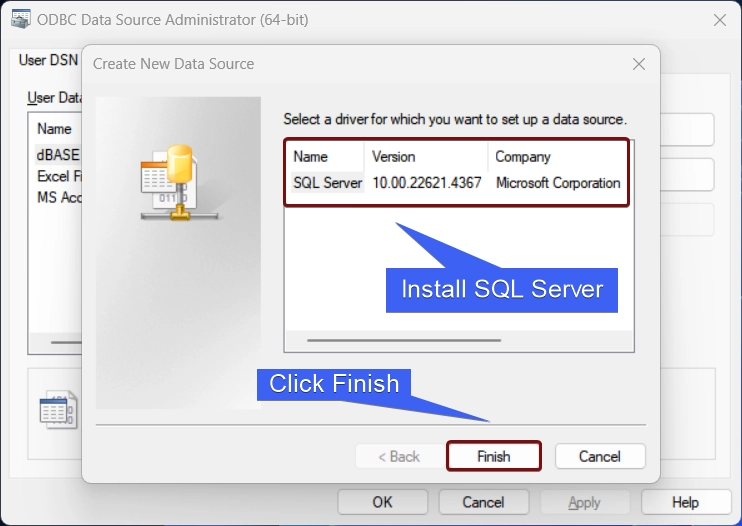
- Let’s add an ODBC SQL Server.
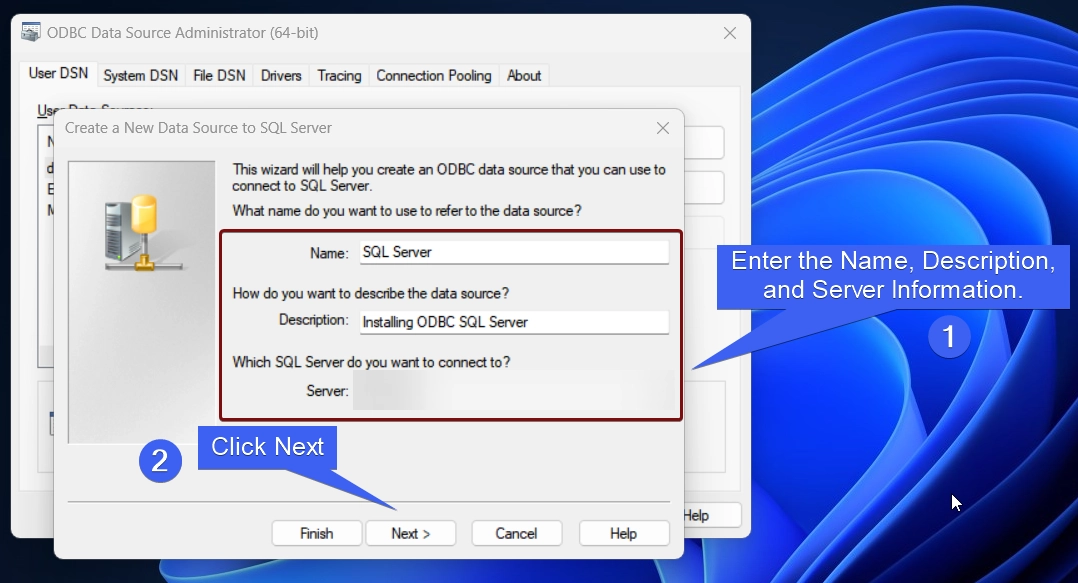
- Enter all the information here. Server Name, Description, Location of the SQL Server, Click Next.
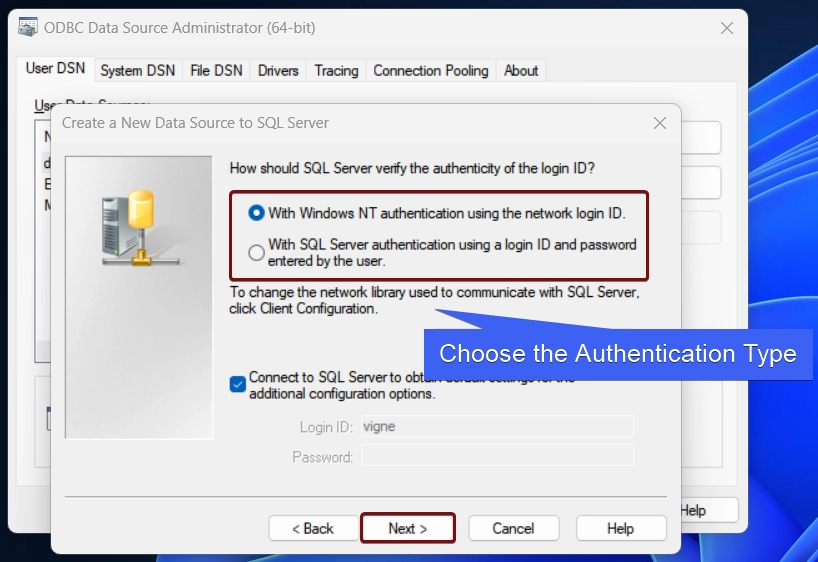
- In the next step, you choose the type of authentication. Whether you want to use NT Authentication or SQL Server Authentication, you can choose it here. Click Next to continue.
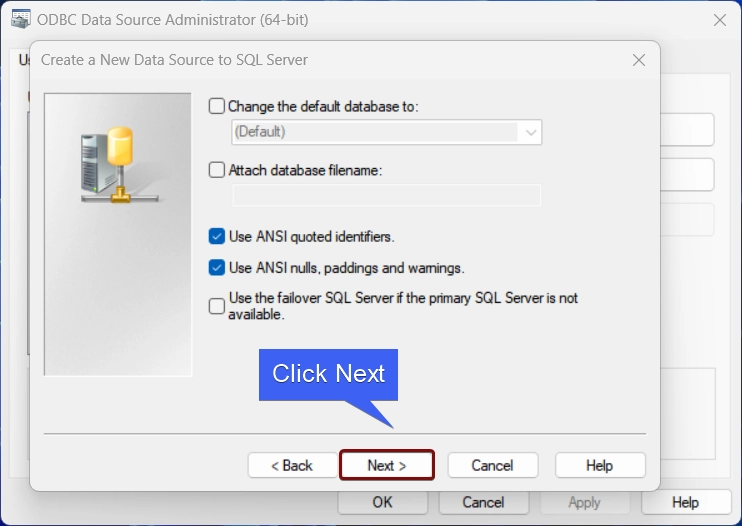
- Here, we can configure several options such as changing the Default database, ANSI Quoted Identifiers, ANSI Pulls, Paddings, Warnings, and more. Click Next.
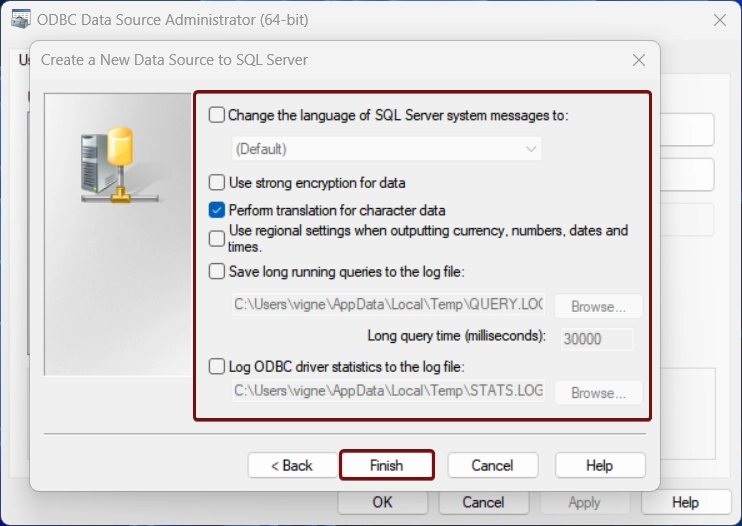
- You can configure more options, such as Use Strong Encryption for Data, Save Logs, ODBC Logging, and more. Finally, click Finish to create the new ODBC SQL Server.
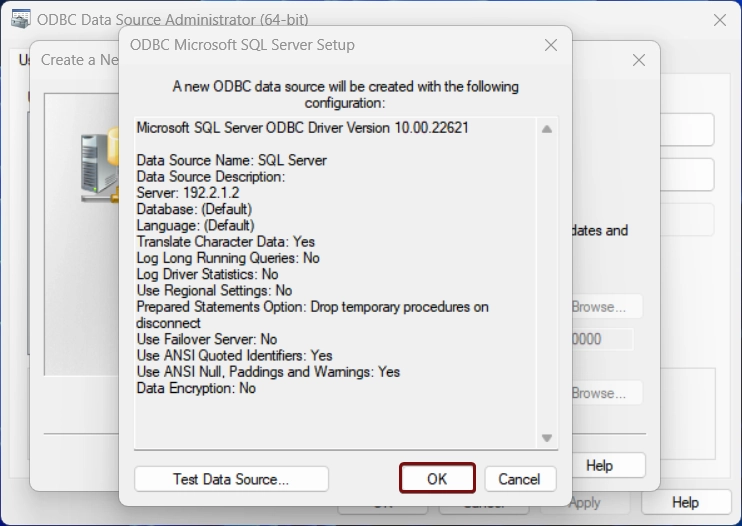
- ODBC SQL Driver is created now. The system will show the Driver Summary. Click OK to complete the process.
Let’s move to the next Tab.
System DSN
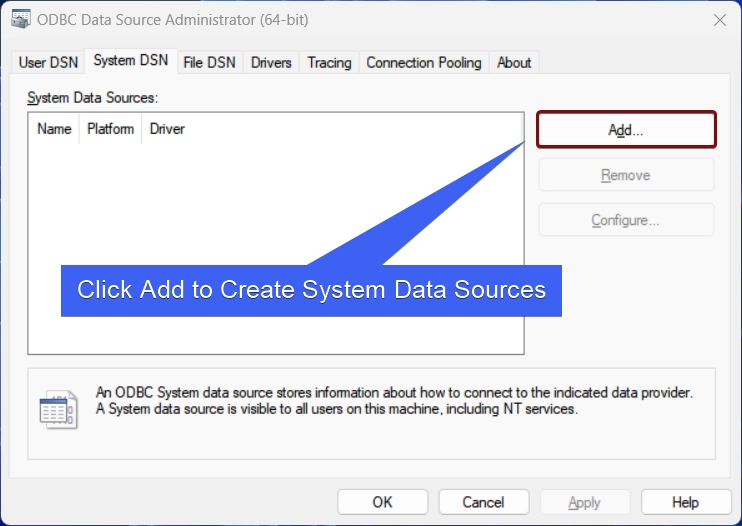
In System DSN, you can find information about System Data Sources. You can also add System DSN ODBC Drivers by clicking on the Add Button.
File DSN
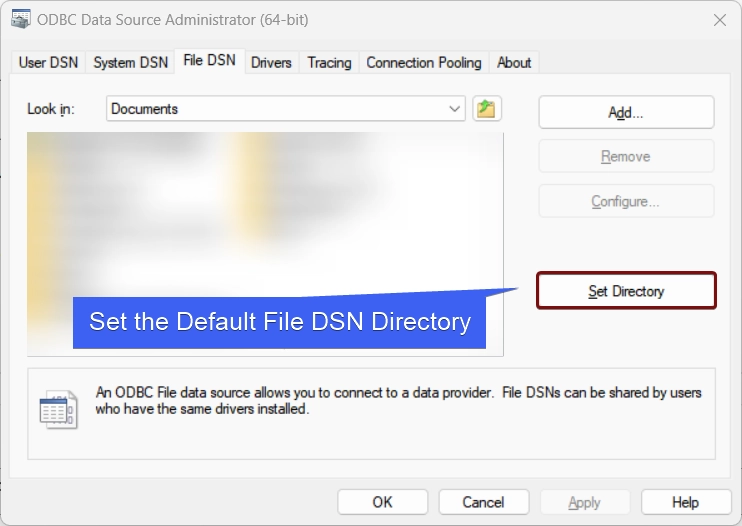
The next tab in the ODBC Data Source Administrator is File DSN. An ODBC File Data Source allows you to connect to a Data Provider. These files’ data source name can be shared by users who have the same drivers installed. Set Directory will allow users to set the default file DSN Directory.
Drivers
In this section, you will get information about the ODBC-Enabled Programs to get information from ODBC Data Sources. For this article, I have installed SQL Server in the User DSN, which we can find it here in the Drivers Tab.

Tracing
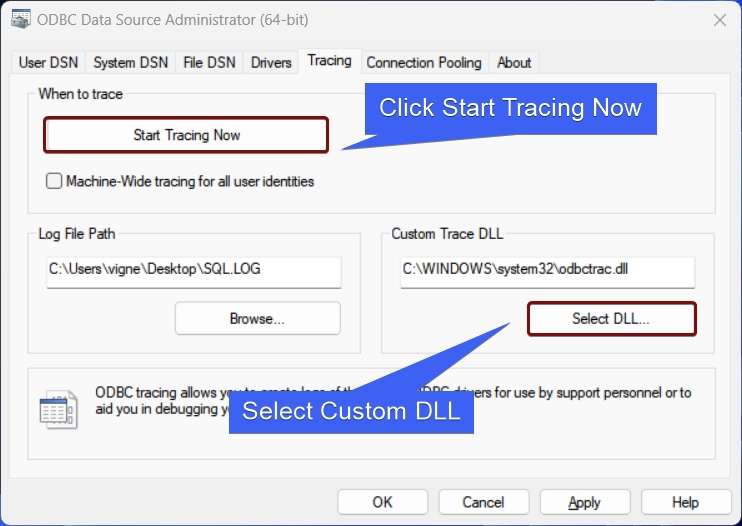
ODBC Tracing allows users to create logs of the calls to ODBC Drivers for use by support personnel or to aid you in debugging your applications. Click Start Tracing Now to start the tracing process. If you want to do the Tracing for All User Identities, enable the checkbox “Machine-wide tracing for all user identities”. By default, the system uses the custom trace Dynamic Link Library as odbctrac.dll. If you want to choose a different DLL, then you can click on Select DLL and choose accordingly.
Connection Pooling
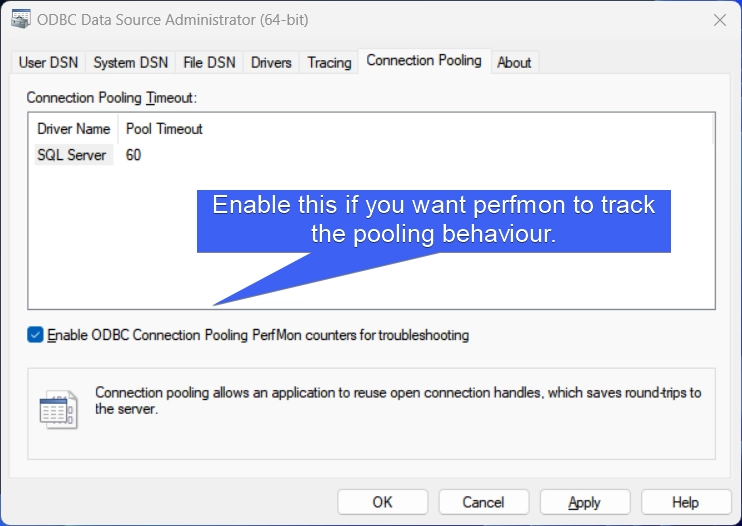
Connection Pooling allows an application to reuse open connection handles, which will help save round-trips to the server. If you want Performance Monitor to track and analyze ODBC connection pooling behaviour, then you can enable the checkbox “Enable ODBC Connection Pooling PerfMon counters for troubleshooting“.
About Tab
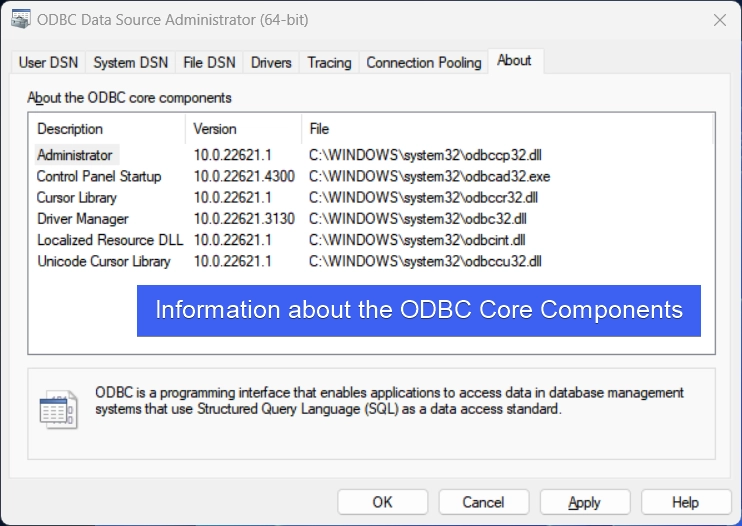
Finally, the About Tab of the ODBC Data Sources Administrator. Here you can find information on the ODBC Core Components such as Administrator Version, Control Panel Startup Version, Cursor Library, Driver Manager, Localised Resouce DLL, Unicode Cursor Library, and their corresponding DLL file locations.
Frequently Asked Questions
Why are there two versions of ODBC (32-bit and 64-bit)?
It is because you must match the ODBC tool to the Application, not the Operating System. If you are using a 32-bit version of Microsoft Office, you must use the ODBC Data Source Administrator (32-bit) to set up your connection, even though your Windows 11 is 64-bit. If you use the wrong one, your application simply won’t “see” the connection you just built.
Does Windows 11 come with drivers pre-installed?
Windows 11 includes several legacy drivers by default (like those for SQL Server, Access/MS Query, and Oracle), but they are often outdated. For modern SQL Server features, you usually need to download the Microsoft OLE DB Driver or the ODBC Driver for SQL Server separately.
What is “Tracing” and should I leave it on?
The Tracing tab in the ODBC Administrator allows you to log every call made between the application and the driver.
Can I manage ODBC connections via PowerShell or the command line?
If you are setting up multiple Windows 11 workstations, you don’t have to use the GUI. You can use the Get-OdbcDsn and Add-OdbcDsn cmdlets. For example, Get-OdbcDsn -Name "MyDatabase" will pull the configuration details directly into your terminal.
Take Away:
ODBC on Windows 11 is a crucial interface that allows seamless communication between applications and databases, and features like Custom Trace DLL, Connection Pooling, Performance Monitoring, etc., will enhance troubleshooting and optimization. Open Database Connectivity can be a reliable and essential tool for Database Connectivity on Windows 11.
Have Queries?
If you have any queries, kindly let us know in the comments section. For more interesting articles, stay tuned to Winsides.com. Happy Computing! Peace Out!








Community
Comments (0)