

.NET 3.5 Framework: In the dynamic landscape of software development, compatibility with legacy frameworks remains paramount. Enter .NET Framework 3.5, a foundational component that facilitates executing applications built on earlier versions of the .NET Framework. While Windows 11 emphasizes modernity, it recognizes the importance of legacy support. In this guide, we’ll explore the seamless process of enabling .NET Framework 3.5 in Windows 11, ensuring compatibility with a wide range of applications and bolstering your system’s versatility. Enabling .NET Framework 3.5 in Windows 11 is a straightforward procedure, designed to accommodate both novice users and seasoned professionals.
Table of contents
Enable DOT NET 3.5 Framework in Windows 11- Simple steps
Follow these simple steps to unlock legacy compatibility and harness the power of .NET Framework 3.5
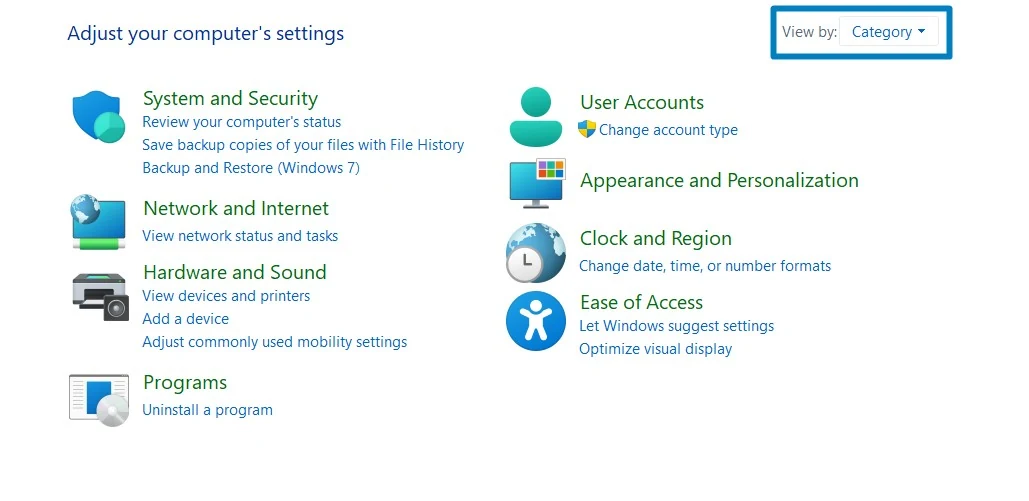
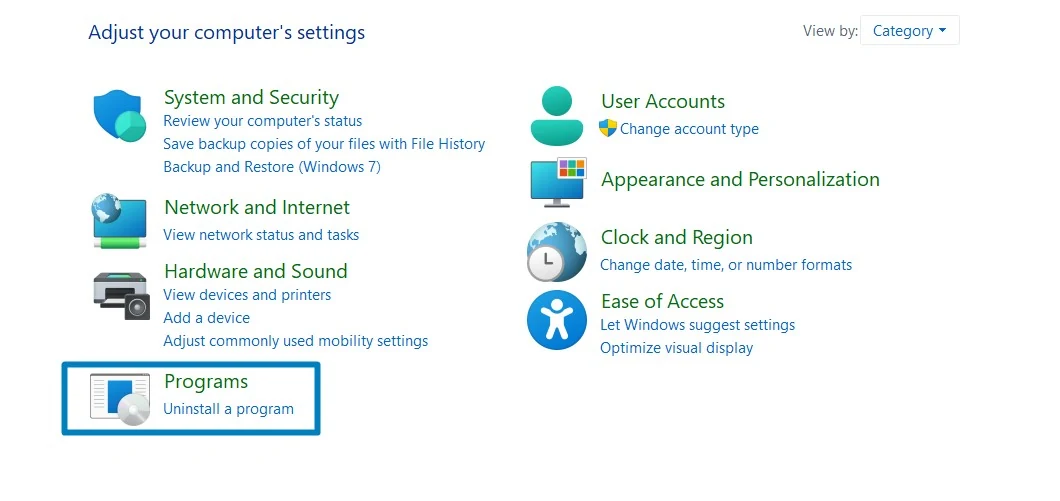
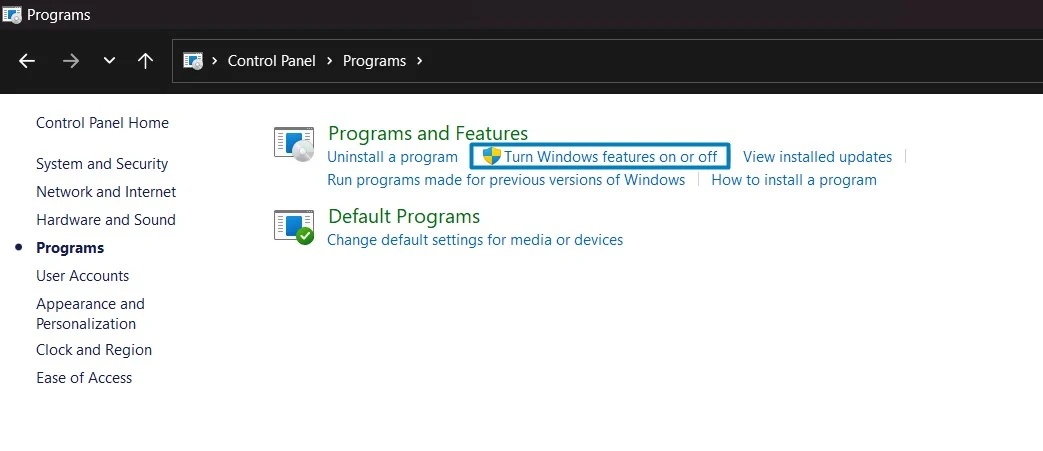
- Click on the Start Menu and open the Control Panel.
- Switch the Control Panel view to Category.
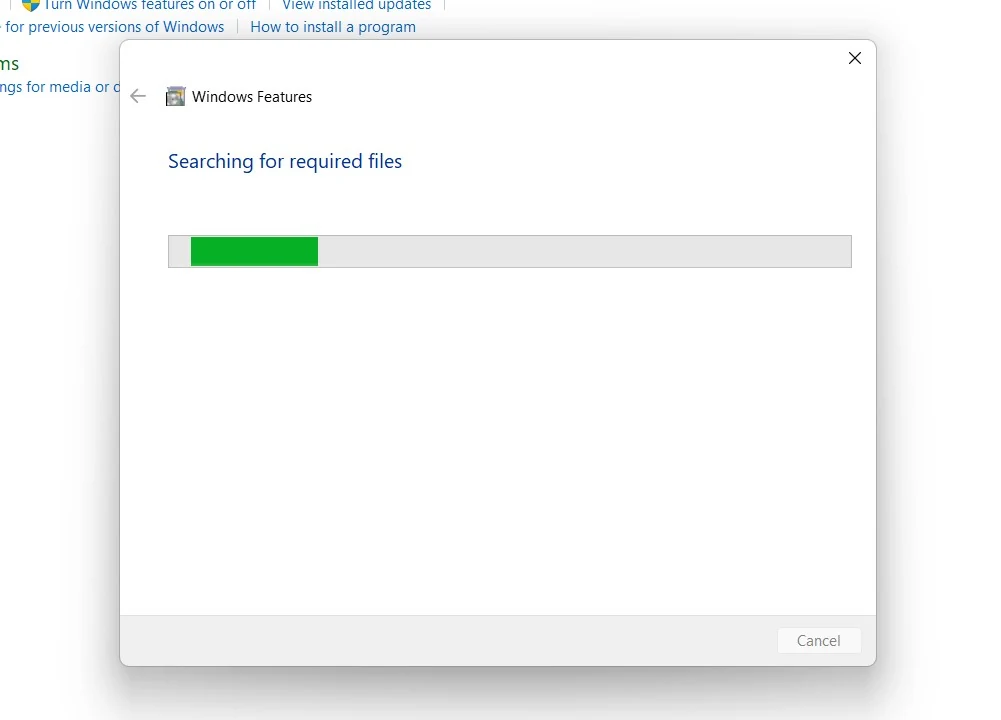
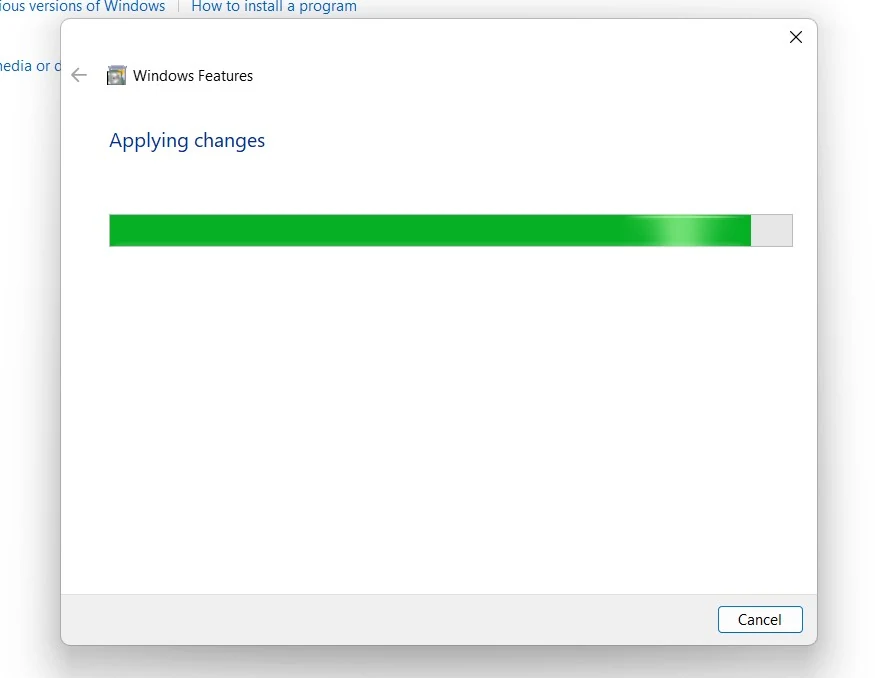
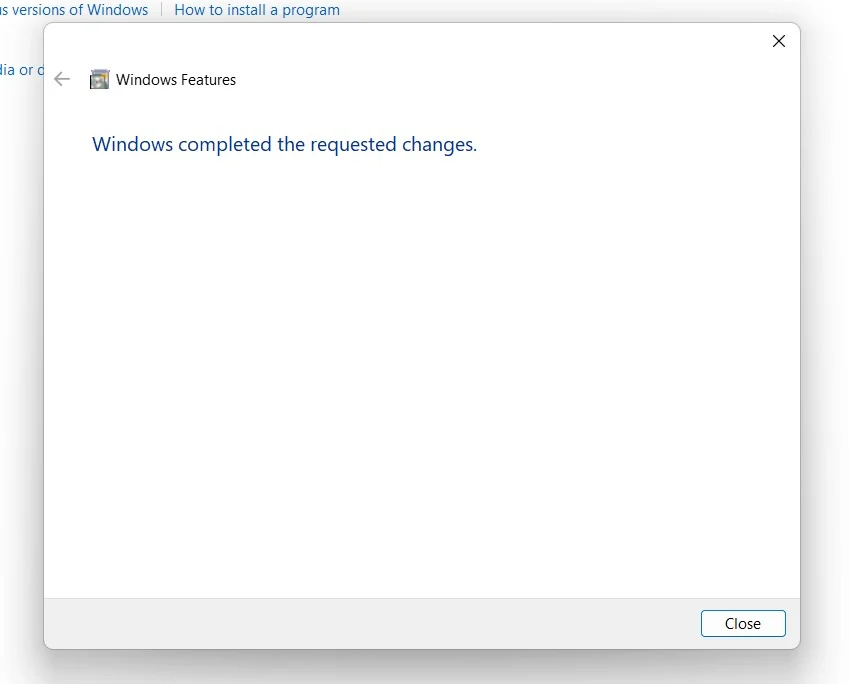
An intriguing fact about .NET Framework 3.5 is that it introduced several innovative features and enhancements that significantly influenced software development practices. One notable addition was the integration of Language Integrated Query (LINQ), a powerful query language that allows developers to interact with data sources directly within their .NET code. LINQ revolutionized the way developers access and manipulate data, simplifying complex data querying tasks and improving code readability and maintainability. Additionally, .NET Framework 3.5 introduced Windows Communication Foundation (WCF) enhancements, making it easier to develop and manage distributed applications by providing a unified programming model for building service-oriented architectures.
Video Walkthrough to Enable .NET Framework 3.5 on Windows 11
Takeaway
Enabling .NET Framework 3.5 in Windows 11 is crucial in maintaining compatibility with a wide range of applications and frameworks. By following the steps outlined in this guide, users can seamlessly integrate .NET Framework 3.5 into their Windows 11 environment, ensuring the smooth operation of legacy software. As technology evolves, it’s essential to recognize past innovations’ significance and continued relevance. Windows 11’s support for .NET Framework 3.5 highlights the importance of preserving compatibility with established technologies while embracing new advancements.
Frequently Asked Questions
Why do I need .NET Framework 3.5 if Windows 11 already has newer versions?
While Windows 11 comes pre-installed with newer frameworks (like .NET Framework 4.8), those newer versions are not always fully backward compatible with older software. Many older applications, custom business tools, and legacy PC games were built specifically for .NET 3.5 and will refuse to launch without it.
Is it safe to keep .NET Framework 3.5 enabled?
Yes, it is generally safe. While the framework is very old, Microsoft still maintains it with security patches through Windows Update. However, as a security best practice, you should avoid installing it unless an application you actively use specifically requests it.
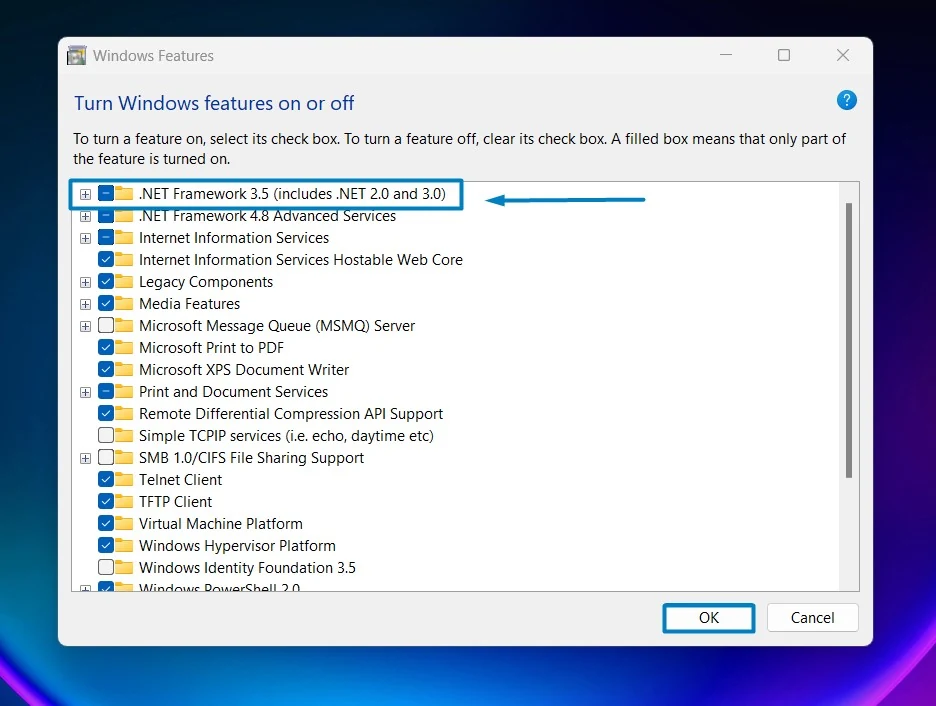
Why does the Windows Feature box show “.NET 3.5 (includes .NET 2.0 and 3.0)”? Do I need to install those separately?
No, you do not need to hunt down standalone installers for .NET 2.0 or 3.0. .NET Framework 3.5 is what Microsoft calls a “cumulative” release. It natively carries the architecture and libraries required to run software designed for versions 2.0 and 3.0. Checking that single box covers all three legacy versions at once.
I get error 0x80070422 when trying to install .NET 3.5. How do I fix this?
This specific error means that a required background service is disabled on your machine. Go to Services.msc and locate Windows Update, and change its start type from manual to automatic, and click Apply. This will fix the error and enable .NET 3.5 Framework.
Have Queries?
If you have any queries, kindly let us know in the comments. For more interesting tech articles, stay tuned to Winsides.com. Happy Coding! Peace out!







Community
Comments (0)