How to Enable Process Model for WAS on Windows 11?

Process Model for WAS: It enables the core Windows service that creates and manages worker processes for activated applications. It provides the infrastructure for starting, stopping, recycling, and monitoring application processes, including creating w3wp.exe instances used by IIS application pools. In this article, let’s check out how to enable Process Model for WAS on Windows 11 with clearly explained steps. Let’s get started.
Different Methods to Enable Process Model for WAS on Windows 11
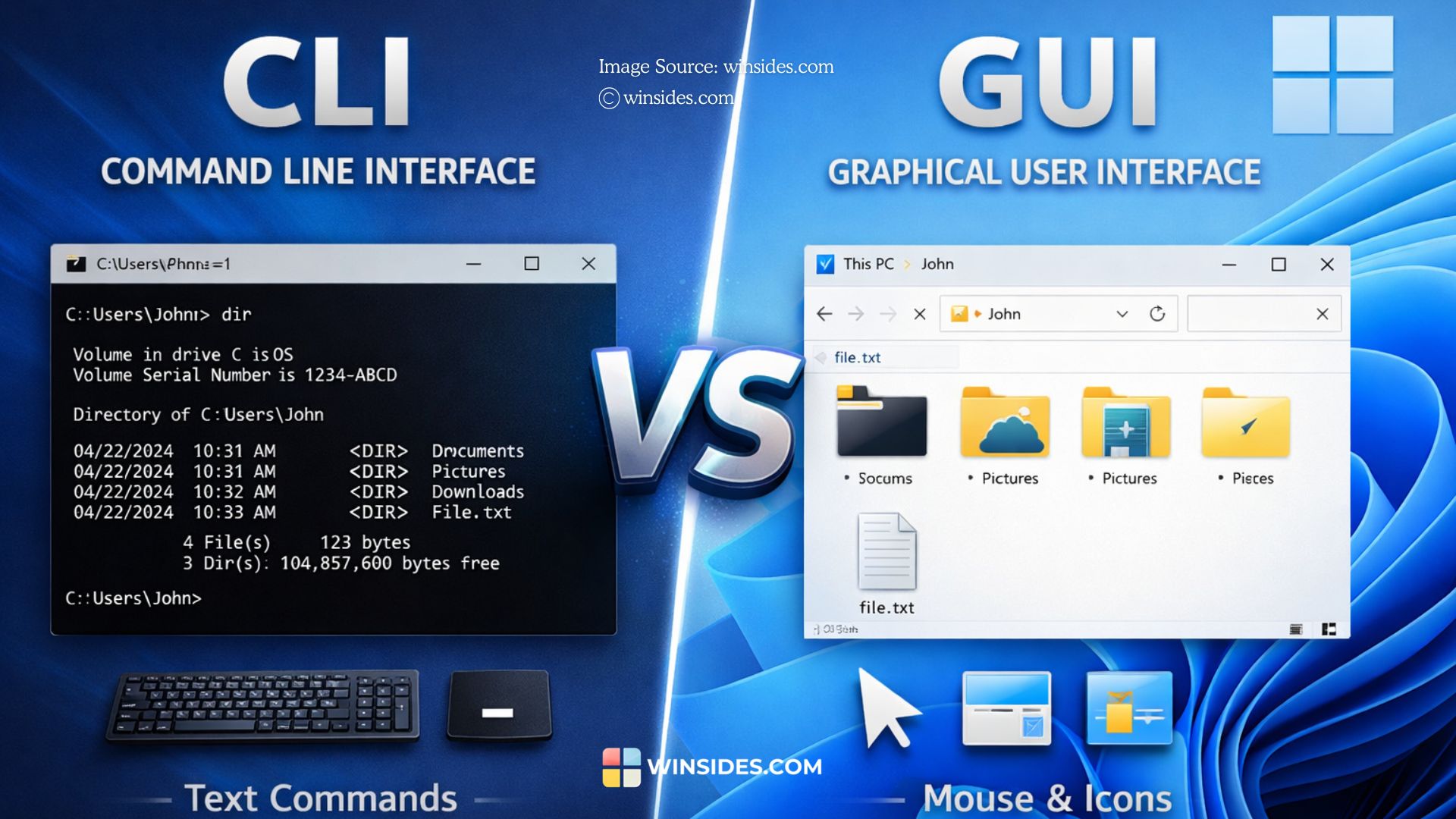
- GUI Method- using Windows Features Dialog box.
- Command Line Interfaces like Command Prompt and Windows PowerShell.
How to Turn on Process Model for WAS using Windows Features? – GUI Method
Disclaimer: Enabling Process Model for WAS requires administrative privileges and may require a system restart. This feature enables application pool and worker process infrastructure used for hosting web or service applications. It should only be enabled if required, as it may introduce additional services, dependencies, and potential security exposure. Ensure this change complies with your organization’s security and configuration policies before proceeding.
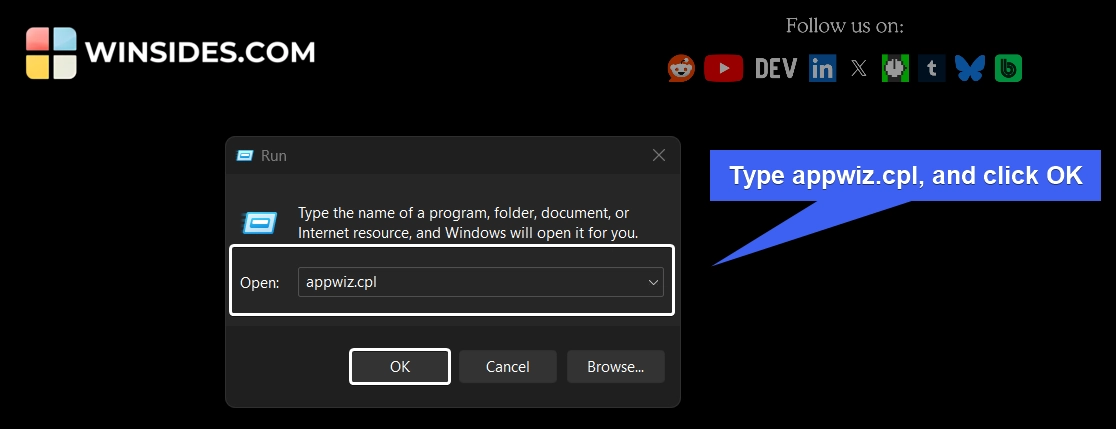
- There are several ways to access Windows Optional Features on Windows 11. Here, we will use the Run Command and access it via
appwiz.cpl.
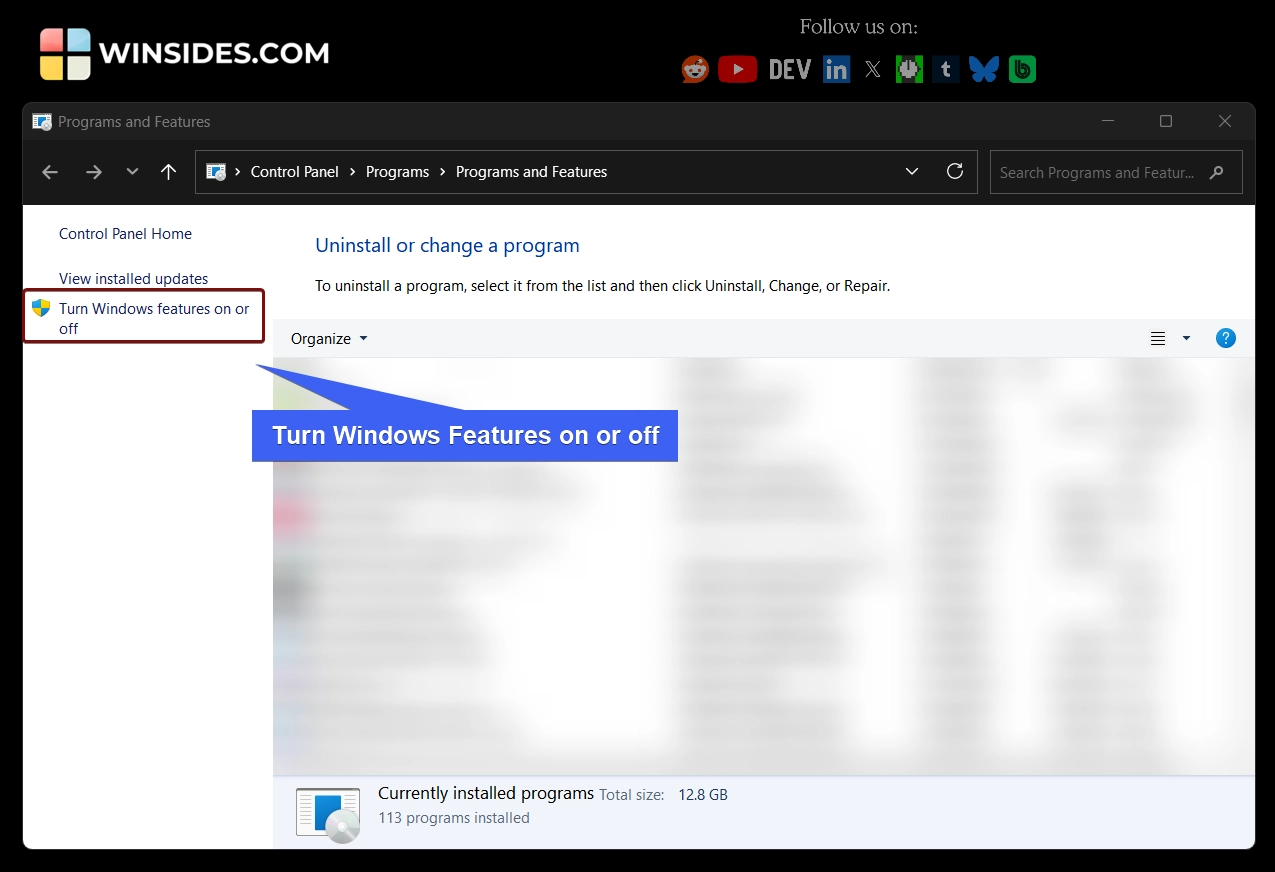
- From the left pane, click on Turn Windows Features on or off.
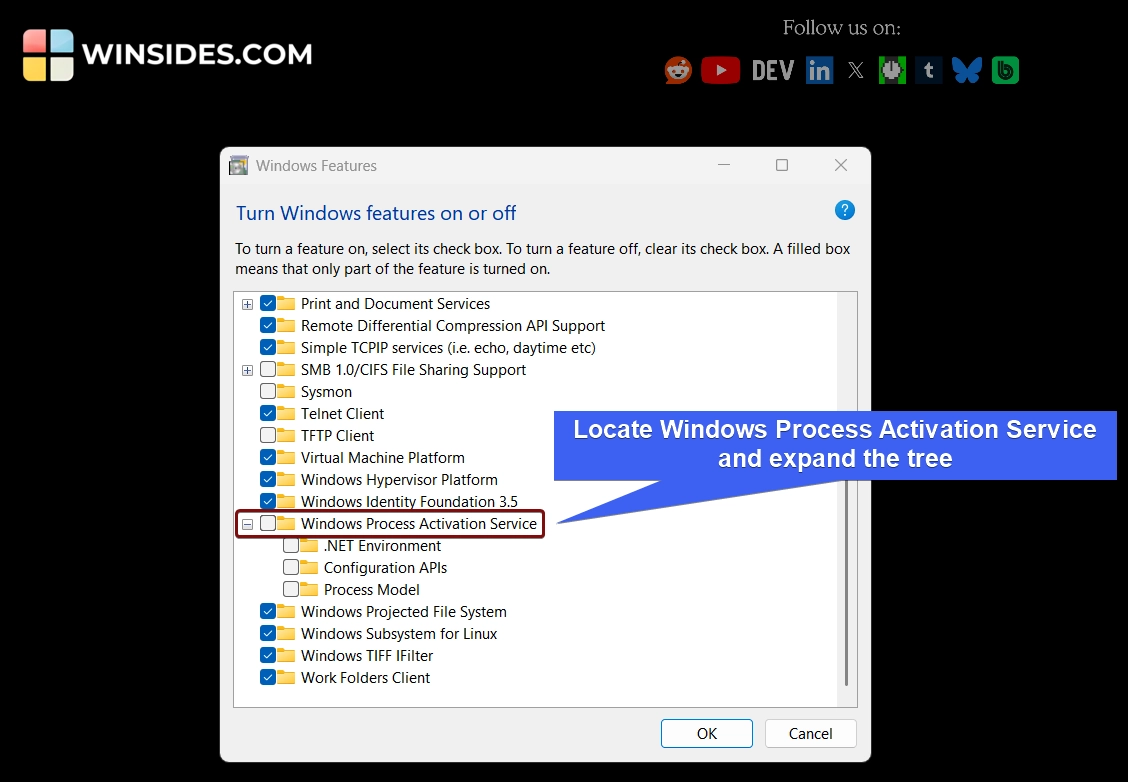
- The Windows Features dialog will open now. From the list, locate Windows Process Activation Service and expand the tree.
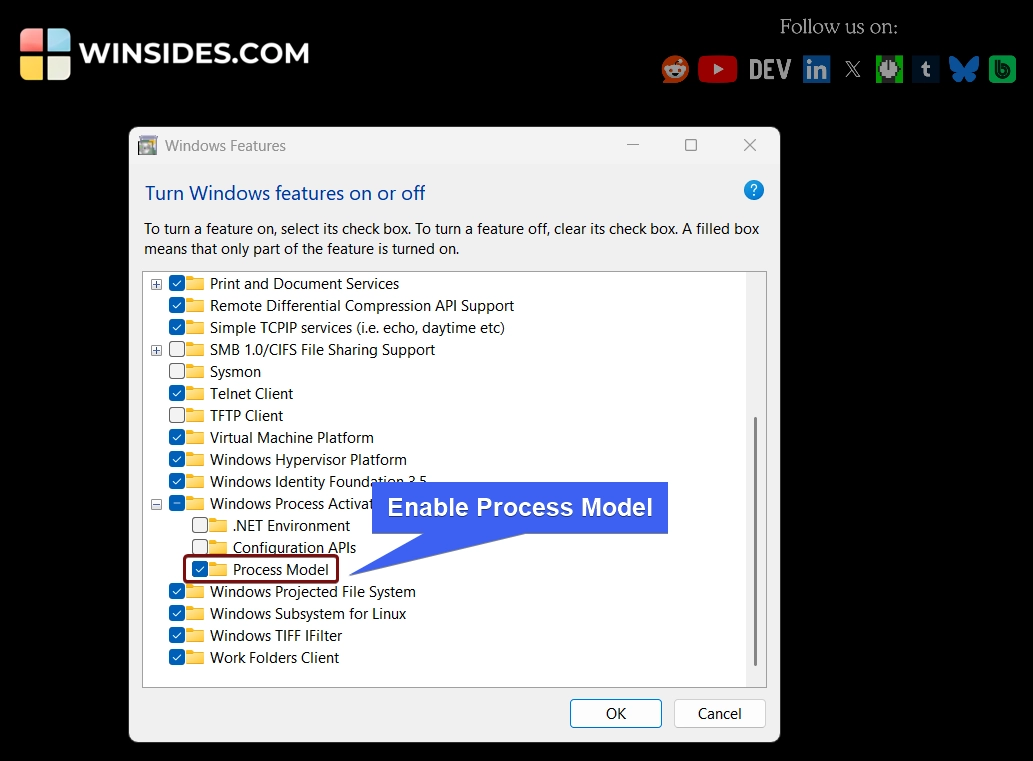
- In this section, you will see the “Process Model” feature. Click on the checkbox next to it to enable it. Finally, click OK.
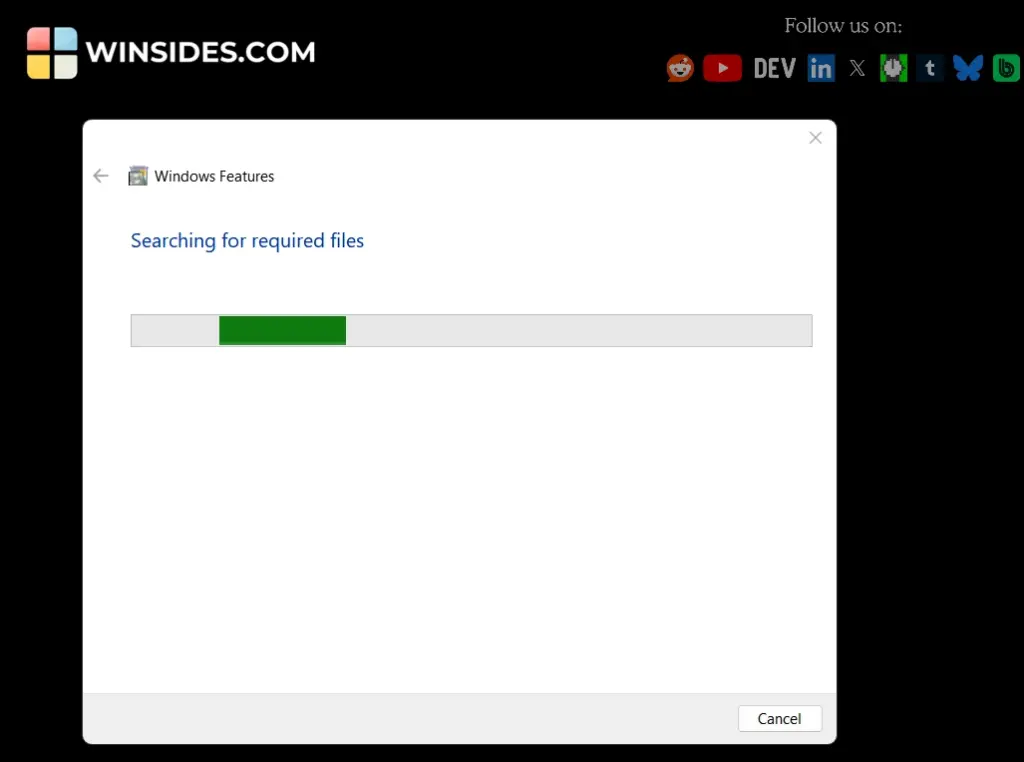
- Windows will search for the required files. Kindly be patient.
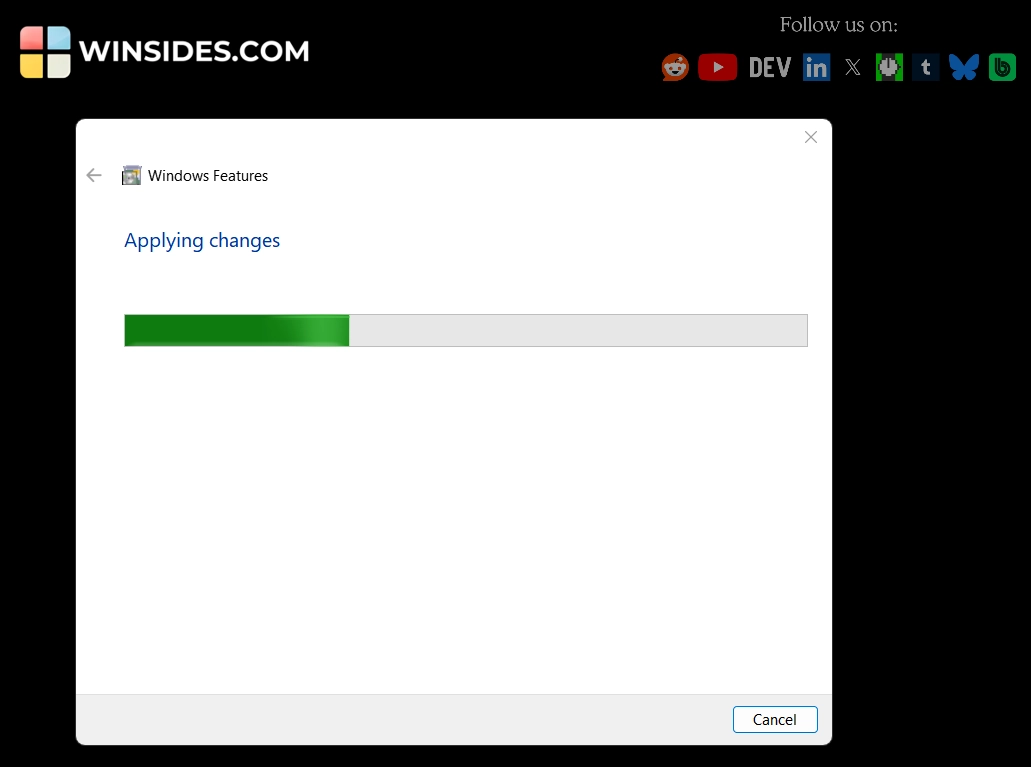
- The system will then apply the necessary changes.
- Finally, a restart is essential. Kindly save your work and restart your PC.
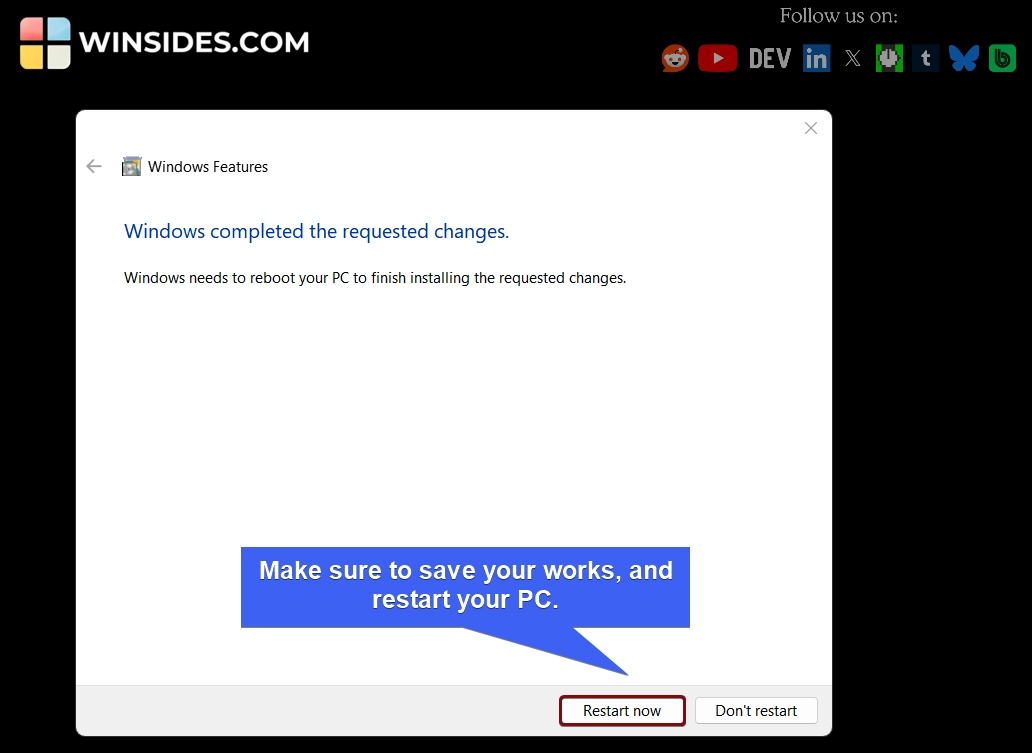
- That’s it. Process Model for WAS is now enabled on your Windows 11 PC.
- You can follow the same steps to disable the Process Model for WAS on Windows 11.
Turn on Process Model for WAS using CMD and Windows PowerShell – CLI Method
- To enable this feature using Command Prompt or Windows PowerShell, make sure to run the terminal as an administrator.
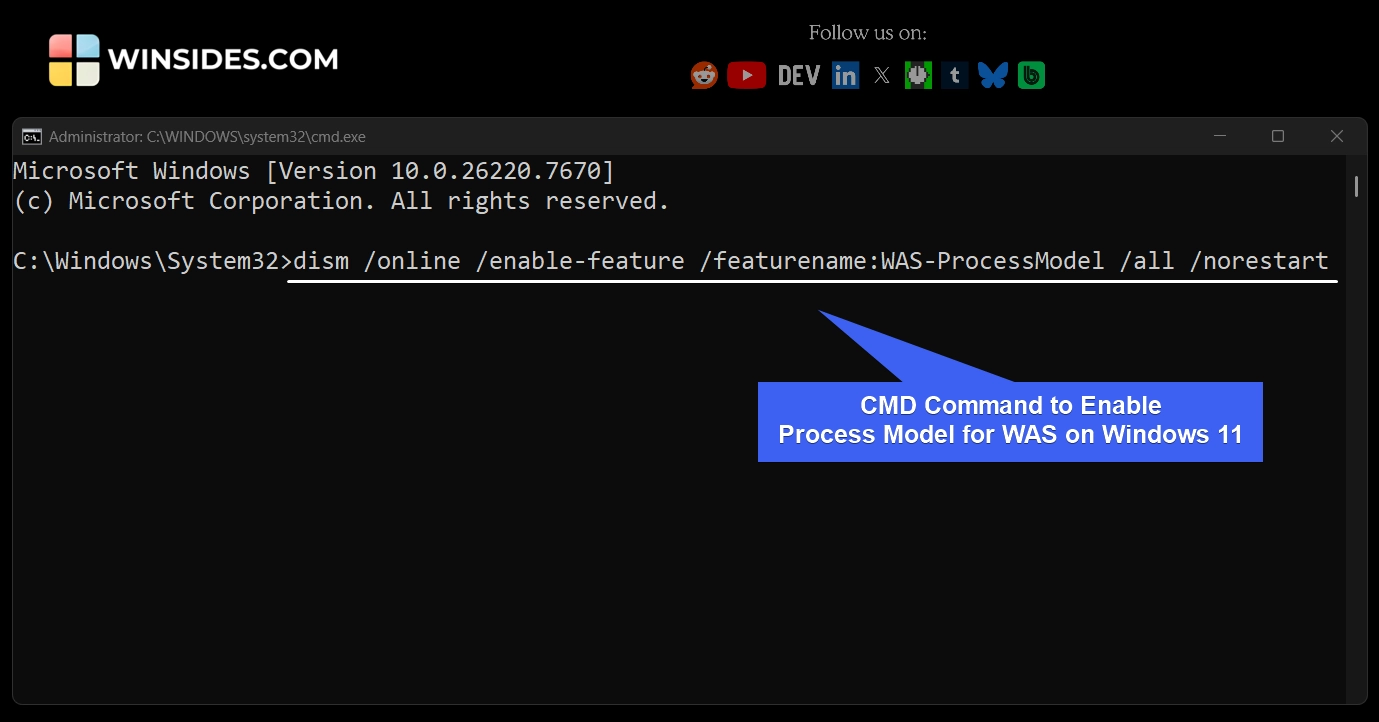
- If you are using Command Prompt, execute the following command in the Command Prompt.
dism /online /enable-feature /featurename:WAS-ProcessModel /all /norestart
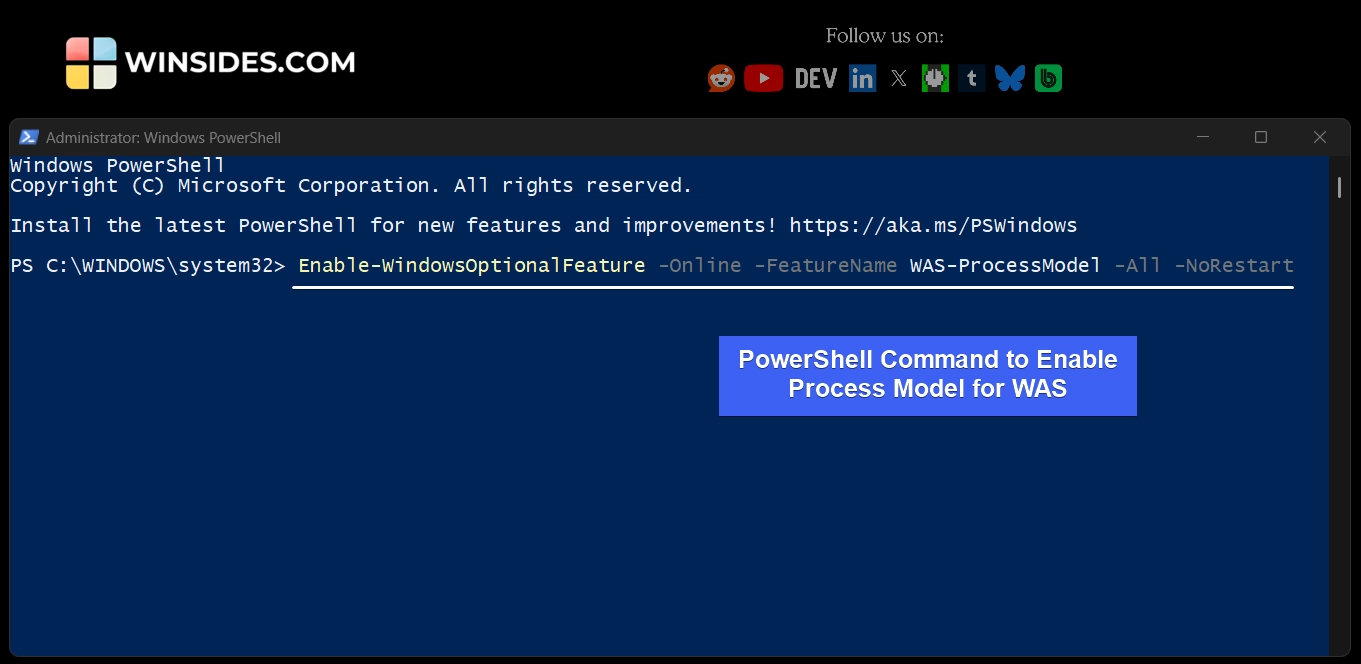
- If you are using Windows PowerShell, kindly execute the following command on Windows PowerShell.
Enable-WindowsOptionalFeature -Online -FeatureName WAS-ProcessModel -All -NoRestart
Take Away
Process Model for WAS is essential when using IIS, ASP.NET applications, WCF services, or any activation-based hosting environment. Without the Process Model component, application pools cannot function, and dynamic workloads will not run. Because this feature introduces background services and hosting capabilities, it should only be enabled when required. Administrative privileges are necessary, and a system restart may be required for full activation.
Have Queries?
We hope you are satisfied with our article on How to Enable Process Model for Windows Process Activation on Windows 11, and if you have any queries, kindly let us know in the comments. For more interesting articles, stay tuned to Winsides.com. Happy Computing! Peace out!