How to Show Battery Percentage on Windows 11?
Easy Way to Show Battery Percentage on Windows 11 Laptops

Show Battery Percentage on Windows 11: If you’re using a Windows 11 desktop computer, battery status isn’t something you need to think about, since your system is always connected to a power source. However, if you’re using a Windows 11 laptop like my newly upgraded Acer Laptop, keeping an eye on your battery percentage becomes very important. It helps you better understand how much power you have left, manage your usage efficiently, and avoid unexpected shutdowns, especially when you’re traveling, working remotely, or away from a charger.
In this quick and informative tutorial, we’ll walk through how to show the battery percentage on Windows 11 using simple, clear, and easy-to-follow steps.
Why Battery Percentage Tracking can be crucial for Windows 11 Laptops?
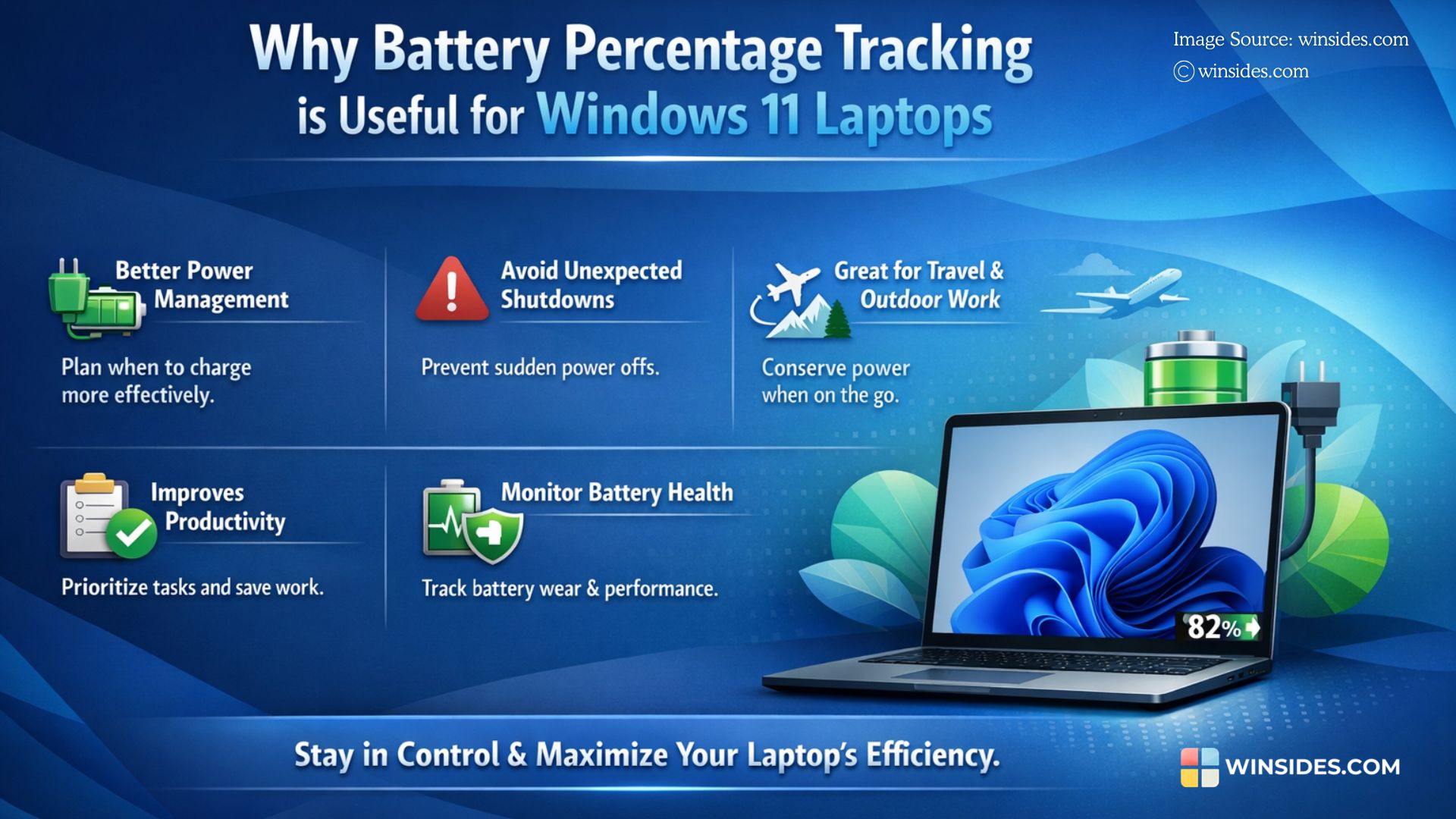
By enabling the battery percentage display, you can monitor your device’s power consumption more accurately and make informed decisions, such as lowering brightness, closing unused apps, or turning on battery saver mode to extend battery life. This small feature can make a big difference in your overall user experience and productivity. This paves the way for better power management, avoiding unexpected shutdowns, smarter use of power-saving features, improving battery health, and more.
Quick Way to Show Battery Percentage on Windows 11
It is really easy to show battery percentage on Windows 11. Kindly follow the steps below.
Heads up:
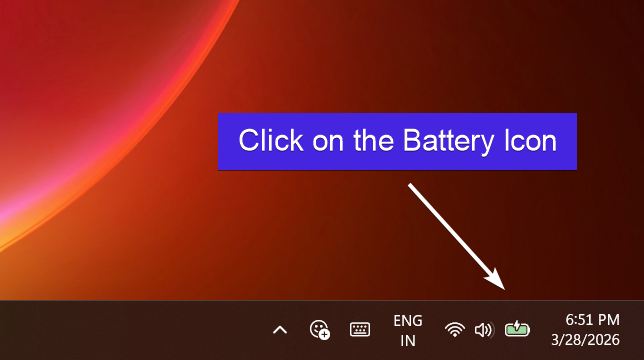
- A simple click on the battery icon in the system tray will display the Quick Settings panel, showing the current battery percentage along with other essential controls.
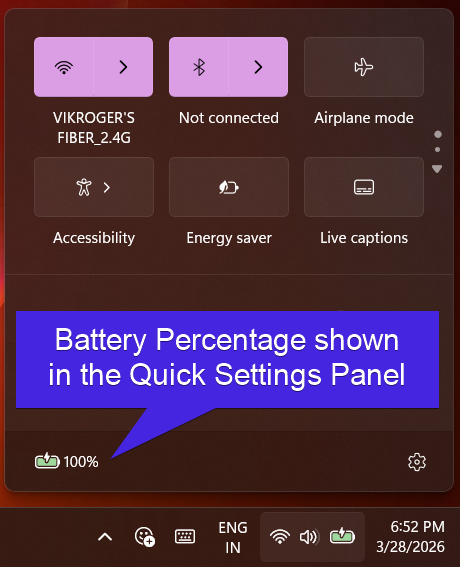
- While this method works well for a glance, many users prefer having the battery percentage visible at all times for convenience. If you like to keep an eye on your battery level without extra clicks, you can enable a more permanent solution by following a few simple steps.
- Go to the Windows Settings using the keyboard shortcut WinKey + I.
- In the Windows Settings, click on System from the left pane.

- Open Power & battery.
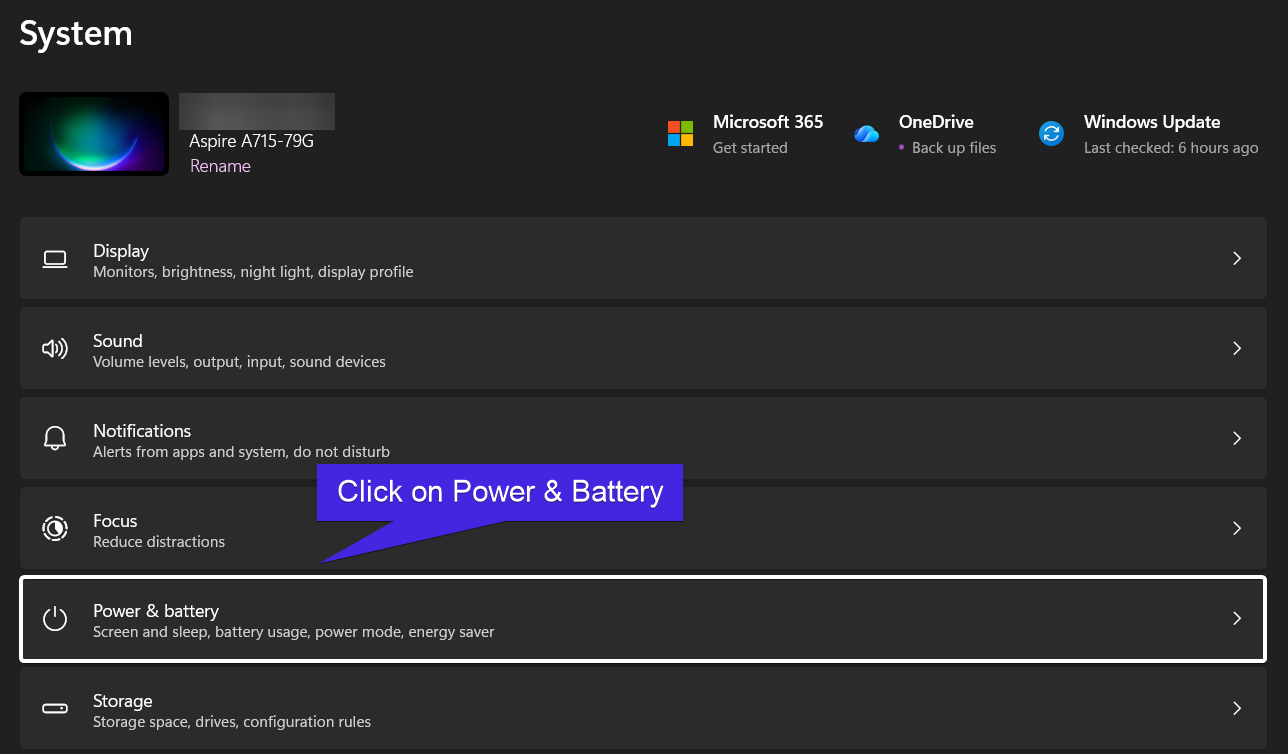
- Here, you can find the option “Battery Percentage“. This option will display the battery on the taskbar.
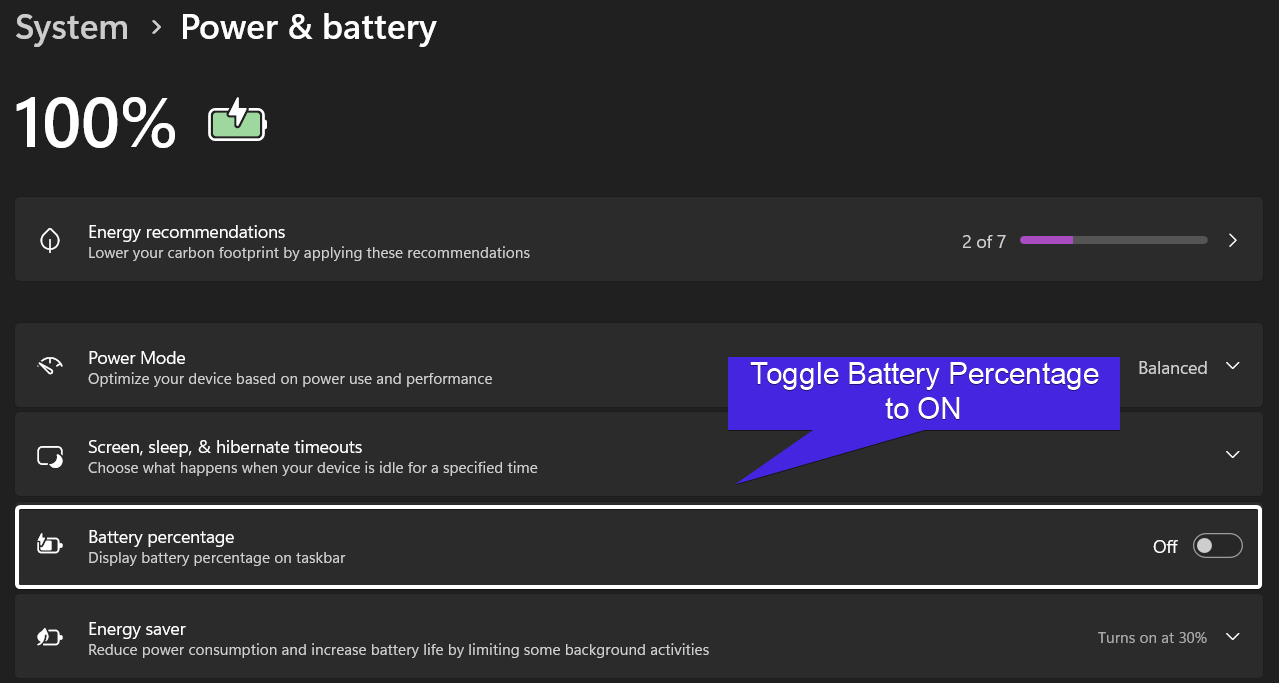
- Toggle Battery Percentage to ON.
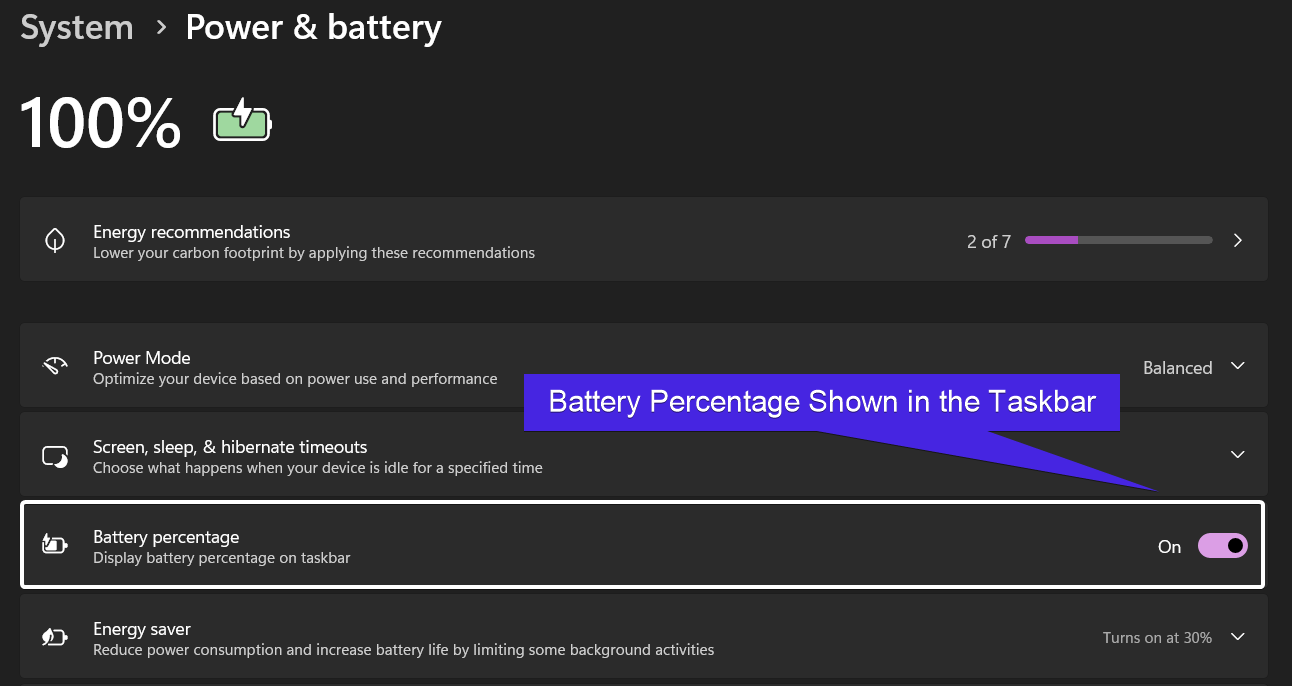
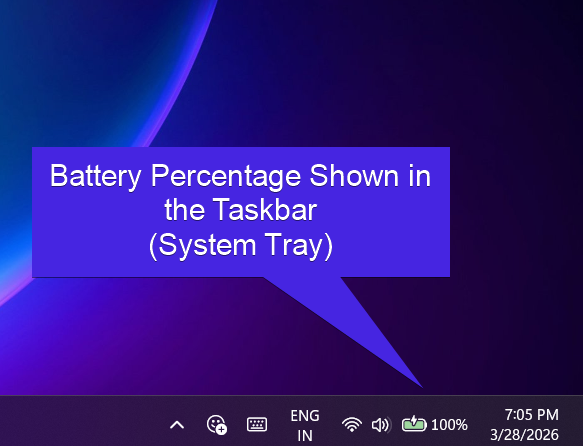
- This will show Battery Percentage permanently on the taskbar (System Tray). That’s it.
Take Away
The above article provides detailed information on how to Show Battery Percentage on Windows 11 Laptops. We hope you are satisfied with our article, and if you have any queries, kindly let us know in the comments.
For more interesting articles, stay tuned to Winsides.com. Happy Computing! Peace out!
We combine expert insights with user-friendly guidance. We thoroughly research and test everything to give you reliable and simple to understand tech guides. Please take a look at our publishing process to understand why you can trust Winsides.