

Appwiz.cpl is the shortcut to the Programs and Features section in the Control Panel. It allows you to uninstall or modify programs, manage Windows features, and repair software. However, performing some actions via appwiz.cpl may require permissions to execute, especially when you are trying to make system or os wise changes. Running Appwiz.cpl with elevated rights ensures that you can perform advanced operations without encountering permission errors. In this tutorial, I’ll explain multiple methods to run Appwiz.cpl as administrator with elevated rights on Windows 11.
Table of contents
When to use Appwiz.cpl as Administrator on Windows 11?
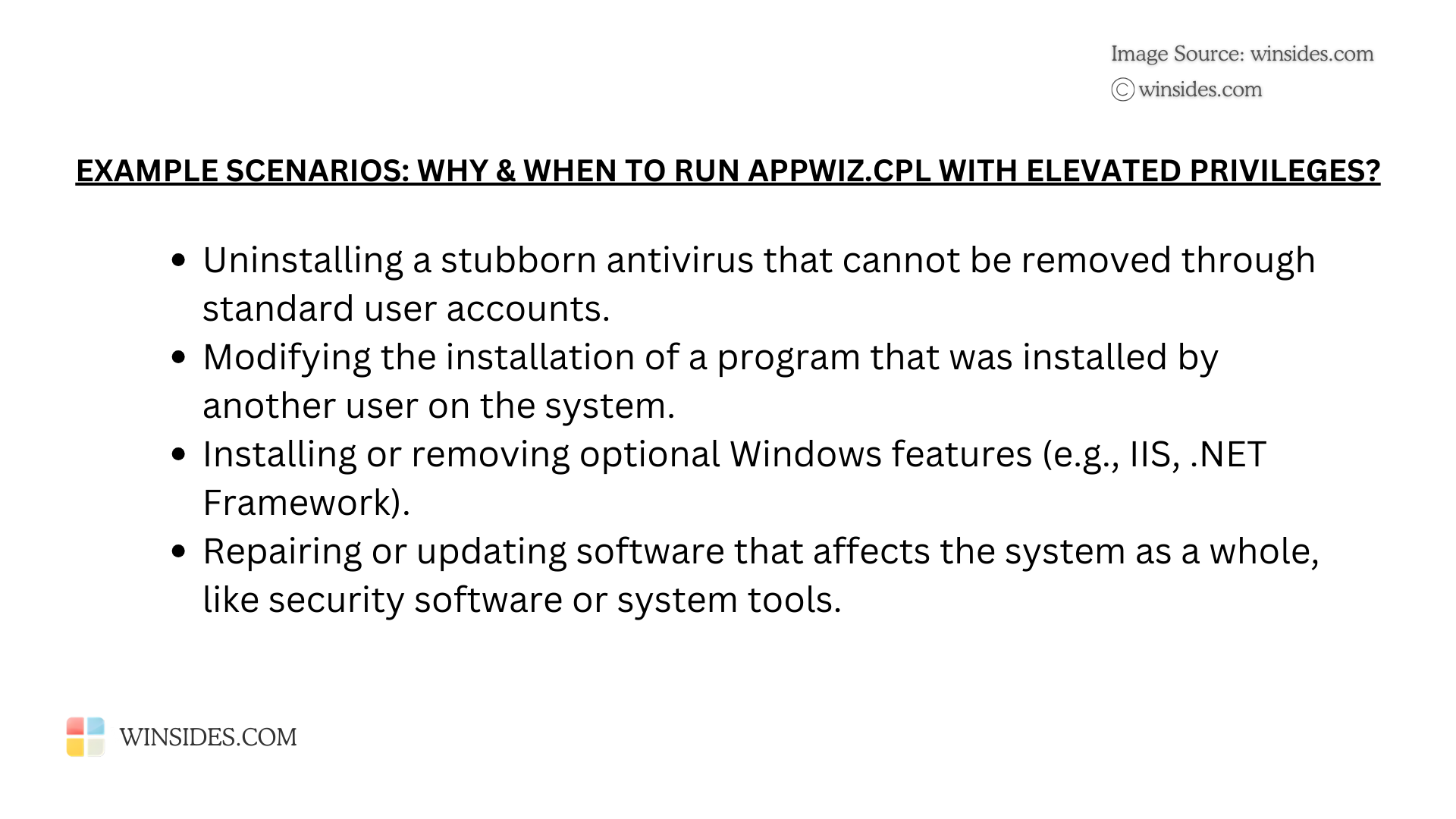
Running Appwiz.cpl as an administrator is useful when you need to perform tasks that require elevated permissions to manage system-level programs, uninstall certain applications, or modify settings that affect the entire system, as this command is related to the Programs and Features. The functionalities include uninstalling system or protected applications, modifying programs for all users, managing Windows Features, Advanced Troubleshooting, etc.
Be Cautious while Running appwiz.cpl as Admin
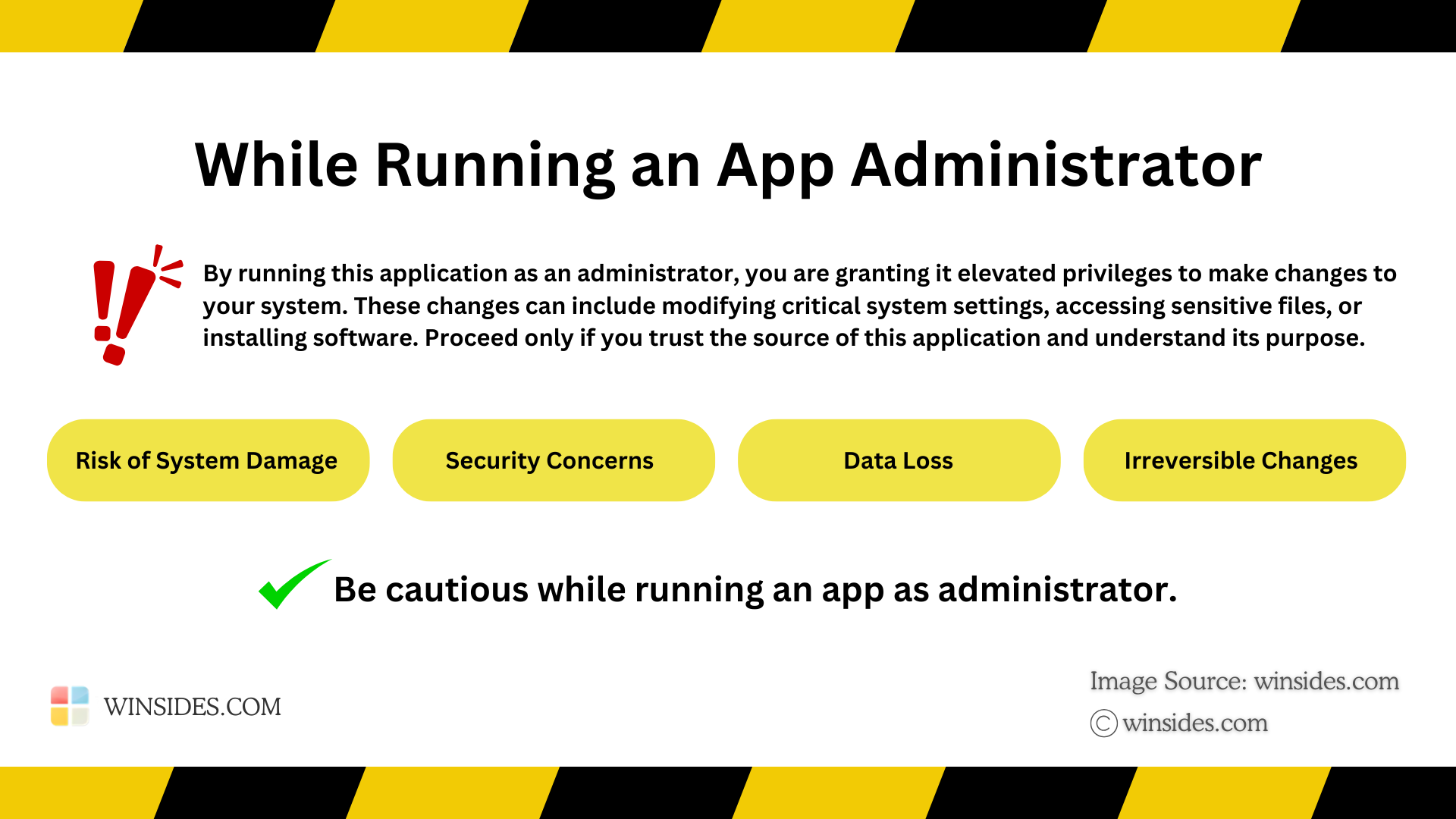
While opening appwiz.cpl as Administrator on Windows 11 grants it elevated privileges, which can potentially bypass system security restrictions. Please proceed with care and only run trusted applications in this mode. At Winsides.com, we advise our users to use Administrator privileges only when necessary to perform tasks requiring elevated rights. Misuse of administrative privileges may lead to System Vulnerabilities, Data Loss, System Instability, Security Concerns, Irreversible Changes, etc.
Run Appwiz.cpl as Administrator using different methods
- Open appwiz.cpl control panel item as Administrator using the Start menu.
- Run appwiz.cpl as Admin using the Run Command.
- How to run appwiz.cpl with Elevated Privileges using Task Manager.
- Always run appwiz.cpl with Administrator Privileges using a dedicated shortcut.
Method 1: Open Appwiz.cpl as Administrator using the Start menu
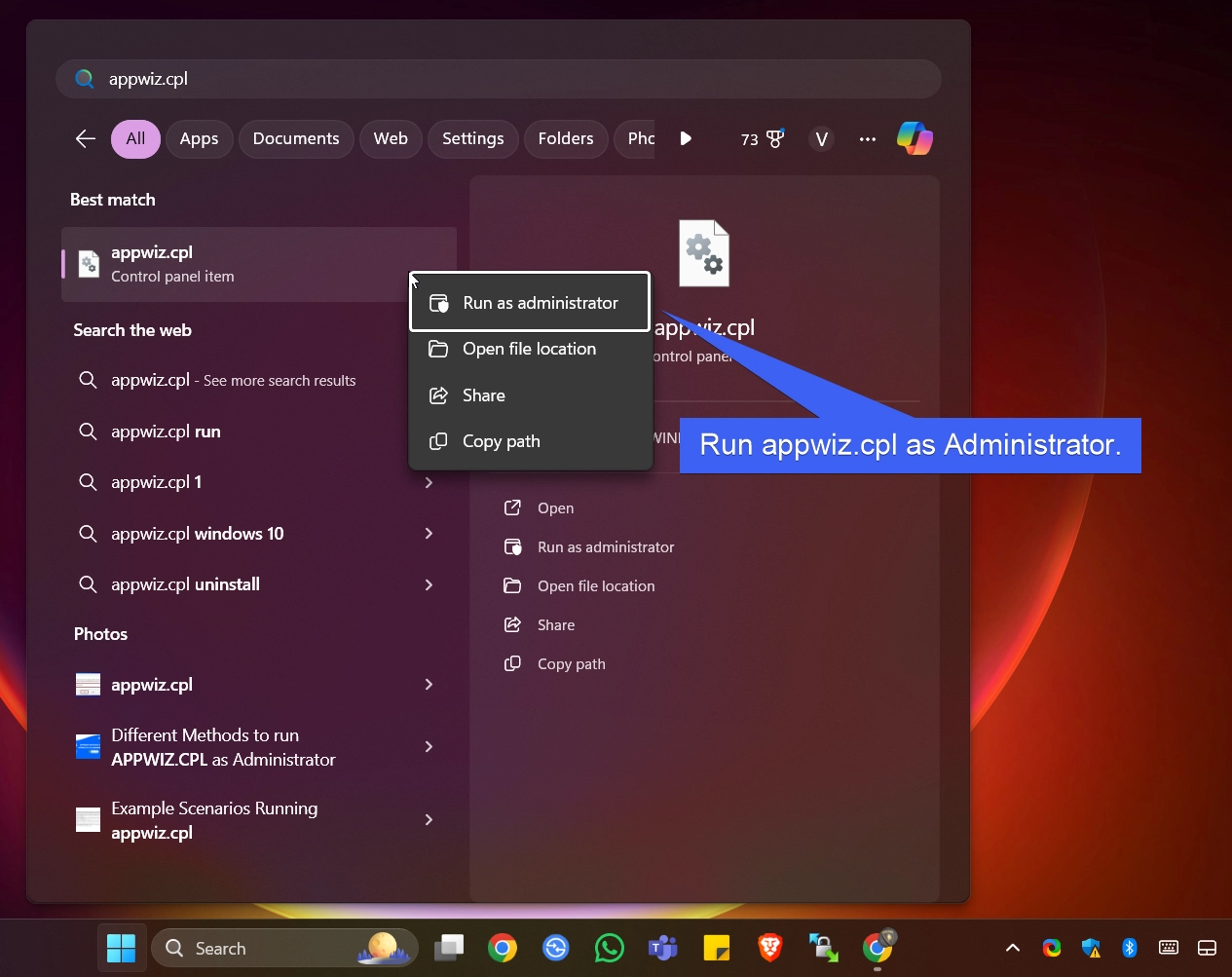
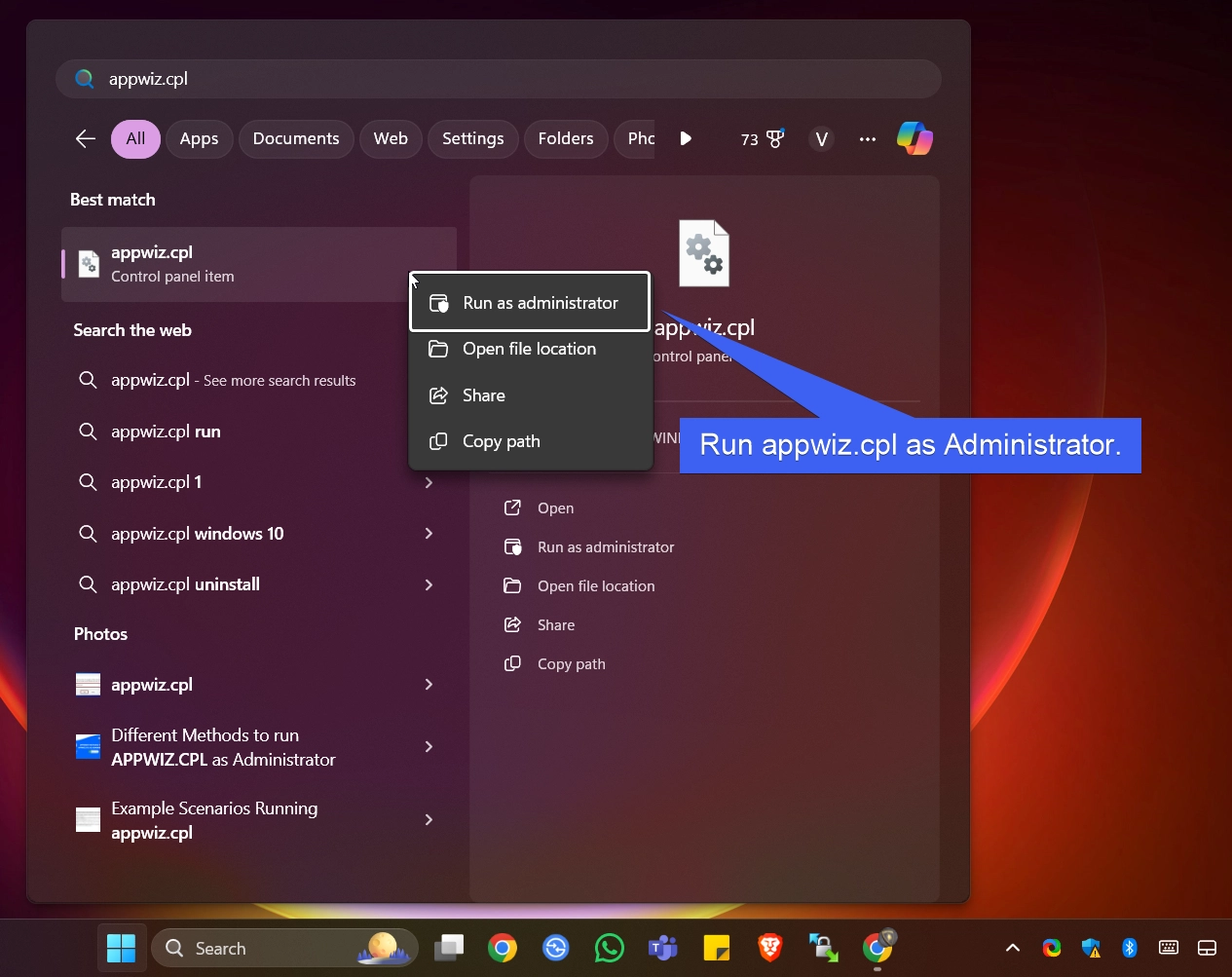
- Go to the Start menu and search for appwiz.cpl control panel item. Right-click on it and then click on Run as Administrator.
- The UAC (User Account Control) will prompt for confirmation to open the app with Administrator privileges. Click Yes if you would like to proceed further.
- Finally, appwiz.cpl will now open as Administrator.
Method 2: Easy way to run appwiz.cpl as Admin using the Run Command
- Open Run Command using the shortcut Win Key + R.
- Type the command
appwiz.cpland press CTRL + SHIFT + ENTER. The system will open Programs and Features as Administrator.
- User Account Control will prompt for your confirmation, then appwiz.cpl will open with Administrative privileges.
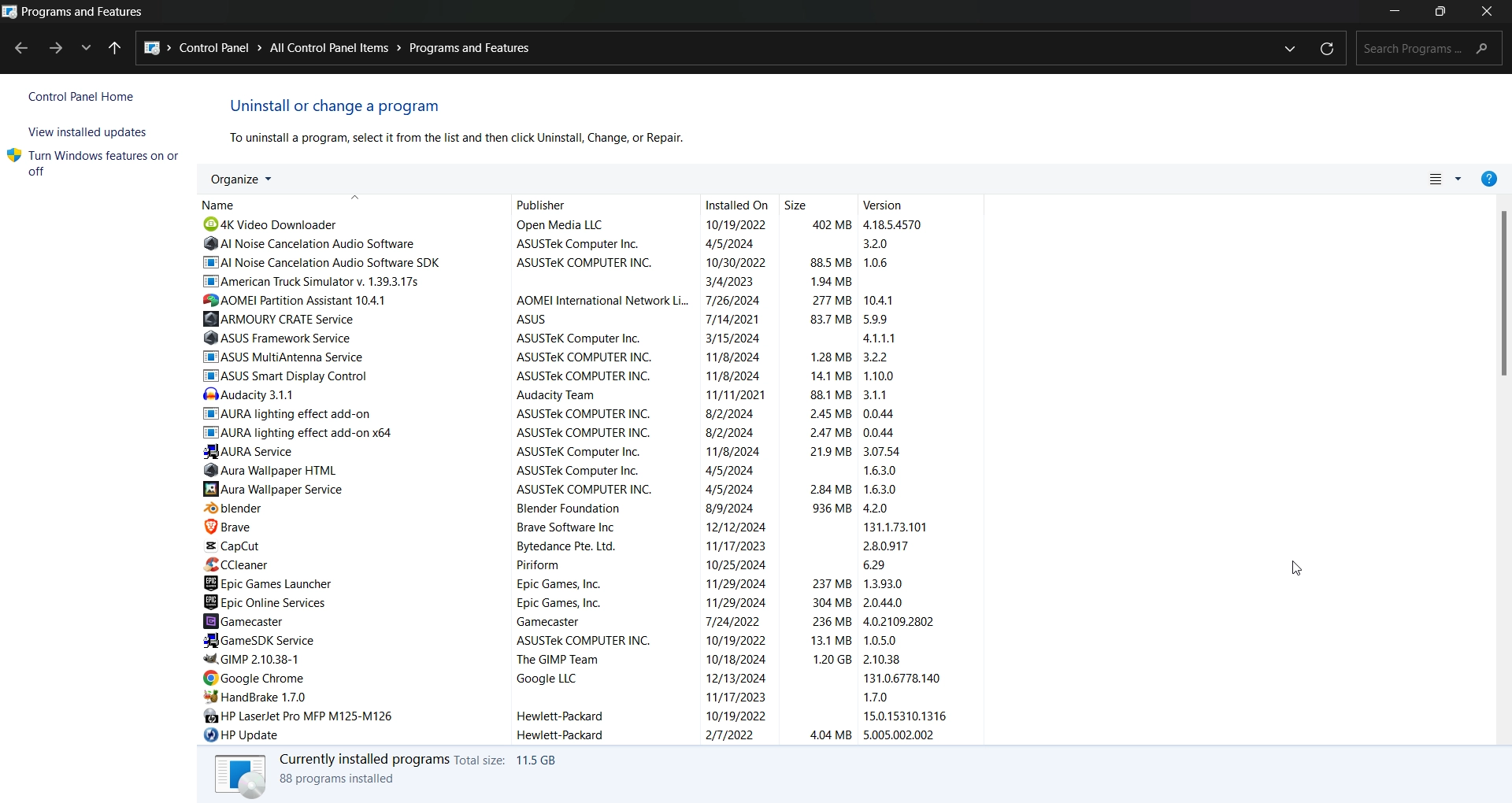
Method 3: Create New Task to run appwiz.cpl as Administrator using Task Manager
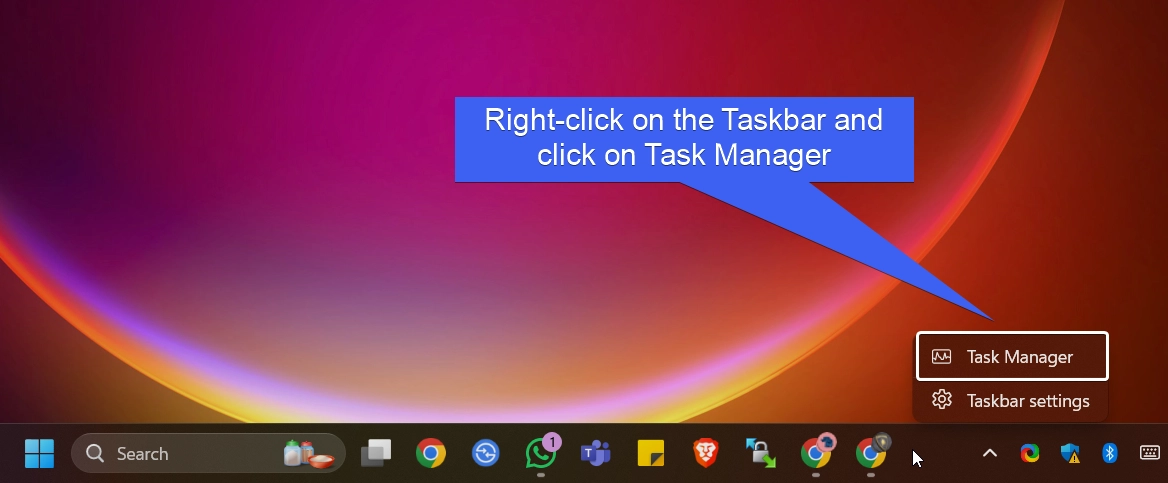
- Right-click on the Taskbar and then click on Task Manager.
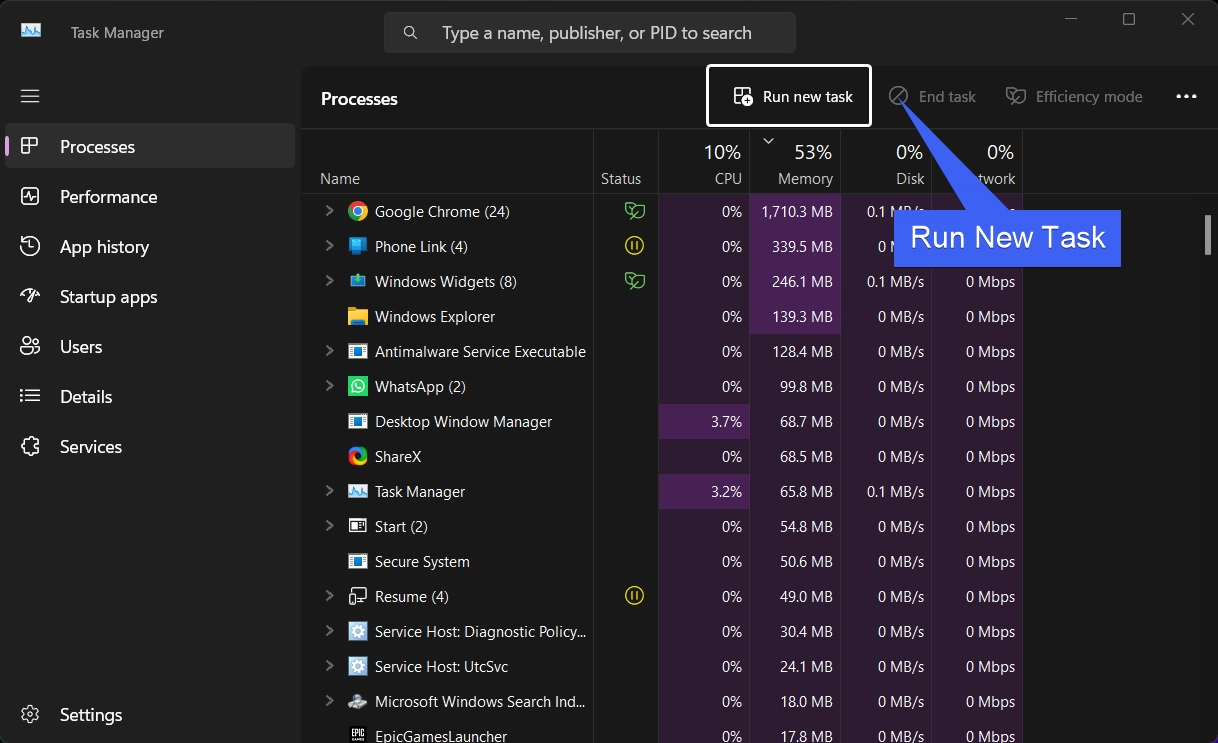
- Now, click on Run New Task.
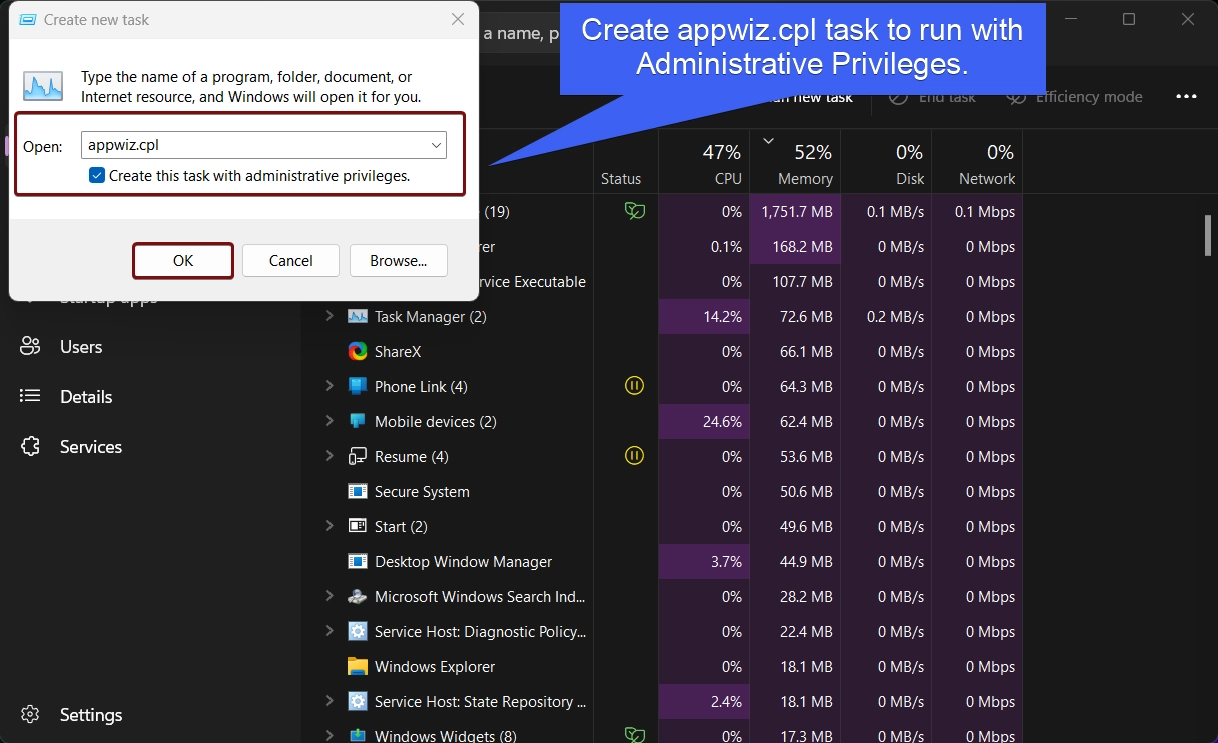
- In the Create new Task dialog, type the command
appwiz.cpland make sure to click on the checkbox to enable running this command with Administrative privileges.
- The system will now open Programs and Features as Administrator.
Method 4: Always run appwiz.cpl with Administrator Privileges using a dedicated shortcut
This method can be useful for users who want to use this tool with Administrative privileges very frequently. Here, we will create a dedicated shortcut and assign administrative privileges. Let’s get started.
- Right-click on the space of the Desktop and then click Create New > Shortcut.
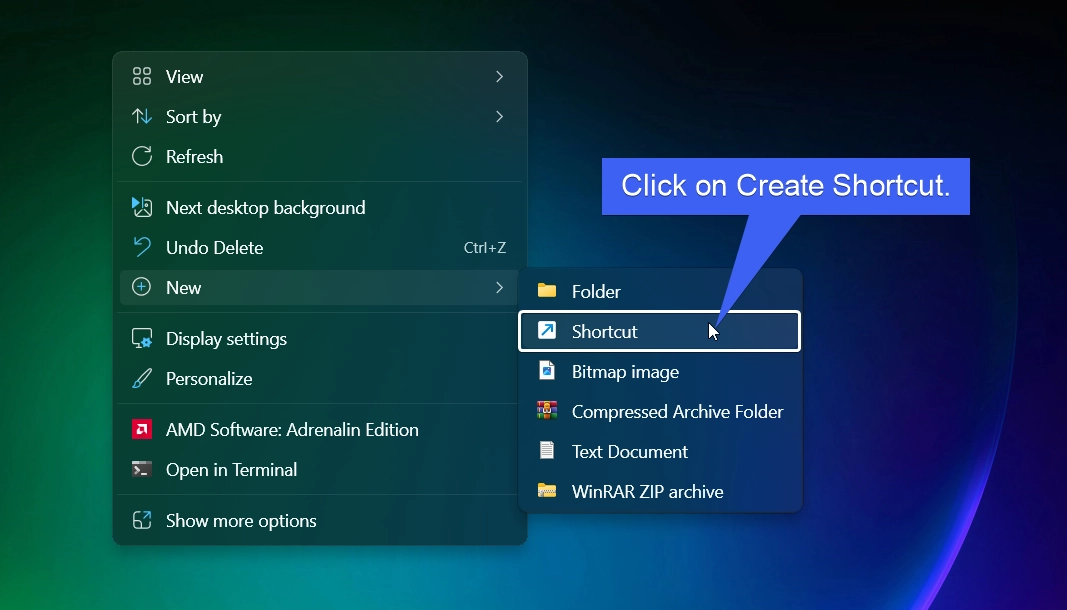
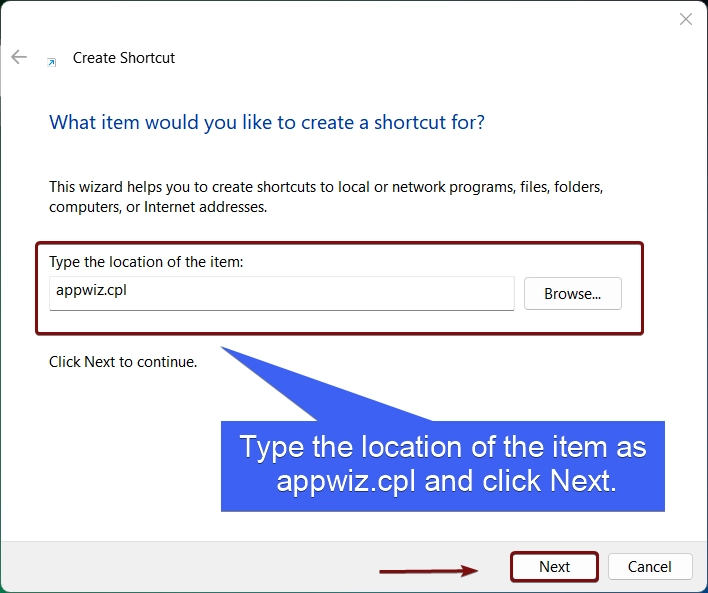
- Create Shortcut dialog box will open now. In “Type the Location of the item“, enter the following command and then click Next.
appwiz.cpl
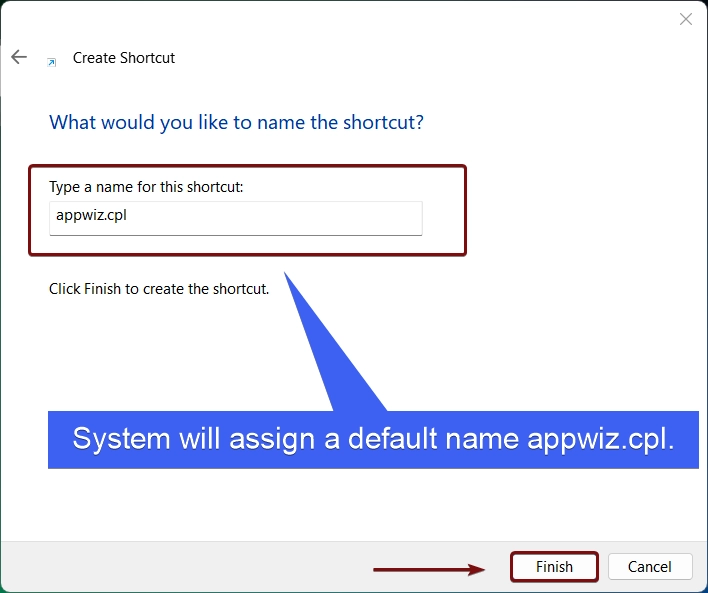
- By default, the system names the shortcut appwiz.cpl. Click Finish.
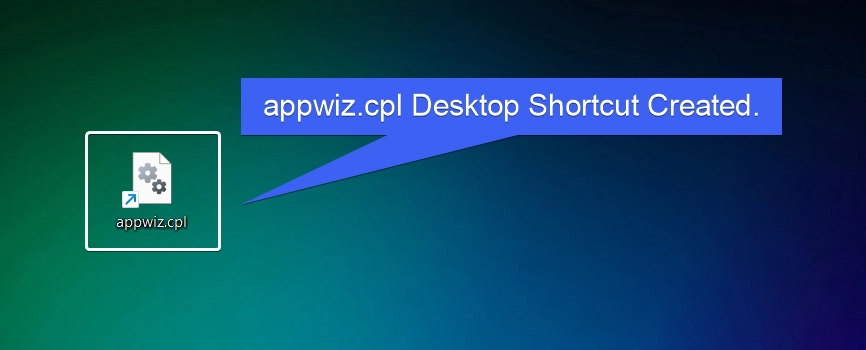
- appwiz.cpl shortcut will now be created, you can find it on the Desktop.
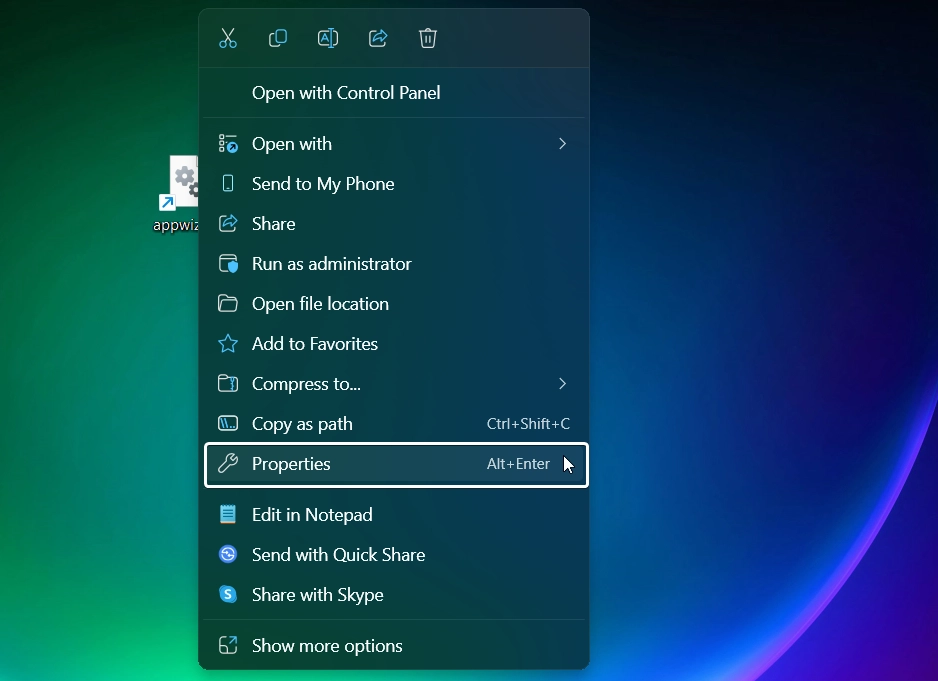
- Right-click on the shortcut and click on Properties. You can also use the key combination Alt + Enter.
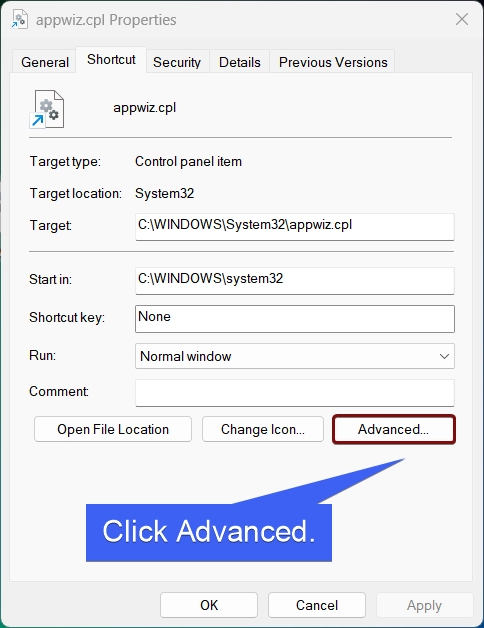
- Now, click on Advanced.
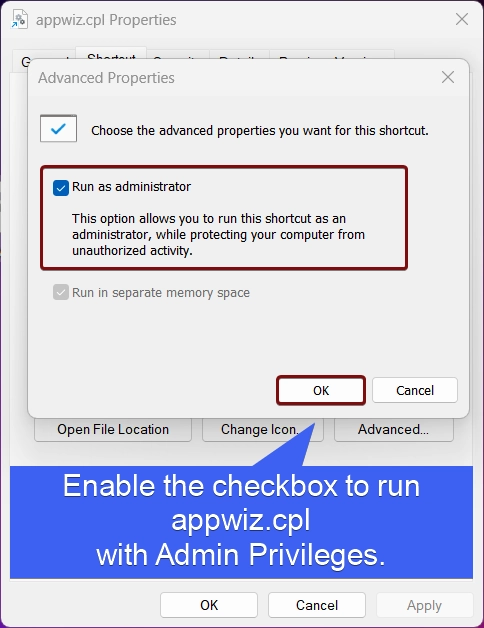
- Appwiz.cpl Advanced Properties will open. Enable the checkbox to always run this shortcut with Administrative Privileges. Finally, click OK, and then click Apply.
- That is it. When you open this shortcut, UAC will prompt for your confirmation, and appwiz.cpl will run as Administrator.
Frequently Asked Questions
Why do I need to run appwiz.cpl As an administrator?
While any user can view the list of installed programs, Windows requires administrative privileges to modify system files, remove certain software, or change Windows features. Running appwiz.cpl as an administrator ensures you won’t be blocked by permission errors when trying to uninstall a program.
Why does Windows 11 keep redirecting me to the Settings app?
Microsoft is gradually phasing out the classic Control Panel in favor of the modern Settings interface.
Is there a way to open appwiz.cpl as an administrator via a native PowerShell command?
Open a regular PowerShell and run the following command Start-Process appwiz.cpl -Verb RunAs
This immediately triggers the UAC prompt to elevate the Programs and Features window directly.
Can I use appwiz.cpl to uninstall apps installed from the Microsoft Store?
appwiz.cpl only manages traditional desktop applications, and Microsoft Store Apps do not appear in this list.
Take Away
Running Appwiz.cpl with elevated rights on Windows 11 is essential for advanced program management and troubleshooting tasks. By following the methods above, you can make sure access to administrative tools without facing permission issues. Whether you’re uninstalling system-level programs or modifying Windows features, these steps will save you time and effort.
Have Queries?
If you have any queries related to the above topic, feel free to comment in the section below. For more interesting articles, stay tuned to Winsides.com. Happy Computing! Peace out!



Community
Comments (0)