Skip to content
Winsides.com

Windows Insides

Winsides.com

Windows Insides

  • Windows 11
  • Windows Features
  • Windows Security
  • Microsoft
    • Microsoft Copilot
    • Microsoft Powertoys
  • Shortcuts
    • Windows Shortcuts
    • Desktop Shortcuts
  • Video Tutorials
  • About
    • What’s New?!
    • About us
    • Contact us
    • Privacy Policy
    • Terms of Use
  • Follow us
    • Reddit
    • Dev.to
    • YouTube
    • Linked In
    • X
    • Tumblr
    • Facebook
    • Instagram
    • Buy Me A Coffee
  • Windows 11
  • Windows Features
  • Windows Security
  • Microsoft
    • Microsoft Copilot
    • Microsoft Powertoys
  • Shortcuts
    • Windows Shortcuts
    • Desktop Shortcuts
  • Video Tutorials
  • About
    • What’s New?!
    • About us
    • Contact us
    • Privacy Policy
    • Terms of Use
  • Follow us
    • Reddit
    • Dev.to
    • YouTube
    • Linked In
    • X
    • Tumblr
    • Facebook
    • Instagram
    • Buy Me A Coffee
Close

Search

Winsides.com

Windows Insides

Winsides.com

Windows Insides

  • Windows 11
  • Windows Features
  • Windows Security
  • Microsoft
    • Microsoft Copilot
    • Microsoft Powertoys
  • Shortcuts
    • Windows Shortcuts
    • Desktop Shortcuts
  • Video Tutorials
  • About
    • What’s New?!
    • About us
    • Contact us
    • Privacy Policy
    • Terms of Use
  • Follow us
    • Reddit
    • Dev.to
    • YouTube
    • Linked In
    • X
    • Tumblr
    • Facebook
    • Instagram
    • Buy Me A Coffee
  • Windows 11
  • Windows Features
  • Windows Security
  • Microsoft
    • Microsoft Copilot
    • Microsoft Powertoys
  • Shortcuts
    • Windows Shortcuts
    • Desktop Shortcuts
  • Video Tutorials
  • About
    • What’s New?!
    • About us
    • Contact us
    • Privacy Policy
    • Terms of Use
  • Follow us
    • Reddit
    • Dev.to
    • YouTube
    • Linked In
    • X
    • Tumblr
    • Facebook
    • Instagram
    • Buy Me A Coffee
Close

Search

Home/Windows Features/Enable TIFF IFilter in Windows 11

Enable TIFF IFilter in Windows 11

Vigneshwaran Vijayakumar
By Vigneshwaran Vijayakumar
March 9, 2024 3 Min Read
0

Enable TIFF IFilter in Windows 11: In Windows 11, unleashing the full potential of file search capabilities can significantly enhance productivity and efficiency. One often overlooked feature is the TIFF iFilter, coupled with Optical Character Recognition (OCR) technology, enabling seamless indexing and searching within TIFF (Tagged Image File Format) documents. By activating the TIFF iFilter with OCR, users can swiftly pinpoint specific content within scanned images, enhancing workflows and saving valuable time. Here’s a step-by-step guide on enabling the TIFF iFilter in Windows 11, empowering you to harness the power of comprehensive file search functionality.

How to turn on Windows TIFF IFilter in Windows 11 OS?

  1. Click on the Start Menu and open the Control Panel.
  2. Switch the Control Panel view to Category.
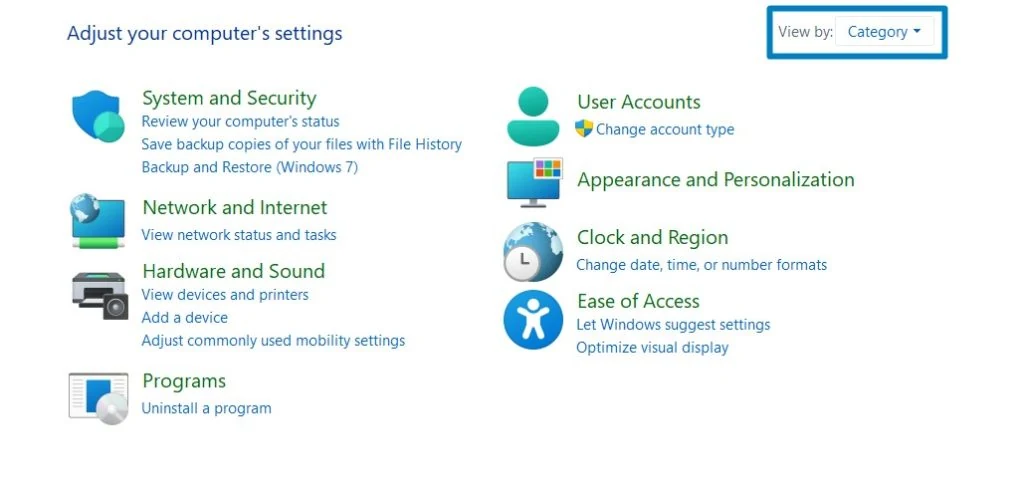
    Category View
    Category View
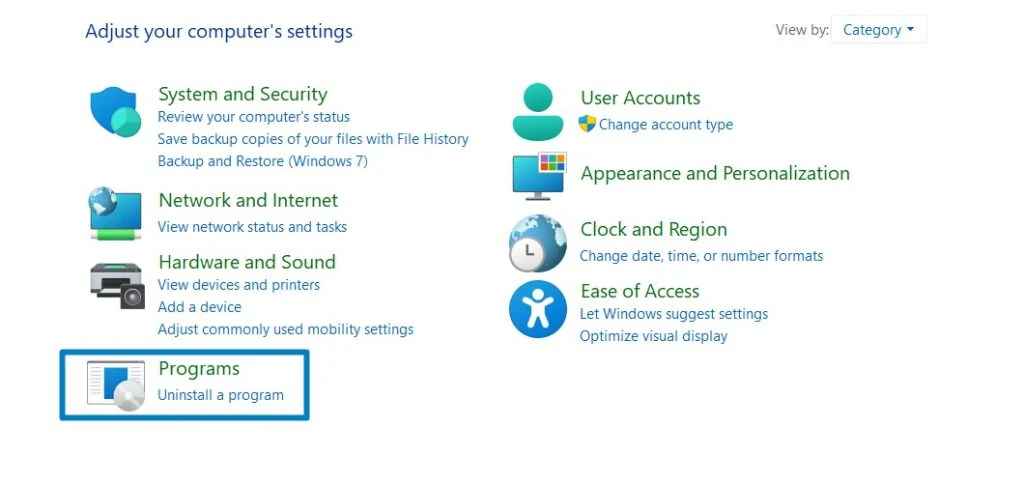
  3. Now, Click on Programs.

    Programs
    Programs
  4. Under Programs and Features, click on Turn Windows Features on or off.
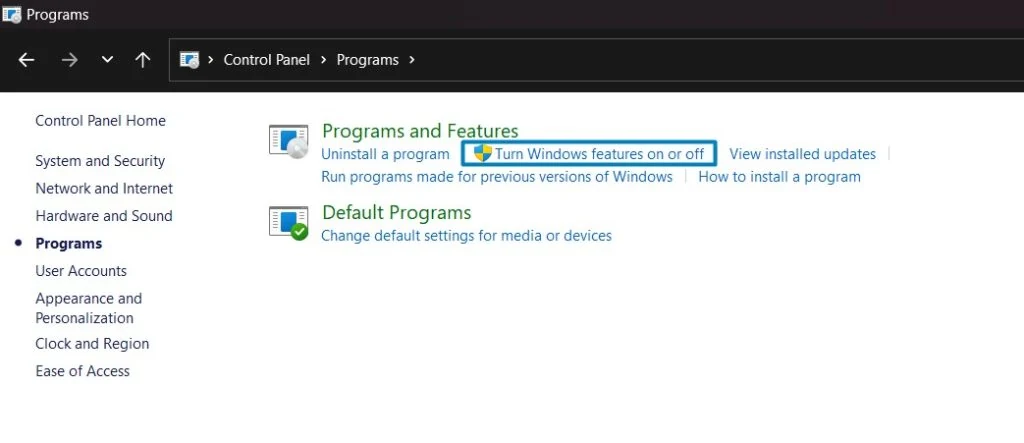
    Turn Windows Features on or off
    Turn Windows Features on or off
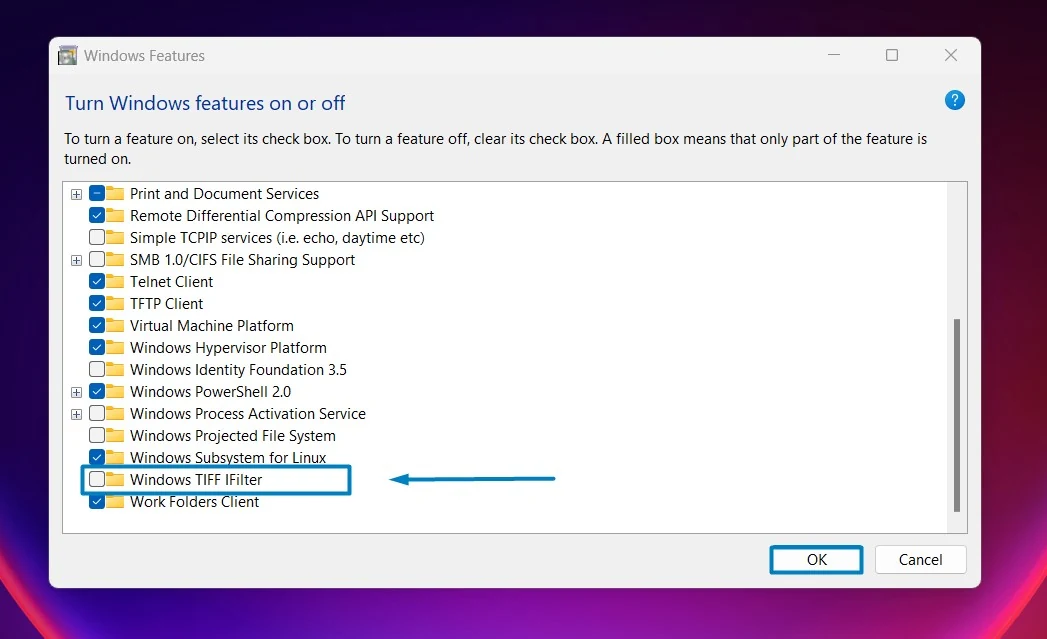
  5. Windows Features dialog box will open now.
  6. From the list of services available, search and locate the Windows TIFF IFilter.Windows TIFF IFilter
  7. Click on the checkbox next to it and then click on OK.
  8. Windows 11 will search for the required files.
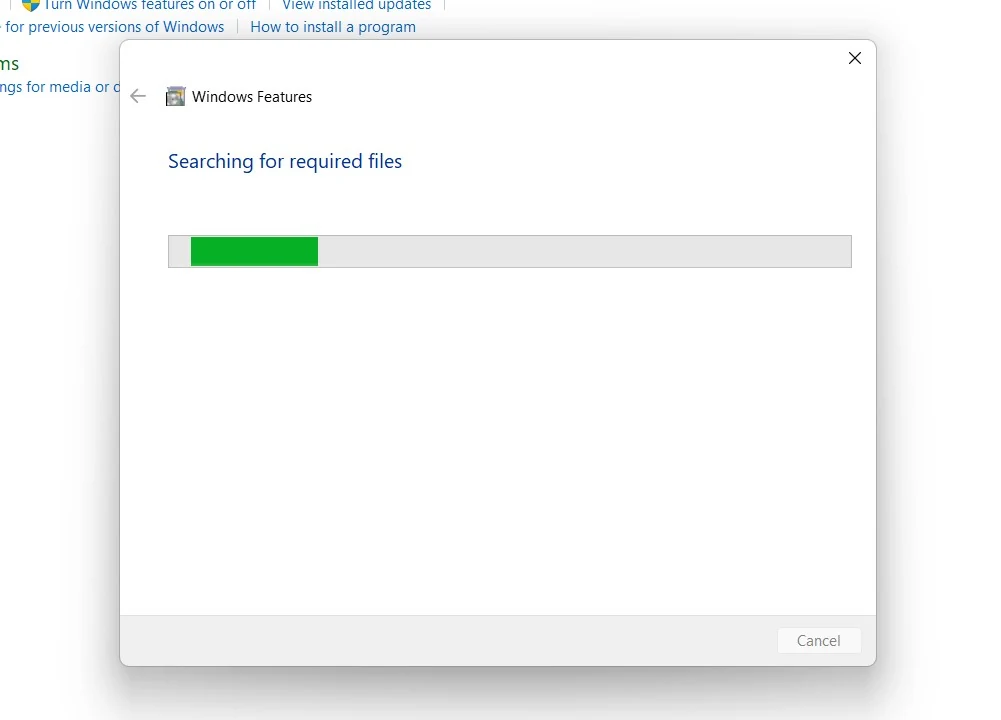
    Searching for the required files
    Searching for the required files
  9. After the process, Windows will apply the necessary changes.
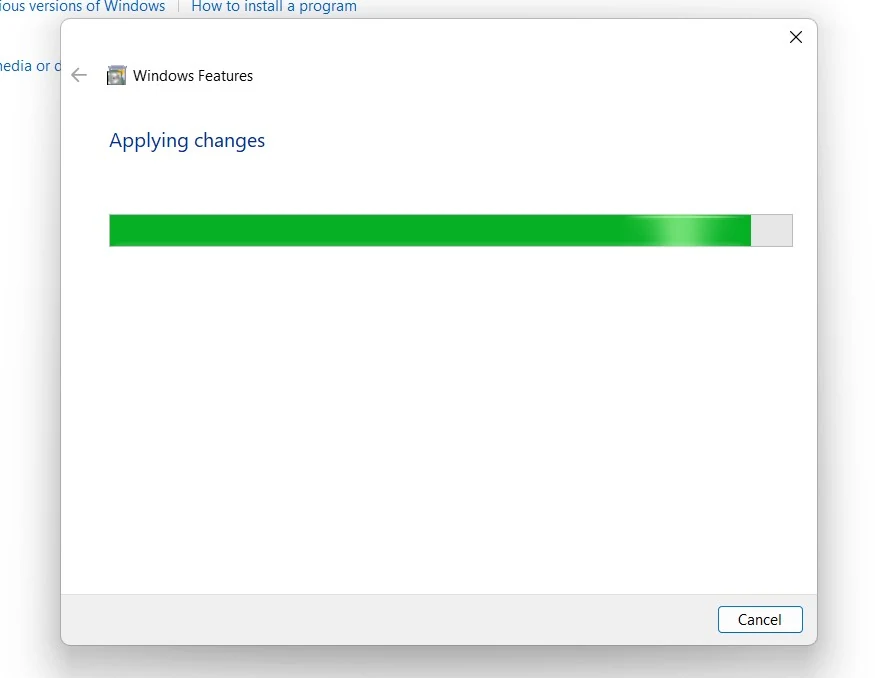
    Applying Changes
    Applying Changes
  10. The system will prompt for a restart. Continue with Restart now. It is recommended that changes made to the system reflect while using the environment. Click Close.
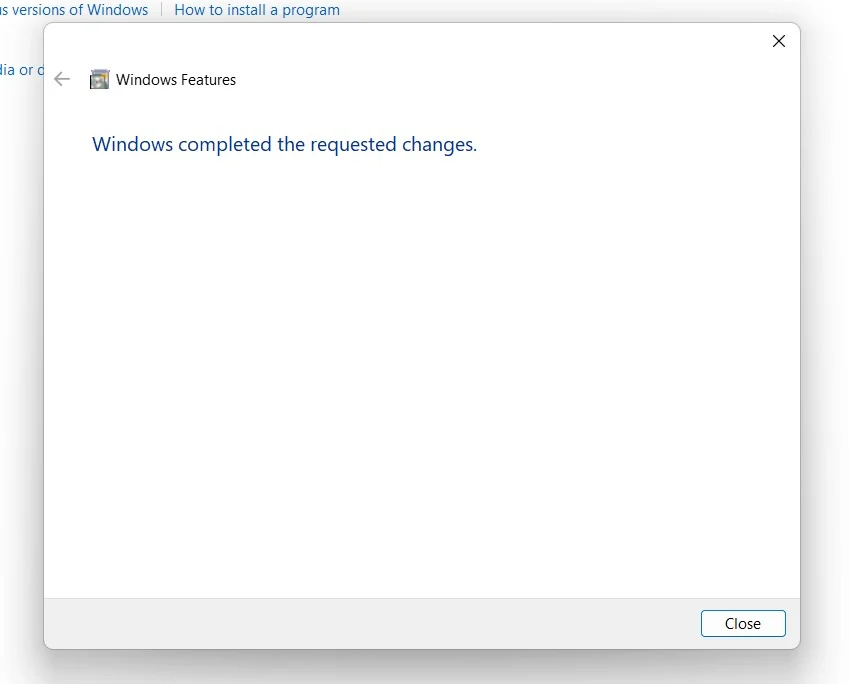
    Close
    Close
  11. That is it, Windows TIFF IFilter is now enabled on your Windows 11 laptop or PC. Enjoy Seamless Connectivity.

One intriguing fact about TIFF iFilter is that it not only allows Windows to index and search text within TIFF documents but also enables the extraction of text from scanned images through OCR (Optical Character Recognition) technology. This means that even if the TIFF file contains scanned images of text rather than editable text, the TIFF iFilter with OCR can still recognize and index the text, making it searchable within the file system. This capability significantly enhances the usability of TIFF files, especially in scenarios where scanned documents need to be easily searchable for specific content.

Take away:

By enabling the TIFF iFilter with OCR in Windows 11, users can elevate their file search experience to new heights. With Windows 11’s comprehensive file search functionality at their fingertips, users can easily navigate their digital workspace, saving time and unlocking new levels of efficiency. Embrace the power of enhanced file search capabilities today and experience a seamless and productive computing experience. Happy Coding! Peace out!


Tags:

Enable TIFF IFilter in Windows 11How to Enable in Windows 11windows 11
Vigneshwaran Vijayakumar
Author

Vigneshwaran Vijayakumar

Hello, I'm Vigneshwaran, the founder, owner, and author of WinSides.Com. With nearly a decade of experience in blogging across various domains and specializing in Windows-related tutorials for over five years, I bring a wealth of knowledge and expertise to WinSides.Com

Follow Me
Other Articles
Internet Information Services Hostable Web Core
Previous

How to Enable IIS Hostable Web Core in Windows 11?

Enable Windows Projected File System Windows 11
Next

How to Enable Windows Projected File System in Windows 11

No Comment! Be the first one.

Leave a Reply Cancel reply

Your email address will not be published. Required fields are marked *

  • Easy Way to Enable Windows Subsystem for Linux in Windows 11
  • Enable Windows Subsystem for Linux (WSL 2) using Command Prompt & PowerShell
  • How to check System Information in Windows 11?
  • How to Install and Run X Server in Windows 11?
  • How to Enable Client for NFS in Windows 11?
  1. Vigneshwaran Vijayakumar
    Vigneshwaran Vijayakumar on How to Enable Windows PowerShell 2.0 in Windows 11?October 5, 2025

    Hello Mr. Mohamad El-Kheir, Thank you for contacting us. Microsoft has removed PowerShell version 2.0 completely from Windows 11 24H2…

  2. Avatar of Mohamad El-Kheir
    Mohamad El-Kheir on How to Enable Windows PowerShell 2.0 in Windows 11?October 5, 2025

    i have a MSI laptop with windows 11 Home Installed on it. how to install powershell v2.0 on it

  3. Vigneshwaran Vijayakumar
    Vigneshwaran Vijayakumar on DxDiag Windows 11 – What is it & How to use it for Troubleshooting?August 14, 2025

    Hey Myla Shannon Thank you for your valuable feedback. We are delighted to hear your compliment and excited to know…

  4. Avatar of Myla Shannon
    Myla Shannon on DxDiag Windows 11 – What is it & How to use it for Troubleshooting?August 14, 2025

    This content is incredibly informative.

  5. Avatar of seven
    seven on How to Enable IIS [Internet Information Services] in Windows 11?July 29, 2025

    I found this post very helpful.

  • About us
  • What’s New?!
  • Guest Posts on Winsides.com – Terms and Conditions
  • Publication Sitemap
  • Careers
  • Authors
  • Why Trust Winsides.com?
  • Content Removal Request
  • Terms of Use
  • Disclaimer
  • Contact us
Copyright 2024-2026 - Winsides.com. All rights reserved.