
Customize Copilot Key on Windows 11: Starting in 2024, many modern Windows laptops are equipped with a new dedicated keyboard key for accessing Copilot. It is a part of Microsoft’s push to integrate AI deeply into Windows PCs. New Laptops are labelled as Copilot + PCs, which include special chips called NPU, abbreviated as Neural Processing Units. In this article, let’s check out how to customize Copilot Key on Windows 11. Let’s get started.
Customize Copilot Key on Windows 11 – Detailed Steps

- Go to the Windows Settings using the keyboard shortcut WinKey + I.
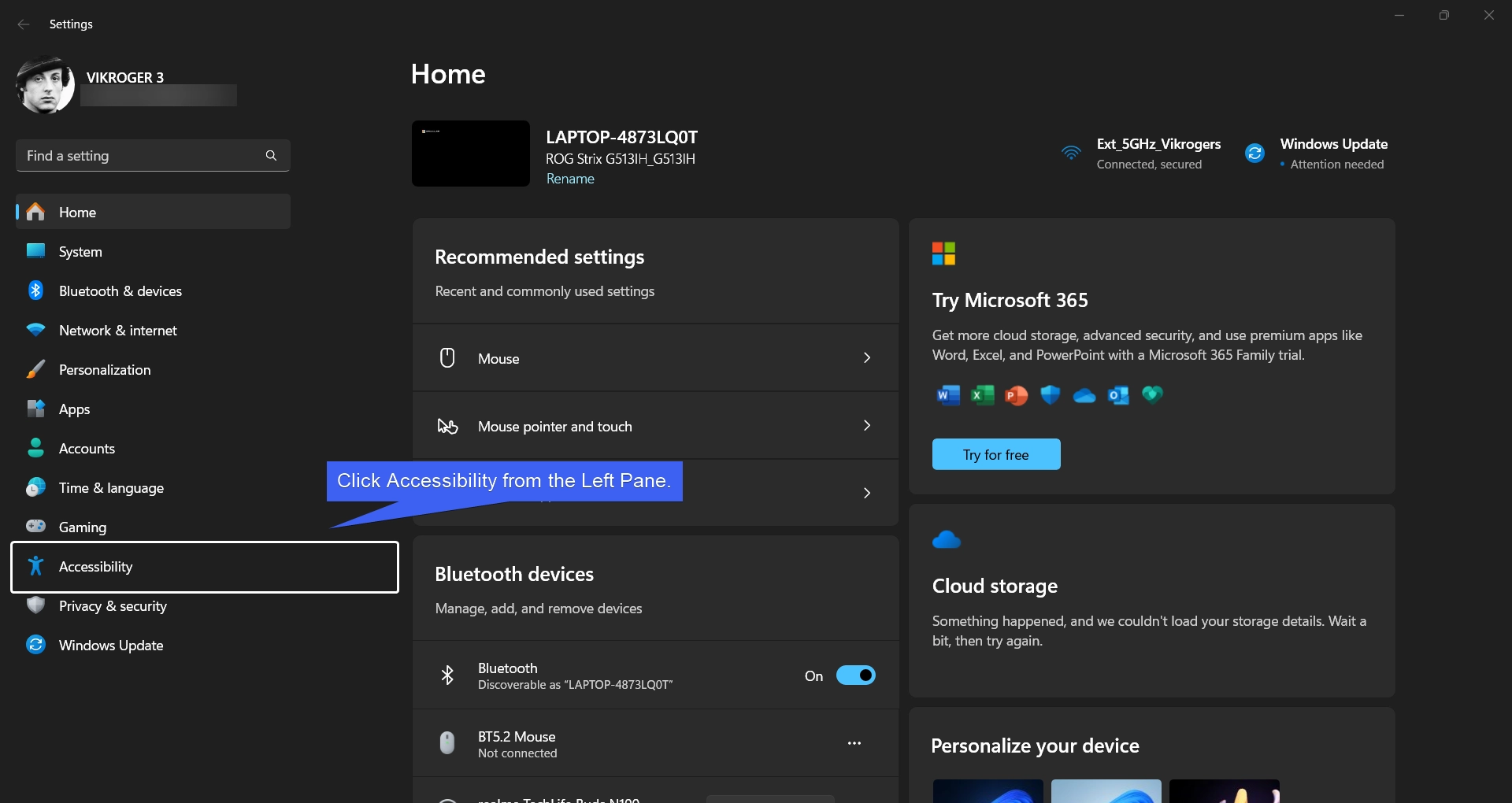
- In Windows Settings, in the left pane, click Accessibility.
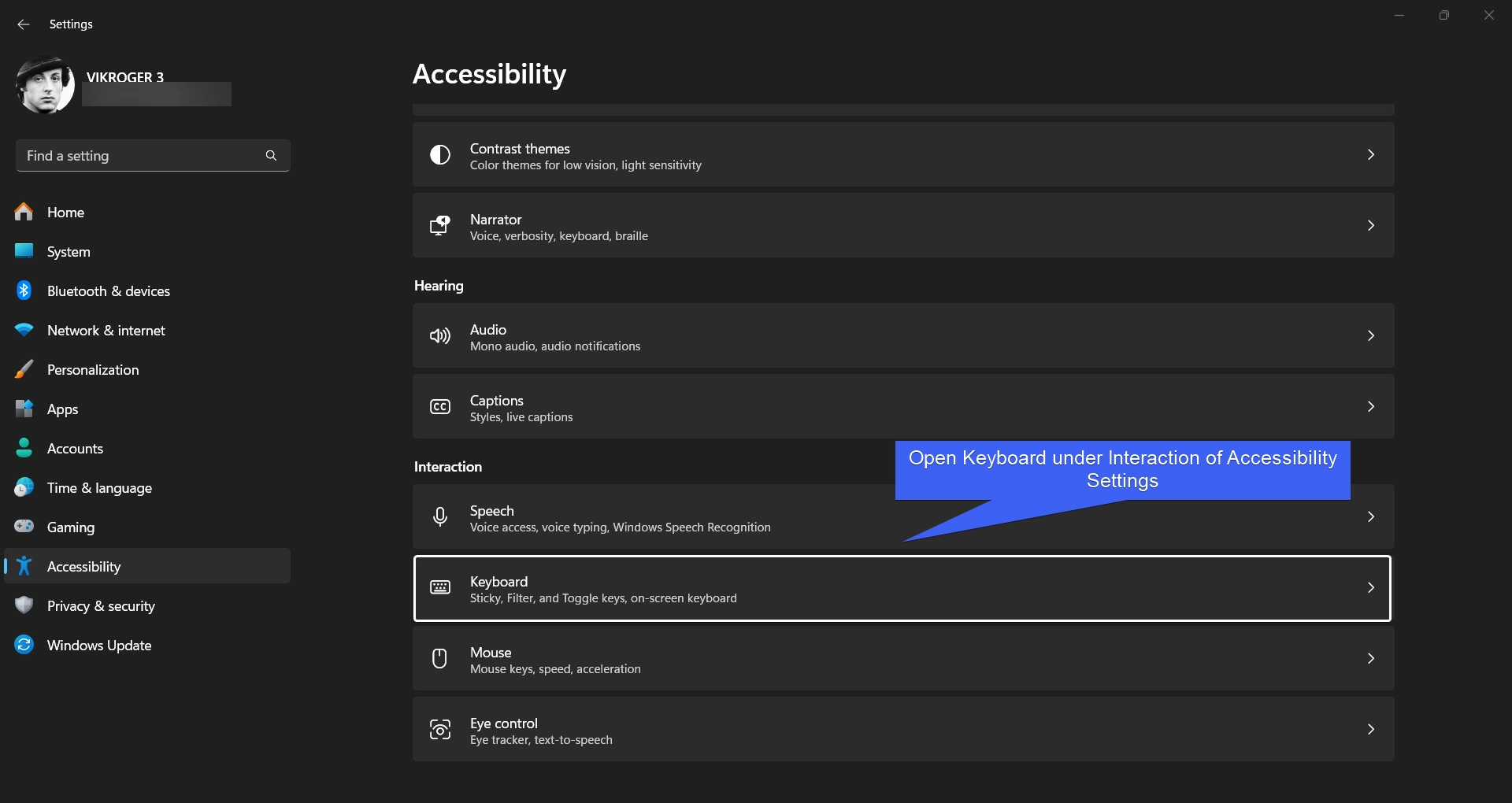
- In the Accessibility menu, under Interaction, select Keyboard.
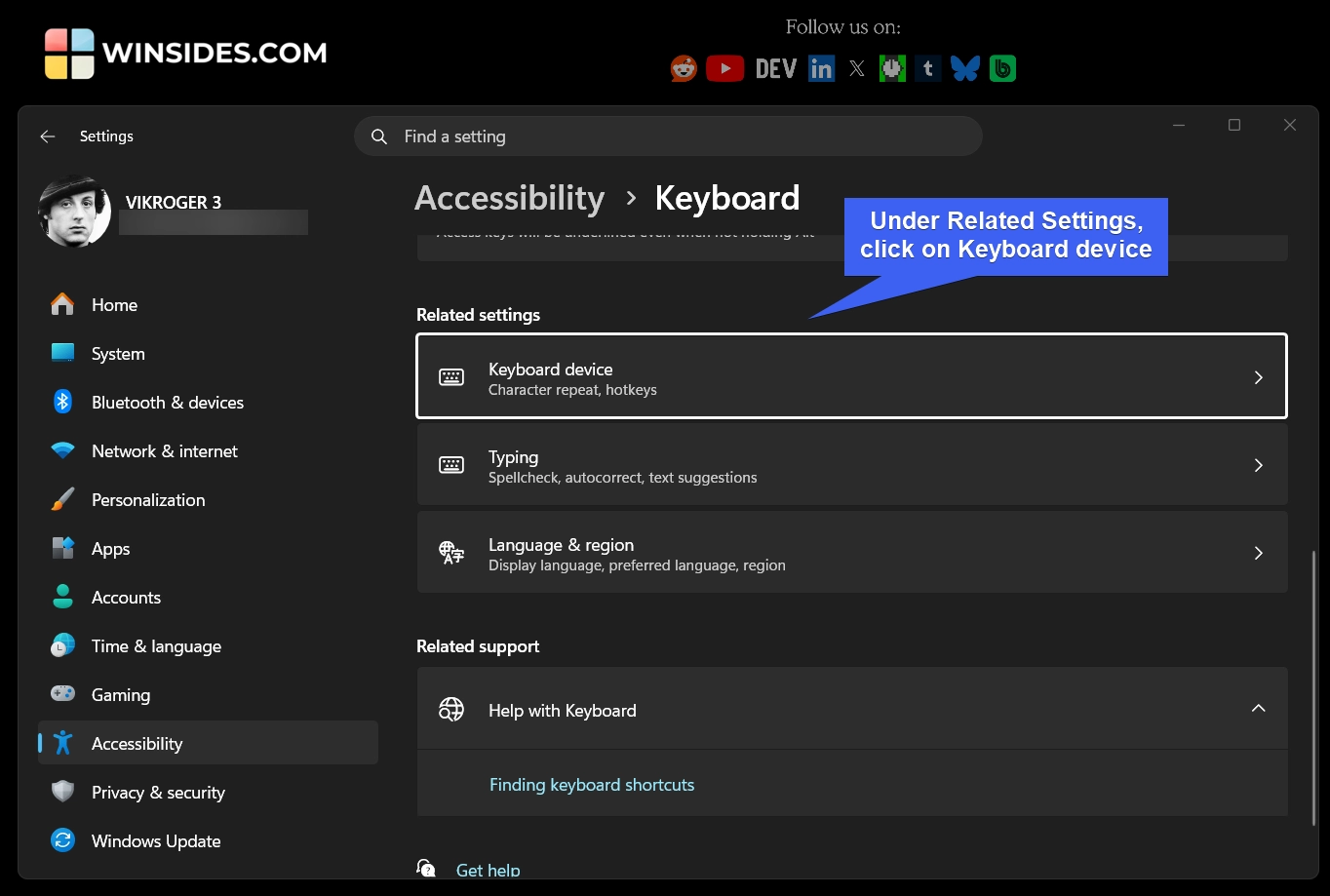
- Scroll down to Relating Settings, then click on Keyboard device.
- Under Shortcuts and hotkeys, you can find the option “Customize Copilot key on keyboard“.
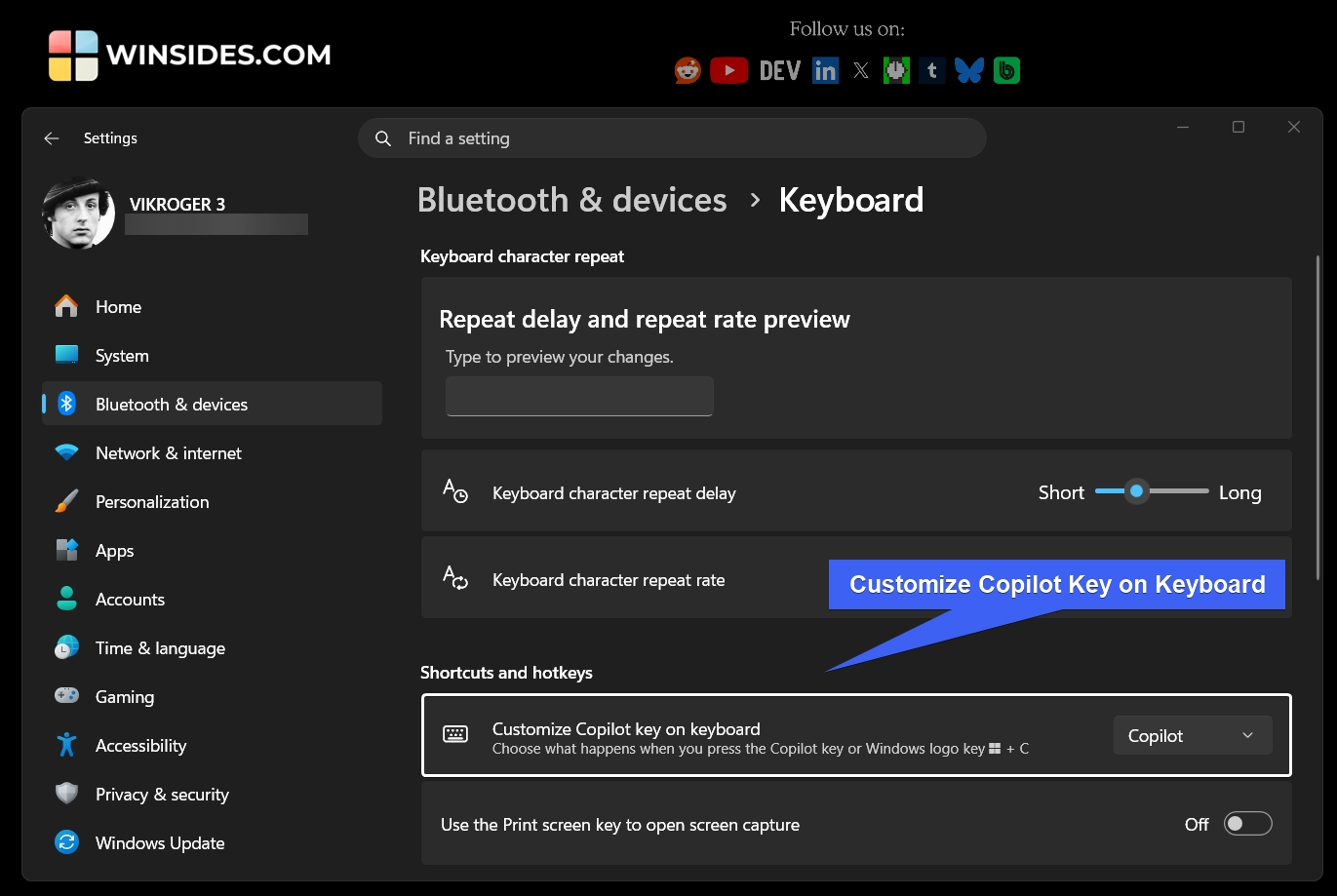
- Drop down the menu, and you can find three options. Search, Copilot, and Custom.
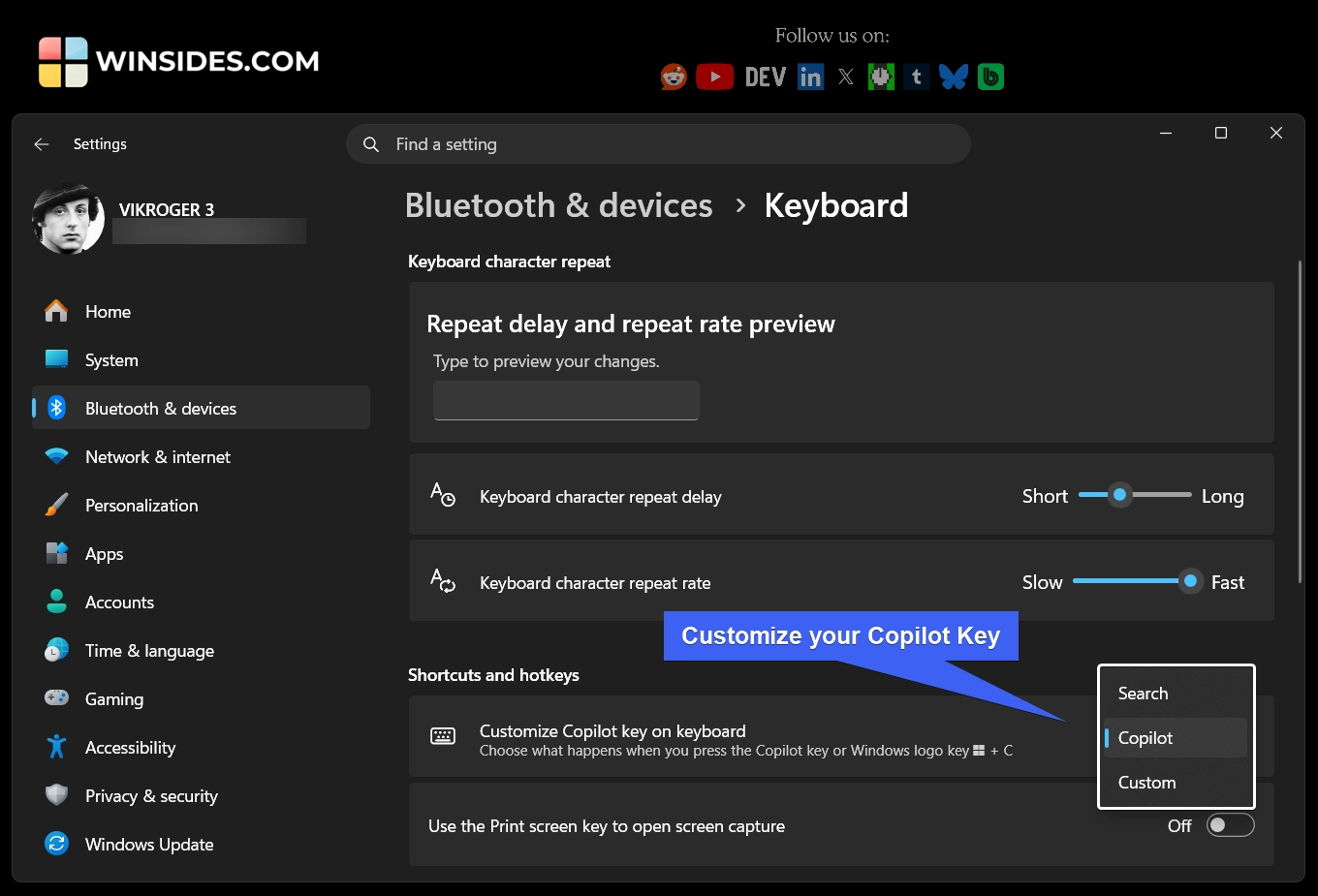
- The Search option sets the Copilot key to Windows Search. With Windows Search, you can quickly find things on your PC, like Apps installed on your computer, Files, and folders, Windows Settings, Web Results, Suggestions, Trending Searches, Recent Files, and more.
- The Copilot option sets the Copilot Key to the Copilot AI Companion Window.
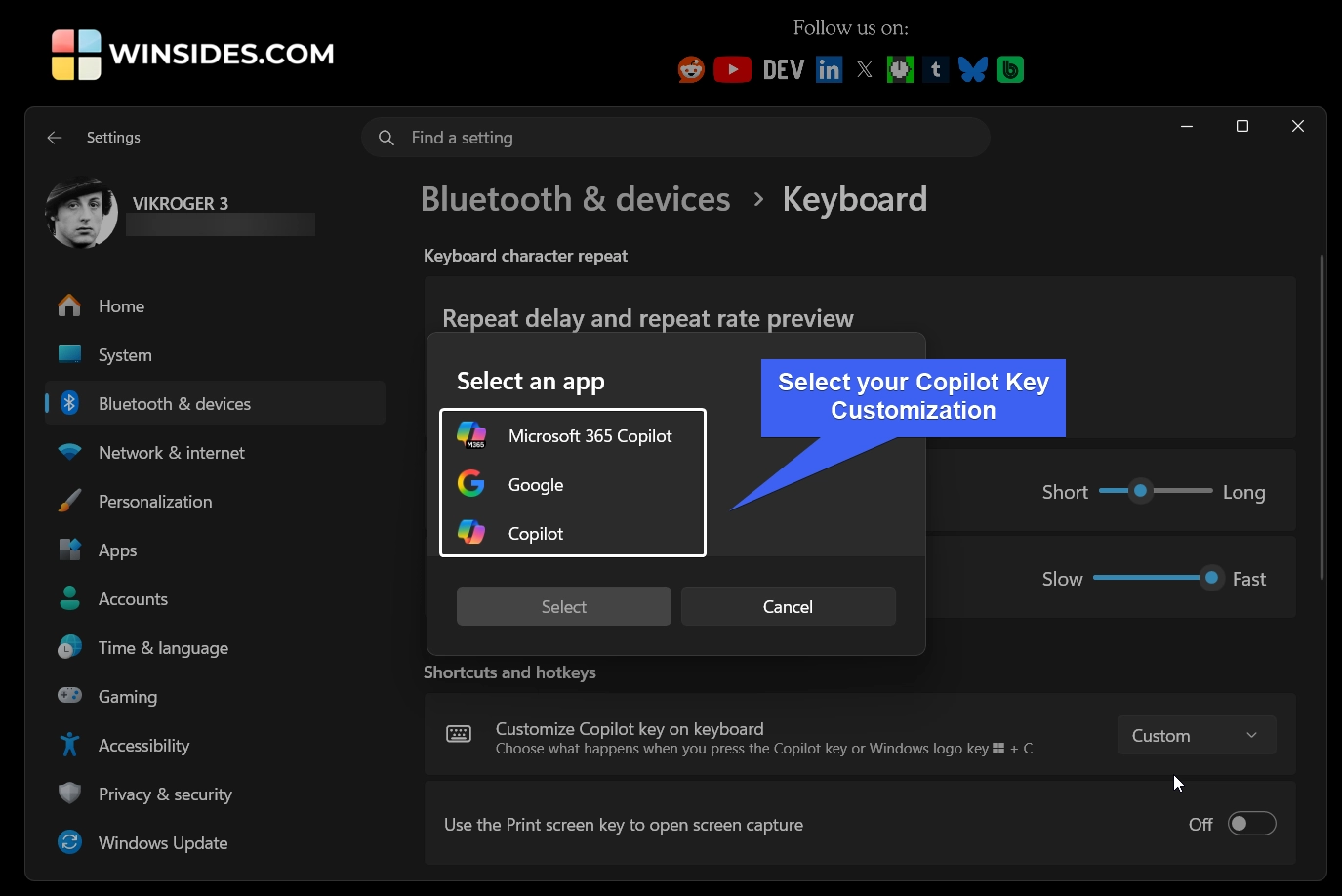
- The Custom option lets you choose between Microsoft 365 Copilot, Copilot, and, on some PCs, Google Search.
- Most modern laptop brands, such as Dell, HP, Asus, Microsoft Surface, Acer, Lenovo, and more, include a dedicated Copilot key on their models.
Is Copilot Key really necessary for Windows 11 laptops/PCs?

The Windows key first appeared in 1994 on the Microsoft Natural Keyboard. Microsoft added the Windows key to quickly open the Start menu in Windows 95. Interestingly, the internet reaction in the 1990s was very similar to the Copilot key reaction today. But over time, people started using Windows shortcuts constantly. Today, the Windows key is considered essential. Microsoft hopes the Copilot key will become the AI equivalent of the Windows key.
Note: The Copilot key is part of Microsoft’s push for AI PCs, especially machines called Copilot+ PC. These computers include a special chip called an NPU (Neural Processing Unit) that can run AI tasks locally.
Take Away
Whether the Copilot key becomes a meaningful innovation or a short-lived experiment will depend on one thing, and that is based on how essential AI assistants become in daily computer use. If AI evolves into a core part of workflows, the key may feel indispensable.
We hope you are satisfied with our article on how to customize Copilot Key on Windows 11, and if you have any queries, kindly let us know in the comments. For more interesting articles, stay tuned to Winsides.com. Happy Computing! Peace out!
We combine expert insights with user-friendly guidance. We thoroughly research and test everything to give you reliable and simple to understand tech guides. Please take a look at our publishing process to understand why you can trust Winsides.