

Introduction to bootrec
bootrec is a Windows Recovery Environment command used to troubleshoot startup problems that involve the Master Boot Record, boot sector, and Boot Configuration Data discovery. It is one of the most searched Windows repair commands because it appears in older recovery guides, dual-boot fixes, and no-boot troubleshooting steps. The command is still useful, but the way you use it on a modern Windows 11 UEFI/GPT computer is different from the way many older BIOS/MBR tutorials present it.
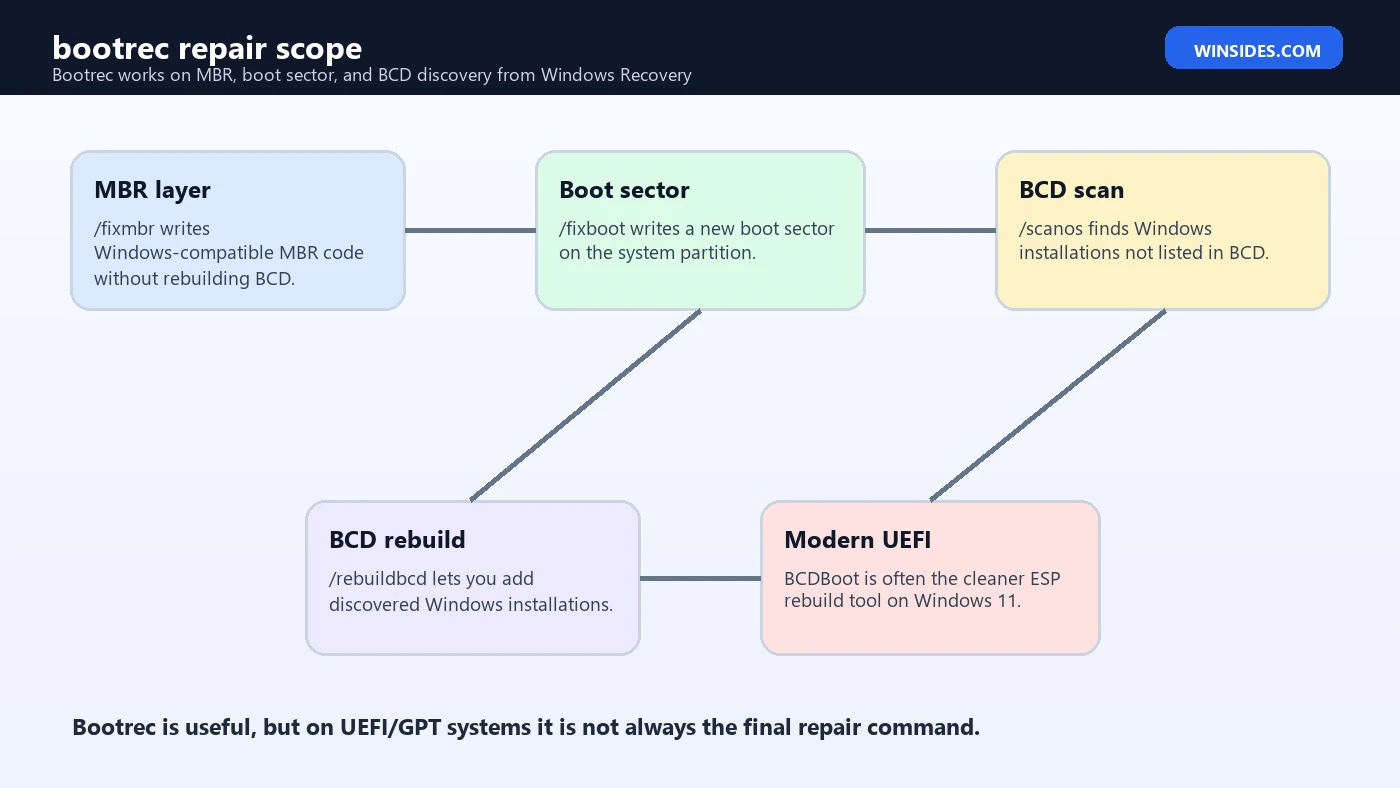
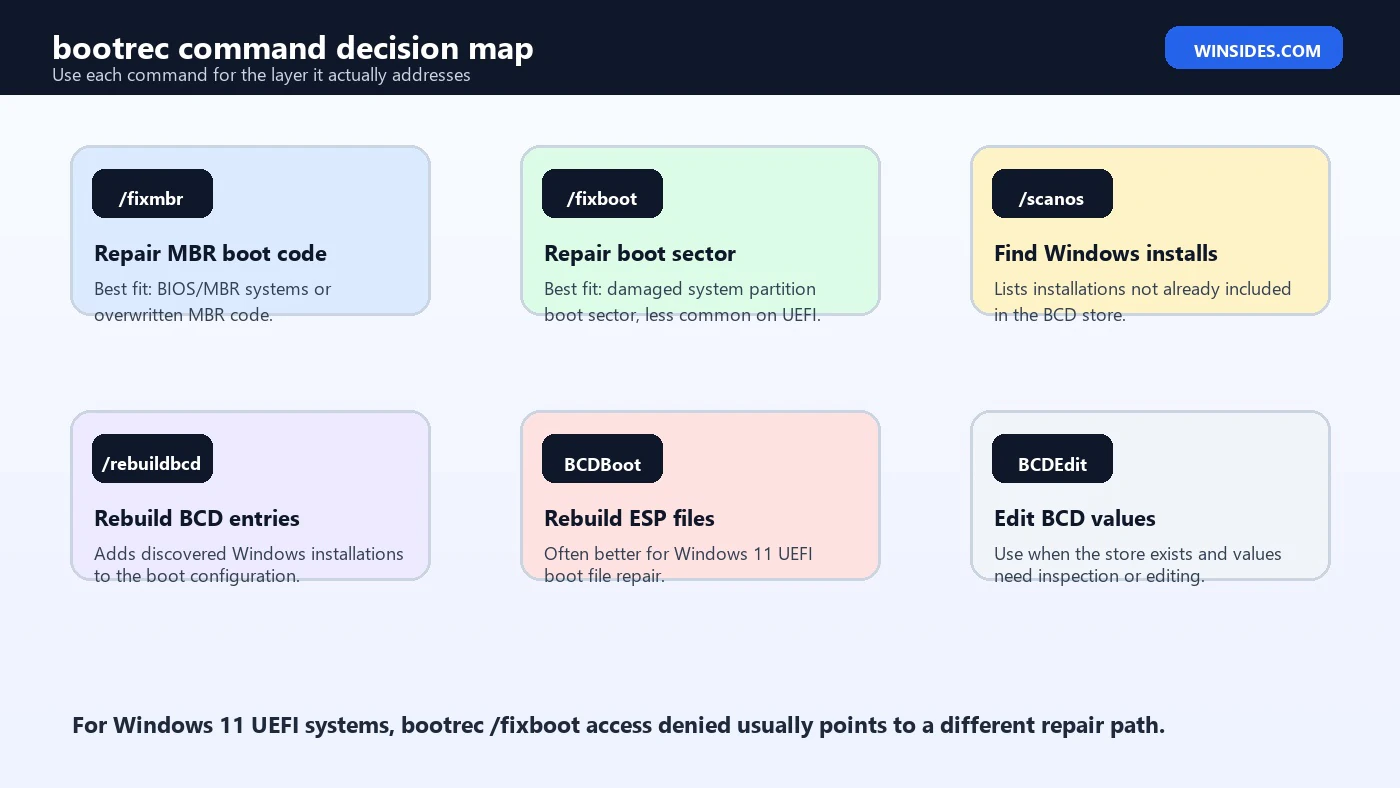
The important thing to understand is that bootrec is not a universal startup cure. It works on specific boot layers. bootrec /fixmbr targets MBR boot code. bootrec /fixboot targets boot sector code. bootrec /scanos scans for Windows installations that are not currently listed in the BCD store. bootrec /rebuildbcd scans and offers to add discovered Windows installations to BCD. If the actual problem is a missing EFI System Partition, a damaged Windows Boot Manager file, a wrong UEFI firmware entry, BitLocker recovery, disk failure, or Windows system file corruption, another tool may be a better fit.
Microsoft now documents much of the modern boot repair surface through current pages for Windows Startup Settings, BCDBoot, BCDEdit, Bootsect, and UEFI/GPT partitions. This guide uses those official references and practical recovery behavior to explain when bootrec helps, when it does not, and what to do before running commands that modify the boot path.
Table of contents
Key Takeaways
- bootrec is a recovery command. It is normally used from Windows Recovery Environment, Windows setup media, or a recovery Command Prompt.
- Each bootrec option targets a different layer.
/fixmbr,/fixboot,/scanos, and/rebuildbcdare not interchangeable. - Windows 11 usually uses UEFI/GPT. On modern systems, BCDBoot is often a better tool for rebuilding EFI System Partition boot files.
- Drive letters change in recovery. Always identify the Windows partition and system partition before running repair commands.
- BitLocker matters. Boot repairs can require a recovery key or trigger recovery on the next boot.
- Do not run every boot command blindly. Match the command to the failed boot layer so you do not change unrelated boot data.
- Disk health comes first. If the SSD or hard drive is failing, boot commands may temporarily mask a problem rather than solve it.
What bootrec Actually Repairs
bootrec works in the early startup area, not inside the normal Windows desktop. It is designed for recovery scenarios where Windows cannot start correctly or where the boot configuration no longer points to the right installation. The command can write Windows-compatible MBR code, write a boot sector, search disks for Windows installations, and rebuild BCD entries. Those actions are useful, but only when the failure matches those layers.
A Windows startup path can include firmware, disk partition style, boot code, EFI System Partition files, Windows Boot Manager, the BCD store, Windows Boot Loader, and then the operating system files and drivers. bootrec touches only some of that chain. For example, /fixmbr is relevant to MBR boot code, but it does not repair an EFI System Partition. /rebuildbcd can add a missing Windows installation to the BCD store, but it does not copy fresh boot manager files to the ESP. Knowing that boundary prevents a lot of wasted troubleshooting.
| Command | Main target | Typical use |
|---|---|---|
bootrec /fixmbr | Master Boot Record boot code | Repair overwritten or damaged MBR code on BIOS/MBR-style systems. |
bootrec /fixboot | System partition boot sector | Write a new boot sector when that layer is damaged. |
bootrec /scanos | Windows installation discovery | Find Windows installations not currently listed in BCD. |
bootrec /rebuildbcd | BCD entries | Scan for installations and add them back to boot configuration. |
bootrec and Modern Windows 11 UEFI Systems
Most Windows 11 PCs boot in UEFI mode from a GPT disk. In that layout, the EFI System Partition is the small FAT32 partition that holds boot files such as Windows Boot Manager and BCD. Microsoft UEFI/GPT documentation explains that UEFI-based devices boot through the EFI System Partition, and Microsoft BCDBoot documentation explains that BCDBoot can recreate boot files on the system partition using files from the Windows installation. That distinction is why bootrec is not always the final answer on Windows 11.
On a UEFI system, the failure may be missing ESP files, wrong firmware boot order, a missing Windows Boot Manager entry, a damaged BCD store, or a Windows loader entry pointing to the wrong partition. bootrec /rebuildbcd may help if the BCD entry is missing. BCDBoot may be better if the ESP boot files need to be recreated. BCDEdit may be better if the store exists and only values need inspection or editing. Bootsect may be relevant to boot code, especially in BIOS/MBR contexts, but it is not the same as rebuilding UEFI ESP files.
This is also why the common bootrec /fixboot access denied problem on Windows 10 and Windows 11 should not be treated as a mystery solved by random commands. It often means the repair path being attempted does not match the modern UEFI layout or the partition access state. The better approach is to inspect partitions, assign the ESP a temporary letter if needed, and use BCDBoot when the goal is to recreate boot files.
Before Running bootrec
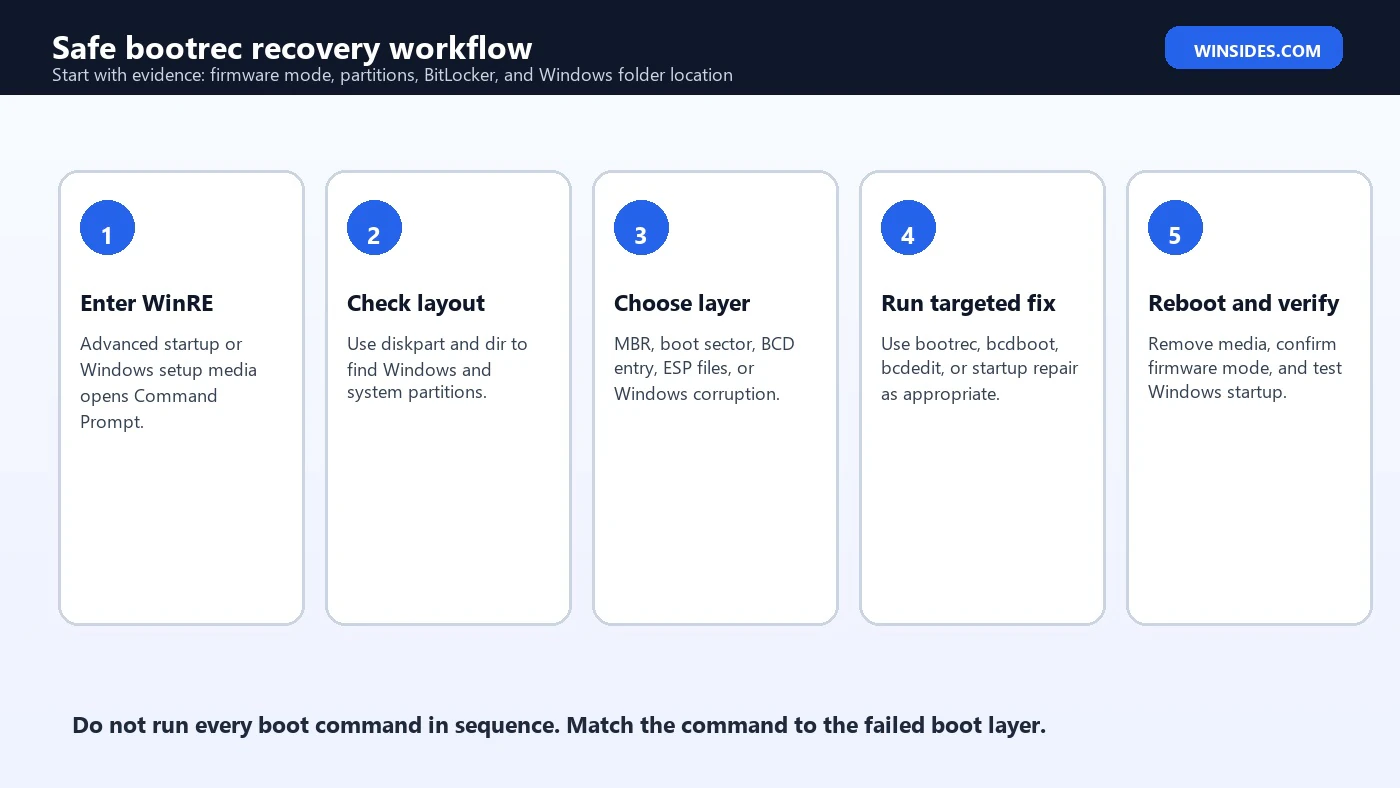
Before using bootrec, collect evidence. This step is not busywork. In recovery, drive letters often differ from normal Windows, and the wrong command against the wrong partition can waste time or make the boot menu more confusing. You should know whether the machine uses UEFI/GPT or BIOS/MBR, which volume contains Windows, whether BitLocker is enabled, and whether the disk is healthy enough to repair.
- Have the BitLocker recovery key ready if the device is encrypted.
- Disconnect unnecessary external drives so recovery does not target the wrong disk.
- Confirm whether firmware is booting in UEFI or legacy BIOS mode.
- Use DiskPart to identify the Windows partition and the system partition.
- Check whether the Windows folder exists before trying to rebuild BCD entries.
- Avoid formatting any partition until you are certain it is the correct system partition and formatting is actually needed.
diskpart
list disk
list vol
exit
dir C:\Windows
dir D:\Windows
dir E:\WindowsIf D:\Windows exists but C:\Windows does not, then the installed Windows partition is D: in that recovery session. That does not mean your normal Windows installation has permanently changed letters. It only means the recovery environment assigned letters differently. Your commands should use the letters that are correct in the current environment.
How to Open Command Prompt for bootrec
You normally run bootrec from Windows Recovery Environment. If Windows can still open Advanced startup, hold Shift while selecting Restart, or go through Settings to recovery options. If Windows cannot start, use Windows installation media, choose repair options instead of installing, and open Command Prompt from Advanced options. Microsoft Startup Settings documentation explains that Windows RE provides advanced startup options such as Safe Mode, debugging, boot logging, and recovery-oriented troubleshooting paths.
Once Command Prompt opens, remember that it may start from a recovery drive such as X:. That is normal. Do not assume X: is your installed Windows partition. Use DiskPart and directory checks first, then run the boot command that matches the failure.
Using bootrec /fixmbr
bootrec /fixmbr writes Windows-compatible MBR boot code to the system partition without rewriting the partition table. It is most relevant when MBR boot code has been overwritten or damaged on a BIOS/MBR-style system. Examples include old multi-boot loaders, malware cleanup, or a legacy system where the MBR code no longer transfers control correctly.
bootrec /fixmbrOn a modern UEFI/GPT Windows 11 computer, this command is usually not the most important repair step because the system does not boot through MBR code in the same way. Running it may not address missing EFI boot files, BCD store problems inside the ESP, or UEFI firmware entry problems. Use it when the platform and symptom point to MBR boot code, not as a ritual command for every startup failure.
Using bootrec /fixboot
bootrec /fixboot writes a new boot sector to the system partition. It is relevant when the boot sector layer is damaged or incompatible. In older BIOS/MBR repair workflows, it often appeared after /fixmbr. On Windows 11 UEFI/GPT systems, boot sector repair is not usually the same as recreating the EFI System Partition files. If your goal is to recreate \EFI\Microsoft\Boot files or a fresh BCD store on the ESP, BCDBoot is commonly the cleaner tool.
bootrec /fixbootIf /fixboot returns access denied, do not keep repeating it. Check whether you are on a UEFI/GPT system, whether the ESP is mounted, whether BitLocker is involved, and whether BCDBoot is the right next step. Repeating the same access-denied command rarely changes the underlying partition or firmware state.
Using bootrec /scanos
bootrec /scanos scans disks for Windows installations that are not currently listed in the Boot Configuration Data store. This is a diagnostic command before rebuilding entries. If it finds an installation, that tells you Windows files are present and discoverable but may not be represented in the current boot configuration. If it finds nothing, the problem may be the partition, file system, encryption state, wrong drive mode, or a Windows installation that is not readable from recovery.
bootrec /scanosA zero result does not always mean Windows is gone. If BitLocker is locked, if storage drivers are missing in recovery, if the disk is failing, or if the Windows folder is on a volume that recovery did not mount, the scan can fail to find what you expect. Verify the Windows folder manually with dir commands before assuming data loss.
Using bootrec /rebuildbcd
bootrec /rebuildbcd scans for Windows installations and gives you the option to add discovered installations to the BCD store. It is useful when a Windows installation exists but the boot menu or boot configuration no longer includes it. This can happen after partition changes, failed repairs, dual-boot changes, cloning, or manual deletion of boot entries.
bootrec /rebuildbcdIf the command finds your Windows installation and asks whether to add it to the boot list, answer yes only when it is the installation you intend to boot. If it does not find the installation but you can see the Windows folder manually, consider whether the current BCD store is damaged, whether the ESP needs BCDBoot repair, or whether the installation is locked or unreadable. On UEFI systems, rebuilding with BCDBoot may be more direct than trying to repair every BCD detail manually.
When BCDBoot Is Better Than bootrec
BCDBoot is often the better tool when the EFI System Partition needs a fresh set of Microsoft boot files or when you have applied a Windows image and need to make it bootable. Microsoft BCDBoot documentation explains that BCDBoot copies boot-environment files from the installed Windows image to the system partition and can create a BCD store using the latest Windows files. That is a different job from bootrec scanning for entries.
bcdboot C:\Windows /s S: /f UEFIIn that command, C:\Windows is the Windows source folder and S: is a temporary letter assigned to the EFI System Partition. In recovery, the source may be D:\Windows instead. The command is especially useful when Windows Boot Manager is missing from the ESP, when BCD files on the ESP are damaged, or when a cloned Windows installation needs boot files created for the target disk.
When BCDEdit Is Better Than bootrec
BCDEdit is better when the BCD store exists and you need to inspect or change values inside it. Microsoft BCDEdit documentation describes it as a command-line tool for managing BCD stores, including modifying existing stores and adding boot menu options. If Windows keeps entering Safe Mode, the default entry is wrong, timeout is too short, debugging is enabled, or the display order needs adjustment, BCDEdit is usually the precise tool.
bcdedit /enum active /v
bcdedit /timeout 10
bcdedit /deletevalue {current} safeboot
bootrec can find and rebuild entries, but it is not designed to cleanly edit every boot value. If you already have a store and need to change a setting, BCDEdit is less blunt. If the store is missing or the boot files are gone, BCDBoot may be better. If the MBR or boot sector is damaged on a matching platform, bootrec or Bootsect may be relevant.
bootrec vs Bootsect
Bootsect updates master boot code for hard disk partitions. Microsoft Bootsect documentation explains options such as /nt60 for Bootmgr-compatible boot code and cautions that forced dismounts can affect open handles. Bootsect is not the same as BCD repair, and it is not the same as recreating UEFI ESP files. It sits closer to the boot code layer.
bootsect /nt60 SYSIn practical Windows 11 troubleshooting, Bootsect is not the first command for most UEFI problems. It may be relevant in legacy or mixed boot-code scenarios, but if the PC uses UEFI/GPT and the issue is Windows Boot Manager or BCD on the ESP, BCDBoot and BCDEdit are usually more relevant than Bootsect.
Common bootrec Problems and Fixes
| Problem | Likely cause | Next step |
|---|---|---|
bootrec /fixboot access denied | UEFI/GPT partition access, ESP state, or wrong repair path. | Inspect partitions and consider BCDBoot for ESP boot files. |
/scanos finds 0 installations | Windows volume locked, unreadable, missing driver, wrong disk, or installation already in BCD. | Check with dir X:\Windows, unlock BitLocker, and verify disk health. |
/rebuildbcd finds no entries | BCD discovery cannot see the Windows installation. | Verify the Windows folder, storage drivers, encryption, and partition layout. |
| No bootable device remains | Firmware cannot find a boot path or drive is not detected. | Check BIOS/UEFI storage detection and boot order before more commands. |
| Windows logo appears then crashes | Boot path may work; OS, driver, or file corruption may be next. | Use Startup Settings, Safe Mode, DISM, SFC, System Restore, or driver rollback. |
The main pattern is simple: if a command fails, stop and interpret why. Running all four bootrec commands repeatedly can hide the real problem. A Windows 11 UEFI machine with missing ESP files needs a different repair than an old BIOS/MBR machine with overwritten MBR code.
A Safe UEFI Repair Pattern
For a Windows 11 UEFI system, a safe repair often starts with identifying the Windows partition and EFI System Partition. Assign the ESP a temporary drive letter only after confirming the volume. Then use BCDBoot when the goal is to recreate boot files. bootrec may still be used for BCD scanning, but BCDBoot is often the more direct repair for ESP file recreation.
diskpart
list vol
select vol <EFI volume number>
assign letter=S:
exit
dir C:\Windows
bcdboot C:\Windows /s S: /f UEFI
Replace C:\Windows with the actual Windows folder shown in recovery. If Windows is on D:, use D:\Windows. Do not format the ESP unless you have strong evidence that it is corrupted and you understand the impact on dual-boot entries, OEM tools, and BitLocker recovery.
A Legacy BIOS Repair Pattern
For a BIOS/MBR-style system, bootrec commands are more likely to match the boot layers involved. The MBR and boot sector can be part of the startup failure, and /fixmbr or /fixboot may be relevant. Even there, you should confirm disk layout first. If the active partition is wrong, if the disk has file-system damage, or if BCD points to a moved installation, the command sequence needs to match the evidence.
bootrec /fixmbr
bootrec /fixboot
bootrec /scanos
bootrec /rebuildbcd
This sequence appears in many older guides, but it should not be copied blindly onto every Windows 11 system. Treat it as a legacy-oriented pattern for cases where MBR and boot-sector layers are plausible. On UEFI/GPT, identify the ESP and consider BCDBoot.
BitLocker and bootrec
BitLocker can change the repair experience. If the Windows partition is locked, bootrec scans may not find the Windows installation, and directory checks may fail. If boot files or boot configuration are changed, BitLocker may ask for the recovery key on the next boot because the measured boot environment changed. That is expected protection behavior.
Before planned boot repair on a working system, suspend BitLocker when appropriate and save the recovery key. For a system that already cannot boot, locate the recovery key before making changes. Do not format the EFI System Partition or rebuild boot files on a BitLocker-protected device without being ready for recovery prompts.
What to Do When /rebuildbcd Finds Windows but Cannot Add It
Sometimes bootrec /rebuildbcd can detect a Windows installation but still fail to add it cleanly. The result may look like an access problem, an already-existing entry, or a damaged BCD store. Do not immediately format the system partition. First confirm whether the installation is already present in BCD, whether the store is readable, and whether the Windows folder belongs to the installation you actually want to boot.
If a BCD store exists but appears damaged, one recovery pattern is to export or rename the existing store and let a tool recreate entries. On modern UEFI systems, BCDBoot is often the cleaner way to recreate the BCD store and boot files from the Windows installation. On older BIOS-style repairs, bootrec may be enough. The key is to preserve evidence before deleting or renaming anything, especially on dual-boot PCs where another operating system may also have entries in the same boot path.
bcdedit /enum all
bootrec /scanos
bootrec /rebuildbcd
If bcdedit /enum all works, the store is at least readable. If it fails from recovery but the Windows folder exists, you may be working against the wrong store or the system partition may not be mounted as expected. On UEFI, assign the ESP a temporary letter and inspect it before rebuilding. A typical ESP contains an EFI folder. If the partition is empty, inaccessible, or not FAT32, bootrec alone may not be the best repair.
Understanding bootrec /fixboot Access Denied
The access-denied result from bootrec /fixboot deserves its own explanation because it is one of the most common Windows 10 and Windows 11 recovery frustrations. The message does not always mean your account lacks permission in the normal desktop sense. In recovery, it can reflect the selected partition, the firmware mode, the EFI System Partition state, whether the partition is mounted, or whether the repair command is being aimed at a boot layer that is not the one Windows is using.
On UEFI/GPT systems, Windows does not boot through an MBR-and-active-partition path in the same way as legacy BIOS systems. The firmware reads entries and boot files from the EFI System Partition. If the ESP files are missing or corrupted, writing a boot sector may not rebuild the Windows Boot Manager files that UEFI expects. That is why many successful Windows 11 repairs assign the ESP a letter and run BCDBoot instead of trying to force /fixboot repeatedly.
diskpart
list vol
select vol <EFI volume number>
assign letter=S:
exit
bcdboot C:\Windows /s S: /f UEFI
The example assumes Windows is on C:. In recovery, it may be on D:. If you get access denied, pause and verify rather than escalating blindly. Confirm that the ESP is the small FAT32 system partition, confirm the Windows folder, confirm BitLocker state, and confirm that the machine is booted in the same firmware mode as the installed Windows environment.
How to Decide Between Startup Repair and Manual Commands
Windows Startup Repair is worth trying when you are unsure which layer failed. It can detect some common boot problems and apply repairs without requiring you to choose between MBR, boot sector, BCD, and ESP fixes manually. Manual commands are better when you already have evidence: a missing boot entry, a damaged ESP, a legacy MBR problem, a cloned drive with no Windows Boot Manager entry, or a BCD store that clearly does not contain the installed Windows copy.
A good workflow is to try the least destructive repair first. Use Startup Repair when the symptom is broad. Use bootrec /scanos when you need to know whether recovery can discover Windows installations. Use BCDBoot when the ESP boot files need to be recreated. Use BCDEdit when the store exists and a value is wrong. Use disk diagnostics when the repair does not stick or the drive disappears. This order avoids the common trap of changing boot configuration when the storage device itself is unreliable.
| Situation | Better first move | Why |
|---|---|---|
| Unknown startup failure after update | Startup Repair | It can apply general repairs without guessing the boot layer. |
| Windows installation missing from boot menu | bootrec /scanos | It checks whether recovery can discover the installation. |
| ESP files missing on UEFI system | BCDBoot | It copies fresh boot files and creates BCD from the Windows folder. |
| Safe Mode or timeout stuck | BCDEdit | The BCD store exists; a value needs changing. |
| Drive not detected in firmware | Hardware or firmware check | Boot commands cannot repair an invisible or failing disk. |
Protecting Dual-Boot and OEM Recovery Setups
Boot repair is more delicate on dual-boot systems and OEM recovery layouts. A single EFI System Partition can contain files for Windows, recovery tools, firmware utilities, and other operating systems. Formatting that partition or rebuilding entries without checking what is there can remove boot paths you intended to keep. If the PC has more than one Windows installation, more than one internal drive, or another operating system, document the current boot entries before making changes.
Use bcdedit /enum all and firmware boot order screens to understand what exists. If the goal is only to restore one Windows installation, prefer targeted commands. On UEFI systems, BCDBoot has options that influence firmware boot order, while BCDEdit can inspect firmware entries. On a dual-boot machine, be careful with commands that rebuild or replace boot files wholesale, because the quickest repair for one Windows copy can temporarily hide another boot choice.
When Startup Failure Is Not a Bootrec Problem
A computer can fail to start even when bootrec-repairable layers are healthy. If the firmware finds Windows Boot Manager, the boot menu appears, and Windows begins loading before crashing, the failure may be past the point where bootrec helps. Driver conflicts, storage controller changes, bad GPU drivers, corrupted system files, failed updates, memory problems, and malware cleanup damage can all happen after Boot Manager has done its job.
In those cases, Startup Settings and Safe Mode matter more. Microsoft Startup Settings documentation describes options such as Safe Mode, boot logging, low-resolution video, disabling automatic restart on system failure, and debugging. Those options help you diagnose failures after the boot path is already working. If Safe Mode works, investigate drivers, services, updates, and system file repair with tools such as DISM and SFC rather than rewriting boot code.
Best Practices for Using bootrec
- Use bootrec from Windows Recovery Environment or trusted setup media.
- Identify firmware mode, partition style, Windows volume, and system partition first.
- Use
/scanosas evidence before rebuilding BCD entries. - Use
/fixmbrmainly when MBR boot code is the likely problem. - Use
/fixbootonly when boot sector repair matches the platform and symptom. - Use BCDBoot for many Windows 11 UEFI ESP boot file repairs.
- Use BCDEdit for editing values in an existing BCD store.
- Check disk health if boot configuration damage keeps returning.
Frequently Asked Questions
Is bootrec available in Windows 11?
bootrec is associated with Windows recovery environments and setup media. It is normally used from recovery Command Prompt rather than as a day-to-day desktop command.
Should I run all bootrec commands together?
Not automatically. Each option targets a different boot layer. Running every option without identifying the failed layer can waste time or change unrelated boot data.
Why does bootrec /fixboot say access is denied?
On modern UEFI/GPT systems, this often points to partition access, ESP state, or a repair path mismatch. Inspect the ESP and consider BCDBoot when the goal is to recreate Windows Boot Manager files.
Can bootrec fix a missing Windows Boot Manager?
It may help when the issue is BCD discovery, but if boot manager files are missing from the EFI System Partition, BCDBoot is usually the cleaner repair command.
Does bootrec delete my files?
The normal bootrec commands target boot code and BCD entries rather than personal files. However, related recovery actions such as formatting the wrong partition can destroy data, so verify everything first.
What should I do if bootrec finds no Windows installations?
Check whether the Windows partition is locked by BitLocker, unreadable, using a missing storage driver, or assigned a different letter. Manually verify the Windows folder before assuming the installation is gone.
Conclusion: Use bootrec for the Right Boot Layer
bootrec remains useful because it addresses real startup layers: MBR boot code, boot sector code, Windows installation scanning, and BCD rebuilding. When those layers are the problem, the command can save time and bring a Windows installation back into the boot path. The key is to use it as a targeted recovery tool, not as a universal set of magic commands.
For Windows 11, especially on UEFI/GPT systems, the best repair path often includes bootrec as one possible tool alongside BCDBoot, BCDEdit, Bootsect, Startup Settings, disk checks, and BitLocker-aware recovery. Identify the layout, confirm the Windows folder, understand the failed layer, and then run the command that matches. That approach is slower than copying a command block, but it is much safer and far more reliable.
For official context, keep Microsoft pages for Windows Startup Settings, BCDBoot, BCDEdit, Bootsect, and UEFI/GPT partition guidance nearby when troubleshooting Windows startup.
For more interesting articles, stay tuned to Winsides.com!









Community
Comments (0)