

Introduction to Fake Windows Update Screen Windows 11
Fake Windows update screen Windows 11 problems usually start with panic. A page fills the screen, the mouse seems trapped, a message says Windows is updating, a progress bar never moves, or a warning claims you must call support, download a file, or keep the PC powered on while something unknown happens. Because real Windows updates can also take over the screen during restart, the fake version feels believable enough to fool careful users.
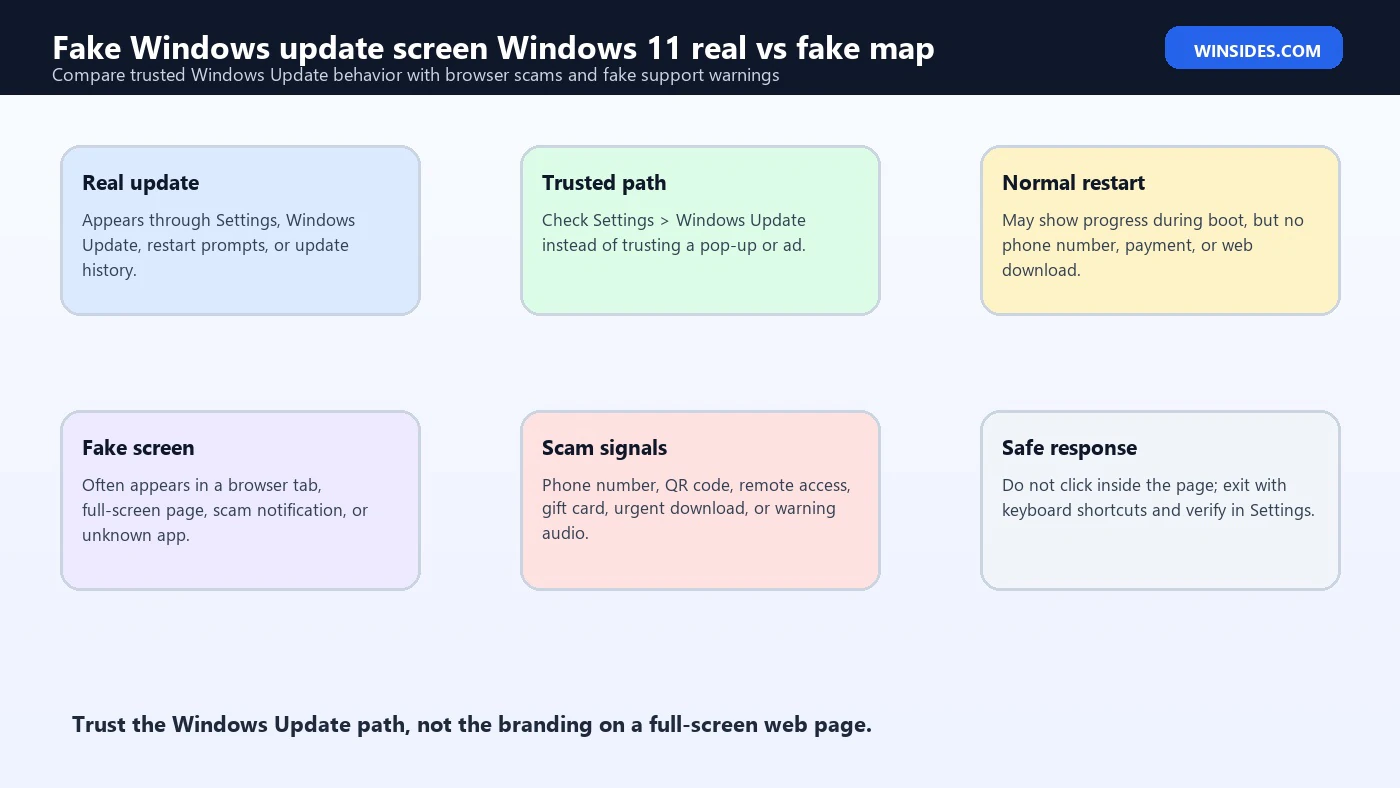
The safest response is to slow down and identify the context. A real Windows 11 update comes through Settings, Windows Update, Microsoft Store, Device Manager, or a normal restart/update flow. A fake update screen usually appears inside a browser tab, a pop-up, a full-screen web page, a remote support scam, a suspicious executable, or malware that is trying to look official. If the screen asks you to call a phone number, pay money, scan a QR code, enter a password, install a random update tool, or download an executable from an unknown website, treat it as unsafe.
Microsofts guidance on tech support scams is relevant because many fake update pages use the same pressure tactics: alarming messages, fake lockups, phone numbers, fake Microsoft branding, and claims that the computer needs urgent repair. Microsoft Support tech support scam guidance Microsofts Windows Update guidance is also important because real Windows updates are managed through Windows Update and related Microsoft-controlled update paths, not through random websites that demand manual installers. Microsoft Support Windows Update guidance
This guide explains how to recognize a fake Windows update screen on Windows 11, what to do without making the situation worse, how to exit a browser full-screen trap, how to verify real updates, how to scan the PC afterward, how to handle remote support scams, and when a forced shutdown is reasonable. The goal is not only to close the fake screen, but to leave the PC in a safer, known-good state.
Table of contents
Key Takeaways
- Fake Windows update screens often appear in a browser or pop-up. If the screen came from a website, advertisement, email link, or unknown download, it is not a normal Windows Update screen.
- Real Windows Update does not ask you to call a phone number. Any update page with a support number, payment demand, QR code, gift message, or remote access request is suspicious.
- Do not download files from the fake screen. A fake update may try to install malware, remote access tools, browser extensions, or unwanted software.
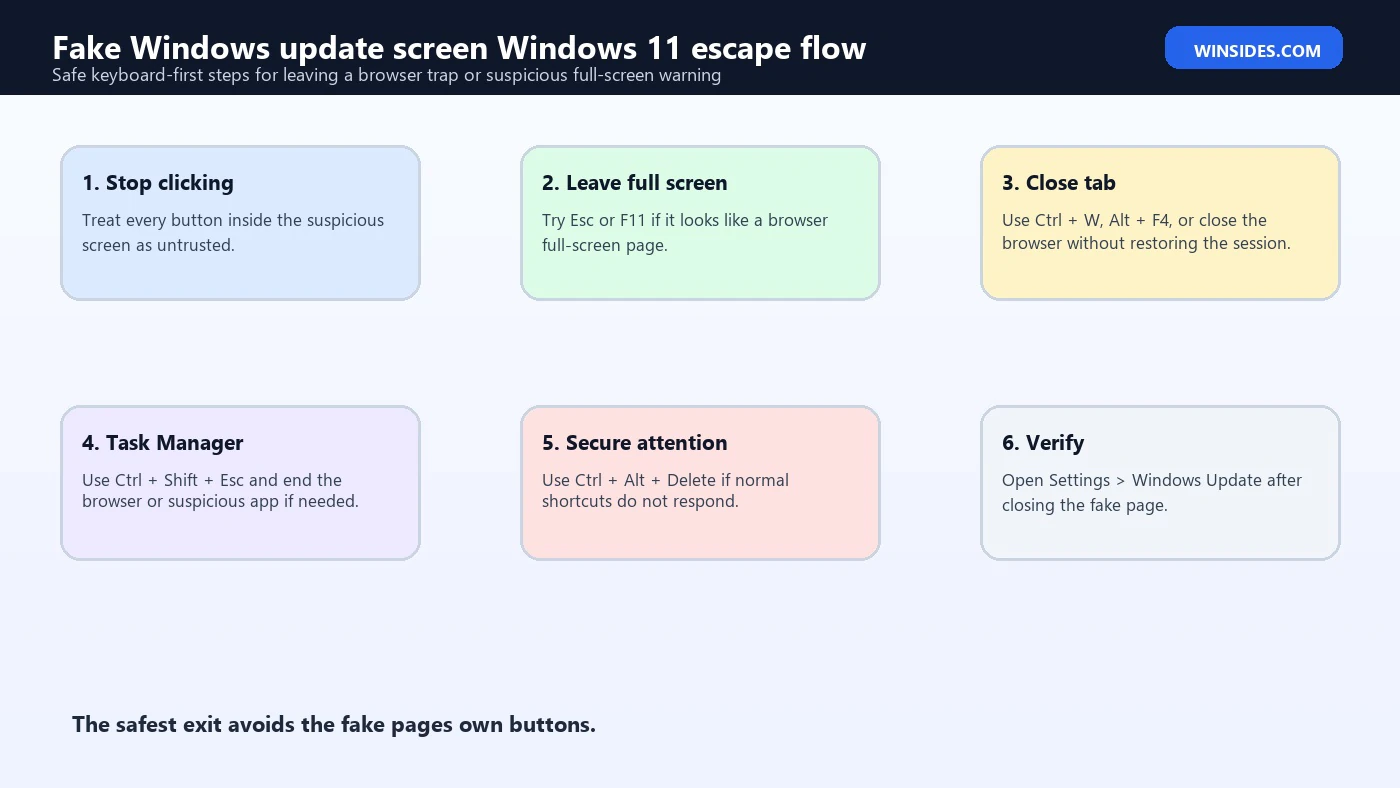
- Use keyboard exits first. Try Esc, F11, Alt + F4, Ctrl + W, Ctrl + Shift + Esc, or Ctrl + Alt + Delete depending on what is visible.
- Verify updates from Settings. Open Settings > Windows Update to check the real update state after closing the fake page.
- Scan after suspicious exposure. Use Windows Security and, when needed, Microsoft Safety Scanner from Microsofts official page.
- If someone connected remotely, treat it seriously. Disconnect internet, uninstall remote tools, change passwords from another device, and consider professional help.
What a Fake Windows Update Screen Looks Like
A fake Windows update screen can look like a normal blue update page, a Windows 11 setup page, a browser full-screen page, a fake security warning, a progress bar, or a black screen with update-like text. The attacker copies familiar language because users are trained not to interrupt real updates.
Common signs include a message that appears after visiting a website, clicking an ad, opening a suspicious email link, downloading a file, or closing a pop-up. Real Windows Update does not normally start because a random website says so.
A fake screen may show a progress percentage that never changes. It may tell you not to turn off the computer while also showing browser-like behavior, such as the mouse cursor appearing over the page, a hidden address bar, or a message that disappears when you press F11 or Esc.
Some fake screens include a phone number. That is a major warning sign. Microsoft does not put phone numbers inside random update screens telling you to call support before you can use the PC. Microsofts tech support scam guidance explains that scammers use fake warnings and pressure to convince users to contact them. Microsoft Support tech support scam guidance
Some pages play audio warnings. They may say your computer is blocked, your IP address is infected, your Windows license is suspended, or your files will be deleted. That is not how Windows Update communicates.
Some fake screens ask you to install a file called update, security patch, browser update, codec, support tool, driver repair, Windows optimizer, or remote assistant. Do not run it. A real Windows update does not need a random executable from a pop-up page.
Real Windows Update vs Fake Update Screen
Real Windows Update has a predictable path. You can open Settings > Windows Update and check for updates. Windows may download updates, ask for a restart, show a restart screen, and display progress while applying updates. The process is tied to the operating system, not a website.
A real restart update screen usually appears before Windows signs in, during restart, or while Windows is configuring updates. It normally does not ask for credit card details, phone calls, remote access, passwords, or browser downloads. It does not display an unknown web address. It does not ask you to call a technician.
A fake update screen often appears while you are already signed in and browsing. If pressing F11 changes the screen, it may be a browser full-screen page. If Alt + Tab shows a browser behind it, it is likely not the Windows update engine. If Ctrl + W closes the tab, it was definitely a browser page.
Real Windows Update may occasionally take time. Do not instantly power off a PC that is genuinely applying updates at boot unless it is clearly stuck for a long time or there are signs of a fake page. The danger is interrupting a real servicing operation. The trick is to identify whether you are in Windows, in a browser, or in a restart/update phase.
Microsofts Windows update documentation explains the normal update channel for keeping Windows current. Microsoft Support Windows Update guidance That is the channel you should trust. If a page claims to be a Windows update but arrived through a website, messaging app, ad, or fake warning, close it and verify through Settings instead.
A real Microsoft page can tell you about updates, but it should not trap your screen and force a suspicious download. For Windows 11, Settings remains the place to confirm the actual update status.
Immediate Safe Steps If You See a Fake Update Screen
Do not click buttons inside the suspicious screen. Buttons labeled OK, Continue, Scan, Update now, Repair, Cancel, or Close can all be fake. A malicious page can make every button perform the same unsafe action.
Do not call any phone number shown on the screen. Calling turns a fake page into a social engineering conversation. The person on the phone may ask for remote access, payment, bank details, Microsoft account credentials, or security codes.
Do not install anything offered by the page. Even if the file name looks official, the source is the problem. Windows Update does not need a random download from a browser warning.
Try Esc first. If the page is in browser full-screen mode, Esc may return the browser to normal. Then close the tab.
Try F11. Many fake update pages use browser full-screen mode. F11 toggles browser full-screen in common browsers. If the address bar returns, close the tab without interacting with the page.
Try Ctrl + W to close the current browser tab. Try Alt + F4 to close the current window. If the browser asks whether you want to leave the page, use the browser-level prompt carefully, not the fake page buttons.
Try Ctrl + Shift + Esc to open Task Manager. If it opens, select the browser or suspicious app and choose End task. This is often safer than clicking inside the fake page.
If keyboard shortcuts do not work, press Ctrl + Alt + Delete. From there, you can open Task Manager, sign out, or restart. Ctrl + Alt + Delete is handled by Windows secure attention behavior, so it is a useful way to escape many full-screen traps.
If the Fake Screen Is in a Browser
Most fake Windows update screens are browser pages. They use full-screen mode, scripts, looping dialogs, notification permissions, or audio to create the illusion that Windows is locked.
Press Esc or F11 to leave full-screen mode. Look for the address bar. If you see a web address, you are not on a real Windows Update screen. Close the tab with Ctrl + W or close the browser with Alt + F4.
If the tab refuses to close, open Task Manager with Ctrl + Shift + Esc. Select the browser process and end it. If more than one browser process is listed, ending the main browser app is usually enough. You may lose unsaved tabs, but that is better than interacting with the scam page.
When reopening the browser, do not restore the previous session if the browser asks. Restoring the session can reopen the same fake page. Start fresh, then clear browsing data for the suspicious site if needed.
Check notification permissions. Some scam sites ask permission to send notifications, then later display fake Windows alerts through browser notifications. In the browser settings, remove notification permission for unknown or suspicious sites.
Clear site data for the suspicious domain. This can remove persistent scripts, local storage, and saved permissions. You do not have to wipe the entire browser immediately; start with the suspicious site.
Update the browser through its official update path. Do not use the fake page. For Edge, Chrome, Firefox, or another browser, use the browsers built-in About or update page.
If the Screen Appears Outside the Browser
If the fake update screen appears outside the browser, the risk is higher. It may be a program running full-screen, a remote access tool, unwanted software, malware, a prank program, or a lock-screen-style scam.
Press Ctrl + Alt + Delete. If the secure options screen appears, open Task Manager. Look for unfamiliar apps, remote support tools, suspicious installers, unknown update utilities, or recently opened programs. End the suspicious process if you can identify it.
Disconnect from the internet if you suspect remote control or malware. Unplug Ethernet or turn off Wi-Fi from the network panel if possible. This can stop a remote session or block further downloads while you assess the PC.
Restart into normal Windows only if it is safe to do so. If the screen returns immediately after restart, use Windows Security, Safe Mode, or professional support. A persistent fake screen may indicate startup software.
Check installed apps for unfamiliar programs. Look for remote access tools, unknown browser extensions, fake driver utilities, fake security apps, update managers, or programs installed on the day the fake screen appeared.
Do not delete random system files. A fake update screen is not fixed by removing files from Windows folders. Use proper uninstall paths, Windows Security, and trusted scanning tools.
If the PC is managed by work or school, report it to IT. They may need logs, security telemetry, network indicators, or device isolation steps. Do not keep experimenting on a managed device if credentials or corporate data may be involved.
Verify Real Windows Updates After Closing the Fake Screen
After you close the fake screen, check the real update state from Windows itself. Open Settings > Windows Update. If updates are pending, Windows will show them there. If Windows says you are up to date, the fake page did not represent a real Windows update.
If the fake page claimed an urgent security update was required, verify through Settings, not through the link shown on the page. Real updates should come from Windows Update, Microsoft Store for apps, or the official software vendor.
Restart only after checking the real update state. If Windows genuinely has pending updates, restart from the Start menu or Windows Update page. Avoid clicking any restart button on the fake page.
Check update history if you are unsure what happened. Settings > Windows Update > Update history can show recently installed updates. This helps separate real update activity from a fake browser display.
If the PC restarted during the event and you are unsure whether an update was real, check update history, reliability history, Windows Security, and installed apps. A fake screen does not normally create a proper Windows Update history entry.
If Windows Update fails after the incident, troubleshoot it separately. A fake page may have nothing to do with the update engine. Do not install a third-party update repair tool from the suspicious site.
Scan with Windows Security
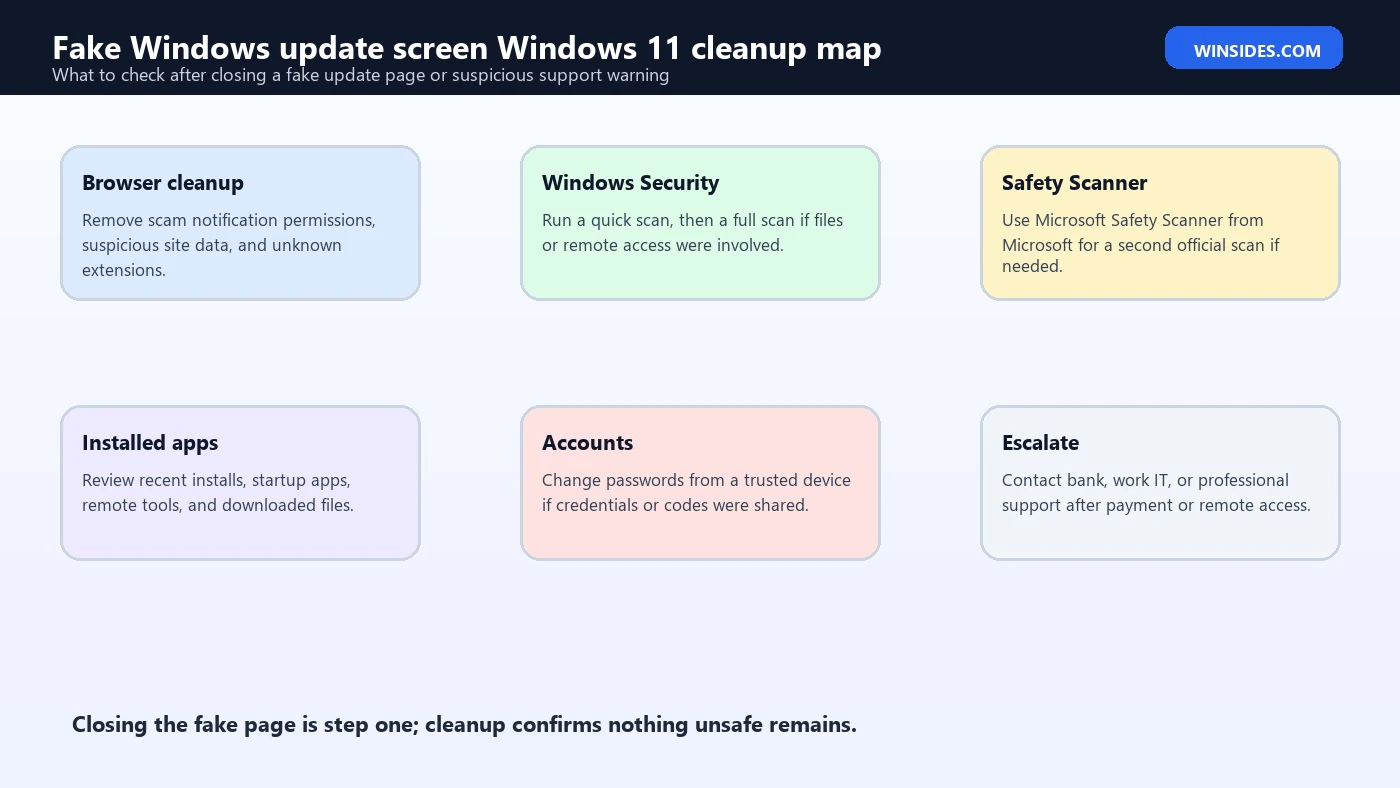
After a fake update screen, scan the PC. Open Windows Security from Start. Go to Virus & threat protection and run a Quick scan. Microsofts Windows Security documentation explains the built-in security app and its protection role in Windows. Microsoft Support Windows Security app guidance
If the fake screen involved a download, remote support session, unknown executable, or persistent pop-up, run a Full scan. A full scan takes longer, but it checks more locations.
Check Protection history. If Windows Security blocked something, the history can show what was detected and what action was taken.
Make sure Microsoft Defender Antivirus definitions are current. Windows Security usually updates automatically, but if the PC was offline or recently compromised, checking updates is sensible.
If another antivirus product is installed, use its official scan tools too. Do not install a new random security program from the fake page. Use Windows Security or a known trusted product.
If the fake screen returns after closing the browser, scan for unwanted browser extensions and startup apps. Malware is not the only cause; scam notifications and extensions can also recreate warnings.
When to Use Microsoft Safety Scanner
Microsoft Safety Scanner is a standalone scanning tool from Microsoft. It can be useful when you want a second scan from an official Microsoft source, especially after a suspicious download or scam page. Microsoft documents the Safety Scanner download on Microsoft Learn. Microsoft Learn Microsoft Safety Scanner download
Download it only from Microsoft. Do not search randomly and download a look-alike scanner from an ad. The whole problem started with a fake update screen, so the source matters.
Run it after Windows Security if you still suspect malware, or if the fake page involved a downloaded file. Safety Scanner is not a replacement for ongoing protection; it is an on-demand tool.
Use it while connected to the internet if the instructions require current signatures, and follow the Microsoft page carefully. If the PC is severely compromised, use another trusted device to read instructions or download tools.
If Safety Scanner finds threats, follow the removal results and then restart. After cleanup, update Windows, update browsers, review installed apps, review browser extensions, and change passwords if credentials may have been exposed.
If it finds nothing but the fake screen returns, inspect browser notification permissions, startup apps, scheduled tasks, extensions, and recently installed programs. Persistent fake screens often come from browser abuse, not a traditional file infection.
Remote Support Scam Warning Signs
A fake Windows update screen becomes more dangerous when it pushes you to call a number. The person on the phone may claim to be Microsoft, Windows support, a bank security partner, or a certified technician.
They may ask you to install remote access software. Do not do it. Once connected, a scammer can view files, change settings, install tools, open bank pages, or pressure you into payments.
They may show Event Viewer warnings to scare you. Windows logs contain warnings and errors on normal PCs. Showing logs is a common trick, not proof that the PC is infected.
They may ask for gift cards, cryptocurrency, bank transfer, or a support subscription. Microsoft does not resolve Windows updates by asking for gift cards.
They may ask for one-time passcodes or Microsoft account codes. Never share security codes. A legitimate support process does not need your authentication codes.
If you already gave remote access, disconnect the internet, shut down the remote tool, uninstall it, run Windows Security scans, change passwords from another trusted device, and contact your bank if financial information was exposed. Microsofts tech support scam guidance is the right official reference for this pattern. Microsoft Support tech support scam guidance
Browser Notification Scams That Look Like Windows Update
Some fake update warnings are not full pages. They are browser notifications that look like Windows notifications. A site asks for notification permission, then later sends alerts such as Windows update required, virus found, renew protection, or PC blocked.
These notifications may appear near the lower corner of the screen, making them look like system alerts. Look carefully: browser notifications usually include the browser name or site domain. If the domain is unknown, remove the permission.
In Edge or Chrome, open browser settings and search for notifications. Review allowed sites and remove suspicious entries. In Firefox, check Permissions for notifications. The exact path varies by browser, but the goal is the same: remove the sites permission to notify you.
Do not click the notification to fix the issue. Clicking often opens the scam site again. Remove the permission first.
After removing notification permissions, clear site data for suspicious domains and review extensions. Some extensions can also generate fake alerts.
This is a common reason users think the fake update screen returned after cleanup. The PC may be clean, but the browser still has permission to show scam notifications.
What If the PC Is Really Updating?
Sometimes the screen is real. Windows may show update progress during restart, especially after cumulative updates, feature updates, driver updates, or firmware updates. Do not force a shutdown just because an update takes longer than expected.
Look at the context. Did you choose Update and restart from the Start menu? Did Windows Update ask for a restart? Is the screen before sign-in during boot? Is there no browser address bar, no phone number, no download button, and no suspicious message? Those signs point toward a real update.
If the update percentage is moving slowly, wait. Some updates spend a long time at one percentage. Disk speed, device age, update size, encryption, and firmware steps can affect timing.
If the PC has been stuck for hours with no disk activity, no change, and no response, you may need recovery steps. But that is a Windows Update troubleshooting problem, not necessarily a fake screen.
If you are in doubt, do not call a number from the screen. Real Windows update screens do not provide emergency phone numbers. Use another device to search Microsoft Support or your PC manufacturers support page.
After the system returns, check Settings > Windows Update > Update history. That confirms whether updates were actually installed.
Signs the Fake Screen Installed Something
If you clicked a download or ran a file from the fake page, check the PC more thoroughly. Look for new apps installed at the time of the incident. Open Settings > Apps > Installed apps and sort by install date if available.
Check browser extensions. Scam pages often install extensions that change search, inject ads, redirect tabs, or show notifications.
Check startup apps. Open Task Manager > Startup apps and look for unfamiliar entries. Disable suspicious items while you investigate, but avoid disabling Windows or driver components you do not understand.
Check downloads. Do not run the downloaded file again. Uploading suspicious files to a security service may be appropriate for advanced users, but ordinary users should delete the file after scanning or follow security guidance.
Check Windows Security Protection history. If Defender blocked or quarantined something, review the name and action.
If financial accounts, email, or Microsoft account credentials were entered after the fake screen, change passwords from another trusted device. Enable multifactor authentication where available. Watch for suspicious sign-ins.
Safe Recovery Order for Fake Windows Update Screen Windows 11
Use this order when you encounter a fake Windows update screen on Windows 11.
- Do not click buttons inside the suspicious screen.
- Do not call phone numbers shown on the page.
- Do not download or run files from the page.
- Press Esc or F11 if it looks like a browser full-screen page.
- Use Ctrl + W or Alt + F4 to close the tab or window.
- Use Ctrl + Shift + Esc to open Task Manager and end the browser if needed.
- Use Ctrl + Alt + Delete if normal shortcuts do not respond.
- Reopen the browser without restoring the previous session.
- Remove suspicious browser notification permissions.
- Verify real updates from Settings > Windows Update.
- Run Windows Security Quick scan, then Full scan if risk is higher.
- Use Microsoft Safety Scanner from Microsoft if you need a second official scan.
- Review installed apps, browser extensions, downloads, and startup apps.
- Change passwords from another trusted device if credentials were exposed.
- Contact bank, card provider, work IT, or professional support if payment, remote access, or sensitive data was involved.
This order avoids the two worst mistakes: interacting with the fake page and installing the file it wants you to install.
What Not to Do
Do not trust the Microsoft logo on a random page. Logos can be copied. Trust the update path, not the branding.
Do not call a number from a pop-up. This is one of the most common scam routes.
Do not give remote control to someone who appeared because of a warning screen. If support is needed, contact the official support channel yourself.
Do not enter passwords, card details, recovery codes, or one-time passcodes into a page that appeared during a fake update alert.
Do not install a driver updater, Windows updater, repair tool, antivirus, browser update, or codec from the page.
Do not assume the PC is safe just because the fake screen closed. Review notifications, downloads, extensions, installed apps, and Windows Security.
Do not panic-power-off a real Windows update just because you read about fake screens. First decide whether you are in a browser scam or an actual Windows restart update.
Frequently Asked Questions
What is a fake Windows update screen in Windows 11?
It is a scam page, pop-up, full-screen browser trick, or malicious program that pretends Windows is updating or blocked. It may show fake progress, warnings, support numbers, or download prompts.
How do I know if a Windows update screen is fake?
It is suspicious if it appears in a browser, asks you to call a number, demands payment, asks for remote access, offers a random download, plays warning audio, or appears after clicking an ad or suspicious link.
What should I press to escape a fake update screen?
Try Esc, F11, Ctrl + W, Alt + F4, Ctrl + Shift + Esc, or Ctrl + Alt + Delete. Avoid clicking buttons inside the fake page.
Can a fake Windows update screen infect my PC?
The screen itself may only be a web page, but it can lead to infection if you download files, allow notifications, install extensions, grant remote access, or enter credentials.
Should I shut down the PC immediately?
If it is clearly a browser scam, close the browser or end the task. If Windows is genuinely applying updates during restart, avoid forcing shutdown unless it is truly stuck for a long time.
How do I check real Windows updates?
Open Settings > Windows Update. Real update status, pending restarts, and update history are shown there.
Is Microsoft Safety Scanner safe?
Yes, when downloaded from Microsofts official page. It is an on-demand scanner that can help after suspicious exposure, but it is not a replacement for ongoing protection.
What if I called the number or gave remote access?
Disconnect from the internet, end the remote session, uninstall the remote tool, run security scans, change passwords from another trusted device, and contact your bank or IT department if sensitive information was exposed.
Conclusion: Verify Updates from Windows, Not Pop-Ups
Fake Windows update screen Windows 11 scams work because they imitate something users already trust: the update process. The safest response is to avoid the page, escape with keyboard shortcuts or Task Manager, and verify the real update state from Settings > Windows Update.
A real Windows update will not demand a phone call, gift card, remote access session, random installer, or password inside a web pop-up. If a screen uses pressure, fear, support numbers, or urgent downloads, treat it as a scam until proven otherwise.
After closing the fake screen, clean up the browser, remove suspicious notification permissions, scan with Windows Security, use Microsoft Safety Scanner when needed, and review installed apps or extensions if anything was downloaded. That method keeps the PC safer without interrupting genuine Windows updates unnecessarily.
For more interesting articles, stay tuned to Winsides.com!









Community
Comments (0)