

Introduction to Camera Driver for Windows 11
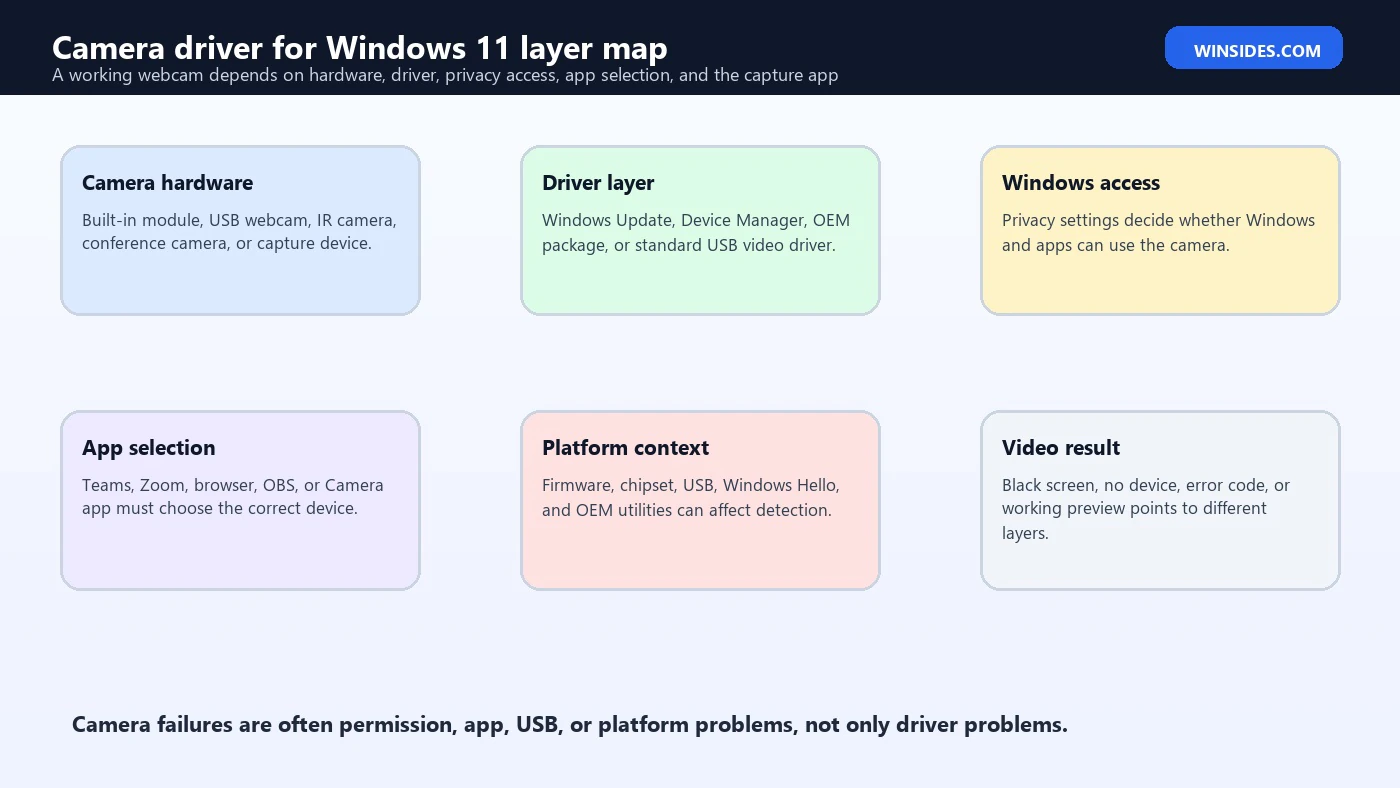
Camera driver for Windows 11 is a common search when a built-in laptop webcam, USB webcam, conference camera, document camera, or Windows Hello camera stops working. The problem might look simple from the outside: the camera app is black, Zoom cannot detect the webcam, Teams says another app is using the camera, Device Manager shows an error, or the camera works in one app but not another. Underneath that symptom, Windows has to coordinate hardware, drivers, privacy permissions, app access, firmware, USB bandwidth, security software, and sometimes OEM utilities.
A camera driver is the software layer that lets Windows 11 communicate with the camera hardware. For many USB webcams, Windows can use a standard class driver automatically. For many laptop cameras, the best driver comes from Windows Update or the laptop manufacturer. For advanced cameras, infrared Windows Hello modules, AI noise-correction webcams, and vendor-specific camera controls, the driver package may include more than the basic imaging driver.
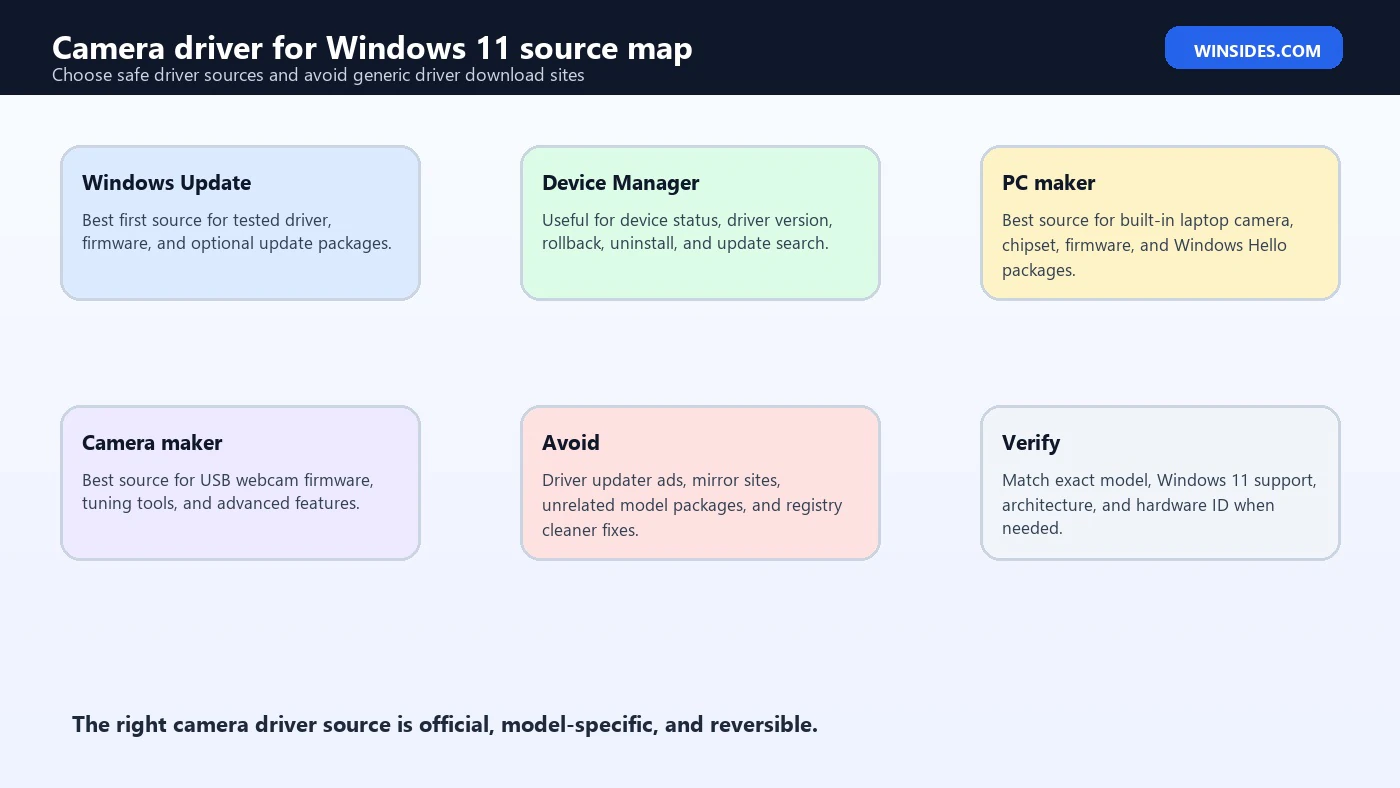
The safest rule is simple: do not download random camera driver installers from search ads, driver updater sites, or file-sharing mirrors. Start with Windows Update, Device Manager, the PC maker, or the camera maker. Microsofts own camera troubleshooting page is the right official starting point for camera problems in Windows. Microsoft Support camera troubleshooting in Windows Microsoft also documents how to update drivers through Device Manager, which is useful when Windows needs to search locally or online for an updated driver. Microsoft Support update drivers through Device Manager
This guide explains how camera drivers work in Windows 11, when you actually need a driver, how to update or reinstall one safely, how privacy permissions can look like driver failures, what to check for built-in laptop cameras, what to check for USB cameras, and what to avoid when a site promises a universal Windows 11 webcam driver.
Table of contents
Key Takeaways
- Camera driver for Windows 11 does not always mean a manual download. Many webcams work with Windows Update, Device Manager, or built-in USB video class support.
- Privacy settings can look like driver failure. If Windows or an app is not allowed to use the camera, the driver may be fine but the camera still will not open.
- Use official sources first. Start with Windows Update, Device Manager, the PC manufacturer, or the webcam manufacturer.
- Do not install random driver updater packages. They can install the wrong driver, bundle unwanted software, or make a working camera worse.
- Built-in laptop cameras often need OEM context. BIOS or UEFI settings, function keys, privacy shutters, manufacturer services, and Windows Hello hardware can affect detection.
- USB cameras need port and bandwidth checks. Try another port, remove hubs, test another cable if removable, and check whether another app is using the camera.
- Rollback and uninstall are valid repair steps. A newer driver is not always better if the issue started after an update.
What a Camera Driver Does in Windows 11
A camera driver lets Windows identify the camera, expose it to apps, control capture formats, handle resolution and frame rate options, and communicate with the hardware. Without a working driver path, Windows may not know that the camera exists, or apps may fail when they try to start video capture.
For a simple USB webcam, the driver path may be mostly automatic. Many webcams follow standard USB video class behavior, so Windows can detect them without a vendor installer. That is why some cameras work immediately when plugged in.
For a built-in laptop camera, the path can be more customized. The camera module may be connected internally through USB, MIPI, or another platform path. The driver may depend on chipset packages, system firmware, ACPI entries, image signal processing components, or OEM camera extensions. This is why the laptop manufacturers support page can matter.
For Windows Hello, the situation is more specific. A normal color webcam is not always enough. Windows Hello face recognition usually needs an infrared camera or compatible biometric hardware. If the regular camera works but Windows Hello fails, the issue may involve biometric drivers or the IR camera component, not the ordinary video camera alone.
For conference cameras and advanced webcams, vendor software may provide background blur, autofocus tuning, firmware updates, AI framing, HDR, low-light controls, or microphone integration. The basic driver may make the camera visible, while the vendor package enables extra features.
The driver is only one layer. Windows camera privacy settings, app permissions, app-specific camera choices, browser permissions, antivirus controls, USB power, firmware, and physical shutters can all stop video even when the driver itself is installed correctly.
When You Actually Need a Camera Driver
You probably need driver attention when the camera is missing from Device Manager, appears with a warning icon, shows an error code, disappears after sleep, fails after a Windows update, or works only with a generic name while important features are missing.
You may also need a driver when a laptop manufacturer lists a camera, chipset, serial IO, platform, or Windows Hello package for your exact model. Laptop camera support is often tied to the entire platform, not just the single webcam line in Device Manager.
You probably do not need a random driver if the camera works in the Windows Camera app but not in a meeting app. That usually points to app permissions, app camera selection, browser permissions, background use, or another app holding the camera.
You probably do not need a manual driver if a USB webcam works on another Windows 11 PC and appears normally when plugged in. In that case, look at the port, hub, privacy settings, conflicting apps, or security software on the affected PC.
You probably do not need an old Windows 7 or Windows 8 camera driver unless the manufacturer explicitly says it supports Windows 11 or your exact Windows version. Old camera packages can break modern standby, privacy handling, or app compatibility.
You should be cautious if a website claims to offer a universal Windows 11 camera driver. Camera hardware is specific. A universal installer from an unknown site is more likely to be a driver updater bundle than a trustworthy camera driver.
Start with Camera Privacy Settings
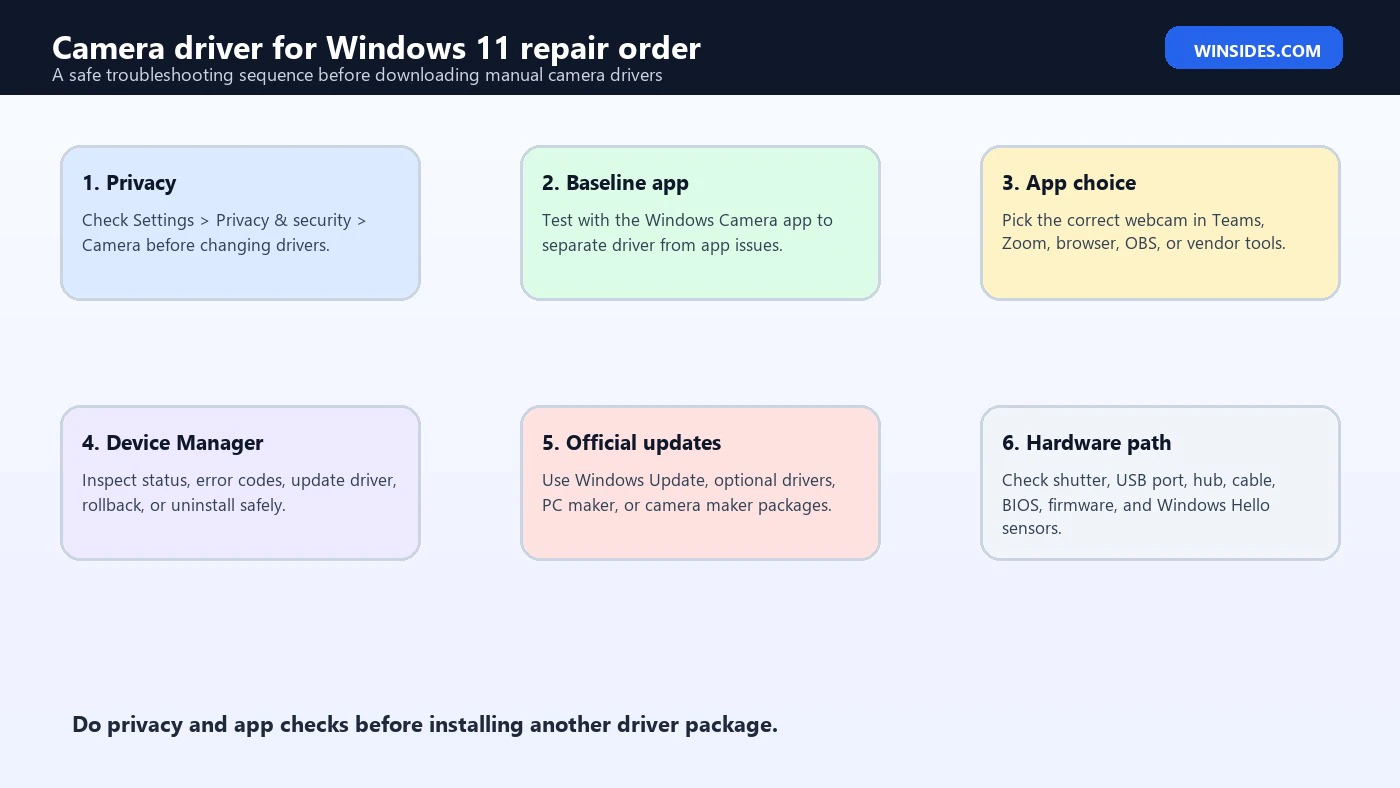
Before changing drivers, check camera privacy. Windows 11 can block camera access at the system level, desktop app level, or individual app level. When that happens, apps may say the camera is unavailable even though Device Manager looks normal.
Open Settings > Privacy & security > Camera. Make sure camera access is enabled. Then make sure apps are allowed to access the camera. If the problem is in a Microsoft Store app, check the specific app toggle. If the problem is in a desktop app such as Zoom, Teams, Chrome, Edge, OBS, or a vendor utility, check the desktop app access section too.
Microsofts camera and microphone privacy documentation is important here because it explains that Windows has app permissions for camera and microphone access. Microsoft Support camera and microphone privacy in Windows Many camera problems are permission problems, not driver problems.
Also check browser permissions. If the camera fails only in a website, open the browsers site permissions and make sure the site can use the camera. The Windows camera permission may be enabled, but the browser may still block the website.
Check whether another app is using the camera. Some cameras can be used by only one app at a time. Close Teams, Zoom, Camera, OBS, browser tabs, vendor camera tools, and background meeting apps, then test again.
Look for physical privacy controls. Many laptops have a camera shutter, camera kill switch, keyboard shortcut, or manufacturer privacy mode. If the shutter is closed, the driver may load perfectly but the preview stays black. If a keyboard shortcut disables the camera, Windows may show the device as unavailable.
Test with the Windows Camera App First
The Windows Camera app is a useful baseline test because it removes many meeting-app variables. If the camera works in the Camera app, the driver and core Windows capture path are probably working. The issue is likely app permission, app selection, browser permission, or another apps configuration.
If the Camera app fails too, the problem is closer to the Windows layer, driver layer, hardware layer, privacy layer, or firmware layer. That is when Device Manager, Windows Update, and OEM support become more important.
Open Start, search for Camera, and launch the app. If you have more than one camera, switch cameras from inside the app. A laptop with a front camera, IR camera, virtual camera, and external webcam may have several capture devices. Choosing the wrong one can look like a failure.
If the app shows a black image but no error, check the physical shutter, lighting, app conflict, and privacy settings. If it shows a specific error code, record it exactly before changing drivers. Error codes are useful when comparing Device Manager, Event Viewer, and vendor support guidance.
If the app works only after unplugging and replugging a USB camera, look at USB power management, hub behavior, cable quality, port bandwidth, and firmware. A driver update may help, but the physical connection deserves equal attention.
If the app works after a restart but fails after sleep, look for firmware, BIOS, chipset, USB controller, and camera driver updates from the PC maker. Sleep and modern standby issues are often platform-level problems.
Update Camera Driver Through Windows Update
Windows Update is usually the best first driver source for Windows 11. It can provide tested driver packages, optional driver updates, firmware updates, and supporting platform drivers. This is safer than downloading from a random driver site.
Open Settings > Windows Update and check for updates. Install available updates, restart if required, and test the camera again. Then check Advanced options > Optional updates > Driver updates if that section is available. Do not install every optional driver blindly. Look for camera, imaging, extension, chipset, USB, firmware, or manufacturer packages that match your device.
If the camera stopped after a recent Windows update, Windows Update can still be part of the fix. The next cumulative update, driver extension, or OEM package may correct a known issue. But if the failure started immediately after a driver update, rollback may be better than installing more updates.
Keep Windows Update and OEM support together in your thinking. Windows Update may deliver a generic or Microsoft-validated package. The PC manufacturer may publish a model-specific package. For laptops, model-specific support is often important because the camera is integrated into the platform.
After updates, restart Windows. Camera drivers and platform services can remain loaded until reboot. Testing before restart can produce misleading results.
If no updates are found, that does not mean the driver is perfect. It only means Windows Update does not currently have a better package for that device. Move next to Device Manager and OEM support.
Update Camera Driver Through Device Manager
Device Manager is the built-in Windows tool for viewing hardware devices, driver status, driver dates, driver providers, and error codes. Microsoft documents driver updates through Device Manager as an official Windows method. Microsoft Support update drivers through Device Manager
Open Device Manager by right-clicking Start and selecting Device Manager. Look under Cameras, Imaging devices, Sound, video and game controllers, Universal Serial Bus controllers, or Biometric devices depending on the hardware. If the camera is hidden, use View > Show hidden devices, but remember that hidden devices may include old disconnected hardware.
Right-click the camera device and select Properties. Check the General tab for device status and error codes. Check the Driver tab for driver provider, driver date, driver version, rollback, update, disable, and uninstall options.
To search for an updated driver, choose Update driver > Search automatically for drivers. If Windows finds a better driver, install it and restart. If Windows says the best driver is already installed, that does not prove the driver is ideal. It only means Windows did not find a better one through that path.
If the camera has a warning icon, record the error code before changing anything. Device Manager codes can point to driver load failure, missing hardware, disabled device, resource conflict, or signature problems.
If the device is disabled, enable it. If it disappears and reappears, suspect USB, internal connection, firmware, power, or hardware issues. If it appears as Unknown device, the camera may need an OEM driver or supporting chipset driver.
Uninstall and Reinstall the Camera Device Safely
Uninstalling the device from Device Manager can force Windows to rediscover it. This is useful when the installed device instance is stale, corrupted, or carrying a broken configuration.
Open Device Manager, right-click the camera, and choose Uninstall device. If Windows offers a checkbox to delete the driver software, do not select it on the first pass unless you are deliberately removing a bad driver package. Start with a normal uninstall, restart Windows, and let Windows rediscover the camera.
After restart, open Device Manager and check whether the camera returns. Test the Windows Camera app. If the camera returns and works, the problem was likely a stale device instance or temporary driver state.
If it does not return, unplug and replug an external camera. For a built-in laptop camera, use Scan for hardware changes in Device Manager, check BIOS or UEFI camera settings, and look for OEM driver or firmware updates.
If the device returns with the same error, the driver package, hardware path, or supporting platform driver may still be wrong. Move to Windows Update, OEM support, and error-code-specific troubleshooting.
If the device returns as a generic USB camera and works, that may be enough. Do not chase a vendor driver just because the name is generic unless you need missing features such as autofocus control, IR support, firmware tools, or low-light enhancement.
Roll Back Camera Driver After a Bad Update
A new driver can create a new problem. If your camera stopped working right after a driver update, use Roll Back Driver if the button is available.
Open Device Manager, open the camera Properties, go to the Driver tab, and select Roll Back Driver. Choose a reason and follow the prompt. Restart Windows and test again.
Rollback is useful when the camera worked yesterday, a driver changed, and the same app now fails. It is less useful if the camera never worked, the device is physically disconnected, or Windows cannot see the hardware at all.
If Roll Back Driver is unavailable, Windows does not have the previous driver package staged for that device. In that case, check the laptop or camera manufacturers support page for the older known-good driver, or use system restore if a restore point exists and the change was recent.
Do not repeatedly install older random drivers without a plan. Camera drivers can interact with privacy controls, Windows Hello, device extensions, and vendor services. Keep track of each version you install.
If rollback fixes the problem, pause before forcing the same driver update again. Check the manufacturer page, release notes, Windows Update optional drivers, and user reports for your exact model.
Find the Correct OEM Camera Driver
For a laptop, 2-in-1, all-in-one PC, or tablet, the correct driver source is usually the PC manufacturer. Search by exact model, service tag, serial number, or support assistant tool. Do not rely only on a generic model family name.
A camera driver may be listed under Camera, Imaging, Chipset, Serial IO, Intel Imaging Signal Processor, Sensor, Integrated Camera, IR Camera, Windows Hello, Firmware, or Utility depending on the manufacturer. Laptop support pages vary.
Install chipset and firmware updates before assuming the camera driver alone is wrong. Integrated cameras can depend on platform-level components. A missing chipset or serial IO package can make the camera look like a driver problem.
For Dell, HP, Lenovo, ASUS, Acer, Microsoft Surface, MSI, and other PC makers, use the official support website or official support app. Avoid third-party mirrors that repackage OEM drivers.
For a USB webcam, use the camera manufacturers site if Windows Update is not enough. Logitech, Razer, Elgato, Anker, Dell, HP, and other brands may provide configuration software or firmware tools. You may not need the vendor package if the webcam already works, but it can unlock features.
Match the driver to Windows 11, your device model, and system architecture. If the site lists Windows 10 only, read the vendor note carefully. Some Windows 10 camera drivers work on Windows 11, but unsupported packages should be a last resort.
USB Webcam Checks Before Driver Changes
For an external USB webcam, test the connection before changing drivers. Plug the camera directly into the PC instead of a hub. Try another USB port. If the camera has a removable cable, try another cable. Avoid low-power hubs during testing.
Check whether the webcam appears in Device Manager when plugged in. If it appears and disappears repeatedly, suspect cable, port, hub, power, firmware, or the camera hardware itself.
Test on another Windows 11 computer if possible. If the camera fails there too, the camera or cable is more likely than the driver. If it works there, the issue is local to the first PC.
Close apps that might be using it. Meeting apps, browser tabs, screen recorders, virtual camera tools, camera vendor apps, and background services can hold the device. Restart Windows if you cannot identify the app.
Check app camera selection. Many users have a built-in laptop webcam, an external webcam, a virtual camera, and maybe a capture card. An app may be pointed at the wrong device.
Avoid USB bandwidth conflicts. High-resolution webcams can be sensitive when connected through crowded hubs with capture cards, docking stations, storage devices, or multiple cameras. Test at a lower resolution or plug into another controller if available.
Built-In Laptop Camera Checks
Built-in laptop cameras have extra failure points. Check for a physical privacy shutter first. Some laptops have a small slider that covers the lens. Others use an electronic privacy mode controlled by a function key or vendor utility.
Check keyboard shortcuts. Some laptops use Fn plus a function key to enable or disable the camera. The key may show a camera icon. If the camera was disabled this way, apps may see no usable device.
Check the OEM utility. Lenovo Vantage, Dell Optimizer, HP Support Assistant, ASUS utilities, Acer tools, MSI Center, and other vendor apps can include camera privacy, AI camera, presence detection, or conferencing controls.
Check BIOS or UEFI settings. Some systems allow the integrated camera to be disabled at firmware level. If disabled there, Windows may not see the camera no matter which driver you install.
Check for Windows Hello separation. A laptop may have an RGB camera and an IR camera. One can fail while the other works. If Windows Hello fails but normal video works, troubleshoot biometric and IR components too.
Check after sleep and docking. Some laptop cameras fail after modern standby, docking changes, or lid state changes. BIOS, firmware, chipset, and camera driver updates are often more relevant than a standalone camera driver in those cases.
Fix Camera App Works but Teams, Zoom, or Browser Does Not
If the Windows Camera app works, the driver is probably not the first suspect. Focus on the app that fails.
Open the app settings and choose the correct camera. In Teams, Zoom, Meet, Webex, OBS, browsers, and recording tools, the selected camera can be wrong. Pick the real webcam, not a virtual camera or inactive device.
Check Windows camera privacy settings. Desktop app access must be enabled for many meeting apps. Microsofts privacy documentation explains that camera access is controlled through Windows privacy settings. Microsoft Support camera and microphone privacy in Windows
Check browser site permissions. If Google Meet, Teams on the web, or another website fails, the browser may be blocking the site even when Windows allows the browser itself.
Close other video apps. Only one app may be able to use a camera at a time depending on the driver and app path. Quit Camera, Teams, Zoom, OBS, browser tabs, vendor webcam software, and virtual camera tools.
Update the app. A camera driver can be fine while an outdated meeting app fails with Windows 11 camera APIs, virtual backgrounds, or device switching.
Disable virtual camera layers temporarily. OBS Virtual Camera, Snap Camera-style tools, vendor effects, AI background tools, and streaming utilities can confuse app selection. Test the physical camera directly.
Camera Missing from Device Manager
If the camera is missing from Device Manager, start with View > Show hidden devices. If it appears faded, Windows may remember a disconnected device, not detect the current hardware.
For USB cameras, unplug the camera, restart Windows, plug it directly into another port, and watch Device Manager. If nothing changes, test another PC or cable.
For built-in cameras, check firmware settings, physical switches, OEM utilities, and function keys. If the camera is disabled at firmware level, Device Manager may not show it.
Check Windows Update and OEM support for chipset, firmware, camera, and platform drivers. A missing platform driver can prevent an integrated camera from enumerating correctly.
Look under multiple categories. Cameras may appear under Cameras, Imaging devices, Sound, video and game controllers, Universal Serial Bus devices, System devices, or Biometric devices.
If an Unknown device appears when the camera should be present, open its properties and check hardware IDs. Use those IDs only on official manufacturer pages or trusted support channels. Do not paste hardware IDs into random driver download sites and install the first package offered.
Windows Hello Camera Driver Notes
Windows Hello face sign-in is not the same as ordinary webcam video. It often uses an infrared camera, biometric driver, camera extension, or special sensor path. A normal camera preview can work while Windows Hello says no compatible camera is available.
Check Settings > Accounts > Sign-in options. If Windows Hello face is unavailable, read the message carefully. It may indicate missing compatible hardware rather than a broken RGB camera driver.
Check Device Manager under Cameras and Biometric devices. Some systems show separate RGB and IR camera devices. If the IR camera has a warning icon, focus on OEM biometric or IR camera packages.
Install firmware and platform updates from the PC maker. Windows Hello issues on laptops often depend on firmware, sensor drivers, chipset, and camera extensions.
Do not install a random Windows Hello driver from another model. Biometric hardware is model-specific. The wrong driver can break sign-in, sleep behavior, or camera privacy features.
If Windows Hello worked before a driver update, use rollback if available. If it never worked, confirm that your exact laptop configuration includes an IR camera. Some model families sell variants with and without Windows Hello hardware.
What Not to Download
Do not download driver updater tools just because they claim your camera driver is outdated. These tools often identify generic components, suggest mismatched packages, or bundle unwanted software. They may also hide the real source of the driver.
Do not download a camera driver from a site that is not Microsoft, your PC maker, or your camera maker. Webcam drivers run with high trust. Installing the wrong package can create security and stability problems.
Do not install drivers for a similar model because the name looks close. A laptop model family can include different camera modules across regions and configurations.
Do not install old drivers without a reason. If the camera works, an older package may remove features or create new app compatibility problems.
Do not use registry cleaners or driver cleaners as a first repair step. Camera problems are usually fixed with privacy settings, app selection, Device Manager, Windows Update, OEM packages, or hardware checks.
Do not disable camera privacy controls to hide a driver problem. If privacy settings are blocking access, configure them deliberately. If a work device is managed, follow policy.
Safe Repair Order for Camera Driver for Windows 11 Problems
Use this order when the camera fails in Windows 11.
- Check physical shutter, camera switch, and keyboard camera shortcut.
- Open Settings > Privacy & security > Camera and confirm access is allowed.
- Test with the Windows Camera app.
- Close other camera apps and restart the affected app.
- Select the correct camera inside Teams, Zoom, browser, OBS, or the failing app.
- Restart Windows.
- Check Windows Update and optional driver updates.
- Open Device Manager and check device status, driver tab, and error codes.
- Use Update driver from Device Manager.
- Uninstall the device without deleting driver software, restart, and retest.
- Roll back the driver if the issue began after an update.
- Install model-specific drivers, firmware, chipset, and camera packages from the PC maker.
- For USB cameras, test another port, cable, hub, and computer.
- For Windows Hello, check IR camera and biometric devices separately.
- Escalate hardware service if the camera is missing everywhere and official software fixes do not restore it.
This order keeps reversible steps first. It also prevents the common mistake of installing questionable driver packages before checking privacy or app selection.
Frequently Asked Questions
Where do I get a camera driver for Windows 11?
Start with Windows Update, Device Manager, your PC manufacturer, or your webcam manufacturer. Avoid third-party driver updater sites and random driver download pages.
How do I update my camera driver in Windows 11?
Open Device Manager, find the camera under Cameras or Imaging devices, right-click it, choose Update driver, and select Search automatically for drivers. Also check Windows Update and the manufacturers support page.
Why is my camera not working after Windows 11 update?
The issue may be a driver change, privacy setting reset, app permission issue, OEM utility conflict, firmware problem, or app compatibility problem. Check privacy settings first, then Device Manager and Windows Update.
Why does the Camera app work but Zoom or Teams does not?
The driver is probably working. Check the camera selected inside the app, Windows camera privacy permissions, browser permissions if using the web version, and whether another app is already using the camera.
Should I uninstall my camera driver?
You can uninstall the camera device from Device Manager and restart to let Windows rediscover it. Do not delete the driver software on the first attempt unless you know the package is bad.
Can I use a Windows 10 camera driver on Windows 11?
Sometimes, but only if the manufacturer supports it or lists it for your model. For built-in laptop cameras, use the exact model support page and prefer Windows 11 packages when available.
Why is my built-in laptop camera missing?
It may be disabled by a physical shutter, keyboard shortcut, OEM privacy utility, BIOS or UEFI setting, missing platform driver, firmware issue, or hardware fault.
Is Windows Hello camera the same as my webcam driver?
Not always. Windows Hello face sign-in often uses an infrared camera or biometric component. The regular webcam can work while the Windows Hello camera path needs a separate OEM driver or firmware update.
Conclusion: Use Official Driver Paths Before Manual Downloads
Camera driver for Windows 11 problems are best fixed with a controlled process. Start with privacy permissions, the Windows Camera app, app selection, Windows Update, and Device Manager. Then use the PC or camera manufacturers official support page when a model-specific package is needed.
The safest driver is not always the newest file from the loudest download page. It is the driver that matches your exact camera hardware, Windows 11 version, laptop model, firmware path, and app requirements. For many users, Windows already has the right basic camera driver, and the real issue is privacy access, app selection, USB connection, or a physical shutter.
Use official sources, change one thing at a time, restart when required, and keep rollback in mind if the issue began after an update. That approach protects both the camera and the rest of the Windows 11 installation.
For more interesting articles, stay tuned to Winsides.com!









Community
Comments (0)