

Introduction to bootrec fixboot access denied
The bootrec fixboot access denied error usually appears when you are already in a stressful place: Windows will not start, you have opened Command Prompt from Windows Recovery Environment, and a command that is supposed to repair startup refuses to write the boot sector. It is easy to treat the message as a permission problem and start trying random commands. On Windows 11, that is often the wrong instinct. The error is usually a clue that the repair target, firmware mode, EFI System Partition, BitLocker state, or boot layer does not match what bootrec /fixboot is trying to do.
This matters because most Windows 11 systems use UEFI with a GPT disk. In that layout, the machine starts through firmware entries and boot files stored on the EFI System Partition, not through a simple legacy boot-sector path. If the EFI System Partition is damaged, unmounted, missing boot files, or pointing to the wrong Windows installation, repeating bootrec /fixboot rarely fixes the problem. The more useful repair may be to identify the EFI System Partition, assign it a temporary letter, confirm the Windows folder, and use BCDBoot to recreate Windows Boot Manager files.
Microsoft documents the pieces around this problem through its Windows recovery and boot tools: Windows Startup Settings, BCDBoot, UEFI/GPT partition guidance, Bootsect, and BCDEdit. This article explains the error in practical terms and gives a safe repair workflow for Windows 11.
Table of contents
Key Takeaways
- bootrec fixboot access denied is not always a normal permission issue. It often means the command is targeting the wrong boot layer or cannot access the system partition correctly.
- Windows 11 usually boots through UEFI/GPT. A modern repair often needs the EFI System Partition and BCDBoot, not repeated
/fixbootattempts. - Confirm drive letters in recovery. Your Windows folder may be
D:\WindowsorE:\Windowsinside WinRE. - BitLocker can block discovery or trigger recovery. Have the recovery key ready before boot repair.
- Do not format the EFI System Partition first. Assign, inspect, and rebuild carefully before destructive steps.
- BCDBoot is often the practical fix. It copies fresh boot files from the Windows installation to the system partition.
- Check disk health if repairs do not stick. Repeated boot corruption can point to storage trouble, not just BCD trouble.
What the Error Really Means
The phrase access denied sounds simple, but boot repair happens below the normal desktop security model. In recovery, access can be denied because the target partition is not mounted, the wrong partition is selected, the boot layer is not writable in the way the command expects, BitLocker is involved, the firmware mode does not match the installed Windows layout, or the file system is damaged. In other words, the error tells you to inspect the boot environment rather than forcing the same command again.
The classic bootrec /fixboot command writes a new boot sector onto the system partition. That can be useful in some BIOS/MBR-style repairs. On a UEFI/GPT Windows 11 computer, the repair target is often different: Windows Boot Manager files and the BCD store live on the EFI System Partition. Microsoft UEFI/GPT guidance identifies the EFI System Partition as the system partition used for booting on GPT drives, and Microsoft BCDBoot documentation explains that BCDBoot can copy boot files to that system partition and create boot configuration from Windows files.
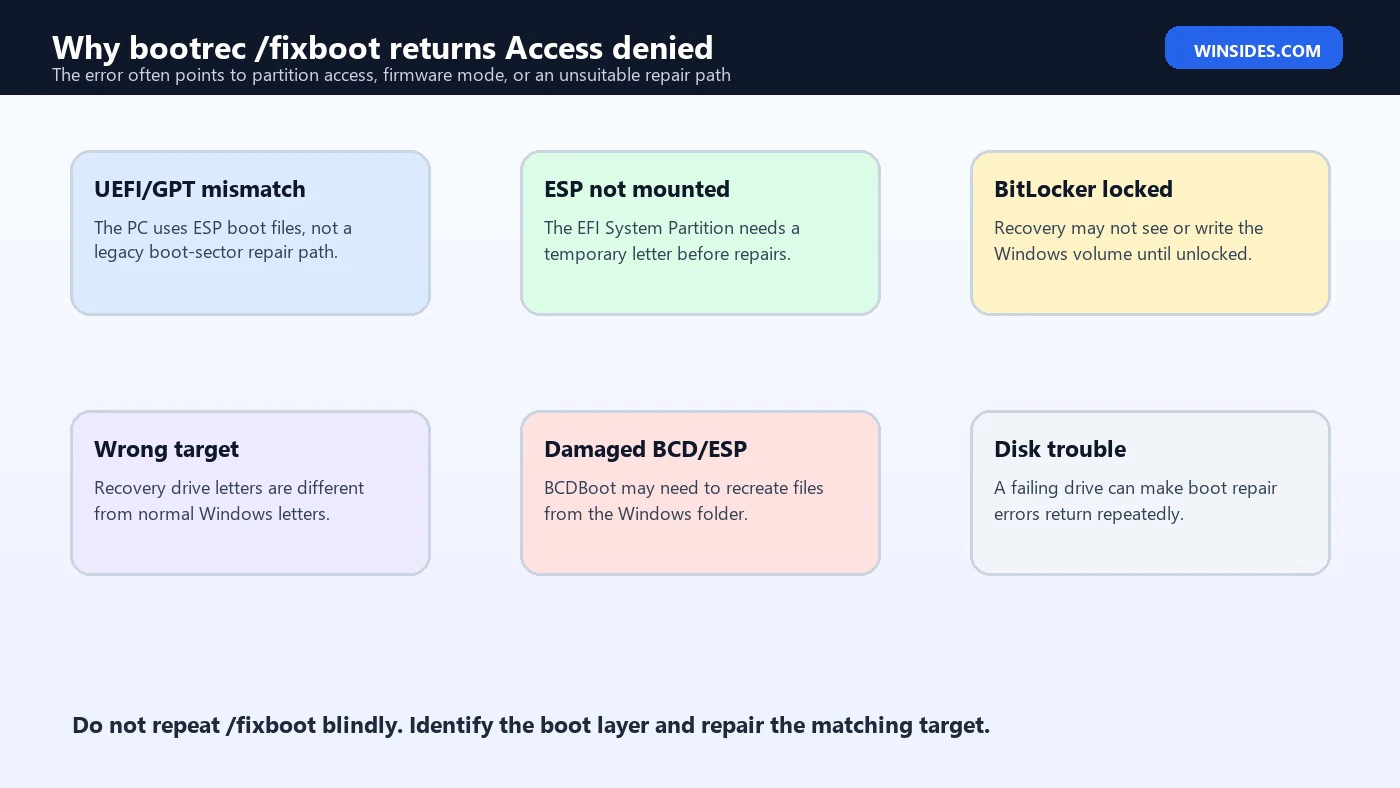
Common Causes of bootrec fixboot access denied
| Cause | What it means | Better next step |
|---|---|---|
| UEFI/GPT layout | The system uses an EFI System Partition rather than legacy boot-sector startup. | Inspect ESP and consider bcdboot. |
| ESP has no drive letter | Recovery cannot write where you think it is writing. | Assign a temporary letter such as S:. |
| Wrong Windows drive letter | Recovery letters differ from normal Windows letters. | Use dir C:\Windows, dir D:\Windows, and DiskPart. |
| BitLocker locked | Windows or ESP access is limited until unlocked. | Use the recovery key and confirm unlocked state. |
| File-system or disk errors | The partition may be damaged or unreliable. | Check disk health before repeated boot edits. |
| Wrong repair tool | /fixboot targets a layer that may not be the failed one. | Use BCDBoot, BCDEdit, Startup Repair, or disk diagnostics as appropriate. |
Before You Try Any Fix
Start with identification. Open Command Prompt from Windows Recovery Environment or Windows setup media, then check the disk layout. You need to know which volume is Windows, which volume is the EFI System Partition, and whether BitLocker is present. The EFI System Partition is usually a small FAT32 partition. The Windows partition is usually a large NTFS partition containing a Windows folder.
diskpart
list disk
list vol
exit
dir C:\Windows
dir D:\Windows
dir E:\WindowsIf D:\Windows exists and C:\Windows does not, use D:\Windows in recovery commands. Do not force commands against C: out of habit. Recovery environments often assign letters differently because they boot from a temporary image, and the installed Windows volume may shift.
- If the drive is not visible in firmware, stop and check storage hardware first.
- If the Windows volume is BitLocker-protected, unlock it or have the key ready.
- If the EFI System Partition is not FAT32 or looks unusually large, verify before assigning letters.
- If multiple disks are connected, make sure you know which disk contains the installed Windows copy.
Fix 1: Use BCDBoot on UEFI/GPT Systems
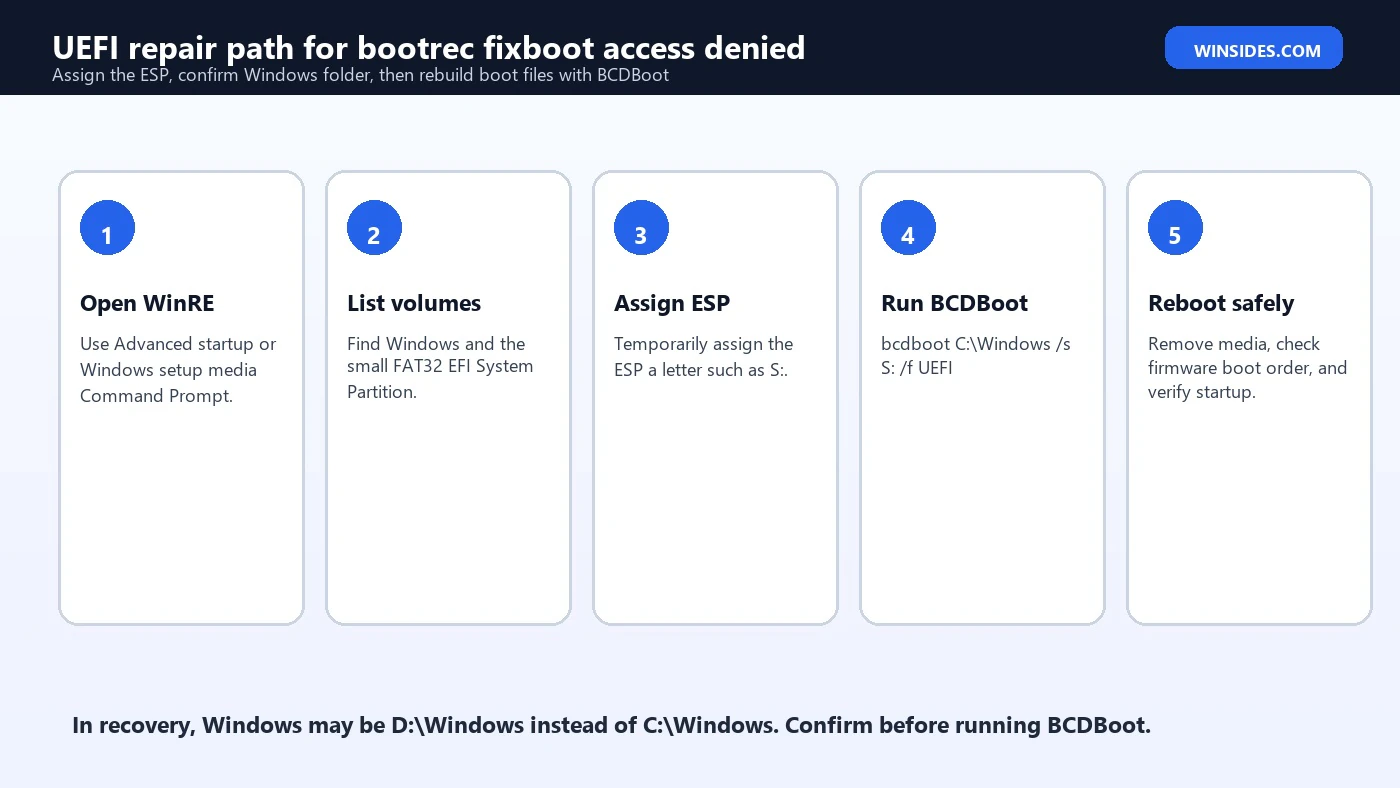
For many Windows 11 systems, the best practical fix is not to keep pushing bootrec /fixboot. Instead, assign the EFI System Partition a temporary drive letter and use BCDBoot to recreate boot files from the installed Windows folder. Microsoft documents BCDBoot as the tool that copies boot-environment files from the installed Windows image to the system partition and can create a BCD store.
diskpart
list vol
select vol <EFI volume number>
assign letter=S:
exit
bcdboot C:\Windows /s S: /f UEFIReplace C:\Windows with the actual Windows folder path from your recovery session. If the Windows folder is on D:, run bcdboot D:\Windows /s S: /f UEFI. The /s S: part targets the assigned EFI System Partition, and /f UEFI tells BCDBoot to create UEFI boot files.
Fix 2: Confirm BitLocker State
BitLocker can change what recovery sees and what it can modify. Microsoft Startup Settings documentation notes that encrypted devices may require a BitLocker key for recovery tasks. If the Windows volume is locked, commands that scan for installations or copy files may fail or behave strangely. If boot files are changed, BitLocker may also ask for the recovery key on the next boot because the measured boot environment changed.
If you know the system uses BitLocker, locate the recovery key before making changes. In a managed organization, the key may be stored in Microsoft Entra ID, Active Directory, or management tools. On a personal device, it may be in the Microsoft account used during setup. Do not format the EFI System Partition or rebuild boot files on an encrypted device without the recovery key available.
Fix 3: Run Startup Repair First When the Cause Is Unclear
If you do not know whether the failure is boot files, BCD entries, firmware order, a driver crash, or a failed update, try Startup Repair before manual commands. Manual commands are best when you know the failed layer. Startup Repair is a reasonable first pass when the symptom is broad and you do not want to accidentally change a working boot store.
Startup Settings also helps when Windows begins loading but crashes afterward. If the Windows logo appears before failure, boot files may already be working. Safe Mode, boot logging, low-resolution video, disabling automatic restart, DISM, SFC, and driver rollback may be more relevant than rewriting boot sectors.
Fix 4: Use bootrec /scanos and /rebuildbcd Carefully
bootrec /scanos and bootrec /rebuildbcd can still be useful when the problem is a missing BCD entry. Use /scanos to see whether recovery can discover Windows installations. Use /rebuildbcd when you want to add a discovered installation back to the boot configuration. These commands are different from /fixboot, so an access-denied result on /fixboot does not automatically mean the scan commands will fail.
bootrec /scanos
bootrec /rebuildbcd
If /scanos finds zero installations, verify the Windows folder manually. A zero result can happen if the volume is locked, unreadable, already present in BCD, hidden by missing storage drivers, or damaged. Do not assume the Windows installation is gone until you inspect the volume and disk health.
Fix 5: Use BCDEdit When the Store Exists
BCDEdit is the better tool when the BCD store exists and the problem is a setting, not missing boot files. Microsoft describes BCDEdit as a command-line tool for managing BCD stores. It can inspect entries, show full identifiers, change timeout, remove a forced Safe Mode value, or adjust boot menu order. If the store is readable, inspect it before rebuilding everything.
bcdedit /enum active /v
bcdedit /enum firmware
For example, if Windows keeps entering Safe Mode, the fix may be bcdedit /deletevalue {current} safeboot, not bootrec. If Windows Boot Manager exists but the wrong entry is default, a BCDEdit change may be enough. If the ESP files are missing, BCDBoot is more appropriate.
Fix 6: Check Firmware Boot Mode and Boot Order
A UEFI Windows installation should normally be booted in UEFI mode. If firmware is switched to legacy mode or Compatibility Support Module behavior, a Windows installation prepared for UEFI/GPT may not boot correctly. Conversely, older BIOS/MBR installations expect a different boot path. Before deep command-line repair, check firmware settings and confirm that Windows Boot Manager is present and prioritized where appropriate.
If Windows Boot Manager is missing from firmware after ESP repair, BCDBoot may recreate the boot files but firmware order can still require attention. Some systems let you pick Windows Boot Manager directly from the boot menu. Others need firmware boot order adjusted. Avoid changing SATA mode, secure boot state, or storage controller mode randomly, because those changes can create new startup failures.
Should You Format the EFI System Partition?
Formatting the EFI System Partition is sometimes shown as a fix, but it should not be your first move. The ESP can contain boot files for Windows, OEM diagnostics, recovery tools, and other operating systems. Formatting it removes those files. If the ESP is only missing Microsoft boot files, BCDBoot may recreate what Windows needs without formatting. If the file system is badly corrupted, formatting may become necessary, but only after confirming the correct partition.
If you format the wrong partition, you can destroy data. If you format the ESP on a dual-boot machine, another boot option may disappear. If BitLocker is active, you may trigger recovery. A careful workflow is assign, inspect, back up if possible, run BCDBoot, and only consider formatting if the partition cannot be written or is clearly corrupt.
What Not to Do
- Do not repeat
bootrec /fixbootendlessly after access denied. - Do not run random commands from mixed BIOS and UEFI tutorials without checking your partition style.
- Do not format the EFI System Partition until you are certain it is correct and formatting is necessary.
- Do not assume
C:is Windows inside recovery. - Do not ignore BitLocker recovery requirements.
- Do not keep repairing boot files if the drive is disappearing or making errors.
Example Recovery Workflow
Here is a safe Windows 11 UEFI-oriented workflow for the bootrec fixboot access denied situation. Treat letters and volume numbers as examples. Your recovery environment may differ.
diskpart
list vol
select vol <EFI volume number>
assign letter=S:
exit
dir C:\Windows
dir D:\Windows
If Windows is on D:, run:
bcdboot D:\Windows /s S: /f UEFIIf Windows is on C:, run:
bcdboot C:\Windows /s S: /f UEFIAfter the command completes, remove recovery media, reboot, and check whether Windows Boot Manager appears in firmware. If Windows starts but fails later, move to Startup Settings, Safe Mode, DISM, SFC, or driver troubleshooting rather than returning immediately to /fixboot.
If BCDBoot Fails After /fixboot Access Denied
BCDBoot is often the right next tool, but it can also fail if the source Windows folder, target EFI System Partition, or firmware mode is wrong. If BCDBoot reports failure when copying boot files, first recheck the Windows source path. In recovery, C:\Windows may not be the installed Windows folder. Run directory checks on likely drive letters and use the one that actually contains the Windows folder, System32, and the installed operating system files.
Next, confirm the target partition. The EFI System Partition on a normal Windows 11 GPT disk is a small FAT32 partition. If you assign S: to a large NTFS partition or a recovery partition by mistake, BCDBoot is being aimed at the wrong place. Return to DiskPart, use list vol, check file system and size, and only then assign or reuse the temporary letter. A careful second inspection is better than repairing the wrong partition quickly.
If the command still fails, think about firmware mode. A Windows installation created for UEFI should be repaired in UEFI mode with /f UEFI. If you booted the recovery USB in legacy mode on a machine that normally uses UEFI, your view of the boot environment may not match the installed Windows setup. Reboot to firmware boot menu and choose the UEFI entry for the recovery media, then repeat the partition checks.
bcdboot D:\Windows /s S: /f UEFIHow to Handle Multiple Windows Installations
Multiple Windows installations make this error more confusing. A recovery session may show several partitions with Windows folders, or it may show an old installation that is not the one you intend to boot. In that case, do not run BCDBoot against the first Windows folder you find. Inspect folder dates, drive sizes, user profile folders, and known labels. If necessary, open Notepad from recovery and use File > Open to browse volumes visually.
The source folder in BCDBoot decides which Windows installation gets boot files created. If you point it at an old Windows folder, you may rebuild a perfectly valid boot path to the wrong installation. BCDEdit can help inspect existing entries when the store is readable, while firmware boot menus can reveal whether more than one Windows Boot Manager entry exists. On multi-disk systems, disconnecting nonessential drives during repair can reduce the chance of writing boot files to the wrong disk.
Dual-boot systems need even more care. Linux, another Windows copy, OEM tools, and recovery utilities may share the EFI System Partition. Recreating Microsoft boot files with BCDBoot can restore Windows, but it may also change boot order. That is not necessarily wrong, but it should be expected. After Windows starts, you may need to revisit firmware boot order or another boot manager configuration.
Checking Disk and File-System Health
If boot repair commands appear to work and the problem returns, suspect storage health. Boot files do not usually corrupt themselves repeatedly on a healthy system. A failing SSD, bad cable, unstable external enclosure, interrupted firmware update, or file-system damage can make boot repair look like a command problem when the disk is the real cause. Before repeating bootrec or BCDBoot many times, check whether the drive is consistently detected in firmware and recovery.
From recovery, basic file-system checks can be useful, but they should be used carefully on failing drives. If the data matters and the drive sounds unhealthy or disappears intermittently, prioritize backup or imaging before repair. On a stable disk, checking the Windows volume can reveal file-system issues that interfere with boot file discovery or BCD access. The point is not to run every disk command blindly; it is to stop treating recurring boot corruption as only a BCD problem.
chkdsk C: /scanIn recovery, the volume letter may be different. Use the correct letter for the Windows volume, not automatically C:. If the disk is not visible in firmware at all, command-line boot repair will not solve the root issue. Check firmware storage detection, internal connections, SSD health, and storage controller settings first.
When Windows Starts but Crashes Later
The access denied error can send people down a boot-repair rabbit hole even when the original failure is not a boot-sector or ESP problem. If Windows Boot Manager appears, the Windows logo appears, and the system crashes later, the early boot path may already be working. In that case, forcing /fixboot is unlikely to fix a bad graphics driver, broken storage driver, corrupt system file, or failed update.
Use Startup Settings for that class of problem. Safe Mode, boot logging, low-resolution video, and disabling automatic restart can expose whether Windows is loading far enough for driver-level troubleshooting. From Safe Mode or recovery, tools such as System Restore, uninstalling the latest quality update, DISM, SFC, and driver rollback may be more productive than rebuilding boot files again. The question to ask is simple: does Windows fail before Boot Manager hands off, or after the operating system begins loading?
If the failure happens after the spinning dots, collect the stop code or event details if possible. Boot repair commands do not fix WHEA hardware errors, GPU driver crashes, bad RAM, or storage timeouts after the loader has done its work. They only fix the path to start Windows. Separating those phases prevents unnecessary boot partition changes.
Safe Rollback and Recovery Notes
Before changing boot files, decide how you would roll back. If the BCD store is readable, export a copy. If the ESP has existing files and you can access another storage location, copy the current EFI Microsoft boot folder before replacing files. If BitLocker is enabled, record the recovery key. If the device is managed by an organization, check whether the recovery key and device identity are available before making boot changes.
bcdedit /export C:\BCD-BackupA BCD export is not a full system backup, but it can help recover from a bad boot configuration edit. It does not replace a data backup, and it does not protect against formatting the wrong partition. The larger principle is to keep each repair reversible when possible. Assigning a drive letter is reversible. Running BCDBoot is usually recoverable. Formatting the wrong volume is not.
Scenario Walkthrough: Cloned Drive Will Not Boot
A cloned Windows drive is a common place to see bootrec fixboot access denied because the clone may contain Windows files but lack a usable firmware entry or correctly rebuilt EFI System Partition. The data can be present while the boot path is wrong. In this case, focus on the target disk layout. Confirm that the cloned disk has an EFI System Partition, confirm that the Windows folder exists on the cloned Windows volume, and run BCDBoot against that Windows folder and the cloned disk ESP.
If both the old and cloned drives are connected, firmware may still boot from the old drive or write entries against the wrong disk. For repair, it is often safer to disconnect the old drive temporarily, boot recovery media in UEFI mode, identify the cloned disk volumes, and then rebuild boot files. After Windows starts from the clone, reconnect other drives and adjust firmware boot order deliberately.
Scenario Walkthrough: Update Failure Followed by No Boot
If the error appears after a failed Windows update, do not assume bootrec is the only repair. A failed update can damage boot configuration, but it can also leave pending servicing operations or system files in a bad state. If BCDBoot restores the boot path and Windows still fails during loading, move to recovery options such as uninstalling the latest quality update, System Restore, Safe Mode, DISM, and SFC. The boot path and operating system health are related, but they are not the same layer.
This is where Microsoft Startup Settings is useful. If you can reach Safe Mode, you have proof that the machine can boot far enough for Windows-level repair. That is different from a missing Windows Boot Manager or empty EFI System Partition. Use the symptom after repair to decide whether you are still fixing startup files or now fixing Windows itself.
Scenario Walkthrough: Dual-Boot Menu Changed
Dual-boot repairs need caution because the EFI System Partition may contain more than Microsoft files. If bootrec fixboot access denied appears after installing or removing another operating system, first inspect the firmware boot entries and the ESP contents if possible. Rebuilding Windows boot files with BCDBoot can restore Windows Boot Manager, but it may also place Windows first in firmware order. That may be exactly what you want, or it may temporarily hide another boot manager.
In this situation, avoid formatting the ESP unless you have backed up what matters or are intentionally rebuilding the entire boot arrangement. A targeted BCDBoot command can restore Windows without erasing every other boot file. After Windows starts, use firmware settings or the other operating system boot manager tools to restore the preferred menu order if needed.
Troubleshooting Matrix for Access Denied
| What you see | What it usually suggests | What to try next |
|---|---|---|
/fixboot access denied on UEFI PC | Wrong layer or ESP access issue | Assign ESP letter and use bcdboot. |
| BCDBoot cannot copy files | Wrong source, wrong ESP, or file-system issue | Confirm dir X:\Windows and ESP FAT32 target. |
| Windows Boot Manager missing in firmware | Firmware entry or ESP files missing | Run BCDBoot, then check firmware boot order. |
| Windows logo appears then crashes | Boot files likely work; OS or driver layer fails | Use Startup Settings, Safe Mode, DISM, SFC, or rollback. |
| Repair works once, then fails again | Disk, file-system, or firmware instability | Check storage health and firmware settings. |
| BitLocker recovery appears | Boot environment changed | Enter recovery key and suspend protection before more planned edits. |
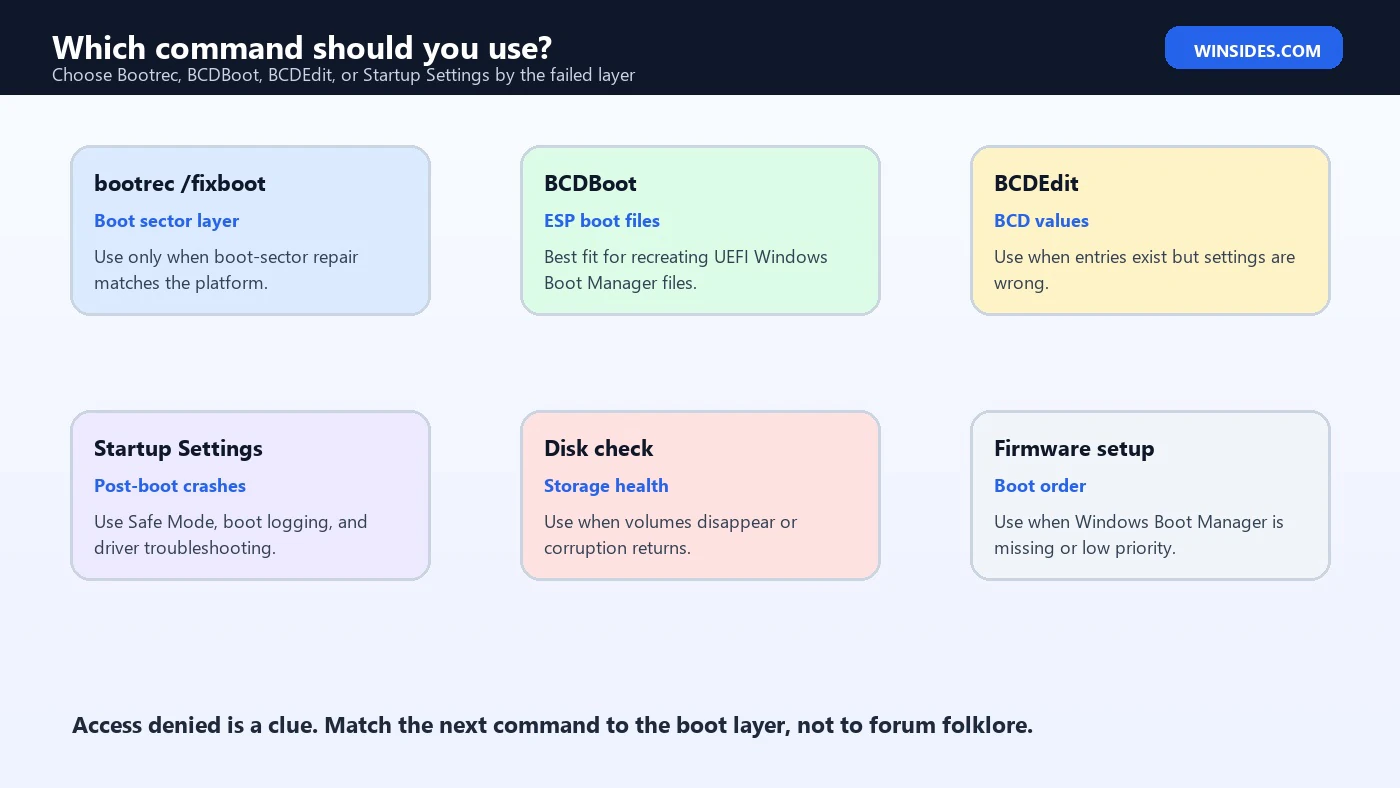
This matrix is intentionally practical. The fastest fix is not the command with the most dramatic reputation; it is the command that matches the symptom. On Windows 11 UEFI systems, that often means moving from bootrec /fixboot to a BCDBoot-based repair after verifying partitions.
Frequently Asked Questions
Why does bootrec fixboot say access denied?
It can happen because the system partition is not writable, the EFI System Partition is not mounted, BitLocker is involved, the wrong partition is targeted, or the repair path does not match a UEFI/GPT Windows 11 installation.
Is BCDBoot safer than bootrec /fixboot?
For many Windows 11 UEFI boot-file repairs, BCDBoot is more appropriate because it recreates boot files and BCD from the Windows installation. It still must be used carefully with the correct Windows and ESP letters.
Can I skip bootrec /fixboot?
Yes, if the evidence points to an ESP or BCD boot-file issue rather than a boot-sector issue. Use the tool that matches the failed boot layer.
Does this fix delete my files?
BCDBoot and bootrec commands normally target boot files and configuration, not personal files. Formatting the wrong partition or repairing the wrong disk can be destructive, so verify first.
What if bootrec /scanos finds zero installations?
Check whether the Windows volume is locked, assigned a different letter, unreadable, already present in BCD, or affected by storage driver or disk problems.
Should I disable Secure Boot?
Do not disable Secure Boot randomly. Some advanced repair scenarios may require firmware changes, but most boot-file repairs should start with identifying partitions and using the right command.
Conclusion: Treat Access Denied as a Diagnostic Clue
bootrec fixboot access denied is frustrating, but it is also useful information. On a Windows 11 UEFI/GPT system, it often tells you that the old boot-sector repair path is not the right next move. Instead of fighting the same command, inspect the disk layout, identify the EFI System Partition, confirm the Windows folder, check BitLocker, and use BCDBoot when the goal is to recreate Windows Boot Manager files.
The safest repair is targeted repair. Use bootrec when the bootrec layer is truly the failed layer. Use BCDBoot for UEFI boot-file recreation. Use BCDEdit for existing BCD values. Use Startup Settings when Windows loads and then crashes. That discipline keeps a recoverable boot issue from turning into a messy partition problem.
For official context, keep Microsoft pages for Windows Startup Settings, BCDBoot, UEFI/GPT partitions, Bootsect, and BCDEdit nearby while repairing startup.
For more interesting articles, stay tuned to Winsides.com!









Community
Comments (0)