

Introduction to Winget and Node.js on Windows 11
In the dynamic world of software development, efficiency and streamlined workflows are paramount. For developers working on Windows 11, managing development tools can sometimes feel like a juggling act, requiring manual downloads, installations, and updates for various packages. This is where the powerful combination of Winget, Microsoft’s official package manager, and Node.js, a ubiquitous JavaScript runtime, truly shines. For additional context, see Winget (Windows Package Manager), Getting Started with Node.js, npm CLI documentation, and Node.js on Windows development environment setup.
Node.js has become an indispensable tool for building everything from robust web servers and APIs to command-line tools and desktop applications. Its versatility and extensive ecosystem, powered by npm (Node Package Manager), make it a cornerstone for modern development.
Historically, installing Node.js on Windows involved navigating websites, downloading installers, and clicking through setup wizards. Winget revolutionizes this process by providing a command-line interface to effortlessly discover, install, and manage software packages. This article will guide you through leveraging Winget to efficiently install and manage Node.js on Windows 11, transforming your development setup into a more agile and less cumbersome experience.
By embracing Winget for your Node.js installations, you’ll unlock a new level of convenience, ensuring your development environment is always consistent, up-to-date, and ready for action. Let’s dive into how this powerful duo can empower your Windows 11 development journey.
Table of contents
Key Takeaways
Before we delve into the specifics, here’s a quick overview of the essential points you’ll gain from this comprehensive guide:
- Winget Simplifies Node.js Installation: Learn how Winget eliminates manual downloads and wizard-based installations, offering a single command for Node.js setup on Windows 11.
- Ensuring Winget Readiness: Understand how to verify Winget’s presence on your system and keep it updated for optimal performance.
- Seamless Version Management: Discover how to install specific Node.js versions and easily update or uninstall them using Winget.
- Environment Setup Best Practices: Get insights into essential prerequisites and post-installation verification steps to ensure a smooth Node.js development experience.
- Advanced Automation Capabilities: Explore Winget’s advanced features for scripting installations and managing package consistency across multiple machines.
- Troubleshooting Common Hurdles: Find practical solutions for common issues like environment path problems and installation failures.
- Optimizing Your Workflow: Integrate Node.js effectively with popular IDEs and learn best practices for web development projects on Windows 11.
Understanding Winget: Microsoft’s Package Manager
Winget, officially known as the Windows Package Manager, is a free and open-source command-line tool designed by Microsoft. It allows users to discover, install, upgrade, remove, and configure software applications on Windows 11 and other modern Windows versions. Think of it as a central repository and management system for your applications, similar to apt on Debian/Ubuntu or Homebrew on macOS.
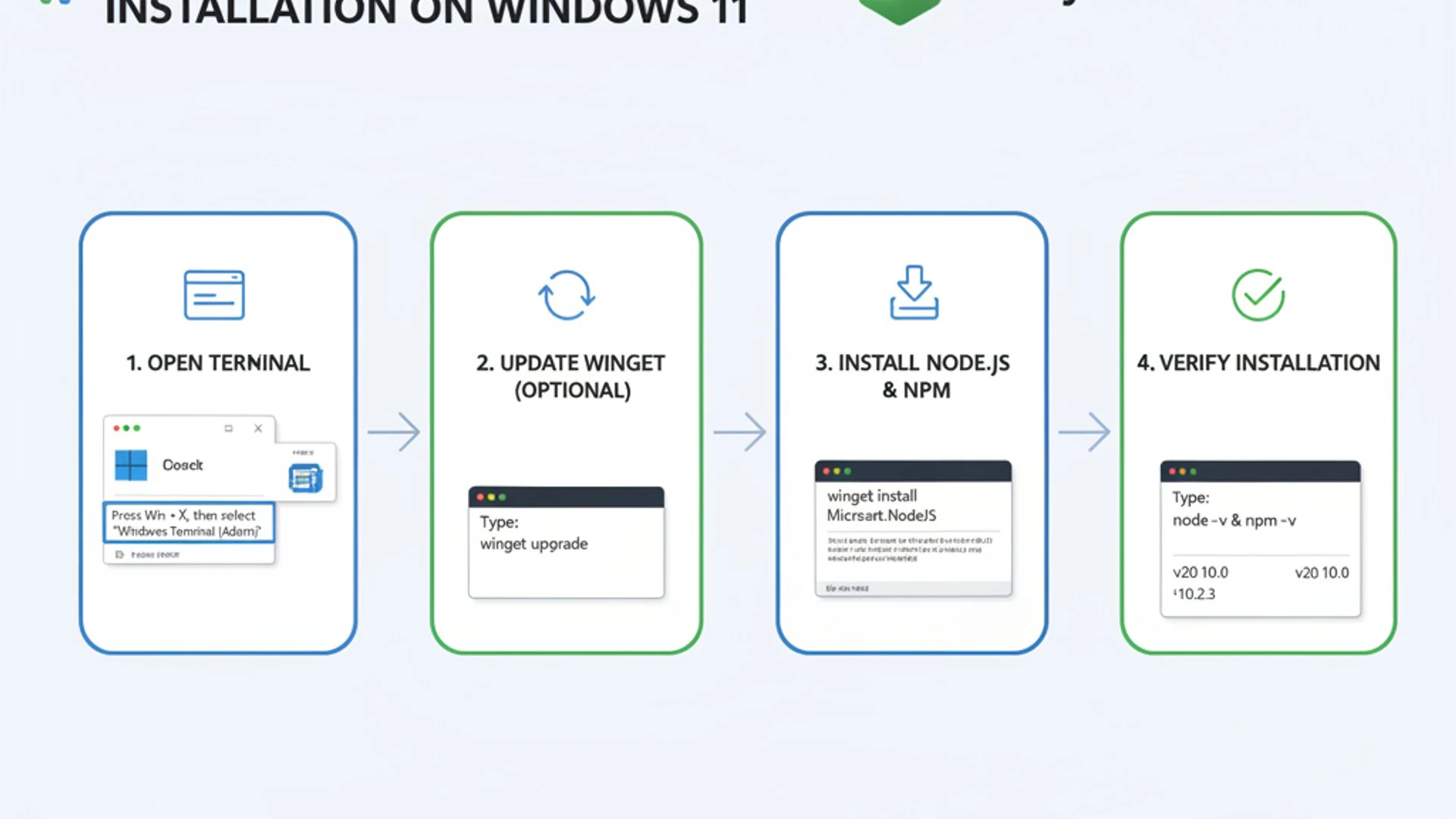
Its primary purpose is to streamline the software installation process, moving away from the traditional method of manually downloading installers from various websites. Instead, with a simple command in your terminal, you can fetch and install a wide array of applications directly from trusted sources.
Winget’s significance in modern Windows development cannot be overstated. It brings much-needed consistency and automation to environment setup, a crucial aspect for developers who frequently install and manage numerous tools. This tool drastically reduces the time and effort spent on initial setup and ongoing maintenance, allowing developers to focus more on coding and less on infrastructure.
The package manager leverages a community-driven manifest repository, which means a vast and growing collection of applications is available. This collaborative approach ensures a diverse and up-to-date catalog of software, making it an invaluable asset for any Windows developer. Using Winget to install Node.js on Windows 11 is a prime example of its utility.
Why Winget is Essential for Developers
For developers, time is a precious commodity. Winget directly addresses several pain points that have historically plagued the Windows development experience. It transforms a tedious, manual process into an efficient, scriptable operation.
First, it provides a unified interface for software management. Instead of remembering where to download each tool or how to update it, Winget offers a single command-line entry point. This consistency is invaluable when setting up new machines or onboarding new team members.
Second, Winget enhances reproducibility. Developers can create scripts that install all necessary tools, ensuring that every development environment is identical. This minimizes “it works on my machine” scenarios and fosters a more collaborative development ecosystem.
Finally, security is a significant benefit. Winget sources packages from trusted repositories, often directly from publishers or verified community manifests. This reduces the risk of downloading malicious software from unverified websites, providing a safer way to acquire development tools like Node.js.
Advantages Over Manual Installation
Comparing Winget to traditional manual installations reveals several compelling advantages. Manual installations typically involve visiting a vendor’s website, locating the correct download, executing an installer, and clicking through various prompts.
This process is not only time-consuming but also prone to errors. For instance, you might accidentally download the wrong architecture (32-bit instead of 64-bit) or an outdated version. Furthermore, manual installations often require administrative privileges and can leave behind residual files after uninstallation.
Winget, on the other hand, automates much of this. A single command like winget install Node.js handles the download, verification, and installation silently. It also manages dependencies and can often update existing installations with minimal fuss. This automation is particularly beneficial when managing multiple applications or setting up a new development machine from scratch.
Using Winget for package management on Windows 11 significantly reduces setup time and enhances consistency across development environments, making it a cornerstone for modern developer workflows.
Ensuring Winget is Installed and Up-to-Date
Before you can harness the power of Winget to install Node.js on Windows 11, you need to ensure that Winget itself is present and functioning correctly on your system. Fortunately, Winget is often pre-installed or automatically updated on modern Windows 11 installations.
It is typically bundled with the App Installer from the Microsoft Store. If you’re running a relatively recent version of Windows 11, there’s a good chance you already have it. However, it’s always a good practice to verify its presence and ensure it’s running the latest version.
Keeping Winget updated is crucial for accessing the newest features, bug fixes, and the most current package manifests. An outdated Winget client might not be able to find the latest versions of software, including Node.js, or might encounter issues with newer package definitions.
Regular checks and updates ensure that your package manager is as robust and efficient as possible, providing a smooth experience when you’re ready to install or manage applications.
Verifying Winget Installation and Updating
To verify if Winget is installed, open your terminal (either Command Prompt or PowerShell) and type the following command:
If Winget is installed, this command will display its version number, such as 1.6.2771. If you receive an error message like “winget is not recognized,” it means it’s not installed or not in your system’s PATH environment variable.
If Winget is missing, you can easily install it from the Microsoft Store. Search for “App Installer” and ensure it’s installed or updated. Winget is part of this package. Alternatively, you can download the latest App Installer package directly from its GitHub releases page (github.com/microsoft/winget-cli).
To update Winget to its latest version, you can use Winget itself. Open your terminal and run:
This command will check for updates for all installed packages, including Winget itself, and prompt you to upgrade them. You can also specifically target Winget for an update:
After ensuring Winget is installed and up-to-date, you’re ready to proceed with preparing your environment for Node.js.
Preparing Your Windows 11 Environment for Node.js
While Winget simplifies the installation of Node.js, a few preliminary steps and considerations can ensure a smoother experience. Preparing your Windows 11 environment correctly can prevent common pitfalls and set you up for successful development.
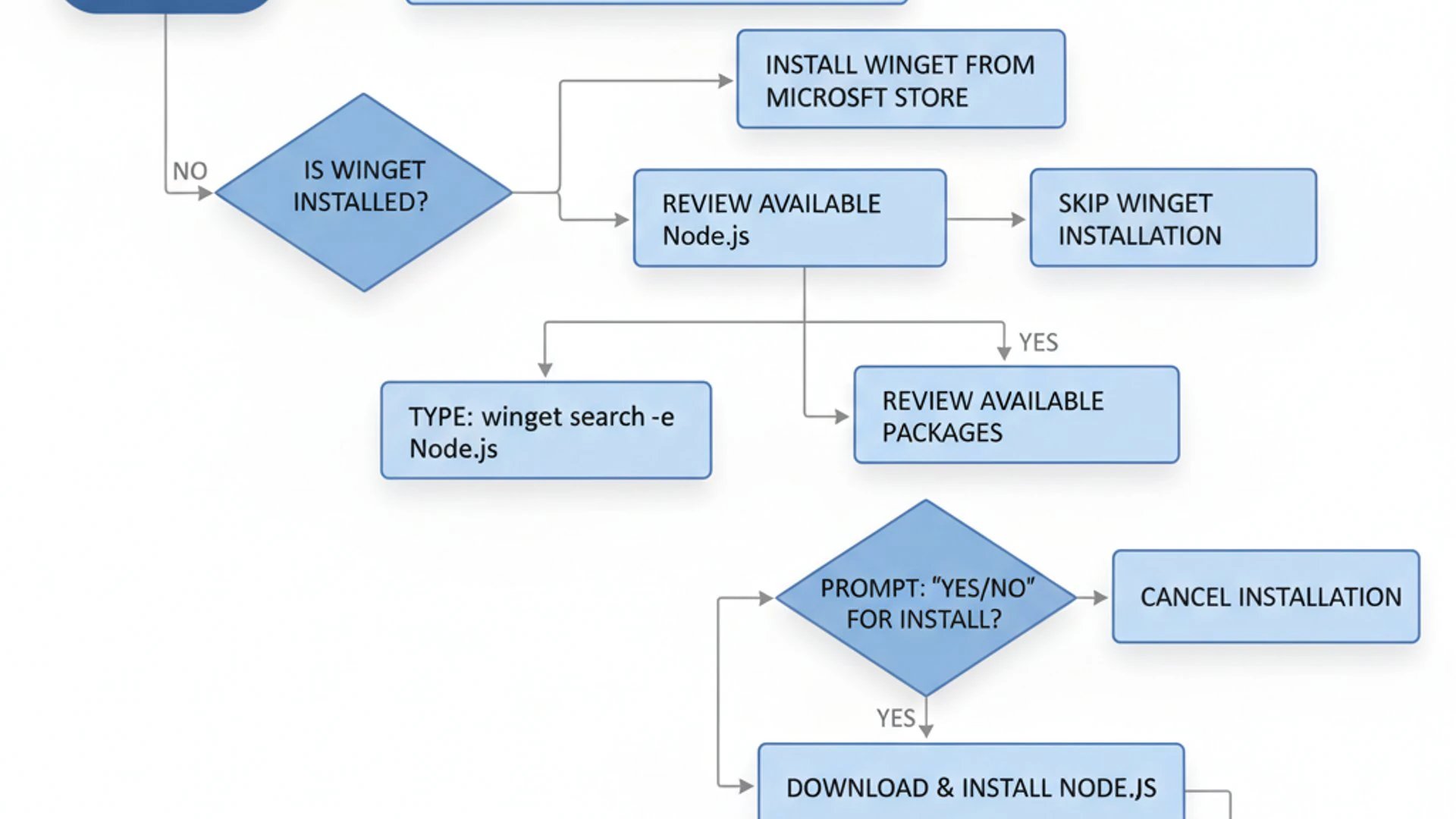
The primary goal here is to ensure your system meets the fundamental requirements for Node.js and that any potential conflicts or missing components are addressed beforehand. This proactive approach saves time on troubleshooting later.
One key aspect is understanding your system’s architecture. Most modern Windows 11 systems are 64-bit, and Node.js typically offers 64-bit installers. While Winget often handles this automatically, being aware of your system’s specifications is always beneficial.
Another consideration is ensuring you have appropriate administrative privileges. While Winget can install many packages without elevated permissions, some system-wide installations or modifications might require them. Running your terminal as an administrator can often circumvent permission-related issues.
Essential Prerequisites and System Requirements
Node.js itself is quite lightweight and doesn’t demand excessive system resources. However, certain prerequisites are beneficial for a robust development environment:
- Operating System: Windows 11 (64-bit recommended). While Node.js supports older Windows versions, this guide focuses on Windows 11.
- Disk Space: A few hundred megabytes for the Node.js runtime and its core packages. Your projects and their dependencies will require additional space.
- RAM: 4GB or more is generally sufficient for most Node.js development tasks, though 8GB or 16GB is recommended for larger projects or concurrent applications.
- Processor: Any modern multi-core processor will suffice.
Beyond hardware, consider these software prerequisites:
- Terminal Application: Windows Terminal (recommended), PowerShell, or Command Prompt. Windows Terminal offers better features like tabs and customization.
- Text Editor/IDE: While not strictly required for installation, a good code editor like Visual Studio Code (VS Code) is essential for Node.js development. You can even install VS Code using Winget:
winget install Microsoft.VisualStudioCode. - Internet Connection: Required to download Node.js and its packages via Winget.
Ensuring these basic requirements are met will provide a solid foundation for installing and working with Node.js on Windows 11.
Step-by-Step: Installing Node.js with Winget
Now that your Windows 11 environment is prepared and Winget is ready, we can proceed with the core task: installing Node.js. This process is remarkably straightforward, showcasing the efficiency of Microsoft’s package manager.
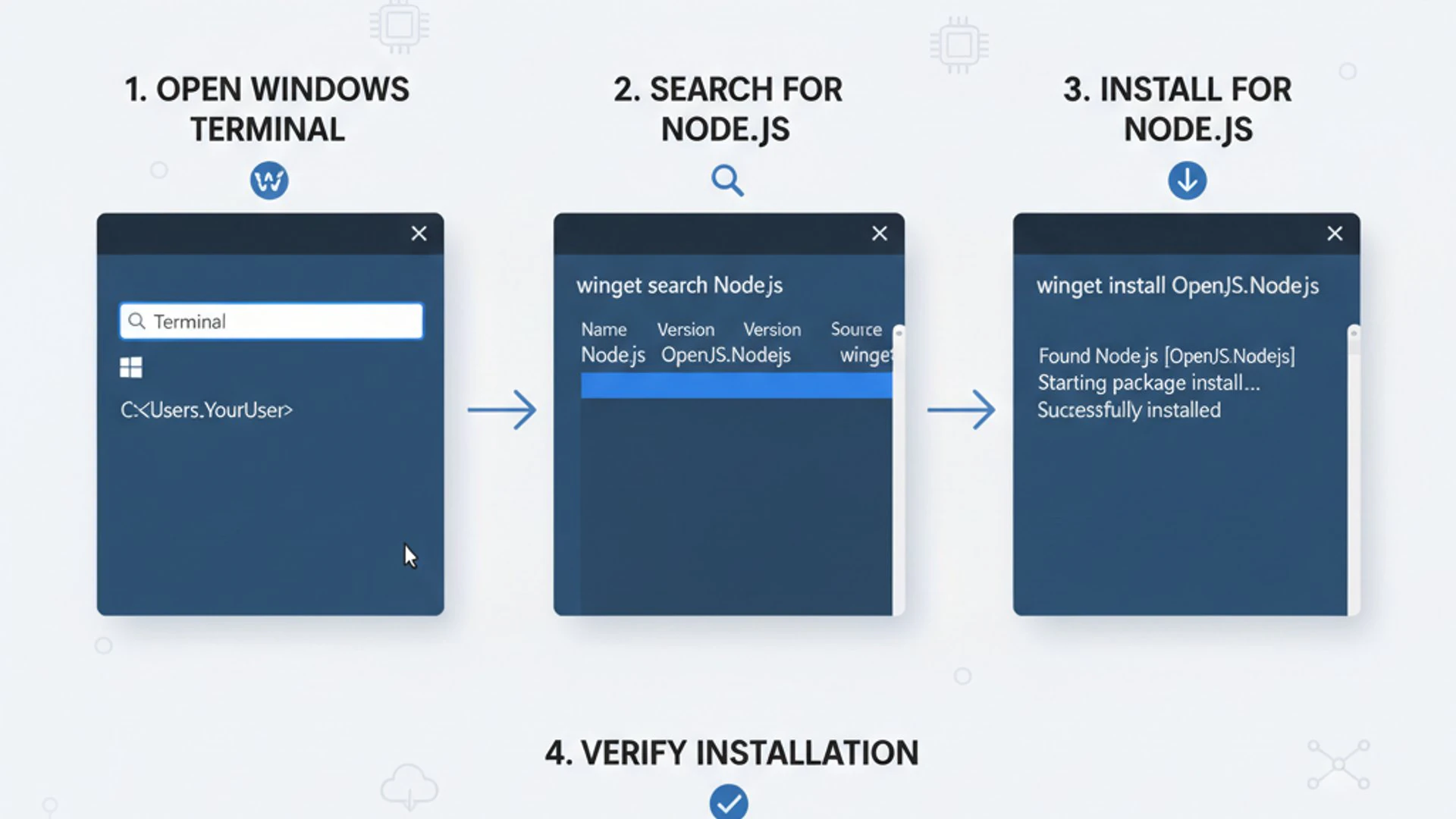
The beauty of using Winget lies in its simplicity. Instead of navigating complex download pages or dealing with graphical installers, a single command is all it takes. This method ensures that you get a clean, verified installation directly from a trusted source.
We’ll begin by searching for the correct Node.js package within Winget’s vast repository. This step is important to identify the exact package ID, which is necessary for the installation command. Once identified, the installation itself is a matter of executing one command.
This section will also cover how to install specific versions of Node.js, a common requirement for developers working on projects with particular version dependencies. This flexibility is another significant advantage of using Winget for your development tools.
Searching for Node.js Packages in Winget
Before installing, it’s good practice to search for the available Node.js packages to ensure you’re installing the correct one and to see what versions are offered. Open your terminal (PowerShell or Command Prompt) and use the winget search command:
This command will return a list of packages matching “Node.js”. You’ll typically see entries like “Node.js” and “Node.js (LTS)”. The LTS (Long Term Support) version is usually recommended for most development and production environments due to its stability and extended support.
Look for the ID column in the search results. You’ll likely find IDs such as OpenJS.Nodejs or OpenJS.Nodejs.LTS. Note down the ID for the version you wish to install. For most users, OpenJS.Nodejs.LTS is the preferred choice.
Sometimes, you might see multiple entries from different publishers. Always prioritize packages from OpenJS or the official Node.js project to ensure authenticity and reliability. This search step is crucial for accurate installation.
Executing the Node.js Installation Command
Once you have identified the correct package ID, installing Node.js is as simple as running the winget install command. For the recommended LTS version, the command would be:
If you prefer the latest current release (non-LTS), you would use:
Winget will then download the installer, verify its integrity, and proceed with the installation. You might see progress indicators in your terminal. The process is largely silent and automated, requiring minimal user intervention.
After the installation completes, Winget will typically add Node.js and npm (Node Package Manager) to your system’s PATH environment variables automatically. This means you can immediately start using node and npm commands from any terminal window without manual configuration. This seamless integration is a major benefit of using Winget for Node.js on Windows 11.
Installing Specific Node.js Versions
There are scenarios where you might need a specific version of Node.js, perhaps for an older project or a particular dependency. Winget allows you to specify a version number during installation.
First, you can search for available versions of a package using the --versions flag:
This command will list all available LTS versions. Once you’ve identified the exact version you need (e.g., 16.14.0), you can install it using the --version flag:
This command will ensure that Winget downloads and installs that precise version of Node.js, rather than the latest available one. This capability is incredibly useful for maintaining project compatibility and managing multiple development environments.
Always verify the installed Node.js version after installation, especially when targeting a specific release, to ensure compatibility with your project requirements.
Verifying Your Node.js and npm Installation
After successfully installing Node.js with Winget, the next crucial step is to verify that everything is working as expected. This involves running a few simple commands to confirm that Node.js and its accompanying package manager, npm, are correctly installed and accessible from your terminal.
Verification is not just about confirming installation; it’s also about ensuring that the system’s PATH environment variables have been updated correctly. If these variables aren’t set, your system won’t know where to find the node and npm executables, leading to “command not found” errors.
This step is quick and provides immediate feedback, allowing you to catch any potential issues early. A successful verification means you’re ready to start building applications with Node.js on your Windows 11 machine.
Running Basic Node.js and npm Commands
Open a new terminal window (PowerShell or Command Prompt) after the installation. It’s important to open a new one because environment variables are often loaded when the terminal starts. Then, execute the following commands:
- Check Node.js version:
node -vThis command should output the installed Node.js version, for example,
v18.17.1. If you see a version number, Node.js is correctly installed and accessible. - Check npm version:
npm -vSimilarly, this command should display the installed npm version, such as
9.6.7. npm is typically installed alongside Node.js, and this confirms its presence. - Run a simple Node.js script:
To further confirm functionality, create a small file named
hello.jswith the following content:console.log("Hello from Node.js on Windows 11!");Save it, navigate to its directory in your terminal, and run:
node hello.jsYou should see the output:
Hello from Node.js on Windows 11!This confirms that the Node.js runtime is fully operational.
If any of these commands fail or return an error, refer to the troubleshooting section to diagnose and resolve the issue, most commonly related to environment variables.
Managing Node.js Versions with Winget
Once Node.js is installed, your journey with Winget doesn’t end. Winget is also an excellent tool for managing your Node.js installations, allowing you to keep it updated or even remove it cleanly when no longer needed. This ongoing management is crucial for maintaining a healthy and secure development environment.
As Node.js evolves, new versions are released regularly, bringing performance improvements, new features, and security patches. Keeping your Node.js installation up-to-date ensures you benefit from these advancements and mitigate potential vulnerabilities.
Conversely, there might be times when you need to remove Node.js, perhaps to switch to a different version manager like nvm, or simply to free up disk space. Winget provides a straightforward method for clean uninstallation, avoiding leftover files and registry entries.
Updating Node.js to the Latest Version
Keeping your Node.js installation current is a best practice for security and access to the latest features. With Winget, updating Node.js is as simple as its initial installation.
To update your installed Node.js LTS version, open your terminal and execute:
If you installed the current (non-LTS) version, use:
Winget will check for a newer version of the specified package. If one is available, it will download and install it, effectively upgrading your existing Node.js setup. This process typically handles the uninstallation of the old version and installation of the new one seamlessly.
After the upgrade, always verify the new version using node -v to confirm that the update was successful. This ensures you’re running the desired version of Node.js on Windows 11.
Uninstalling Node.js Using Winget
If you need to remove Node.js from your system, Winget provides a clean and efficient uninstallation process. This is particularly useful if you’re switching to a different version management tool or simply decluttering your system.
To uninstall Node.js, use the winget uninstall command with the package ID:
Or, for the current version:
Winget will then proceed to remove the Node.js installation from your system. This typically includes removing the main executables, libraries, and associated files. It’s a much cleaner process than manual uninstallation, which can sometimes leave remnants behind.
After uninstallation, it’s a good idea to restart your terminal or even your computer to ensure that all environment variables are refreshed and the changes take full effect. You can then verify the uninstallation by trying node -v; it should now report that the command is not recognized.
Advanced Winget Features for Node.js Management
Beyond basic installation and uninstallation, Winget offers advanced features that can significantly enhance a developer’s workflow, especially when dealing with multiple machines or team environments. These capabilities allow for greater automation, consistency, and reproducibility in your development setup.
Leveraging these advanced features can transform how you manage your development tools, moving from reactive, manual adjustments to proactive, scripted deployments. This is particularly valuable in scenarios like setting up new workstations, provisioning virtual machines, or ensuring all team members have identical software stacks.
We’ll explore how to export your list of installed packages, making it easy to replicate your setup on another machine. We’ll also delve into scripting Node.js installations, a powerful technique for automation and continuous integration/continuous deployment (CI/CD) pipelines.
Exporting and Importing Installed Packages
One of Winget’s most powerful features for developers is the ability to export a list of installed packages and then import that list on another machine. This ensures consistency across different development environments, saving immense time and preventing configuration drift.
To export your installed packages, including Node.js on Windows 11, open your terminal and run:
This command creates a JSON file (packages.json) containing a list of all applications installed via Winget on your system. You can then save this file in a version control system like Git or share it with team members.
To import and install these packages on a new machine, simply copy the packages.json file to the target machine and run:
Winget will then read the file and attempt to install all listed applications. This is an incredible boon for developers, allowing for rapid environment setup and ensuring everyone is working with the same tool versions.
Scripting Node.js Installations for Automation
For even greater automation, especially in CI/CD pipelines or automated provisioning scripts, you can integrate Winget commands directly into PowerShell or batch scripts. This allows you to set up a complete development environment, including Node.js, with a single script execution.
A simple PowerShell script to install Node.js LTS might look like this:
Such scripts can be extended to install other development tools like VS Code, Git, Docker, and more, creating a fully automated setup process. This level of automation is invaluable for maintaining consistent development environments and accelerating developer onboarding.
For more complex scenarios, consider using Declared Configuration Service on Windows 11 Explained in conjunction with Winget for even more robust system state management.
Common Issues and Troubleshooting Tips
Even with a powerful tool like Winget, occasional issues can arise during software installation and management. When installing Node.js on Windows 11, developers might encounter problems related to environment variables or general installation failures. Knowing how to diagnose and resolve these common issues can save significant time and frustration.
Troubleshooting effectively involves understanding the typical symptoms of a problem and systematically applying solutions. This section aims to equip you with the knowledge to tackle the most frequent hurdles you might face when working with Node.js and Winget.
Remember that the terminal is your primary diagnostic tool. Error messages, even cryptic ones, often contain clues about the underlying problem. Paying close attention to these messages is the first step toward a successful resolution.
Resolving Path Environment Variable Problems
One of the most common issues after installing Node.js (or any command-line tool) is the “command not found” error when you type node -v or npm -v. This almost always indicates a problem with your system’s PATH environment variable.
The PATH variable tells your operating system where to look for executable files. If the directory containing node.exe and npm.cmd isn’t in the PATH, the system won’t find them.
Troubleshooting Steps:
- Restart Terminal: Always open a new terminal window after installation. Environment variables are typically loaded when the terminal starts.
- Verify PATH: In PowerShell, type
$env:Pathto see your current PATH. In Command Prompt, typeecho %PATH%. Look for paths similar toC:\Program Files\nodejs\orC:\Program Files\nodejs\npm. - Manual Addition (If Missing):
- Search for “Environment Variables” in the Windows search bar and select “Edit the system environment variables.”
- Click “Environment Variables…” button.
- Under “System variables,” find the
Pathvariable and click “Edit…”. - Click “New” and add the path to your Node.js installation directory (e.g.,
C:\Program Files\nodejs\). Ensure it’s correct. - Click “OK” on all windows and then restart your terminal.
- Check for Conflicts: Occasionally, another program might have added a conflicting Node.js path. Ensure the correct Node.js path is listed and prioritized.
Addressing PATH issues is fundamental for any command-line development. For more detailed insights into system variables, you might find resources on managing Windows services helpful, such as RPC Endpoint Mapper on Windows 11: Explained & Managed, as they often interact with system-wide configurations.
Dealing with Installation Failures
Sometimes, Winget might report an installation failure. These can stem from various causes, including network issues, corrupted downloads, insufficient permissions, or conflicts with existing software.
Troubleshooting Steps:
- Read the Error Message: Winget usually provides a specific error code or message. Search online for this message; it often points directly to the problem.
- Run as Administrator: Try running your terminal (PowerShell or Command Prompt) with administrative privileges. Right-click the terminal icon and select “Run as administrator.” Then, retry the
winget installcommand. - Check Network Connection: Ensure you have a stable internet connection. Temporary network drops can cause download failures.
- Clear Winget Cache: Although not a direct command, sometimes issues can be resolved by clearing temporary files. You can also try updating Winget itself (
winget upgrade Microsoft.Winget.Client) to ensure you have the latest bug fixes. - Try a Different Source/Version: If installing a specific version fails, try the latest LTS version. If Winget itself seems problematic, consider manually downloading the Node.js installer from the official Node.js website (nodejs.org) as a fallback.
- Check Disk Space: Ensure you have enough free disk space for the installation.
- Antivirus/Firewall: Temporarily disable your antivirus or firewall to see if it’s interfering with the download or installation process. Remember to re-enable it afterward.
By systematically addressing these potential issues, you can usually resolve most Winget installation failures and successfully install Node.js on Windows 11.
Best Practices for Node.js Development on Windows 11
Installing Node.js is just the first step. To truly excel in Node.js development on Windows 11, adopting certain best practices can significantly enhance your productivity, code quality, and overall development experience. These practices range from choosing the right tools to structuring your projects effectively.
A well-configured development environment minimizes friction and allows you to focus on writing code rather than battling your setup. This includes thoughtful integration with your preferred IDE and understanding how to leverage Node.js for various web development paradigms.
By following these recommendations, you can create a robust, efficient, and enjoyable workflow for all your Node.js projects. This section aims to provide actionable advice that extends beyond the installation process, guiding you toward becoming a more effective Node.js developer on Windows 11.
Integrating with VS Code and Other IDEs
For Node.js development, Visual Studio Code (VS Code) is by far the most popular and recommended IDE on Windows 11. Its rich feature set, extensive extension ecosystem, and deep integration with Node.js make it an unparalleled choice.
VS Code Integration Tips:
- Install Essential Extensions:
- ESLint: For linting and code quality.
- Prettier: For consistent code formatting.
- Debugger for Chrome/Edge: For debugging client-side JavaScript.
- Node.js (built-in): VS Code has excellent built-in Node.js debugging capabilities.
- GitLens: For enhanced Git capabilities.
- Integrated Terminal: Use VS Code’s integrated terminal (Ctrl+`) for running Node.js commands, npm scripts, and Git operations. It automatically inherits your system’s PATH.
- Debugging: Configure launch configurations (
launch.json) to easily debug your Node.js applications directly within VS Code. This allows you to set breakpoints, inspect variables, and step through your code. - IntelliSense: Leverage VS Code’s intelligent code completion and suggestions, which are particularly powerful for JavaScript and TypeScript projects.
While VS Code is dominant, other IDEs like WebStorm or even simpler text editors with Node.js plugins can also be used. The key is to choose a tool that provides good syntax highlighting, debugging support, and integration with npm.
Utilizing Node.js for Web Development Projects
Node.js is incredibly versatile for web development, powering both the backend and, in some cases, the frontend build processes. Understanding how to best utilize it can significantly impact your project’s success.
Backend Development:
- Frameworks: Use popular frameworks like Express.js, NestJS, or Fastify to build robust REST APIs, microservices, and web servers. Winget can help you install tools like Git (
winget install Git.Git) which is essential for managing your backend code. - Databases: Integrate with various databases such as MongoDB (NoSQL), PostgreSQL, or MySQL using npm packages (e.g.,
mongoose,sequelize,pg). - Authentication/Authorization: Implement secure user authentication using libraries like Passport.js and JWT (JSON Web Tokens).
Frontend Build Processes:
- Bundlers: Node.js is fundamental for running frontend build tools like Webpack, Vite, or Rollup, which compile, bundle, and optimize your client-side assets (JavaScript, CSS, images).
- Task Runners: Use npm scripts or tools like Gulp.js to automate repetitive tasks such as minification, compilation, and testing.
- Framework CLIs: Frontend frameworks like React (Create React App), Angular CLI, and Vue CLI all rely on Node.js and npm for project scaffolding, development servers, and build processes.
By effectively combining Node.js on Windows 11 with these tools and practices, you can create efficient, scalable, and maintainable web applications.
Conclusion: Streamlining Your Development Workflow
The journey of setting up a development environment can often be fraught with manual steps, version conflicts, and time-consuming installations. However, as we’ve explored throughout this comprehensive guide, the combination of Winget and Node.js on Windows 11 offers a powerful antidote to these challenges.
By embracing Winget, developers gain a centralized, command-line interface for managing their software. This not only simplifies the initial installation of Node.js but also streamlines ongoing maintenance, updates, and even uninstallation. The ability to script these processes and export/import package lists ensures consistency and reproducibility across all your development machines, a critical advantage in individual projects and team-based workflows.
We’ve covered everything from verifying Winget’s installation and preparing your environment to step-by-step Node.js setup, version management, and troubleshooting common issues. Furthermore, we’ve touched upon advanced Winget features and best practices for integrating Node.js with popular IDEs and utilizing it effectively in diverse web development projects.
Ultimately, leveraging Winget for your Node.js on Windows 11 setup is about more than just installing software; it’s about adopting a more efficient, automated, and less error-prone development workflow. This newfound efficiency allows you to dedicate more time to what truly matters: building innovative applications and solving complex problems. Embrace Winget, and transform your Windows 11 development experience into a truly streamlined and productive endeavor.
For more interesting articles, stay tuned to Winsides.com!









Community
Comments (0)