

Introduction to the bootrec command
The bootrec command is a Windows Recovery Environment tool used for startup repair tasks involving the Master Boot Record, boot sector, Windows installation scanning, and Boot Configuration Data recovery. It is usually typed from Command Prompt after booting into Advanced startup, Windows Recovery Environment, or Windows setup media. People reach for it when Windows shows boot configuration errors, no operating system is found, a cloned drive will not start, or a dual-boot change breaks the Windows boot menu.
The command is useful, but it is also widely overused. Many tutorials list every bootrec option in a row as if startup repair were a single ritual. That is risky on Windows 11 because most PCs use UEFI with a GPT disk. In that layout, Windows Boot Manager files live on the EFI System Partition, firmware has its own boot entries, and BCDBoot or BCDEdit may be the better tool depending on the failure. A good bootrec command workflow starts by identifying the failed boot layer.
Microsoft’s active boot repair documentation now explains the surrounding tools and boot model through pages for Windows Startup Settings, BCDBoot, BCDEdit, Bootsect, and UEFI/GPT partitions. This guide explains the bootrec command options in that modern context.
Table of contents
Key Takeaways
- The bootrec command is a recovery tool. It is normally used from Windows Recovery Environment or setup media, not as a regular desktop maintenance command.
- There are four main options.
/fixmbr,/fixboot,/scanos, and/rebuildbcdeach target different startup layers. - Windows 11 is usually UEFI/GPT. BCDBoot is often better for recreating EFI System Partition boot files.
- Run evidence commands first. Use DiskPart and
dirchecks before repairing the wrong volume. - Do not run every option blindly. The right command depends on whether the issue is MBR, boot sector, BCD, ESP files, firmware order, or Windows itself.
- BitLocker and disk health matter. Locked or failing volumes can make bootrec results misleading.
- Use BCDEdit for existing BCD values. bootrec is not the best tool for timeout, safeboot, default entry, or display order edits.
bootrec Command Syntax
The bootrec command has a small command surface. The syntax is simple, but the surrounding repair context is not. The common options are typed as separate commands from recovery Command Prompt. They are not switches you stack together in one line. Run the command that matches the specific layer you want to inspect or repair.
bootrec /fixmbr
bootrec /fixboot
bootrec /scanos
bootrec /rebuildbcd
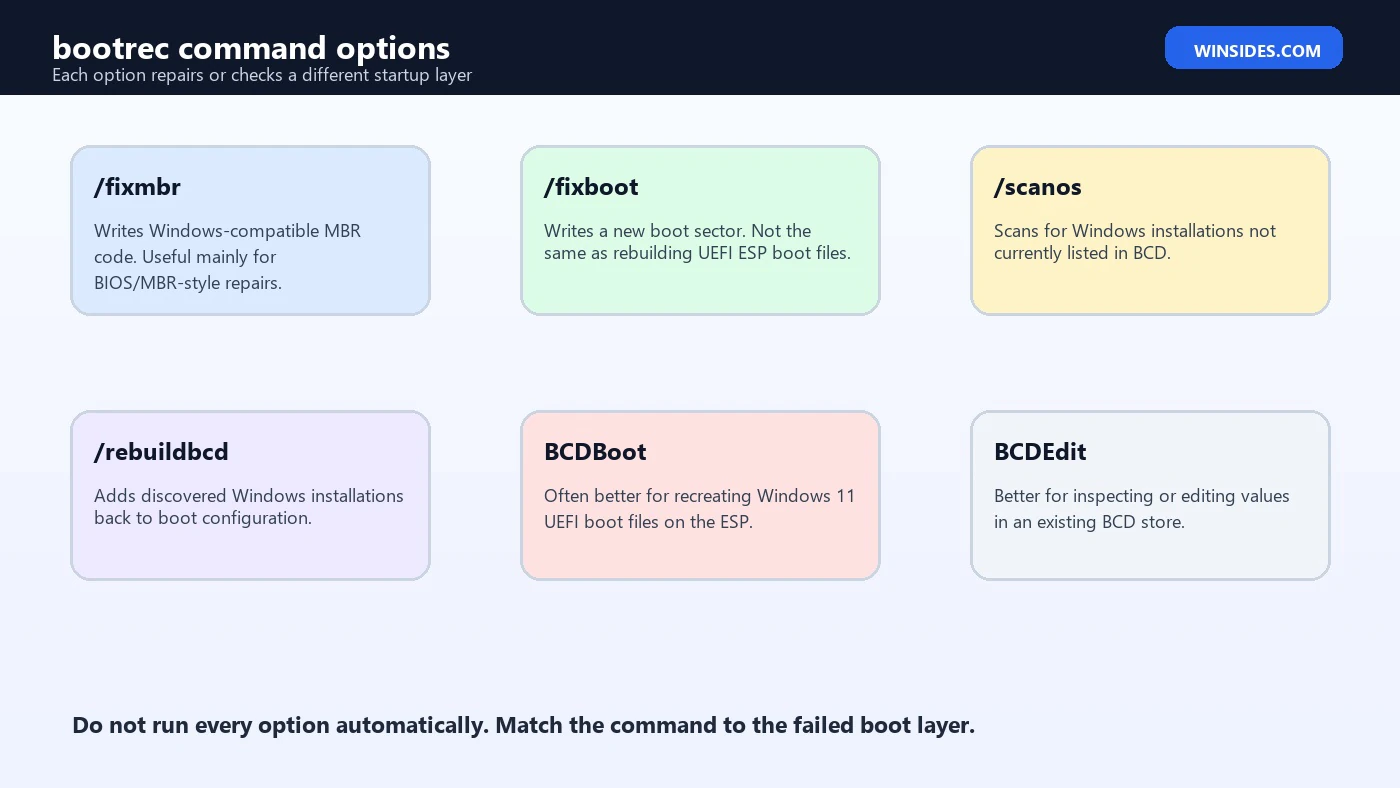
The options are commonly shown together, but that does not mean you should run them all in sequence. /fixmbr is most relevant to MBR boot code. /fixboot writes a boot sector. /scanos searches for Windows installations missing from BCD. /rebuildbcd scans and lets you add discovered Windows installations to the boot store. On UEFI systems, missing ESP boot files may require BCDBoot instead.
Before Running Any bootrec Command
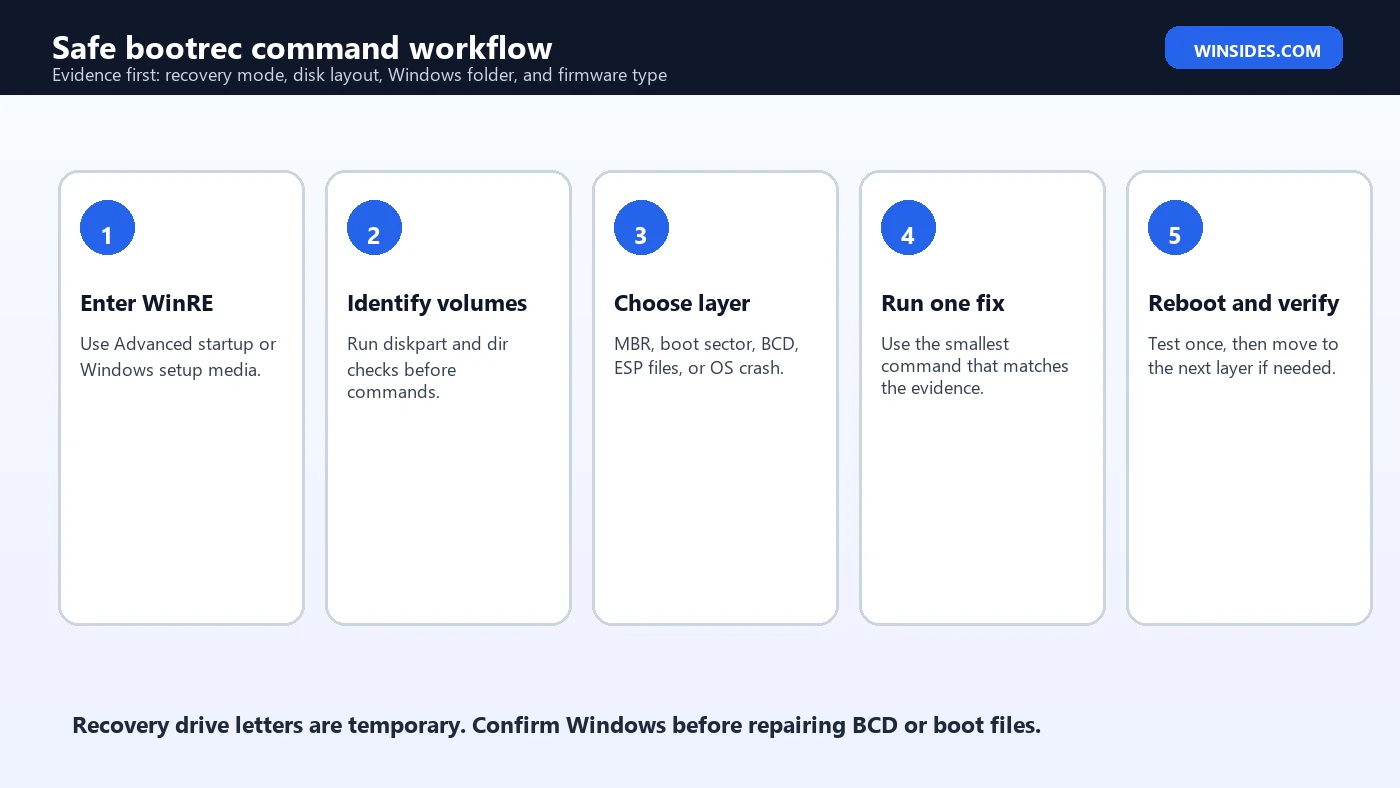
Before running bootrec, identify your disk layout and Windows volume. Recovery drive letters are temporary. The installed Windows partition may not be C:. If you repair the wrong volume, you can create misleading BCD entries or conclude Windows is missing when it is simply on a different letter.
diskpart
list disk
list vol
exit
dir C:\Windows
dir D:\Windows
dir E:\WindowsLook for the volume that actually contains the Windows folder. On UEFI/GPT systems, also identify the EFI System Partition. It is usually a small FAT32 partition. On BIOS/MBR systems, the active system partition may be NTFS. If BitLocker is enabled, the Windows volume may need to be unlocked before recovery can scan or write properly.
- Confirm whether the device uses UEFI/GPT or BIOS/MBR.
- Find the actual Windows folder in recovery.
- Identify the system partition or EFI System Partition.
- Have the BitLocker recovery key ready.
- Disconnect unnecessary drives if multiple disks could confuse repair.
- Check storage visibility in firmware if recovery cannot see the disk.
bootrec /fixmbr Explained
bootrec /fixmbr writes Windows-compatible Master Boot Record boot code without rewriting the partition table. It is most relevant to legacy BIOS/MBR-style startup problems, such as overwritten MBR code, old boot loaders, or malware cleanup situations where the MBR boot code is suspected. It does not rebuild the BCD store and it does not recreate UEFI EFI System Partition files.
bootrec /fixmbrOn modern Windows 11 UEFI/GPT systems, this command is often not the central repair step. UEFI boot normally uses firmware entries and files on the EFI System Partition. If Windows Boot Manager is missing from UEFI, /fixmbr is unlikely to solve that specific problem. Use it when the platform and symptom point to MBR boot code, not as a universal first step.
bootrec /fixboot Explained
bootrec /fixboot writes a new boot sector to the system partition. It can be useful when the boot sector layer is damaged or incompatible. Older recovery workflows often paired it with /fixmbr, especially on BIOS/MBR systems. On Windows 11 UEFI/GPT systems, however, boot-sector repair is not the same as rebuilding EFI System Partition boot files.
bootrec /fixbootIf /fixboot returns access denied, do not keep repeating it. That result commonly indicates partition access, firmware mode, ESP state, BitLocker, or a repair-path mismatch. In many UEFI cases, the better next step is assigning the ESP a temporary drive letter and using BCDBoot to recreate boot files from the Windows folder.
bootrec /scanos Explained
bootrec /scanos scans disks for Windows installations that are not currently listed in the BCD store. It is a diagnostic command and is often the safest bootrec option to run before changing anything. If it finds the installed Windows copy, recovery can at least see the Windows folder and may be able to add it to BCD. If it finds zero installations, you need to investigate why.
bootrec /scanosA zero result can mean the volume is locked by BitLocker, assigned an unexpected letter, already listed in BCD, unreadable, affected by missing storage drivers, or damaged. It does not automatically mean Windows is gone. Confirm with manual directory checks and disk health checks before making destructive changes.
bootrec /rebuildbcd Explained
bootrec /rebuildbcd scans for Windows installations and lets you add discovered installations to the boot configuration. It is most useful when Windows exists on disk but is missing from the boot menu or BCD store. It can help after cloning, partition changes, some dual-boot changes, or accidental deletion of boot entries.
bootrec /rebuildbcdRead the discovered path before answering yes. On systems with several Windows folders or multiple disks, the first discovered installation might not be the one you want. If the command finds Windows but cannot add it, inspect the BCD store with BCDEdit or repair ESP boot files with BCDBoot. Rebuilding BCD is not the same as recreating every UEFI boot file.
When BCDBoot Is Better Than bootrec
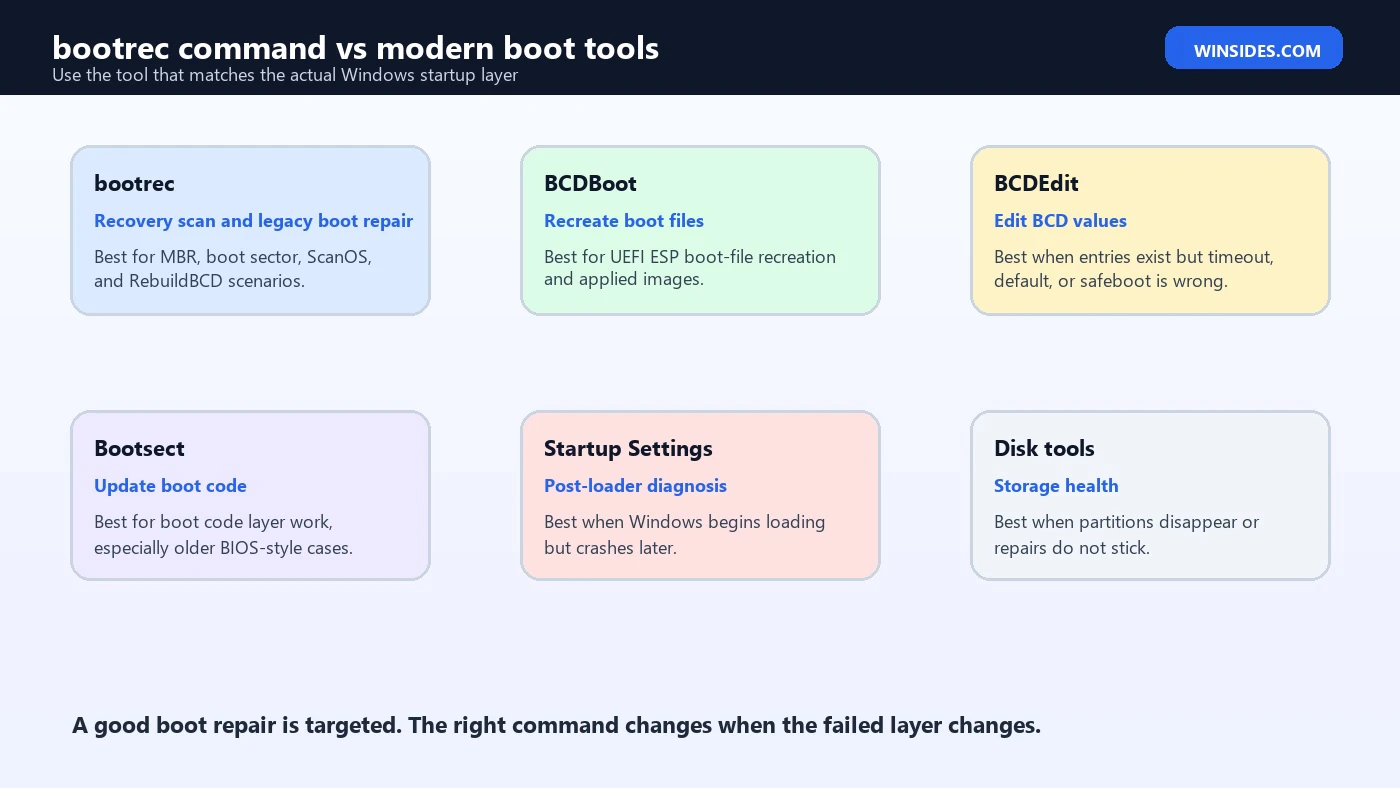
Microsoft BCDBoot documentation describes BCDBoot as a tool that copies boot-environment files from the installed Windows image to the system partition and can create a BCD store from current Windows files. It also lists repair of a corrupted system partition and dual-boot menu repair as BCDBoot scenarios. That makes BCDBoot a better fit when the EFI System Partition is missing boot files or when a deployed Windows image needs boot files.
diskpart
list vol
select vol <EFI volume number>
assign letter=S:
exit
bcdboot C:\Windows /s S: /f UEFI
Replace C:\Windows with the actual Windows folder in recovery. If Windows is on D:, use D:\Windows. The /s option targets the system partition, and /f UEFI creates UEFI boot files. This is often more effective than bootrec when Windows 11 has an ESP boot-file problem.
When BCDEdit Is Better Than bootrec
BCDEdit is better when the BCD store exists and you need to inspect or change values. Microsoft documents BCDEdit as the command-line tool for managing BCD stores and boot menu options. If the wrong entry is default, the timeout is wrong, Safe Mode is forced, or debug settings are enabled, bootrec is too blunt. Use BCDEdit to view and change the existing values.
bcdedit /enum active /v
bcdedit /enum firmware
bcdedit /timeout 10
A common example is a machine stuck in Safe Mode. The repair may be bcdedit /deletevalue {current} safeboot, not bootrec /rebuildbcd. Another example is a dual-boot menu with the wrong default entry; BCDEdit can adjust that without rebuilding the store.
When Bootsect Is Better Than bootrec
Bootsect updates boot code for hard disk partitions. Microsoft Bootsect documentation describes options for applying Bootmgr-compatible boot code. This makes Bootsect a specialized boot-code tool, not a BCD editor and not a UEFI ESP file rebuilder. It is more relevant to boot-code layer repairs than to modern UEFI BCD or ESP file recreation.
bootsect /nt60 SYSDo not use Bootsect simply because a tutorial includes it. Use it when the evidence points to boot code and when you understand whether the system is BIOS/MBR or UEFI/GPT. On many Windows 11 startup problems, BCDBoot or BCDEdit will be more relevant.
Common bootrec Command Scenarios
| Scenario | Useful command | Why |
|---|---|---|
| Legacy MBR boot code overwritten | bootrec /fixmbr | Repairs MBR boot code without rewriting partition table. |
| Boot sector damage on matching system | bootrec /fixboot | Writes a new boot sector to the system partition. |
| Windows missing from BCD | bootrec /scanos | Checks whether recovery can discover it. |
| Discovered Windows needs boot entry | bootrec /rebuildbcd | Adds discovered installation to BCD. |
| ESP boot files missing | BCDBoot | Recreates UEFI boot files from Windows folder. |
| Wrong boot menu default | BCDEdit | Changes existing BCD values precisely. |
Common bootrec Command Errors
| Error or result | Likely meaning | Next step |
|---|---|---|
/fixboot access denied | ESP access, firmware mode, BitLocker, or wrong layer. | Inspect ESP and consider BCDBoot. |
/scanos finds zero | Recovery cannot see missing Windows install. | Check BitLocker, letters, disk health, and storage drivers. |
/rebuildbcd cannot add entry | Store exists, wrong target, or ESP/store damage. | Inspect with BCDEdit or repair with BCDBoot. |
| No bootable device | Firmware cannot find boot path or disk. | Check firmware order and disk detection. |
| Windows starts then crashes | Boot path may work; OS layer fails. | Use Startup Settings, Safe Mode, DISM, SFC, or rollback. |
UEFI/GPT Considerations for Windows 11
Windows 11 normally uses UEFI/GPT. Microsoft UEFI/GPT partition guidance explains the role of the EFI System Partition, while BCDBoot documentation explains that UEFI boot files are copied to \EFI\Microsoft\Boot. This means a Windows 11 repair often needs ESP awareness. A BIOS-era sequence of /fixmbr, /fixboot, /scanos, and /rebuildbcd may not address missing UEFI boot files.
Before using bootrec on Windows 11, ask whether the failure is really MBR, boot sector, BCD discovery, ESP boot files, firmware boot order, or Windows crashing after load begins. That single question helps you choose the correct tool and avoid changing unrelated boot data. If firmware cannot see the drive, bootrec cannot fix hardware detection. If Windows Boot Manager exists but Windows crashes later, bootrec may already be past its useful layer.
BitLocker and the bootrec command
BitLocker can affect bootrec results. If the Windows volume is locked, recovery may not scan it correctly, and manual directory checks may fail. Changing boot files or BCD can also trigger BitLocker recovery on the next boot. That is expected behavior when the boot environment changes, not necessarily proof that the repair failed.
Have the recovery key available before repair. On managed devices, it may be stored in Microsoft Entra ID, Active Directory, or an endpoint management system. On personal devices, it may be associated with the Microsoft account. Do not format an ESP or rebuild boot files on an encrypted machine without being ready for recovery prompts.
Safe Workflow Example
Here is a cautious workflow for a Windows 11 no-boot case. Treat the letters as examples. The real letters must come from your recovery session. The point is to collect evidence first, then run the smallest repair that matches the evidence.
diskpart
list vol
exit
dir C:\Windows
dir D:\Windows
bootrec /scanos
If /scanos finds the correct Windows installation, run:
bootrec /rebuildbcdIf Windows is visible but ESP boot files are missing, use BCDBoot instead:
diskpart
select vol <EFI volume number>
assign letter=S:
exit
bcdboot D:\Windows /s S: /f UEFI
Cloned Drive Scenario
A cloned drive can contain a perfect copy of Windows and still fail to boot because the firmware entry, ESP contents, or BCD store on the target disk is not correct. The bootrec command can help if the Windows installation is missing from BCD, but BCDBoot is often needed on UEFI systems because the clone needs boot files on its own EFI System Partition.
When possible, disconnect the original drive while repairing the clone. Otherwise recovery may find the old installation, write boot files to the wrong disk, or leave firmware pointing at the original drive. After the clone boots independently, reconnect other disks and adjust firmware boot order deliberately.
Dual-Boot Scenario
Dual-boot systems need extra care. bootrec can restore Windows entries, but it may not preserve the boot order or another boot manager exactly as it was. BCDBoot can also influence UEFI boot order depending on the options used. If Linux, another Windows copy, or OEM tools share the EFI System Partition, do not format it casually.
A targeted Windows repair is usually safer than a wipe-and-rebuild approach. Use /scanos to see whether Windows is missing from BCD, BCDBoot if Windows boot files are missing, and BCDEdit after boot if the menu order or default entry needs adjustment. Restore other boot manager preferences only after Windows itself is bootable again.
When Windows Starts but Crashes Later
If the Windows Boot Manager menu appears, the Windows logo appears, and the computer crashes after that, the early boot path may already be working. In that case, more bootrec commands may not help. You may be dealing with a driver, update, service, disk, memory, or system file problem after Windows begins loading.
Use Startup Settings for that kind of failure. Safe Mode, boot logging, low-resolution video, disabling automatic restart, System Restore, DISM, SFC, uninstalling a recent update, and driver rollback may be more useful. Bootrec repairs startup configuration layers; it does not fix every operating system crash.
What Not to Do
- Do not run every bootrec option automatically without identifying the failed layer.
- Do not assume
C:is Windows inside recovery. - Do not format the EFI System Partition as a first step.
- Do not ignore BitLocker recovery requirements.
- Do not use MBR-focused commands as the main repair for every Windows 11 UEFI issue.
- Do not keep rewriting boot data if the disk is failing or disappearing.
- Do not add every discovered Windows folder to BCD without confirming which installation it is.
Scenario: bootrec command after a cloned drive
A cloned drive is one of the most common situations where people search for the bootrec command. The clone may contain all of the Windows files, but the target disk may not have the correct firmware boot entry, EFI System Partition files, or BCD entries. In that situation, bootrec /scanos can tell you whether recovery sees the Windows installation, but it may not be enough to make the clone boot independently.
For UEFI systems, BCDBoot is often the more complete fix because it recreates boot files on the EFI System Partition from the Windows folder. If both old and new drives are connected, firmware may keep booting from the old drive or repair commands may target the wrong disk. The safer approach is to disconnect the original drive temporarily, boot recovery media in UEFI mode, identify the clone’s Windows and ESP volumes, and then rebuild boot files on the clone.
bootrec /scanos
bcdboot D:\Windows /s S: /f UEFI
Scenario: bootrec command after removing Linux or another boot manager
Dual-boot and boot manager changes need care. If another boot manager was removed, Windows Boot Manager may still exist but no longer be first in firmware order, or the EFI System Partition may still contain files from multiple operating systems. Running every bootrec command can restore some Windows entries, but it can also change the boot menu without preserving the old layout.
Start by checking whether Windows Boot Manager appears in firmware. Then inspect the ESP and BCD entries if possible. BCDBoot can restore Windows boot files, while BCDEdit can adjust menu values after Windows is bootable. Avoid formatting the EFI System Partition unless you are intentionally rebuilding the entire boot arrangement and understand that other boot paths may be removed.
Scenario: bootrec command after a failed Windows update
A failed update can leave a machine unable to boot, but the failed layer may not be the boot sector or BCD. If Windows Boot Manager appears and Windows starts loading before crashing, the bootrec command may not be the best next tool. In that case, Startup Settings, Safe Mode, uninstalling the latest quality update, System Restore, DISM, SFC, or driver rollback may be more relevant.
Use bootrec when Windows is missing from the boot path or BCD is clearly involved. If the boot path works and Windows crashes later, treat it as an operating system repair problem. This distinction keeps you from rewriting boot configuration when the real problem is a driver, pending update, corrupted system file, or storage issue after the loader starts.
Scenario: bootrec command finds zero Windows installations
When bootrec /scanos finds zero installations, do not assume the Windows folder is gone. Recovery may not see the volume because BitLocker is locked, a storage driver is missing, the file system is damaged, or the drive letter is different. It can also report zero if the installation is already listed in the BCD store. The result is a signal to investigate access, not permission to format partitions.
manage-bde -status
dir C:\Windows
dir D:\Windows
bcdedit /enum all
If you can manually browse the Windows folder but /scanos finds nothing, compare what BCDEdit sees and consider BCDBoot for UEFI boot-file recreation. If you cannot browse the Windows folder at all, solve the access problem first. That may involve unlocking BitLocker, checking the disk, loading storage drivers, or verifying firmware storage mode.
Troubleshooting Matrix for the bootrec command
| Symptom | Likely layer | Better next step |
|---|---|---|
| No bootable device | Firmware, disk detection, or boot path | Check firmware boot order and disk visibility before commands. |
| BCD missing error | BCD store or ESP files | Try /scanos, then BCDBoot if ESP files are missing. |
/fixboot access denied | ESP access or wrong repair layer | Assign ESP and use BCDBoot on UEFI systems. |
| Wrong OS starts | BCD default or display order | Use BCDEdit rather than bootrec. |
| Windows logo appears then crash | OS, driver, update, or hardware | Use Startup Settings and Windows repair tools. |
| Repair works then returns | Storage or file-system instability | Back up data and check disk health. |
Best Practices for the bootrec command
- Use bootrec from trusted Windows recovery media.
- Start with disk and directory checks.
- Run
/scanosbefore/rebuildbcd. - Use
/fixmbrmainly when MBR boot code is actually relevant. - Use
/fixbootonly when boot-sector repair matches the platform and symptom. - Use BCDBoot for UEFI ESP boot-file recreation.
- Use BCDEdit for existing BCD values.
- Check disk health if boot corruption returns.
Quick Checklist Before You Press Enter
The safest way to use the bootrec command is to slow the moment before the command, not after it fails. Confirm that the disk appears in firmware and recovery. Confirm that the installed Windows folder is visible. Confirm whether the system is UEFI/GPT or BIOS/MBR. Confirm whether BitLocker is locking the Windows volume. Confirm whether the problem happens before Windows Boot Manager, at the boot menu, or after Windows starts loading.
Also write down what you changed. In recovery work, a simple note with the volume letters, command used, and result can save a second troubleshooting session from becoming guesswork. If the next error changes, that note tells you which layer was repaired and where to look next, without repeating commands blindly.
When in doubt, reboot once after a successful targeted repair and observe the new behavior before stacking more commands on top of it.
If the problem is before Windows Boot Manager, firmware order, ESP files, or disk detection may be involved. If the boot menu appears but Windows is missing, BCD discovery is relevant. If Windows starts loading and then crashes, bootrec may no longer be the right tool. This checklist turns a scary startup repair into a sequence of smaller decisions.
- Firmware sees the disk.
- Recovery sees the Windows volume.
- The Windows folder path is confirmed.
- The system partition or ESP is identified.
- BitLocker recovery key is available if needed.
- The chosen command matches the failed boot layer.
Frequently Asked Questions
What is the bootrec command used for?
It is used from Windows recovery to repair or inspect startup layers such as MBR boot code, boot sector code, Windows installation discovery, and BCD rebuilding.
Can I run bootrec in normal Windows?
It is primarily a recovery command. Most users run it from Windows Recovery Environment, setup media, or Advanced startup Command Prompt.
Which bootrec command should I run first?
Usually start with evidence: DiskPart, directory checks, then bootrec /scanos if BCD discovery is the suspected issue.
Is bootrec safe?
It can be safe when targeted correctly, but running commands blindly can change boot data unnecessarily. Confirm layout and use the right command for the failed layer.
Why does bootrec /fixboot say access denied?
On Windows 11 this often points to UEFI/GPT ESP access, BitLocker, or a wrong repair path. BCDBoot may be more appropriate.
Is BCDBoot better than bootrec?
It is better for recreating boot files on the system partition, especially on Windows 11 UEFI systems. bootrec is better for its specific scan and legacy repair tasks.
Conclusion: Use the bootrec command with a Target
The bootrec command is still useful, but only when it is aimed at the right startup layer. /fixmbr, /fixboot, /scanos, and /rebuildbcd do different jobs. Running them as a ritual can miss the real issue, especially on Windows 11 UEFI systems where ESP files, firmware boot entries, and BCDBoot matter.
The safe approach is simple: identify the disk layout, confirm the Windows folder, understand whether the problem is MBR, boot sector, BCD, ESP files, firmware order, or Windows crashing after load, and then choose the smallest command that matches. That turns bootrec from a risky command block into a useful recovery tool.
For official context, keep Microsoft pages for Windows Startup Settings, BCDBoot, BCDEdit, Bootsect, and UEFI/GPT partition guidance nearby while repairing startup.
For more interesting articles, stay tuned to Winsides.com!









Community
Comments (0)