

Introduction to bootrec rebuild
bootrec rebuild usually refers to bootrec /rebuildbcd, the Windows Recovery Environment command that scans for Windows installations and offers to add them back to the Boot Configuration Data store. It is one of the most useful boot repair commands when Windows exists on disk but is missing from the boot menu, when a cloned drive will not start, when a dual-boot change removed a Windows entry, or when recovery reports BCD-related startup errors.
The phrase sounds simple, but rebuilding BCD is not the same as rebuilding every boot file. The BCD store is only one part of the startup chain. On a Windows 11 UEFI/GPT system, firmware entries, the EFI System Partition, Windows Boot Manager files, BCD entries, BitLocker state, storage health, and the Windows installation itself all matter. bootrec /rebuildbcd can help when the BCD entry is missing or stale; it does not necessarily recreate EFI boot files or repair a damaged Windows installation.
Microsoft documents the modern boot repair pieces through BCDBoot, BCDEdit, Windows Startup Settings, and UEFI/GPT partition guidance. This guide explains where bootrec rebuild fits, how to use it safely, and when BCDBoot or BCDEdit is the better next tool.
Table of contents
Key Takeaways
- bootrec rebuild usually means
bootrec /rebuildbcd. It scans for Windows installations and can add them to the BCD store. - Run
/scanosfirst. It tells you whether recovery can discover Windows before you rebuild anything. - BCD is not the whole boot path. On Windows 11 UEFI systems, missing ESP boot files may need BCDBoot instead.
- Drive letters change in recovery. Always confirm the Windows folder with
dirbefore repairing. - BitLocker can hide or lock Windows volumes. Have the recovery key ready.
- Do not rebuild blindly on dual-boot systems. You can change the visible boot menu or firmware order.
- If repairs do not stick, check disk health. Recurring BCD damage can be a storage symptom.
What bootrec /rebuildbcd Actually Does
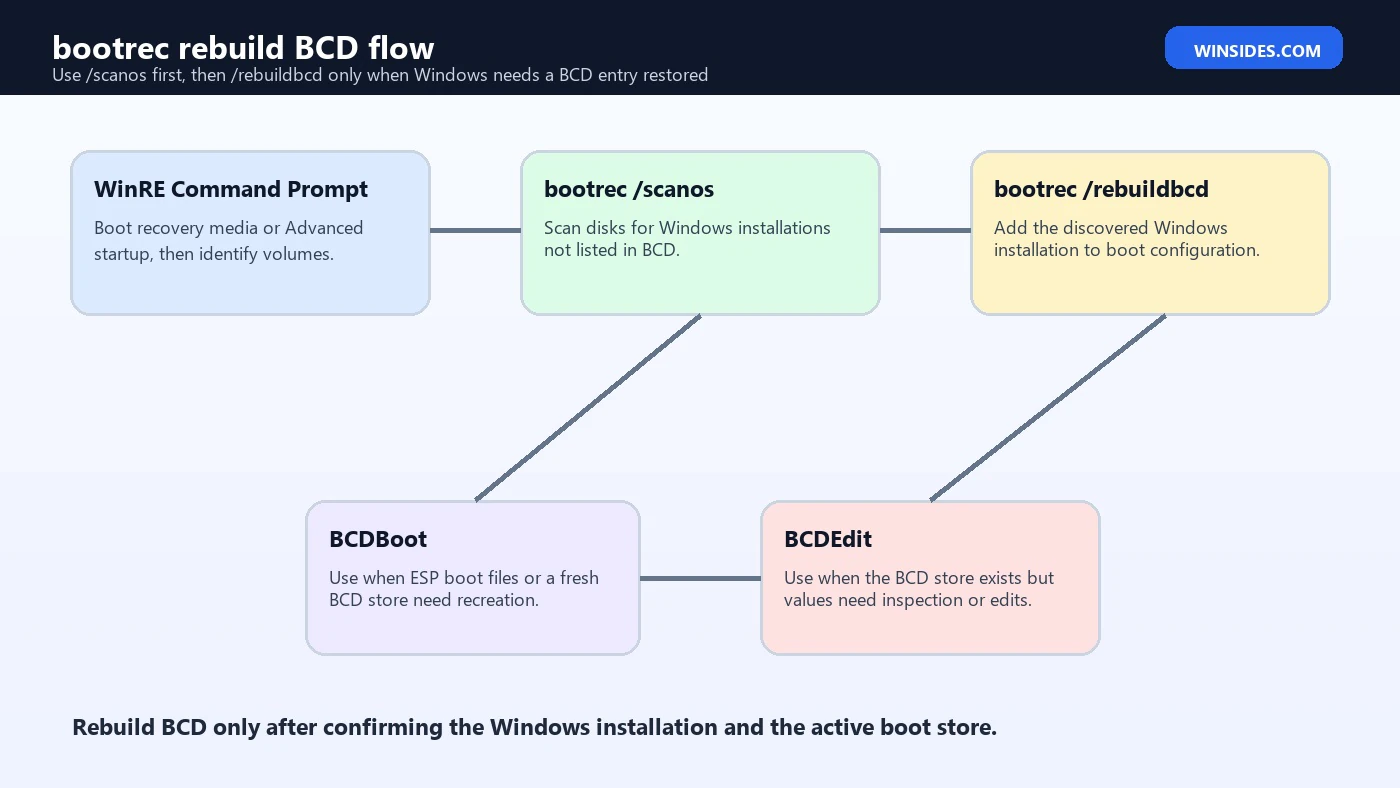
bootrec /rebuildbcd scans disks for Windows installations and lets you add discovered installations to the Boot Configuration Data store. It is not a file-system repair command, not a system file repair command, and not a full EFI System Partition rebuild command. It is a BCD discovery and registration command. When it works, it reconnects an existing Windows installation to the boot configuration that Windows Boot Manager can use.
This is most helpful when a Windows installation exists but is not listed in the boot menu. That can happen after repartitioning, cloning, failed recovery steps, deletion of BCD entries, dual-boot changes, or an interrupted boot repair. It can also help when recovery reports that Boot Configuration Data is missing or does not contain a valid operating system entry, provided the Windows installation is still readable.
bootrec /scanos
bootrec /rebuildbcd
The order matters. /scanos is a safer diagnostic step because it tells you whether recovery can find Windows installations that are not already in BCD. If it finds the correct installation, /rebuildbcd is more likely to be useful. If it finds nothing, forcing a rebuild is not the answer yet; you need to understand why recovery cannot see Windows.
What BCD Is and Why It Breaks
BCD stands for Boot Configuration Data. It is a structured store used by Windows boot components to describe boot manager behavior and operating system loader entries. BCDEdit is the tool Microsoft documents for managing BCD stores and boot menu options. bootrec does not give you the same editing precision as BCDEdit; it focuses on recovery tasks such as scanning for Windows installations and rebuilding missing entries.
BCD can break or become incomplete for several reasons. A cloned disk might copy Windows files but not create a usable firmware entry. A dual-boot tool might alter boot entries. A user might delete the wrong BCD object. An update or interrupted recovery might leave boot files inconsistent. A failing disk might corrupt data repeatedly. BCD can also look broken when the actual problem is that the Windows volume is locked by BitLocker or the recovery environment is looking at the wrong disk.
| Symptom | Possible meaning | Best first check |
|---|---|---|
| Windows installation missing from menu | BCD entry missing or boot order changed. | bootrec /scanos and bcdedit /enum all. |
| BCD file missing error | Store missing, damaged, or wrong partition targeted. | Check ESP/system partition and Windows folder. |
/scanos finds zero installations | Volume locked, unreadable, already listed, or wrong storage path. | Check BitLocker, drive letters, and disk health. |
| Boot files missing on ESP | BCD rebuild alone may not be enough. | Use BCDBoot to recreate boot files. |
Before Running bootrec rebuild
Before using bootrec rebuild, identify the environment. Recovery drive letters are temporary. The installed Windows partition may not be C:. If you use commands against the wrong volume, you may rebuild entries for the wrong installation or conclude Windows is missing when it is simply mounted under another letter.
diskpart
list disk
list vol
exit
dir C:\Windows
dir D:\Windows
dir E:\WindowsLook for the volume that actually contains the Windows folder. On a normal installed system this is usually C:, but inside Windows Recovery Environment it is frequently D: or another letter. Also identify the system partition. On UEFI/GPT systems, the EFI System Partition is usually a small FAT32 partition. On BIOS/MBR systems, the system partition may be active and NTFS.
- Have the BitLocker recovery key ready if the drive is encrypted.
- Disconnect unnecessary external drives to reduce confusion.
- Confirm the firmware mode is UEFI or legacy BIOS.
- Check the Windows folder before assuming the operating system is gone.
- Avoid formatting the system partition unless you are certain it is necessary.
When bootrec rebuild Helps
bootrec rebuild helps when recovery can discover a Windows installation that is missing from the BCD store. In that case, /rebuildbcd can add the installation back to the boot list. It is especially relevant after accidental BCD entry removal, some clone migrations, certain dual-boot changes, and older BIOS/MBR startup repairs where the BCD store is present but incomplete.
It also helps as a diagnostic divider. If /scanos sees the Windows installation, the volume is readable enough for recovery to inspect it. If /rebuildbcd adds it successfully, reboot and test. If the same boot issue remains, the failure may be elsewhere: firmware boot order, ESP boot files, Windows system files, storage health, or a driver problem after Windows begins loading.
When bootrec rebuild Does Not Help
bootrec rebuild does not recreate every required boot file on the EFI System Partition. Microsoft BCDBoot documentation explains that BCDBoot copies boot-environment files from the installed Windows image to the system partition and can create a BCD store from the Windows BCD template. That is often the better tool when ESP boot files are missing, when a deployed Windows image needs boot files, or when a cloned Windows installation has no usable UEFI boot path.
bootrec rebuild also does not fix Windows corruption after the loader starts. If Windows Boot Manager appears and Windows begins loading before crashing, Startup Settings, Safe Mode, DISM, SFC, driver rollback, System Restore, or uninstalling an update may be more useful. Microsoft Startup Settings covers recovery choices for problems after the early boot path is already working.
How to Run bootrec rebuild Safely
Open Command Prompt from Windows Recovery Environment or Windows installation media. Confirm the Windows volume first. Then run /scanos before /rebuildbcd. If the scan finds the correct Windows installation, run the rebuild command and answer yes only for the installation you intend to boot.
bootrec /scanos
bootrec /rebuildbcd
If the command asks whether to add an installation to the boot list, read the path carefully. On systems with multiple Windows installations, the wrong yes can create a confusing boot menu. If you are unsure, stop and inspect volumes again. A few extra minutes of checking is much safer than rebuilding entries for the wrong Windows folder.
After a successful rebuild, reboot without recovery media and test. If Windows starts, run BCDEdit from an elevated terminal later to inspect the boot menu, timeout, default entry, and display order. If it does not start, note the new error. A different error after rebuild tells you the repair moved to a different layer.
If bootrec /scanos Finds Zero Installations
A zero result is not proof that Windows is gone. It means recovery did not find a Windows installation that matched its scan criteria. The Windows partition may be locked by BitLocker, assigned an unexpected letter, hidden behind a missing storage driver, damaged by file-system problems, or already present in BCD. It may also be on another disk that recovery is not seeing.
Start with manual checks. Use dir to find Windows folders. Use DiskPart to identify volumes. If BitLocker is active, unlock the volume. If the disk is not visible, check firmware storage detection and controller settings. If the drive appears intermittently, prioritize backup and hardware diagnostics before more BCD work.
manage-bde -status
manage-bde -unlock C: -RecoveryPassword <recovery-key>
If bootrec /rebuildbcd Finds Windows but Fails
Sometimes /rebuildbcd finds Windows but cannot add it. The BCD store may already contain an entry, the store may be damaged, the system partition may be wrong, or recovery may be operating against an unexpected store. If BCDEdit can enumerate the store, inspect it before replacing anything. If the ESP boot files are damaged or incomplete, BCDBoot may be the cleaner repair.
bcdedit /enum all
bcdboot C:\Windows /s S: /f UEFI
The BCDBoot command assumes C:\Windows is the installed Windows folder and S: is the EFI System Partition. Adjust both values after checking volumes. On Windows 11 UEFI systems, this BCDBoot step frequently solves cases where rebuilding BCD entries alone does not recreate the missing boot environment.
UEFI/GPT vs BIOS/MBR Differences
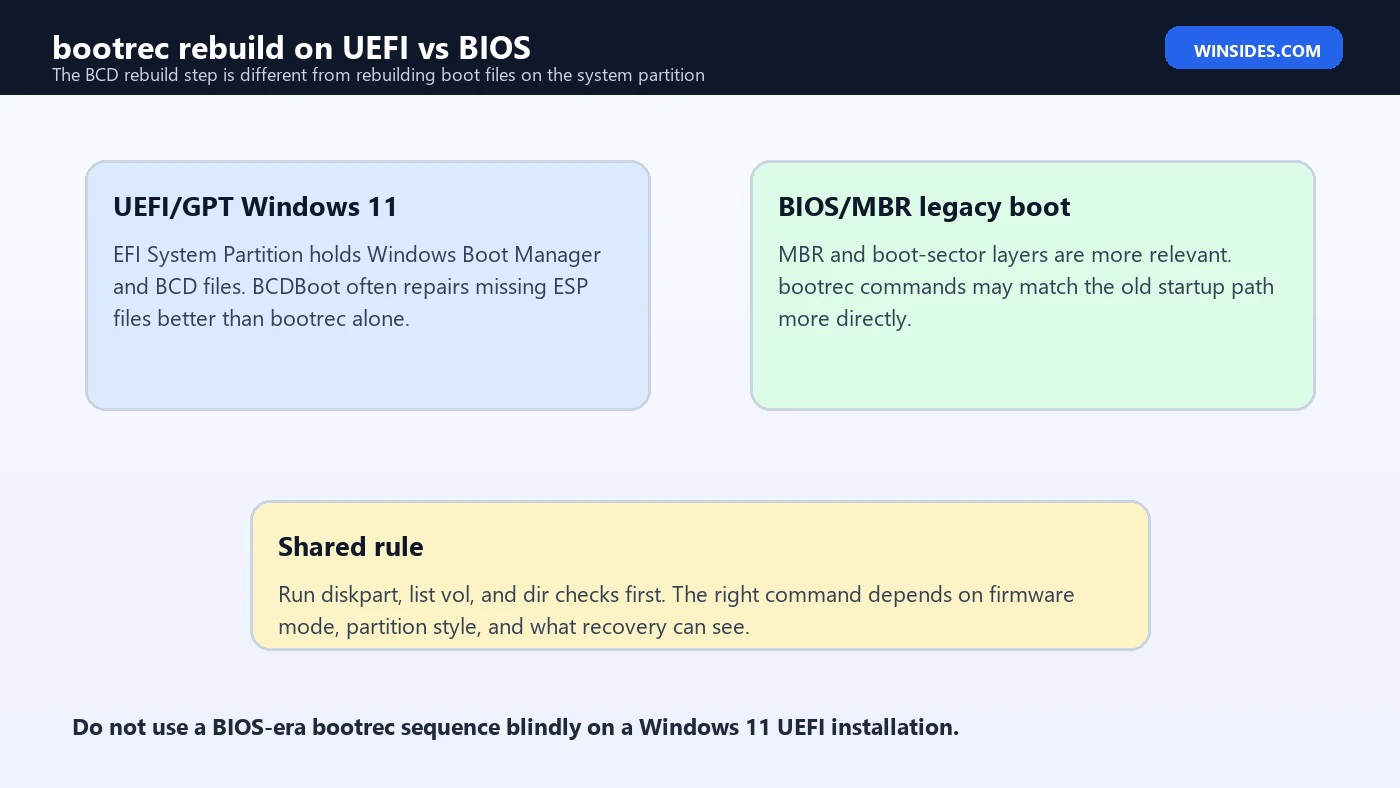
Windows 11 normally uses UEFI/GPT. Microsoft UEFI/GPT partition guidance describes the EFI System Partition as the system partition on GPT disks, while BCDBoot documentation describes copying UEFI boot files into \EFI\Microsoft\Boot on that partition. That means a modern repair often includes ESP inspection and BCDBoot, not only bootrec.
On older BIOS/MBR systems, the MBR and boot sector layers are more central. bootrec commands such as /fixmbr, /fixboot, and /rebuildbcd map more directly to that startup path. The danger is copying a BIOS-era command sequence onto a UEFI Windows 11 machine without checking the layout. The command may not target the failed layer.
bootrec rebuild vs BCDBoot
Use bootrec rebuild when the main problem is a missing BCD entry for an existing Windows installation. Use BCDBoot when the system partition boot files or BCD store need to be recreated from the Windows folder. The two tools overlap in recovery stories, but they do not perform the same job. BCDBoot can create boot files and a BCD store using current Windows files; bootrec rebuild searches and adds installations to BCD.
| Situation | Better tool | Why |
|---|---|---|
| Windows found by scan but missing from menu | bootrec /rebuildbcd | The installation needs to be added back to BCD. |
| ESP boot files missing or damaged | BCDBoot | It copies fresh boot files to the system partition. |
| Deployed Windows image needs boot files | BCDBoot | This is a documented BCDBoot scenario. |
| Timeout or default boot entry wrong | BCDEdit | The store exists and values need editing. |
| Windows loads then crashes | Startup Settings or OS repair | The boot path may already be working. |
bootrec rebuild vs BCDEdit
BCDEdit is the precise tool for viewing and editing BCD stores. If the store exists and the entries are visible, BCDEdit can show identifiers, default entries, display order, firmware entries, timeout, safeboot flags, debugging values, and other settings. bootrec rebuild is less precise but useful when you need recovery to discover and add Windows installations.
bcdedit /enum active /v
bcdedit /enum firmware
If Windows keeps booting into Safe Mode, bootrec /rebuildbcd is probably not the right fix. The value might be safeboot in the current BCD entry, and BCDEdit can remove it. If the boot menu shows the wrong default entry, BCDEdit can change the default. If the store is missing or boot files are gone, BCDBoot may be better.
Dual-Boot and Cloned Drive Scenarios
Dual-boot and cloned drive cases need extra caution. In a dual-boot setup, bootrec rebuild may discover one Windows installation but not another. BCDBoot can restore Windows Boot Manager but may change firmware boot order. If another boot manager is involved, restoring Windows may hide it until you adjust firmware settings or the other boot manager configuration.
For cloned drives, disconnect the original disk when possible during repair. Otherwise recovery may find the old Windows installation, write boot files to the wrong disk, or keep firmware booting from the original drive. After the clone boots independently, reconnect other drives and set boot order intentionally.
Common Errors and What They Mean
| Result | Likely meaning | Next step |
|---|---|---|
/scanos finds 0 installations | Recovery cannot see a missing Windows installation. | Check BitLocker, drive letters, disk health, and storage drivers. |
/rebuildbcd finds Windows but fails to add | Store already has entry, store damage, or wrong target. | Inspect with BCDEdit or use BCDBoot for ESP repair. |
| Windows Boot Manager missing | Firmware entry or ESP files missing. | Use BCDBoot and check firmware boot order. |
| Boot menu appears but wrong OS starts | Default or display order wrong. | Use BCDEdit rather than bootrec rebuild. |
| Repair works temporarily | Underlying disk or file-system instability. | Check storage health and back up data. |
A Safe Example Workflow
Here is a cautious workflow for a Windows 11 recovery case. The exact drive letters are examples. Your system may differ.
diskpart
list vol
exit
dir C:\Windows
dir D:\Windows
bootrec /scanos
bootrec /rebuildbcd
If /rebuildbcd succeeds, reboot and test. If /scanos finds nothing but D:\Windows clearly exists, investigate why recovery cannot use it. If boot files on the ESP appear missing, assign the ESP a letter and use BCDBoot.
diskpart
select vol <EFI volume number>
assign letter=S:
exit
bcdboot D:\Windows /s S: /f UEFI
If RebuildBCD Says the Requested System Device Cannot Be Found
One frustrating outcome is a rebuild attempt that reports the requested system device cannot be found or cannot add the installation. This usually means recovery is not talking to the boot store you think it is using, the system partition is not mounted correctly, or the firmware mode does not match the installed Windows layout. On a UEFI Windows 11 system, that often sends you back to the EFI System Partition rather than forward into more bootrec attempts.
Start by assigning the ESP a temporary letter and confirming its contents. You should normally see an EFI folder, and Windows boot files usually live under EFI\Microsoft\Boot. If that folder is missing or the BCD store is clearly absent, BCDBoot can recreate the files from the Windows installation. If the folder exists and the store is readable, BCDEdit may be better for inspection. The repair path depends on whether files are missing or values are wrong.
diskpart
list vol
select vol <EFI volume number>
assign letter=S:
exit
dir S:\EFI
bcdboot D:\Windows /s S: /f UEFI
How to Avoid Adding the Wrong Windows Installation
On systems with multiple drives or old Windows folders, /rebuildbcd may discover more than one installation, or it may discover an installation that is not the one you want. The path shown by recovery can be confusing because drive letters are temporary. Before answering yes, inspect the volume. Check user profile folders, Windows folder dates, drive size, and labels. If a partition contains an old backup Windows folder, adding it to the boot menu can create a confusing or broken entry.
A good habit is to make the intended source obvious before repair. Disconnect unnecessary drives if possible. If the repair is for a cloned disk, boot recovery with only the cloned disk attached. If you cannot disconnect drives, write down volume numbers, sizes, and letters. In recovery, clarity is worth more than speed because every boot tool trusts the target you give it.
Repairing a Cloned Drive with bootrec rebuild
Cloned drives are a classic bootrec rebuild case. The clone may contain all Windows files, but the target disk may not have a usable boot entry, the firmware may still point to the old disk, or the EFI System Partition may not have the correct boot files. bootrec /rebuildbcd can help if the Windows installation needs to be added to BCD, but on a UEFI system BCDBoot is often needed to create boot files on the cloned disk.
The safest cloned-drive workflow is to remove the original drive temporarily, boot recovery media in UEFI mode, identify the clone’s Windows partition and ESP, and then repair the clone as a standalone boot target. After it boots by itself, reconnect other drives and set firmware boot order. This avoids the common mistake of repairing the old disk while thinking you repaired the new one.
Repairing a Dual-Boot Boot Menu
Dual-boot systems need a different temperament. A missing Windows entry may be solved by bootrec rebuild or BCDBoot, but repairing Windows can also move Windows Boot Manager ahead of another boot manager. Microsoft BCDBoot documentation notes options that affect UEFI boot order, including preserving or adding entries at different positions. That behavior is useful, but it means you should expect boot order changes after repair.
If another operating system is present, avoid formatting the ESP unless you are intentionally rebuilding everything. A targeted repair is better: use /scanos to see whether Windows is missing from BCD, use BCDBoot if Microsoft boot files are missing, and then revisit firmware order or the other boot manager after Windows starts. The goal is to restore Windows without erasing other boot paths unnecessarily.
When Rebuilding BCD Is Only the First Step
A successful /rebuildbcd can change the error you see without fully repairing the computer. That is still progress. If the boot menu returns but Windows crashes during startup, the early boot configuration may be fixed and the remaining problem may be inside Windows. At that point, do not keep rebuilding BCD. Move to Startup Settings, Safe Mode, boot logging, uninstalling updates, System Restore, DISM, SFC, driver rollback, or hardware diagnostics.
This distinction saves time. Bootrec rebuild repairs a missing link between Windows Boot Manager and an installed Windows copy. It does not fix a broken GPU driver, corrupted registry hive, bad RAM, failing SSD, or update that crashes during service startup. If Windows begins loading, collect the next symptom and choose the next tool based on that new layer.
Troubleshooting Matrix for bootrec rebuild
| Result | What it suggests | Next action |
|---|---|---|
/scanos finds Windows | Installation is discoverable but may be missing from BCD | Run /rebuildbcd and confirm the listed path. |
/scanos finds zero | Recovery cannot see a missing install | Check BitLocker, drive letters, disk health, and whether entry already exists. |
/rebuildbcd cannot add entry | Store or system partition mismatch | Inspect ESP and consider BCDBoot. |
| Windows Boot Manager missing | Firmware/ESP layer issue | Use BCDBoot and verify firmware boot order. |
| Wrong OS boots | Default or display order issue | Use BCDEdit, not repeated rebuilds. |
| Repair disappears after reboot | Firmware order, wrong disk, or storage issue | Check boot order and disk health. |
Best Practices for bootrec rebuild
- Use
/scanosbefore/rebuildbcd. - Confirm the Windows folder manually before adding entries.
- Use BCDBoot when boot files or the ESP need recreation.
- Use BCDEdit when a readable store only needs value changes.
- Avoid formatting the ESP unless it is clearly necessary and you understand the impact.
- Have the BitLocker recovery key ready.
- Document existing entries on dual-boot systems.
- Check disk health if BCD damage returns.
Quick Recovery Checklist
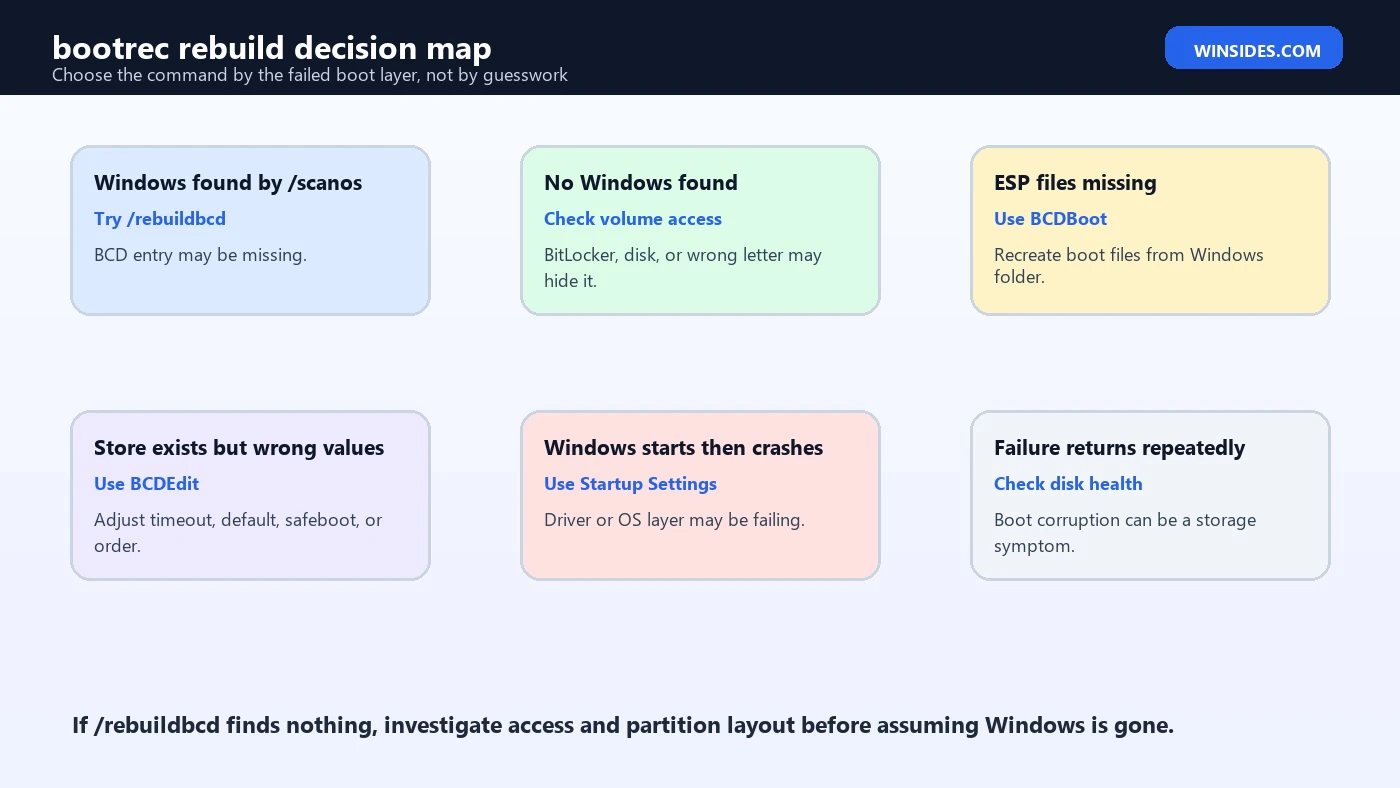
When you are sitting in recovery Command Prompt, the safest path is a checklist, not a command dump. First, confirm the machine sees the disk. Second, confirm the installed Windows folder. Third, confirm whether the system is UEFI/GPT or BIOS/MBR. Fourth, check whether BitLocker is locking the Windows volume. Fifth, run bootrec /scanos and interpret the result before running /rebuildbcd. This sequence reduces the chance of rebuilding entries against the wrong installation.
If the scan finds Windows, rebuild BCD and reboot once. If the scan finds nothing, do not keep rebuilding; find out why the installation is hidden. If boot files are missing from the EFI System Partition, move to BCDBoot. If the boot menu exists but points to the wrong entry, move to BCDEdit. If Windows starts and then fails, move to Startup Settings and Windows repair. That branching mindset is the real fix behind a successful bootrec rebuild workflow.
- Confirm disk visibility in firmware and recovery.
- Find the actual Windows folder with
dircommands. - Identify the EFI System Partition or active system partition.
- Check BitLocker before assuming Windows is missing.
- Use
/scanosas evidence before/rebuildbcd. - Use BCDBoot or BCDEdit when the evidence points away from BCD discovery.
Frequently Asked Questions
What does bootrec rebuild mean?
It usually means running bootrec /rebuildbcd to scan for Windows installations and add them to the Boot Configuration Data store.
Should I run bootrec /rebuildbcd first?
Run bootrec /scanos first so you know whether recovery can discover the Windows installation.
Why does bootrec rebuild find zero installations?
The Windows volume may be locked, assigned a different letter, already listed in BCD, unreadable, or hidden by storage issues.
Is BCDBoot better than bootrec rebuild?
It is better when the EFI System Partition boot files or a fresh BCD store need to be recreated from the Windows folder.
Can bootrec rebuild delete my files?
The command targets boot configuration, not personal files. Related actions such as formatting the wrong partition can be destructive.
Can bootrec rebuild fix a cloned drive?
It can help if the Windows installation is missing from BCD, but cloned UEFI drives often need BCDBoot to recreate boot files and firmware boot paths.
Conclusion: Rebuild BCD Only When BCD Is the Problem
bootrec rebuild is useful when a Windows installation exists but is missing from the Boot Configuration Data store. Used after /scanos, it can restore a missing boot entry and bring Windows back into the boot menu. The command is strongest when the failure is truly a BCD discovery or registration issue.
The safest Windows 11 approach is to identify the failed boot layer first. If recovery cannot see Windows, solve access and storage visibility. If ESP boot files are missing, use BCDBoot. If a store exists but a value is wrong, use BCDEdit. If Windows loads and then crashes, move to Startup Settings and OS repair. Rebuilding BCD is a powerful step, but only when the evidence points to BCD.
For official context, keep Microsoft pages for BCDBoot, BCDEdit, Windows Startup Settings, and UEFI/GPT partition guidance nearby while repairing startup.
For more interesting articles, stay tuned to Winsides.com!









Community
Comments (0)