

Introduction to Winget and VLC Media Player on Windows 11
In the evolving landscape of Windows software management, efficiency and control are paramount. For users of Windows 11, the traditional method of downloading installers from various websites can be cumbersome and time-consuming. This is where Winget, Microsoft’s official package manager, steps in, offering a streamlined approach to installing, updating, and managing applications directly from the command line. For additional context, see Winget (Windows Package Manager) documentation, VLC Media Player official website, Windows Terminal documentation, and Winget-pkgs GitHub repository.
At the same time, when it comes to media playback, one application consistently stands out: VLC Media Player. Renowned for its versatility, open-source nature, and ability to handle virtually any audio or video format without additional codecs, VLC has become an indispensable tool for millions worldwide. Its robust feature set and cross-platform compatibility make it a go-to choice for media enthusiasts and casual users alike.
This comprehensive guide will bridge the gap between these two powerful tools, demonstrating how to leverage Winget to effortlessly manage VLC Media Player on your Windows 11 system. We will explore the benefits of this modern approach, from initial installation to seamless updates and uninstallation, ensuring your media experience is always optimal and secure. Understanding how to use winget vlc media player on Windows 11 is a crucial skill for modern Windows users.
By integrating Winget into your software workflow, you not only simplify the process of acquiring and maintaining applications like VLC but also enhance the overall security and stability of your system. This article aims to provide a clear, step-by-step roadmap, empowering you to take full advantage of this potent combination.
Table of contents
Key Takeaways
- Winget is Microsoft’s official package manager, simplifying software installation and management on Windows 11.
- VLC Media Player is a highly versatile, open-source media player capable of handling almost all audio and video formats.
- Using Winget to install VLC provides a faster, more secure, and automated method compared to manual downloads.
- The process involves checking Winget’s installation, searching for VLC’s package ID, and executing a simple command in Windows Terminal.
- Winget also facilitates effortless updates and clean uninstallation of VLC, ensuring your software is always current and efficiently managed.
- Advanced Winget commands allow for managing multiple applications, enhancing overall system administration.
Transitioning from these key points, let’s dive into the essential preparations needed before we begin harnessing the power of Winget.
Prerequisites for Using Winget on Windows 11
Before you can embark on the journey of installing winget vlc media player on Windows 11, there are a few fundamental steps to ensure your system is properly configured. These prerequisites are crucial for a smooth and error-free experience, laying the groundwork for efficient software management.
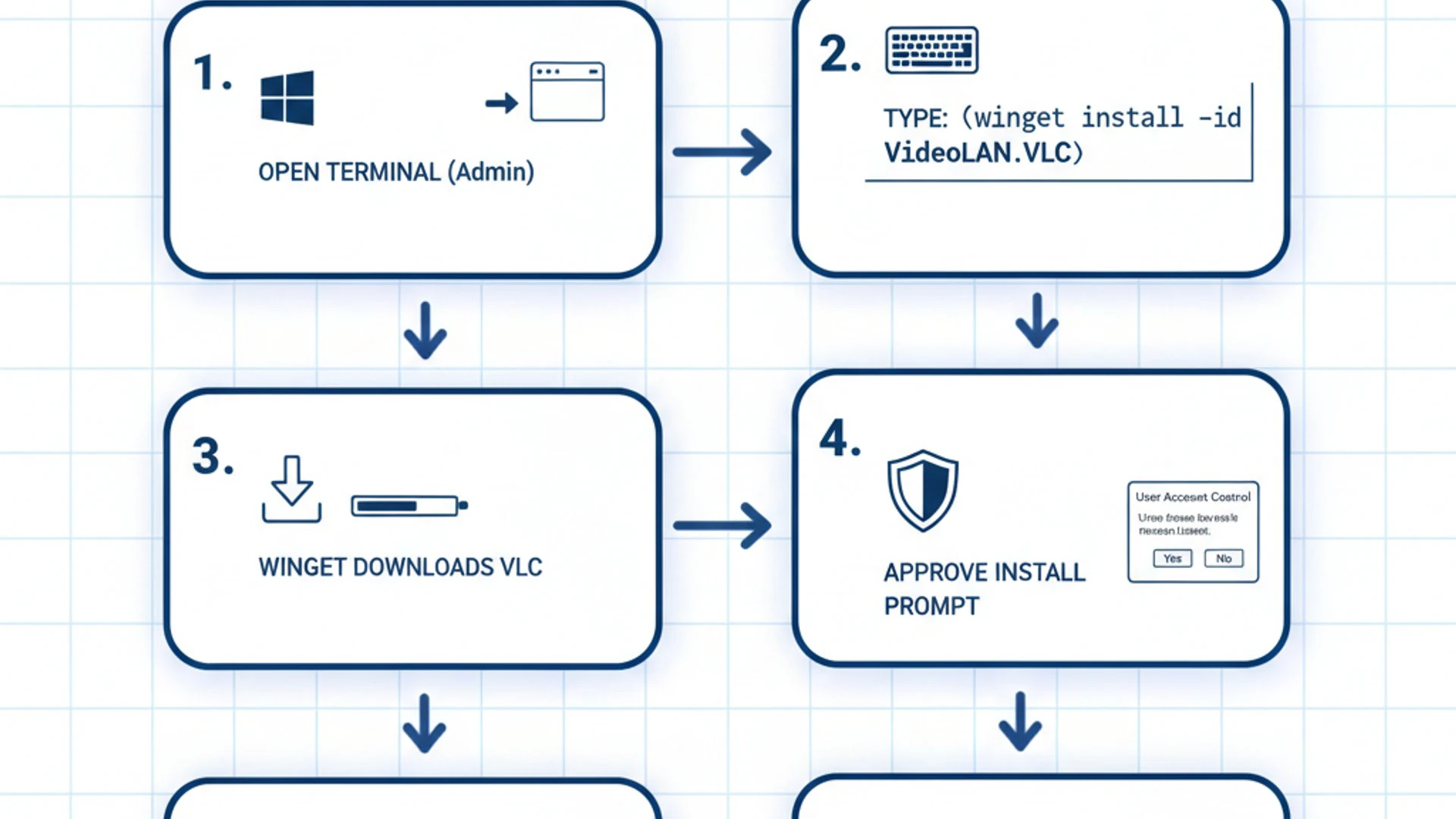
The primary concern is confirming that Winget itself is present and functional on your system. While it typically comes pre-installed with modern versions of Windows 11, especially through the App Installer from the Microsoft Store, it’s always wise to verify its presence and version number.
Another critical aspect is ensuring you possess the necessary administrative privileges. Many software installations and system-level operations, including those performed by Winget, require elevated permissions to make changes to your operating system. Without these, you might encounter frustrating errors.
Verifying Winget Installation
Winget is distributed as part of the App Installer package available through the Microsoft Store. Most Windows 11 installations will have it by default. However, if you’ve recently performed a clean install or are unsure, a quick check can confirm its availability. This verification step is simple and provides confidence before proceeding with any installation tasks.
If Winget is not found, you can easily install it by visiting the Microsoft Store and searching for “App Installer.” Once installed, Winget will be ready for use from your command line interface. Ensuring this foundational tool is correctly set up is your first step towards modern software management.
Checking Winget Version via Command Prompt
To verify Winget’s installation and check its version, you’ll need to open a command-line interface. The Windows Terminal is the recommended tool on Windows 11, offering a modern and feature-rich environment. Alternatively, the traditional Command Prompt or PowerShell will also work.
Follow these steps to check your Winget version:
- Press
Win + Xon your keyboard to open the Power User Menu. - Select Windows Terminal (Admin) or Command Prompt (Admin) from the list. This ensures you have the necessary administrative privileges.
- Once the terminal window opens, type the following command and press
Enter:winget --version
If Winget is installed correctly, you will see its version number displayed, for example, v1.4.10173 or similar. If you receive an error message like “winget is not recognized as an internal or external command,” it means Winget is not installed or not properly configured in your system’s PATH. In that case, proceed to install the App Installer from the Microsoft Store.
Ensuring Administrator Privileges
As mentioned, administrative privileges are essential for Winget to function correctly, especially when installing or uninstalling applications. Running the Windows Terminal or Command Prompt as an administrator grants Winget the necessary permissions to modify system files and directories.
You can always tell if your terminal session has administrative privileges by looking at the title bar of the window; it will usually say “Administrator” or “Admin.” If you open a regular, non-admin terminal, Winget commands that require elevated access will likely fail with permission errors.
It’s a good practice to always open your terminal as an administrator when planning to use Winget for installations or updates. This proactive step prevents many common issues and ensures a smooth workflow. For more details on managing system services, you might find our guide on RPC Endpoint Mapper on Windows 11 insightful, as it touches on foundational Windows services.
With these prerequisites met, you are now fully prepared to proceed with the main event: installing VLC Media Player using Winget.
Step-by-Step Guide: Installing VLC Media Player with Winget
Now that your system is ready and Winget is verified, we can proceed with the core task: installing winget vlc media player on Windows 11. This process is remarkably straightforward and showcases the efficiency of using a package manager. We’ll break it down into easy-to-follow steps, ensuring you can get VLC up and running in no time.
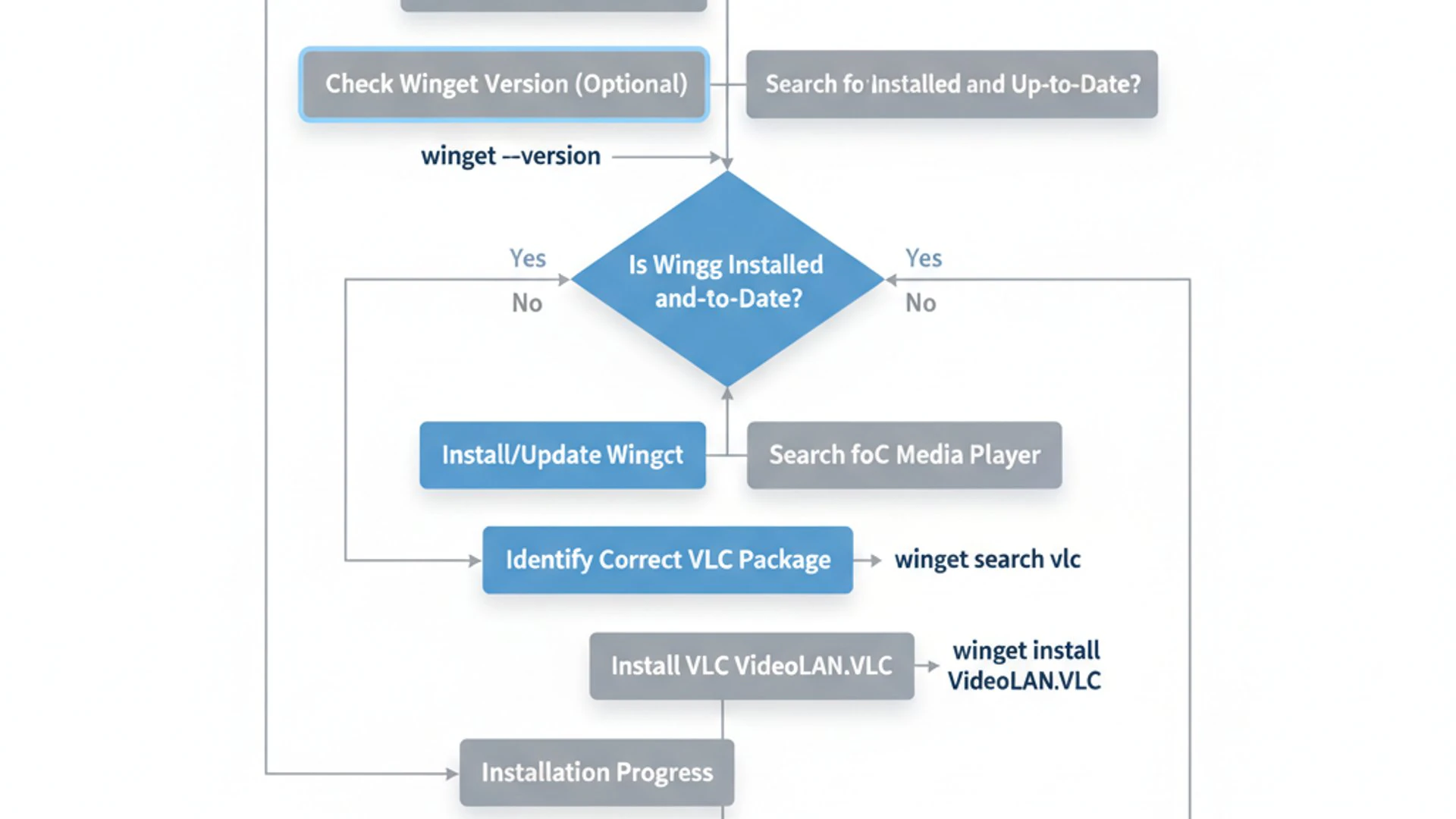
The key to successful installation lies in accurately identifying the correct package and executing the command with precision. Winget simplifies this by providing a searchable repository of applications. Let’s walk through each stage, from opening your terminal to the final installation command.
Opening Windows Terminal or Command Prompt
The first step is to open your command-line interface with administrative privileges. As discussed in the prerequisites, this is crucial for Winget to perform its operations without encountering permission issues.
Here’s how to do it:
- Right-click on the Start button (or press
Win + X). - From the menu that appears, select Windows Terminal (Admin).
- A User Account Control (UAC) prompt may appear asking for permission. Click Yes to grant administrative access.
You should now see a terminal window open, typically with a PowerShell tab, indicating “Administrator” in its title bar. This environment is perfect for interacting with Winget.
Searching for VLC Media Player in Winget
Before you can install VLC, you need to find its unique identifier, or “package ID,” within the Winget repository. This ID ensures you’re installing the correct application and not a similarly named one. Winget’s search function makes this process very intuitive.
In your administrative Windows Terminal, type the following command and press Enter:
winget search vlc
This command will query the Winget repository and display a list of packages that match “vlc” in their name or description. You’ll typically see entries for VLC Media Player from VideoLAN, along with its unique ID.
Identifying the Correct Package ID
After running the search command, you’ll see output similar to this:
Look for the entry that corresponds to the official VLC media player. The most common and stable version will usually have an ID like VideoLAN.VLC. The “Source” column should indicate “winget,” confirming it’s from the official repository.
It’s important to select the stable version (e.g., VideoLAN.VLC) unless you specifically intend to install a nightly build or a different variant. The Package ID is what you’ll use in the installation command.
Executing the Installation Command
Once you have identified the correct package ID (e.g., VideoLAN.VLC), you can proceed with the installation. This is the final and most critical step in getting winget vlc media player on Windows 11.
In the same administrative Windows Terminal, type the following command, replacing VideoLAN.VLC with the exact package ID you found, and press Enter:
winget install VideoLAN.VLC
Winget will then begin the installation process. You might see a progress bar or messages indicating the download and installation status. It may also prompt you to accept the application’s license agreement. Type Y and press Enter if prompted to accept the terms.
The installation typically proceeds silently in the background, downloading the necessary files and installing VLC Media Player on your system. Once completed, you will receive a success message in the terminal, confirming that VLC has been installed. You can then close the terminal and launch VLC from your Start Menu or desktop shortcut.
This method not only installs VLC efficiently but also ensures you’re getting the legitimate software directly from a trusted source, enhancing your system’s security. For managing other critical Windows services, consider exploring our guide on Declared Configuration Service on Windows 11 Explained.
After successfully installing VLC, the next logical step is to ensure it remains up-to-date, a task that Winget handles with similar ease.
Updating VLC Media Player Using Winget
Keeping your software updated is paramount for security, performance, and accessing the latest features. Just as Winget simplifies installation, it also makes updating applications like winget vlc media player on Windows 11 a breeze. Instead of manually checking for new versions and downloading installers, a single command can refresh all your Winget-managed applications.
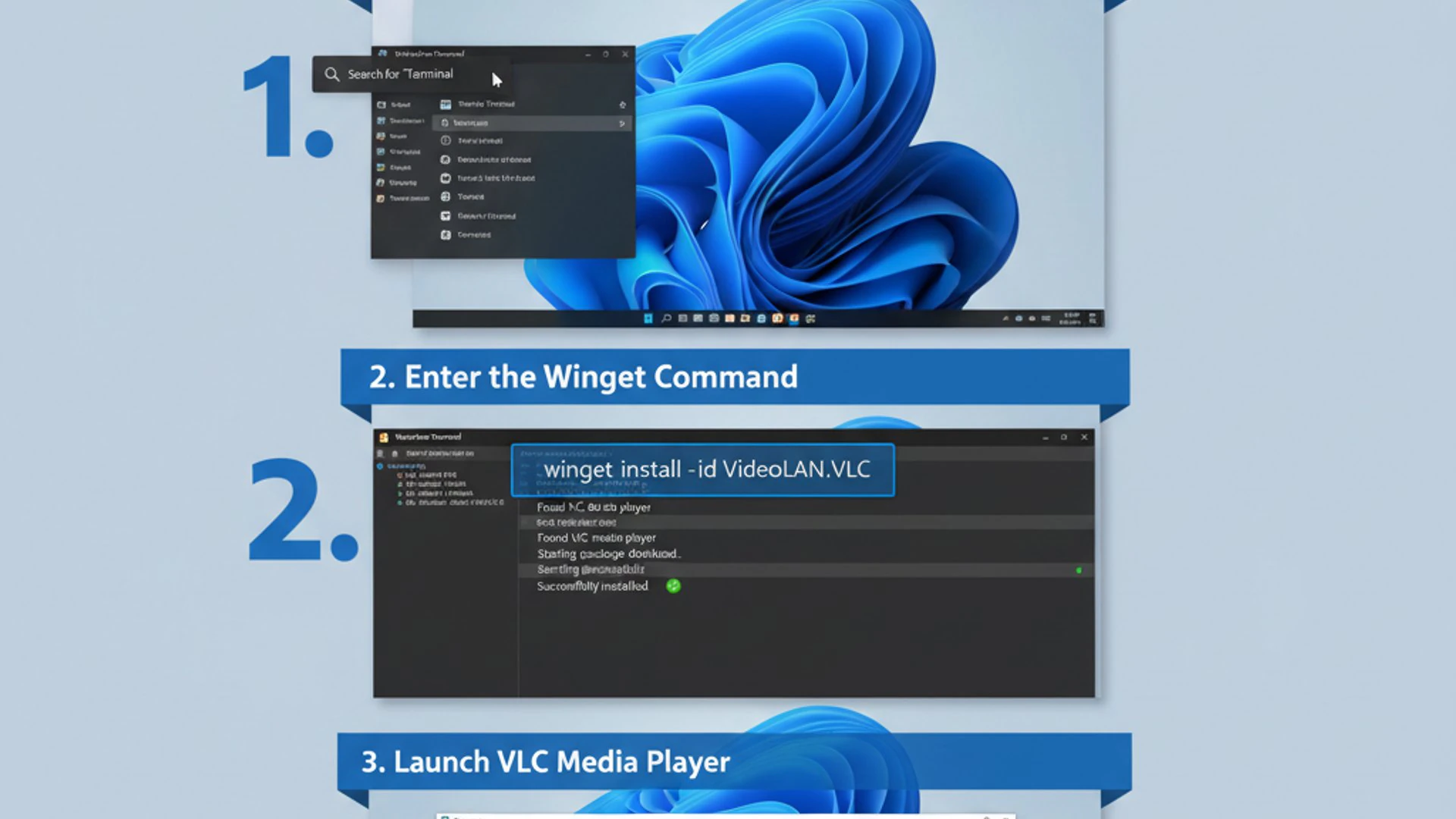
Regular updates patch security vulnerabilities, fix bugs, and often introduce performance enhancements or new functionalities. Leveraging Winget for this task ensures that your VLC Media Player is always running the most current and stable version available, contributing to a safer and more enjoyable media experience.
Checking for Available Updates
Before initiating an update, it’s good practice to see which applications have new versions available. Winget provides a convenient command to list all installed packages that have updates pending. This allows you to review and decide which applications to refresh.
To check for available updates, open your Windows Terminal (Admin) and execute the following command:
winget upgrade
This command will scan your installed Winget packages against the repository and display a list of applications for which newer versions exist. You’ll see columns like “Name,” “Id,” “Version,” and “Available,” making it easy to spot VLC if an update is pending.
For example, the output might look like this:
If VLC media player appears in this list with a newer “Available” version, an update is ready. This proactive check helps you stay informed about your software’s status.
Running the Update Command
Once you’ve identified that an update for VLC Media Player is available, applying it is as simple as running another Winget command. You have the option to update VLC specifically or to update all Winget-managed applications simultaneously.
To update only VLC Media Player, use its package ID:
winget upgrade VideoLAN.VLC
This command will download and install the latest version of VLC, replacing your current installation while preserving your settings and preferences where possible. You might be prompted to accept license agreements again, similar to the initial installation.
Alternatively, to update all Winget-managed applications that have available upgrades, you can use a single, powerful command:
winget upgrade --all
This command is incredibly efficient for maintaining an entire suite of applications. It will iterate through all listed upgrades and install them one by one. This is a significant time-saver and ensures your entire software ecosystem remains current. Remember to always run these commands in an administrative terminal to avoid permission issues.
Practical Tip: Regularly running
winget upgrade --allis a best practice for keeping your Windows 11 system secure and performing optimally. It centralizes the update process, reducing the risk of outdated software vulnerabilities.
By integrating Winget into your routine for updates, you streamline system maintenance and enhance your digital security posture. Next, we’ll cover how to cleanly remove VLC if it’s no longer needed.
Uninstalling VLC Media Player with Winget
Just as easily as Winget installs and updates software, it also provides a clean and efficient method for uninstallation. When you no longer need an application like winget vlc media player on Windows 11, using Winget to remove it ensures that the process is thorough, minimizing leftover files and registry entries that often plague traditional uninstallation methods.
This section will guide you through the process of locating the installed VLC package and executing the command to remove it from your system. A clean uninstallation contributes to a healthier and less cluttered operating system, preventing potential conflicts or performance degradation over time.
Locating the Installed Package
Before you can uninstall VLC, you need to confirm its exact package ID, similar to how you identified it for installation. While you likely remember VideoLAN.VLC, it’s always good practice to verify, especially if you manage many applications or if you’re uninstalling something you installed a long time ago.
To list all applications installed via Winget on your system, open your Windows Terminal (Admin) and use the following command:
winget list
This command will display a comprehensive list of all packages that Winget recognizes as installed. Scroll through the list or use the search function (e.g., winget list --name vlc) to find VLC media player and confirm its package ID, which should be VideoLAN.VLC.
The output will show the Name, Id, Version, and Source of each installed application. Confirming the ID ensures you target the correct software for removal.
Initiating the Uninstallation Process
Once you have the confirmed package ID for VLC Media Player, the uninstallation command is straightforward. Ensure you are still in an administrative Windows Terminal session before proceeding.
To uninstall VLC Media Player, execute the following command:
winget uninstall VideoLAN.VLC
Upon executing this command, Winget will initiate the uninstallation process. You might see messages indicating the progress, and in some cases, a prompt to confirm the uninstallation or to close any running instances of VLC. It’s always best to close VLC before attempting to uninstall it to prevent potential issues.
Once the process is complete, Winget will display a success message, confirming that VLC Media Player has been removed from your system. You can then verify its absence by checking your Start Menu or by running winget list again, where VLC should no longer appear.
Important Note: While Winget aims for a clean uninstallation, some user-specific configuration files or media library data might remain in your user profile folder (e.g.,
%APPDATA%\VLC). If you wish to remove these as well, you’ll need to do so manually after the Winget uninstallation.
This method provides a far more controlled and cleaner removal than simply deleting program folders, which often leaves behind unwanted traces. With installation, updating, and uninstallation covered, let’s now explore some more advanced Winget capabilities.
Advanced Winget Commands for Software Management
Winget’s utility extends far beyond simple install, update, and uninstall operations for individual applications like winget vlc media player on Windows 11. It offers a suite of advanced commands that empower users to manage their software ecosystem with greater efficiency, automation, and control. These commands are particularly valuable for system administrators, developers, or anyone managing multiple Windows machines.
Understanding these advanced features can significantly streamline your workflow, allowing for bulk operations, system configuration backups, and more sophisticated package management strategies. Let’s delve into some of these powerful capabilities.
Listing All Installed Packages
We’ve already touched upon winget list to find specific packages, but its full potential lies in providing a comprehensive overview of all applications installed on your system that Winget can manage. This includes applications installed manually that Winget has recognized, as well as those installed directly through the package manager.
To get a complete inventory, simply run:
winget list
The output provides details such as the application’s name, its unique Winget ID, the installed version, and the source. This list is invaluable for auditing your installed software, identifying outdated applications, or preparing for system migrations. You can also filter this list using various parameters, such as --name, --id, or --source, for more targeted searches.
For instance, to list only packages from a specific source:
winget list --source winget
This command helps you maintain a clear picture of your software environment, which is crucial for effective system management.
Installing Multiple Applications Simultaneously
One of the most powerful features of Winget for bulk management is the ability to install several applications with a single command. This is incredibly useful when setting up a new machine or provisioning multiple systems with a standard set of software.
While there isn’t a direct winget install package1 package2 command, you can achieve this by creating a simple batch file or PowerShell script that lists multiple winget install commands. Even better, Winget supports installing applications from a manifest file.
You can create a .json file (e.g., apps.json) that specifies all the applications you want to install. The structure would look something like this:
Save this file and then run the following command in your administrative terminal:
winget import -i apps.json
This command will read the manifest and install all specified packages, making it an ideal solution for automating software deployment. This capability significantly reduces manual effort and ensures consistency across installations.
Exporting and Importing Installed Packages
Building on the previous point, Winget allows you to export a list of your currently installed applications into a JSON file. This feature is invaluable for creating a backup of your software configuration or for quickly replicating your setup on another machine. It acts as a manifest of your installed software.
To export your installed packages, use the command:
winget export -o my_installed_apps.json
This command will generate a my_installed_apps.json file in your current directory, containing a list of all Winget-managed applications on your system. You can then take this file to another Windows 11 machine and use the import command to install all those applications.
To import and install applications from such a file on a new system, simply run:
winget import -i my_installed_apps.json
This automates the reinstallation of your favorite software suite, including VLC Media Player, after a fresh Windows installation or when setting up a new PC. This capability is a cornerstone of efficient system management and disaster recovery planning. For other aspects of system recovery, our guide on System Image Backup on Windows 11 offers further insights.
These advanced commands elevate Winget from a simple installer to a powerful system administration tool, making software management on Windows 11 more robust and less time-consuming. However, even with such a powerful tool, issues can sometimes arise.
Troubleshooting Common Winget Installation Issues
While Winget is designed for reliability and ease of use, you might occasionally encounter issues during installation, updates, or uninstallation of applications like winget vlc media player on Windows 11. Understanding common problems and their solutions can save you significant time and frustration. This section addresses some of the most frequent Winget errors and provides practical steps to resolve them.
Most issues stem from environmental factors, permissions, or network connectivity. By systematically addressing these, you can often quickly get back on track and complete your software management tasks successfully. Let’s look at some typical scenarios.
Winget Not Recognized as a Command
This is perhaps the most common issue for new Winget users. When you type winget into your terminal and receive an error message like “winget is not recognized as an internal or external command, operable program or batch file,” it indicates that the Winget executable is not in your system’s PATH environment variable, or it’s not installed at all.
Solutions:
- Install/Update App Installer: Winget is part of the App Installer package from the Microsoft Store. Go to the Microsoft Store, search for “App Installer,” and ensure it’s installed and up-to-date.
- Restart Terminal: After installing or updating App Installer, close all open terminal windows and reopen them (preferably as administrator). Sometimes the PATH variable needs a refresh.
- Check PATH Variable (Advanced): Less common, but if the above doesn’t work, ensure the directory containing
winget.exe(usually something like%LOCALAPPDATA%\Microsoft\WindowsApps) is included in your system’s PATH environment variable.
In most cases, simply installing or updating the App Installer from the Microsoft Store and then restarting your terminal will resolve this issue.
Installation Failed or Package Not Found
When you try to install an application and Winget reports “Installation failed” or “No package found matching the input criteria,” several factors could be at play.
Solutions:
- Verify Package ID: Double-check the package ID you are using. Winget IDs are case-sensitive and must be exact. For VLC, it’s
VideoLAN.VLC. Usewinget search vlcto confirm. - Check Network Connectivity: Winget needs an active internet connection to download packages. Ensure your connection is stable.
- Repository Issues: Occasionally, the Winget repository might experience temporary issues. Try again after some time. You can also try refreshing the Winget sources with
winget source reset --force. - Antivirus/Firewall Interference: Your antivirus software or firewall might be blocking the download or installation process. Temporarily disable them (with caution) to see if that resolves the issue, then re-enable them.
- Insufficient Disk Space: Ensure you have enough free disk space for the installation.
For persistent failures, checking the Winget logs (often found in %LOCALAPPDATA%\Microsoft\Winget\Logs) can provide more detailed error messages. Understanding how services interact can also help, as detailed in our guide on GameInput Redist Service on Windows 11.
Permissions Errors During Installation
Permissions errors, often manifesting as “Access Denied” or similar messages, are a clear indicator that Winget does not have the necessary privileges to perform the requested operation. This is a common hurdle when not running the terminal as an administrator.
Solutions:
- Run as Administrator: Always open Windows Terminal (Admin) or Command Prompt (Admin) when using Winget for installations, updates, or uninstallation. This is the most frequent cause and easiest fix.
- User Account Control (UAC): If UAC prompts appear, ensure you click “Yes” to grant the necessary permissions.
- Folder Permissions: In rare cases, specific folder permissions might be corrupted. This is more advanced to troubleshoot but can sometimes be fixed by taking ownership of the target installation directory or running a system file check (
sfc /scannow).
Pro Tip: When troubleshooting, try to isolate the problem. Does Winget work for other applications? Does it fail consistently? These questions can guide you to the root cause.
By systematically addressing these common issues, you can ensure a smoother and more reliable experience when managing software with Winget on your Windows 11 system. With troubleshooting covered, let’s recap the overarching benefits of adopting Winget for your software needs.
Benefits of Using Winget for Software Management
Adopting Winget for managing applications like winget vlc media player on Windows 11 represents a significant leap forward in how users interact with software on their operating system. Beyond the convenience of command-line installations, Winget brings a host of tangible benefits that enhance security, reliability, and overall system management. It transforms a traditionally fragmented process into a unified and efficient workflow.
These advantages are particularly pronounced in a modern computing environment where maintaining a secure and up-to-date software ecosystem is crucial. Let’s explore the key benefits that make Winget an indispensable tool for Windows 11 users.
Enhanced Security and Reliability
One of the most compelling reasons to use Winget is the significant boost it provides to your system’s security and the reliability of your software. When you download installers from various websites, you run the risk of encountering malicious software, outdated versions, or bundled bloatware.
Winget mitigates these risks by:
- Trusted Sources: Packages in the official Winget repository are vetted by Microsoft and community contributors, ensuring they come from legitimate sources and are free from malware.
- Checksum Verification: Winget often performs checksum verification on downloaded packages, ensuring the integrity of the installer files and preventing tampering during download.
- Consistent Updates: As demonstrated, Winget makes it easy to keep all your applications updated. Timely updates patch security vulnerabilities, reducing your exposure to exploits.
This centralized and verified approach to software distribution significantly reduces the attack surface of your system, making your Windows 11 environment more secure and less prone to software-related issues. For deeper insights into system security, consider our article on Web Threat Defense Service on Windows 11.
Automation and Scripting Capabilities
For power users, IT professionals, and developers, Winget’s command-line interface unlocks powerful automation and scripting capabilities. The ability to install, update, and uninstall applications programmatically is a game-changer for system setup and maintenance.
Key automation benefits include:
- Batch Installations: As seen with the
winget importcommand, you can define a list of applications in a JSON file and install them all with a single command, ideal for new PC setups or departmental deployments. - Scheduled Updates: You can integrate
winget upgrade --allinto scheduled tasks or scripts, ensuring your software is automatically kept up-to-date without manual intervention. - Consistent Environments: Scripts can enforce a standardized software environment across multiple machines, reducing configuration drift and support issues.
This level of automation saves immense time and effort, especially in environments where many machines need to be managed or where frequent reinstallation of operating systems occurs. It transforms software management from a tedious chore into an efficient, repeatable process.
Centralized Software Discovery
Finding and installing new software can often involve navigating multiple websites, each with its own download process and potential advertisements. Winget offers a centralized hub for discovering and acquiring applications, simplifying the entire experience.
Benefits of centralized discovery:
- Single Search Point: Use
winget search <app_name>to find applications across a vast repository, eliminating the need to browse numerous vendor sites. - Standardized Installation: Regardless of the application, the installation process via Winget remains consistent, using the same commands and prompts.
- Reduced Clutter: By streamlining discovery and installation, Winget helps reduce the amount of temporary installer files and browser tabs typically associated with software acquisition.
This centralized approach not only makes finding software easier but also provides a consistent, predictable, and more pleasant user experience. It positions Winget as the go-to tool for all your software installation needs on Windows 11, from simple media players to complex development tools.
These benefits collectively highlight why integrating Winget into your Windows 11 workflow is not just a convenience but a strategic move towards more efficient, secure, and modern software management. This brings us to our concluding thoughts on this powerful combination.
Conclusion: Embracing Modern Software Deployment on Windows 11
The journey through installing, updating, and managing winget vlc media player on Windows 11 underscores a fundamental shift in how we interact with our operating system’s software. Gone are the days of endless browser searches, manual downloads, and navigating complex installation wizards for every application. With Winget, Microsoft has provided a robust, command-line driven solution that brings the efficiency and reliability of package managers to the Windows ecosystem.
We’ve seen how Winget simplifies the entire software lifecycle, from the initial search and installation of a beloved application like VLC Media Player to keeping it effortlessly updated and cleanly uninstalled when no longer needed. This streamlined approach not only saves time but also significantly enhances the security posture of your Windows 11 machine by ensuring software comes from trusted sources and remains current.
The advanced capabilities of Winget, such as bulk installations via manifest files and the ability to export and import entire software configurations, empower users to manage their digital environments with unprecedented control and automation. These features are invaluable for both individual users seeking a more efficient workflow and IT professionals managing multiple systems.
Embracing Winget for your software management needs on Windows 11 is a step towards a more modern, secure, and efficient computing experience. It represents a paradigm shift from reactive, manual software handling to proactive, automated deployment. We encourage you to integrate Winget into your daily routine, not just for VLC, but for all your compatible applications.
By doing so, you’ll unlock a new level of productivity and peace of mind, knowing that your software is always up-to-date, secure, and managed with precision. The future of Windows software deployment is here, and it’s powered by Winget.
For more interesting articles, stay tuned to Winsides.com!









Community
Comments (0)